> ## Documentation Index
> Fetch the complete documentation index at: https://www.integrate.io/docs/llms.txt
> Use this file to discover all available pages before exploring further.
# Aurora MySQL source for ELT & CDC
> Configure Aurora MySQL as a data source in Integrate.io ELT & CDC. Set up binary log replication from your Aurora MySQL database instances.
## Requirement
* Aurora cluster connecting to WRITER endpoint
### Create DB Parameter Group
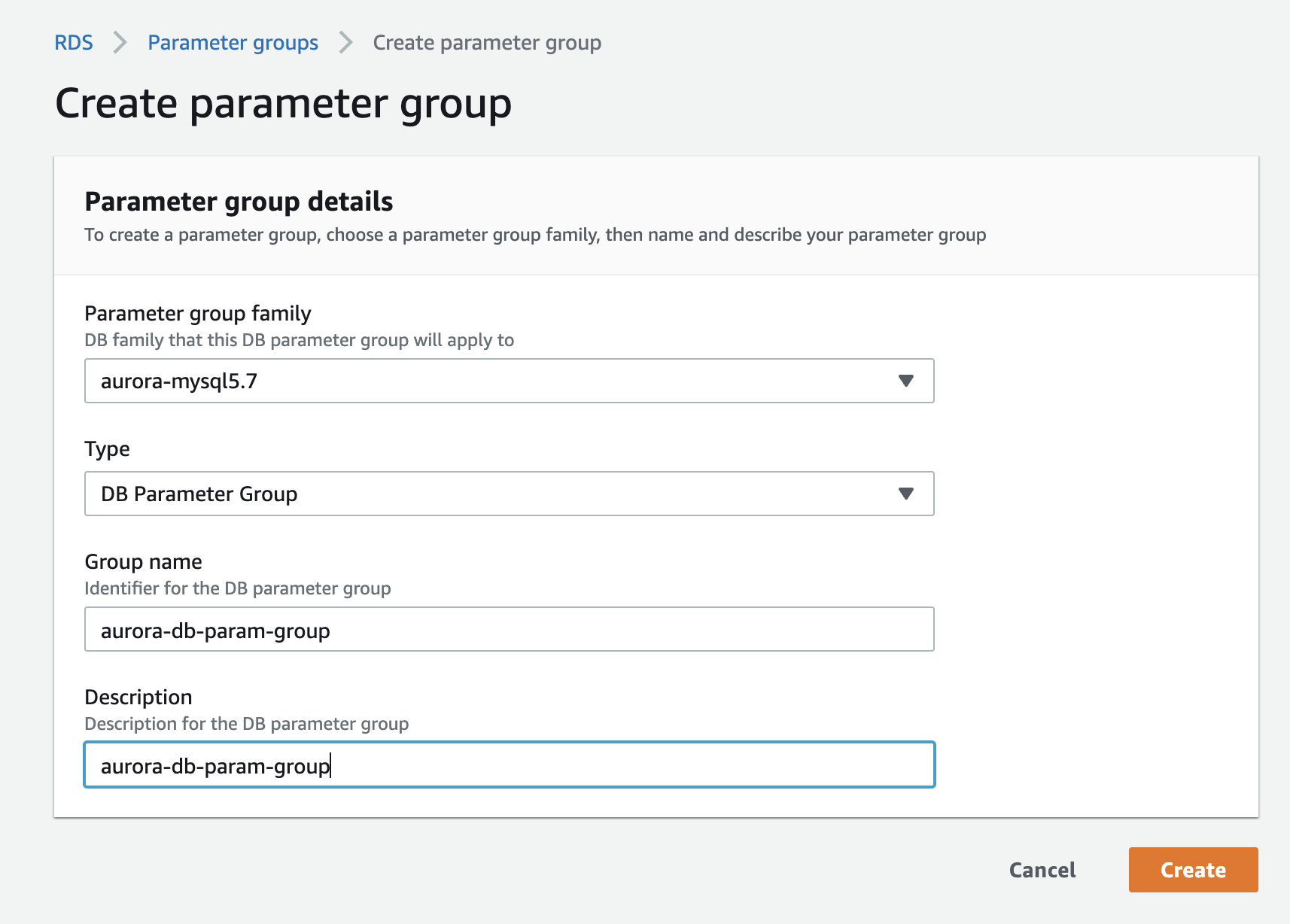
On AWS console, create a DB Parameter Group for your Aurora cluster. This allows you to create a collection of parameters you can later attach to your cluster. Click Create Parameter Groups, name its group name and description as you like, and click Save.
 **Edit DB Parameter Group**
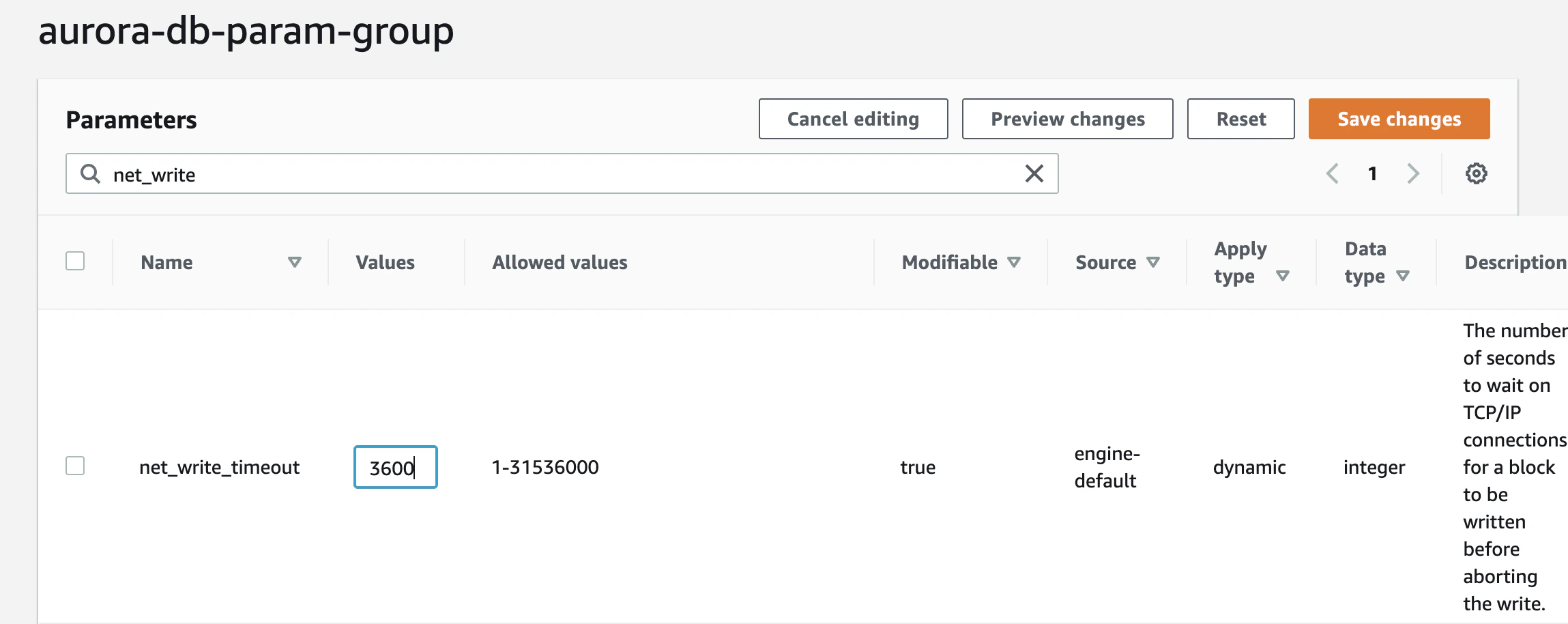
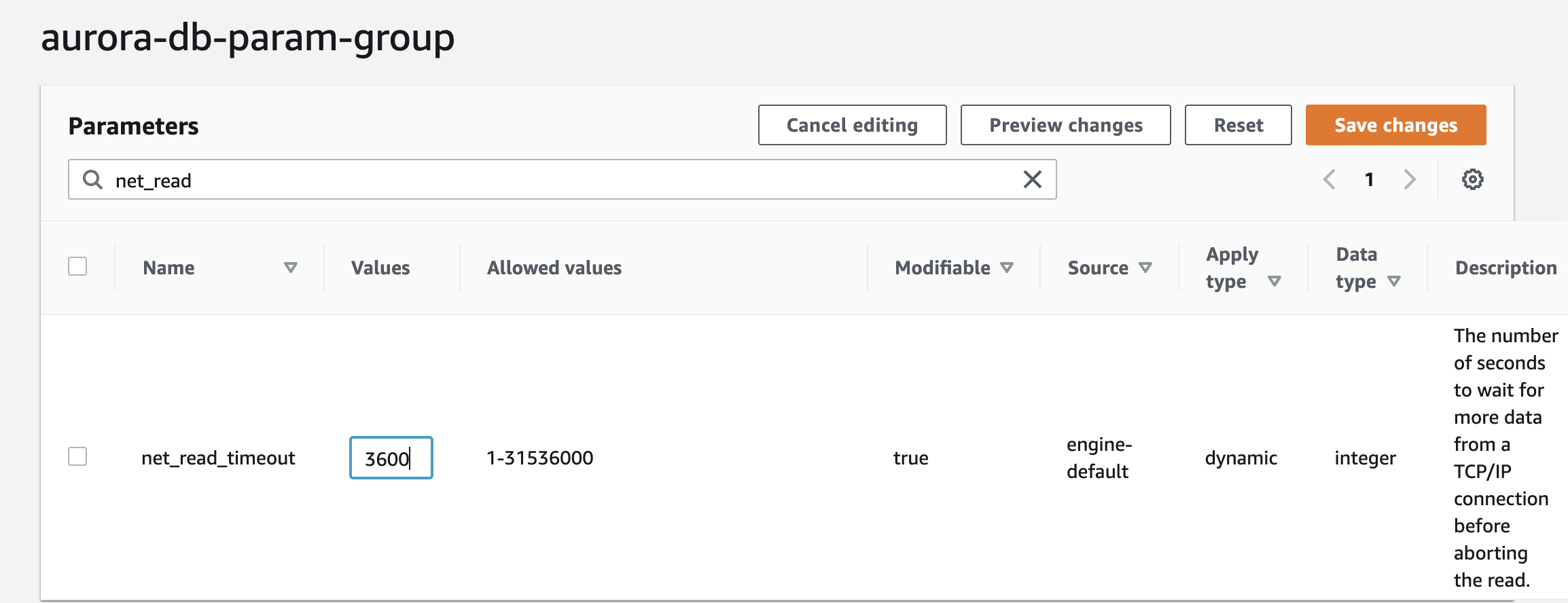
Select that DB Parameter group you made and edit the following parameters:
**Edit DB Parameter Group**
Select that DB Parameter group you made and edit the following parameters:
 ### Create DB Cluster Parameter Group
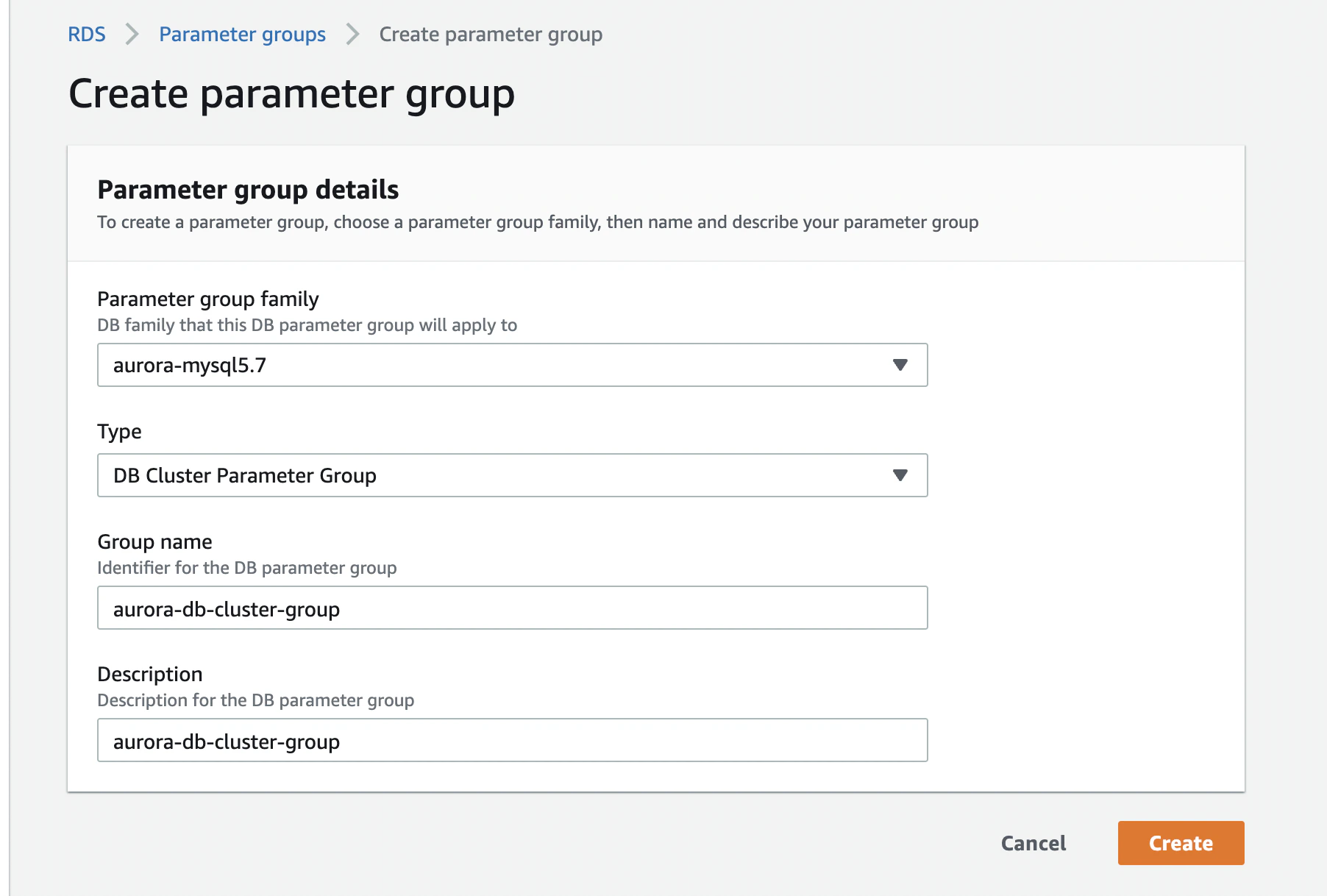
Next step is to create a **DB Cluster Parameter Group** for your Aurora cluster. This allows you to create a collection of parameters you can later attach to your cluster. First click **Parameter Groups** from the left pane, name its group name and description as you like, and hit **Save.**
### Create DB Cluster Parameter Group
Next step is to create a **DB Cluster Parameter Group** for your Aurora cluster. This allows you to create a collection of parameters you can later attach to your cluster. First click **Parameter Groups** from the left pane, name its group name and description as you like, and hit **Save.**
 ### Edit DB Cluster Parameter Group
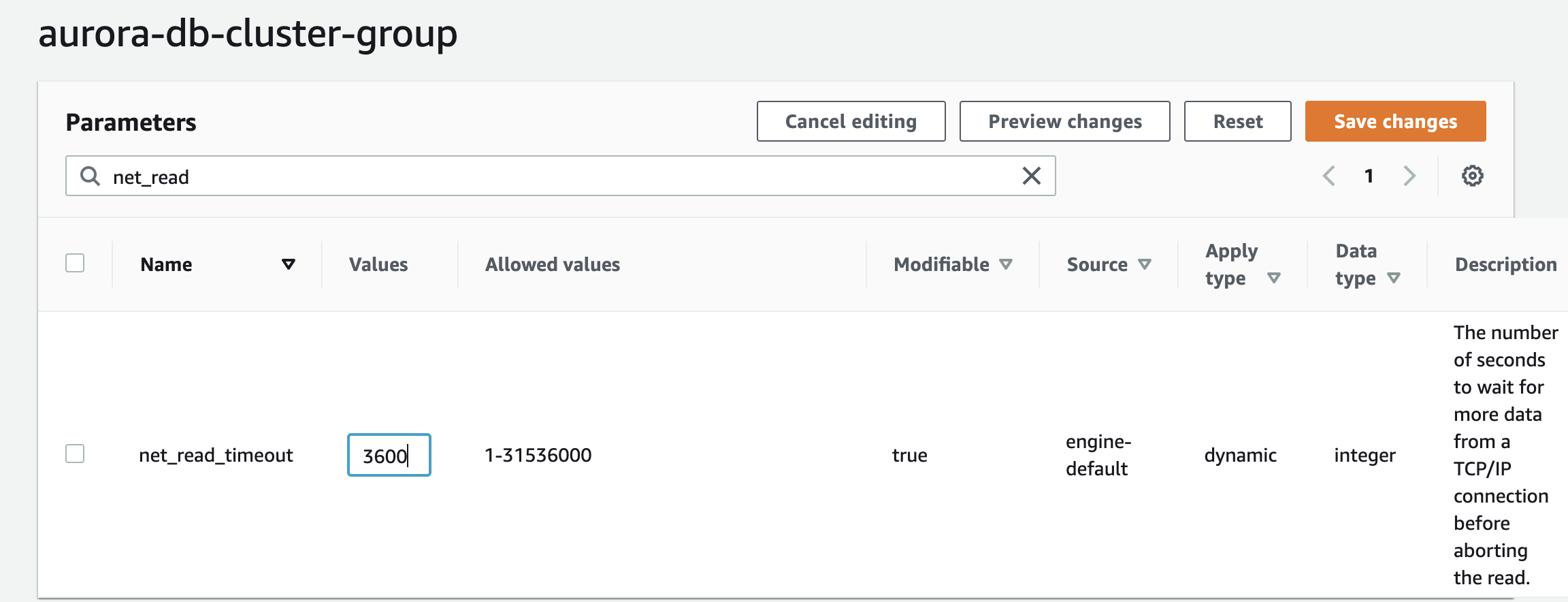
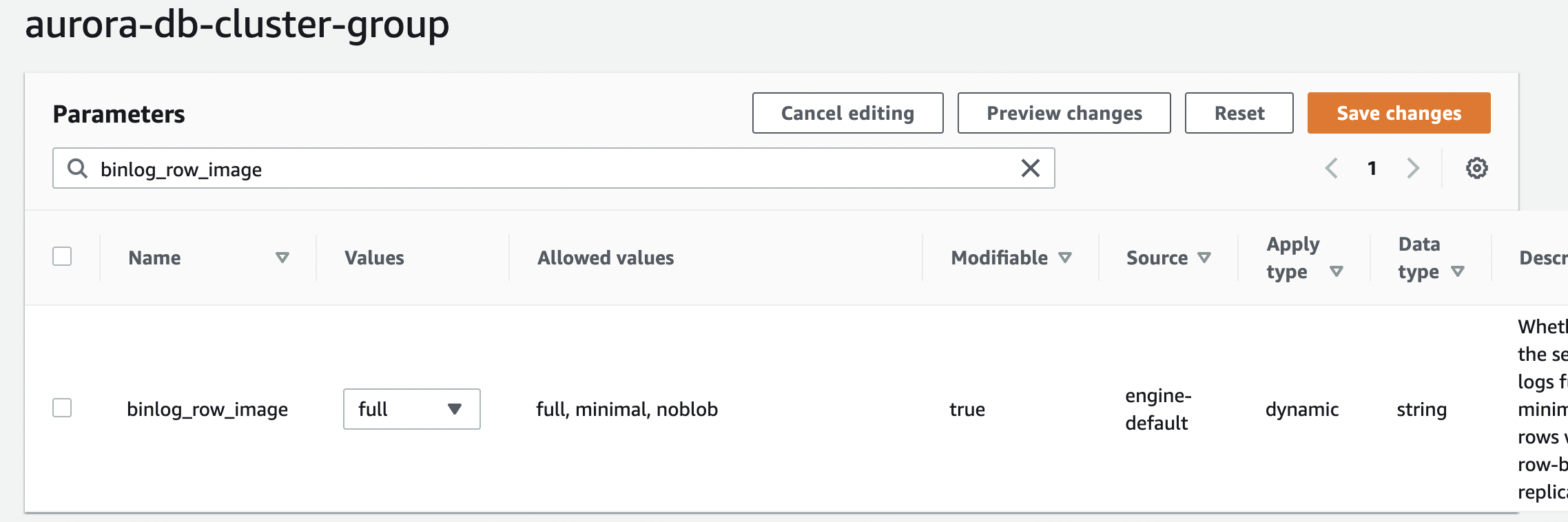
Select that DB Cluster Parameter Group you made and edit the following parameters:
### Edit DB Cluster Parameter Group
Select that DB Cluster Parameter Group you made and edit the following parameters:
 ### Configure the Instance
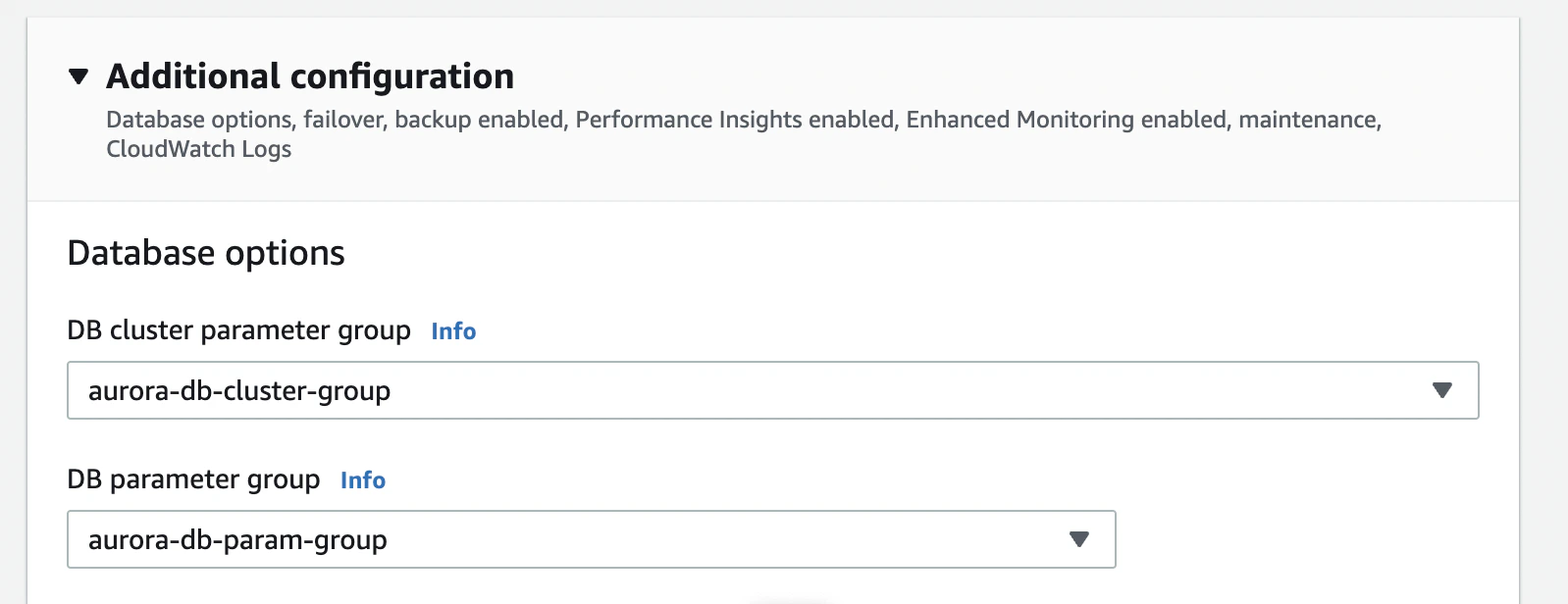
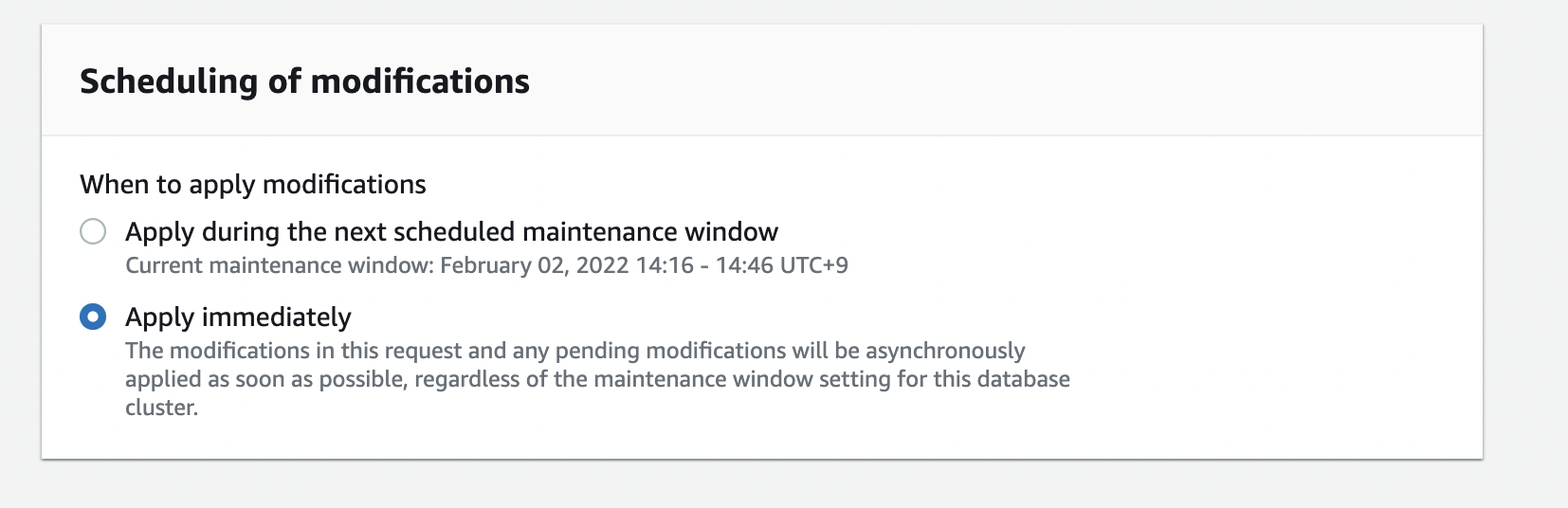
Attach the DB Parameter Group to your Aurora cluster. From the list of Aurora clusters, select the Aurora cluster you want to modify. Then click **Modify**. You will need to change the DB Parameter Group and the DB Cluster Parameter Group to the one you just created. Finally, click the check box for **Apply Immediately**, confirm the changes, and **Modify**.
### Configure the Instance
Attach the DB Parameter Group to your Aurora cluster. From the list of Aurora clusters, select the Aurora cluster you want to modify. Then click **Modify**. You will need to change the DB Parameter Group and the DB Cluster Parameter Group to the one you just created. Finally, click the check box for **Apply Immediately**, confirm the changes, and **Modify**.
 ## Create user for Sync
On your sourceDB, create a sync user for Integrate.io by executing,
```sql theme={null}
CREATE USER 'flydata'@'%' IDENTIFIED BY '';
```
Grant necessary privileges,
```sql theme={null}
GRANT SELECT, RELOAD, REPLICATION SLAVE, REPLICATION CLIENT, LOCK TABLES ON *.* TO 'flydata'@'%';
FLUSH PRIVILEGES;
```
## Increase binlog retention
To increase the binlog retention of the DB cluster, use the mysql\_rds\_set\_configuration procedure. You can run the following command and sample parameters on the writer instance to retain the binlog files for 7 days:
```sql theme={null}
CALL mysql.rds_set_configuration('binlog retention hours', 168);
```
## Create user for Sync
On your sourceDB, create a sync user for Integrate.io by executing,
```sql theme={null}
CREATE USER 'flydata'@'%' IDENTIFIED BY '';
```
Grant necessary privileges,
```sql theme={null}
GRANT SELECT, RELOAD, REPLICATION SLAVE, REPLICATION CLIENT, LOCK TABLES ON *.* TO 'flydata'@'%';
FLUSH PRIVILEGES;
```
## Increase binlog retention
To increase the binlog retention of the DB cluster, use the mysql\_rds\_set\_configuration procedure. You can run the following command and sample parameters on the writer instance to retain the binlog files for 7 days:
```sql theme={null}
CALL mysql.rds_set_configuration('binlog retention hours', 168);
```