> ## Documentation Index
> Fetch the complete documentation index at: https://www.integrate.io/docs/llms.txt
> Use this file to discover all available pages before exploring further.
# Aurora PostgreSQL source for ELT & CDC
> Configure Aurora PostgreSQL as a source in Integrate.io ELT & CDC. Enable logical replication on your Aurora cluster and grant rds_replication.
This page covers the **Aurora-specific** steps to prepare your cluster for ELT & CDC. After completing them, follow the common setup (sync user grants, heartbeat table, publication, and replication slot) on the [PostgreSQL source for ELT & CDC](/cdc/postgresql) page.
## Requirements
* Aurora PostgreSQL **version 10 or above**.
* Connect to the cluster **writer endpoint**. Logical replication only works on the primary instance.
* Tables with a `PRIMARY KEY`.
## Enable logical replication
Go to AWS RDS dashboard
Go to the AWS RDS console.
Create and configure parameter group - select your Aurora PostgreSQL version (e.g. shown below is postgres12). Choose **aurora-postgres10 or above**.
Create a **DB Cluster Parameter Group** that matches your Aurora PostgreSQL version (for example, `aurora-postgresql12`). Skip this step if you already have one.
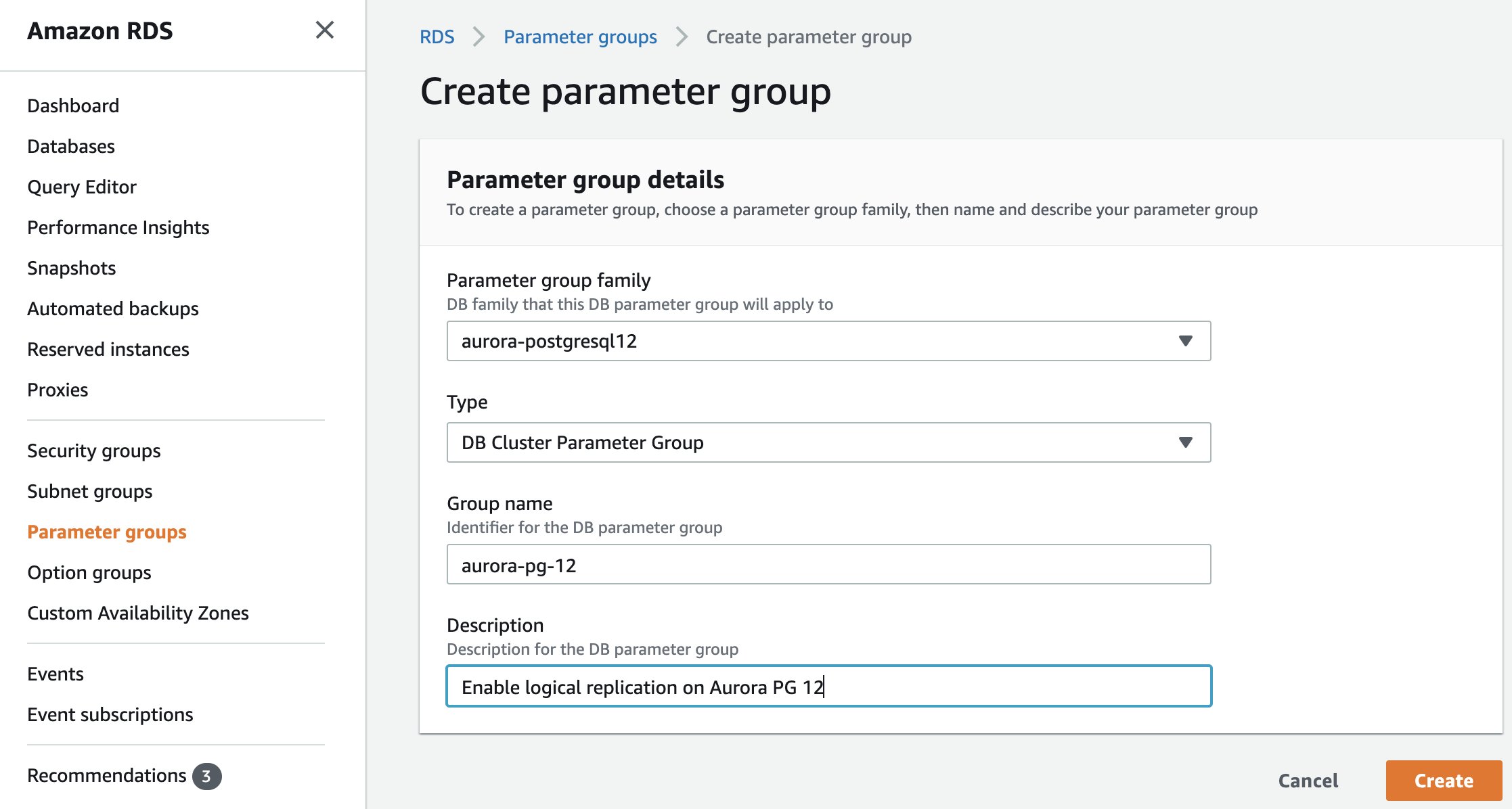 Choose type as **DB Cluster Parameter Group**.
**NOTE:**
You can skip this step if you have already created a parameter group.
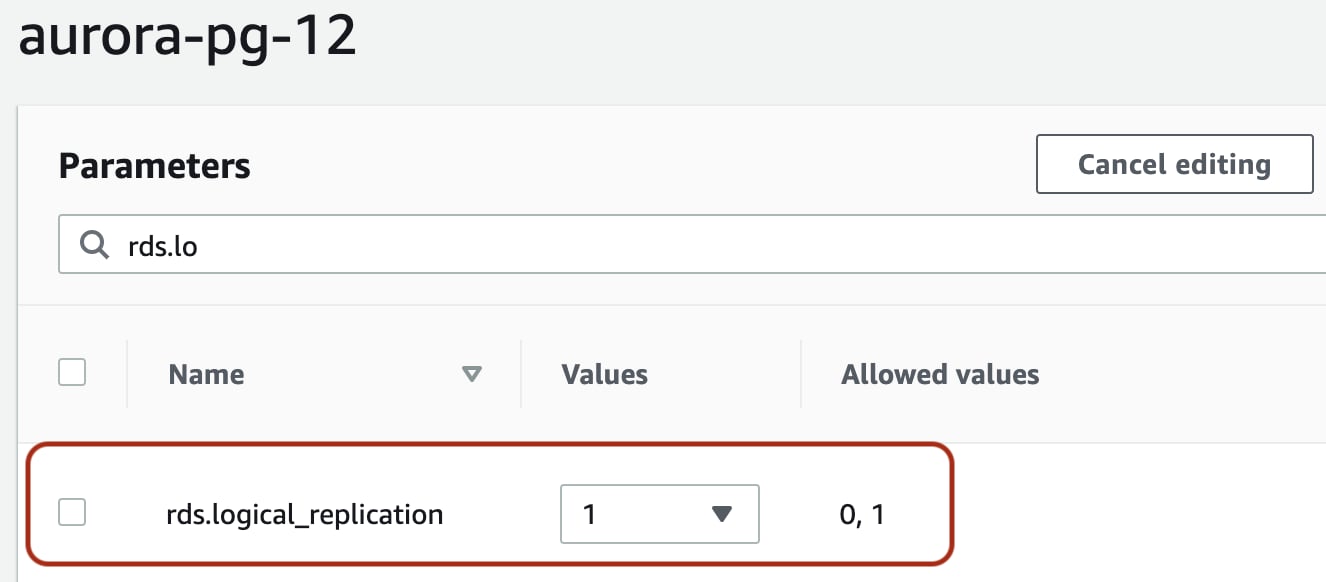
Next, go to the parameter group page, search for `rds.logical_replication`. Select this row and click the `Edit parameters` button. Set this value to `1`
Choose type as **DB Cluster Parameter Group**.
**NOTE:**
You can skip this step if you have already created a parameter group.
Next, go to the parameter group page, search for `rds.logical_replication`. Select this row and click the `Edit parameters` button. Set this value to `1`
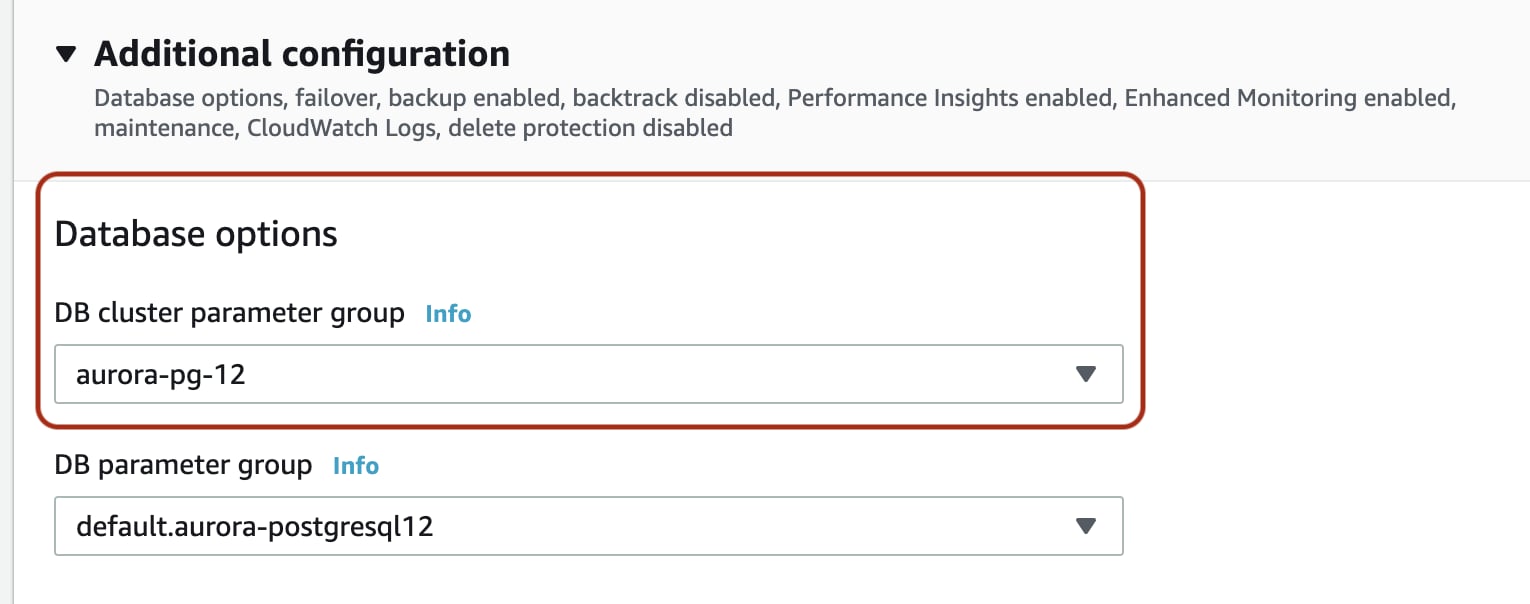
 Apply the parameter group to the database
 On the parameter group page, search for `rds.logical_replication`, select the row, click **Edit parameters**, and set the value to `1`.
Apply the parameter group to the cluster and reboot the writer instance so the change takes effect.
## Grant the Aurora replication role
After creating the sync user (see the [common setup](/cdc/postgresql#setup-steps-customer-managed)), grant the managed Aurora replication role instead of `ALTER ROLE ... WITH REPLICATION`:
```sql theme={null}
GRANT rds_replication TO integrateio;
```
## Next: common setup
Continue with the canonical PostgreSQL setup for the remaining steps — sync user privileges (`USAGE`, `SELECT`, `REFERENCES`), heartbeat table, publication, and replication slot:
On the parameter group page, search for `rds.logical_replication`, select the row, click **Edit parameters**, and set the value to `1`.
Apply the parameter group to the cluster and reboot the writer instance so the change takes effect.
## Grant the Aurora replication role
After creating the sync user (see the [common setup](/cdc/postgresql#setup-steps-customer-managed)), grant the managed Aurora replication role instead of `ALTER ROLE ... WITH REPLICATION`:
```sql theme={null}
GRANT rds_replication TO integrateio;
```
## Next: common setup
Continue with the canonical PostgreSQL setup for the remaining steps — sync user privileges (`USAGE`, `SELECT`, `REFERENCES`), heartbeat table, publication, and replication slot: