> ## Documentation Index
> Fetch the complete documentation index at: https://www.integrate.io/docs/llms.txt
> Use this file to discover all available pages before exploring further.
# BigQuery destination for ELT & CDC
> Configure Google BigQuery as a destination in Integrate.io ELT & CDC. Set up your BigQuery dataset to receive replicated source data.
## Overview
Integrate.io uses BigQuery's [streaming insert API](https://cloud.google.com/bigquery/streaming-data-into-bigquery) to ingest data into BigQuery. This requires billing to be enabled on the Google Cloud project.
### Requirements
* Billing must be enabled on the Google Cloud project.
* Ensure you have permission to create a service account with the `BigQuery Data Editor` role on the project.
### Setting up BigQuery for ELT & CDC
#### Create service account
Creating a service account for FlyData to use requires the BigQuery Data Editor role.
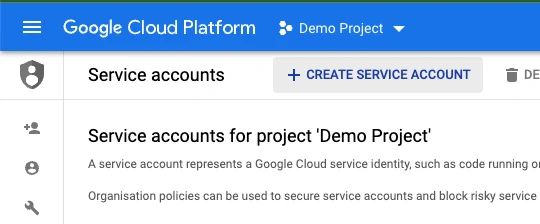
Go to your project's [service accounts page](https://console.cloud.google.com/iam-admin/serviceaccounts) and click `+ CREATE SERVICE ACCOUNT`.
 Enter the `Service account name` and add a description.
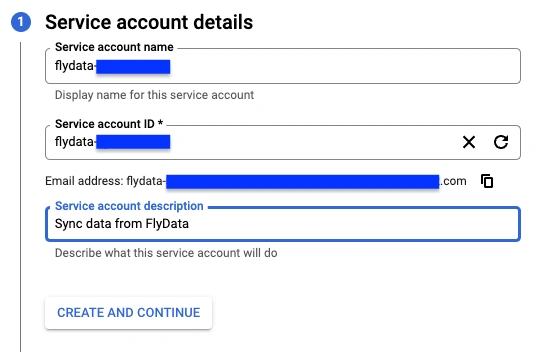 Click `CREATE AND CONTINUE`.
Select the `BigQuery Data Editor` role.
Click `CREATE AND CONTINUE`.
Select the `BigQuery Data Editor` role.
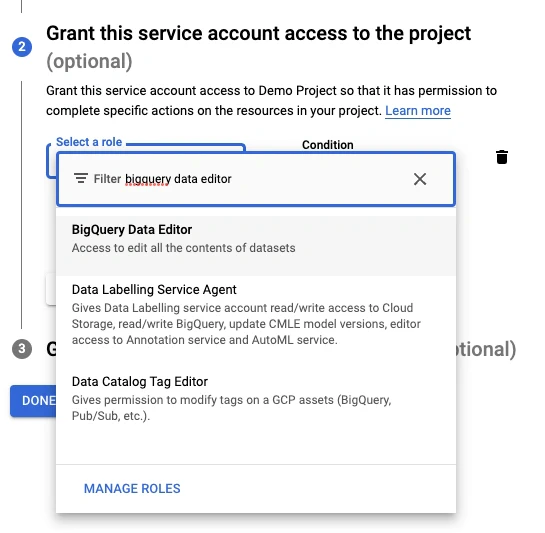 Select the `BigQuery Job User` role.\
Click `CONTINUE`.
Click `DONE`.
The service account should have been created successfully. Find it in the [service accounts list](https://console.cloud.google.com/iam-admin/serviceaccounts) and click it.
Select the `BigQuery Job User` role.\
Click `CONTINUE`.
Click `DONE`.
The service account should have been created successfully. Find it in the [service accounts list](https://console.cloud.google.com/iam-admin/serviceaccounts) and click it.
 Go to the `KEYS` tab.
Click `ADD KEY` and select `CREATE NEW KEY`.
Go to the `KEYS` tab.
Click `ADD KEY` and select `CREATE NEW KEY`.
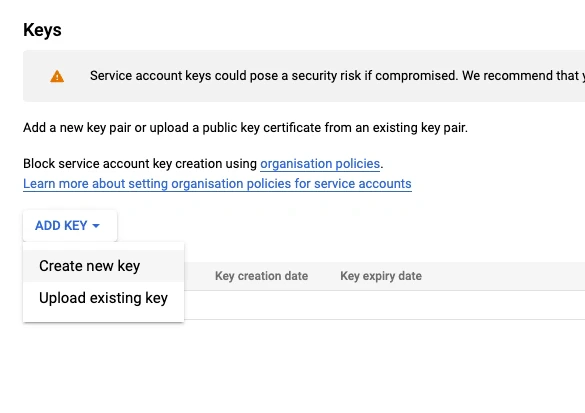 Select `JSON` and click `CREATE`.
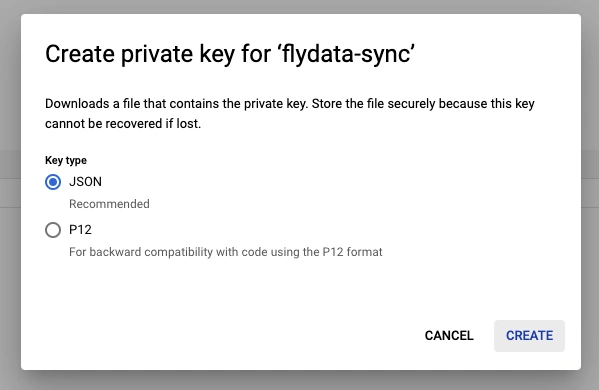 A JSON file should have been downloaded to your system. Upload it.
We will fetch the `client_email` and `private_key` properties from the JSON credential file.
#### Limitations
BigQuery doesn’t support deduplication. Instead, the following columns are added to the destination table for future deduplication on the customer’s side.
**\_\_offset** - Offset column. Keeps track of the offset in incremental order to determine which existing row is the latest.\
**\_\_op** - Operation column. Tells what kind of operation is performed for a particular row (0 - Created, 1 - Inserted, 2 - Updated, 3 - Deleted)
This query is to list the de-duplicated records:
```sql theme={null}
SELECT customer.*
FROM (SELECT id,
ARRAY_AGG(
t ORDER BY t.__offset DESC LIMIT 1
)[OFFSET(0)] customer
FROM \`euphoric-effect-296205.northwind.customer\` t
GROUP BY id);
```
This query is to upsert a staging table that Integrate.io is syncing to, into a production table used for querying:
```sql theme={null}
MERGE INTO \`northwind\`.customers o
USING (SELECT event.*
FROM (SELECT customer_id,
ARRAY_AGG(
t ORDER BY t.__offset DESC LIMIT 1
)[OFFSET(0)] event
FROM customers_staging_1 t
GROUP BY customer_id)) as s
ON o.customer_id = s.customer_id
WHEN MATCHED AND s.__op = 3 THEN
DELETE
WHEN MATCHED THEN
UPDATE SET o.company_name = s.company_name, o.__op = s.__op
WHEN NOT MATCHED THEN
INSERT ROW
```
After deleting tables on BigQuery, we have to wait (5+ minutes) to let the change propagate to all the machines in the BigQuery cluster. Otherwise, it might lead to some rows missing. This happens on resync requests. Please contact [support@integrate.io](mailto:support@integrate.io) to assist with the resync timing of user tables.
## Table Naming
Source table names are converted to snake case when the destination tables are created in BigQuery. The conversion follows these rules:
* All letters are lowercased.
* An underscore is inserted at a lowercase-to-uppercase boundary (for example, `MyTable` becomes `my_table`).
* An underscore is inserted at a digit-to-letter transition (for example, `A100B` becomes `a100_b`).
* No underscore is inserted at a letter-to-digit transition (for example, `ITEM01` stays `item01`).
* Non-alphanumeric characters such as spaces and hyphens are replaced with underscores.
Note that the digit rule is asymmetric: a name is split only where a digit is followed by a letter, never where a letter is followed by a digit. This mainly affects short, code-style table names.
| Source table | BigQuery table | Why |
| ---------------- | ----------------- | --------------------------------------------------------- |
| `INVOICES` | `invoices` | All letters, no transitions, only lowercased |
| `REV2` | `rev2` | Letter-to-digit only (`V` to `2`), which does not split |
| `ITEM01` | `item01` | Letter-to-digit only (`M` to `0`), which does not split |
| `Q1SALES` | `q1_sales` | Digit-to-letter transition (`1` to `S`) splits |
| `Order2023Items` | `order2023_items` | Splits at `3` to `I` (digit to letter), not at `r` to `2` |
| `MyTable` | `my_table` | Splits at the lowercase-to-uppercase boundary |
Because of the lowercasing, source tables whose names differ only by case (for example, `Orders` and `ORDERS`) map to the same BigQuery table name.
## Related
A JSON file should have been downloaded to your system. Upload it.
We will fetch the `client_email` and `private_key` properties from the JSON credential file.
#### Limitations
BigQuery doesn’t support deduplication. Instead, the following columns are added to the destination table for future deduplication on the customer’s side.
**\_\_offset** - Offset column. Keeps track of the offset in incremental order to determine which existing row is the latest.\
**\_\_op** - Operation column. Tells what kind of operation is performed for a particular row (0 - Created, 1 - Inserted, 2 - Updated, 3 - Deleted)
This query is to list the de-duplicated records:
```sql theme={null}
SELECT customer.*
FROM (SELECT id,
ARRAY_AGG(
t ORDER BY t.__offset DESC LIMIT 1
)[OFFSET(0)] customer
FROM \`euphoric-effect-296205.northwind.customer\` t
GROUP BY id);
```
This query is to upsert a staging table that Integrate.io is syncing to, into a production table used for querying:
```sql theme={null}
MERGE INTO \`northwind\`.customers o
USING (SELECT event.*
FROM (SELECT customer_id,
ARRAY_AGG(
t ORDER BY t.__offset DESC LIMIT 1
)[OFFSET(0)] event
FROM customers_staging_1 t
GROUP BY customer_id)) as s
ON o.customer_id = s.customer_id
WHEN MATCHED AND s.__op = 3 THEN
DELETE
WHEN MATCHED THEN
UPDATE SET o.company_name = s.company_name, o.__op = s.__op
WHEN NOT MATCHED THEN
INSERT ROW
```
After deleting tables on BigQuery, we have to wait (5+ minutes) to let the change propagate to all the machines in the BigQuery cluster. Otherwise, it might lead to some rows missing. This happens on resync requests. Please contact [support@integrate.io](mailto:support@integrate.io) to assist with the resync timing of user tables.
## Table Naming
Source table names are converted to snake case when the destination tables are created in BigQuery. The conversion follows these rules:
* All letters are lowercased.
* An underscore is inserted at a lowercase-to-uppercase boundary (for example, `MyTable` becomes `my_table`).
* An underscore is inserted at a digit-to-letter transition (for example, `A100B` becomes `a100_b`).
* No underscore is inserted at a letter-to-digit transition (for example, `ITEM01` stays `item01`).
* Non-alphanumeric characters such as spaces and hyphens are replaced with underscores.
Note that the digit rule is asymmetric: a name is split only where a digit is followed by a letter, never where a letter is followed by a digit. This mainly affects short, code-style table names.
| Source table | BigQuery table | Why |
| ---------------- | ----------------- | --------------------------------------------------------- |
| `INVOICES` | `invoices` | All letters, no transitions, only lowercased |
| `REV2` | `rev2` | Letter-to-digit only (`V` to `2`), which does not split |
| `ITEM01` | `item01` | Letter-to-digit only (`M` to `0`), which does not split |
| `Q1SALES` | `q1_sales` | Digit-to-letter transition (`1` to `S`) splits |
| `Order2023Items` | `order2023_items` | Splits at `3` to `I` (digit to letter), not at `r` to `2` |
| `MyTable` | `my_table` | Splits at the lowercase-to-uppercase boundary |
Because of the lowercasing, source tables whose names differ only by case (for example, `Orders` and `ORDERS`) map to the same BigQuery table name.
## Related