> ## Documentation Index
> Fetch the complete documentation index at: https://www.integrate.io/docs/llms.txt
> Use this file to discover all available pages before exploring further.
# ELT/CDC: Configure S3 bucket for Redshift sync
> How to set up and configure Amazon Redshift - Configure your own S3 bucket for Redshift Sync as a destination in Integrate.io ELT & CDC.
## Overview
If you want to store your logs in your own S3 bucket when syncing from your source to redshift, you should inform Integrate.io ELT & CDC Support Team and follow the steps below to allow Integrate.io ELT & CDC to access your bucket.
* Go to S3 on AWS console
* Go to the bucket that you want to sync data to
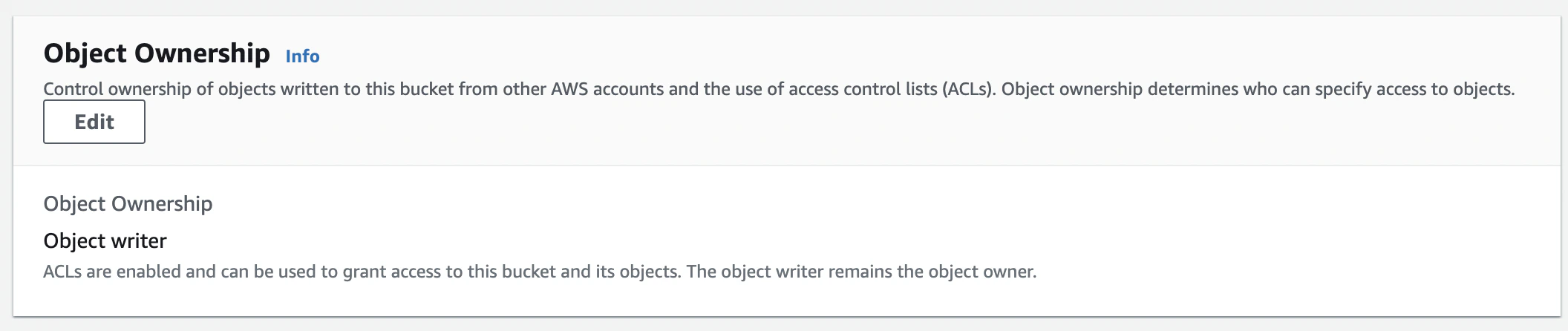
* Go to Permissions tab
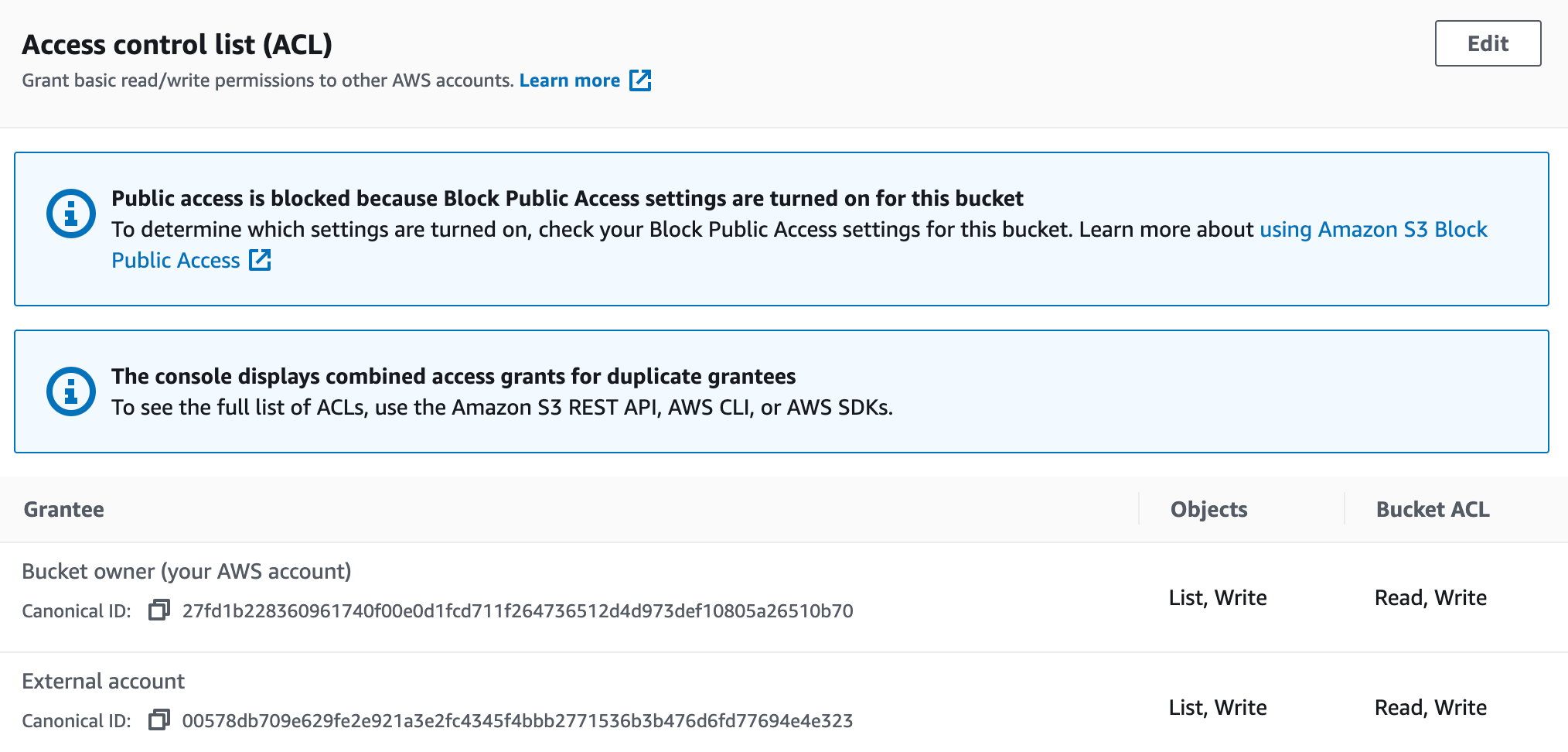
* Edit ACL and add `sysadmin+next@flydata.com` as a grantee with `List`,`Write` permissions for `Objects` and `Read` , `Write` permissions on `Bucket ACL`
 * Share your bucketname to Integrate.io Support Team.
* Once confirmation from Support Team is received, proceed with the pipeline creation process.
* Share your bucketname to Integrate.io Support Team.
* Once confirmation from Support Team is received, proceed with the pipeline creation process.