> ## Documentation Index
> Fetch the complete documentation index at: https://www.integrate.io/docs/llms.txt
> Use this file to discover all available pages before exploring further.
# Hooks for monitoring in ELT & CDC
> Set up email alert hooks for pipeline events in Integrate.io ELT & CDC. Configure notifications for sync failures, completions, and errors.
## What is Hooks feature
The **Hooks** feature lets customers receive email alerts for pipeline events of interest. We currently support email, with plans to support Webhooks and other services in the future.
To set up slack integration, please refer to this [page](https://slack.com/intl/en-au/help/articles/206819278-Send-emails-to-Slack#gmail-1).
### Nomenclature
* Hook\
A `Hook` sends a notification to the service of the corresponding `Hook Type` when it receives a trigger from one of the attached `Hook Sources`.
* Hook Type\
A `Hook Type` refers to a service that a `Hook` uses to notify the customer, such as email or Slack.
* Hook Source\
A `Hook Source` is an entity within the ELT platform (such as a pipeline or alert) that emits various events which the customer may want to be notified about. A `Hook Source` can be attached to multiple `Hooks` so that they can begin notifying the customer about the events from the `Hook Source`.
### Getting Started
#### Create a Hook
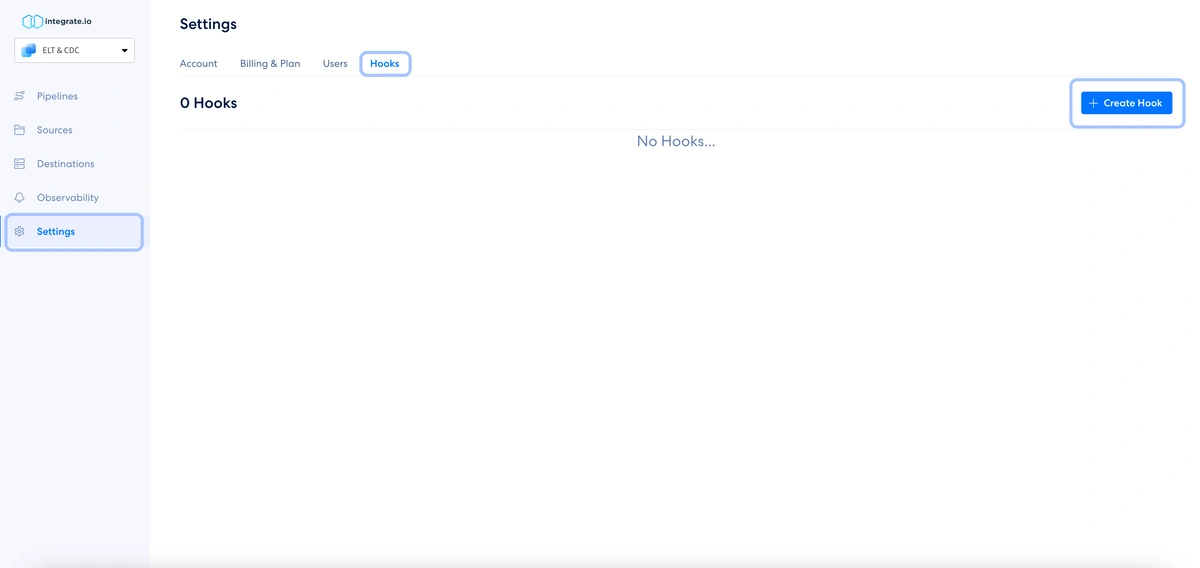
On your dashboard sidebar, go to Settings. Click **Hooks** tab then **+ Create Hook** button
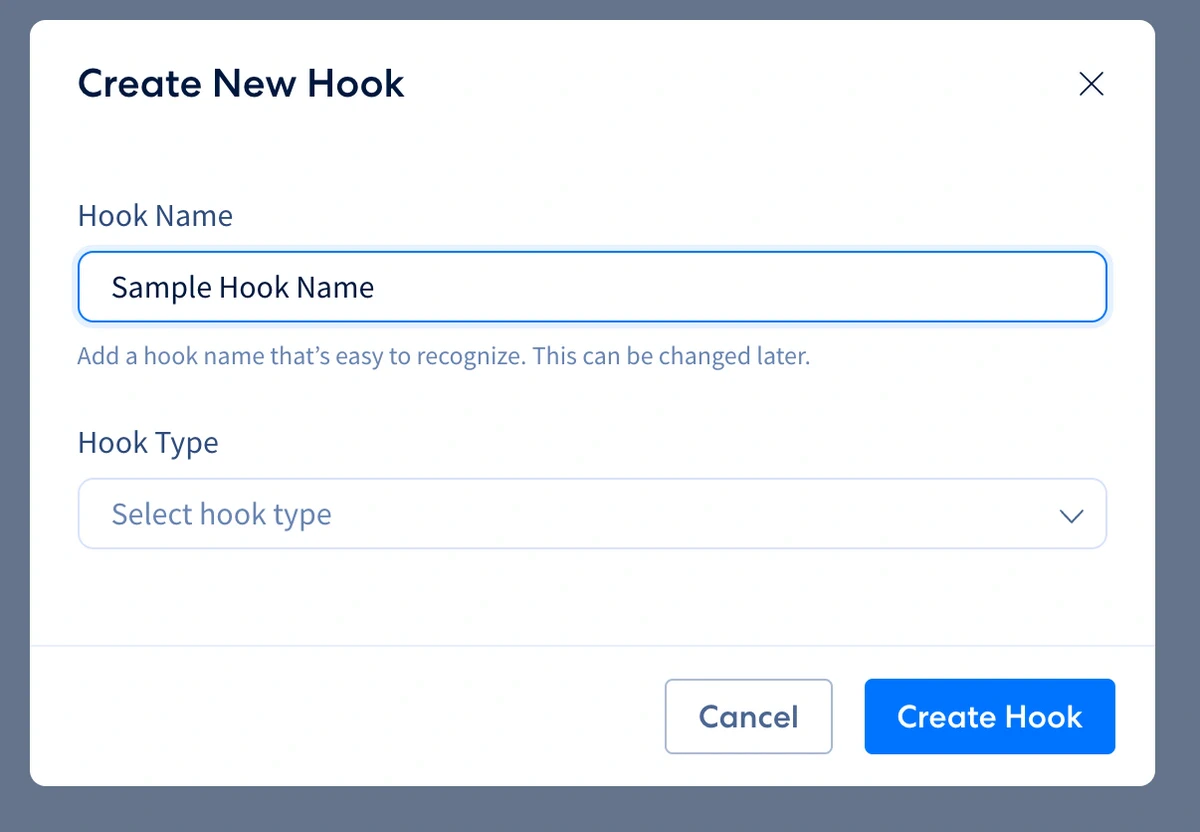
 On **Create new hook** modal, fill the **Hook name** and select the **Email** option under the **Hook Type** from the dropdown list.
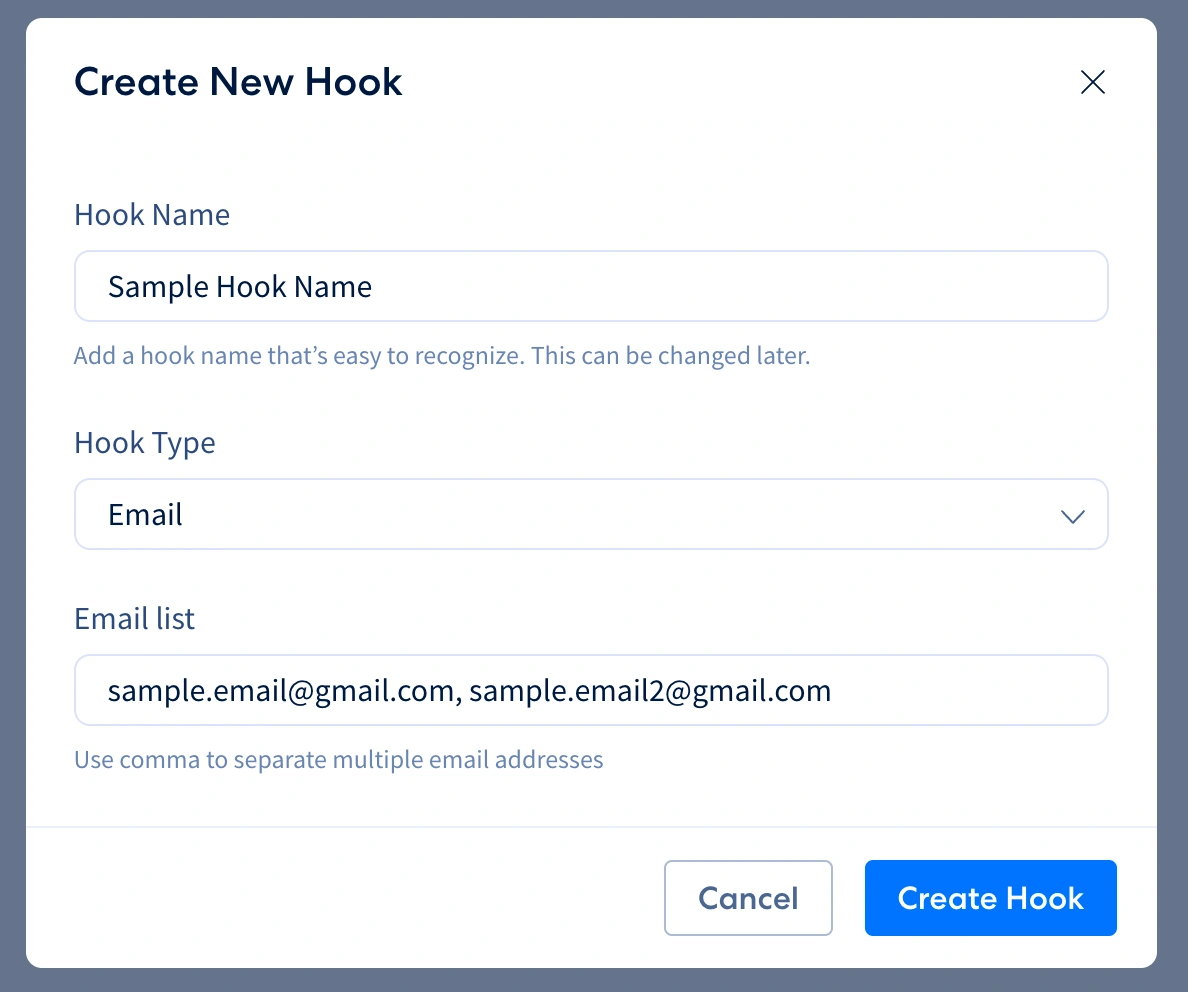
 This should unlock the **Email list** field. Input the list of emails you want to get notifications to. Click the **Create Hook** button.
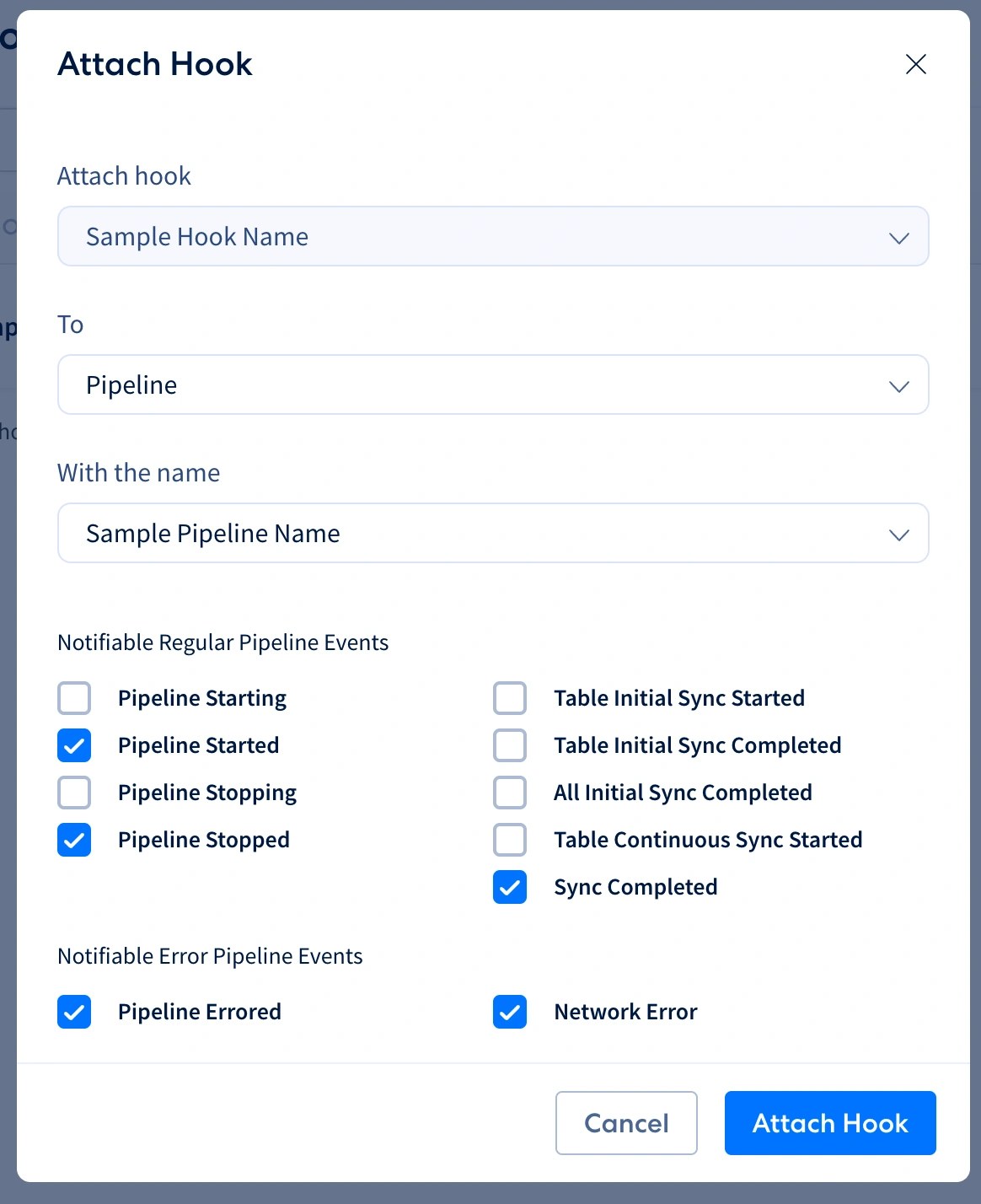
 Attach the newly created Hook to an existing pipeline.
To set up notifications for a pipeline, follow these steps in the newly opened modal:\
a. Select **Pipeline** in the **To** dropdown menu.\
b. In the **With the name** dropdown menu, select the pipeline you want to be notified about. You can start typing the name of the pipeline if you have a long list of pipelines.\
c. Select the pipeline events you want to be notified about.\
d. Click the **Attach Hook** button.
Attach the newly created Hook to an existing pipeline.
To set up notifications for a pipeline, follow these steps in the newly opened modal:\
a. Select **Pipeline** in the **To** dropdown menu.\
b. In the **With the name** dropdown menu, select the pipeline you want to be notified about. You can start typing the name of the pipeline if you have a long list of pipelines.\
c. Select the pipeline events you want to be notified about.\
d. Click the **Attach Hook** button.
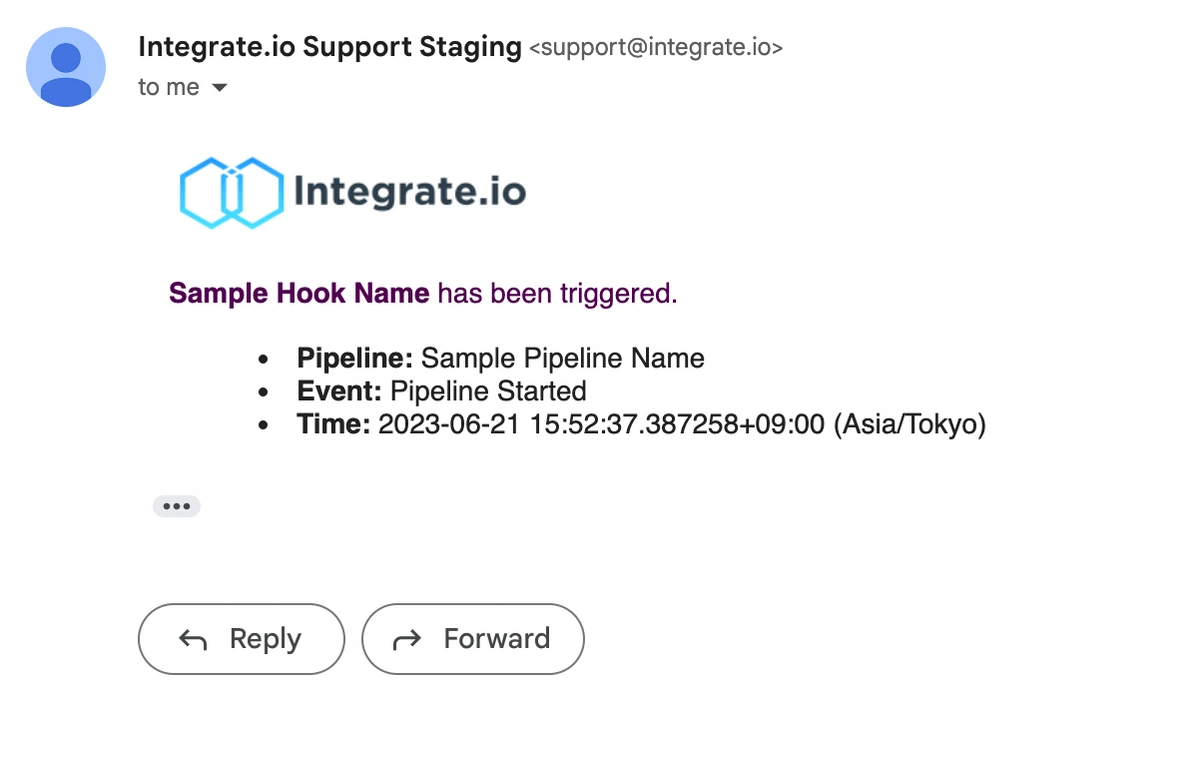
 That's it! You will now receive notifications for the selected pipeline events. Check your email inbox for the notifications from **[support@integrate.io](mailto:support@integrate.io)**.
 ## Related