> ## Documentation Index
> Fetch the complete documentation index at: https://www.integrate.io/docs/llms.txt
> Use this file to discover all available pages before exploring further.

# Zenventory source for ELT & CDC

> Configure Zenventory as a data source in Integrate.io ELT & CDC. Replicate inventory management and order fulfillment data to your warehouse.

|                           |                                                                                                                                           |
| :------------------------ | :---------------------------------------------------------------------------------------------------------------------------------------- |
| **Description**           | ***Zenventory*** is a powerful & easy to use inventory, order fulfillment, and shipping software for e-commerce, 3PLs & small businesses. |
| **Supported Replication** | Initial Sync  Continuous Sync                                                                                                             |
| **Authentication Type**   | Basic Authentication                                                                                                                      |

## Collections

| **Collection Name**  | **Full/** **Initial Sync** | **Incremental/**   **Continuous Sync** | **Supports Update** | **Supports Delete** |
| :------------------- | :------------------------- | :------------------------------------- | :------------------ | :------------------ |
| addresses            | ✔                          | ✔                                      |                     |                     |
| Inventory            | ✔                          | ✔                                      |                     |                     |
| purchaseOrders       | ✔                          | ✔                                      |                     |                     |
| customerordersitems  | ✔                          | ✔                                      |                     |                     |
| cycleCounts          | ✔                          | ✔                                      |                     |                     |
| customerreturns      | ✔                          | ✔                                      |                     |                     |
| customerorders       | ✔                          | ✔                                      |                     |                     |
| clients              | ✔                          | ✔                                      |                     |                     |
| categories           | ✔                          | ✔                                      |                     |                     |
| customerorderscounts | ✔                          | ✔                                      |                     |                     |

### Setting up Zenventory for ELT & CDC

#### Overview

ELT & CDC uses the API provided by Zenventory to sync the data.

<Card title="Zenventory API Reference" icon="code" href="https://docs.zenventory.com/" horizontal />

#### Requirements

* You need to enable the Zenventory Webservice and create an API key.

#### Create API Token

Follow these steps to enable the Zenventory Webservice and create an API key.

<Steps>
  <Step>
    Login to `app.zenventory.com`
  </Step>

  <Step>
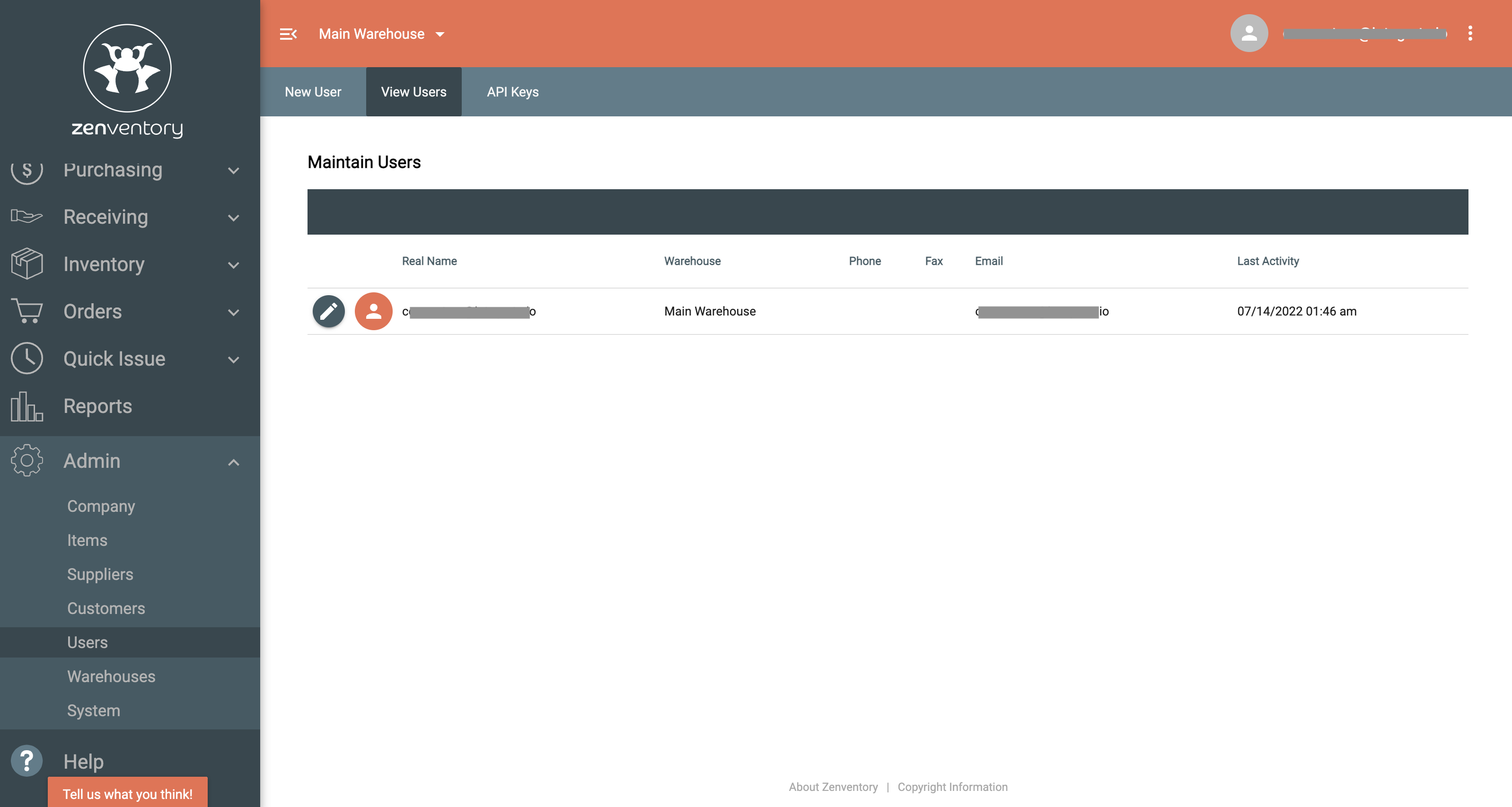
    Under `Admin`, click `Users`, then click `API Keys`
    <Frame>
      <img src="https://mintcdn.com/integrateio/SIDFEDRgXpxG0yrn/images/cdc/sources/image-111.png?fit=max&auto=format&n=SIDFEDRgXpxG0yrn&q=85&s=233f1c9dd9d7c63f6b68daa1d2f417c8" alt="Zenventory Admin menu with Users and API Keys navigation" width="3196" height="1706" data-path="images/cdc/sources/image-111.png" />
    </Frame>
  </Step>

  <Step>
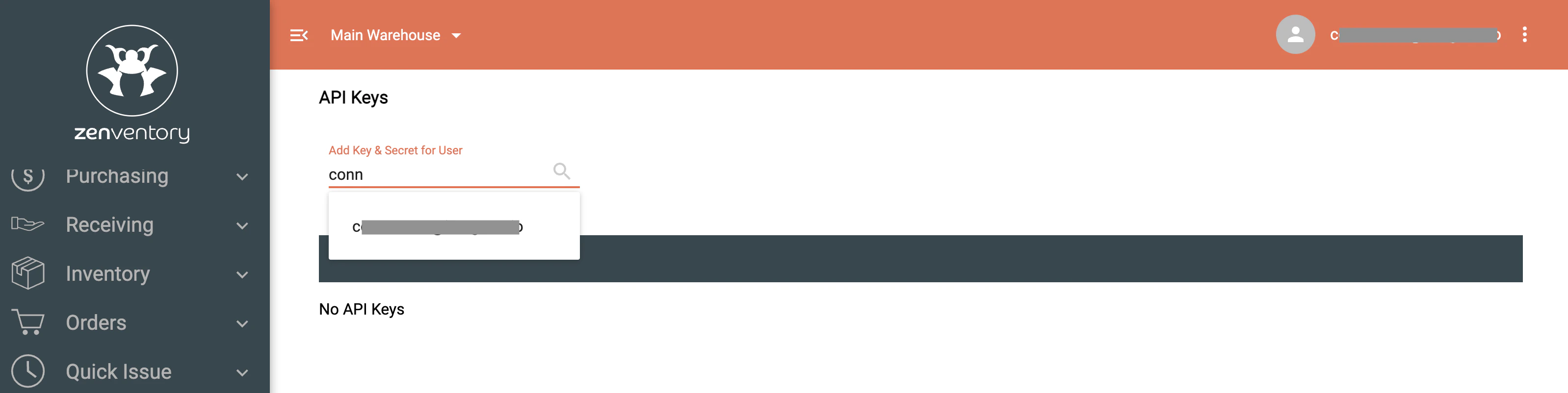
    On `API Keys`, search for the User and click it to generate key and secret
    <Frame>
      <img src="https://mintcdn.com/integrateio/SIDFEDRgXpxG0yrn/images/cdc/sources/image-112.png?fit=max&auto=format&n=SIDFEDRgXpxG0yrn&q=85&s=f4885c8df912d0d9fd10f7e61d315eb0" alt="Zenventory API Keys page with user selection to generate key" width="3196" height="802" data-path="images/cdc/sources/image-112.png" />
    </Frame>
  </Step>

  <Step>
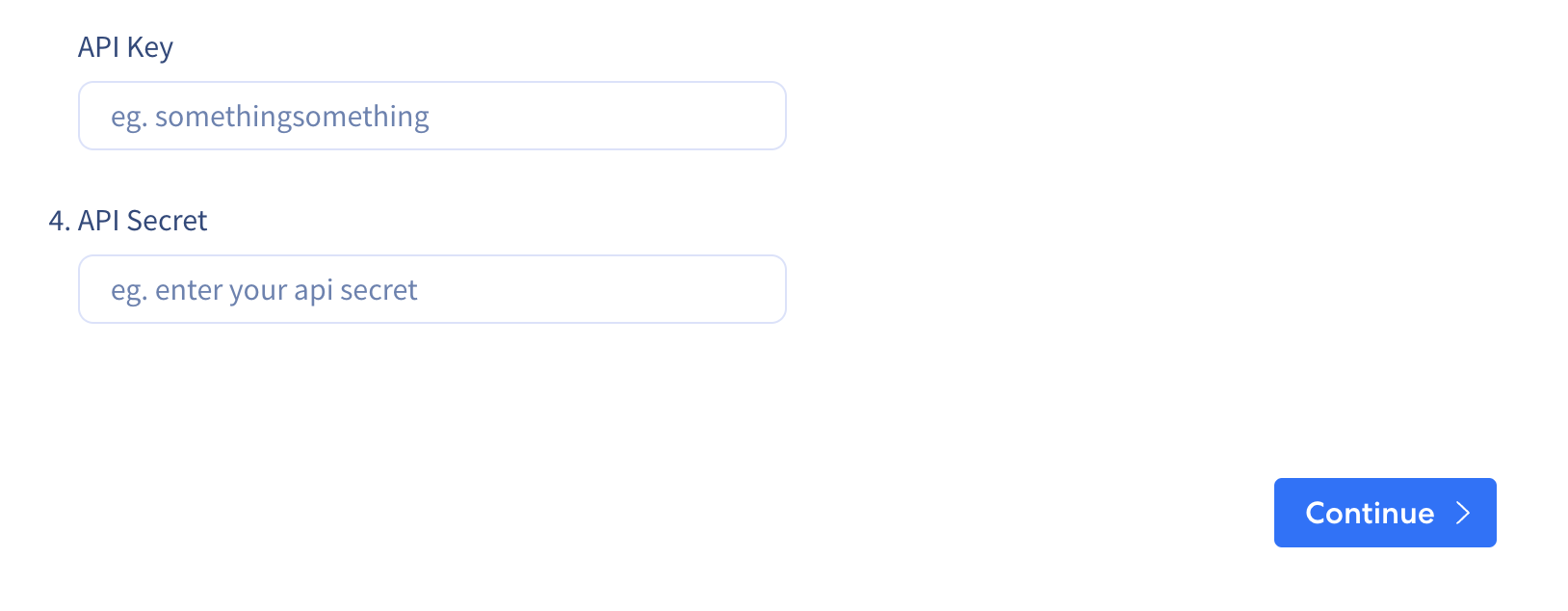
    Copy and paste the API key into the input field 
    <Frame>
      <img src="https://mintcdn.com/integrateio/SIDFEDRgXpxG0yrn/images/cdc/sources/image-113.png?fit=max&auto=format&n=SIDFEDRgXpxG0yrn&q=85&s=29b67fa54e58a5edbc5df9498fe0d30d" alt="Integrate.io dashboard field for pasting the Zenventory API key" width="1628" height="634" data-path="images/cdc/sources/image-113.png" />
    </Frame>
  </Step>
</Steps>
