> ## Documentation Index
> Fetch the complete documentation index at: https://www.integrate.io/docs/llms.txt
> Use this file to discover all available pages before exploring further.
# ETL: Connecting to Azure Blob Storage
> Integrate.io ETL can access data residing on Azure Blob Storage. This article details creating the Azure Blob Storage connection in Integrate.io ETL.
## Get Azure storage account details to be used in Integrate.io ETL
Navigate to [Azure Portal](https://portal.azure.com/) and choose **Storage Accounts** from the portal menu.
Select the storage account you'd like to grant Integrate.io ETL access.
Click **All Settings**.
Click **Access Keys**.
Follow the next steps to create a new connection in Integrate.io ETL using the info from your storage account access keys screen.
## To create an Azure Blob Storage connection in Integrate.io ETL
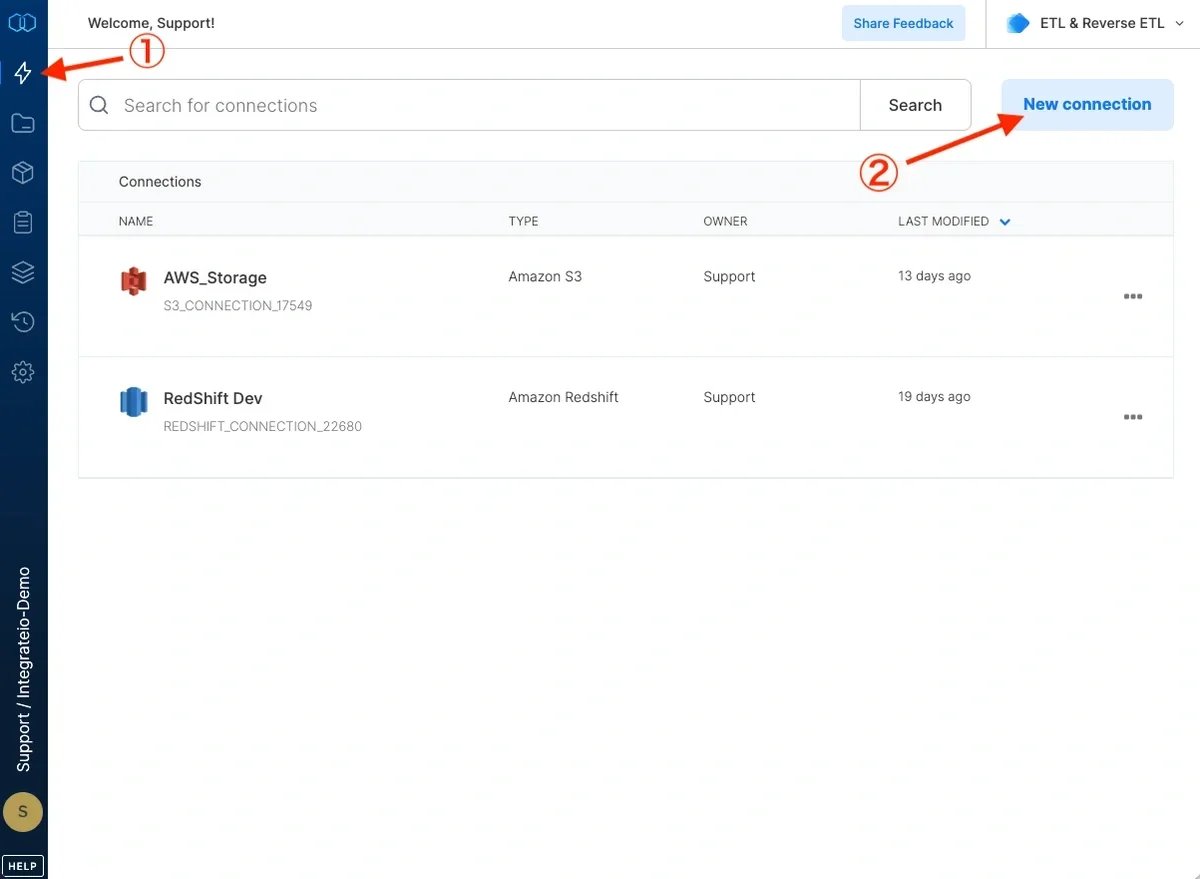
Click the **Connections** icon (lightning bolt) on the top left menu.
To create a connection, click **New connection**.
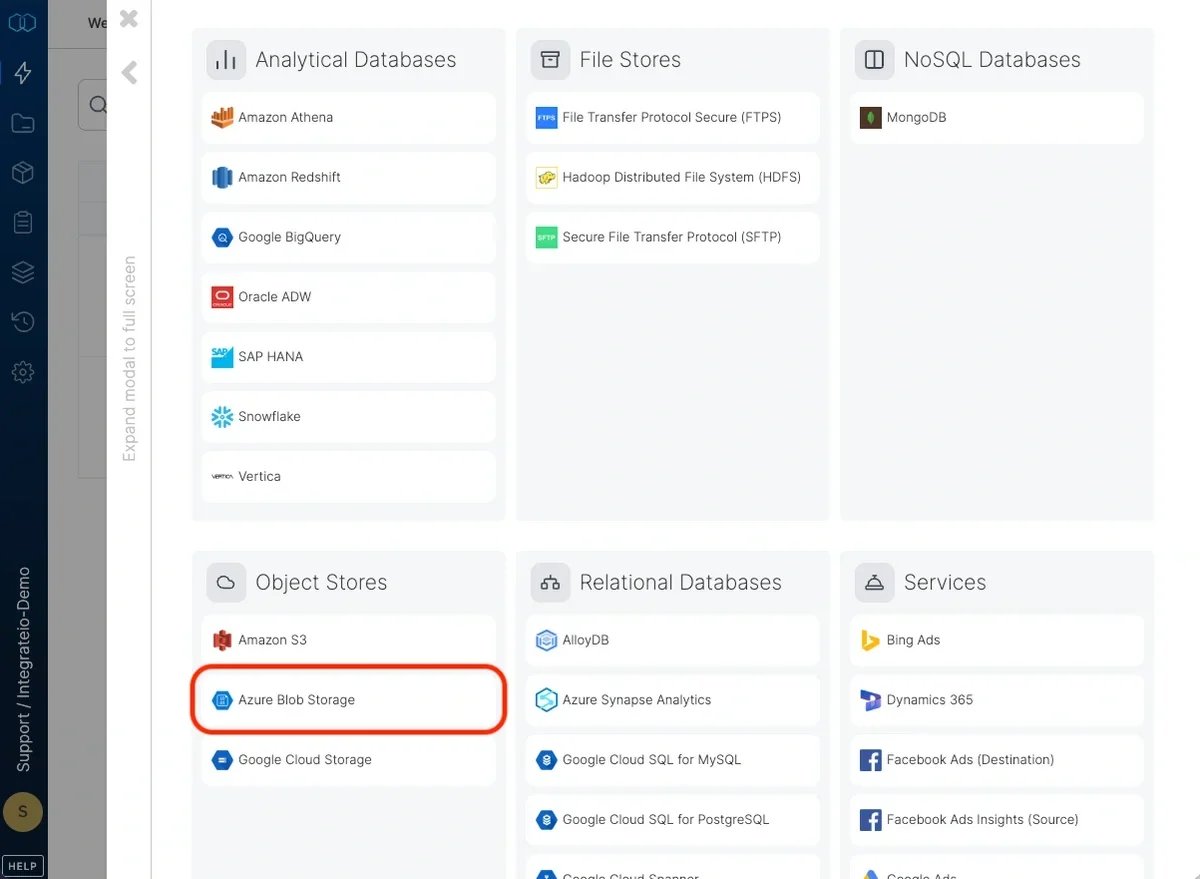
 Select Azure Blob Storage.
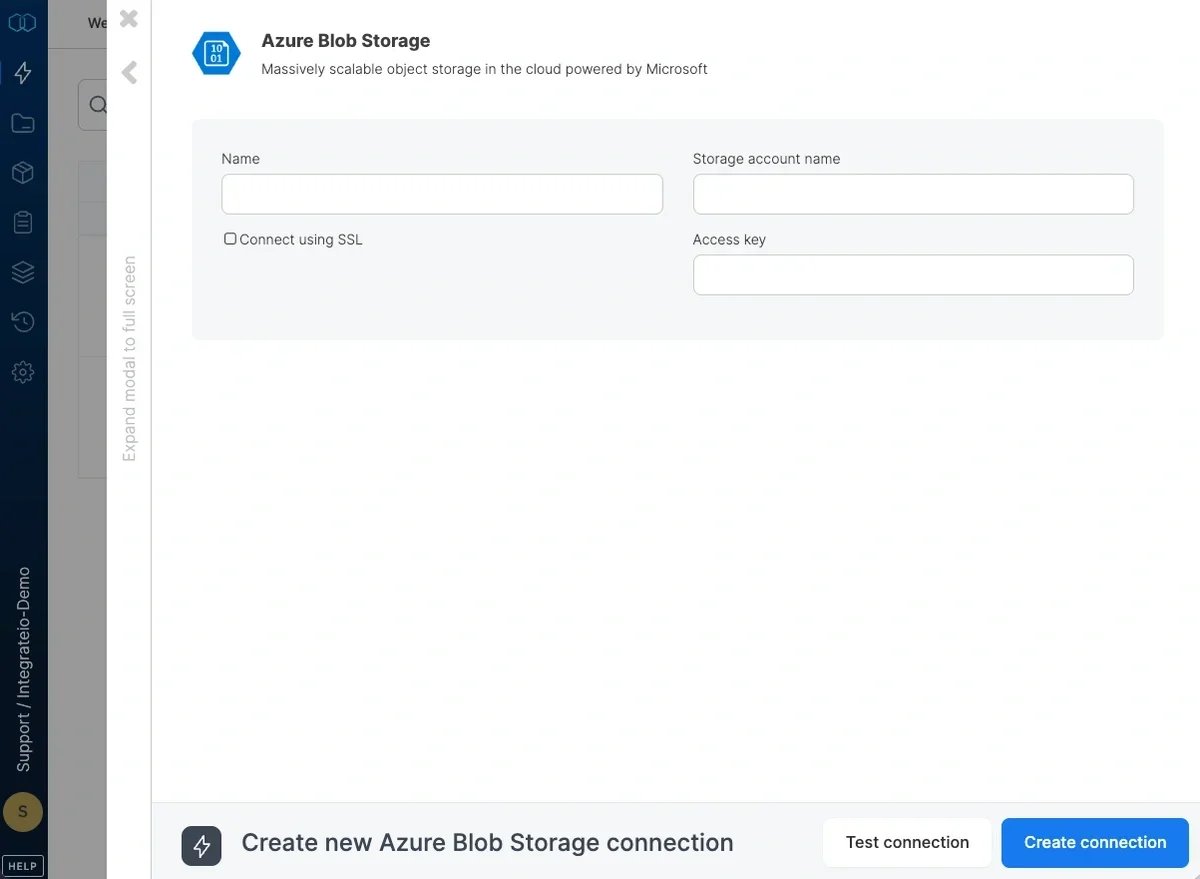
 Fill in **Account Name** with the account name of your Azure storage account.
Fill in **Access Key** with one of the access keys of your Azure storage account access keys.
Click **Test Connection**. If the credentials are correct, a message that the connection test was successful appears.
Click **Create Azure Blob Storage Connection**.
The connection is created and appears in the list of your connections.
Now you can create a package and test it on your actual data stored in Azure Blob Storage.
Fill in **Account Name** with the account name of your Azure storage account.
Fill in **Access Key** with one of the access keys of your Azure storage account access keys.
Click **Test Connection**. If the credentials are correct, a message that the connection test was successful appears.
Click **Create Azure Blob Storage Connection**.
The connection is created and appears in the list of your connections.
Now you can create a package and test it on your actual data stored in Azure Blob Storage.
 ## To modify Azure Blob Storage connections in Integrate.io ETL
Click the **Connections** icon (lightning bolt) on the top left menu.
Click a connection to modify or delete it. To exit the edit Azure Blob Storage connection window without changes, click **connections** at the top of the window.
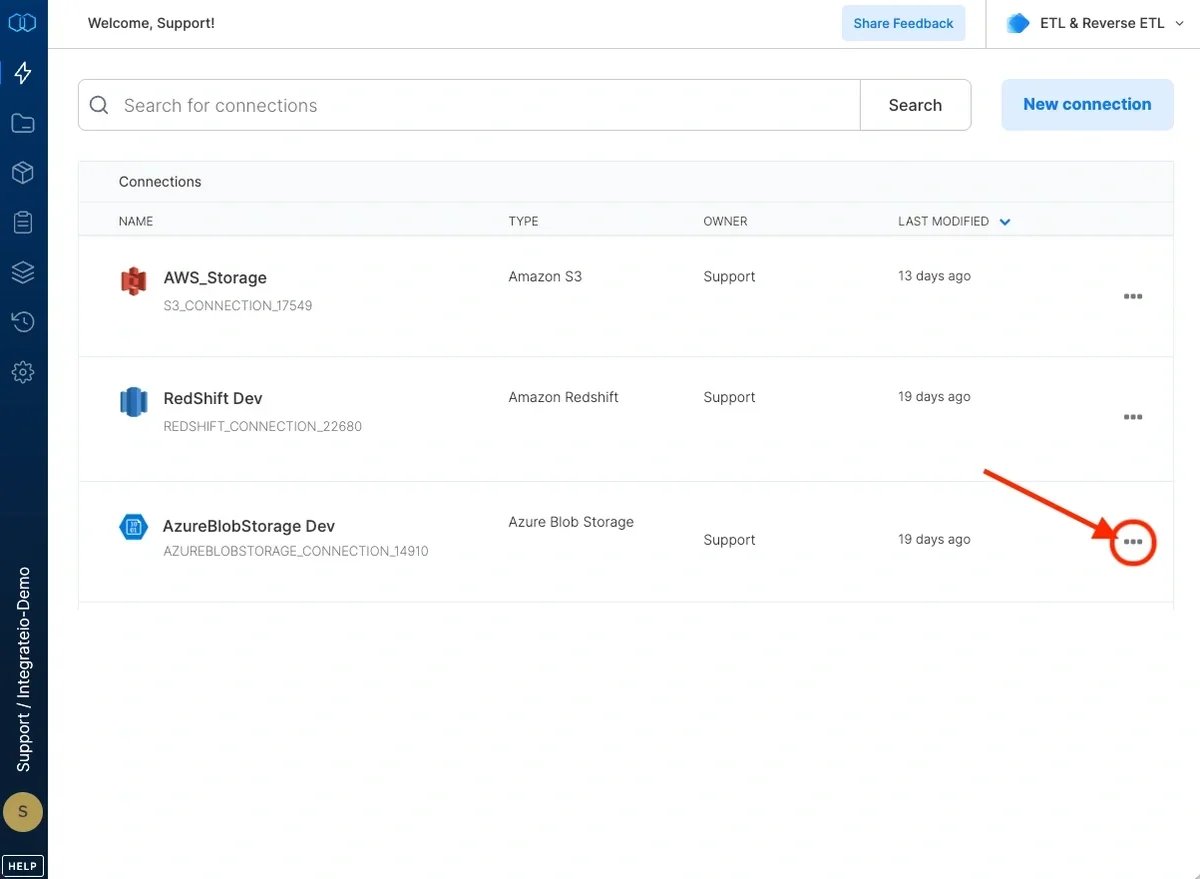
To delete an Azure Blob Storage connection, click the three vertical dots on the far right of the connection listing and select the Delete connection option.
## To modify Azure Blob Storage connections in Integrate.io ETL
Click the **Connections** icon (lightning bolt) on the top left menu.
Click a connection to modify or delete it. To exit the edit Azure Blob Storage connection window without changes, click **connections** at the top of the window.
To delete an Azure Blob Storage connection, click the three vertical dots on the far right of the connection listing and select the Delete connection option.