> ## Documentation Index
> Fetch the complete documentation index at: https://www.integrate.io/docs/llms.txt
> Use this file to discover all available pages before exploring further.
# ETL: Connecting to Amazon RDS
> Grant Integrate.io ETL direct access to your Amazon RDS databases. Configure security groups and network settings for database connectivity.
This article walks you through the process of allowing Integrate.io ETL direct access to your [databases on RDS](https://www.integrate.io/blog/amazon-rds-what-is-it-and-how-does-it-work/). If you'd like to use an SSH tunnel, click [here](/docs/etl/allowing-integrateio-etl-access-to-my-server-behind-a-firewall/) to read more.
You can watch this short video that demonstrates setting up a connection to MySQL RDS in VPC or read below for textual instructions.
The security rules are setup with either a VPC or an EC2 instance to provide Integrate.io ETL access to the database IP address and port.
**To verify or modify the security rules of an instance on VPC:**
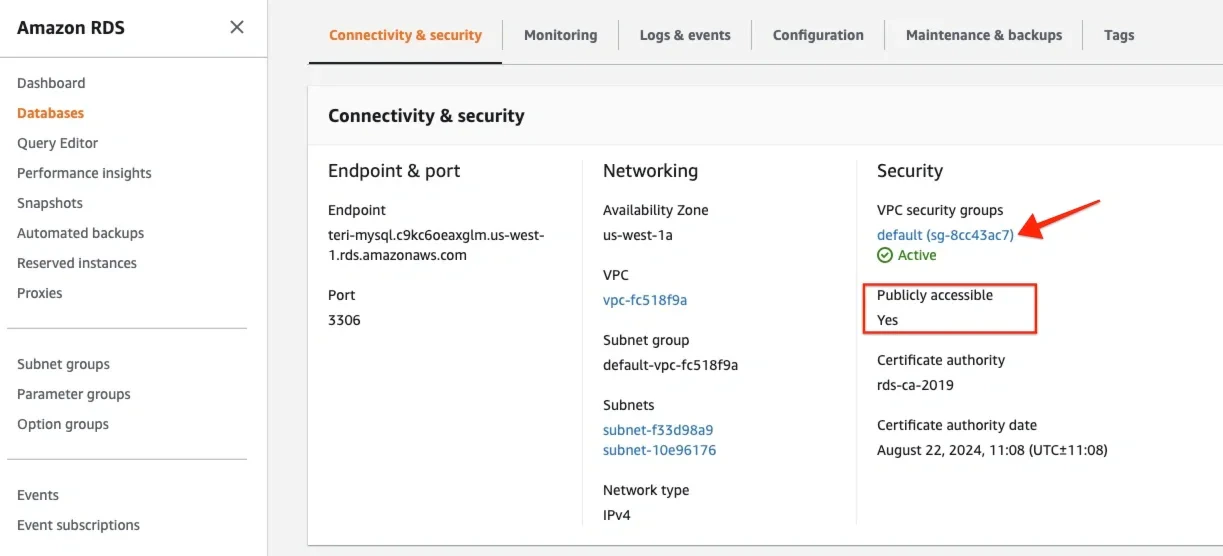
Open the instance in the RDS Dashboard in the **Connectivity & Security** section of the **DB Instance** pane.
Verify that **Publicly Accessible** is set to the default value **Yes**.
Click the Security Group listed.
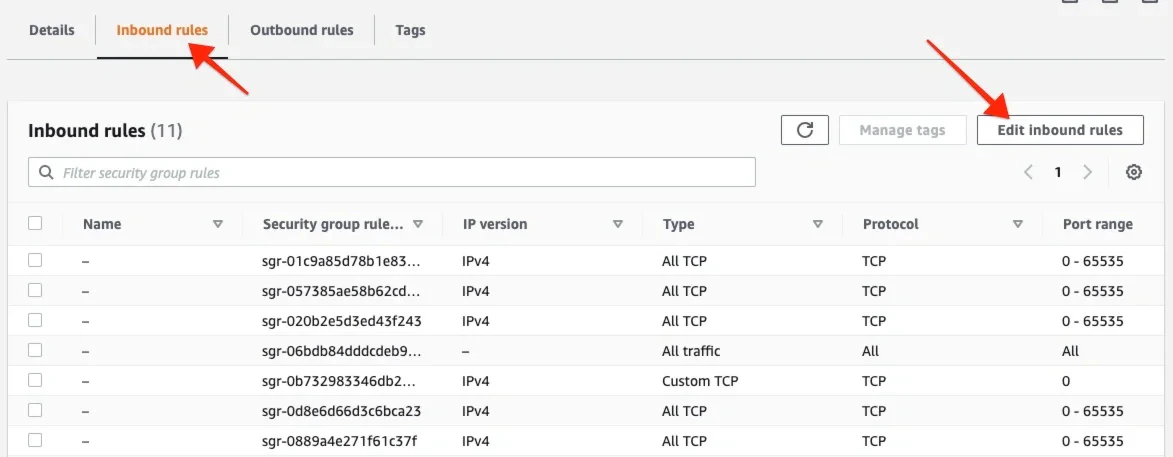
 In the Security Group screen, select the **Inbound** tab. Then click **Edit inbound rules**.
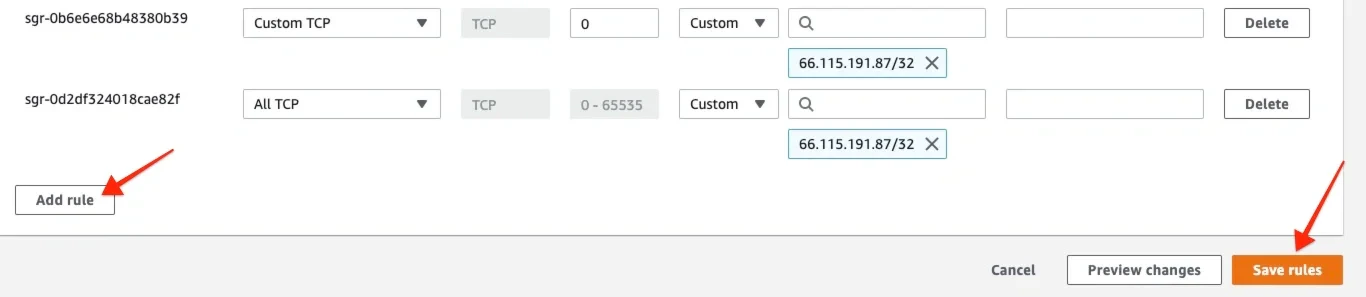
 Click **Add rule** to add the IP addresses listed [here](/docs/etl/integrateio-etls-ip-list/). Create a rule for each of the IP addresses:
In the "Type" dropbox, choose Custom TCP rule.
Click **Add rule** to add the IP addresses listed [here](/docs/etl/integrateio-etls-ip-list/). Create a rule for each of the IP addresses:
In the "Type" dropbox, choose Custom TCP rule.
In the port range, add the port that your database listens to.
In the source dropbox select Custom IP and enter one of the IP addresses.
The default ports for supported databases are:
MySQL - 3306
SQL Server - 1433
PostgreSQL - 5432.
Click **Save rules**.
 To configure your database to only accept SSL encrypted connections see [https://aws.amazon.com/rds/faqs/#53](https://aws.amazon.com/rds/faqs/#53) for more information.