> ## Documentation Index
> Fetch the complete documentation index at: https://www.integrate.io/docs/llms.txt
> Use this file to discover all available pages before exploring further.
# ETL: Connecting to Google Cloud SQL for MySQL
> Connect Google Cloud SQL for MySQL to Integrate.io ETL. Configure database access, firewall rules, and connection settings for data pipelines.
* Create a user and grant it minimum permissions required for Integrate.io ETL to read or write data from the database.
* Allow access from [Integrate.io ETL's IP addresses](/docs/etl/integrateio-etls-ip-list/) to your database port (Refer to [this](/docs/etl/allowing-integrateio-etl-access-to-my-server-behind-a-firewall/) article if you'd prefer to create an SSH tunnel or reverse SSH tunnel.)
## To create a Google Cloud SQL for MySQL database connection in Integrate.io ETL
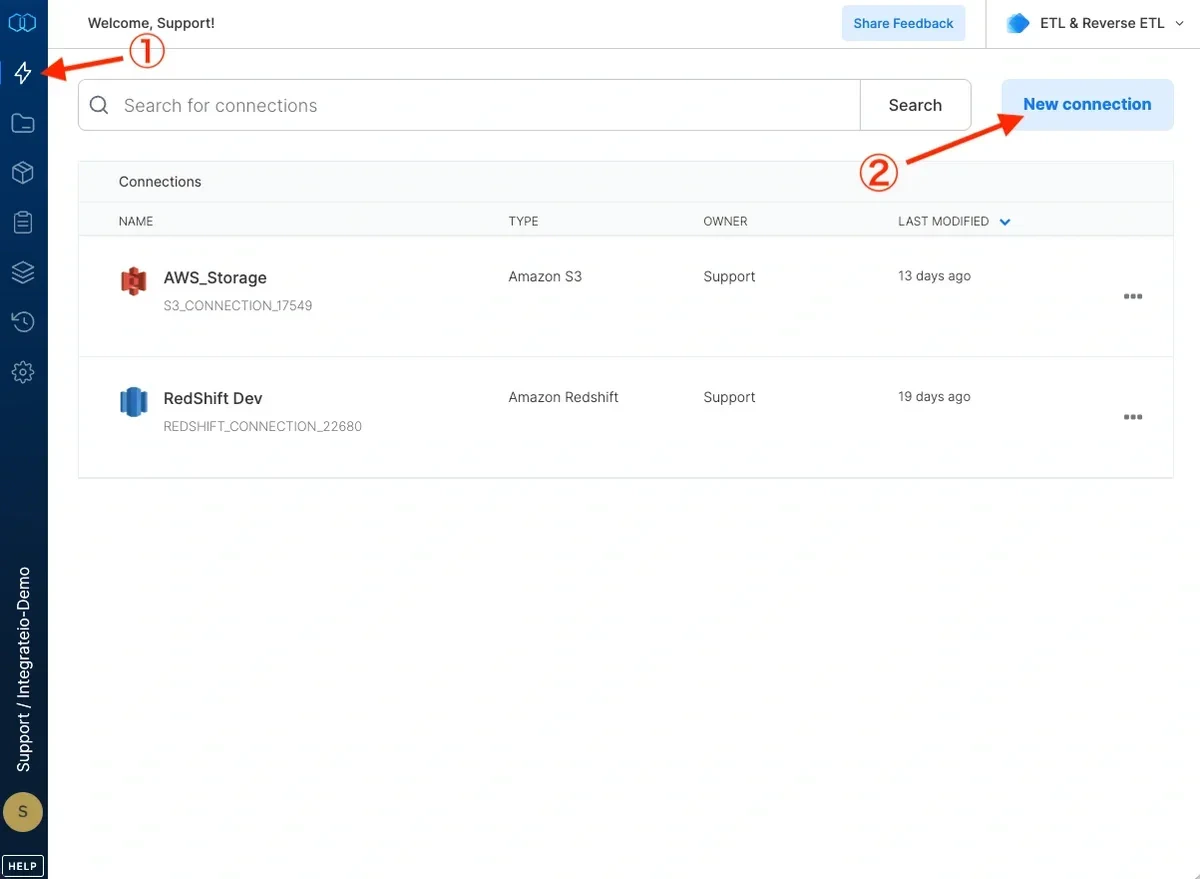
Click the Connections icon (lightning bolt) on the top left menu.
To create a connection, click **New connection**.
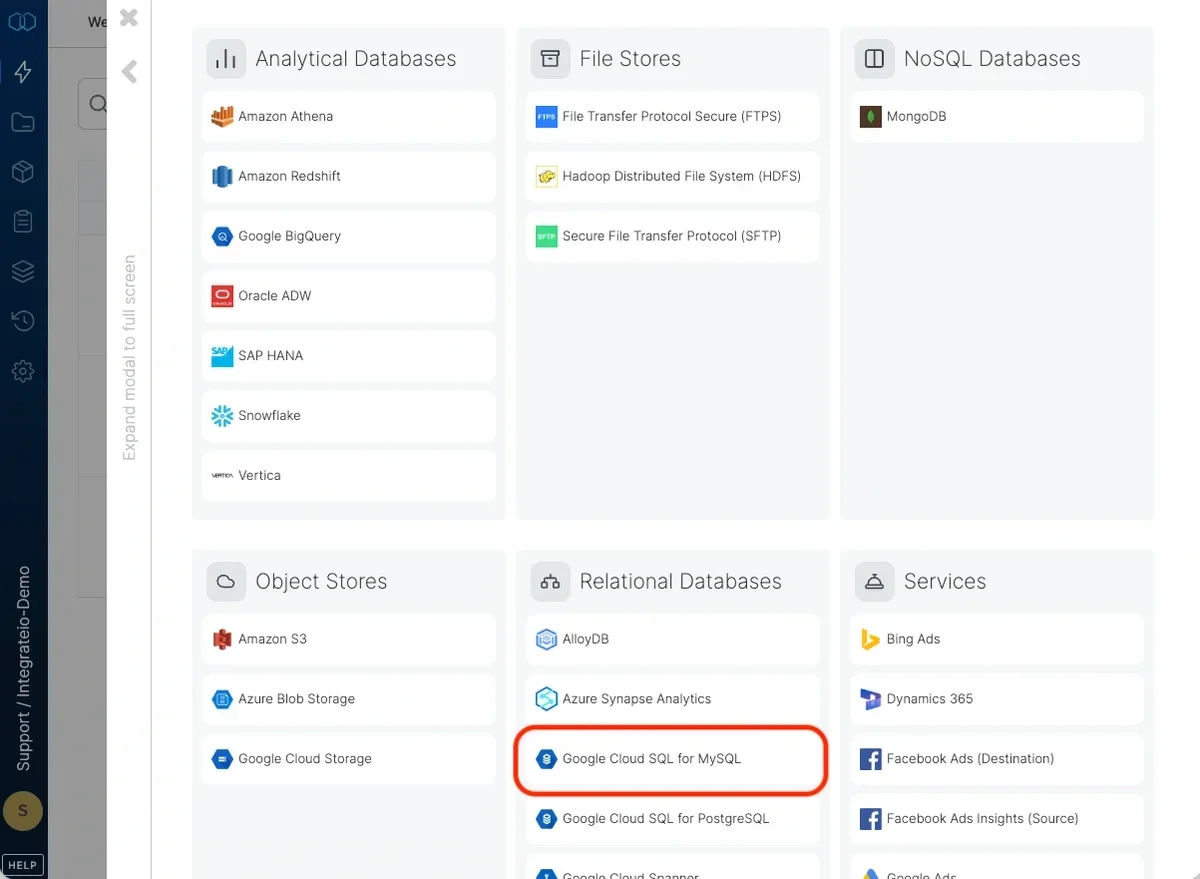
 Select Google Cloud SQL for MySQL and name the connection.
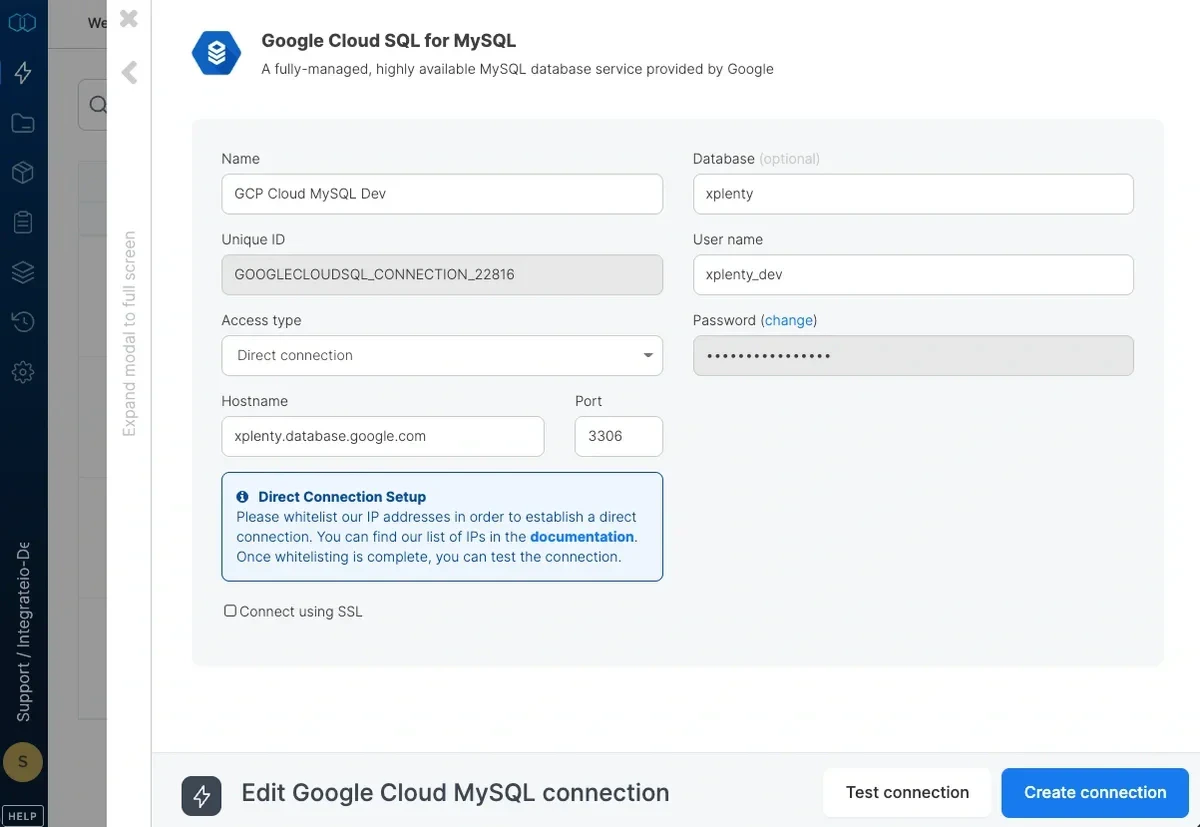
 Select your access type (direct connection if you've whitelisted Integrate.io ETL's IP addresses.)
Enter your database host name.
Enter the database name.
Enter the user name.
Enter the user's password.
Click **Test Connection** to make sure the connection details are correct.
Click **Create connection** to create the connection.
Select your access type (direct connection if you've whitelisted Integrate.io ETL's IP addresses.)
Enter your database host name.
Enter the database name.
Enter the user name.
Enter the user's password.
Click **Test Connection** to make sure the connection details are correct.
Click **Create connection** to create the connection.
 **Note:**
If you'd like to keep an internet connection secure and safeguard any sensitive data that is being sent between Google Cloud and Integrate.io ETL, we recommend setting up a Reverse SSH Tunnel.
**Note:**
If you'd like to keep an internet connection secure and safeguard any sensitive data that is being sent between Google Cloud and Integrate.io ETL, we recommend setting up a Reverse SSH Tunnel.