> ## Documentation Index
> Fetch the complete documentation index at: https://www.integrate.io/docs/llms.txt
> Use this file to discover all available pages before exploring further.
# ETL: Connecting to Google Cloud Storage
> Connect Google Cloud Storage to Integrate.io ETL using a service account key. Configure bucket access and GCS connection settings for pipelines.
### Service Account Creation & JSON Key Generation
Access your [Google Cloud Console](https://console.cloud.google.com/#/project) and click the relevant project.
On the sidebar, choose **IAM & Admin -> Service Accounts -> Create Service Account**
Fill up **Service account name** and then click **Done**.
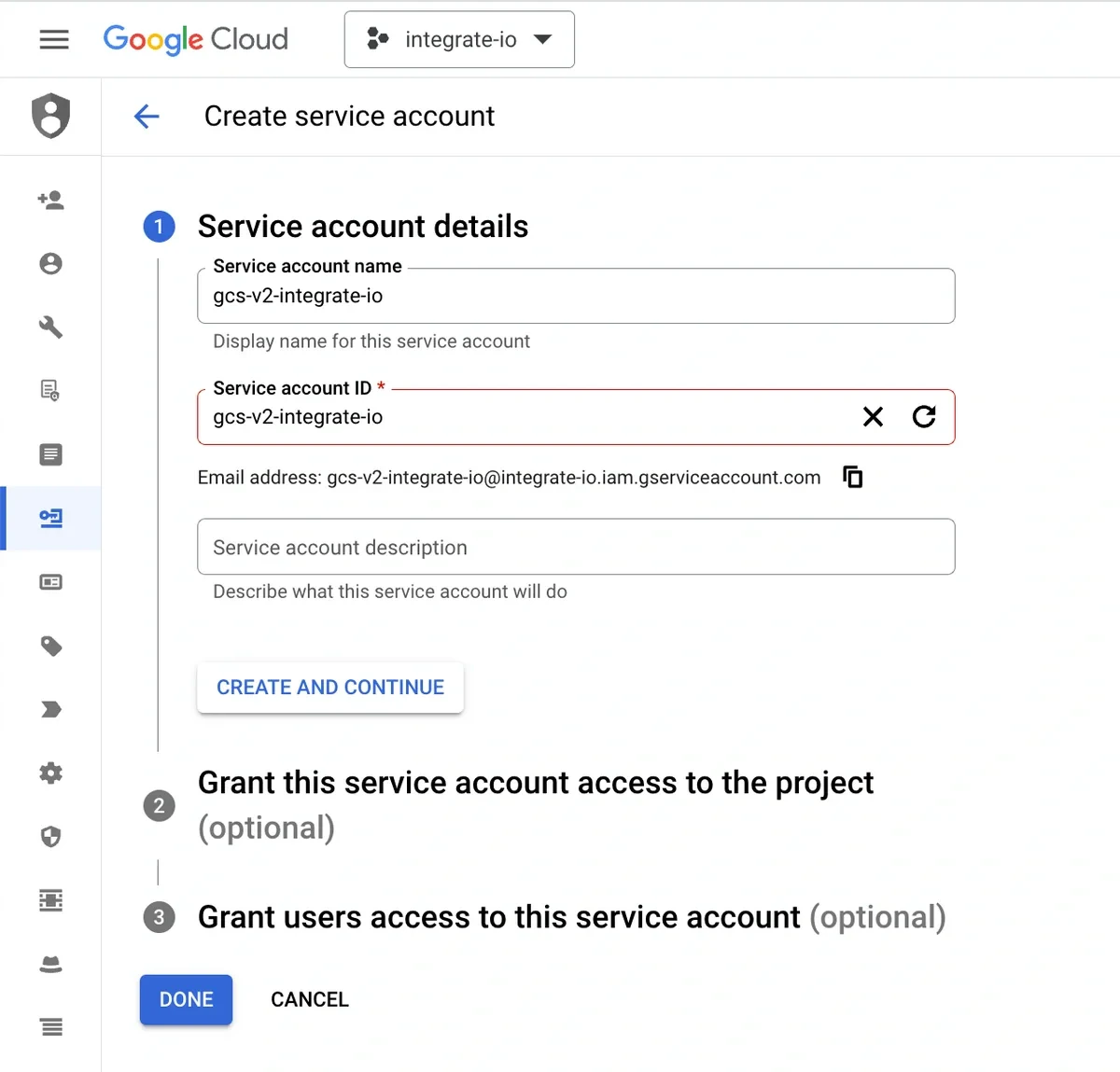 Click the newly created service account and navigate to **Keys**.
Generate a JSON key via **Add Key -> Create New Key -> JSON -> Create**.
We will upload this JSON key later on Integrate.io ETL when creating the connection.
### Grant Access to Cloud Storage Bucket
Access your [Google Cloud Storage](https://console.cloud.google.com/storage) and click the relevant bucket.
Under **Permissions** section, click **Grant Access**.
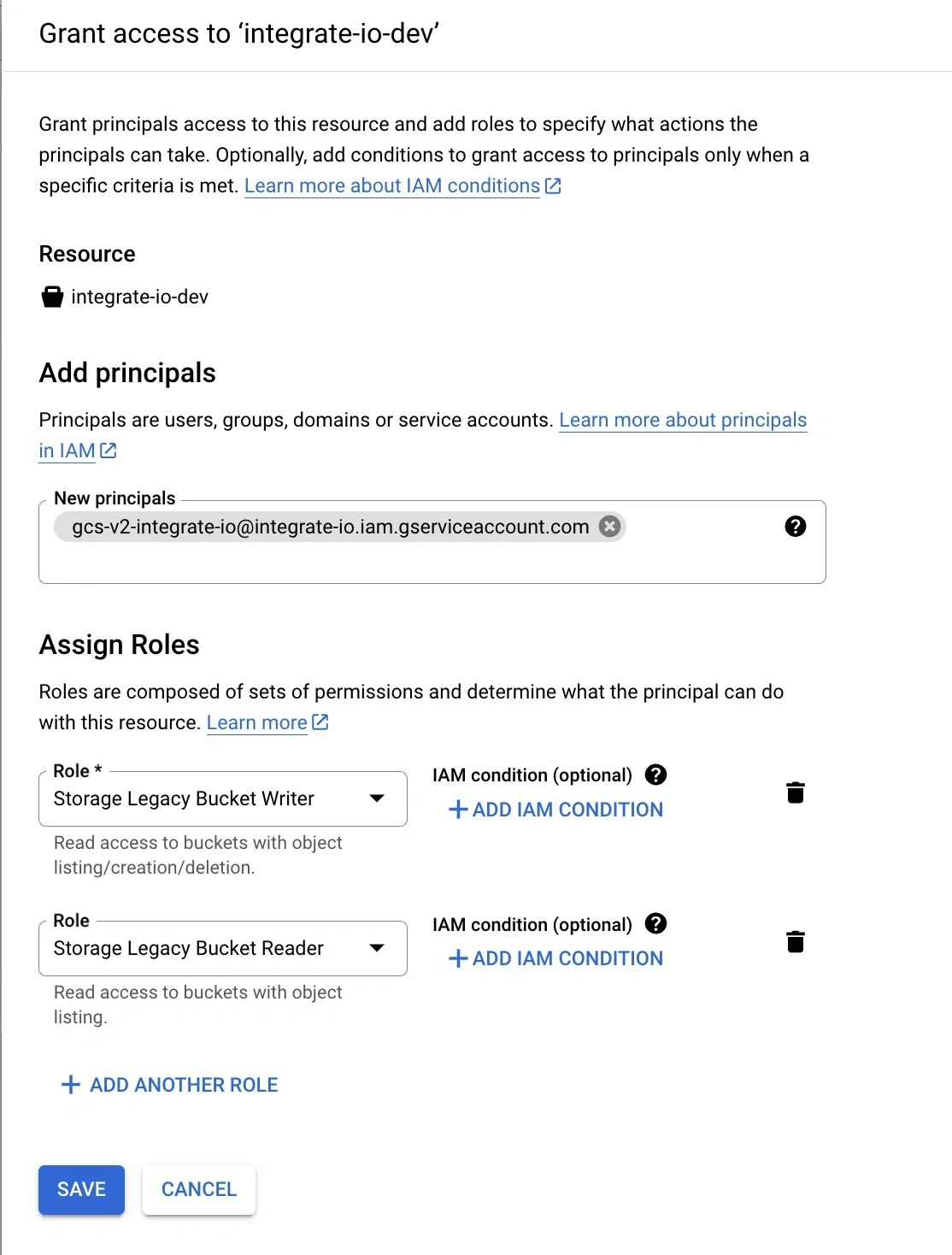
Input the service account email we created from the previous section under **New Principals** field.
For Read-only, select the following roles: **Storage Legacy Bucket Reader** and **Storage Legacy Object Reader**.
For Write access, select the following roles: **Storage Legacy Bucket Writer** and **Storage Legacy Object Reader**.
Click **Save**.
Click the newly created service account and navigate to **Keys**.
Generate a JSON key via **Add Key -> Create New Key -> JSON -> Create**.
We will upload this JSON key later on Integrate.io ETL when creating the connection.
### Grant Access to Cloud Storage Bucket
Access your [Google Cloud Storage](https://console.cloud.google.com/storage) and click the relevant bucket.
Under **Permissions** section, click **Grant Access**.
Input the service account email we created from the previous section under **New Principals** field.
For Read-only, select the following roles: **Storage Legacy Bucket Reader** and **Storage Legacy Object Reader**.
For Write access, select the following roles: **Storage Legacy Bucket Writer** and **Storage Legacy Object Reader**.
Click **Save**.
 ### Create a Google Cloud Storage connection in Integrate.io ETL
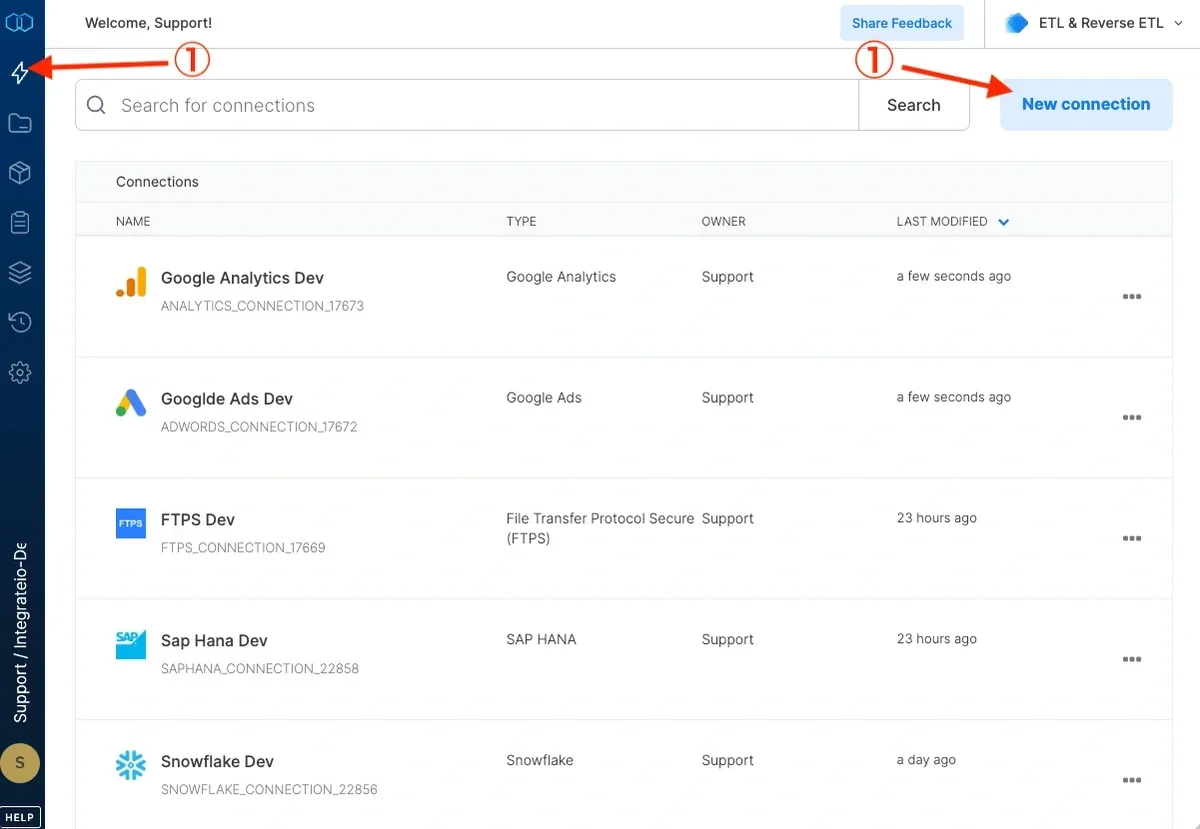
Click the Connections icon (lightning bolt) on the top left menu.
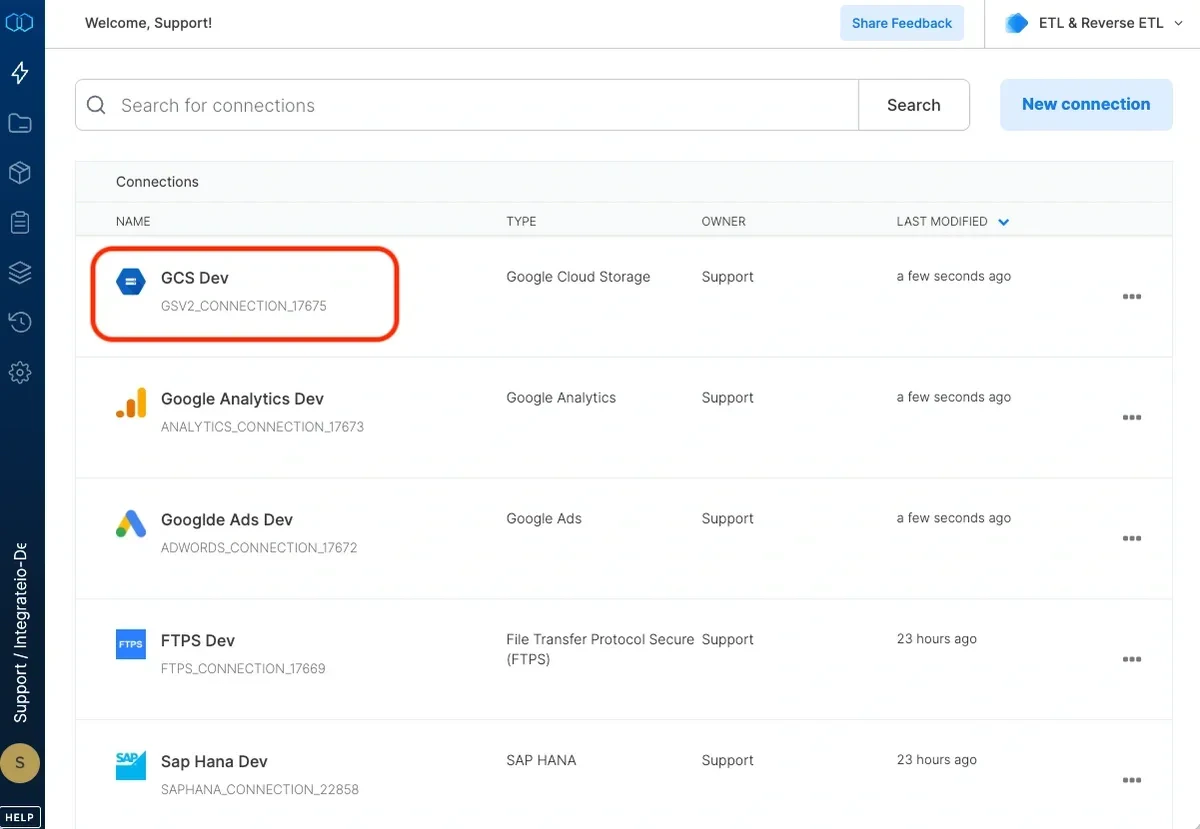
To create a connection, click **New connection**.
### Create a Google Cloud Storage connection in Integrate.io ETL
Click the Connections icon (lightning bolt) on the top left menu.
To create a connection, click **New connection**.
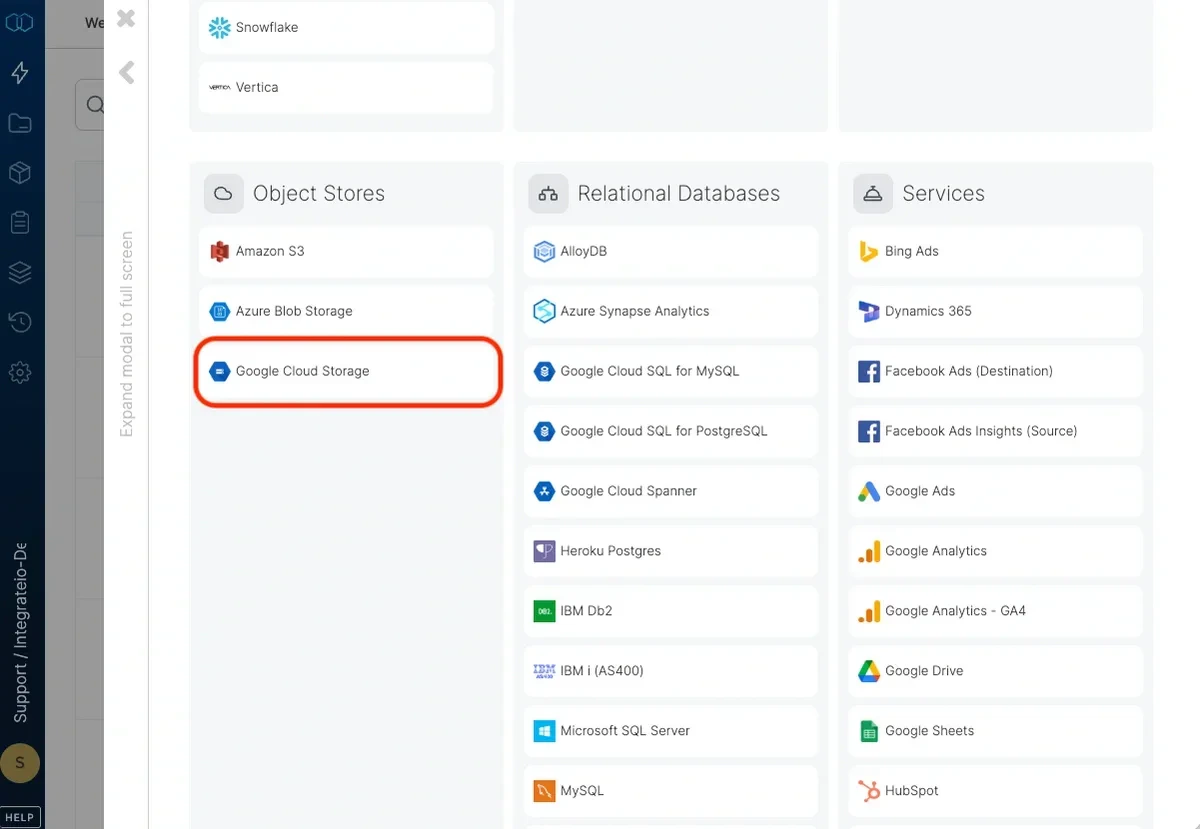
 Select Google Cloud Storage.
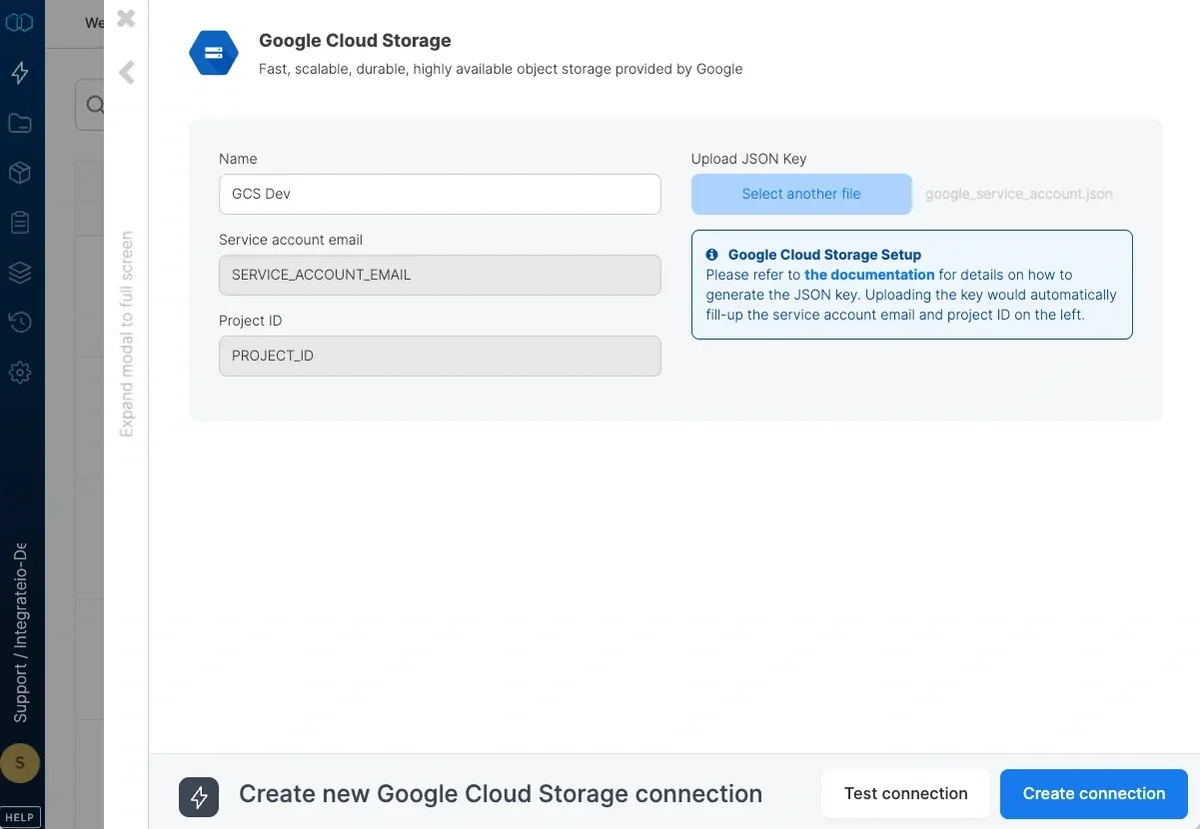
 Name the connection. Upload JSON key.
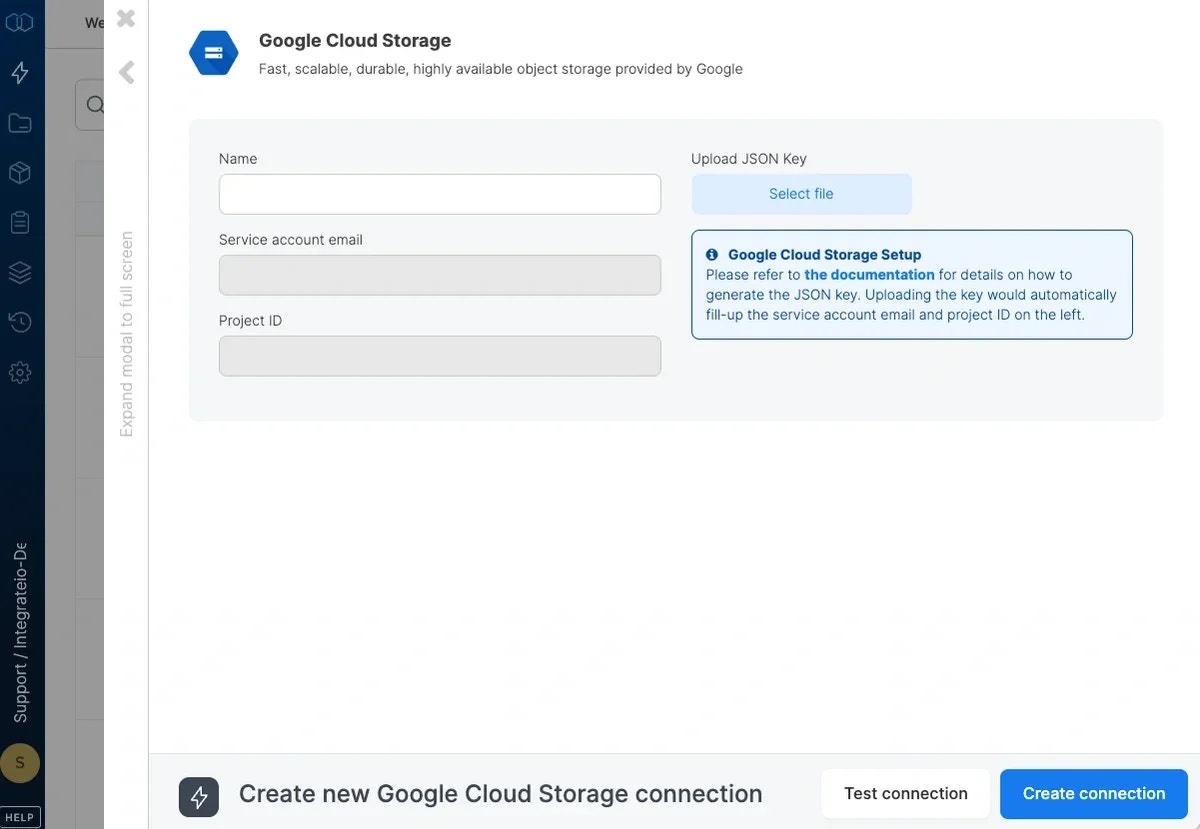 Click **Test Connection** to make sure the connection details are correct.
Click **Create connection** to create the connection.
Click **Test Connection** to make sure the connection details are correct.
Click **Create connection** to create the connection.