> ## Documentation Index
> Fetch the complete documentation index at: https://www.integrate.io/docs/llms.txt
> Use this file to discover all available pages before exploring further.
# ETL: Connecting to Google Sheets
> Connect Google Sheets to Integrate.io ETL for reading spreadsheet data. Set up Google OAuth authorization and configure the data connection.
Integrate.io ETL can access your Google Sheets data. This article details creating the Google Sheets connection and the process of building a data pipeline to read Google Sheets data in Integrate.io ETL. There are also pre-built templates to read data from a Google Sheet or write data to a Google Sheet. Please see [Create a package from a template](/docs/etl/create-a-package-from-a-template/) for instructions on using a template.
## To create a Google Sheets connection in Integrate.io ETL
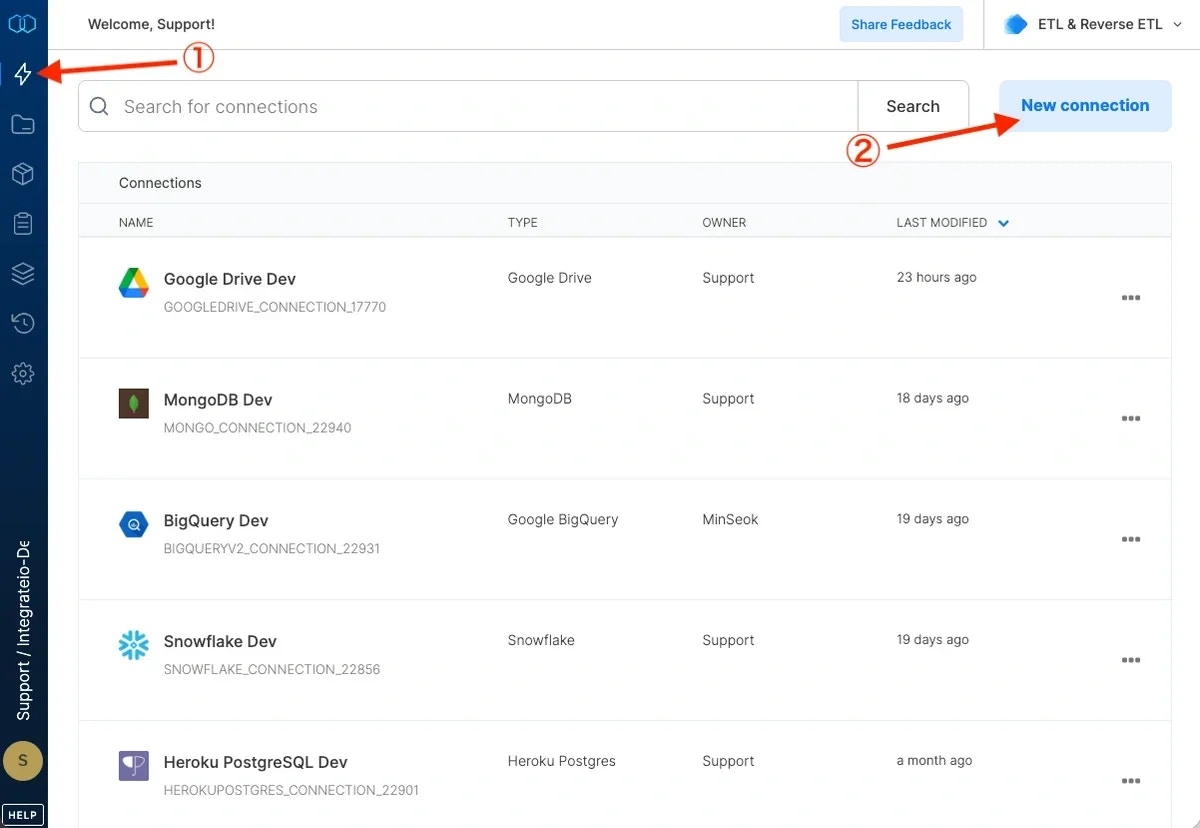
Click the **Connections** icon (lightning bolt) on the top left menu.
To create a connection, click **New connection**.
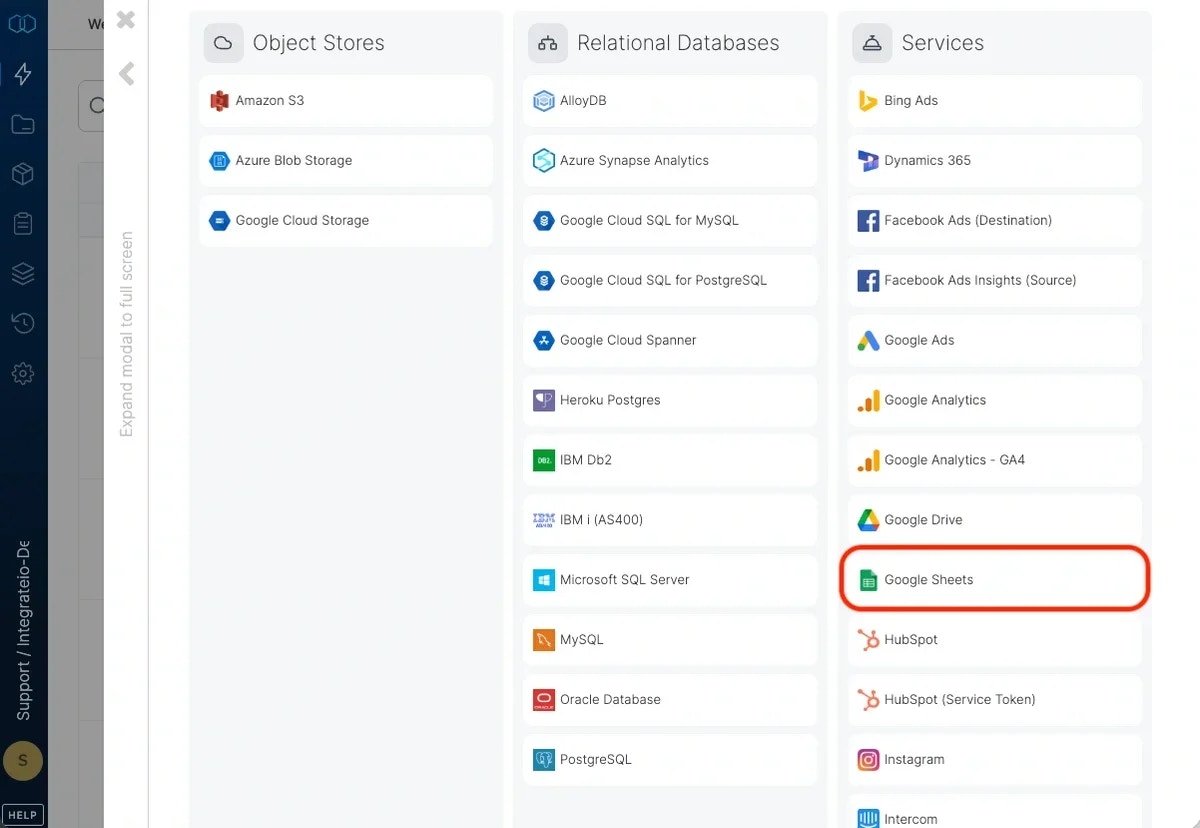
 Select Google Sheets.
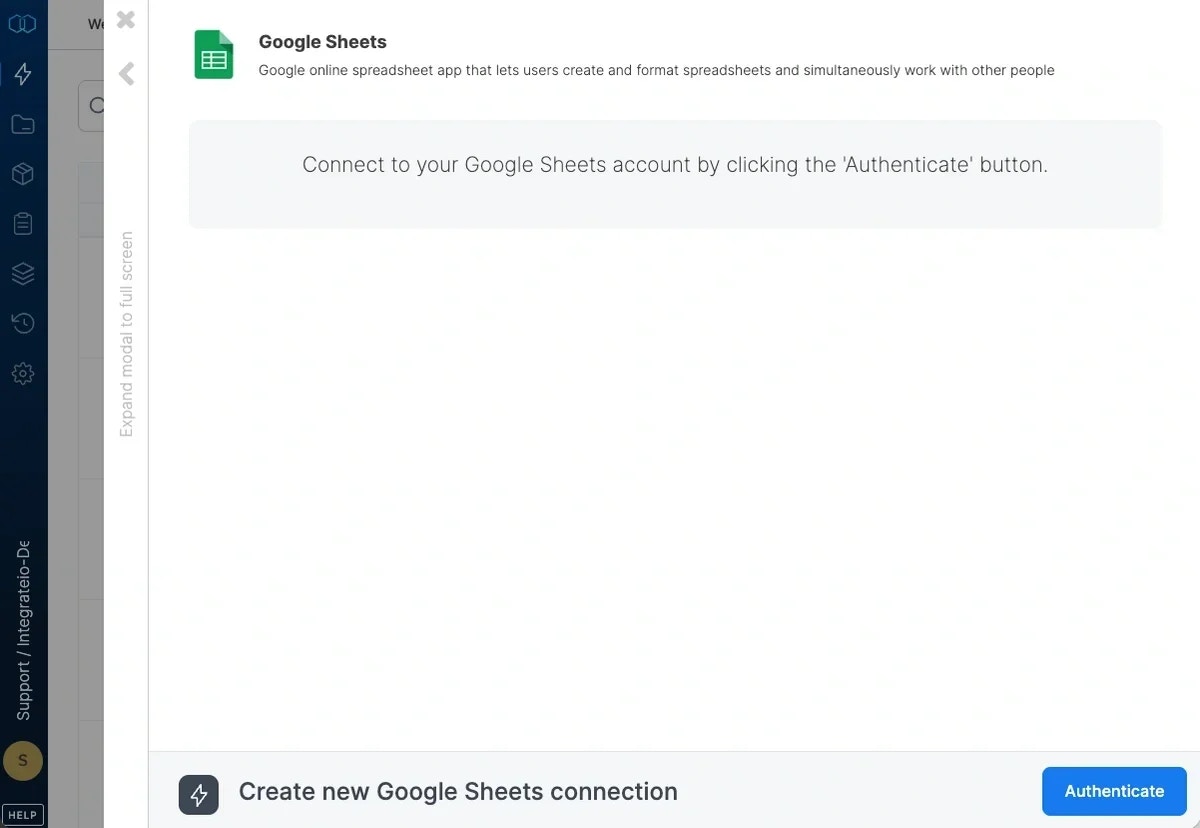
 Click **Authenticate.** (If required, sign in to Google Sheets)
 Click **Connect** to authorize Integrate.io ETL access to your Google Sheets account.
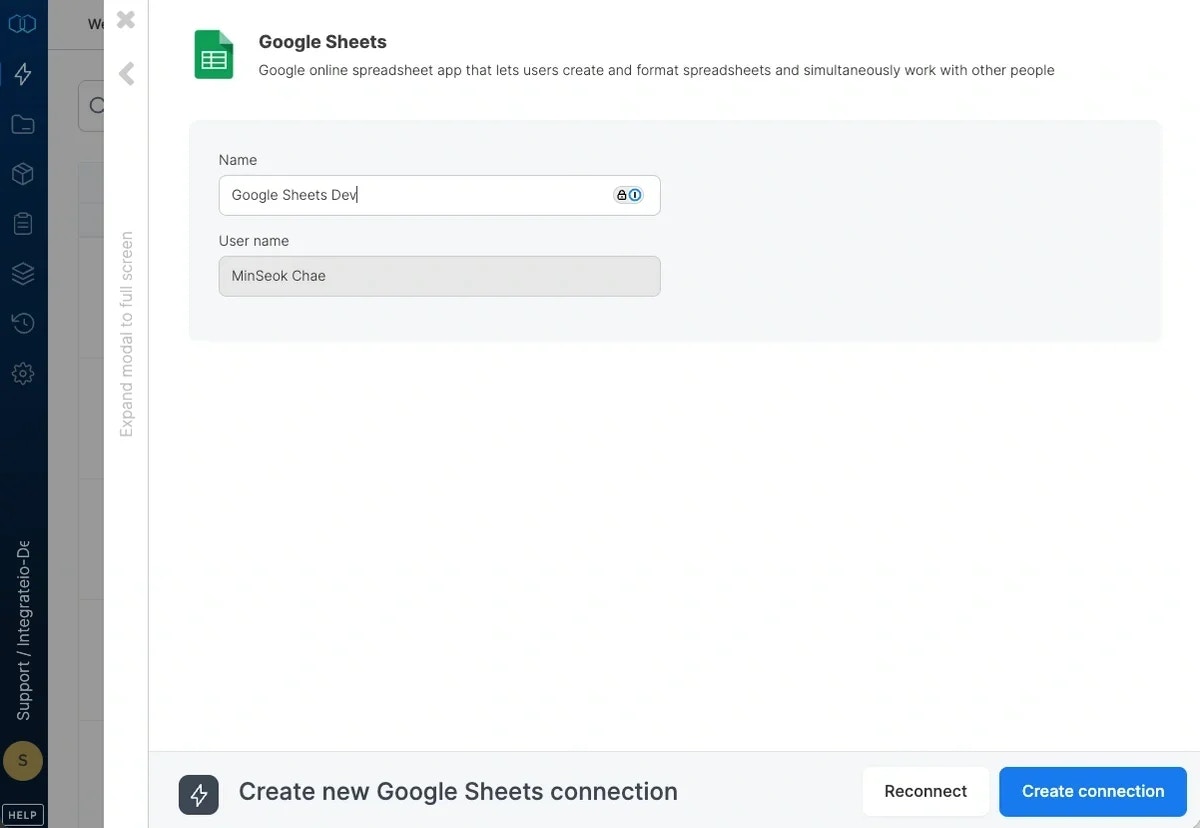 In the new Google Sheets connection window, name the connection and click **Create Google Sheets connection.**
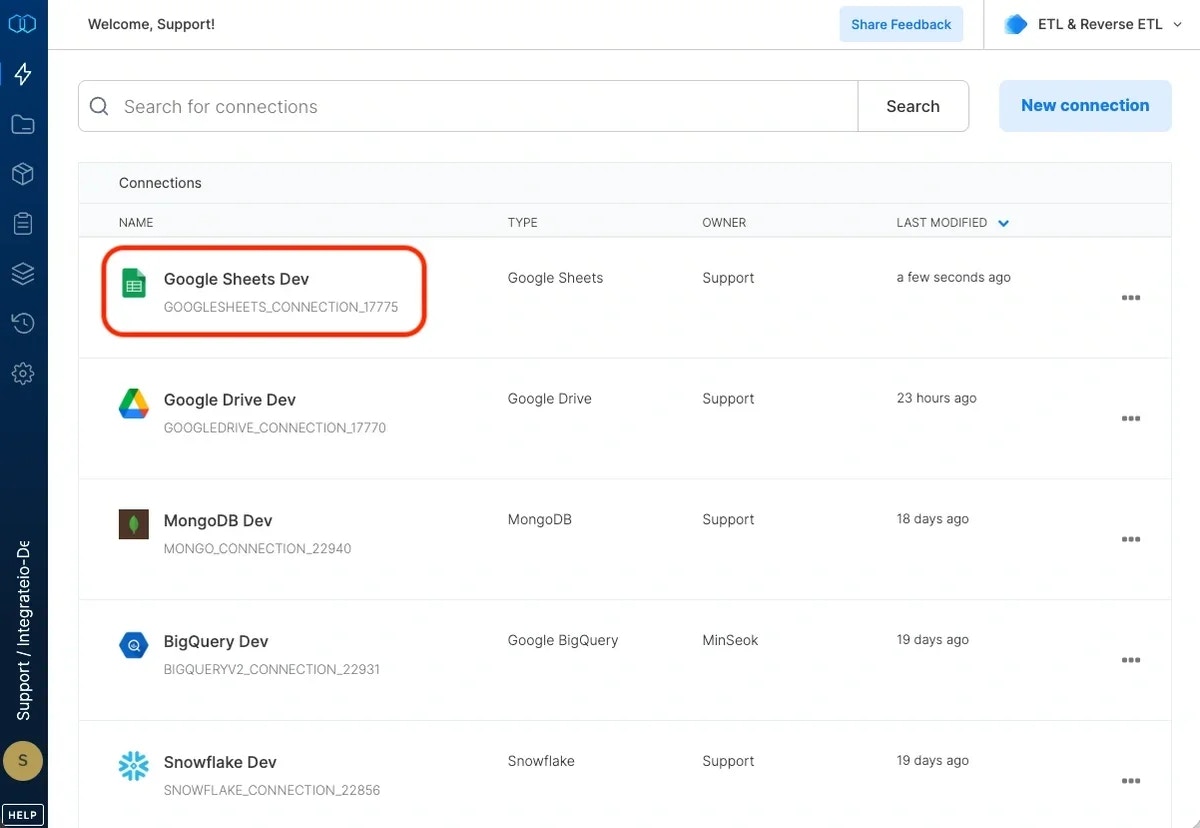 ## To modify Google Sheets connections in Integrate.io ETL
Click the **Connections** icon (lightning bolt) on the top left menu.
Click a connection to re-connect if your password has changed or the token has expired.
To delete a Google Sheets connection, click the three vertical dots on the far right of the connection listing and select the Delete connection option.
## To build a data pipeline to read Google Sheets data in Integrate.io ETL
## To modify Google Sheets connections in Integrate.io ETL
Click the **Connections** icon (lightning bolt) on the top left menu.
Click a connection to re-connect if your password has changed or the token has expired.
To delete a Google Sheets connection, click the three vertical dots on the far right of the connection listing and select the Delete connection option.
## To build a data pipeline to read Google Sheets data in Integrate.io ETL
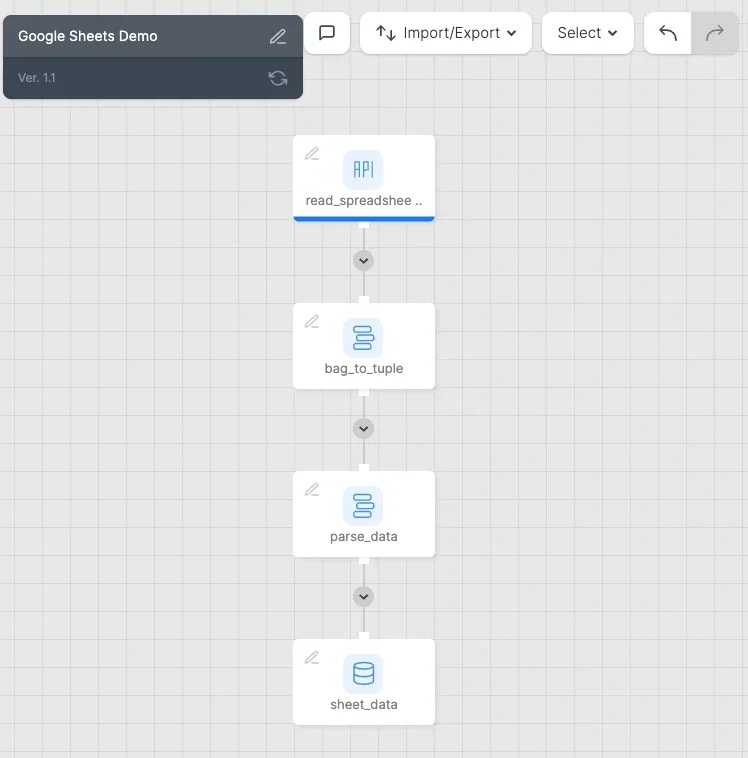 ## REST API Component: read\_spreadsheet
* **Authentication** - Click **Connection** and then select your Google Sheets connection. If you haven't created your Google Sheets connection yet, click **+ New** and follow the instructions found above.
## REST API Component: read\_spreadsheet
* **Authentication** - Click **Connection** and then select your Google Sheets connection. If you haven't created your Google Sheets connection yet, click **+ New** and follow the instructions found above.
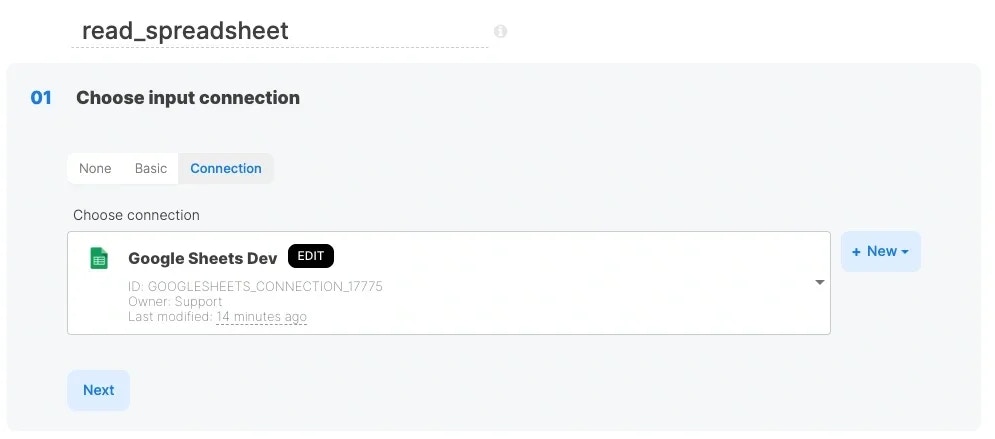 * **URL** - Enter the URL for the Google Sheets API: **`https://sheets.googleapis.com/v4/spreadsheets/$spreadsheetId/values/$sheetName`**. Make sure the method is set to **GET.**
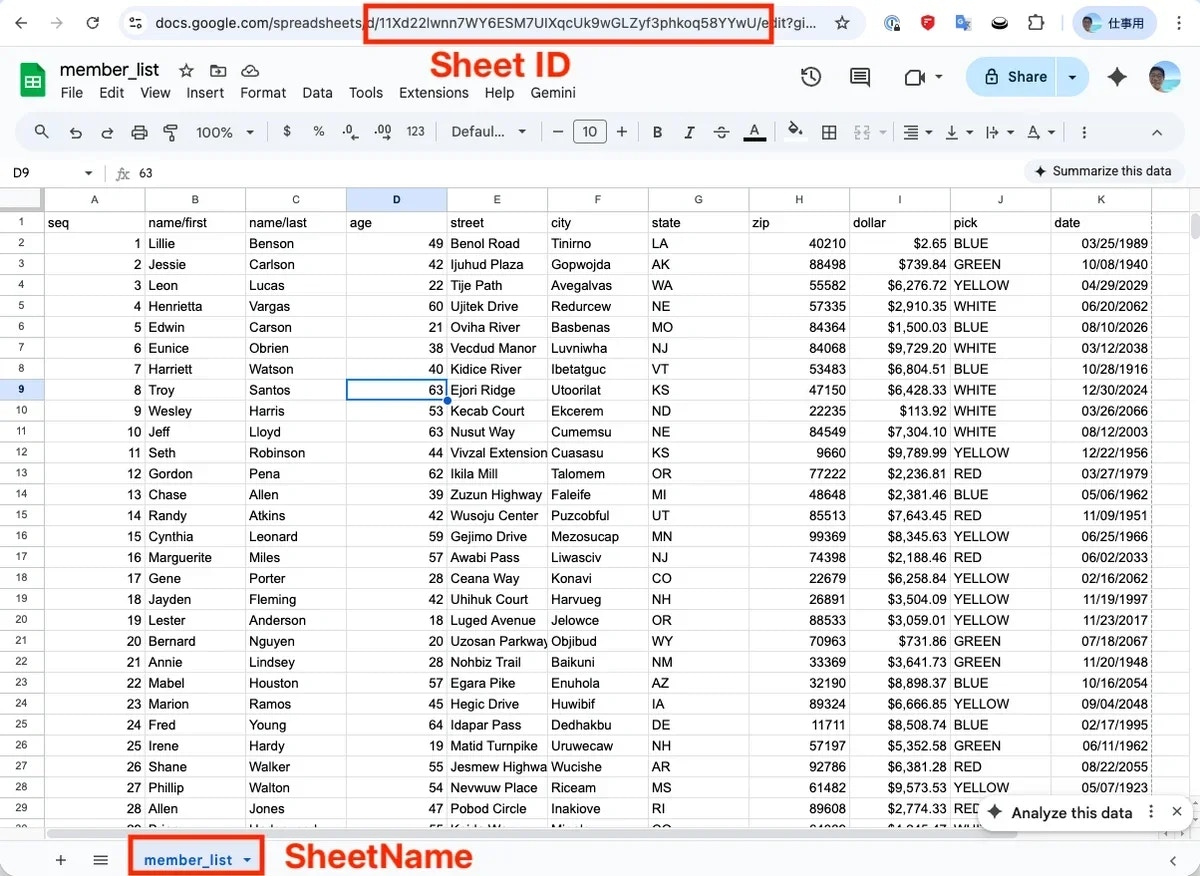
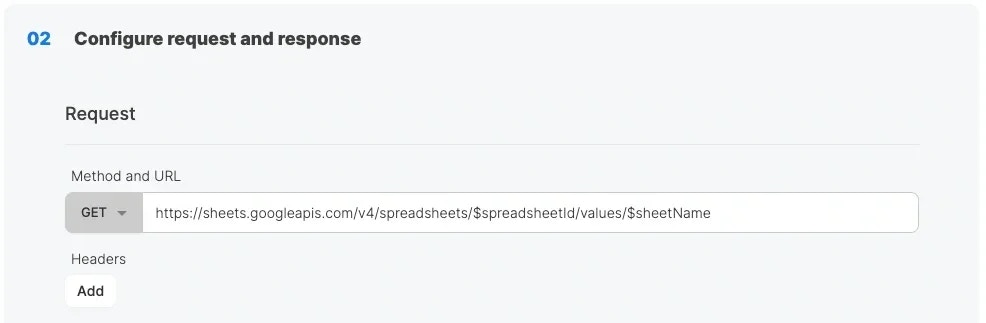 * **Sheet ID and name** - Replace the variables `$spreadsheetId` and \$sheetName with the values specific to your spreadsheet. You can find them located in the URL and at the bottom left.
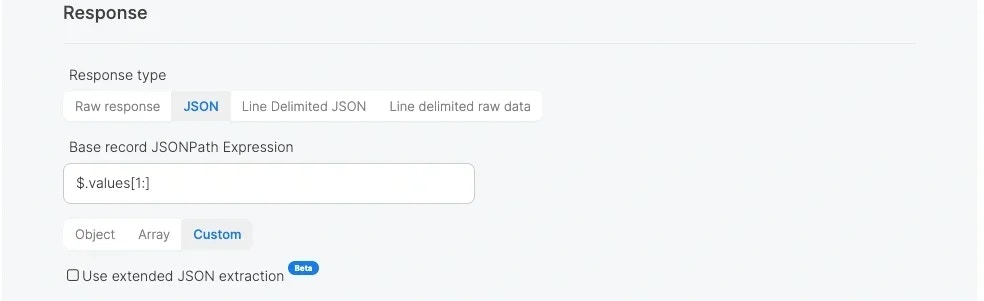
 * **Response** - Type `$.values[*]` in the Base record JSONPath Expression field. \* If the first record in your sheet contains field names, type `$.values[1:]` instead.
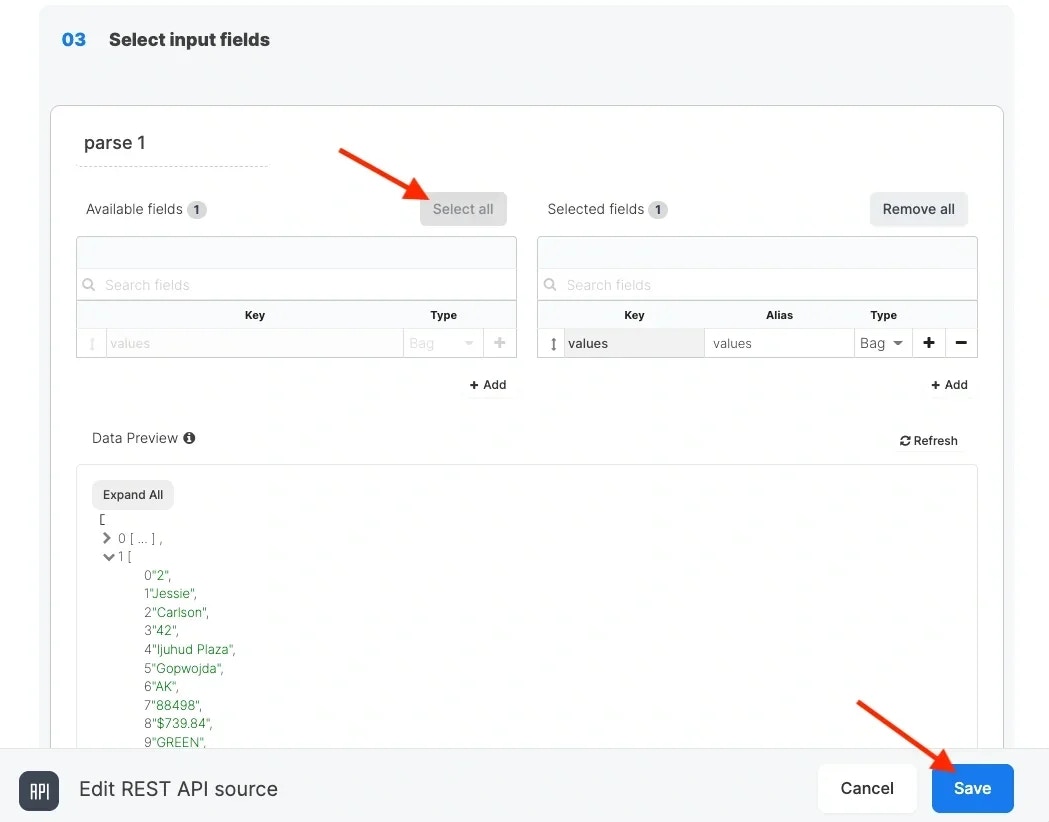
 * **Input fields** - Click **Select all** to move values over to the Selected fields. Then click **Save.**
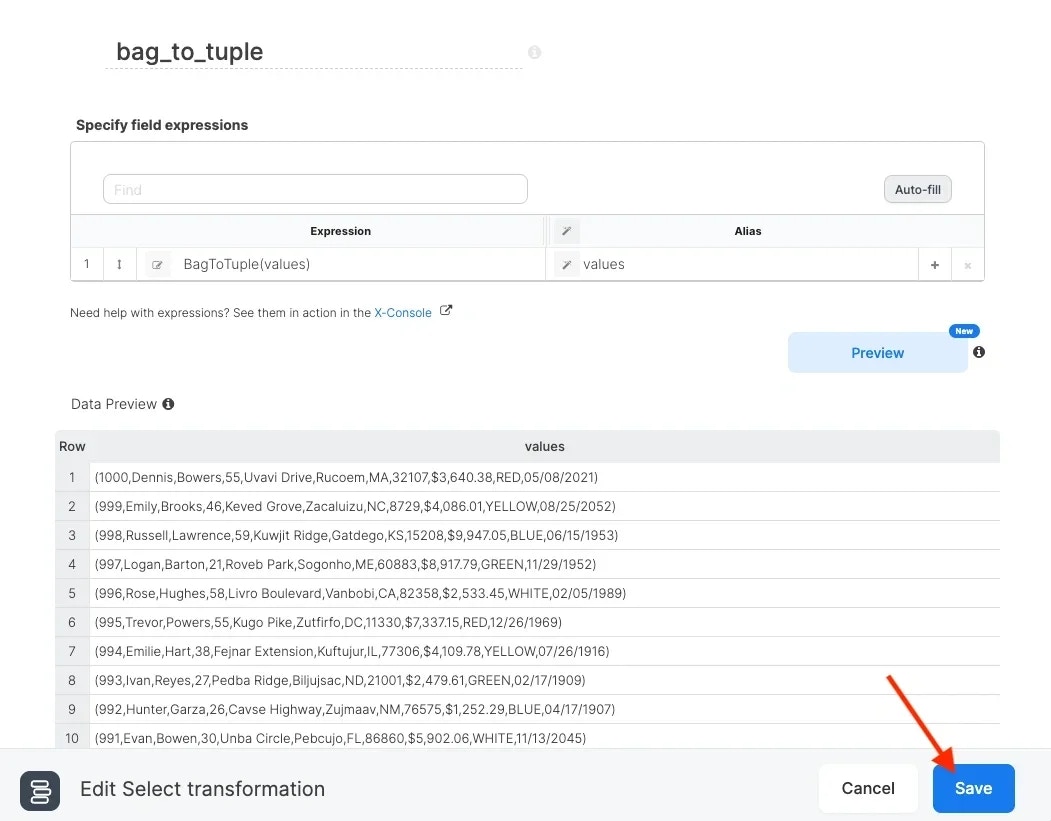
 ## Select Component: bag\_to\_tuple
* Pass the values field into the BagToTuple function (for more information on the BagToTuple function see [this](/docs/etl/bagtotuple/) article) - **BagToTuple(values)**. Click **Save.**
## Select Component: bag\_to\_tuple
* Pass the values field into the BagToTuple function (for more information on the BagToTuple function see [this](/docs/etl/bagtotuple/) article) - **BagToTuple(values)**. Click **Save.**
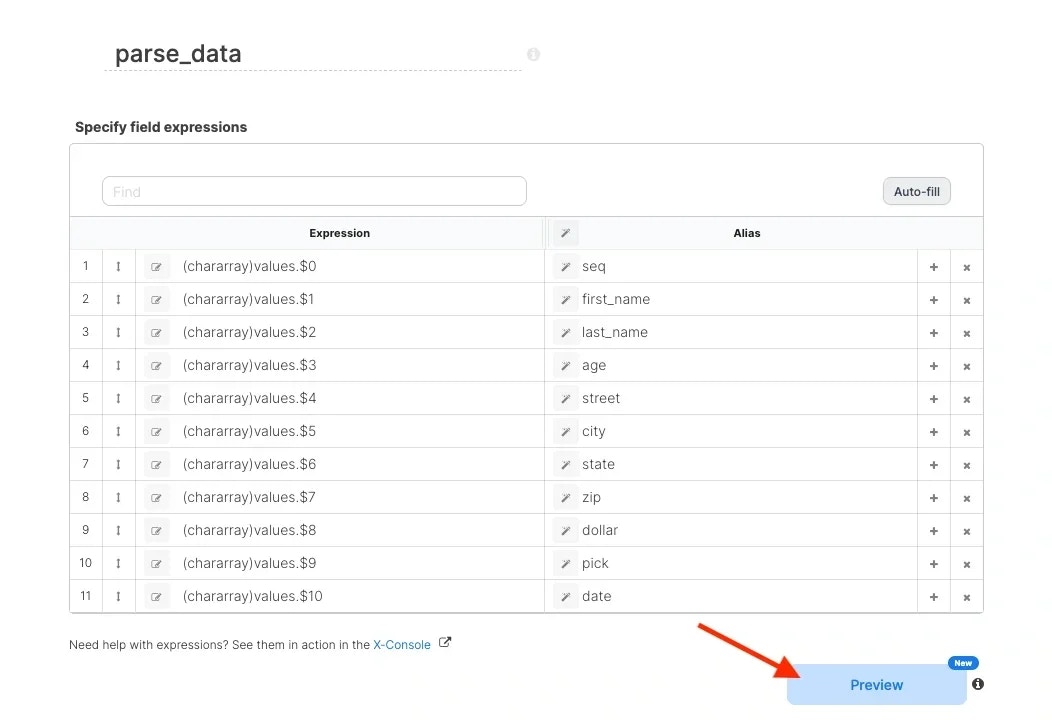
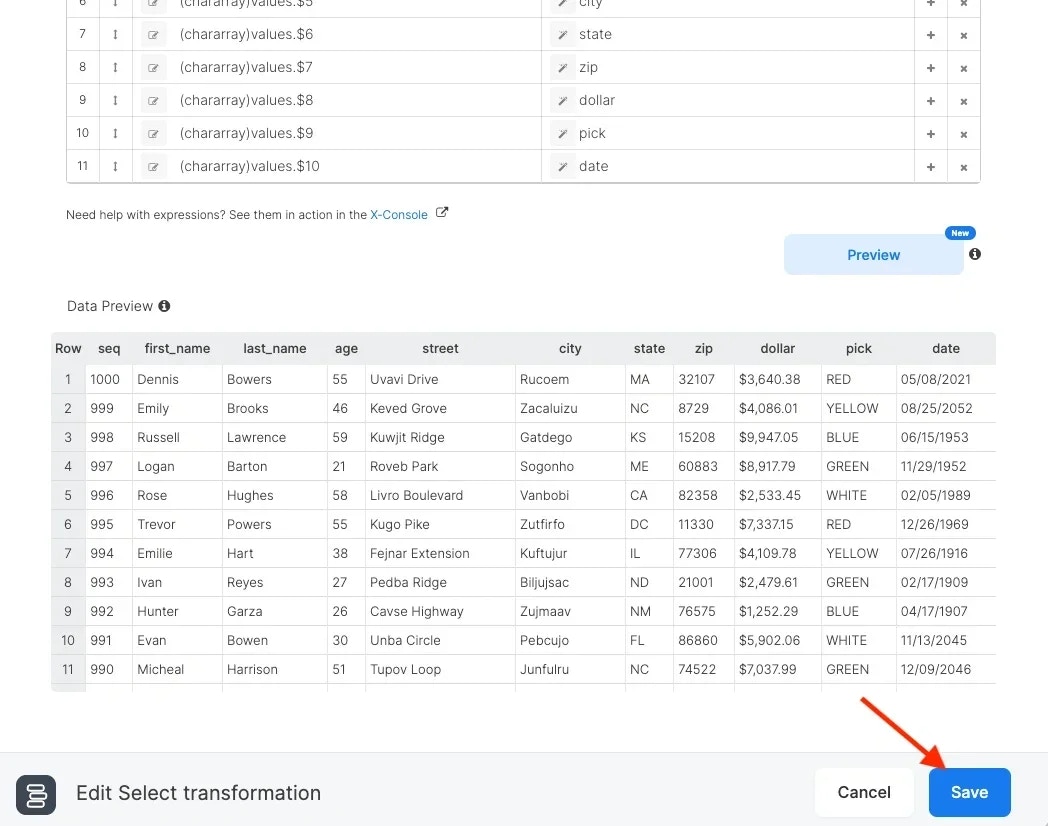
 ## Select Component: parse\_data
* Parse the individual fields in the **Expression** column using the tuple syntax - `values.$0`, `values.$1`, etc. Assign field names in the **Alias** column. When you parse the tuple, the items are returned as byte array datatypes. Explicitly cast them to the correct datatype. In the template, all fields have been cast to chararray (string). If you prefer a different datatype, change chararray to one of the datatypes that Integrate.io supports. See [this](/docs/etl/using-expressions-in-integrateio-etl/) doc for supported datatypes and methods of casting and parsing. Click **Save.**
## Select Component: parse\_data
* Parse the individual fields in the **Expression** column using the tuple syntax - `values.$0`, `values.$1`, etc. Assign field names in the **Alias** column. When you parse the tuple, the items are returned as byte array datatypes. Explicitly cast them to the correct datatype. In the template, all fields have been cast to chararray (string). If you prefer a different datatype, change chararray to one of the datatypes that Integrate.io supports. See [this](/docs/etl/using-expressions-in-integrateio-etl/) doc for supported datatypes and methods of casting and parsing. Click **Save.**
 ## Destination Component: sheet\_data
* The template shows a Redshift destination component; however, if you'd prefer to use a different destination, delete the Redshift component and select a destination component of your choice.
## Destination Component: sheet\_data
* The template shows a Redshift destination component; however, if you'd prefer to use a different destination, delete the Redshift component and select a destination component of your choice.
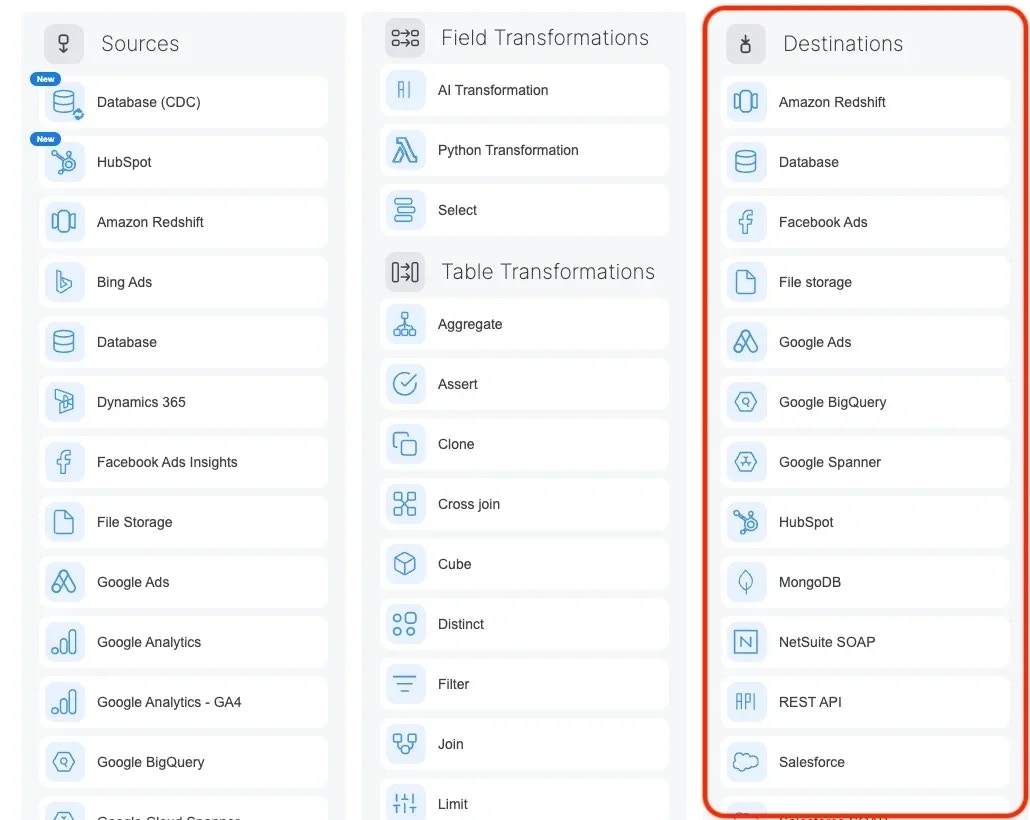 * **Choose target connection** - Select your target connection. If you haven't created your connection yet, click **+ New.**
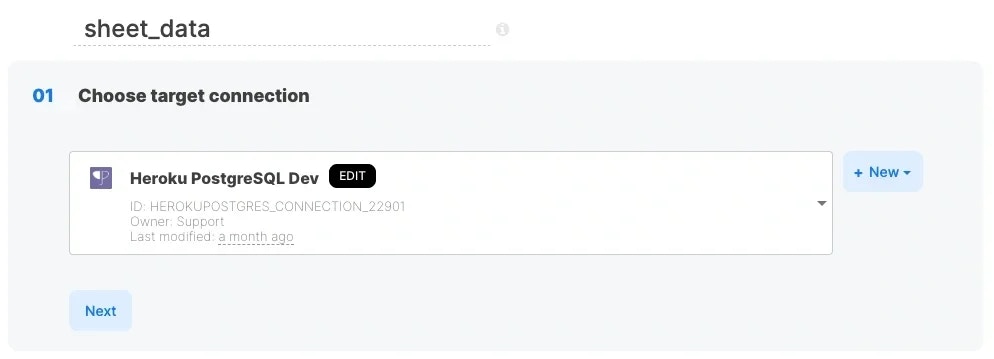 * **Destination properties** - Fill in the values for target schema and table, select an operation type, pre or post-action SQL, and advanced options.
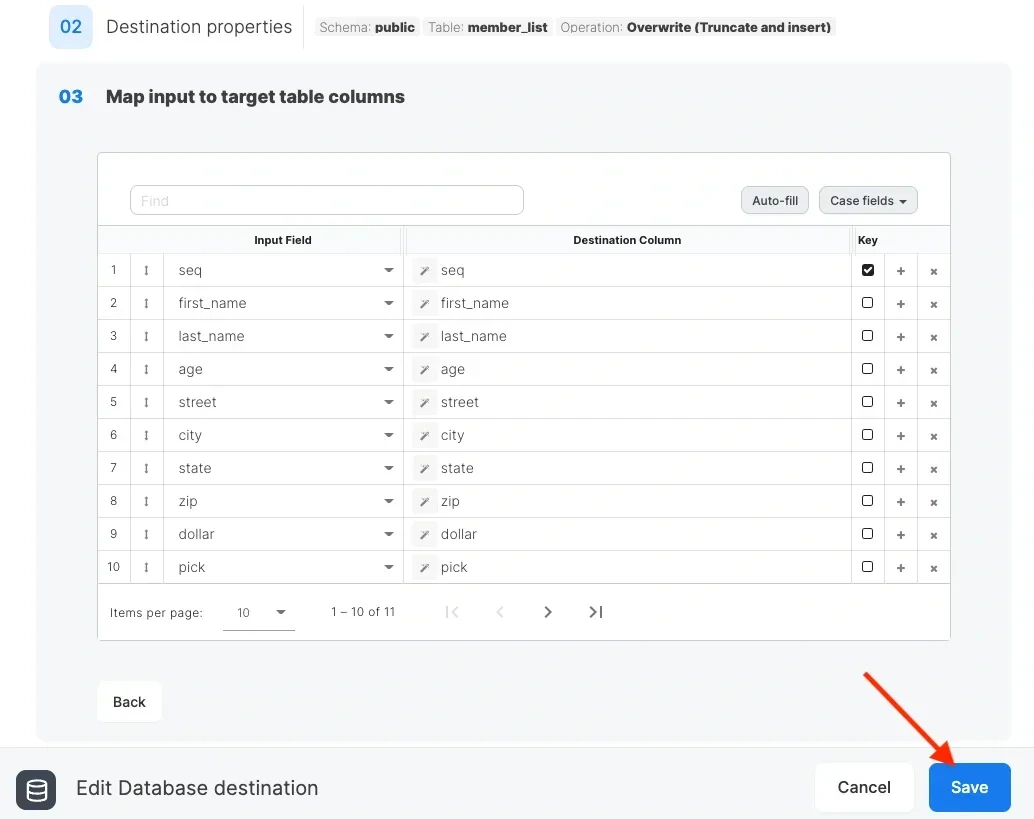
* **Schema mapping** - Click **Auto-fill** to bring in all of the fields. If you've selected a Merge operation type, click the **Key** box next to the merge key field(s). Click **Save.**
* **Destination properties** - Fill in the values for target schema and table, select an operation type, pre or post-action SQL, and advanced options.
* **Schema mapping** - Click **Auto-fill** to bring in all of the fields. If you've selected a Merge operation type, click the **Key** box next to the merge key field(s). Click **Save.**