> ## Documentation Index
> Fetch the complete documentation index at: https://www.integrate.io/docs/llms.txt
> Use this file to discover all available pages before exploring further.
# ETL: Connecting to Instagram
> Connect Instagram to Integrate.io ETL for extracting social media data. Set up the Facebook-Instagram OAuth connection for data pipelines.
## To create an Instagram connection in Integrate.io ETL
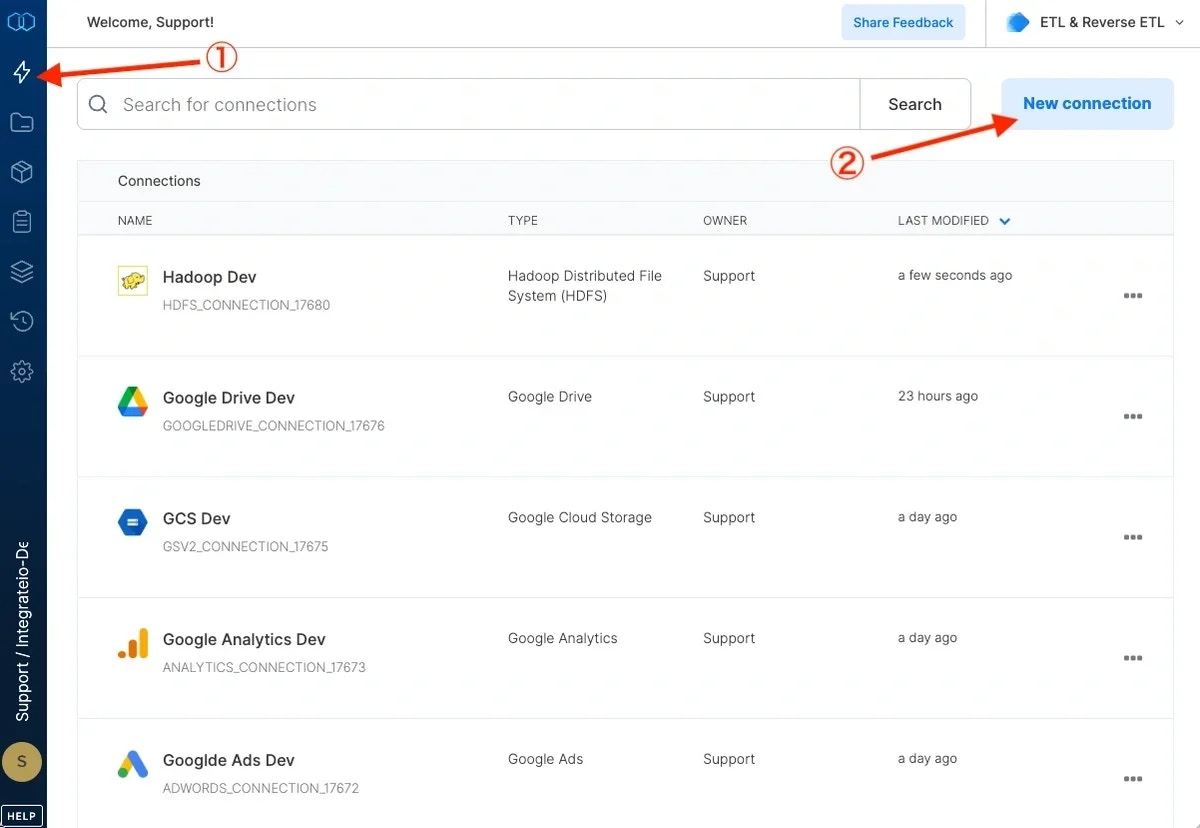
Click the **Connections** icon (lightning bolt) on the top left menu.
To create a connection, click **New connection**.
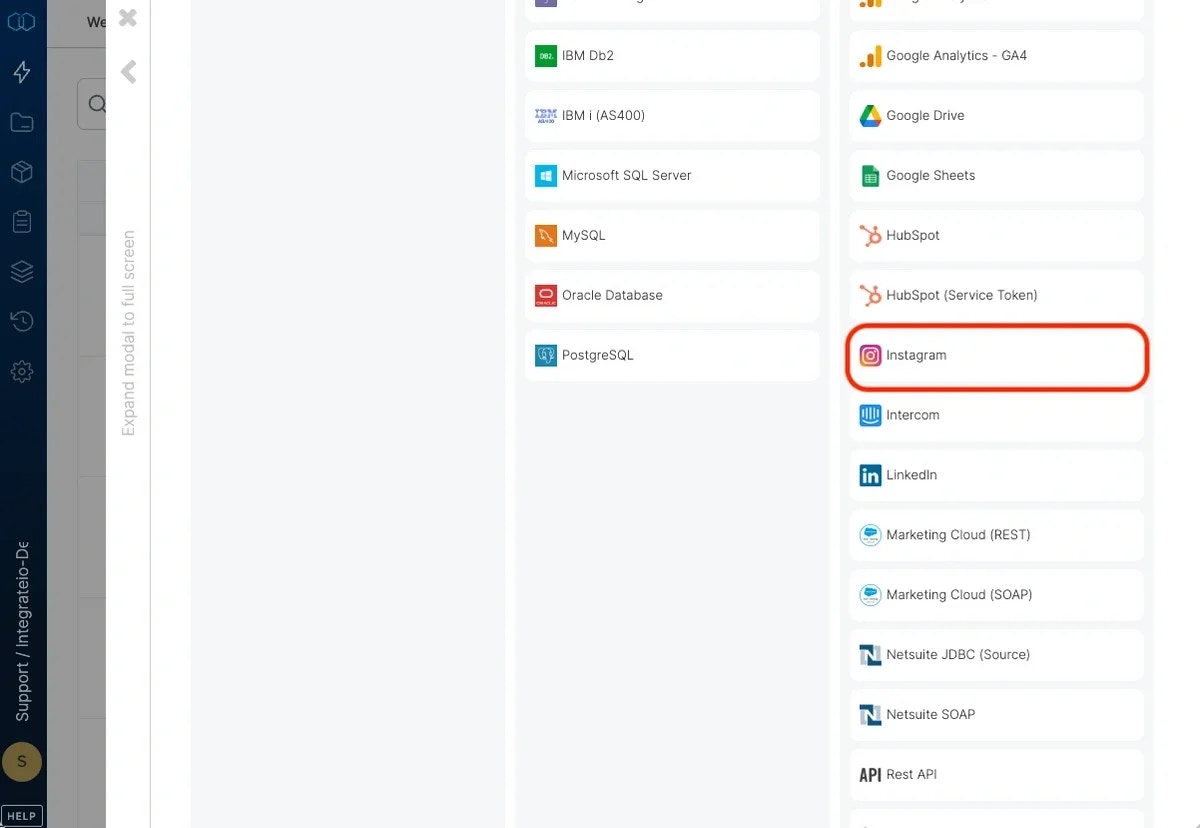
 Select Instagram.
 (If required, sign in to Instagram)
Click **Connect** to authorize Integrate.io ETL access to your Instagram account.
Click **Save changes** after set the title of (connection) name.
(If required, sign in to Instagram)
Click **Connect** to authorize Integrate.io ETL access to your Instagram account.
Click **Save changes** after set the title of (connection) name.
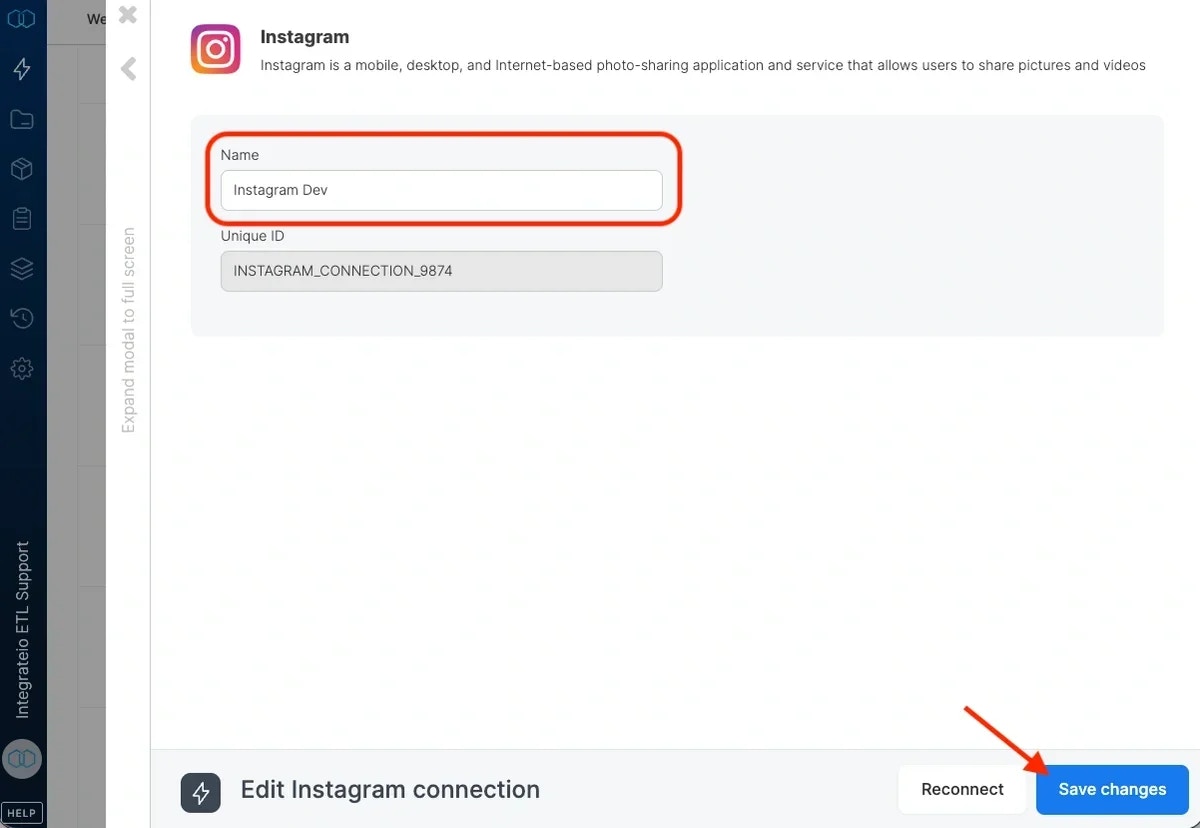 In the new Instagram connection window, name the connection and click **Create Instagram connection.**
## To modify Instagram connections in Integrate.io ETL
Click the Connections icon (lightning bolt) on the top left menu.
Click a connection to open it and re-connect if your password has changed or the token has expired. Make any necessary changes, then click Reconnect, and Save changes. To exit the Instagram connection window without changes, click Back to connections (grey tab on the left side) on the Instagram connection window.
To delete an Instagram connection, click the three vertical dots on the far right of the connection listing and select the Delete connection option.
In the new Instagram connection window, name the connection and click **Create Instagram connection.**
## To modify Instagram connections in Integrate.io ETL
Click the Connections icon (lightning bolt) on the top left menu.
Click a connection to open it and re-connect if your password has changed or the token has expired. Make any necessary changes, then click Reconnect, and Save changes. To exit the Instagram connection window without changes, click Back to connections (grey tab on the left side) on the Instagram connection window.
To delete an Instagram connection, click the three vertical dots on the far right of the connection listing and select the Delete connection option.