> ## Documentation Index
> Fetch the complete documentation index at: https://www.integrate.io/docs/llms.txt
> Use this file to discover all available pages before exploring further.
# ETL: Connecting to SFTP
> Connect any SFTP server to Integrate.io ETL for reading file data. Configure host, port, credentials, and SSH key authentication settings.
Integrate.io ETL can access data in files residing on any Secure File Transfer Protocol (SFTP) server. This article details creating an SFTP connection in Integrate.io ETL. In order to allow Integrate.io ETL direct access to your server, create firewall rules to allow Integrate.io ETL access from the relevant IPs in this [list](/docs/etl/integrateio-etls-ip-list/). You can also follow the directions [here](/docs/etl/allowing-integrateio-etl-access-to-my-server-behind-a-firewall/) to allow Integrate.io ETL access through an SSH tunnel or reverse SSH tunnel.
### To define a connection in Integrate.io ETL to your SFTP server
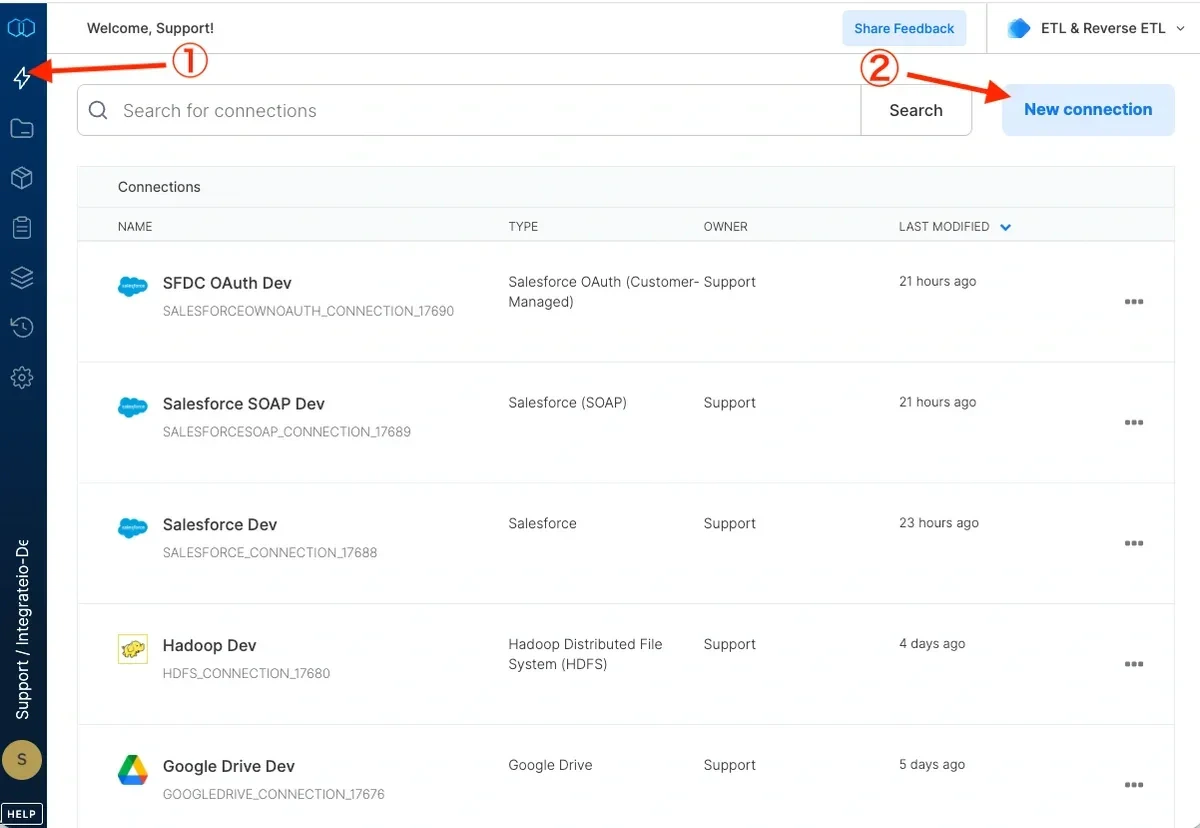
Click the Connections icon (lightning bolt) on the top left menu.
Click **New connection**.
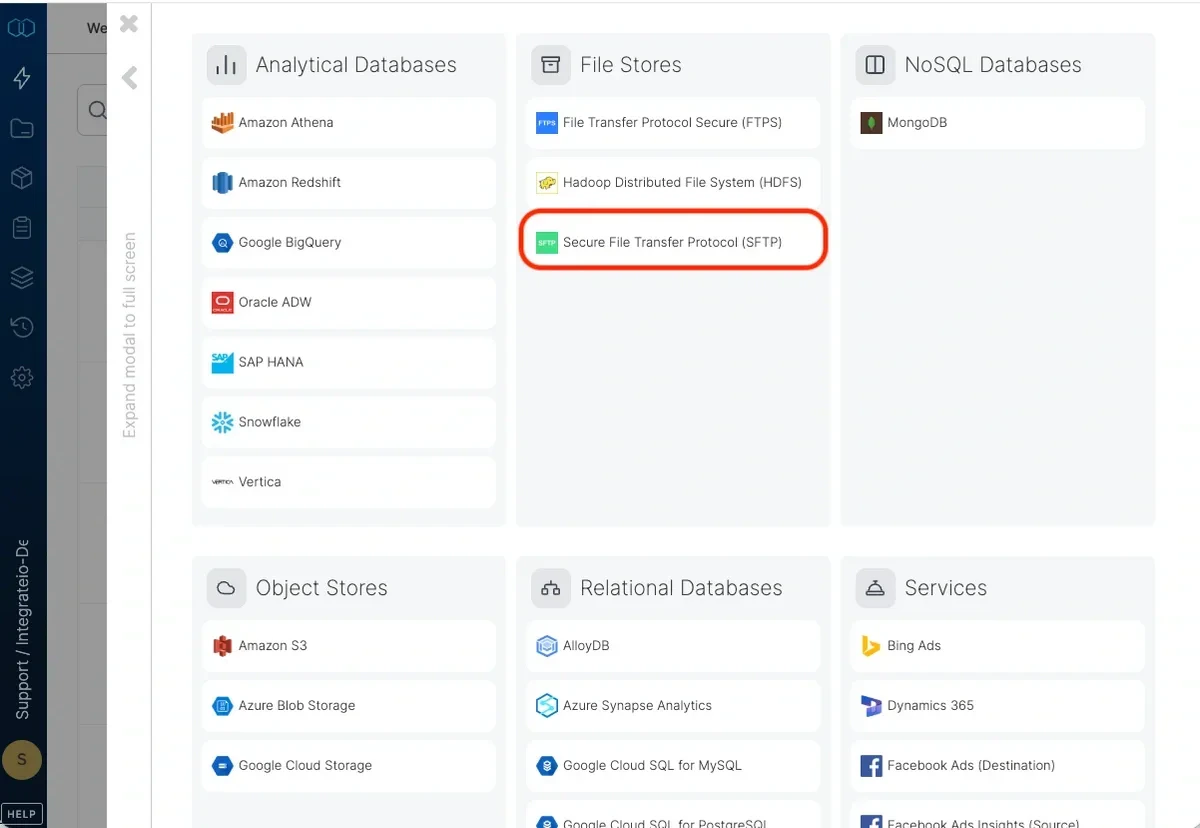
 Select **Secure File Transfer Protocol (SFTP)**.
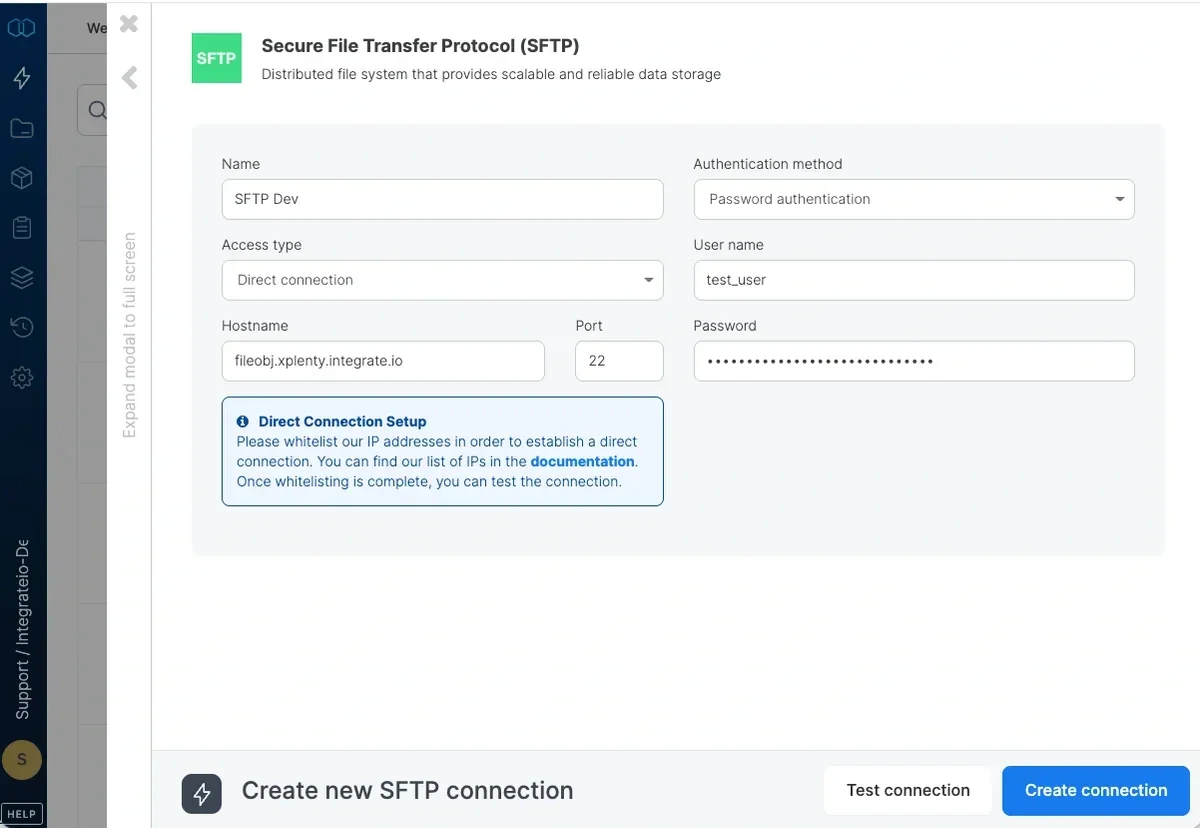
 In the new SFTP connection window, name the connection and enter the connection information.
* **Access type** - For a direct connection, create firewall rules to allow Integrate.io ETL access from the relevant IPs in this [list](/docs/etl/integrateio-etls-ip-list/). You can also follow the directions [here](/docs/etl/allowing-integrateio-etl-access-to-my-server-behind-a-firewall/) to allow Integrate.io ETL access through an SSH tunnel or reverse SSH tunnel.
* **Hostname** - the host name of the SFTP server.
* **Authentication Method** - Select password or public key authentication. If key based authentication is selected, copy your account's public key from **Settings** -> **Account Settings** -> **Profile** and add it to the SFTP user's authorized keys.
* **User Name** - the user name to use when connecting to SFTP server.
* **Password** - the password to use when connecting to SFTP server using password authentication. **Password** cannot contain the character @.
* **Port** - the TCP port of the SFTP server (Default is 22).
Click **Test connection**. If the credentials are correct, a message that the connection test was successful appears.
Click **Create SFTP connection.**
In the new SFTP connection window, name the connection and enter the connection information.
* **Access type** - For a direct connection, create firewall rules to allow Integrate.io ETL access from the relevant IPs in this [list](/docs/etl/integrateio-etls-ip-list/). You can also follow the directions [here](/docs/etl/allowing-integrateio-etl-access-to-my-server-behind-a-firewall/) to allow Integrate.io ETL access through an SSH tunnel or reverse SSH tunnel.
* **Hostname** - the host name of the SFTP server.
* **Authentication Method** - Select password or public key authentication. If key based authentication is selected, copy your account's public key from **Settings** -> **Account Settings** -> **Profile** and add it to the SFTP user's authorized keys.
* **User Name** - the user name to use when connecting to SFTP server.
* **Password** - the password to use when connecting to SFTP server using password authentication. **Password** cannot contain the character @.
* **Port** - the TCP port of the SFTP server (Default is 22).
Click **Test connection**. If the credentials are correct, a message that the connection test was successful appears.
Click **Create SFTP connection.**
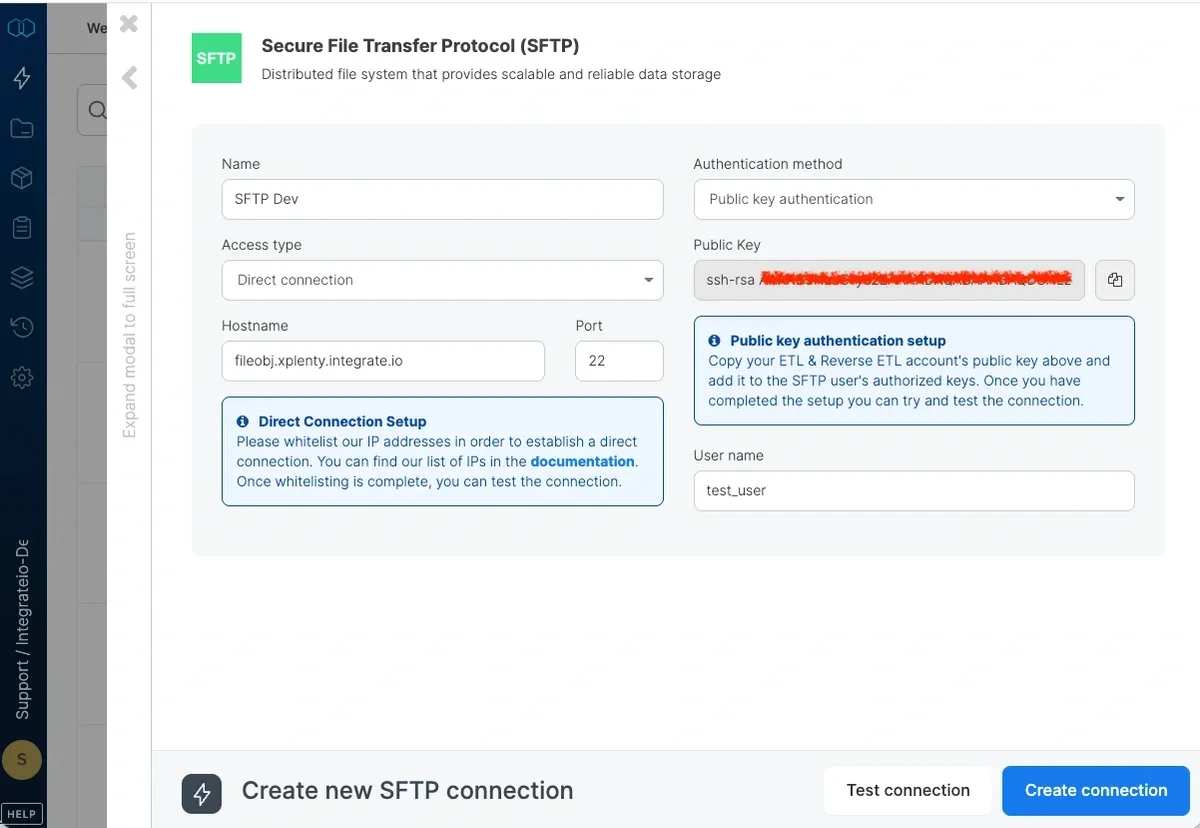 The connection is created and appears in the connections list.
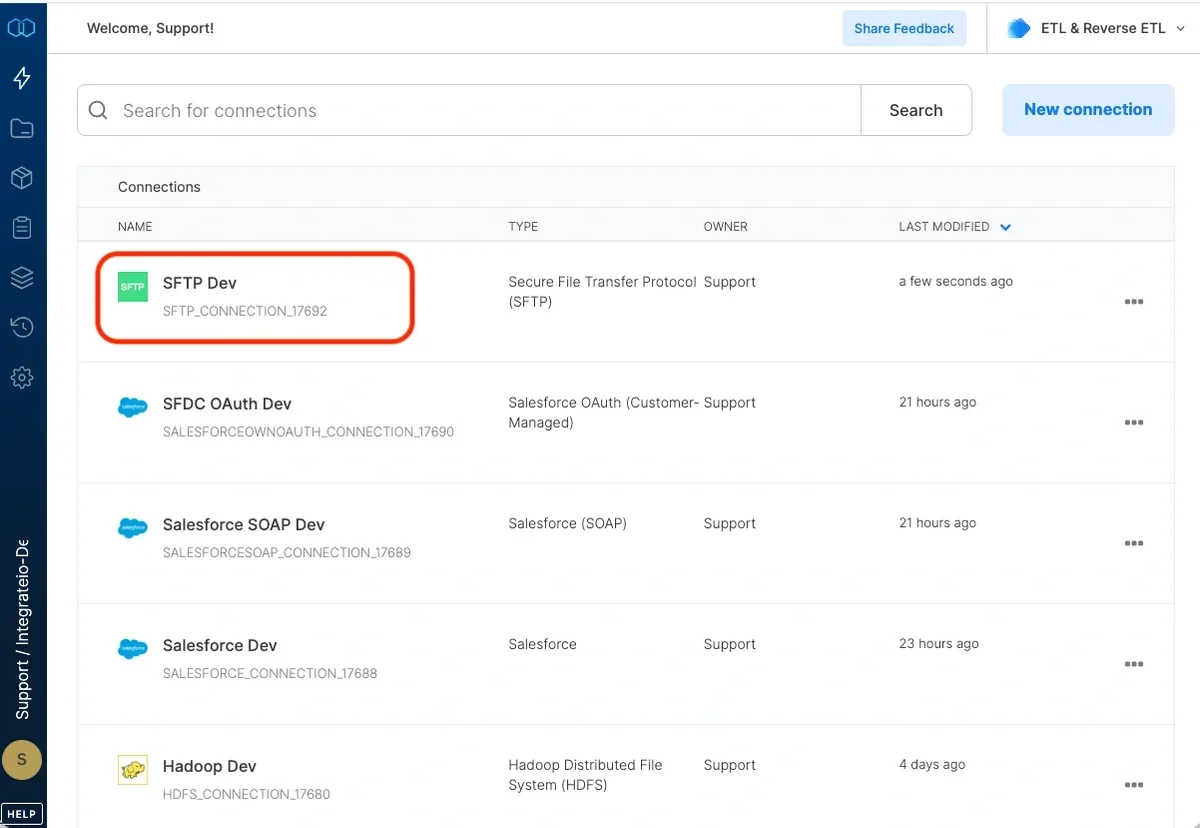 Now you can create a package and test it on your actual data stored in an SFTP server.