> ## Documentation Index
> Fetch the complete documentation index at: https://www.integrate.io/docs/llms.txt
> Use this file to discover all available pages before exploring further.
# ETL: Connecting to PostgreSQL
> Connect PostgreSQL databases to Integrate.io ETL for reading and writing data. Configure permissions, firewall rules, and connection settings.
* Create a user and grant it minimum permissions required for Integrate.io ETL to read or write data from the database.
* Allow access from [Integrate.io ETL's IP addresses](/docs/etl/integrateio-etls-ip-list/) to your PostgreSQL database port (Refer to [this](/docs/etl/allowing-integrateio-etl-access-to-my-server-behind-a-firewall/) article if you'd prefer to create an SSH tunnel or reverse SSH tunnel.)
## To create a PostgreSQL database connection in Integrate.io ETL
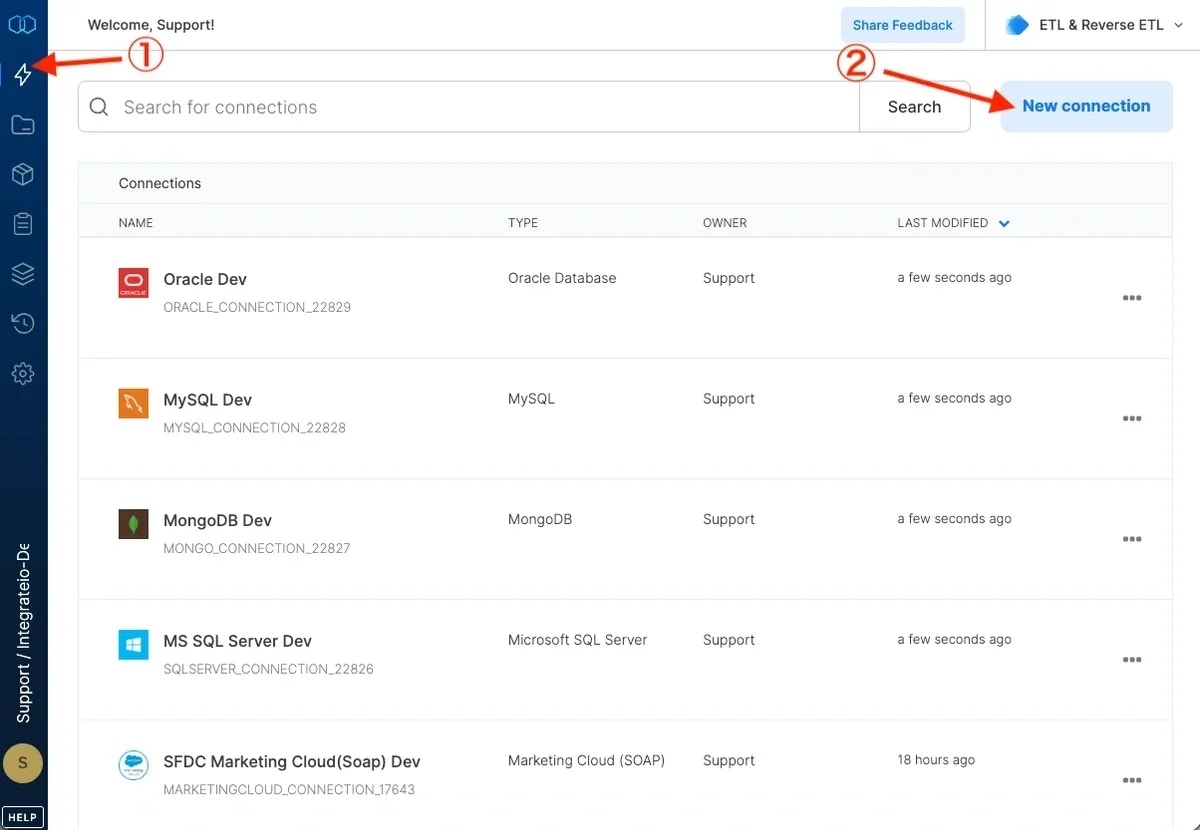
Click the Connections icon (lightning bolt) on the top left menu.
To create a connection, click **New connection**.
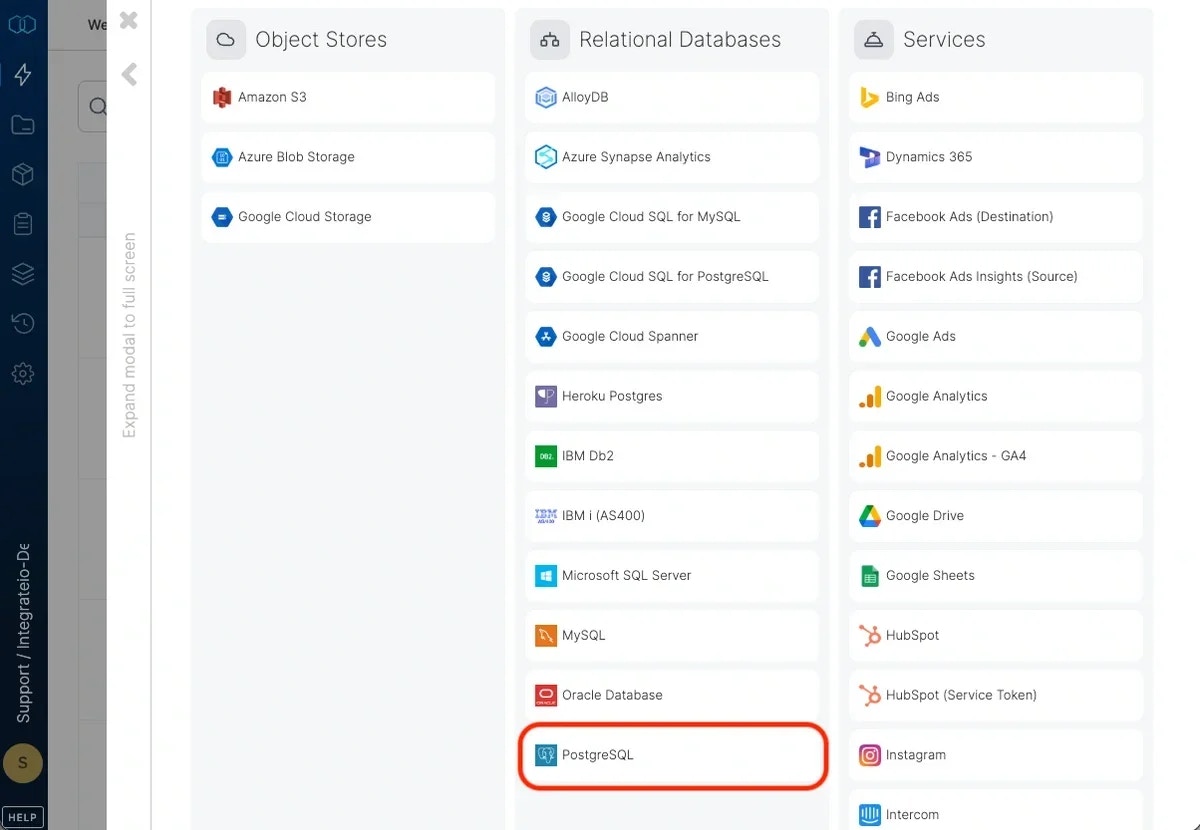
 Select PostgreSQL and name the connection.
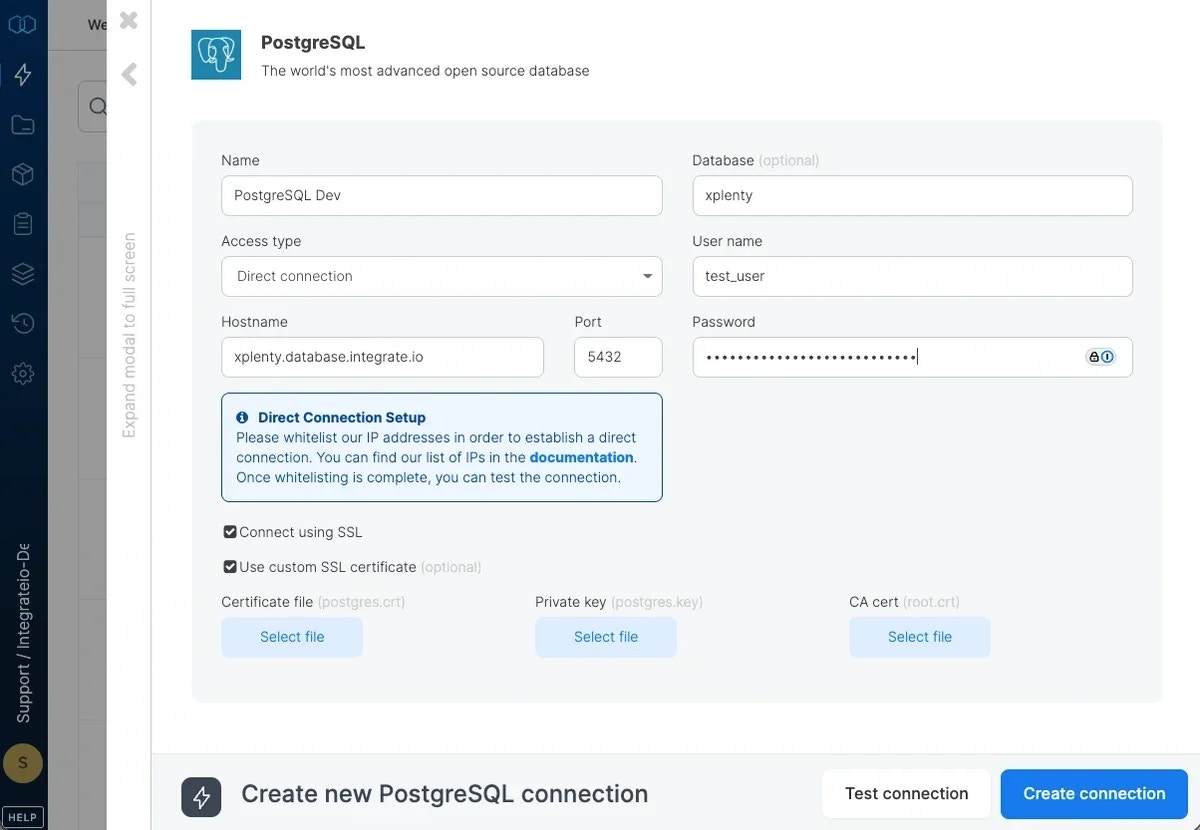
 Select your access type (direct connection if you've whitelisted Integrate.io ETL's IP addresses.)
Enter your PostgreSQL database host name or IP address.
Enter the database name.
Enter the username.
Enter the user's password.
If you need to connect to PostgreSQL through **custom SSL certificate**, check on custom SSL certificate. Then upload files of Certificate file, Private key, Ca Cert.
Click **Test Connection** to make sure the connection details are correct.
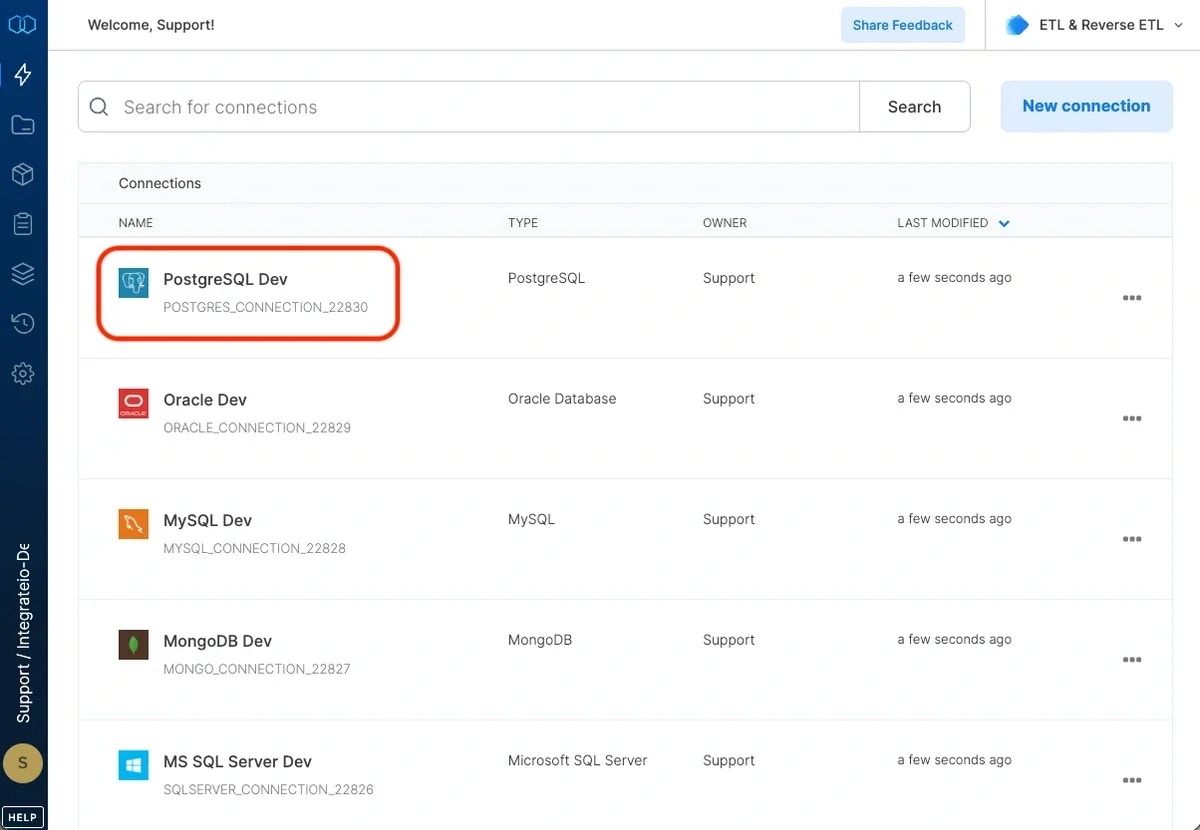
Click **Create connection** to create the connection.
Select your access type (direct connection if you've whitelisted Integrate.io ETL's IP addresses.)
Enter your PostgreSQL database host name or IP address.
Enter the database name.
Enter the username.
Enter the user's password.
If you need to connect to PostgreSQL through **custom SSL certificate**, check on custom SSL certificate. Then upload files of Certificate file, Private key, Ca Cert.
Click **Test Connection** to make sure the connection details are correct.
Click **Create connection** to create the connection.