> ## Documentation Index
> Fetch the complete documentation index at: https://www.integrate.io/docs/llms.txt
> Use this file to discover all available pages before exploring further.
# ETL: Salesforce to SFTP Workflow
> Build an API-managed Salesforce-to-SFTP workflow in Integrate.io ETL using the REST API to programmatically run, monitor, and parameterize the pipeline.
Use Integrate.io's low-code data pipelines to export Salesforce data to an SFTP server securely, either on a schedule or via API.
## Prerequisites
* **Integrate.io** account with permissions to create connections, pipelines, and API keys
* **Salesforce** user with API access (a dedicated Integration User is recommended)
* **SFTP** server reachable from Integrate.io egress IPs, with SSH public key authentication (recommended) and optional PGP public key for file encryption
* Optional: Secrets vault/manager for credential rotation
## Creating Secure Connections
### Salesforce Connection
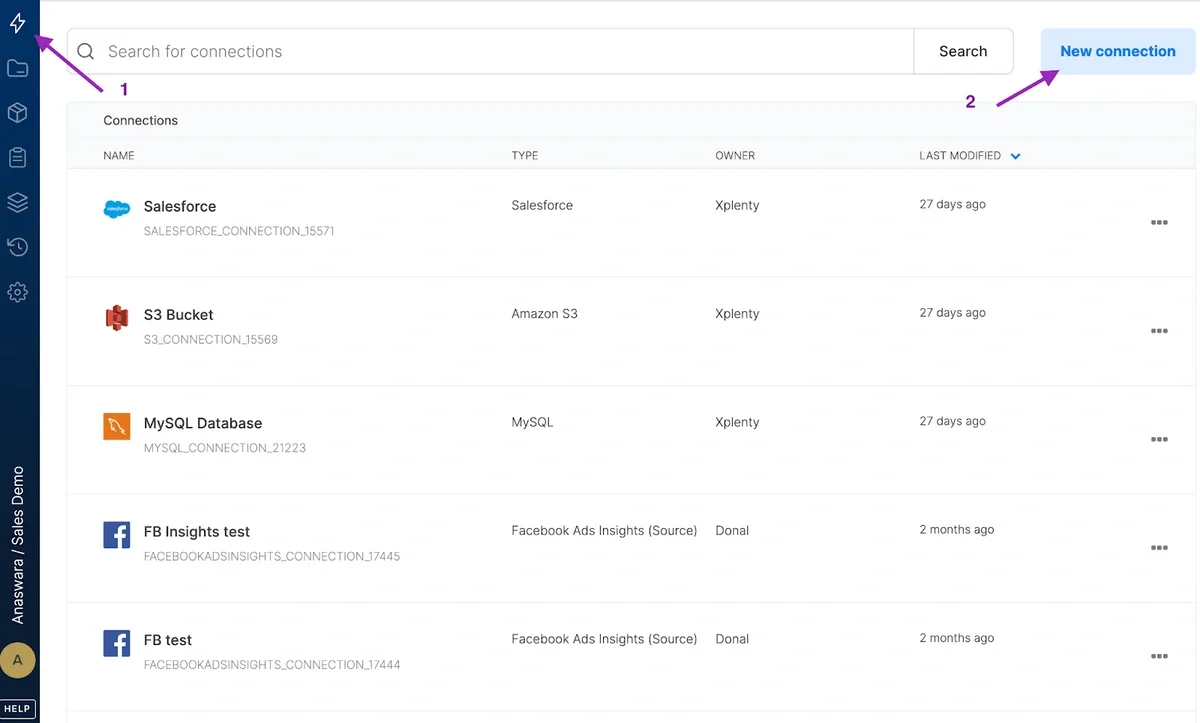 Click the **Connections icon (lightning bolt)** on the top-left menu.
Click **"New Connection," then choose "Salesforce"**.
Select the Salesforce environment (production or sandbox) and click **authorize**.
Sign in with your Salesforce account in the login window.
For sandbox users: append a dot and sandbox name to your username. Example: **[danielle@ilovemycompany.com.test](mailto:danielle@ilovemycompany.com.test)**
Click **Allow** to grant Integrate.io ETL access to Salesforce.
Name the connection and click **Create Salesforce Connection**.
### SFTP Connection
Click the **Connections icon (lightning bolt)** on the top-left menu.
Click **"New Connection," then choose "Salesforce"**.
Select the Salesforce environment (production or sandbox) and click **authorize**.
Sign in with your Salesforce account in the login window.
For sandbox users: append a dot and sandbox name to your username. Example: **[danielle@ilovemycompany.com.test](mailto:danielle@ilovemycompany.com.test)**
Click **Allow** to grant Integrate.io ETL access to Salesforce.
Name the connection and click **Create Salesforce Connection**.
### SFTP Connection
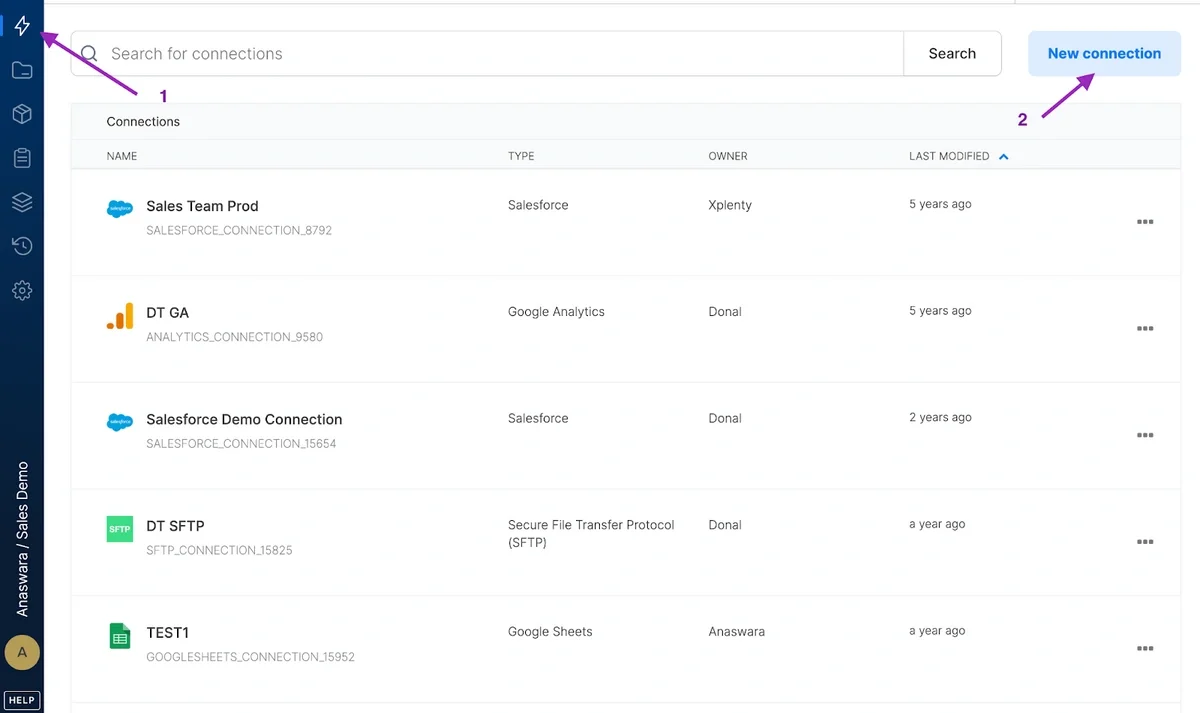 Click the **Connections icon (lightning bolt)** on the top-left menu.
Click **New connection** and choose **Secure File Transfer Protocol (SFTP)**.
In the SFTP connection window, enter:
* **Access type**: Direct connection, SSH tunnel, or reverse SSH tunnel
* **Hostname**: The SFTP server hostname
* **Authentication Method**: Password or public key
* **User Name**: SFTP server username
* **Password**: Connection password (cannot contain @)
* **Port**: TCP port of the SFTP server
Click **Test connection** to verify credentials.
Click **Create SFTP connection**.
Click the **Connections icon (lightning bolt)** on the top-left menu.
Click **New connection** and choose **Secure File Transfer Protocol (SFTP)**.
In the SFTP connection window, enter:
* **Access type**: Direct connection, SSH tunnel, or reverse SSH tunnel
* **Hostname**: The SFTP server hostname
* **Authentication Method**: Password or public key
* **User Name**: SFTP server username
* **Password**: Connection password (cannot contain @)
* **Port**: TCP port of the SFTP server
Click **Test connection** to verify credentials.
Click **Create SFTP connection**.