> ## Documentation Index
> Fetch the complete documentation index at: https://www.integrate.io/docs/llms.txt
> Use this file to discover all available pages before exploring further.
# ETL: Dynamic Connections
> Use dynamic connections in Integrate.io ETL to parameterize data source and destination settings at runtime with variables and expressions.
**WHAT IS THE DYNAMIC CONNECTION FEATURE?**
Dynamic connection is a new feature which allows you to replace database connections in source, destination components and execute SQL task component on workflow at package runtime. This is a convenient and scalable approach to running jobs across multiple database connections while using a single package! To use this feature, reach out to Integrate.io Support and request it to be enabled on your account!
Overview
1. Set variable for connection on package
2. Set variable for connection on workflow
3. Find connection IDs
4. Update variable value
**Set variable for connection on package**
Open any existing package or create a new one.
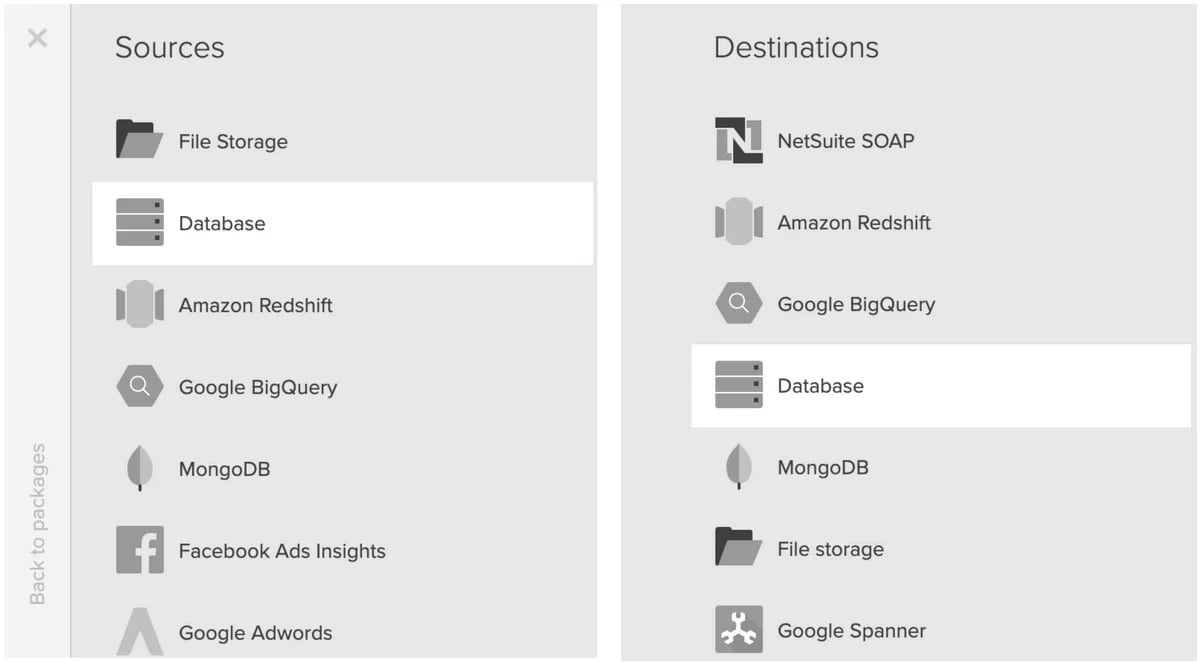
Add a database source or destination component
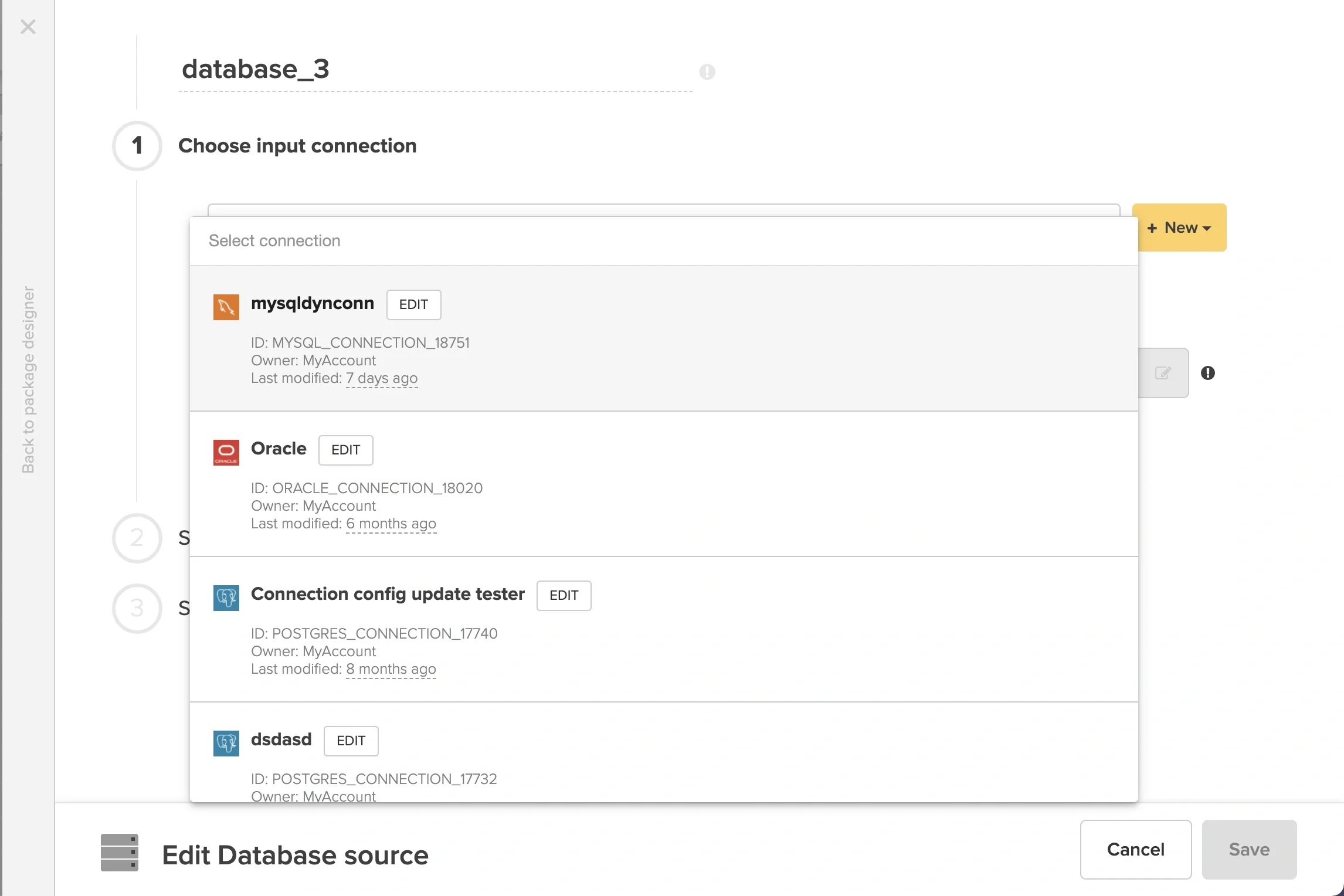
 Open the component and specify any available connection
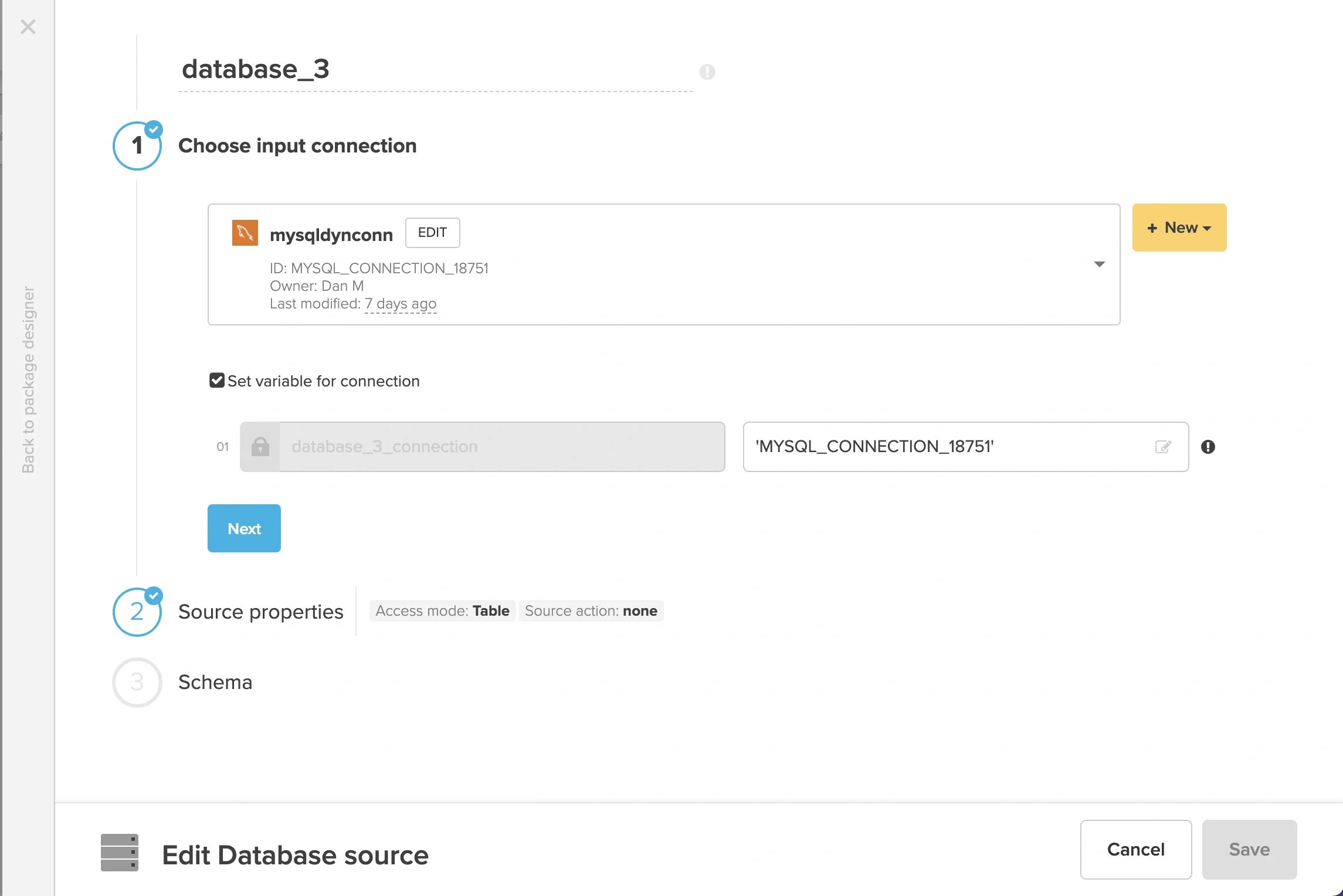
 Check the checkbox for “Set variable for connection”
* It is not possible to change the variable name.
* The value of the variable defaults to the connection ID from the connection dropdown.
Check the checkbox for “Set variable for connection”
* It is not possible to change the variable name.
* The value of the variable defaults to the connection ID from the connection dropdown.
 Configure “Source properties” and “Schema” sections, then “Save” the component.
Configure the rest of the package as needed, then "Save" the package.
**Set variable for connection on workflow**
Open any existing package or create a new one.
Add a SQL task component
Configure “Source properties” and “Schema” sections, then “Save” the component.
Configure the rest of the package as needed, then "Save" the package.
**Set variable for connection on workflow**
Open any existing package or create a new one.
Add a SQL task component
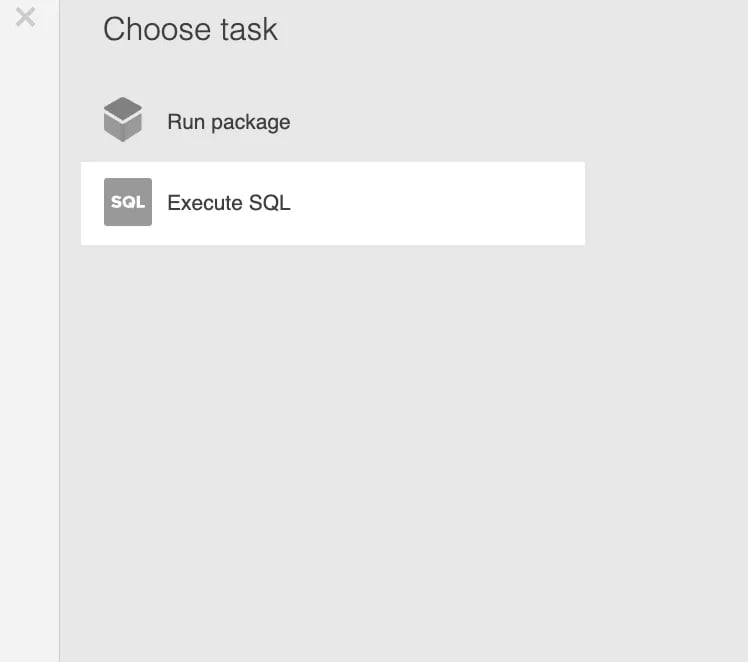 Open the component and specify any available connection
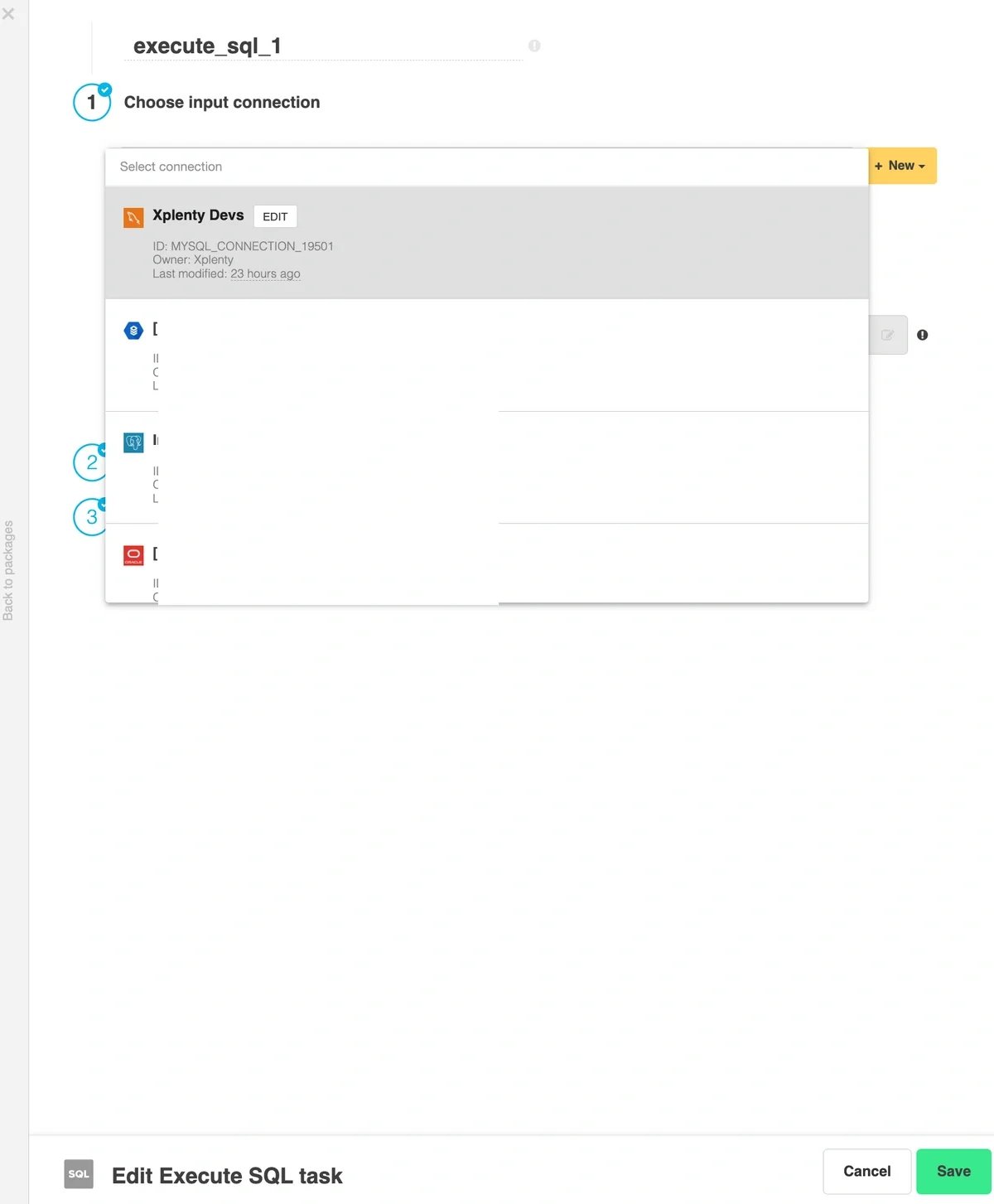 Check the checkbox for “Set variable for connection”
* It is not possible to change the variable name.
* The value of the variable defaults to the connection ID from the connection dropdown.
Check the checkbox for “Set variable for connection”
* It is not possible to change the variable name.
* The value of the variable defaults to the connection ID from the connection dropdown.
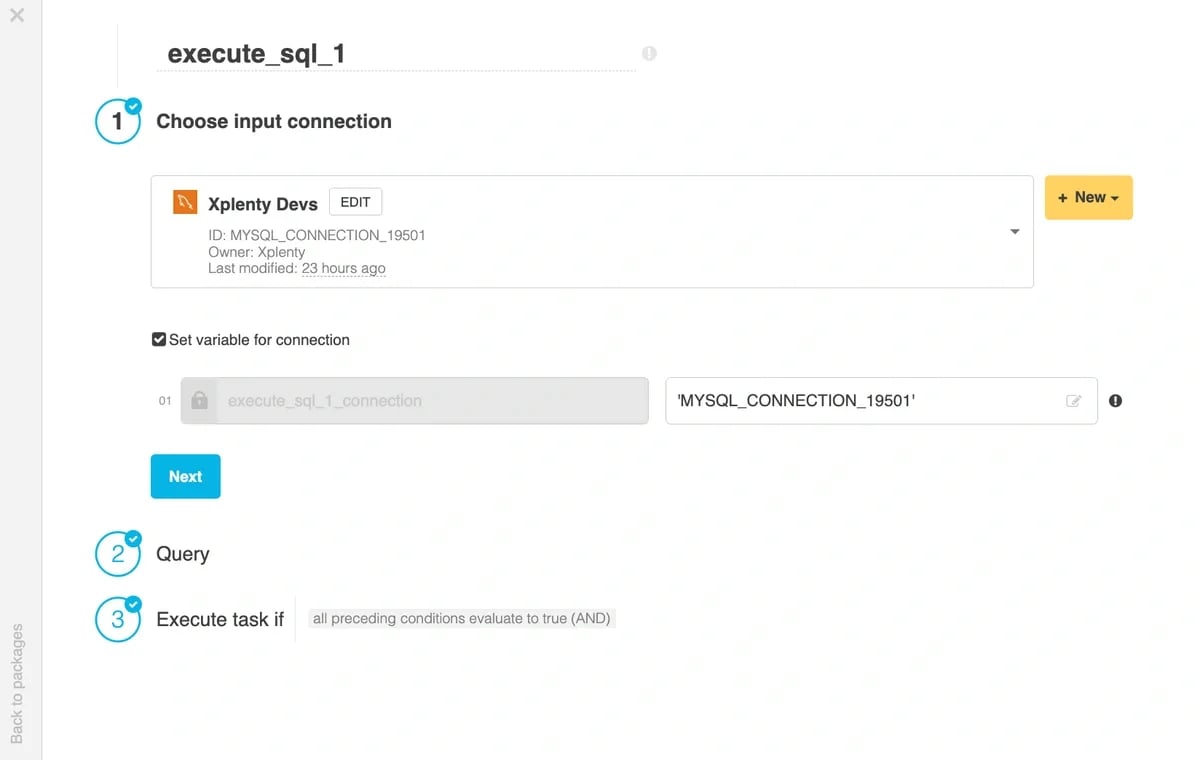 Configure “Query” and “Execute task if” sections, then “Save” the component.
Configure the rest of the workflow as needed, then "Save" the workflow.
**Find connection IDs**
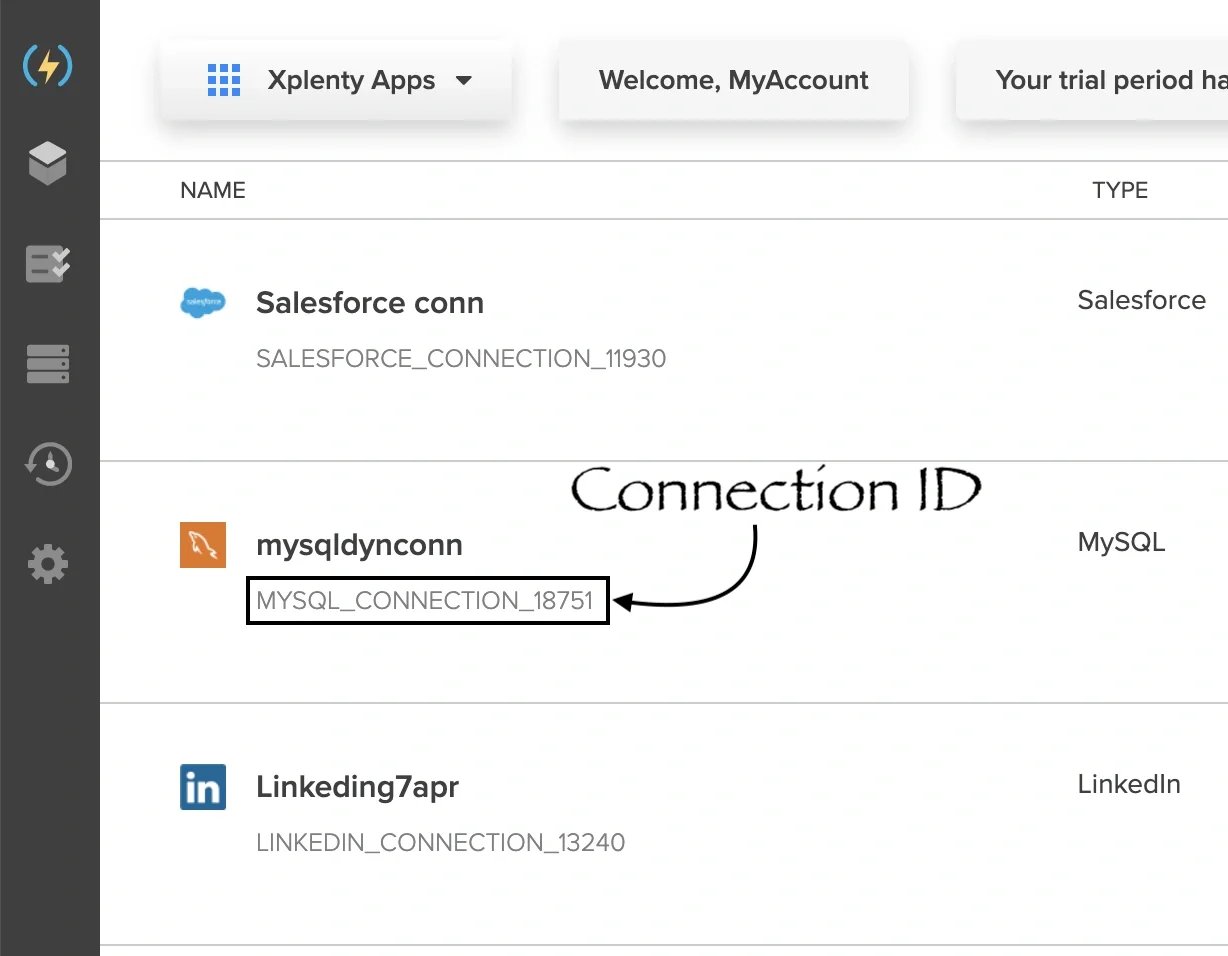
You are ready to override the dynamic connection variable with a valid database connection ID, but first you need to find suitable connection IDs on the Connections page.
Make sure that you only use IDs of database connections, and that the type of database is the same as the type defined in the source / destination component. I.e. for a MySQL database, only specify the ID of another MySQL database connection.
Configure “Query” and “Execute task if” sections, then “Save” the component.
Configure the rest of the workflow as needed, then "Save" the workflow.
**Find connection IDs**
You are ready to override the dynamic connection variable with a valid database connection ID, but first you need to find suitable connection IDs on the Connections page.
Make sure that you only use IDs of database connections, and that the type of database is the same as the type defined in the source / destination component. I.e. for a MySQL database, only specify the ID of another MySQL database connection.
 **Update connection variable value**
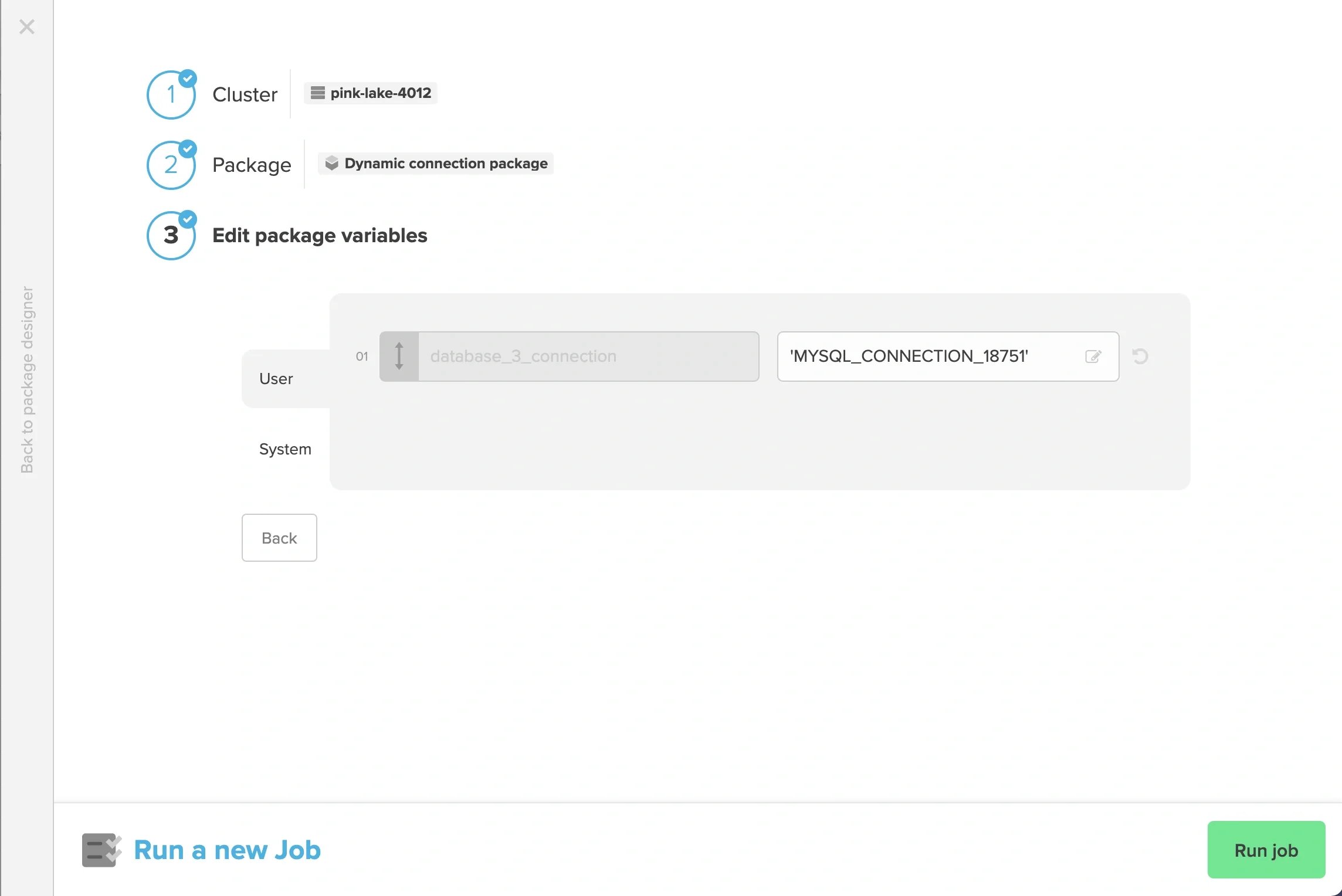
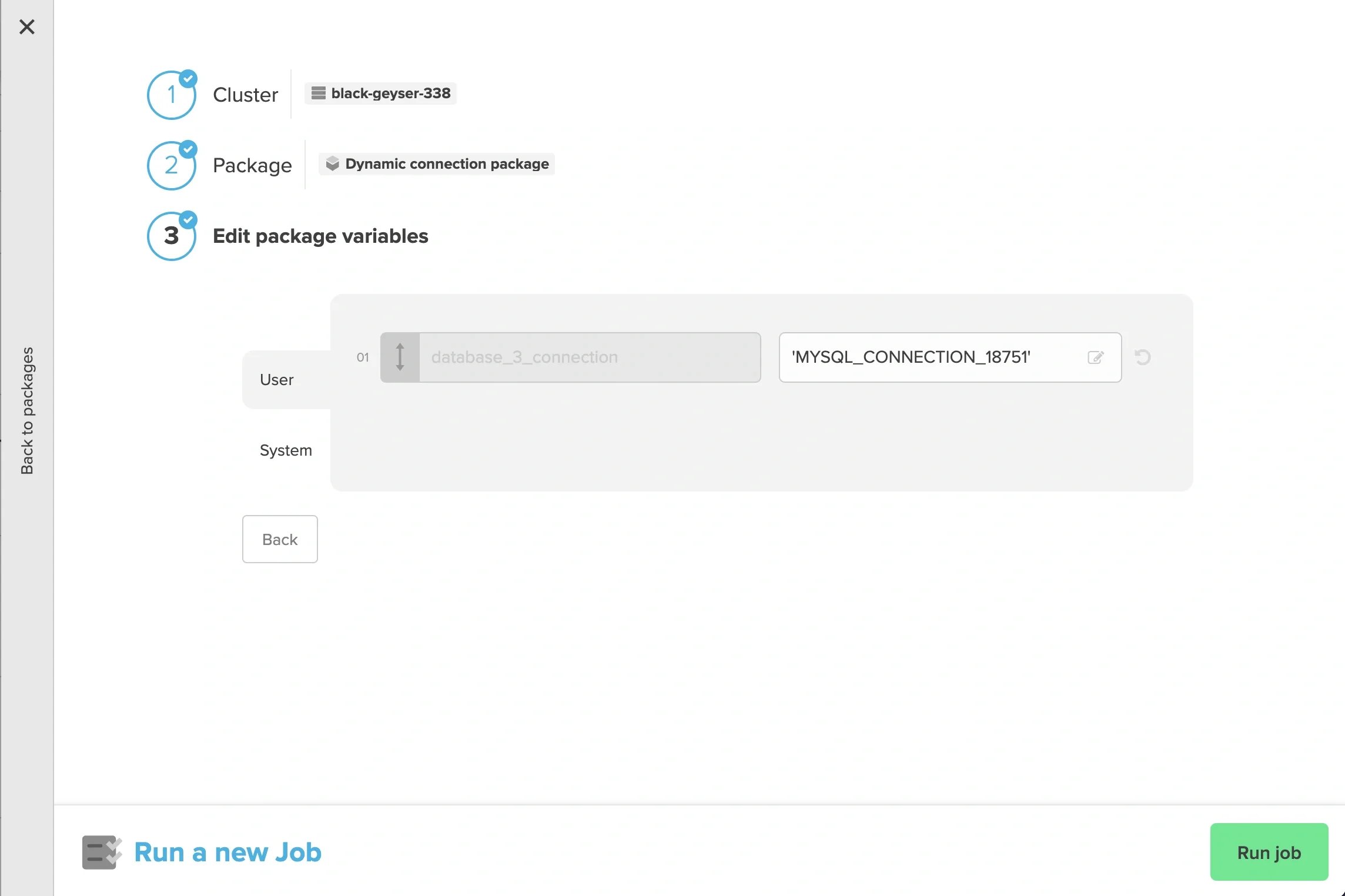
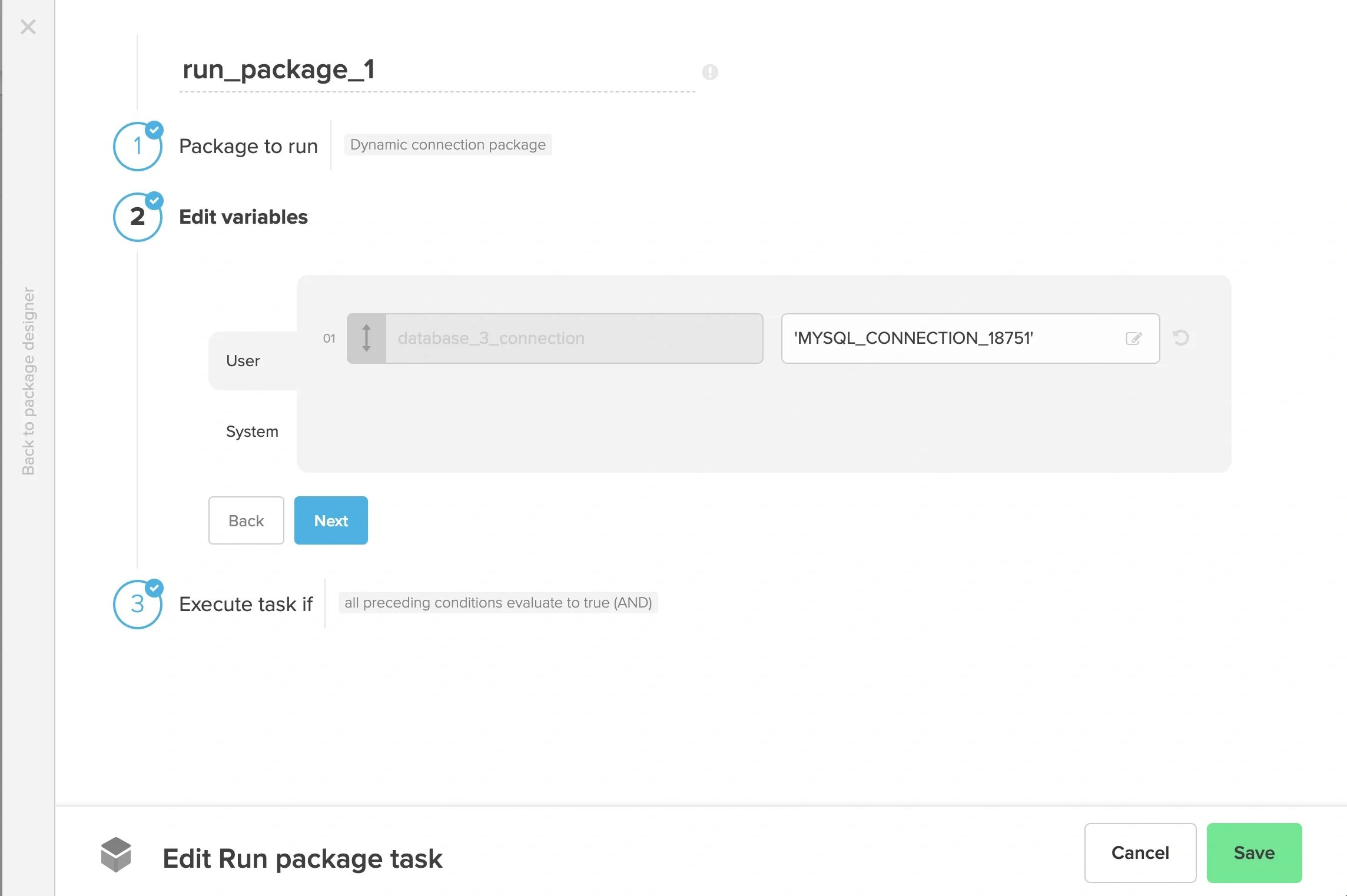
Replace the dynamic connection variable value with the ID(s) you identified from the connections page.
When running a job, “Run job” in the package designer
**Update connection variable value**
Replace the dynamic connection variable value with the ID(s) you identified from the connections page.
When running a job, “Run job” in the package designer
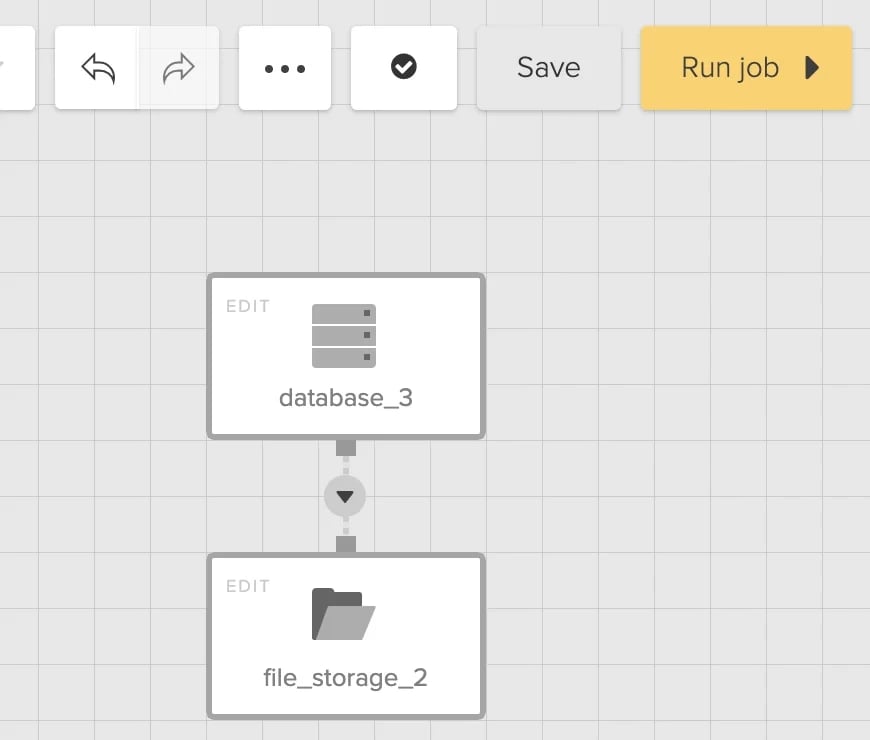
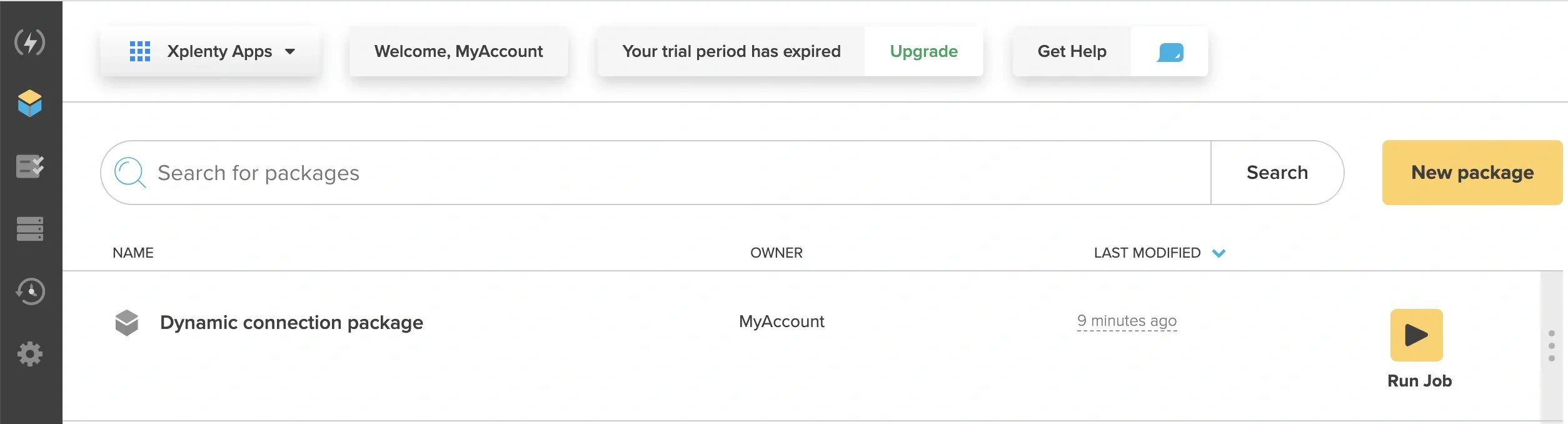
 “Run job” on the Packages page
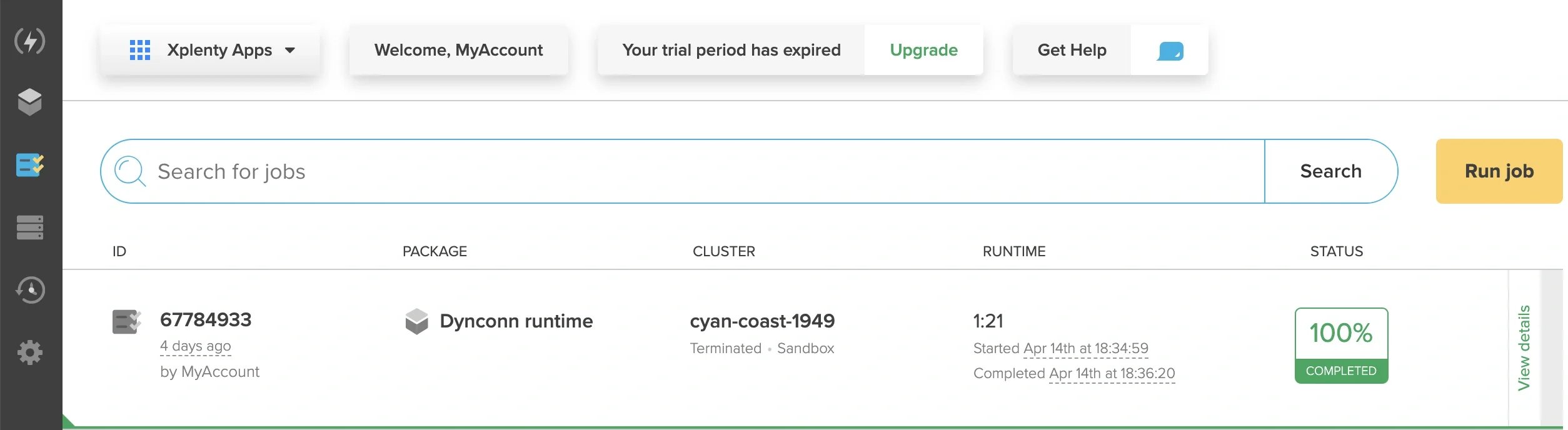
 “Run job” on the Jobs page
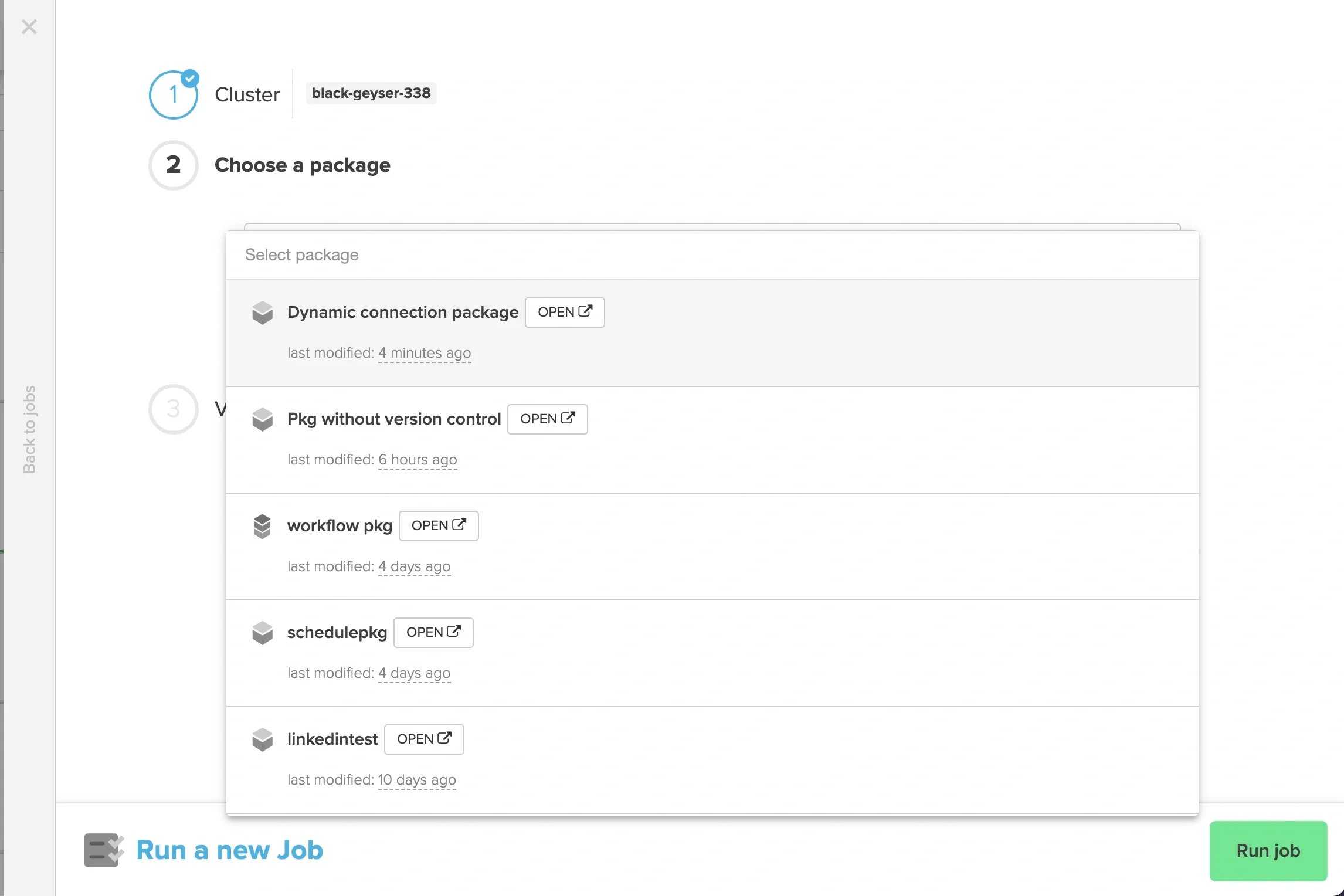
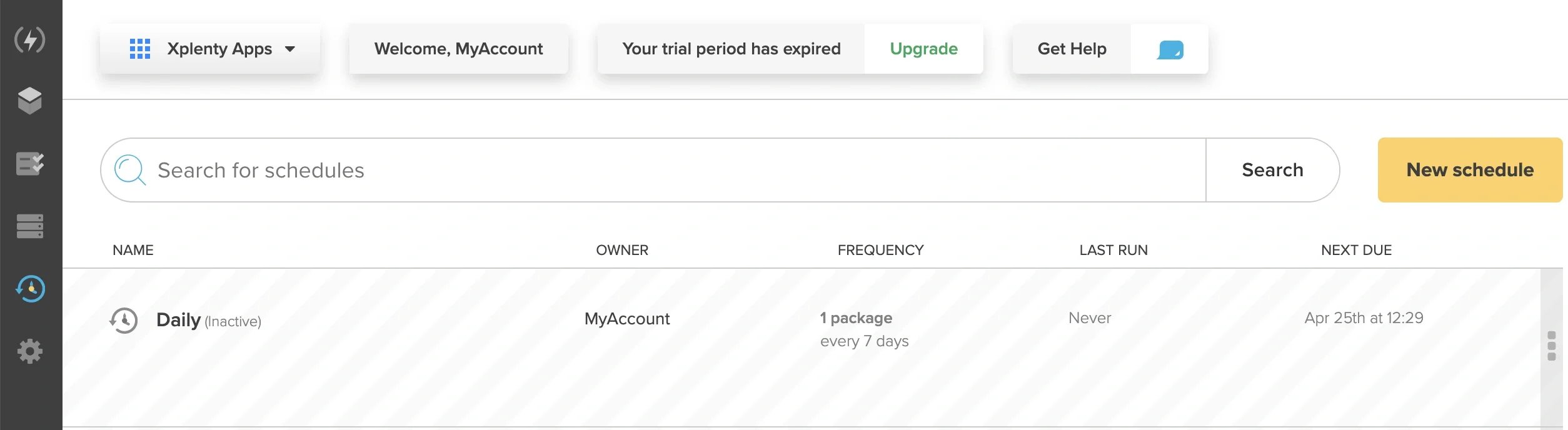
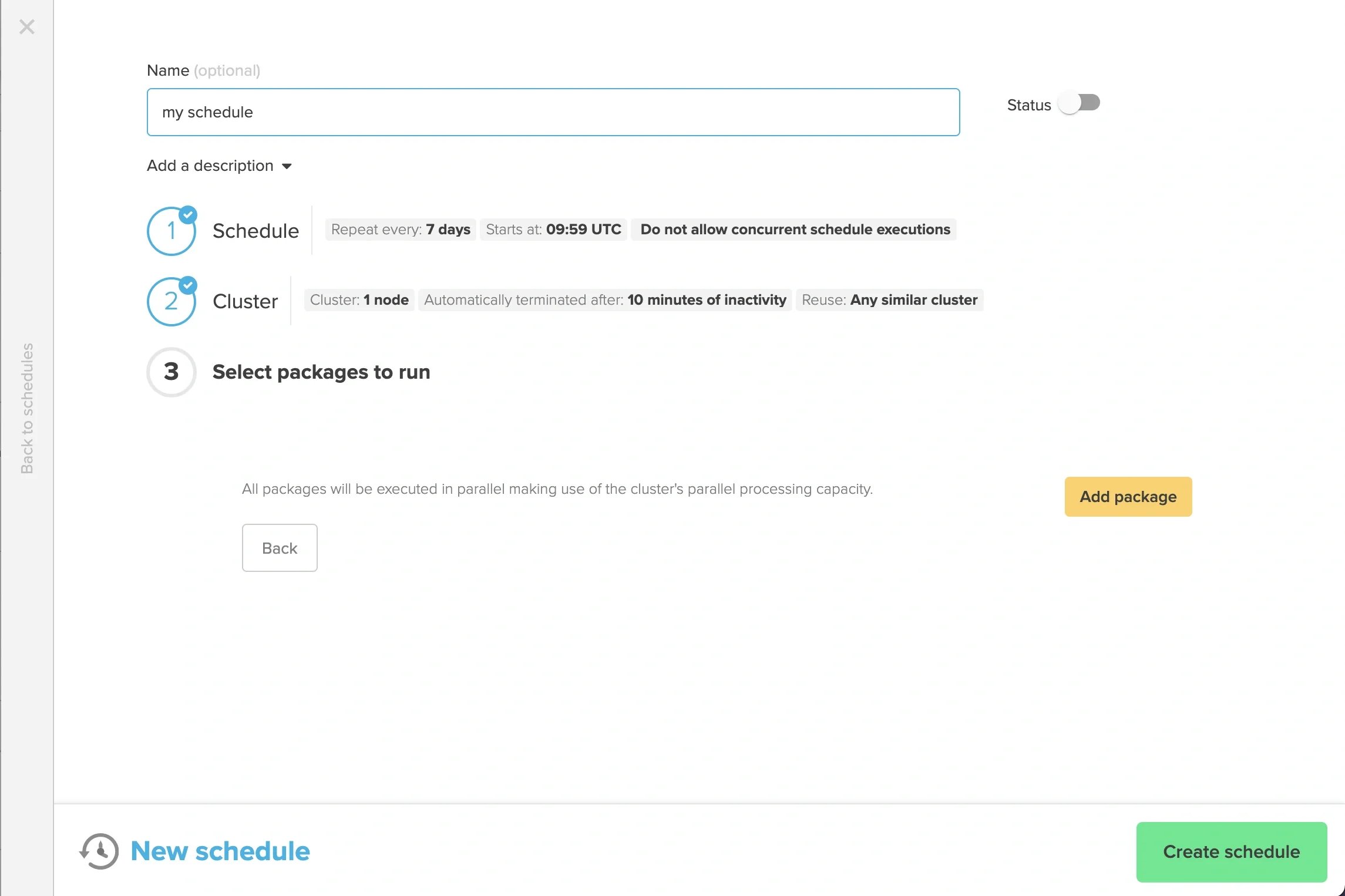
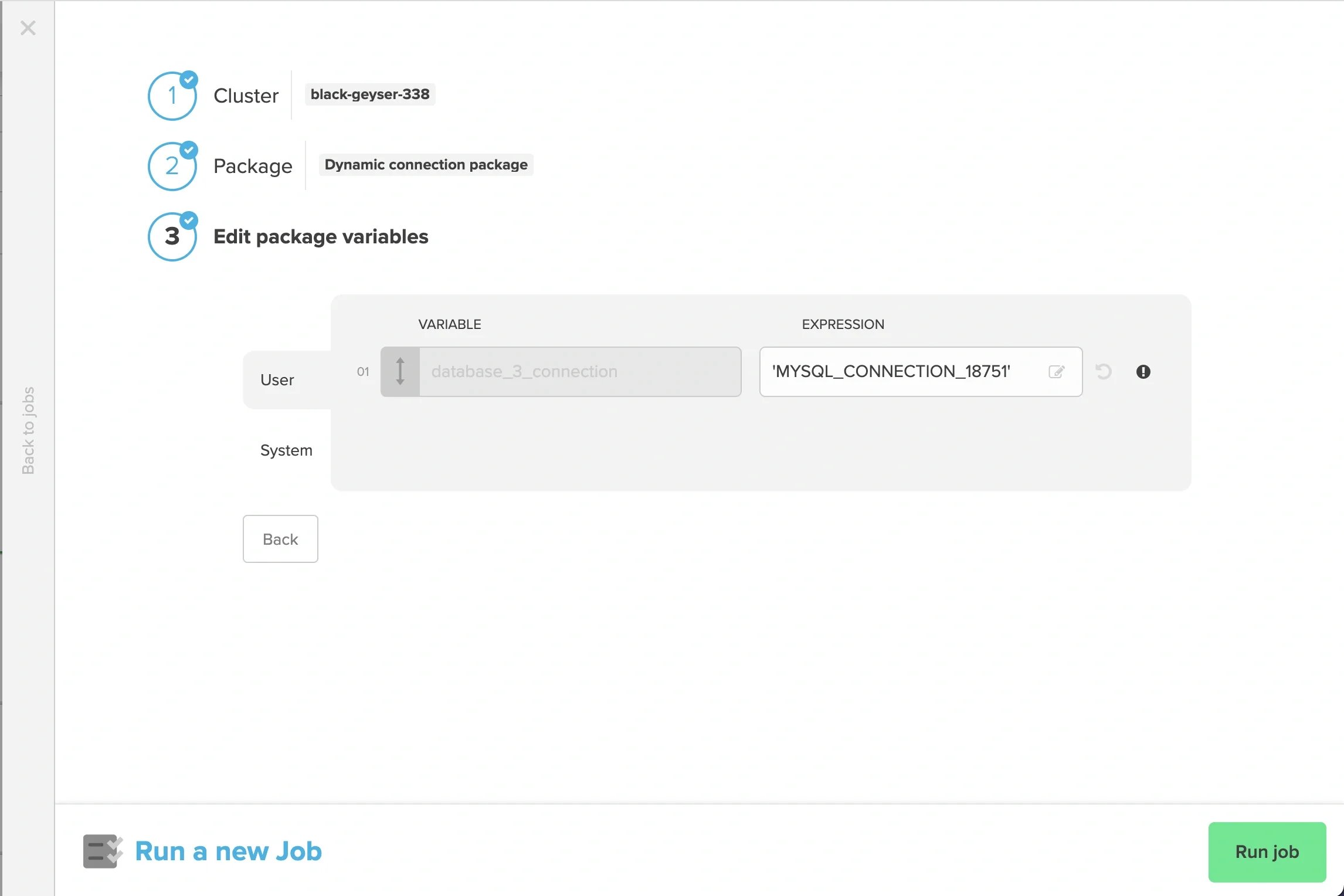 When creating a schedule, “Add package” in the “New schedule” window
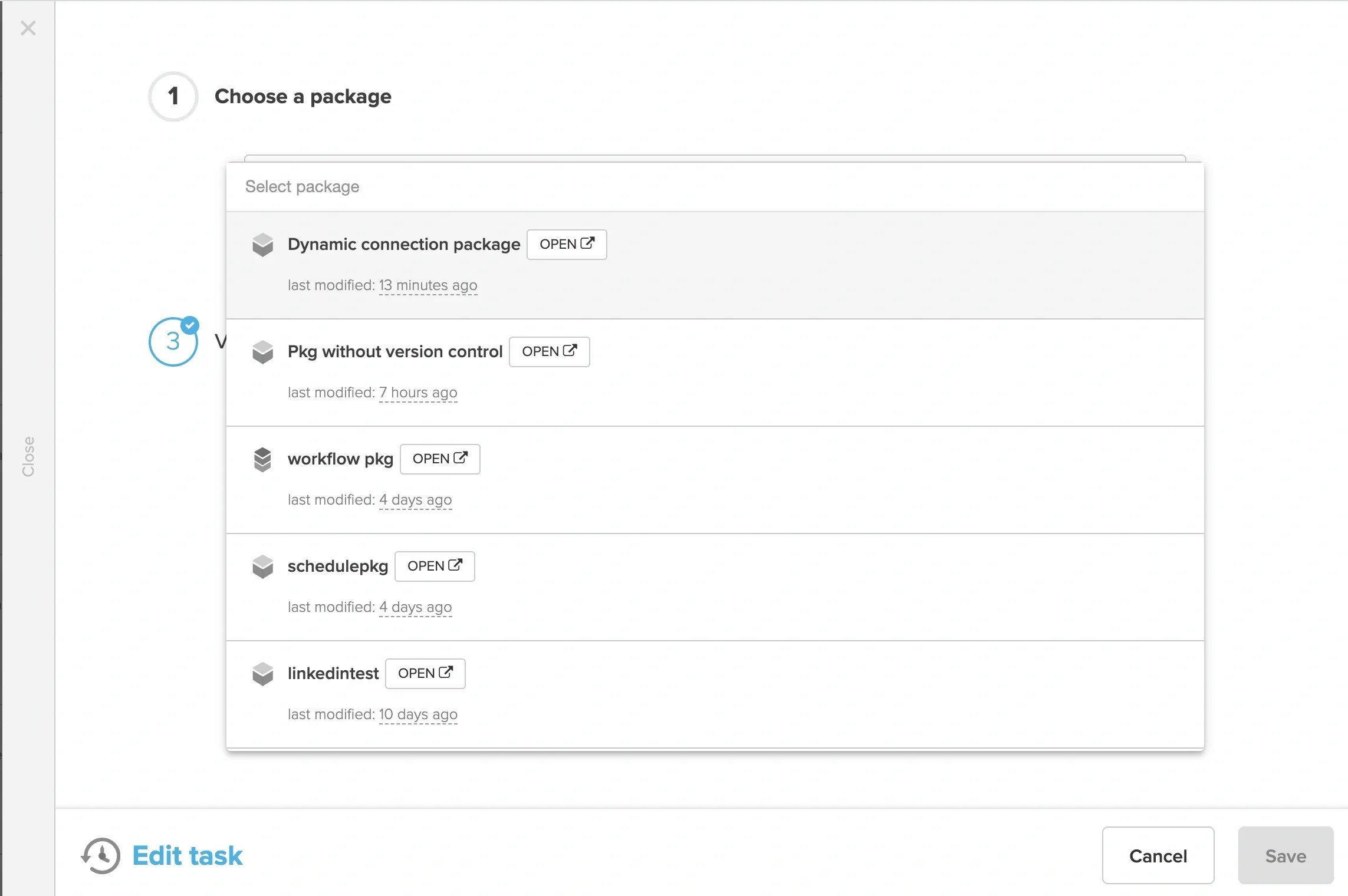
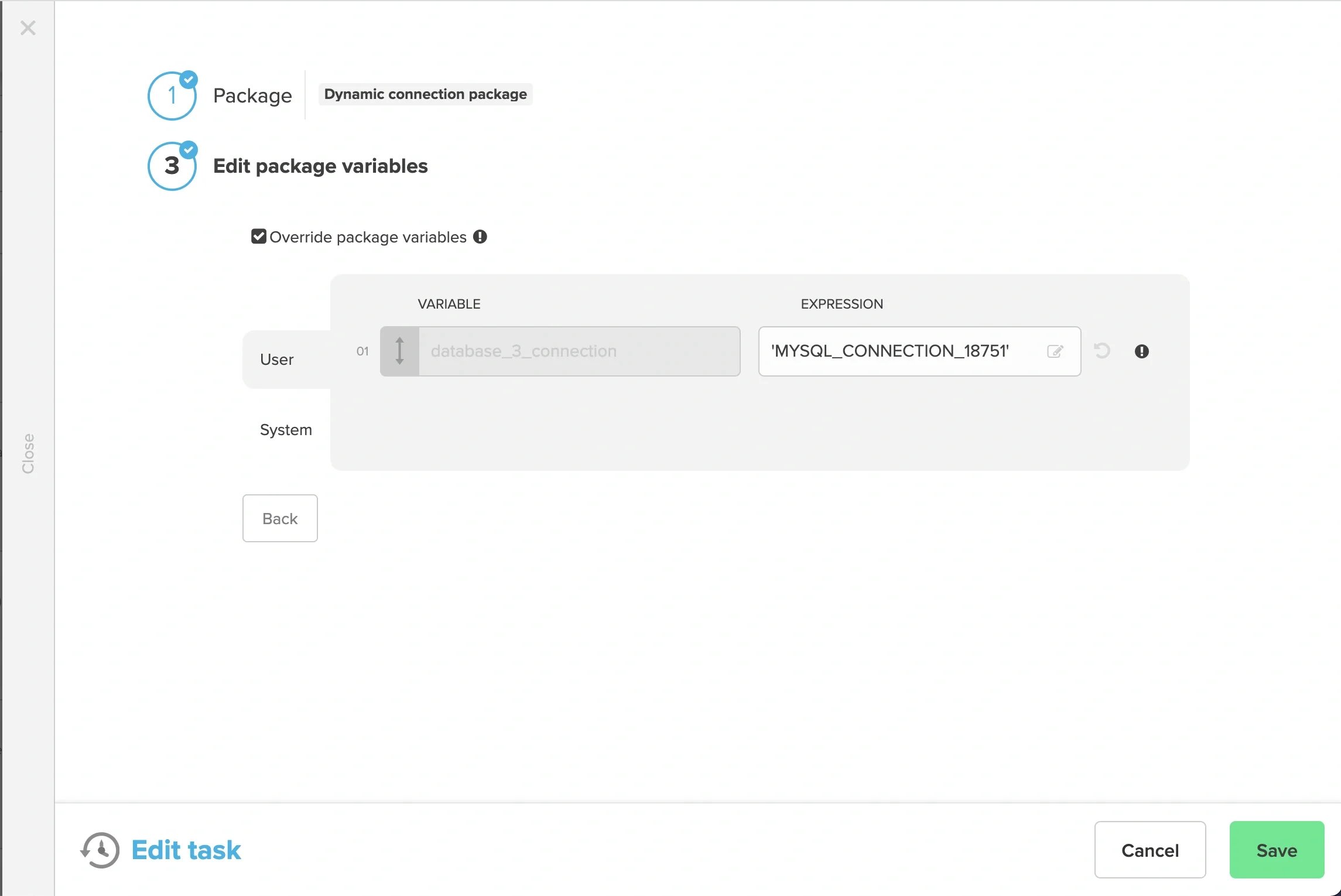
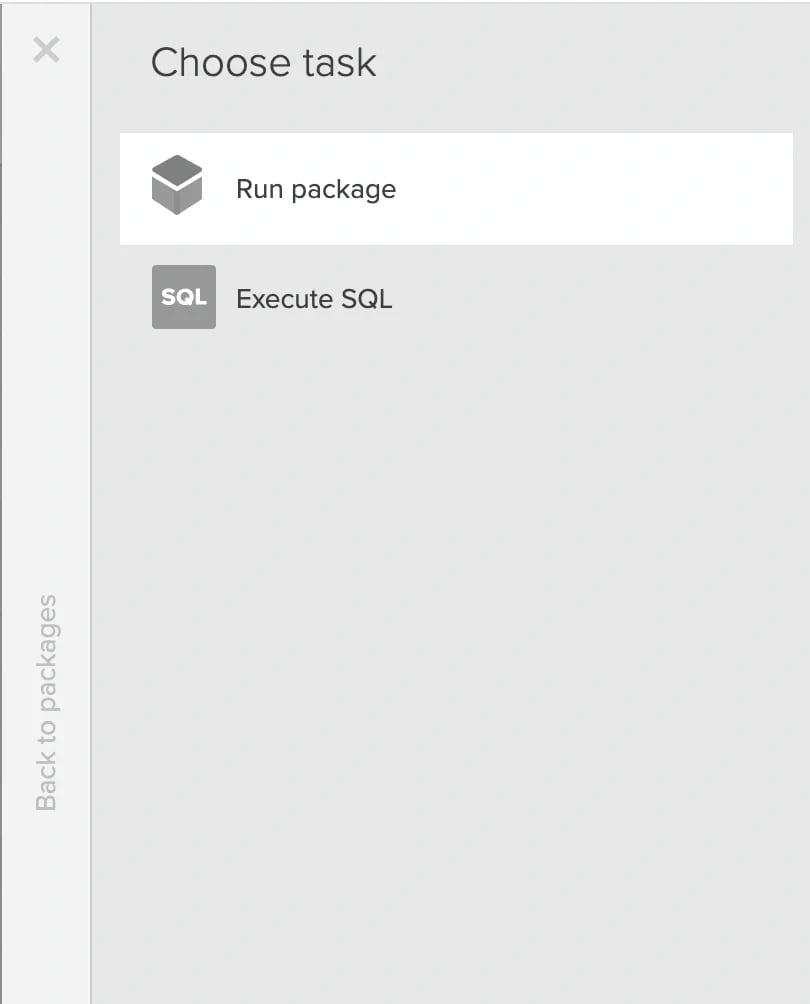
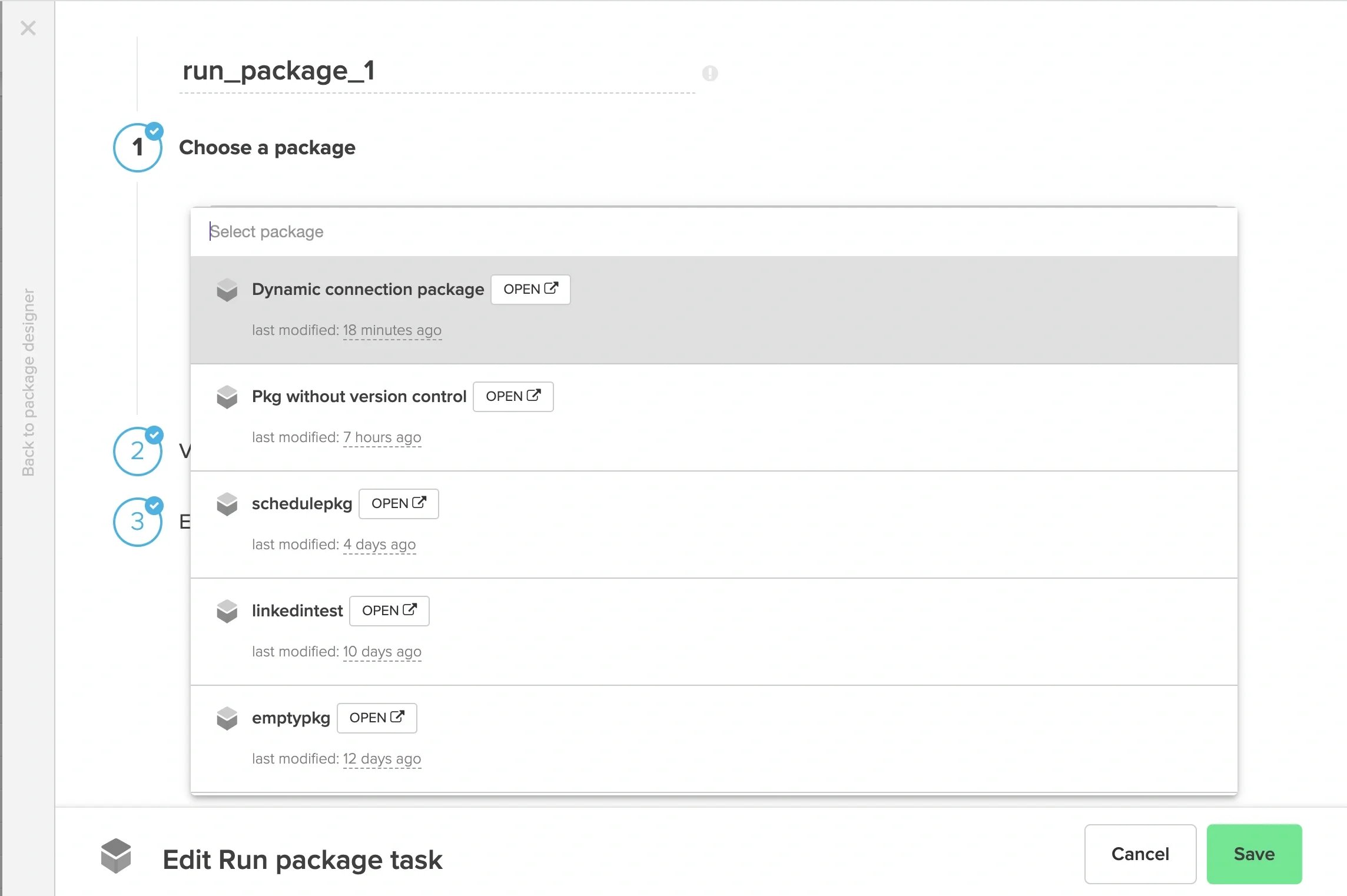
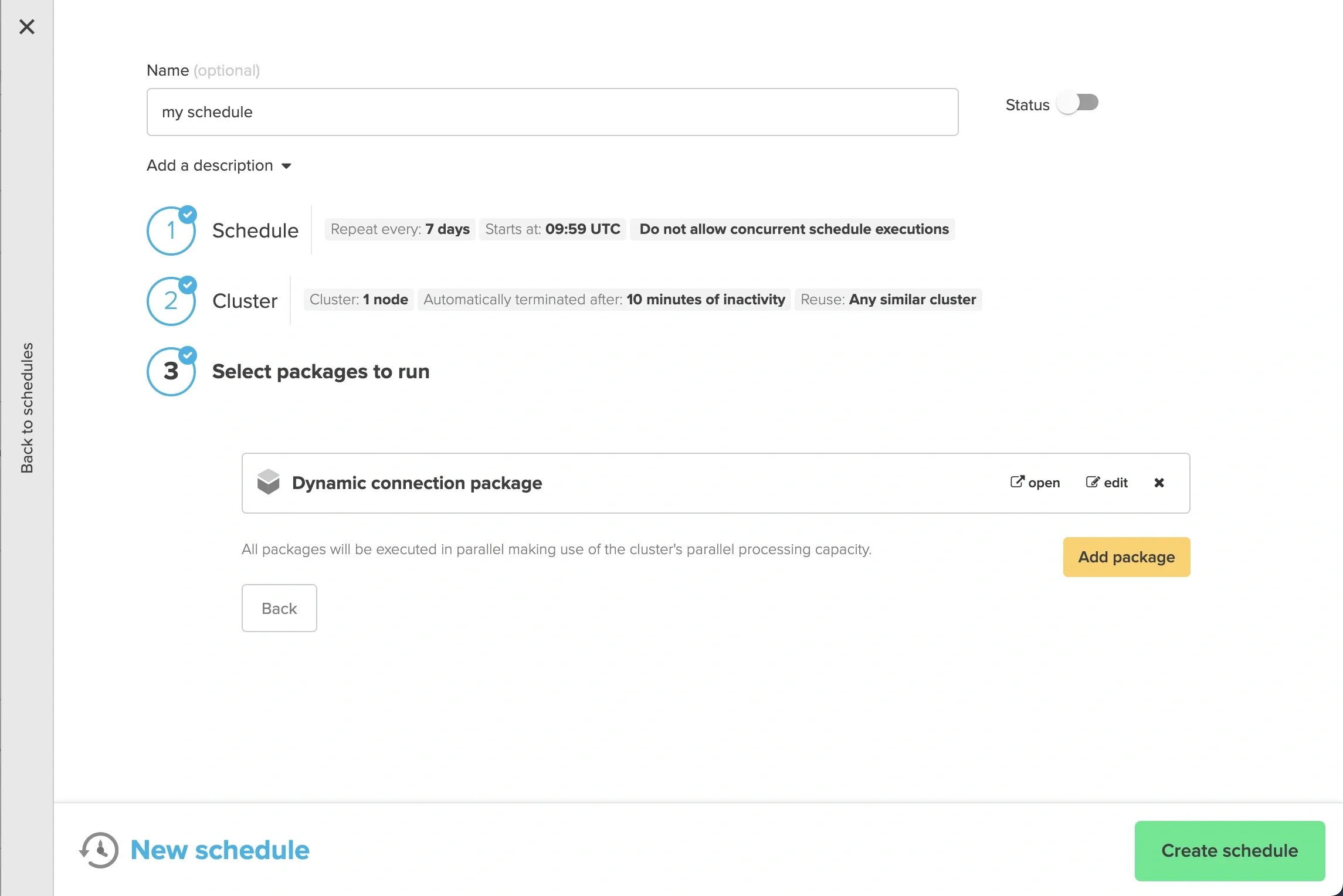 When creating a Workflow package, “Run package” task window
 **Limitations**
* Dynamic connection is available only on database source, database destination components and execute SQL task component on workflow.
* The connection in the variable must be the same type as the original input connection\
For example, when selecting a MySQL connection from the dropdown in the source component, the dynamic connection variable specified at runtime must also be a MySQL connection
* The schema of the dynamic connection must be the same as the original input connection's (selected in the source / destination component)
**Limitations**
* Dynamic connection is available only on database source, database destination components and execute SQL task component on workflow.
* The connection in the variable must be the same type as the original input connection\
For example, when selecting a MySQL connection from the dropdown in the source component, the dynamic connection variable specified at runtime must also be a MySQL connection
* The schema of the dynamic connection must be the same as the original input connection's (selected in the source / destination component)