> ## Documentation Index
> Fetch the complete documentation index at: https://www.integrate.io/docs/llms.txt
> Use this file to discover all available pages before exploring further.
# ETL: Google Sheet에서 데이터 검색
> Integrate.io ETL의 REST API 컴포넌트를 사용해 Google Sheets에서 시트 ID와 셀 범위를 지정하고 batchGet 엔드포인트를 통해 데이터를 읽어 들이는 방법과 인증 설정 방법을 자세히 설명합니다. 처음 사용하시는 분들도 이해하기 쉽게 작성했습니다.
이 가이드에서는 Xplenty의 Rest API 컴포넌트를 통해 Google Sheet에서 데이터를 읽는 방법에 대해 설명합니다.
**Rest API** 컴포넌트 **설정**
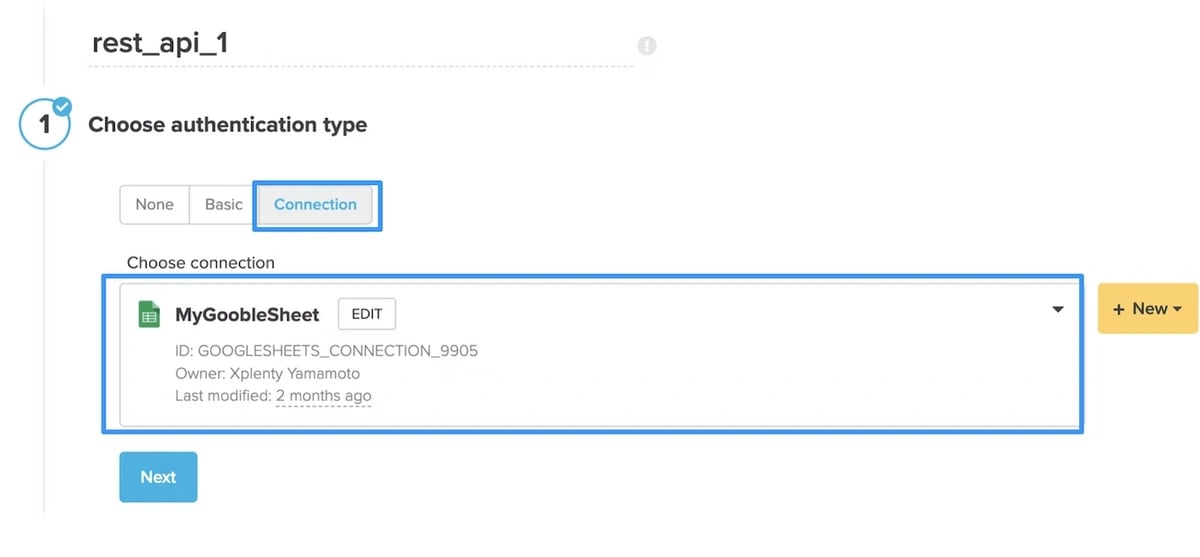
## **인증(Authentication) 설정**
미리 연결 화면에서 만든 Google Sheet 인증을 선택합니다.
 ## **URL 지정 방법**
**URL:**`[https://sheets.googleapis.com/v4/spreadsheets/](https://sheets.googleapis.com/v4/spreadsheets/)시트_ID/values:batchGet?ranges=셀_범위&majorDimension=ROWS`
*
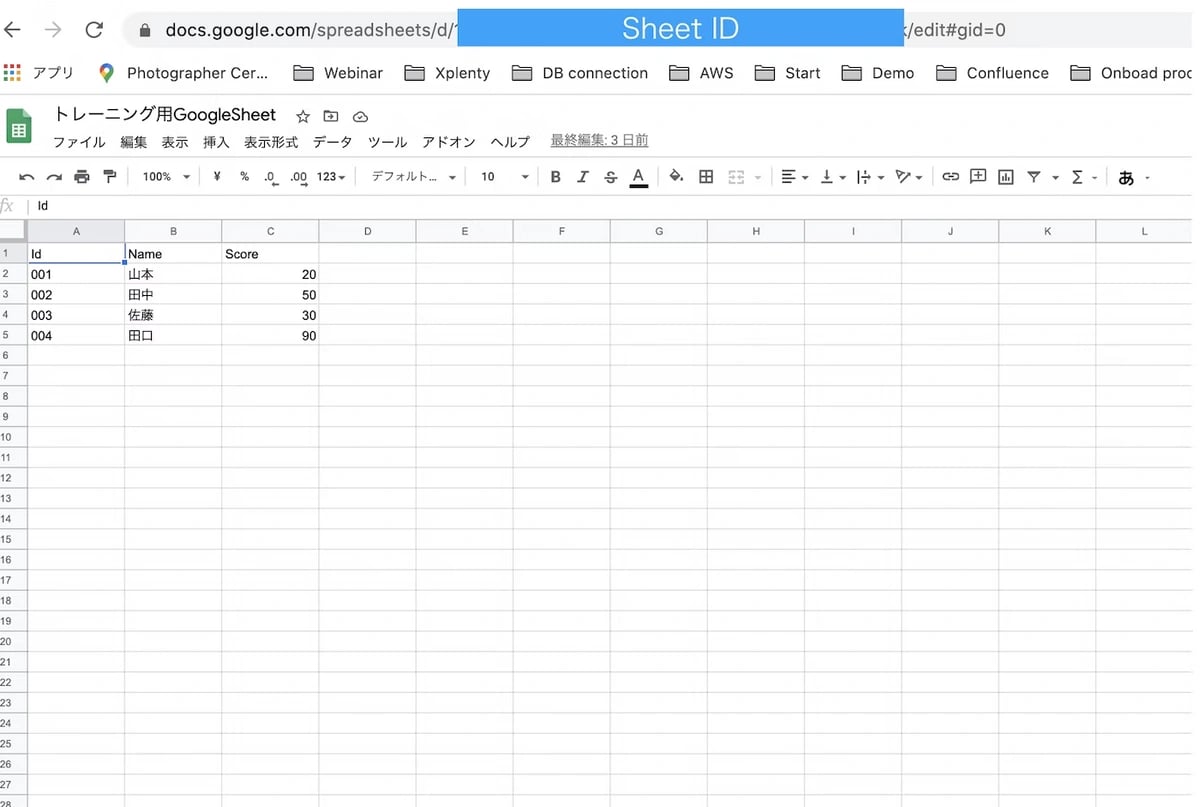
**시트\_ID:**
Google Sheet URL에서 시트 ID 가져오기
## **URL 지정 방법**
**URL:**`[https://sheets.googleapis.com/v4/spreadsheets/](https://sheets.googleapis.com/v4/spreadsheets/)시트_ID/values:batchGet?ranges=셀_범위&majorDimension=ROWS`
*
**시트\_ID:**
Google Sheet URL에서 시트 ID 가져오기
 *
**셀\_범위**
예) A1:G1000 (A열의 1행부터 G열의 1000행까지)
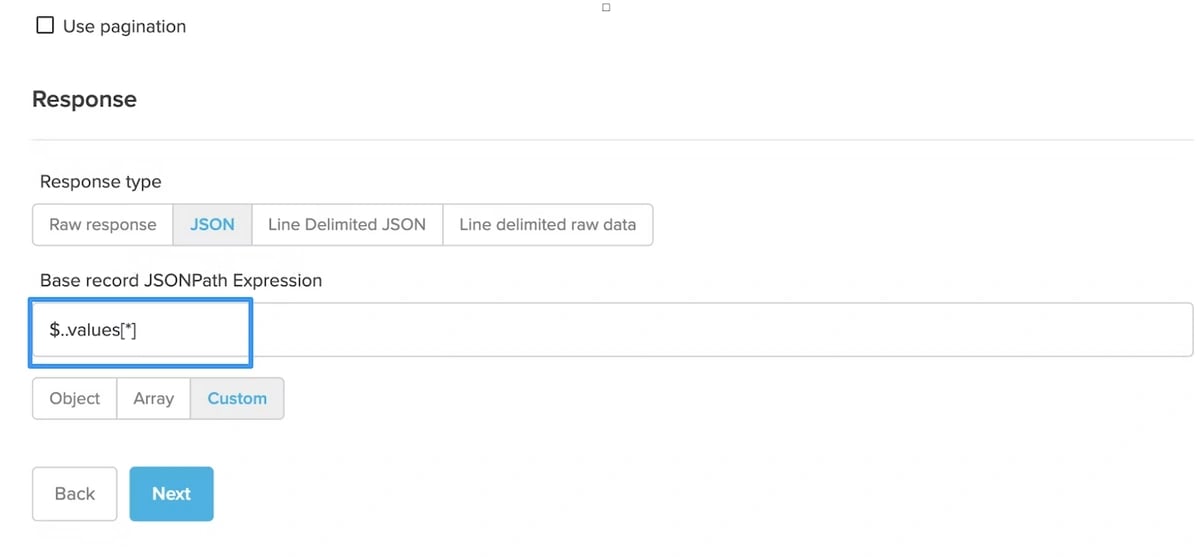
## **Response 설정**
JSONPath Expression에 `$..values[*]`를 입력
*
**셀\_범위**
예) A1:G1000 (A열의 1행부터 G열의 1000행까지)
## **Response 설정**
JSONPath Expression에 `$..values[*]`를 입력
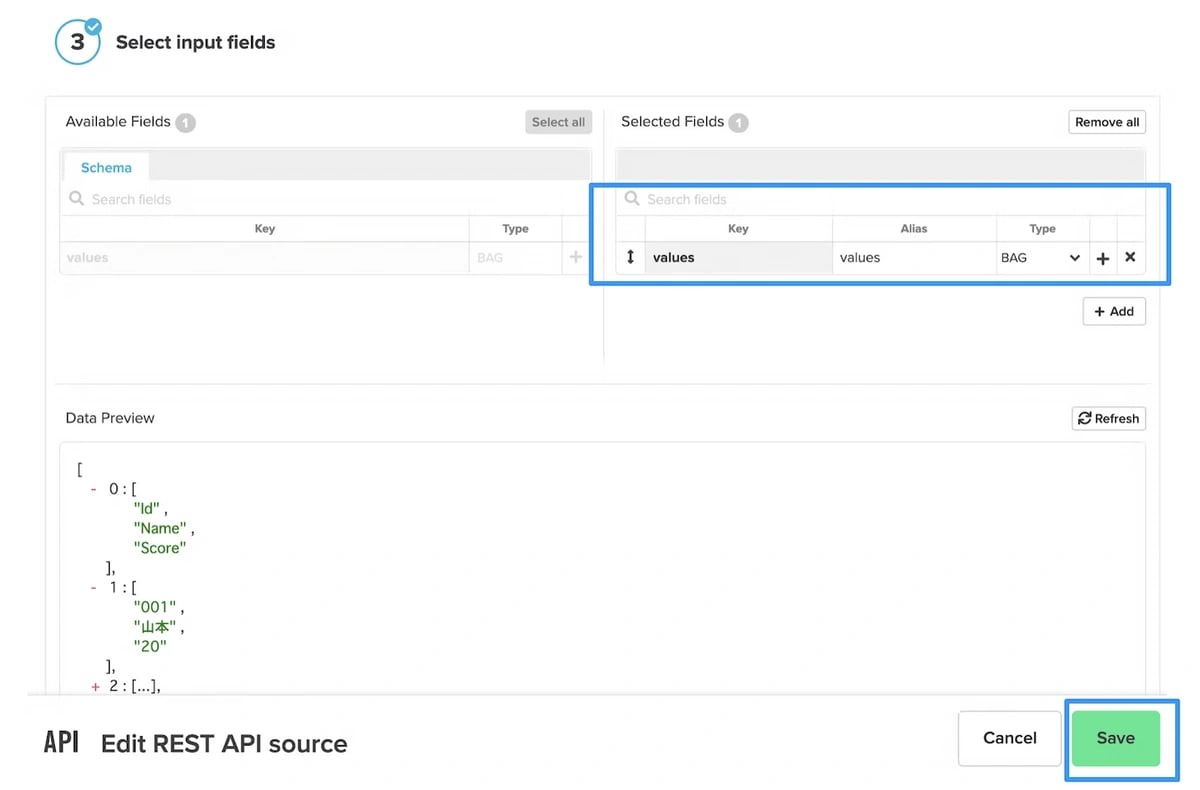
 ## **필드 선택**
 **획득한 JSON 플랫화**
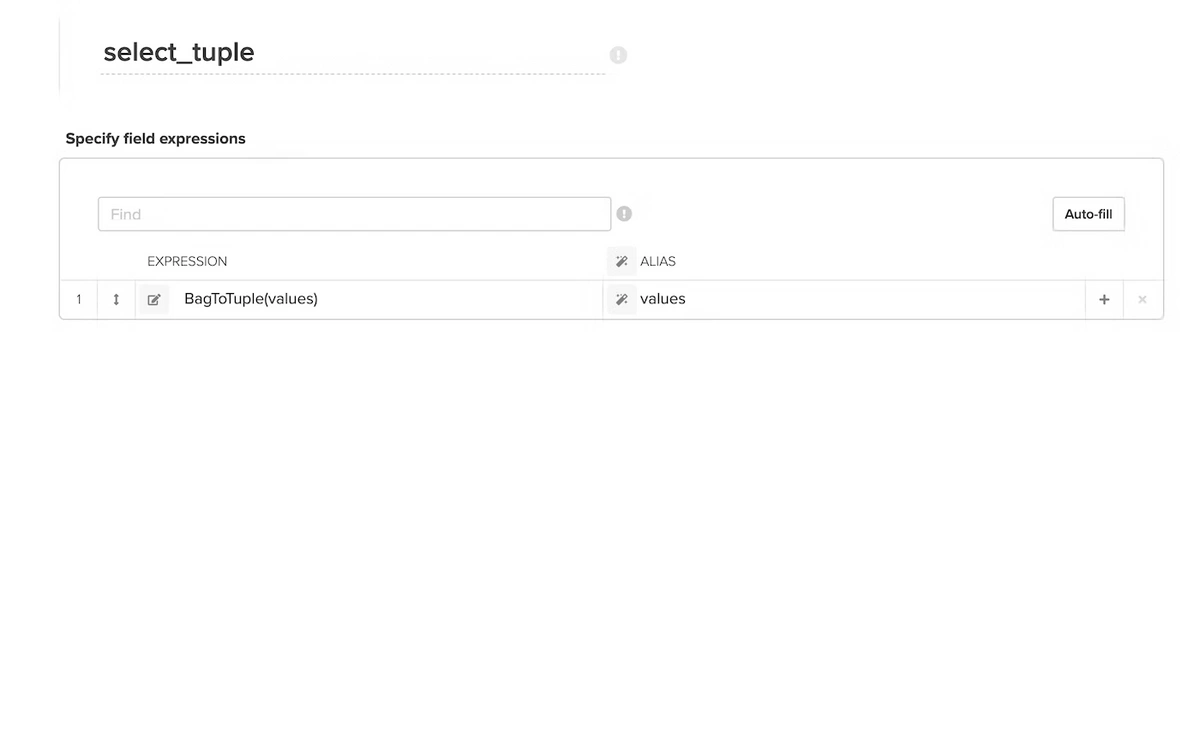
## **변환 1 : BAG 형에서 Tuple 형으로 변환**
Select 컴포넌트에서 BagToTuple함수를 사용하여 Tuple 형식으로 변환
**획득한 JSON 플랫화**
## **변환 1 : BAG 형에서 Tuple 형으로 변환**
Select 컴포넌트에서 BagToTuple함수를 사용하여 Tuple 형식으로 변환
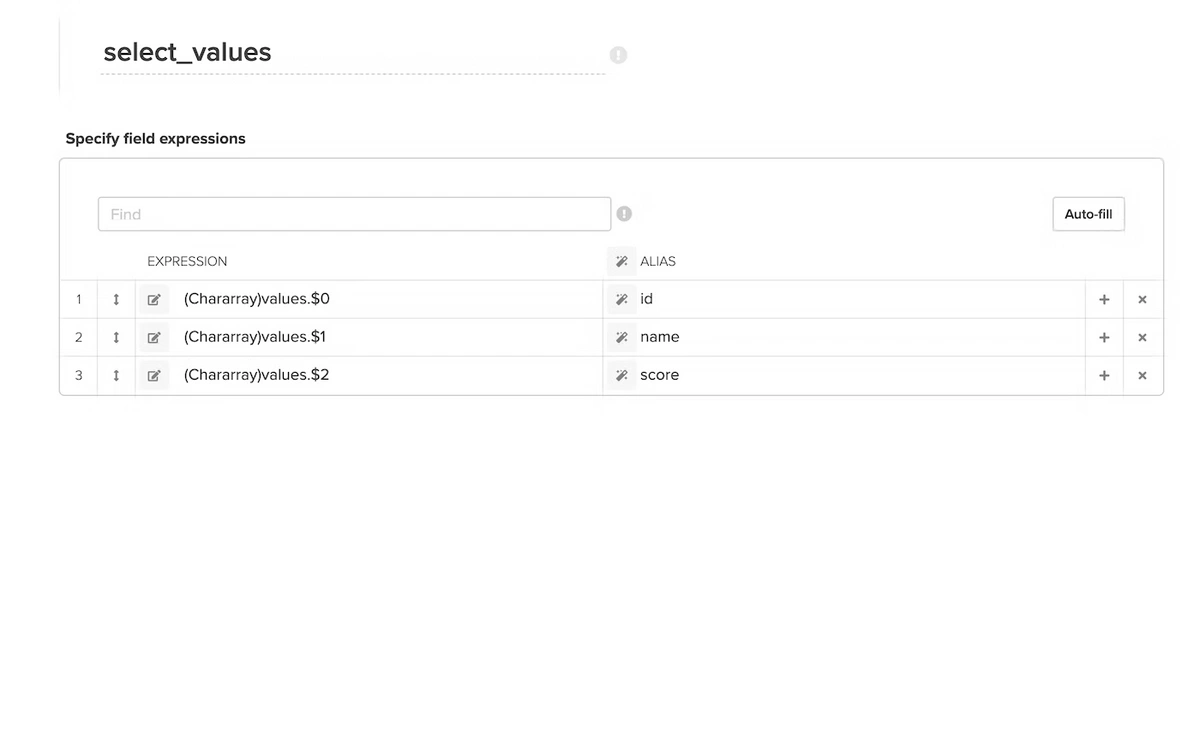
 ## **변환 2:배열 번호를 지정해, 각 열을 각각 취득한다**
각각의 열을 배열 번호(\$0)를 지정해 취득함과 함과 동시에, Chararray 함수로 문자열형으로 변환한다
## **변환 2:배열 번호를 지정해, 각 열을 각각 취득한다**
각각의 열을 배열 번호(\$0)를 지정해 취득함과 함과 동시에, Chararray 함수로 문자열형으로 변환한다
 ## **헤더 행을 필터로 제외**
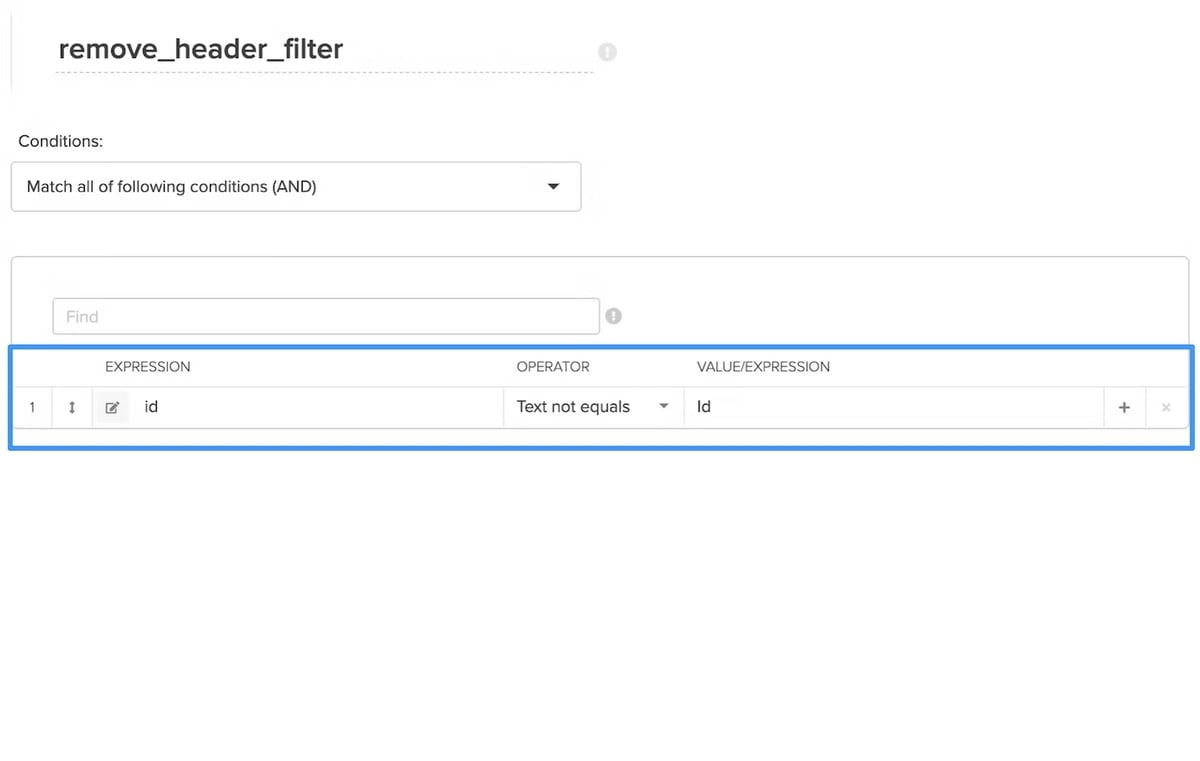
1행이 헤더일 경우, 필터로 제외한다 (Rest API측의 셀의 범위 지정으로 헤더행을 제외하는 방법도 있다.)
예) id열에 「Id」라고 하는 문자가 포함 없는 데이터만 추출
## **헤더 행을 필터로 제외**
1행이 헤더일 경우, 필터로 제외한다 (Rest API측의 셀의 범위 지정으로 헤더행을 제외하는 방법도 있다.)
예) id열에 「Id」라고 하는 문자가 포함 없는 데이터만 추출
 저장 대상의 **컴포넌트를 설정하고 작업을 실행하고 확인**
마지막으로 데이터베이스, DWH, 스토리지 등에 저장하면 완료됩니다.
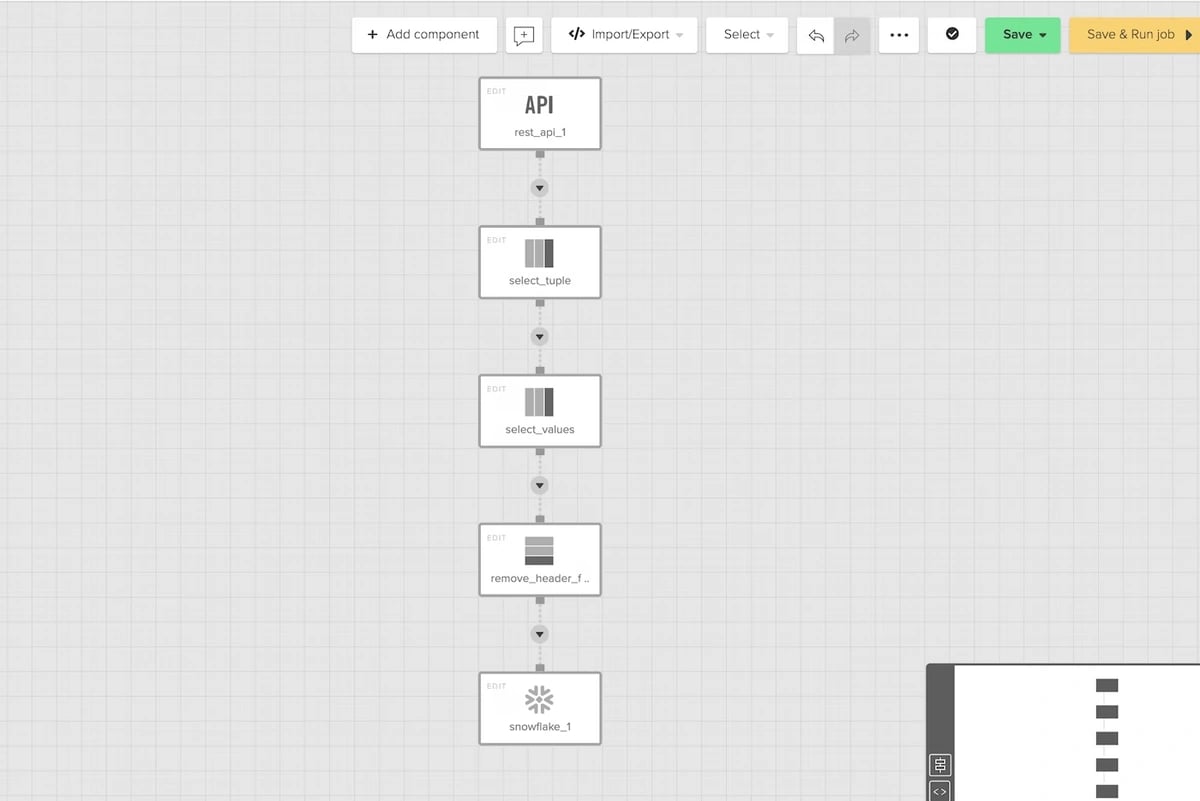
## **패키지 전체도**
예) Snowflake가 저장 대상인 경우 다음과 같은 흐름이 됩니다.
저장 대상의 **컴포넌트를 설정하고 작업을 실행하고 확인**
마지막으로 데이터베이스, DWH, 스토리지 등에 저장하면 완료됩니다.
## **패키지 전체도**
예) Snowflake가 저장 대상인 경우 다음과 같은 흐름이 됩니다.
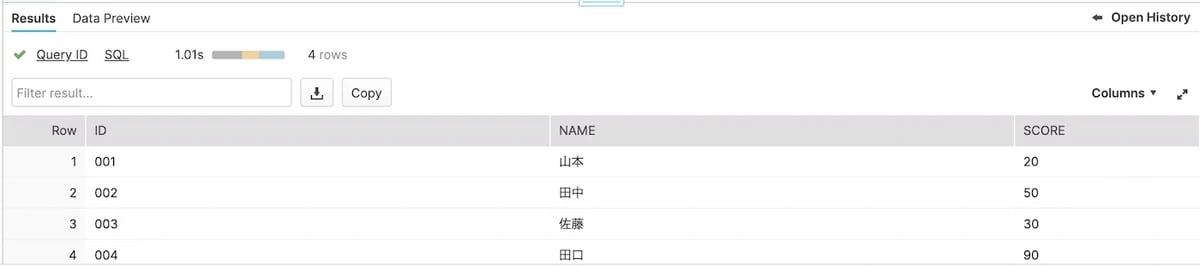
 ## **데이터가 올바르게 반영되었는지 확인**
 **Google Sheet에 쓰기도 가능**
Xplenty에서는 Select 컴포넌트에 Curl 요청을 작성하여 Google Sheet에 쓰기도 가능합니다.
**Google Sheet에 쓰기도 가능**
Xplenty에서는 Select 컴포넌트에 Curl 요청을 작성하여 Google Sheet에 쓰기도 가능합니다.
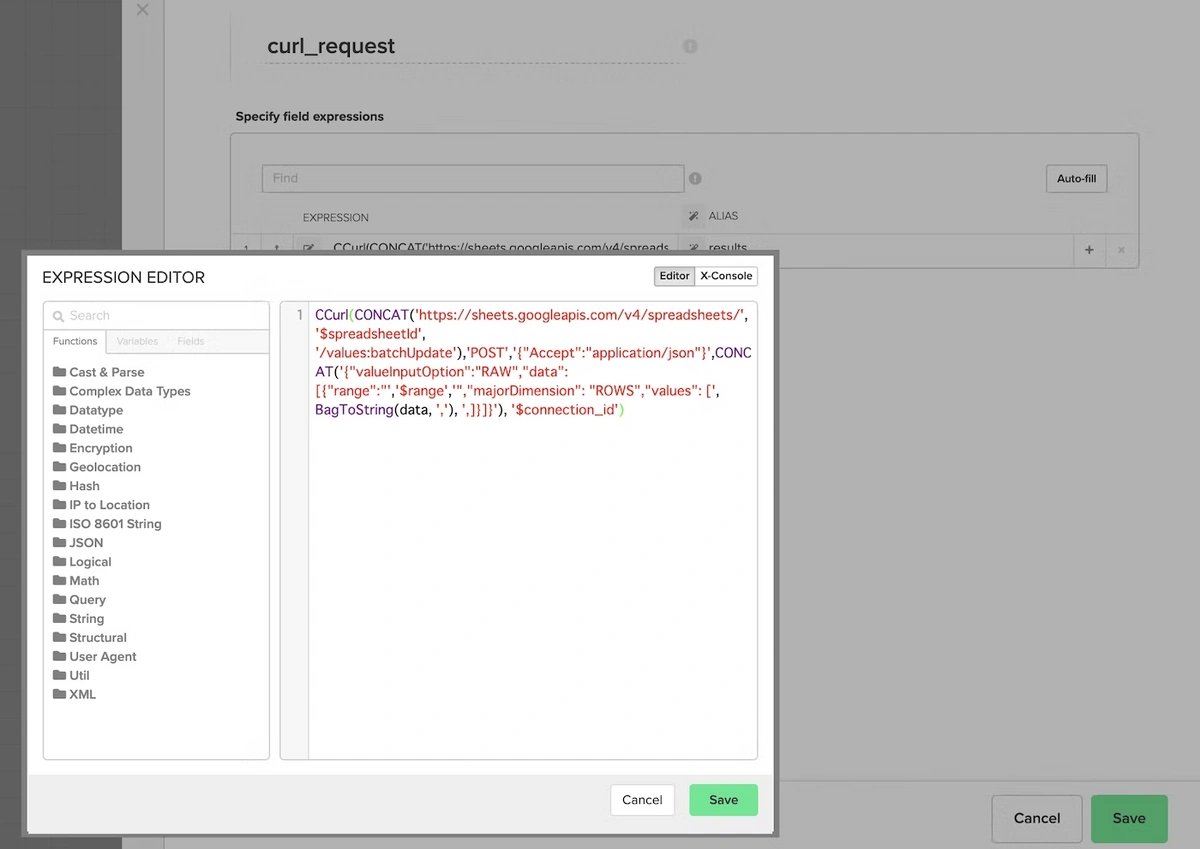 **쓰기 리퀘스트의 예**
`CCurl(CONCAT('<[https://sheets.googleapis.com/v4/spreadsheets/](https://sheets.googleapis.com/v4/spreadsheets/)>', '$spreadsheetId', '/values:batchUpdate'),'POST','{"Accept":"application/json"}',CONCAT('{"valueInputOption":"RAW","data":[{"range":"','$range','","majorDimension": "ROWS","values": [', BagToString(data, ','), ',]}]}'), '$connection_id')`
**위 요청에서 사용하는 변수 정보**
*
`$spreadsheetId`: GoogleSheet ID 지정
*
`$connection_id`: Xplenty의 연결 ID 지정 (연결 화면에서 확인할 수 있습니다)
예 : GOOGLESHEETS\_CONNECTION\_9215
*
`$range`: 시트 이름과 셀 범위 지정
예: campaign!A1:N100000
**쓰기 리퀘스트의 예**
`CCurl(CONCAT('<[https://sheets.googleapis.com/v4/spreadsheets/](https://sheets.googleapis.com/v4/spreadsheets/)>', '$spreadsheetId', '/values:batchUpdate'),'POST','{"Accept":"application/json"}',CONCAT('{"valueInputOption":"RAW","data":[{"range":"','$range','","majorDimension": "ROWS","values": [', BagToString(data, ','), ',]}]}'), '$connection_id')`
**위 요청에서 사용하는 변수 정보**
*
`$spreadsheetId`: GoogleSheet ID 지정
*
`$connection_id`: Xplenty의 연결 ID 지정 (연결 화면에서 확인할 수 있습니다)
예 : GOOGLESHEETS\_CONNECTION\_9215
*
`$range`: 시트 이름과 셀 범위 지정
예: campaign!A1:N100000