> ## Documentation Index
> Fetch the complete documentation index at: https://www.integrate.io/docs/llms.txt
> Use this file to discover all available pages before exploring further.
# ETL: Hubspot 데이터를 API로 가져오기
> Integrate.io ETL의 REST API 컴포넌트와 HubSpot의 API 키를 사용해 HubSpot에서 Contact 데이터를 검색하고 데이터 파이프라인으로 가져오는 방법과 API 키 발급 절차를 자세히 안내합니다. Integrate.io 한국어 사용자 가이드 항목입니다.
이 가이드에서는 Hubspot API를 사용하여 Xplenty에서 Contact 데이터를 검색하는 방법을 설명합니다.
**관련 가이드:** [Xplenty: Hubspot 데이터를 API로 갱신하기](https://www.integrate.io/ko/docs/etl/restapi-part04-ko/)
**이번 사용하는 API에 관한 참고 페이지**
[https://legacydocs.hubspot.com/docs/methods/contacts/get\_contacts](https://legacydocs.hubspot.com/docs/methods/contacts/get_contacts?__hstc=114807128.c51228f2a84e4b928703072619d2233a.1776367979957.1776367979957.1776367979957.1&__hssc=114807128.97.1776367979958&__hsfp=038341d576670ef04875040b9e9ada03)
**Hubspot API를 사용하는 방법?**
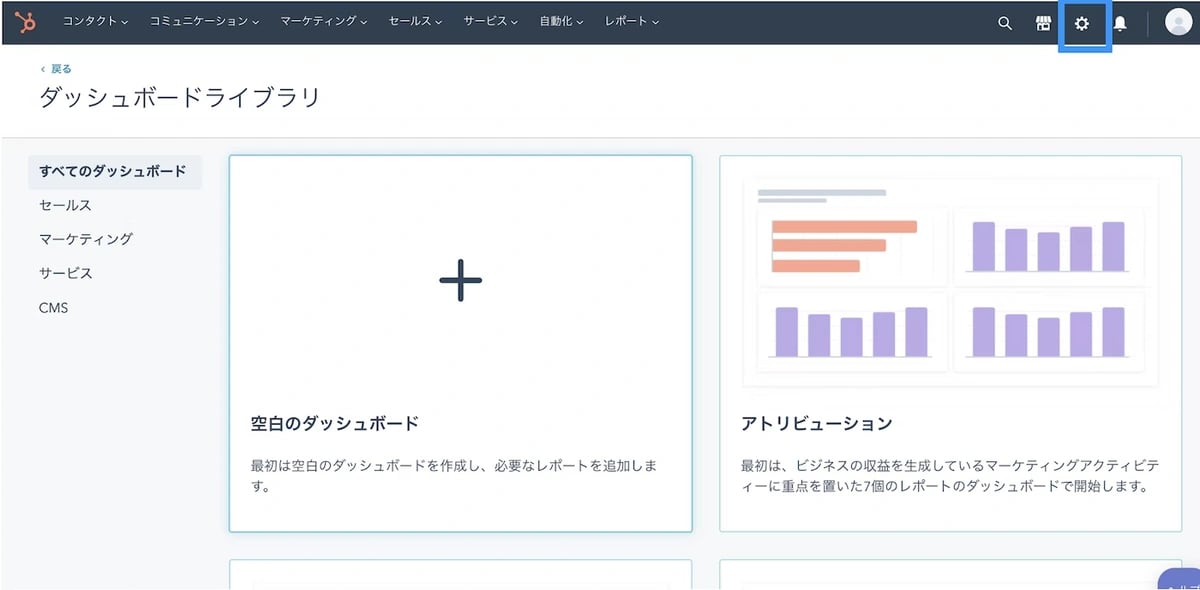
* 대시보드 화면 오른쪽 상단에 배치된 '설정' 버튼을 클릭합니다.
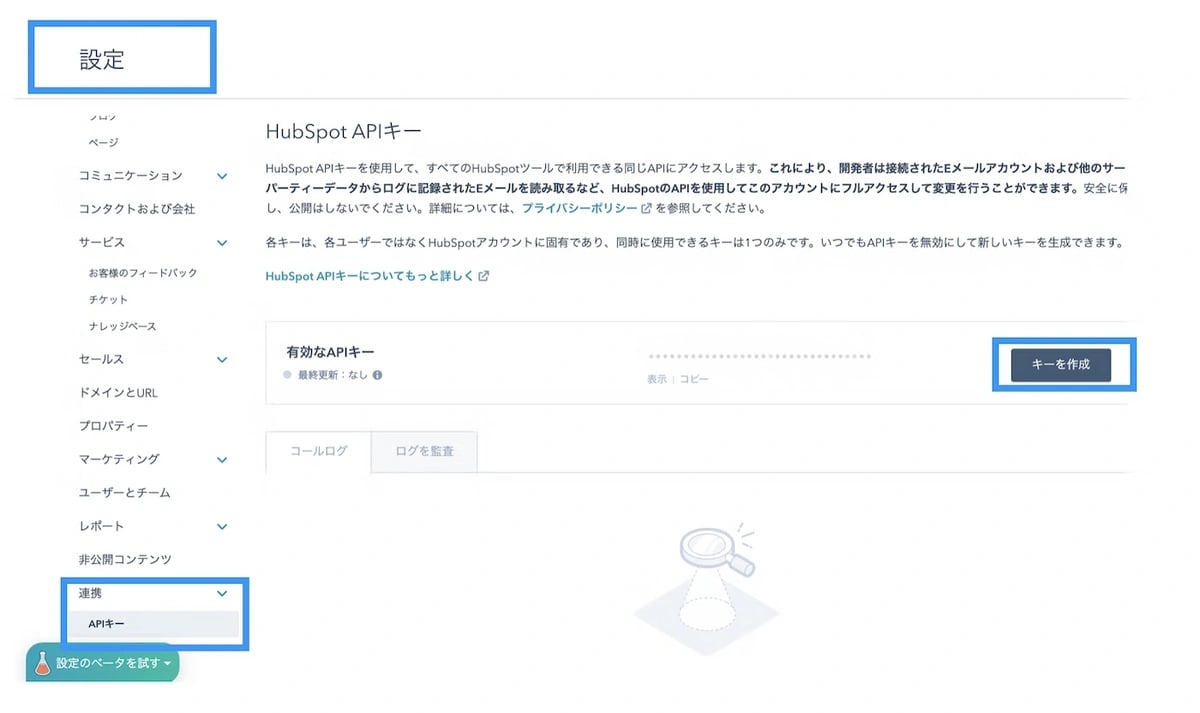
 * 연동의 "API 키" 메뉴에서 API 키를 생성합니다.
 **데이터 읽기**
## **패키지 만들기**
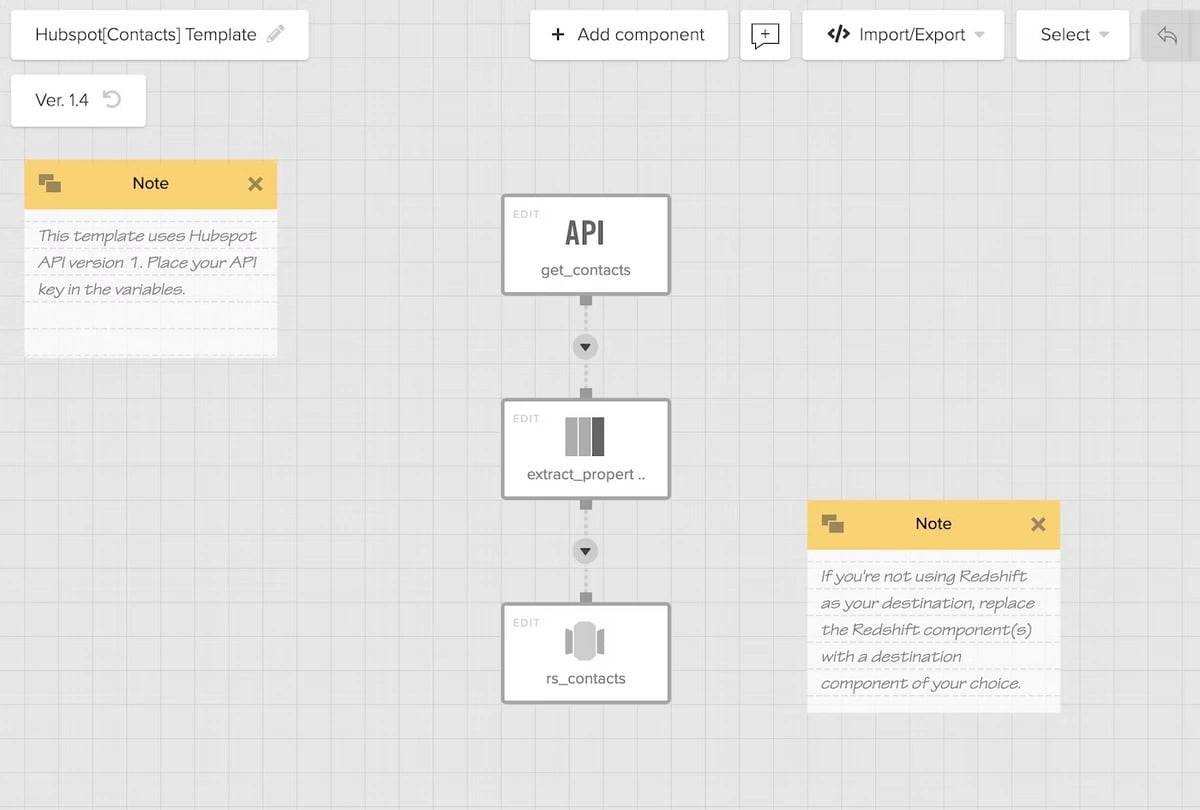
이번에는 데이터 플로 작성시에 제공되는 템플릿을 활용하여 패키지를 만들어 봅시다.
**데이터 읽기**
## **패키지 만들기**
이번에는 데이터 플로 작성시에 제공되는 템플릿을 활용하여 패키지를 만들어 봅시다.
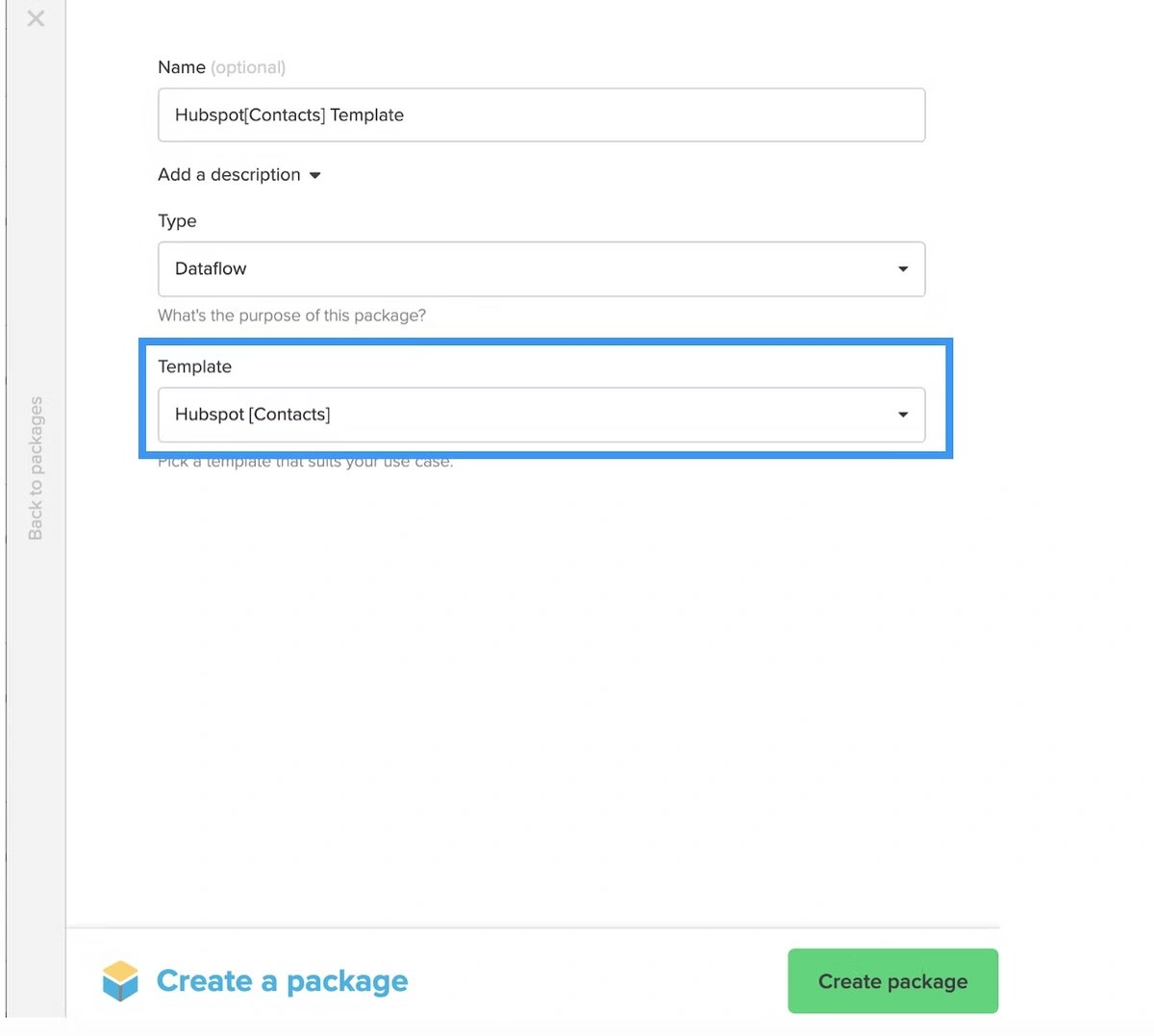 이미 작성된 패키지가 작성됩니다.
 ## **연결 URL 변경**
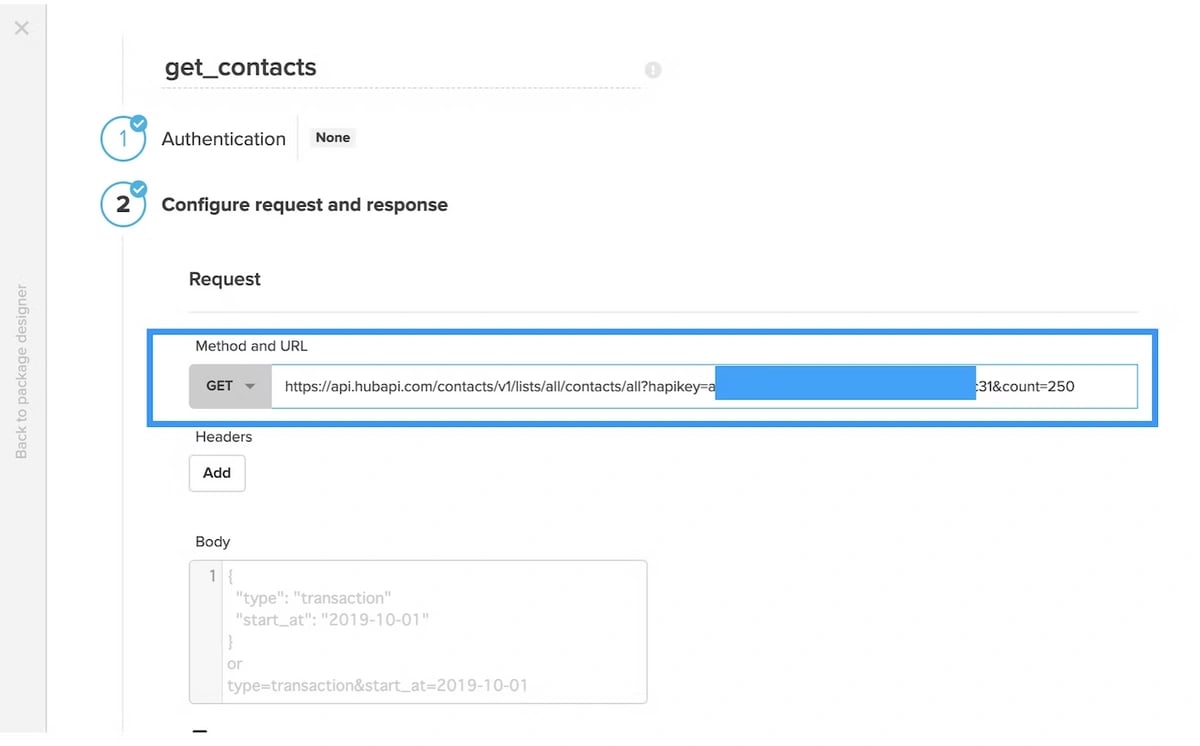
요청시의 URL을 템플릿으로 설정된 변수를 사용한 URL이 아니라, 변수 부분을 명시적으로 고정값으로 변경하는 것만으로, Contacts 정보를 취득하는 것이 가능합니다.
* 원본 URL : `$url?hapikey=$api_key&count=250`
* 변경 후의 URL:`[https://api.hubapi.com/contacts/v1/lists/all/contacts/all?hapikey=](https://api.hubapi.com/contacts/v1/lists/all/contacts/all?hapikey=)<API-키값>&count=250`
## **연결 URL 변경**
요청시의 URL을 템플릿으로 설정된 변수를 사용한 URL이 아니라, 변수 부분을 명시적으로 고정값으로 변경하는 것만으로, Contacts 정보를 취득하는 것이 가능합니다.
* 원본 URL : `$url?hapikey=$api_key&count=250`
* 변경 후의 URL:`[https://api.hubapi.com/contacts/v1/lists/all/contacts/all?hapikey=](https://api.hubapi.com/contacts/v1/lists/all/contacts/all?hapikey=)<API-키값>&count=250`
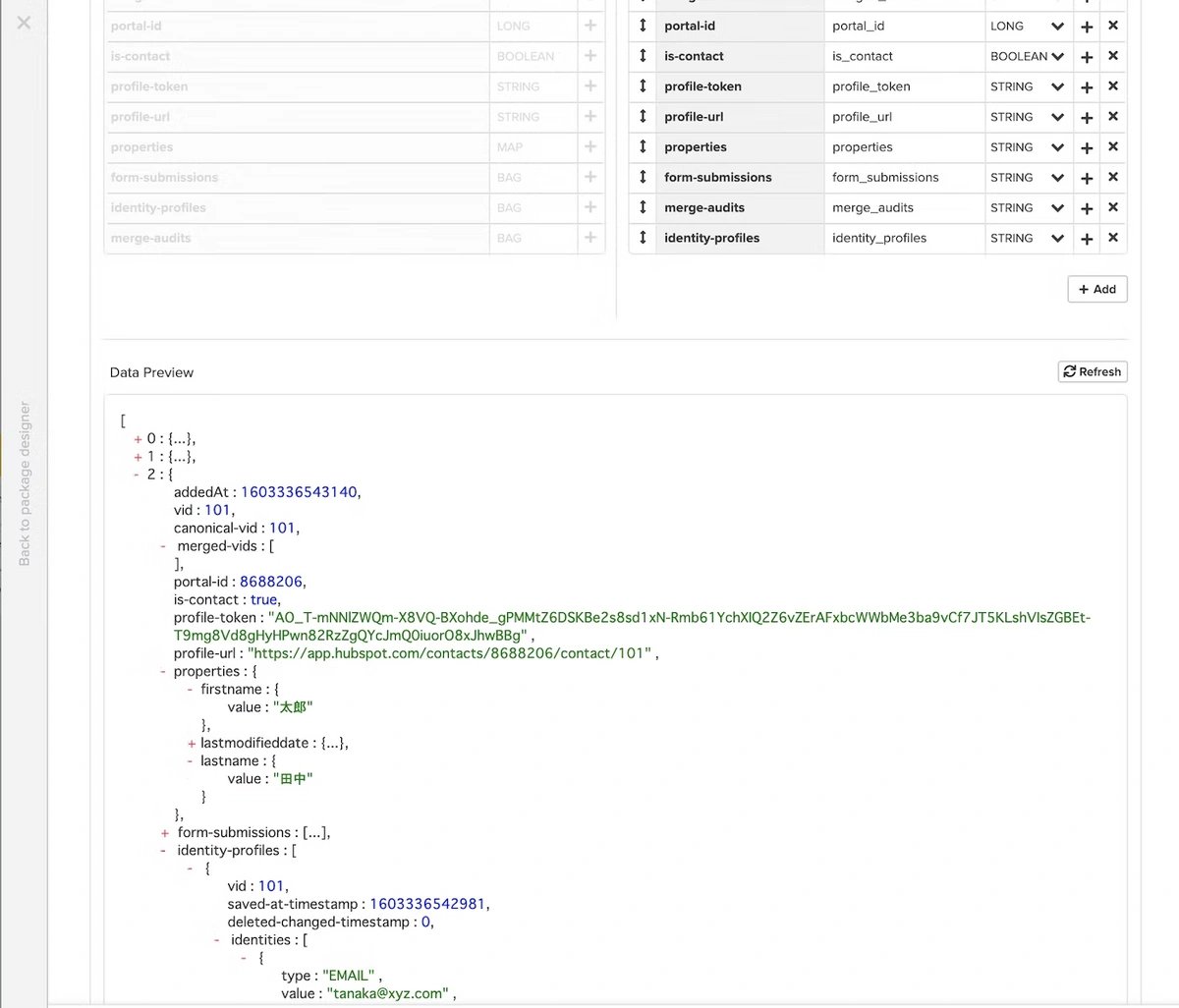
 미리보기를 하면 다음과 같이 JSON 형식으로 데이터를 가져오는 것을 확인할 수 있습니다.
 ## **변환**
### **이메일 주소를 하나의 열로 독립적으로 검색하는 방법**
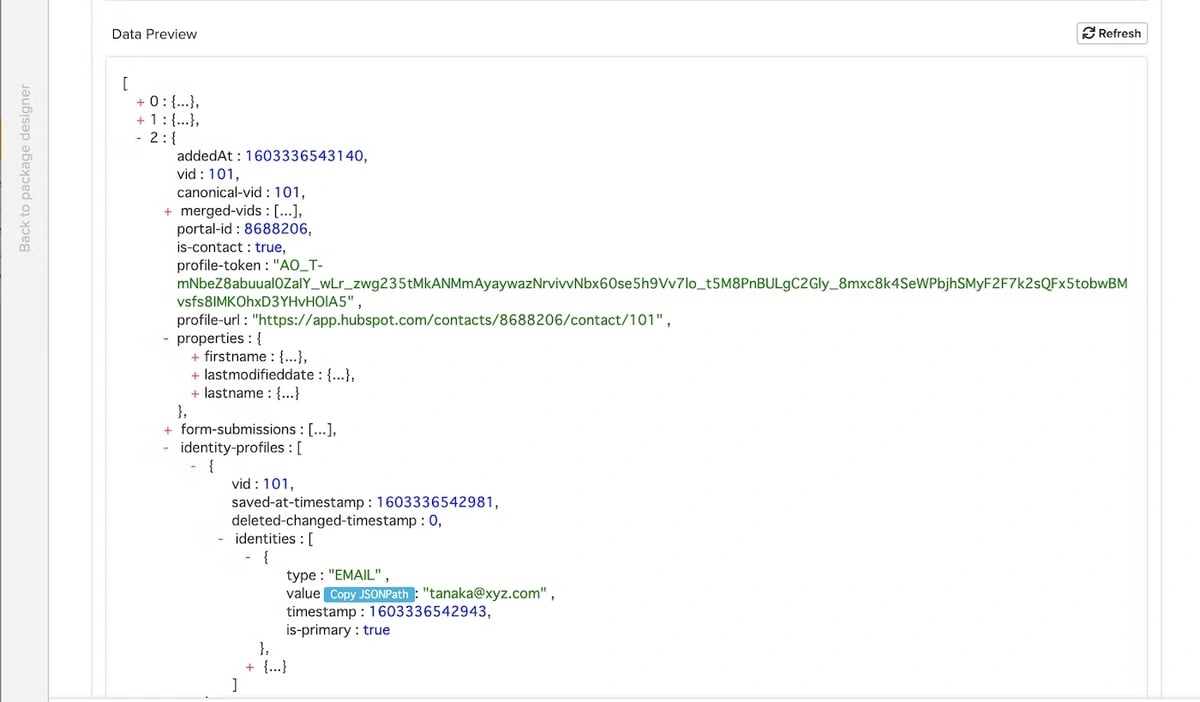
* 데이터 미리보기로 돌아가 이메일 주소가 저장된 JSON 경로를 가져옵니다
JSON 경로: `$.[2].identity-profiles.[0].identities.[0].value`
## **변환**
### **이메일 주소를 하나의 열로 독립적으로 검색하는 방법**
* 데이터 미리보기로 돌아가 이메일 주소가 저장된 JSON 경로를 가져옵니다
JSON 경로: `$.[2].identity-profiles.[0].identities.[0].value`
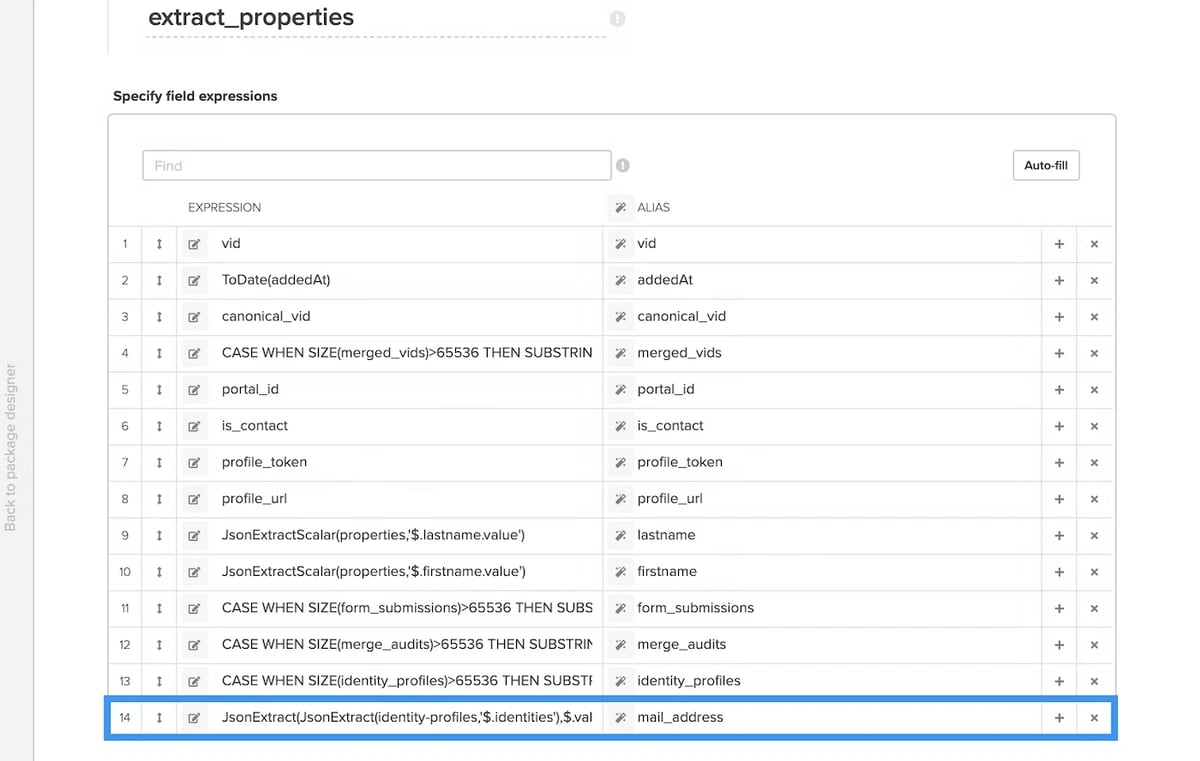
 * 위의 JSON 경로를 기반으로 변환식을 정의합니다.
`JsonExtractScalar(identity_profiles,'$.[0].identities.[0].value')`
주) 앞의 미리보기에서 컬럼명이 `identity-profiles`가 Xplenty에 의해 자동적으로 `identity_profiles`로 변경된 점에 주의 하세요
* 위의 JSON 경로를 기반으로 변환식을 정의합니다.
`JsonExtractScalar(identity_profiles,'$.[0].identities.[0].value')`
주) 앞의 미리보기에서 컬럼명이 `identity-profiles`가 Xplenty에 의해 자동적으로 `identity_profiles`로 변경된 점에 주의 하세요
 * JsonExtractScalar의 사용법
`JsonExtractScalar(인수1,인수2)`:
`인수1`: 문자열형의 JSON 캐릭터 라인을 포함한 필드나 변수
`인수2`: JSON 패스를 홑 따옴표로 둘러싼다
`반환값`: 문자열형
*
`identity_profiles`: 필드 이름. JSON 문자열이 저장됨(문자열형)
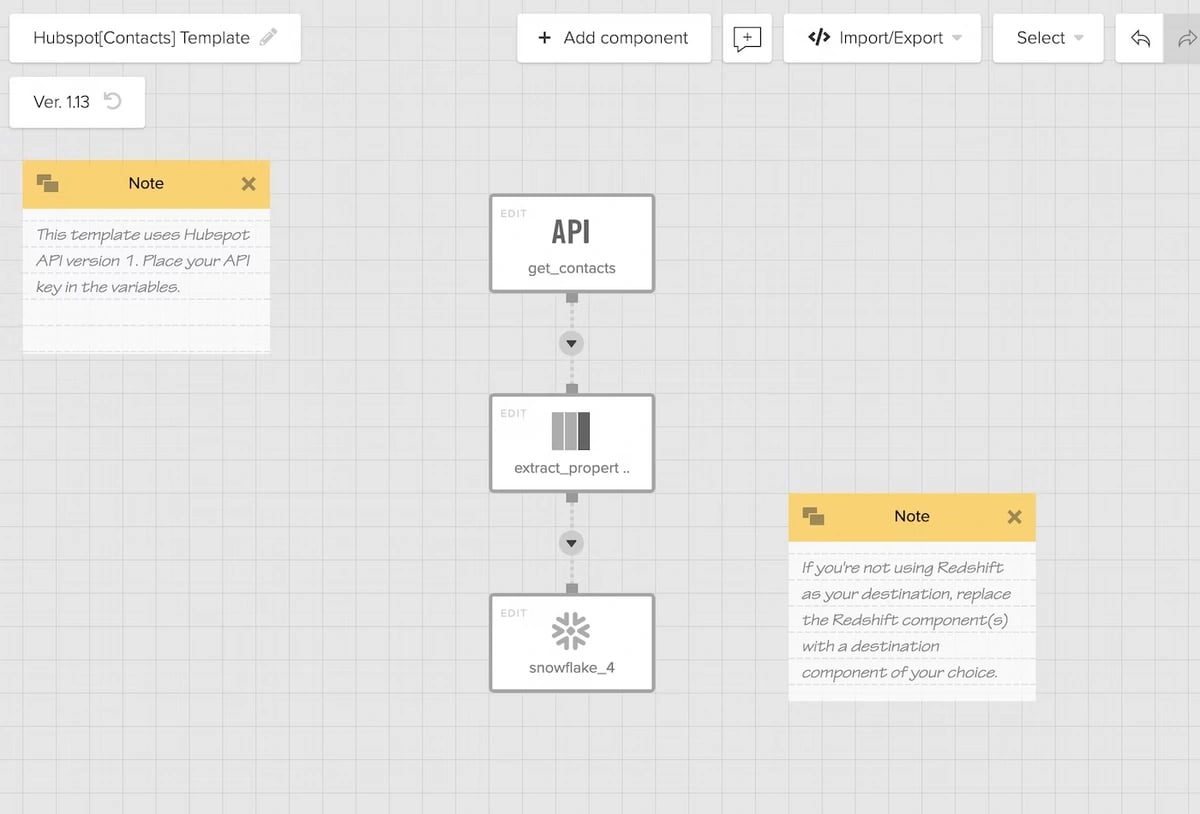
* 데이터 저장 대상은 기본설정인 Redshift를 삭제하고 Snowflake로 변경합니다.
* JsonExtractScalar의 사용법
`JsonExtractScalar(인수1,인수2)`:
`인수1`: 문자열형의 JSON 캐릭터 라인을 포함한 필드나 변수
`인수2`: JSON 패스를 홑 따옴표로 둘러싼다
`반환값`: 문자열형
*
`identity_profiles`: 필드 이름. JSON 문자열이 저장됨(문자열형)
* 데이터 저장 대상은 기본설정인 Redshift를 삭제하고 Snowflake로 변경합니다.
 ## **Xplenty에서 작업 실행 결과 확인**
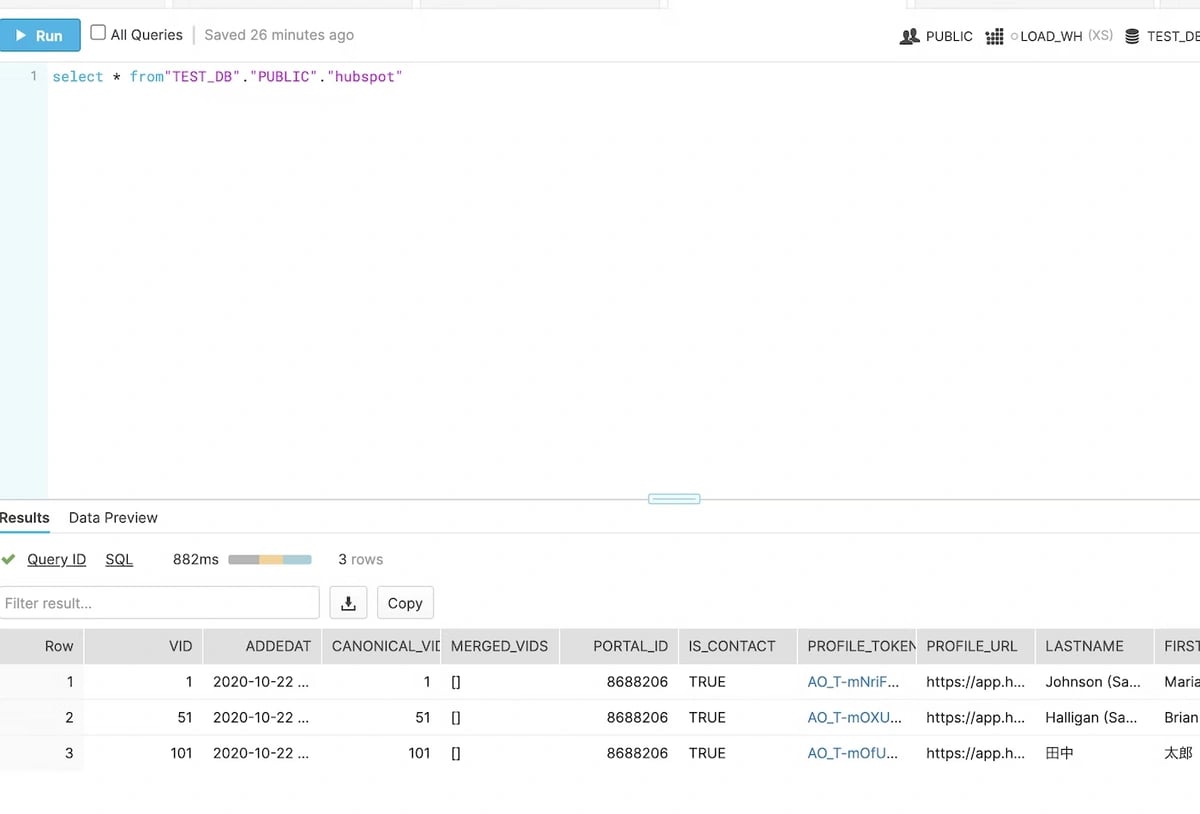
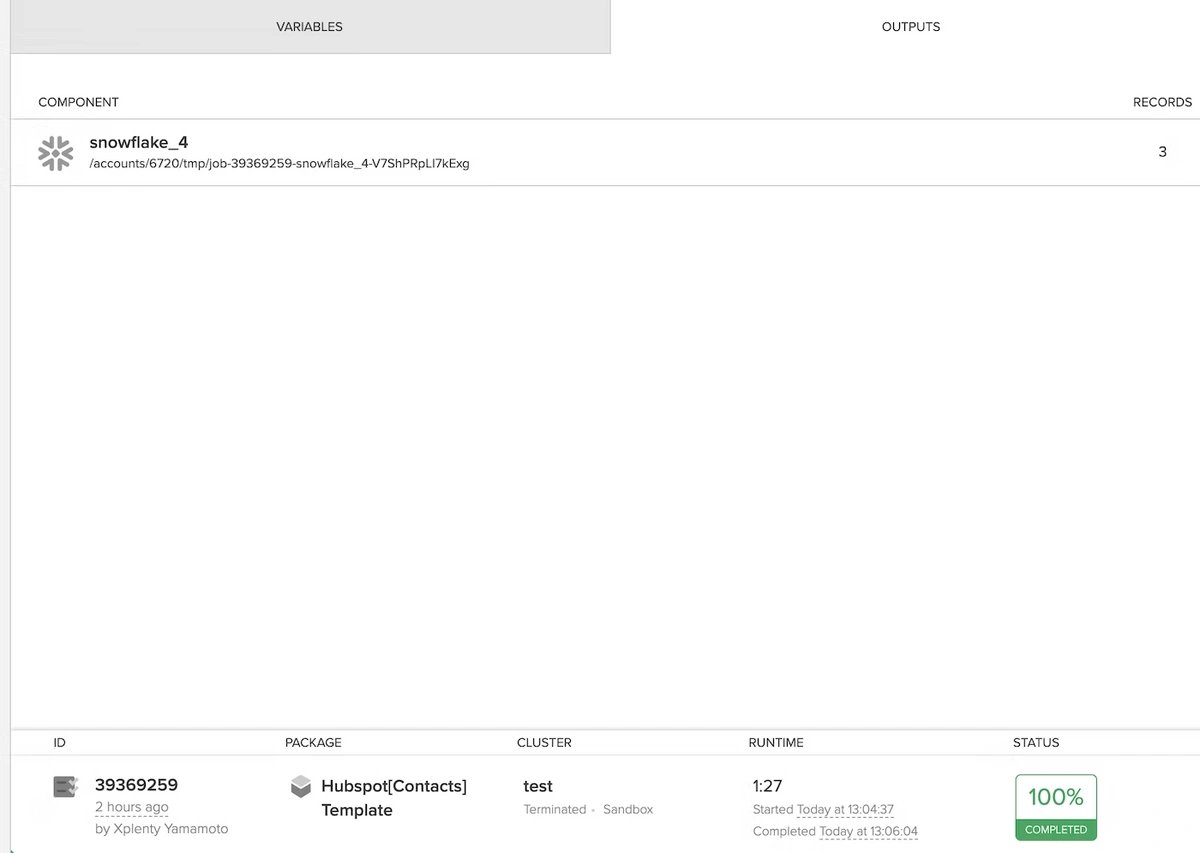
Hubspot에서 3개의 레코드가 업데이트 되었음을 확인되었습니다.
## **Xplenty에서 작업 실행 결과 확인**
Hubspot에서 3개의 레코드가 업데이트 되었음을 확인되었습니다.
 쿼리로 데이터를 확인해 보면 아래와 같이 3건의 데이터 입력이 확인 됩니다.