> ## Documentation Index
> Fetch the complete documentation index at: https://www.integrate.io/docs/llms.txt
> Use this file to discover all available pages before exploring further.
# ETL: Package Groups
> Learn about Integrate.io ETL package groups for organizing packages, connections, and team resources. Separate environments for your data projects.
## What is an Integrate.io ETL Package Group?
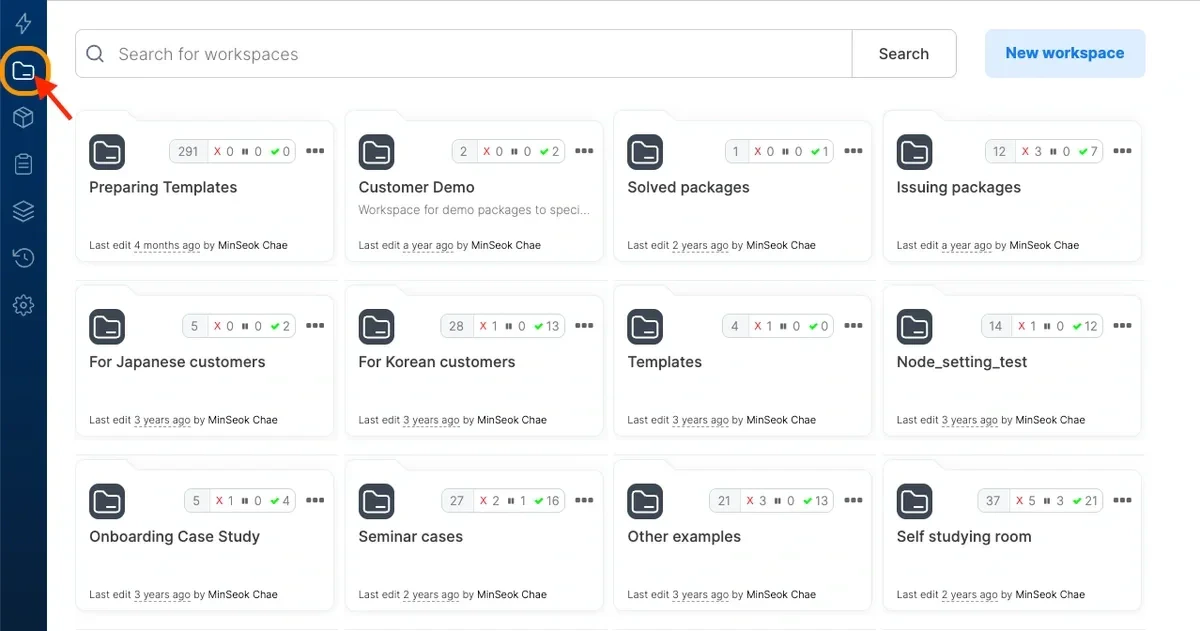
A Package Group provides a way to group and organize packages together. Think of Package Groups like folders. You can group pipelines by team if there’s many users using the same Integrate.io ETL account, or group pipelines by customer, or if you simply want to have some template packages you’d like to go back to in the future. You could use an Integrate.io ETL Package Group to group packages together based on your requirements. You can have a look at our Package Groups feature by clicking this new icon we’ve introduced.
 ## Creating a Package Group
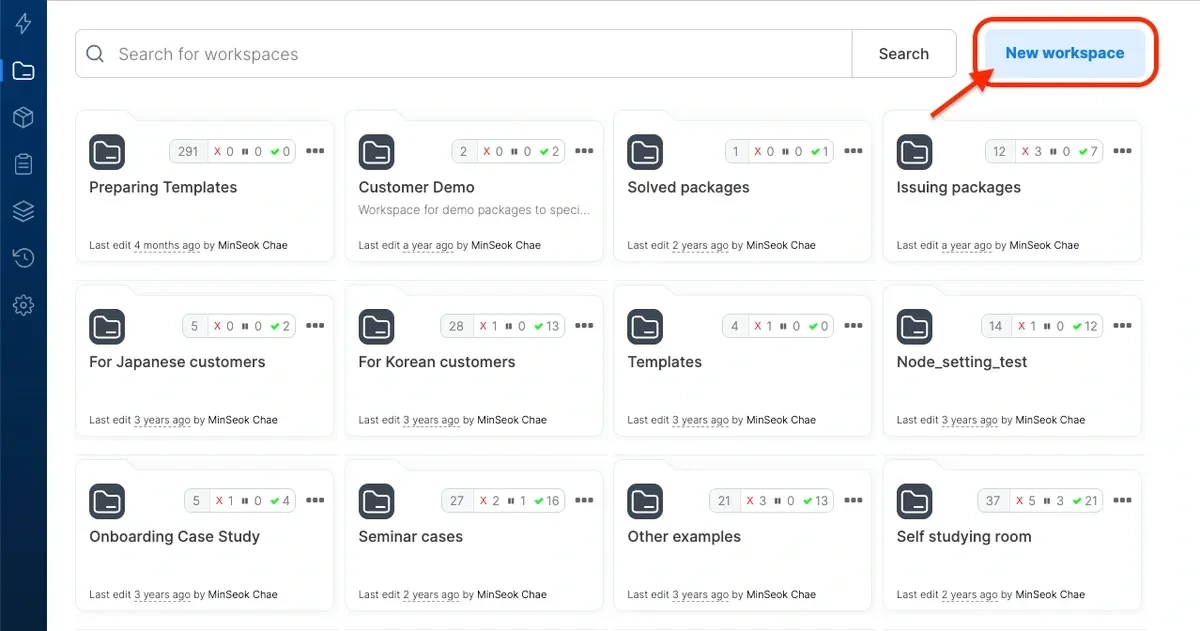
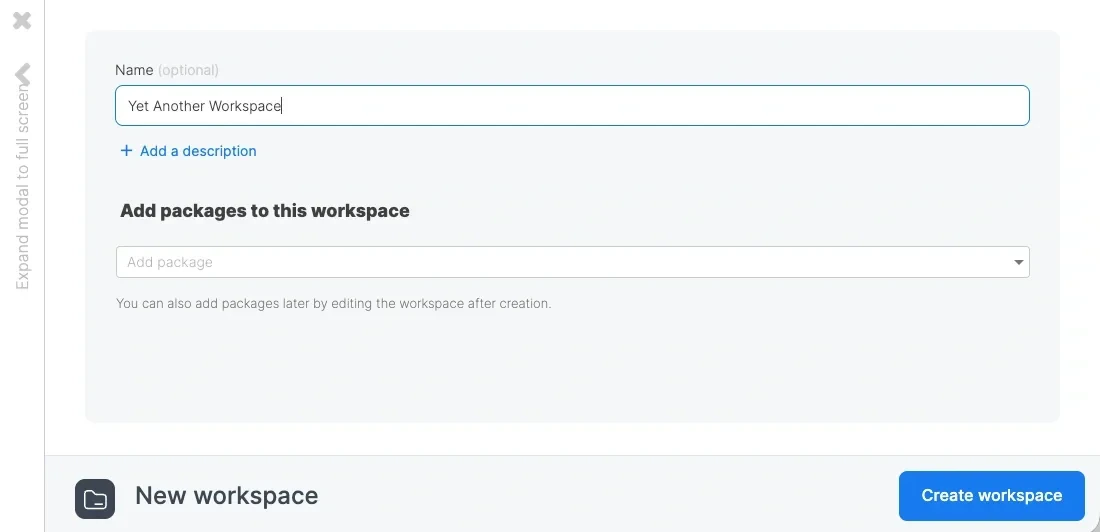
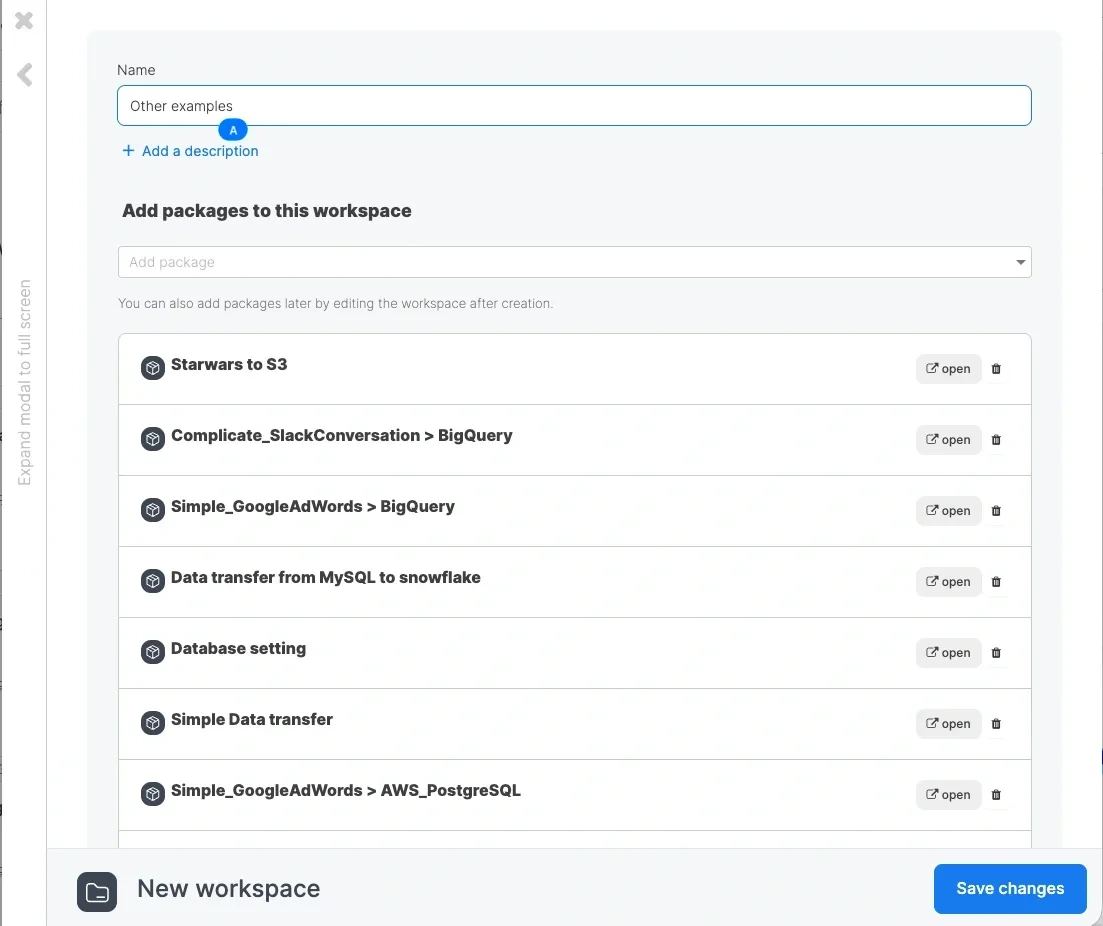
To create a Package Group, navigate to the Package Groups tab and click **New Package Group**. A modal will then popup (see image below). Give the Package Group a name and add a description if so desired. You can also add packages to this Package Group if you already have some packages in mind, otherwise you can just click **Create Package Group** and add packages later.
## Creating a Package Group
To create a Package Group, navigate to the Package Groups tab and click **New Package Group**. A modal will then popup (see image below). Give the Package Group a name and add a description if so desired. You can also add packages to this Package Group if you already have some packages in mind, otherwise you can just click **Create Package Group** and add packages later.
 ## Adding Packages to a Package Group
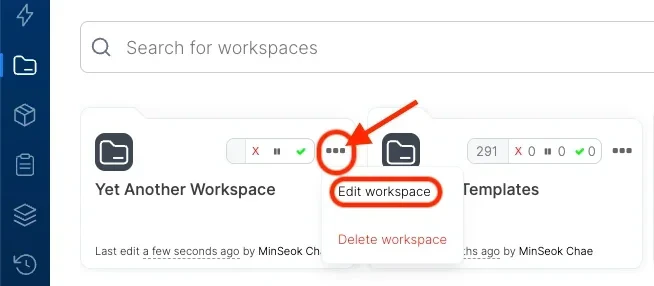
After Package Group creation, you can add packages to your Package Group by clicking the triple dot icon on the Package Group and clicking **Edit Package Group.** You can then click the dropdown and add packages to the Package Group. Take note that only packages that do not already belong to a Package Group can be added - i.e. a given package can only belong to one Package Group. Click the triple dot icon, and click **Edit Package Group** and add packages accordingly.
## Adding Packages to a Package Group
After Package Group creation, you can add packages to your Package Group by clicking the triple dot icon on the Package Group and clicking **Edit Package Group.** You can then click the dropdown and add packages to the Package Group. Take note that only packages that do not already belong to a Package Group can be added - i.e. a given package can only belong to one Package Group. Click the triple dot icon, and click **Edit Package Group** and add packages accordingly.
 ## Moving a Package to Another Package Group
If you would like to move a single package to another Package Group, you can go to the **Packages** tab, click the triple dot icon, and click **Change Package Group**. Packages not belonging to any Package Group would have **Add to Package Group** instead.
## Moving a Package to Another Package Group
If you would like to move a single package to another Package Group, you can go to the **Packages** tab, click the triple dot icon, and click **Change Package Group**. Packages not belonging to any Package Group would have **Add to Package Group** instead.
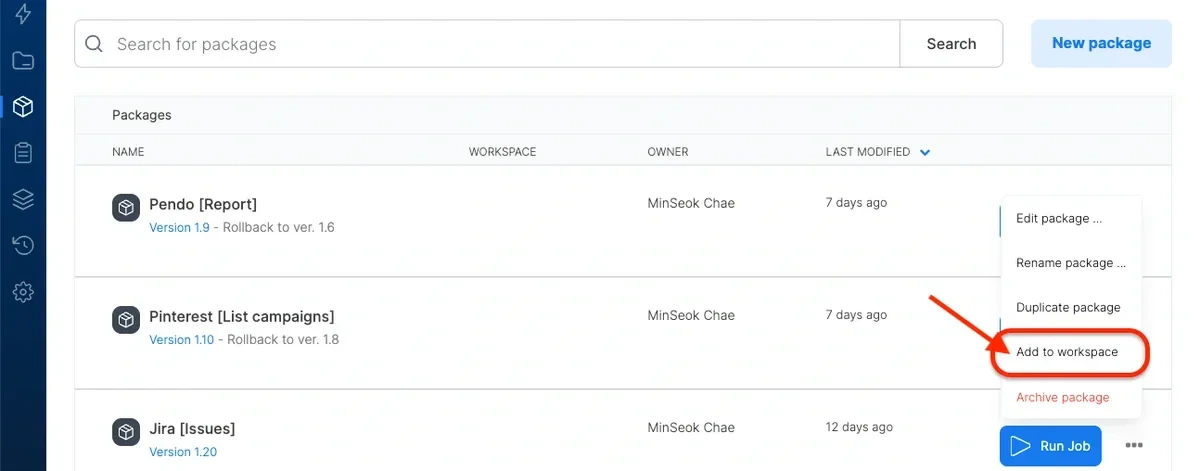 For moving packages to another Package Group in bulk, you can remove the packages from a Package Group by clicking **Edit Package Group**, removing the relevant packages, and saving it. You can then edit another Package Group by using the same **Edit Package Group** button and add the packages.
 ## Deleting a Package Group
You can delete a Package Group by clicking the triple dot icon on the Package Group and clicking **Delete Package Group**. Deleting a Package Group will not delete the packages under the Package Group. These packages will no longer belong to a Package Group.
## Package Group Summary Bar
## Deleting a Package Group
You can delete a Package Group by clicking the triple dot icon on the Package Group and clicking **Delete Package Group**. Deleting a Package Group will not delete the packages under the Package Group. These packages will no longer belong to a Package Group.
## Package Group Summary Bar
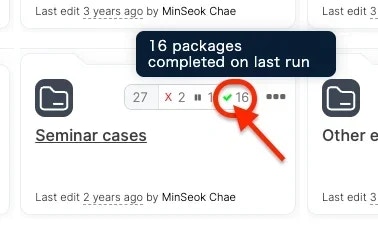 A summary bar on each Package Group is shown which indicates the following job-related information.
**Note**:
Archived packages are excluded from all counts in the summary bar.
* The leftmost number represents the total number of active (non-archived) packages under the Package Group
* ❌ Red cross indicates the number of packages failed on last run
* ⏸️ Gray Pause symbol indicates the number of packages stopped on last run
* ✅ Green tick indicates number of packages completed on last run.
This could be helpful if the packages underneath are being run regularly (via an Integrate.io ETL schedule for example) as it would quickly give insights on whether all the jobs succeeded during the last run, or if a package failed.
A summary bar on each Package Group is shown which indicates the following job-related information.
**Note**:
Archived packages are excluded from all counts in the summary bar.
* The leftmost number represents the total number of active (non-archived) packages under the Package Group
* ❌ Red cross indicates the number of packages failed on last run
* ⏸️ Gray Pause symbol indicates the number of packages stopped on last run
* ✅ Green tick indicates number of packages completed on last run.
This could be helpful if the packages underneath are being run regularly (via an Integrate.io ETL schedule for example) as it would quickly give insights on whether all the jobs succeeded during the last run, or if a package failed.