> ## Documentation Index
> Fetch the complete documentation index at: https://www.integrate.io/docs/llms.txt
> Use this file to discover all available pages before exploring further.
# ETL: Using and Setting Variables
> Define, set, and use variables in Integrate.io ETL packages. Pass runtime parameters to jobs and reference dynamic values in your expressions.
## Using and setting variables in your package
You can use variables in most components and fields of a package. You cannot use, for example, variables in the limit component or in alias fields.
Variable values are [expressions](/docs/etl/using-expressions-in-integrateio-etl/ "Link: /etl/using-expressions-in-integrateio-etl/") (except secrets, which are only string) so you can use functions and operators to assign dynamic values to your variables.
Variable values are evaluated only at runtime (when a package is ran), so you must replace these variables with actual values for Integrate.io ETL components (like the Schema step) to work in the package designer.
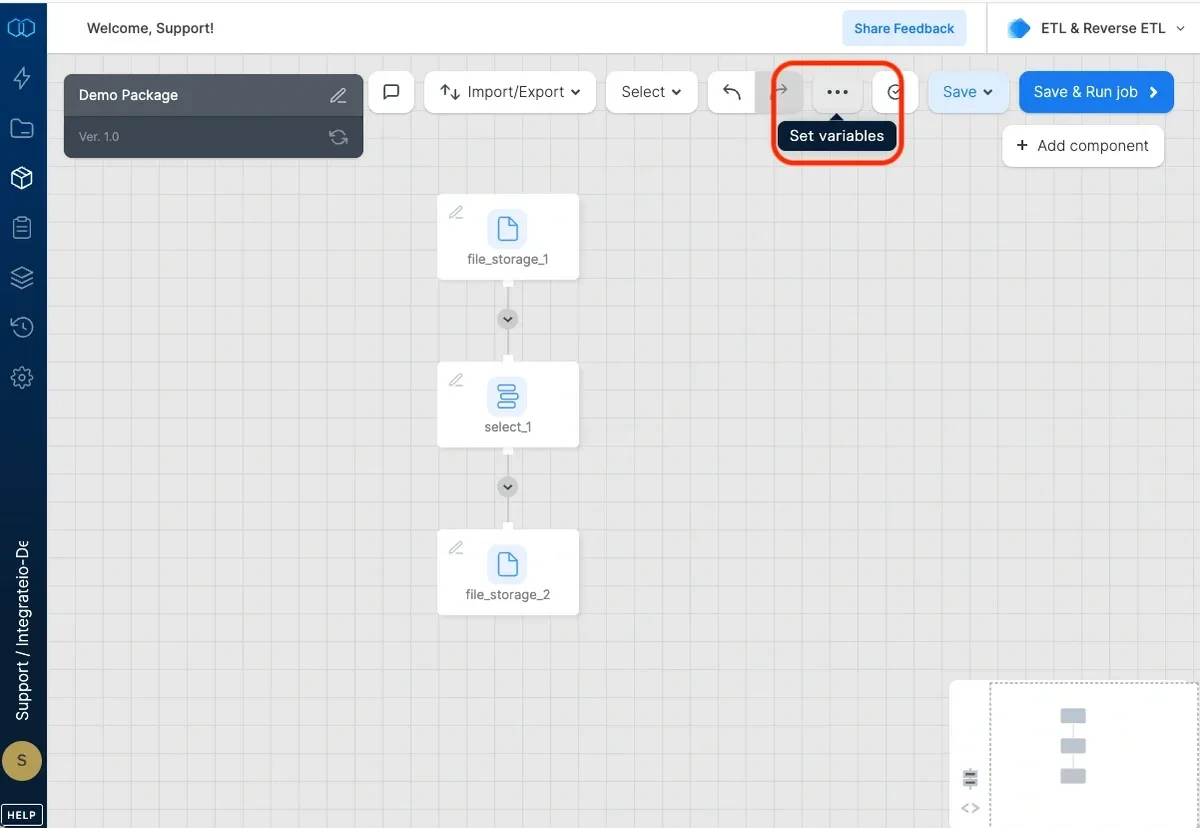 You can use three types of variables:
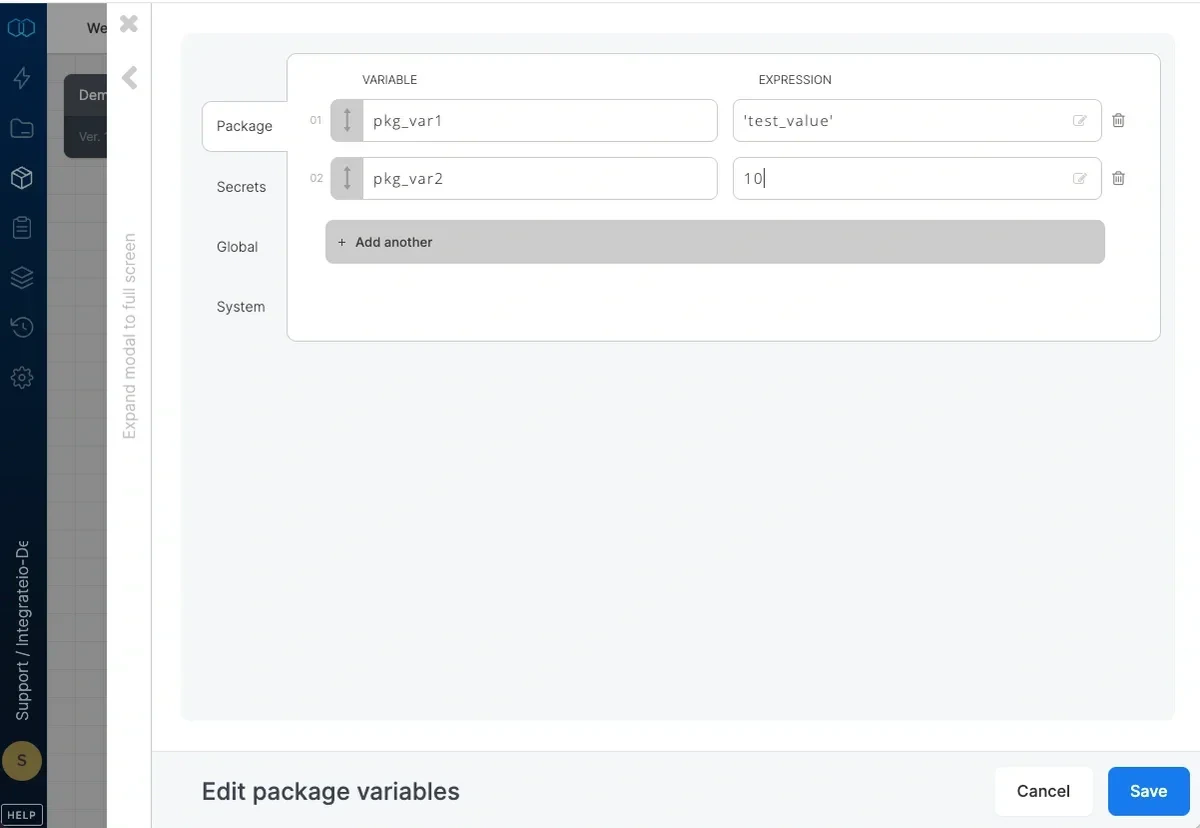
* Package variables that you define. Value is an expression. You also set the default value.
You can use three types of variables:
* Package variables that you define. Value is an expression. You also set the default value.
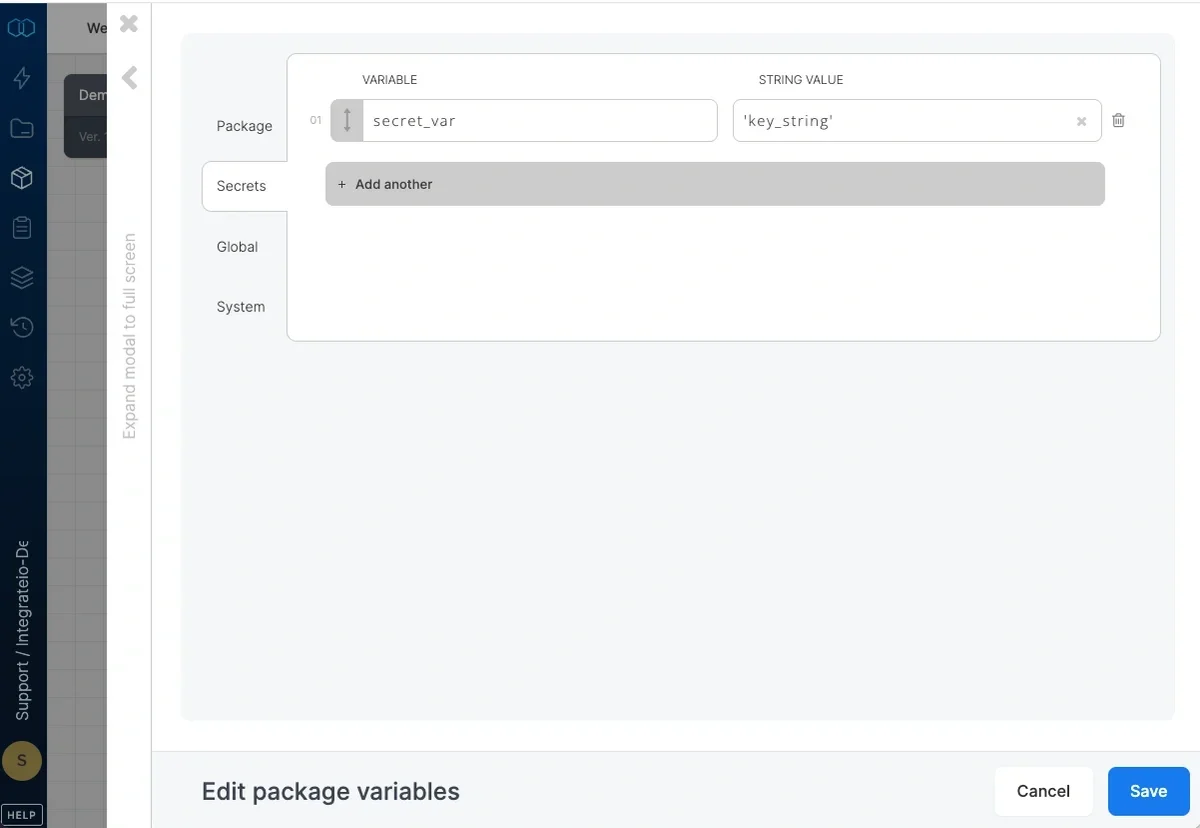
 * Secret variables for sensitive values such as tokes, API keys passwords etc. Value is a string.
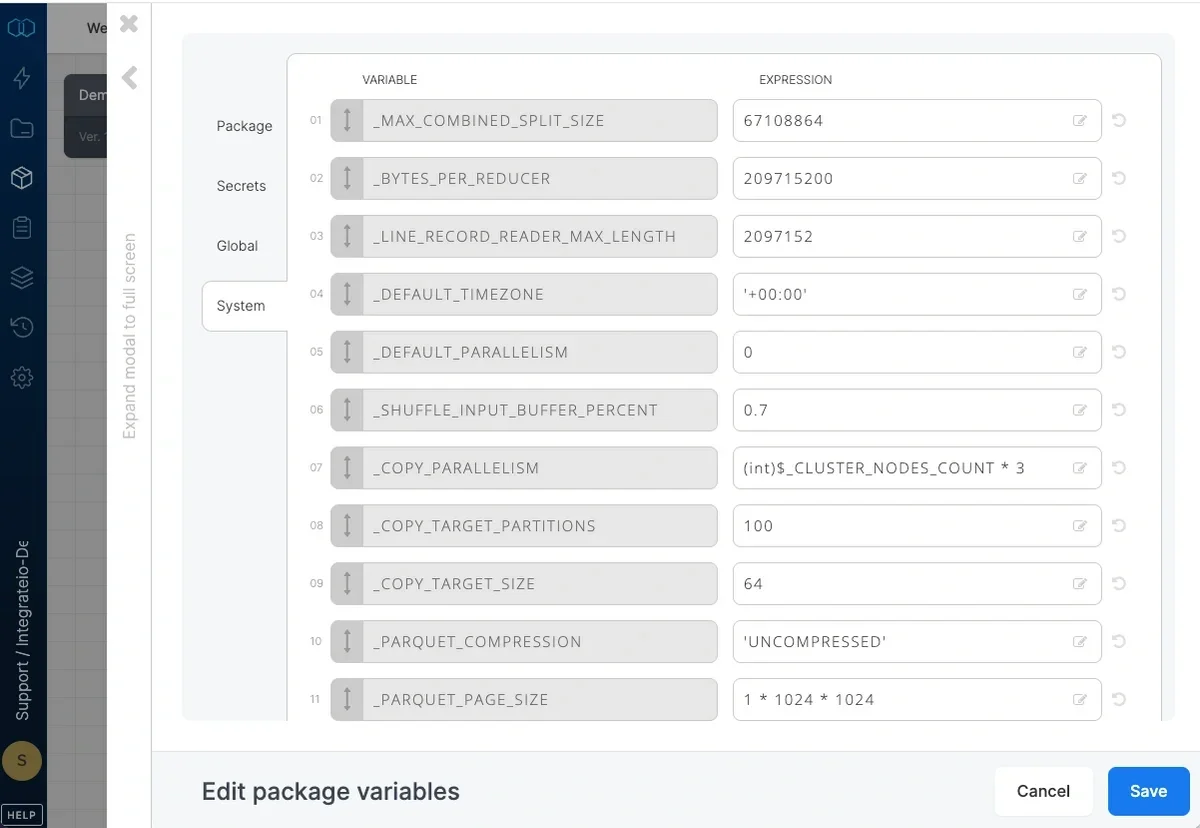
 * System variables for which you can change the default value. Value is an expression. See list [here](/docs/etl/system-and-pre-defined-variables/ "Link: /etl/system-and-pre-defined-variables/").
 * Variables predefined by Integrate.io ETL, whose values are set by the system when the job is run. See list [here](/docs/etl/system-and-pre-defined-variables/ "Link: /etl/system-and-pre-defined-variables/").
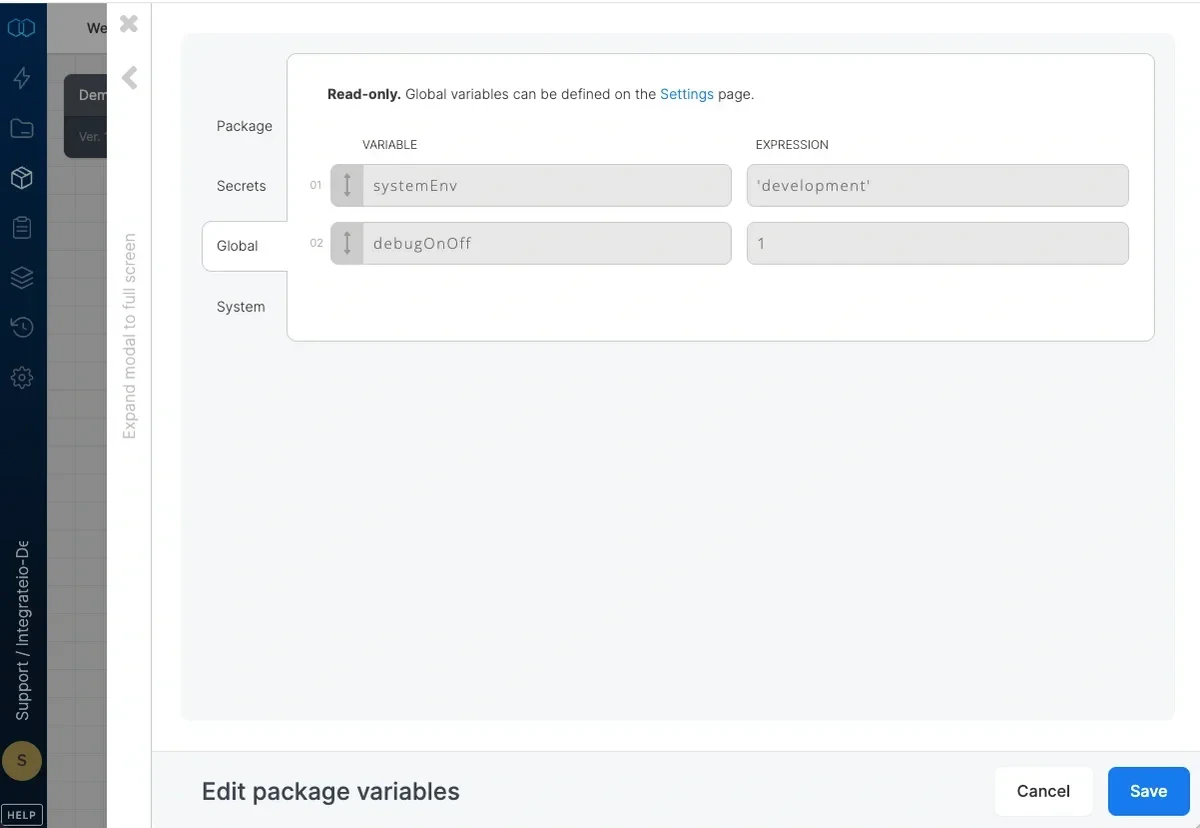
* Global variables (account level). Value is an expression. Details is [here.](/docs/etl/global-variables-account-level/)
* Variables predefined by Integrate.io ETL, whose values are set by the system when the job is run. See list [here](/docs/etl/system-and-pre-defined-variables/ "Link: /etl/system-and-pre-defined-variables/").
* Global variables (account level). Value is an expression. Details is [here.](/docs/etl/global-variables-account-level/)
 ### Using variables in a variable or a field:
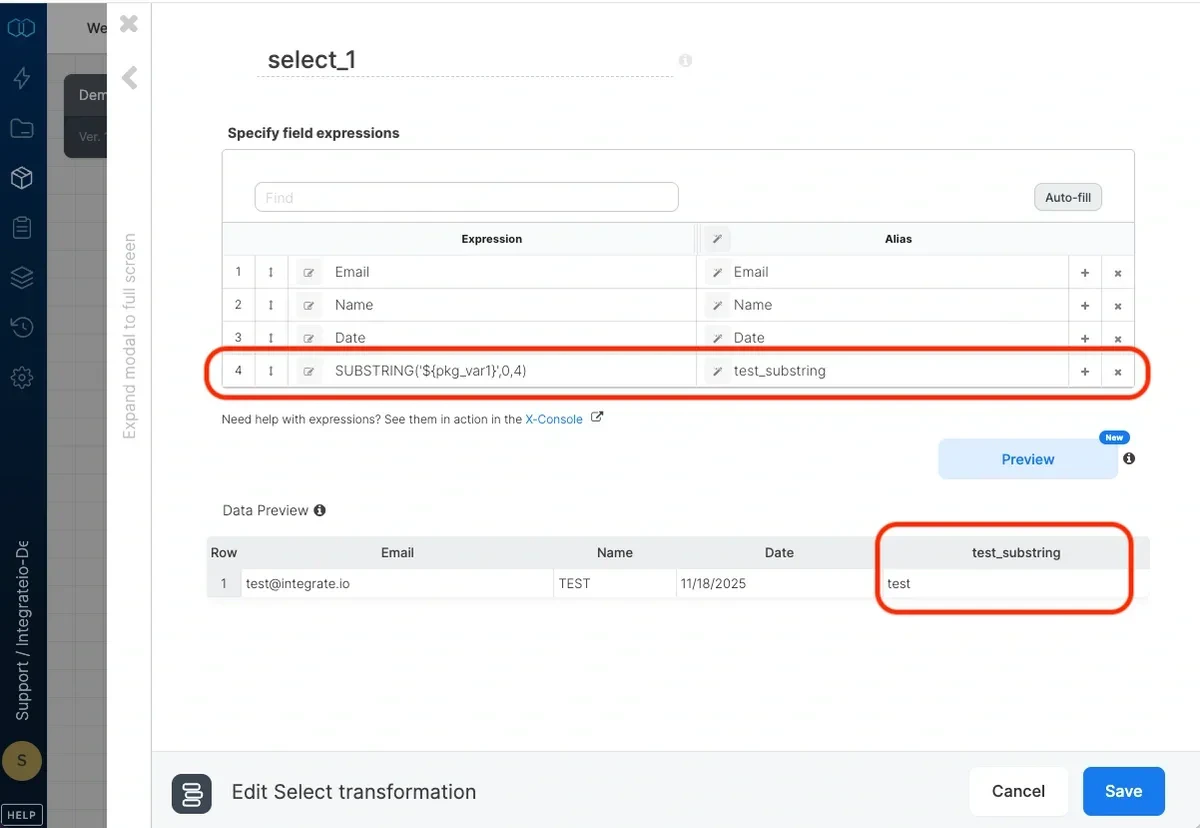
In the required field, type `$` followed by the variable name. For example, if the variable name is country, type `$country`. Note that variables are simply substituted with their values. Therefore if you use a variable where a string value is expected, you should enclose it in single quotes, as in this example: `SUBSTRING('$country',3,5)`
### Using variables in a variable or a field:
In the required field, type `$` followed by the variable name. For example, if the variable name is country, type `$country`. Note that variables are simply substituted with their values. Therefore if you use a variable where a string value is expected, you should enclose it in single quotes, as in this example: `SUBSTRING('$country',3,5)`
 ### Using variables in a workflow package:
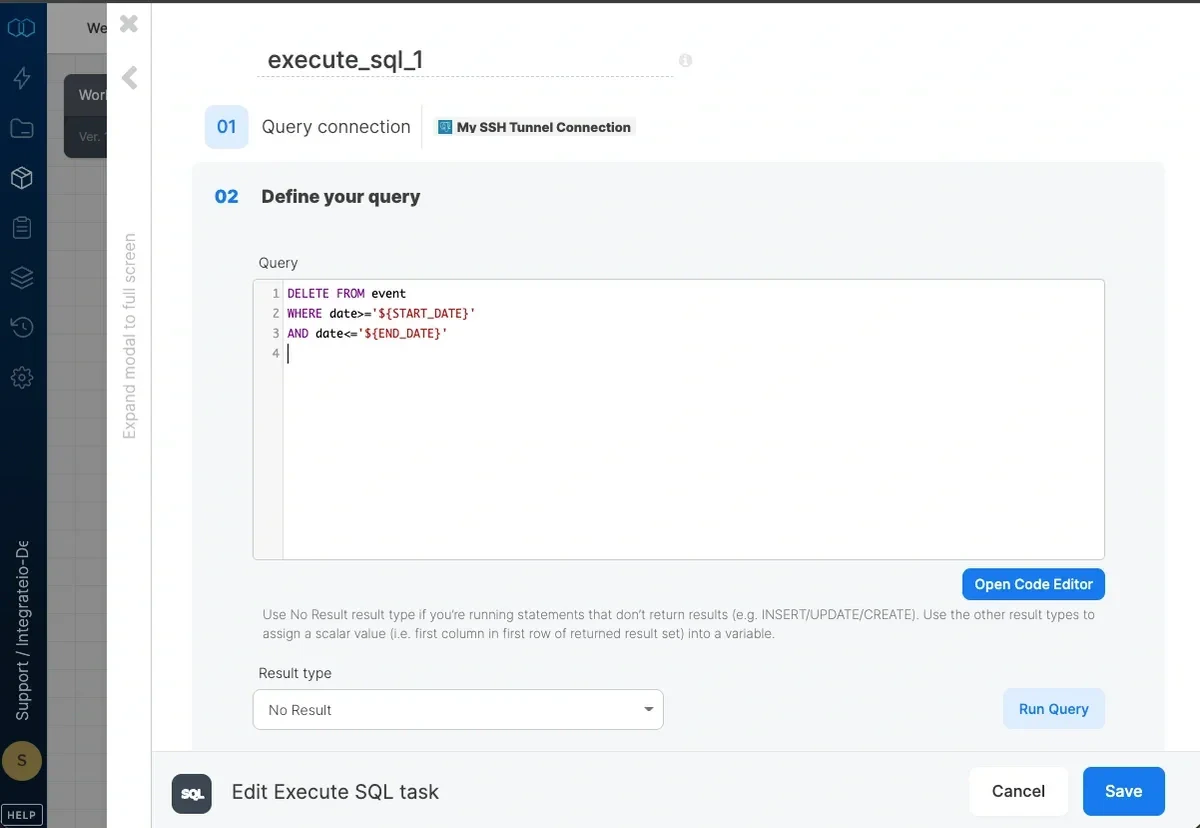
User variables can be defined at the workflow package level, as well, and can be used for both the Execute SQL Task and the Run Package Task. However, be aware that we address package variables in an Execute SQL Task differently than we described above (i.e. **`$variable_name`**.) When using variables in a SQL query, enclose the variable within curly brackets (i.e: **'`${var\_name}`'**). See [this](/docs/etl/creating-a-workflow/) document for more information.
### Using variables in a workflow package:
User variables can be defined at the workflow package level, as well, and can be used for both the Execute SQL Task and the Run Package Task. However, be aware that we address package variables in an Execute SQL Task differently than we described above (i.e. **`$variable_name`**.) When using variables in a SQL query, enclose the variable within curly brackets (i.e: **'`${var\_name}`'**). See [this](/docs/etl/creating-a-workflow/) document for more information.
 ### Setting variable values in your package
Set package and system variable default values in the package designer. If required, you can override these default values when you run a job through the UI (see [Running jobs](/docs/etl/running-jobs/)), the scheduler or the API.
### Setting variable values in your package
Set package and system variable default values in the package designer. If required, you can override these default values when you run a job through the UI (see [Running jobs](/docs/etl/running-jobs/)), the scheduler or the API.
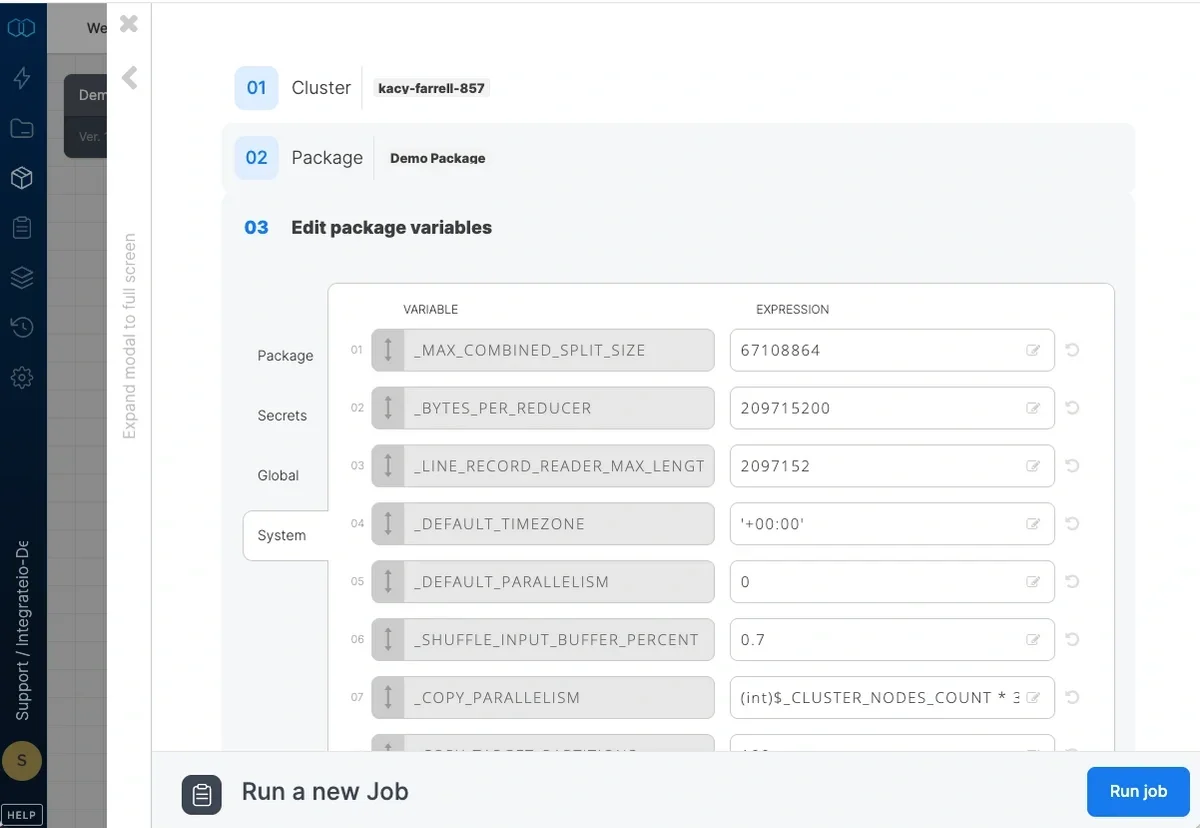 **To modify a system variable default value in the package:**
Click **...**(Set variables)
Click **system variables**.
Type a new default value in the relevant text box.
You can also use the following in system variable values:
* Predefined variables
* Another system variable that is listed before the system variable whose value you're editing.
**To define a package variable and set its value:**
Click **...**(Set variables)
On the **package variables** tab, type a name and a default value in the relevant text boxes.
Add additional variables as required.
You can also use the following in package variable values:
* Predefined variables
* System variables
* Another package variable that is listed before the package variable whose value you're editing.
**To override global variables values in the package:**
Type a name of global variable(s) you want to override under **package variables** tab.
Set its value.
## Secret Variables
Secret variables store sensitive values such as API keys, tokens, and passwords. They differ from regular package variables in several ways:
* **Encrypted at rest.** Secret variable values are encrypted in storage and never stored in plaintext.
* **Masked in the UI and logs.** Values are replaced with asterisks in the package designer, job logs, and any diagnostic output. You will not see the actual value after saving it.
* **String values only.** Unlike regular package variables (which accept expressions), secret variables accept only string values.
* **Referenced the same way as regular variables.** Use `$variable_name` in fields and expressions, just as you would with any other package variable.
Click **...** (Set variables).
Click the **secret variables** tab.
Type a name and value for the secret variable.
Click **Save**. The value will be masked immediately after saving.
Once saved, a secret variable's value cannot be viewed again. To change the value, enter a new one and save.
**To modify a system variable default value in the package:**
Click **...**(Set variables)
Click **system variables**.
Type a new default value in the relevant text box.
You can also use the following in system variable values:
* Predefined variables
* Another system variable that is listed before the system variable whose value you're editing.
**To define a package variable and set its value:**
Click **...**(Set variables)
On the **package variables** tab, type a name and a default value in the relevant text boxes.
Add additional variables as required.
You can also use the following in package variable values:
* Predefined variables
* System variables
* Another package variable that is listed before the package variable whose value you're editing.
**To override global variables values in the package:**
Type a name of global variable(s) you want to override under **package variables** tab.
Set its value.
## Secret Variables
Secret variables store sensitive values such as API keys, tokens, and passwords. They differ from regular package variables in several ways:
* **Encrypted at rest.** Secret variable values are encrypted in storage and never stored in plaintext.
* **Masked in the UI and logs.** Values are replaced with asterisks in the package designer, job logs, and any diagnostic output. You will not see the actual value after saving it.
* **String values only.** Unlike regular package variables (which accept expressions), secret variables accept only string values.
* **Referenced the same way as regular variables.** Use `$variable_name` in fields and expressions, just as you would with any other package variable.
Click **...** (Set variables).
Click the **secret variables** tab.
Type a name and value for the secret variable.
Click **Save**. The value will be masked immediately after saving.
Once saved, a secret variable's value cannot be viewed again. To change the value, enter a new one and save.