> ## Documentation Index
> Fetch the complete documentation index at: https://www.integrate.io/docs/llms.txt
> Use this file to discover all available pages before exploring further.
# ETL: Amazon S3 Source
> How to connect to Amazon S3 and configure the S3 source component to read files in your Integrate.io ETL pipeline.
The Amazon S3 source reads files from an S3 bucket and feeds them into your pipeline. It supports CSV, TSV, JSON, Excel, Parquet, Raw, and compressed formats.
Once your connection is set up, see [File Storage Options](/docs/etl/file-storage-options) for the full set of read options (file formats, schema, and more) shared across every file storage provider.
## Connection Setup
### Create an IAM User
Log into the AWS Management Console and open **IAM (Identity and Access Management)**.
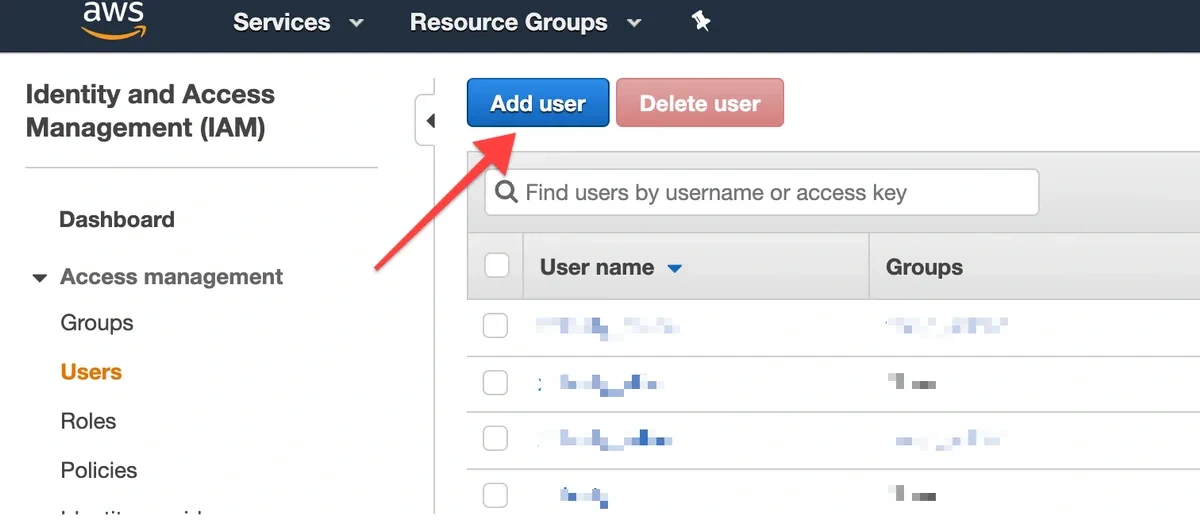
In the left navigation, click **Users**, then click **Add User**.
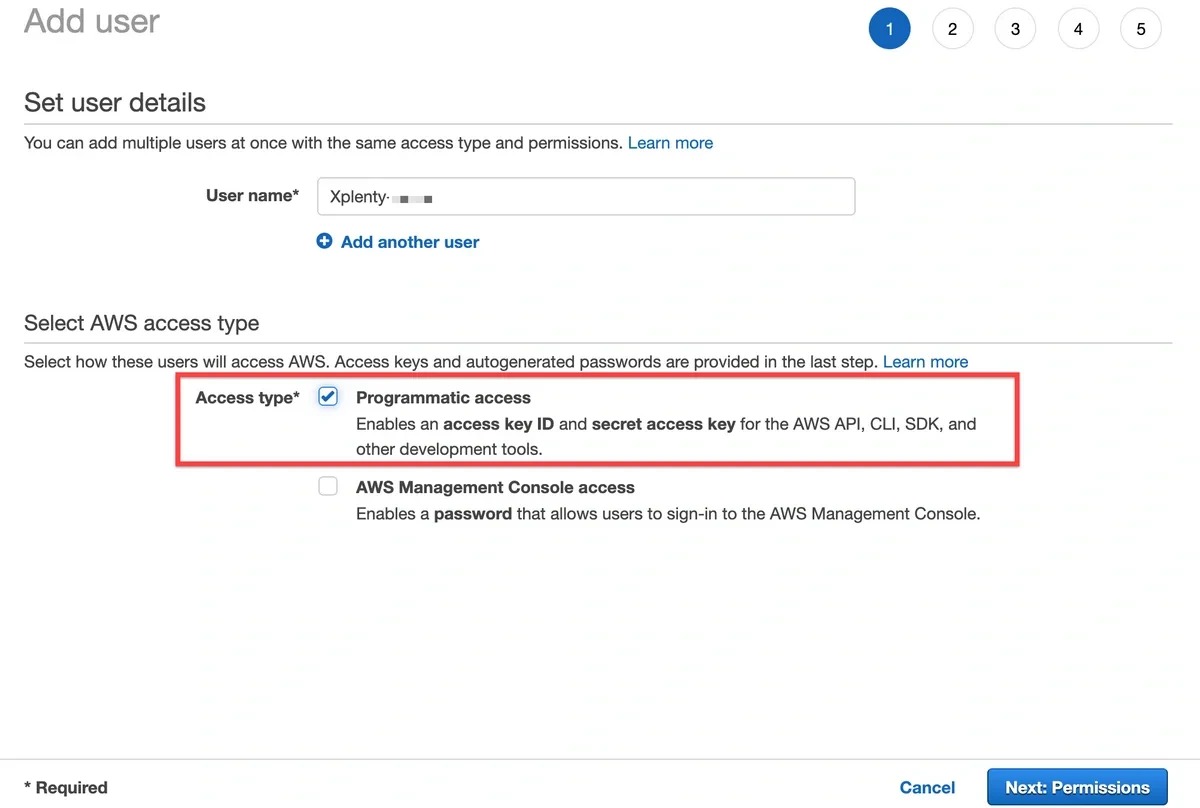
 Enter a user name (for example, `integrate-io-etl`) and select **Programmatic access**. Click **Next: Permissions**.
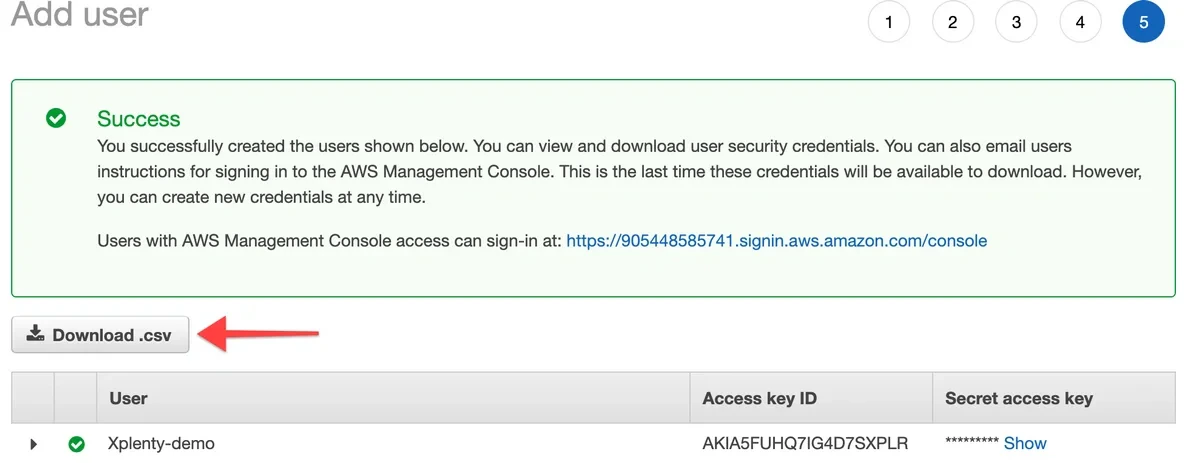
 Click **Create User**. On the confirmation page, click **Download .csv** and save the credentials file. You will need the Access Key ID and Secret Access Key when creating the connection in Integrate.io.
 If any credential key contains a slash, or you cannot locate the downloaded credentials file, return to the IAM user, click **Make inactive** under Security credentials, then click **Create access key** to generate new credentials.
Never use an underscore in an S3 bucket name, and never end a bucket name with a dash. Both will prevent Integrate.io from accessing the bucket correctly.
### Attach an S3 Policy to the IAM User
In the IAM user list, click the user you created. Scroll down to **Add permissions**.
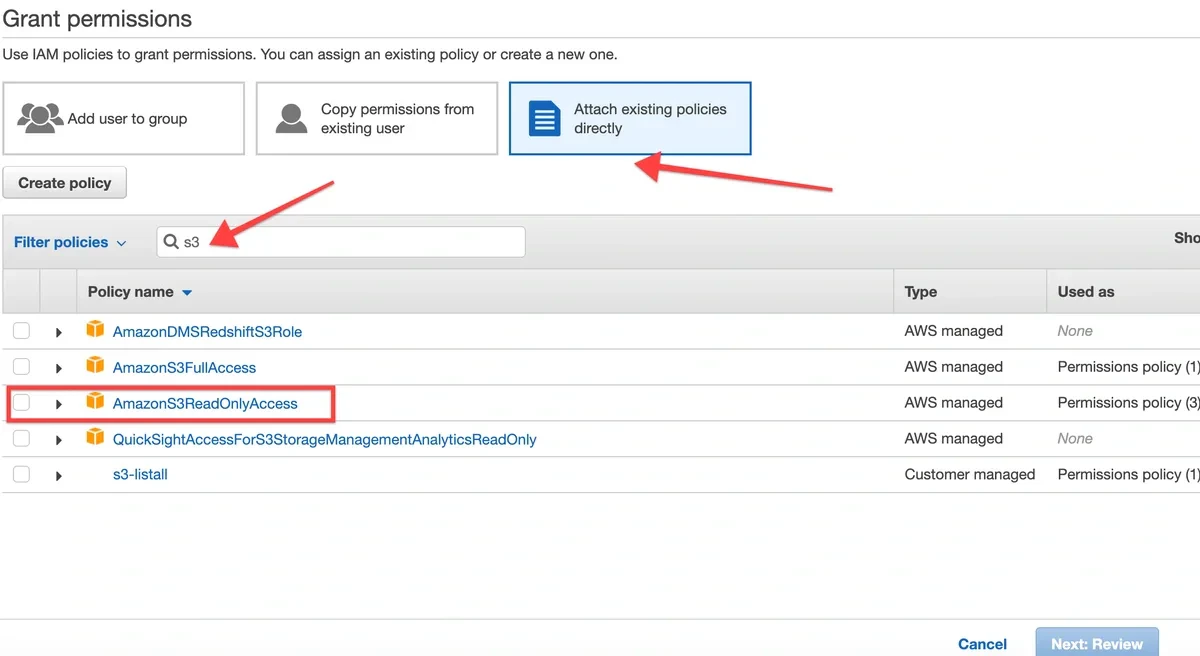
For **read-only** access, attach the **AmazonS3ReadOnlyAccess** managed policy.
If any credential key contains a slash, or you cannot locate the downloaded credentials file, return to the IAM user, click **Make inactive** under Security credentials, then click **Create access key** to generate new credentials.
Never use an underscore in an S3 bucket name, and never end a bucket name with a dash. Both will prevent Integrate.io from accessing the bucket correctly.
### Attach an S3 Policy to the IAM User
In the IAM user list, click the user you created. Scroll down to **Add permissions**.
For **read-only** access, attach the **AmazonS3ReadOnlyAccess** managed policy.
 For **read-write** access (required for destination pipelines), click **Create policy**, choose **JSON**, and paste the following policy, replacing `bucket-name` with your bucket name:
```json theme={null}
{
"Version": "2012-10-17",
"Statement": [
{
"Sid": "ListObjectsInBucket",
"Effect": "Allow",
"Action": ["s3:ListBucket"],
"Resource": ["arn:aws:s3:::bucket-name"]
},
{
"Sid": "ReadWriteObjects",
"Effect": "Allow",
"Action": [
"s3:PutObject",
"s3:GetObject",
"s3:DeleteObject"
],
"Resource": ["arn:aws:s3:::bucket-name/*"]
}
]
}
```
All three object actions are required for destination pipelines. Integrate.io writes each output file to a temporary object and then finalizes it, which on S3 is a copy-and-delete operation. Granting only `s3:PutObject` causes writes to fail during finalization.
Click **Review policy**, then **Create policy**.
### Create the Connection in Integrate.io ETL
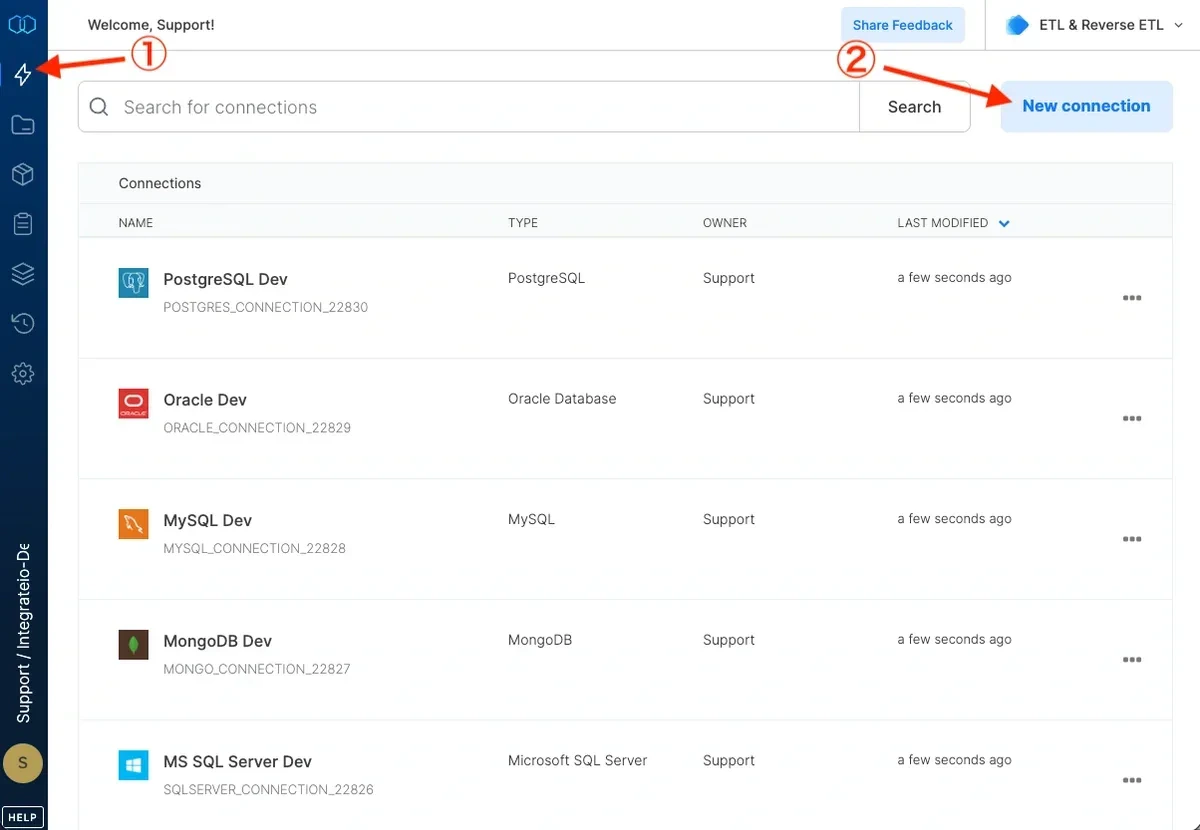
Click the **Connections** icon (lightning bolt) in the top-left menu.
Click **New connection**.
For **read-write** access (required for destination pipelines), click **Create policy**, choose **JSON**, and paste the following policy, replacing `bucket-name` with your bucket name:
```json theme={null}
{
"Version": "2012-10-17",
"Statement": [
{
"Sid": "ListObjectsInBucket",
"Effect": "Allow",
"Action": ["s3:ListBucket"],
"Resource": ["arn:aws:s3:::bucket-name"]
},
{
"Sid": "ReadWriteObjects",
"Effect": "Allow",
"Action": [
"s3:PutObject",
"s3:GetObject",
"s3:DeleteObject"
],
"Resource": ["arn:aws:s3:::bucket-name/*"]
}
]
}
```
All three object actions are required for destination pipelines. Integrate.io writes each output file to a temporary object and then finalizes it, which on S3 is a copy-and-delete operation. Granting only `s3:PutObject` causes writes to fail during finalization.
Click **Review policy**, then **Create policy**.
### Create the Connection in Integrate.io ETL
Click the **Connections** icon (lightning bolt) in the top-left menu.
Click **New connection**.
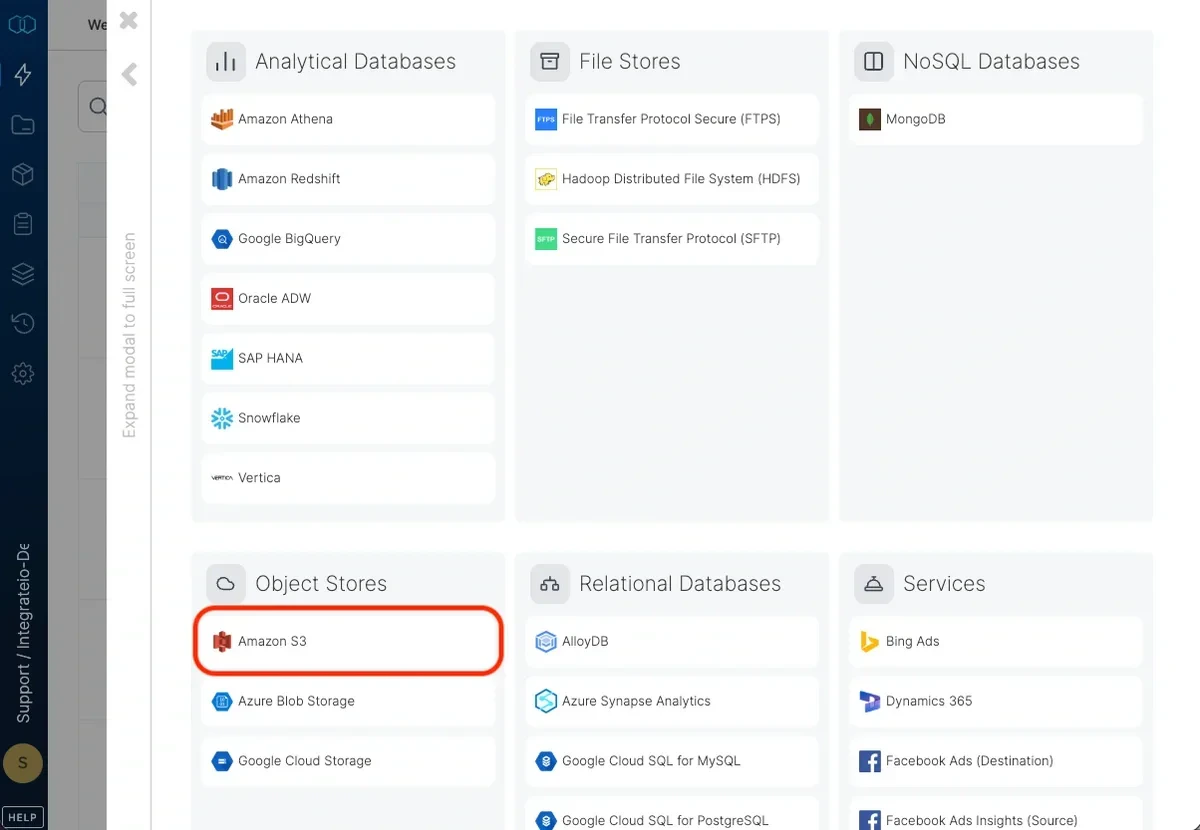
 Select **Amazon S3**.
 Name the connection and enter the **Access Key ID** and **Secret Access Key** from the credentials file.
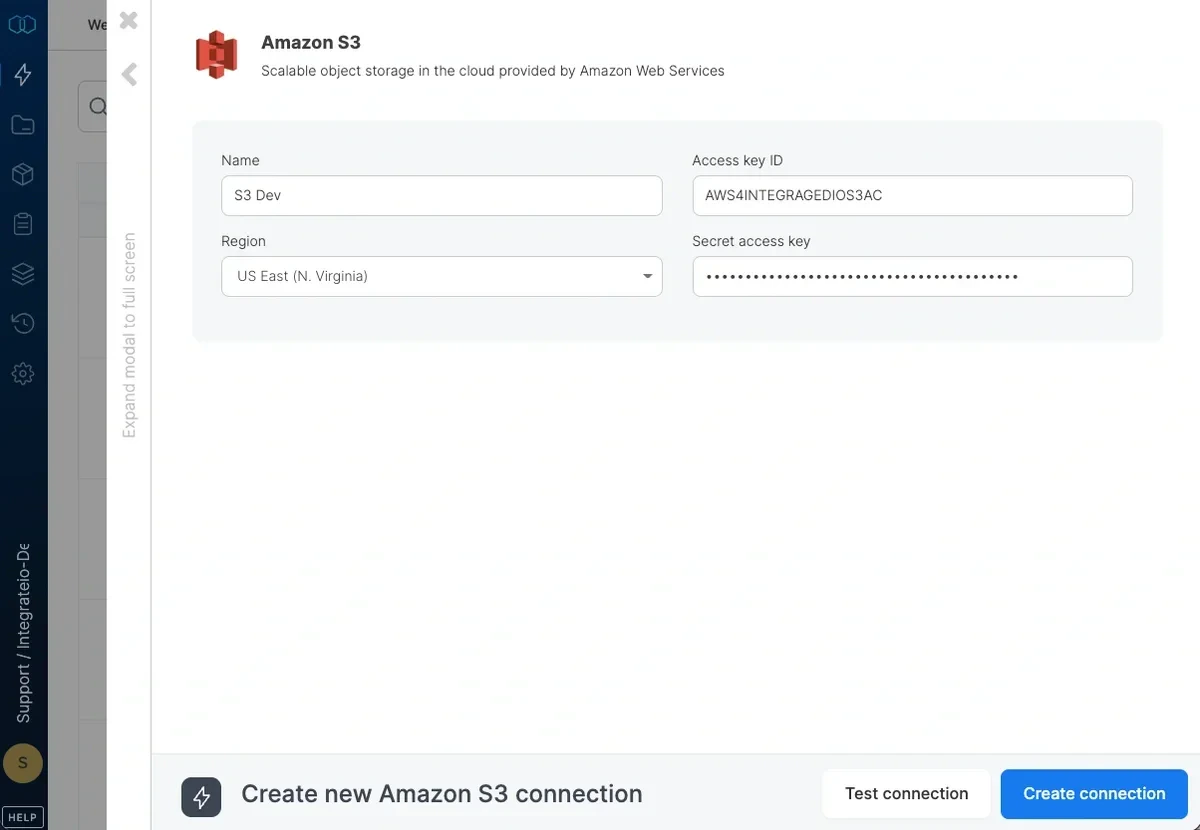 If your S3 buckets are in a region that requires AWS Signature Version 4, enter the region. See the [AWS region list](https://docs.aws.amazon.com/general/latest/gr/rande.html#s3_region) for applicable regions.
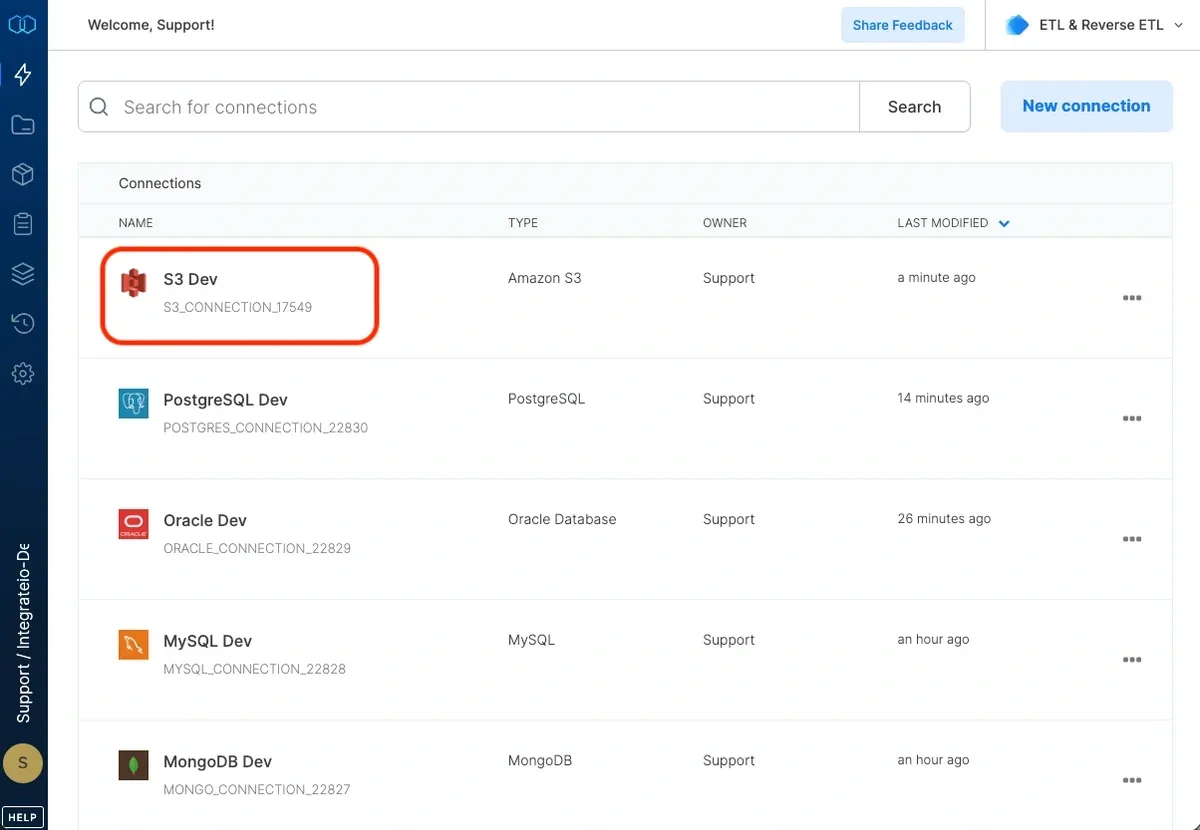
Click **Test connection** to verify the credentials, then click **Create amazon s3 connection**.
If your S3 buckets are in a region that requires AWS Signature Version 4, enter the region. See the [AWS region list](https://docs.aws.amazon.com/general/latest/gr/rande.html#s3_region) for applicable regions.
Click **Test connection** to verify the credentials, then click **Create amazon s3 connection**.
 ***
## Source Configuration
### Connection
Select your Amazon S3 connection from the dropdown, or create a new one using the steps above.
### Bucket
Enter the name of the S3 bucket that contains your source files.
### Source Path
The path to the input file, folder, or pattern within the bucket.
| Example | Description |
| :---------------------- | :---------------------------------- |
| `sales/2015/01/` | All files in a folder |
| `sales/2015/01/log.csv` | A single file |
| `sales/2015/{01,02}/` | A pattern matching multiple folders |
You can use wildcard characters for [pattern globbing](/docs/etl/using-pattern-matching-in-source-component-paths). File and directory names beginning with an underscore (`_`) or a dot (`.`) are ignored.
### Source Action
All four source actions are available for Amazon S3. When using **Move processed files**, the **Append string to filename** option is supported.
***
## FAQ
**What IAM permissions does Integrate.io need for a source-only connection?**
Attach **AmazonS3ReadOnlyAccess** to the IAM user, or create a custom policy granting `s3:ListBucket` on the bucket and `s3:GetObject` on its objects.
**What permissions are needed for a destination pipeline?**
The IAM user needs `s3:ListBucket`, `s3:PutObject`, `s3:GetObject`, and `s3:DeleteObject`. All three object actions are required because Integrate.io finalizes output files with a copy-and-delete operation.
**Why does Integrate.io require all three object actions for writes?**
Integrate.io writes each output file to a temporary object first, then finalizes it. On S3, finalization is a copy (`GetObject`) followed by deletion of the temporary object (`DeleteObject`). Without all three, the finalization step fails.
**Can I connect to a bucket in a region that requires Signature Version 4?**
Yes. Enter the bucket's AWS region in the connection form. See the [AWS region list](https://docs.aws.amazon.com/general/latest/gr/rande.html#s3_region) for regions that require Sig v4.
***
## Related
***
## Source Configuration
### Connection
Select your Amazon S3 connection from the dropdown, or create a new one using the steps above.
### Bucket
Enter the name of the S3 bucket that contains your source files.
### Source Path
The path to the input file, folder, or pattern within the bucket.
| Example | Description |
| :---------------------- | :---------------------------------- |
| `sales/2015/01/` | All files in a folder |
| `sales/2015/01/log.csv` | A single file |
| `sales/2015/{01,02}/` | A pattern matching multiple folders |
You can use wildcard characters for [pattern globbing](/docs/etl/using-pattern-matching-in-source-component-paths). File and directory names beginning with an underscore (`_`) or a dot (`.`) are ignored.
### Source Action
All four source actions are available for Amazon S3. When using **Move processed files**, the **Append string to filename** option is supported.
***
## FAQ
**What IAM permissions does Integrate.io need for a source-only connection?**
Attach **AmazonS3ReadOnlyAccess** to the IAM user, or create a custom policy granting `s3:ListBucket` on the bucket and `s3:GetObject` on its objects.
**What permissions are needed for a destination pipeline?**
The IAM user needs `s3:ListBucket`, `s3:PutObject`, `s3:GetObject`, and `s3:DeleteObject`. All three object actions are required because Integrate.io finalizes output files with a copy-and-delete operation.
**Why does Integrate.io require all three object actions for writes?**
Integrate.io writes each output file to a temporary object first, then finalizes it. On S3, finalization is a copy (`GetObject`) followed by deletion of the temporary object (`DeleteObject`). Without all three, the finalization step fails.
**Can I connect to a bucket in a region that requires Signature Version 4?**
Yes. Enter the bucket's AWS region in the connection form. See the [AWS region list](https://docs.aws.amazon.com/general/latest/gr/rande.html#s3_region) for regions that require Sig v4.
***
## Related