> ## Documentation Index
> Fetch the complete documentation index at: https://www.integrate.io/docs/llms.txt
> Use this file to discover all available pages before exploring further.
# ETL: DB Lookup Transformation
> Configure the ETL DB Lookup transformation to enrich pipeline records with columns from a database table or SQL query against a reference dataset.
Use the DB Lookup transformation to enrich each incoming record with columns fetched from a database table or SQL query. For every input row, DB Lookup matches one or more input fields against columns in the lookup source and appends the lookup's return columns to the row. It is the ETL equivalent of a database join against a reference table, configured entirely in the pipeline designer with no SQL required.
DB Lookup is best for small reference tables (country codes, status codes, product categories, user ID to name/email, and the like, typically under 100K rows). The entire lookup table or query result is loaded into memory, so very large tables are not a good fit. For large-to-large joins, use the [Join transformation](/docs/etl/using-components-join-transformation) instead.
 ## Overview
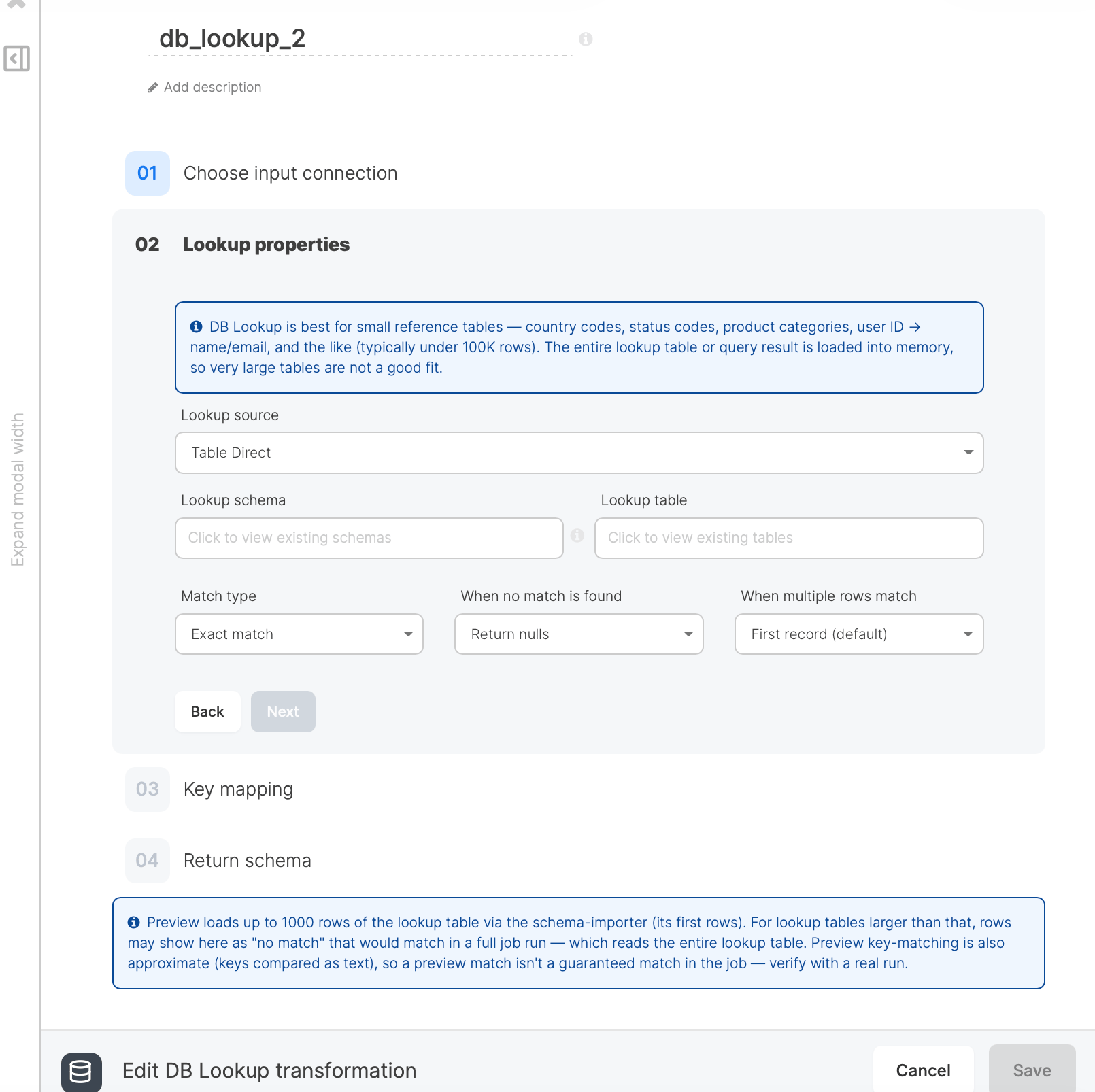
The DB Lookup component has one input and one output. It is configured through four steps:
| Step | Name | What you configure |
| :--- | :---------------------- | :-------------------------------------------------------------------- |
| 1 | Choose input connection | The database connection holding the lookup table or query |
| 2 | Lookup properties | The lookup source, match type, and no-match / multiple-match behavior |
| 3 | Key mapping | Which input fields match which lookup columns |
| 4 | Return schema | Which upstream and lookup columns appear in the output |
DB Lookup supports the same database connection types as the Database source (MySQL, PostgreSQL, Oracle, SQL Server, Snowflake, Redshift, BigQuery, Vertica, SAP HANA, and others).
## Step 1: Choose input connection
Select the database connection that holds your lookup data. This is the connection DB Lookup reads the reference table or query from. The connection must already exist in your account.
## Step 2: Lookup properties
Configure how the lookup source is read and how matches are handled.
| Field | Description |
| :--------------------------- | :------------------------------------------------------------------------------------------------------------------------------------------------------------------------------------------------------------------------------------------ |
| Lookup source | **Table Direct** reads a single table; **Custom SQL Query** reads the result of a SQL query. |
| Lookup schema / Lookup table | The schema and table to read (Table Direct mode). |
| Query | The SQL query whose result is used as the lookup data (Custom SQL Query mode). |
| Match type | **Exact match** compares keys exactly; **Case insensitive** ignores case when comparing text keys; **Fuzzy** scores each lookup key against the input and returns the best match at or above a threshold (see [Fuzzy match](#fuzzy-match)). |
| When no match is found | **Return nulls** outputs null for the lookup columns; **Use default values** outputs configured defaults; **Fail pipeline** stops the job. |
| When multiple rows match | **First record (default)**, **Last record**, **Fail pipeline**, or **Return null** when a key matches more than one lookup row. |
### Fuzzy match
Fuzzy match compares text keys by similarity instead of equality. For each input row, DB Lookup scores every key in the lookup table against the input value and returns the row with the highest score, provided that score meets the configured threshold. Use it for inconsistent text such as customer names, company names, or free-text codes where exact matches miss legitimate hits (`Jonathon` to `Jonathan`, `Acme Inc` to `Acme Incorporated`).
Fuzzy match has two extra settings:
| Field | Description |
| :--------------------------- | :--------------------------------------------------------------------------------------------------------------------------------------------------------------------------------------------------------------------------------------------------------------------------------------------------------------------------------------------- |
| Fuzzy algorithm | **Levenshtein** (default) scores by character edits, best for typos and short spelling differences. **Jaro-Winkler** rewards a shared prefix, good for names and abbreviations. **Soundex** matches by sound and returns 100 or 0, useful for names that sound alike (`Robert` / `Rupert`); the similarity threshold has no effect on Soundex. |
| Similarity threshold (0-100) | Minimum similarity score required to count as a match. Defaults to 85. Higher values are stricter; lower values match more loosely. |
Behavior to keep in mind:
* Fuzzy supports exactly one key mapping. Add a single row in Step 3; composite fuzzy keys are not supported.
* Comparisons are case-insensitive.
* When two or more lookup rows tie for the top score, the **When multiple rows match** setting decides the result (first record, last record, fail pipeline, or return null).
* Scores below the threshold count as no match, so the **When no match is found** setting applies.
* The entire lookup table is scanned for every input row, so keep the lookup table small (well under 100K rows) when using fuzzy.
## Step 3: Key mapping
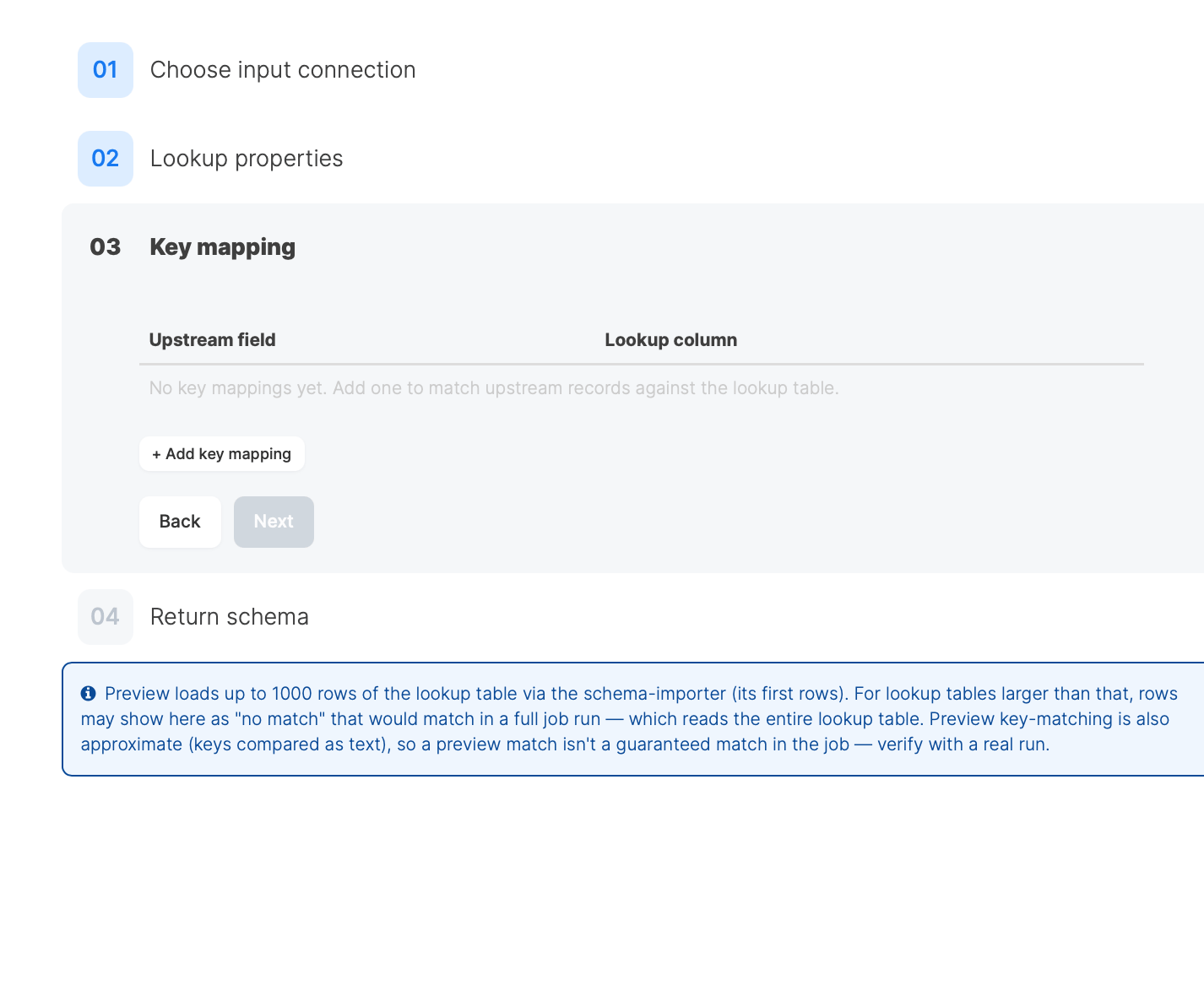
Map one or more input fields to the lookup columns they should match against. A row in the output is matched when all of its key mappings are satisfied (logical AND).
The step opens with one blank mapping row. For each mapping, pick an **Upstream field** (from the incoming records) and the **Lookup column** to compare it to. Add more rows with **+ Add key mapping** for composite keys.
## Overview
The DB Lookup component has one input and one output. It is configured through four steps:
| Step | Name | What you configure |
| :--- | :---------------------- | :-------------------------------------------------------------------- |
| 1 | Choose input connection | The database connection holding the lookup table or query |
| 2 | Lookup properties | The lookup source, match type, and no-match / multiple-match behavior |
| 3 | Key mapping | Which input fields match which lookup columns |
| 4 | Return schema | Which upstream and lookup columns appear in the output |
DB Lookup supports the same database connection types as the Database source (MySQL, PostgreSQL, Oracle, SQL Server, Snowflake, Redshift, BigQuery, Vertica, SAP HANA, and others).
## Step 1: Choose input connection
Select the database connection that holds your lookup data. This is the connection DB Lookup reads the reference table or query from. The connection must already exist in your account.
## Step 2: Lookup properties
Configure how the lookup source is read and how matches are handled.
| Field | Description |
| :--------------------------- | :------------------------------------------------------------------------------------------------------------------------------------------------------------------------------------------------------------------------------------------ |
| Lookup source | **Table Direct** reads a single table; **Custom SQL Query** reads the result of a SQL query. |
| Lookup schema / Lookup table | The schema and table to read (Table Direct mode). |
| Query | The SQL query whose result is used as the lookup data (Custom SQL Query mode). |
| Match type | **Exact match** compares keys exactly; **Case insensitive** ignores case when comparing text keys; **Fuzzy** scores each lookup key against the input and returns the best match at or above a threshold (see [Fuzzy match](#fuzzy-match)). |
| When no match is found | **Return nulls** outputs null for the lookup columns; **Use default values** outputs configured defaults; **Fail pipeline** stops the job. |
| When multiple rows match | **First record (default)**, **Last record**, **Fail pipeline**, or **Return null** when a key matches more than one lookup row. |
### Fuzzy match
Fuzzy match compares text keys by similarity instead of equality. For each input row, DB Lookup scores every key in the lookup table against the input value and returns the row with the highest score, provided that score meets the configured threshold. Use it for inconsistent text such as customer names, company names, or free-text codes where exact matches miss legitimate hits (`Jonathon` to `Jonathan`, `Acme Inc` to `Acme Incorporated`).
Fuzzy match has two extra settings:
| Field | Description |
| :--------------------------- | :--------------------------------------------------------------------------------------------------------------------------------------------------------------------------------------------------------------------------------------------------------------------------------------------------------------------------------------------- |
| Fuzzy algorithm | **Levenshtein** (default) scores by character edits, best for typos and short spelling differences. **Jaro-Winkler** rewards a shared prefix, good for names and abbreviations. **Soundex** matches by sound and returns 100 or 0, useful for names that sound alike (`Robert` / `Rupert`); the similarity threshold has no effect on Soundex. |
| Similarity threshold (0-100) | Minimum similarity score required to count as a match. Defaults to 85. Higher values are stricter; lower values match more loosely. |
Behavior to keep in mind:
* Fuzzy supports exactly one key mapping. Add a single row in Step 3; composite fuzzy keys are not supported.
* Comparisons are case-insensitive.
* When two or more lookup rows tie for the top score, the **When multiple rows match** setting decides the result (first record, last record, fail pipeline, or return null).
* Scores below the threshold count as no match, so the **When no match is found** setting applies.
* The entire lookup table is scanned for every input row, so keep the lookup table small (well under 100K rows) when using fuzzy.
## Step 3: Key mapping
Map one or more input fields to the lookup columns they should match against. A row in the output is matched when all of its key mappings are satisfied (logical AND).
The step opens with one blank mapping row. For each mapping, pick an **Upstream field** (from the incoming records) and the **Lookup column** to compare it to. Add more rows with **+ Add key mapping** for composite keys.
 Make sure each mapped pair shares a compatible data type. Comparing a numeric input field against a text lookup column may produce no matches.
## Step 4: Return schema
Choose which columns appear in the component's output. The output is the combination of upstream pass-through columns and lookup return columns.
Make sure each mapped pair shares a compatible data type. Comparing a numeric input field against a text lookup column may produce no matches.
## Step 4: Return schema
Choose which columns appear in the component's output. The output is the combination of upstream pass-through columns and lookup return columns.
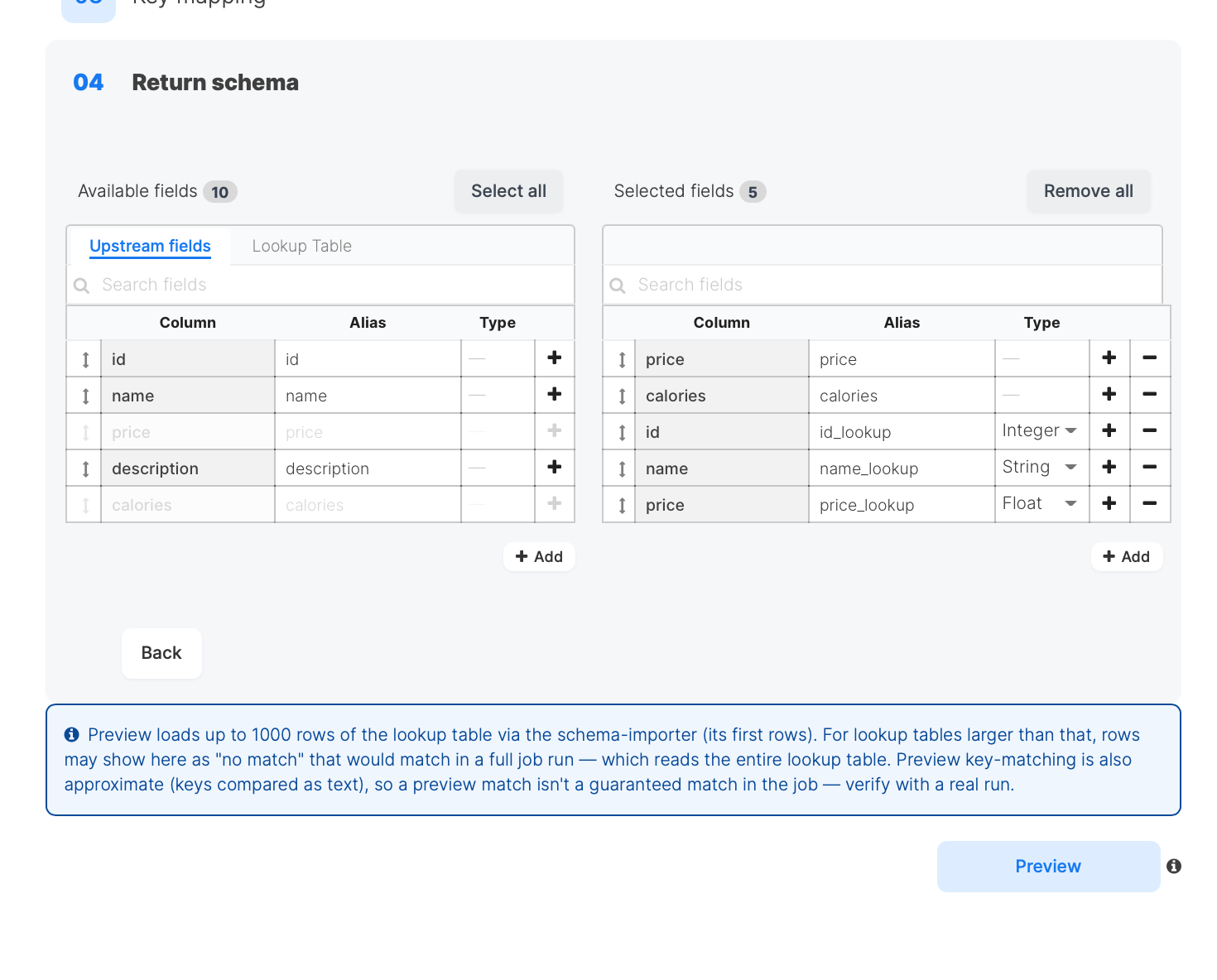 The **Available fields** panel has two tabs:
* **Upstream fields** are the columns coming from the input. Their type is determined by the upstream component; when it cannot be determined, the type shows a dash and is read-only (Pig preserves the real type at run time).
* **Lookup Table** are the columns from the lookup table or query, with the type reported by the source.
Add a field to the output with its **+** button, or remove a selected field with its **-** button. Each output column has an editable **Alias** that becomes its name in the output schema.
| Behavior | Description |
| :--------------------- | :-------------------------------------------------------------------------------------------------------------------------------------------------------------------------------- |
| Independent add/remove | An upstream column and a lookup column that share a name (for example both `id`) are treated as separate fields. Adding or removing one does not affect the other. |
| Automatic alias suffix | When a lookup column's default alias would collide with an upstream column of the same name, the lookup alias is automatically suffixed with `_lookup` (for example `id_lookup`). |
| Unique output aliases | Every output column needs a unique alias. If two columns still share an alias, an inline warning blocks Preview and Save until you rename one. |
| Default values | When **Use default values** is selected in Step 2, set a default for each lookup return column. Numeric columns require a default that parses as their type. |
## Example
A pipeline reads orders that carry a `product_id`. A DB Lookup against a `products` reference table maps the input `product_id` to the lookup `id` column and returns `name` and `price`.
**Input record:**
```
order_id=1001, product_id=42, quantity=3
```
**Lookup table `products`:**
```
id=42, name="Widget", price=9.99
```
**Output record (upstream columns passed through, lookup columns appended):**
```
order_id=1001, product_id=42, quantity=3, name="Widget", price=9.99
```
If `name` or `price` already existed upstream, the lookup aliases would be auto-suffixed to `name_lookup` and `price_lookup` to keep every output column unique.
## Best practices
* Keep the lookup table small. The whole table or query result is loaded into memory, so DB Lookup suits reference data, not large fact tables.
* Restrict the columns. Use Custom SQL Query mode (or trim the Return schema) so only the columns you need are loaded.
* Choose unique keys. Mapping to a non-unique lookup column triggers the multiple-match behavior; pick keys that are unique in the lookup source where possible.
* Decide no-match handling deliberately. Use **Return nulls** for optional enrichment, **Use default values** for guaranteed output, and **Fail pipeline** when an unmatched row is a data error.
## Preview behavior
Preview loads up to 1000 rows of the lookup table through the schema importer (its first rows). For lookup tables larger than that, rows may show in preview as "no match" that would match in a full job run, which reads the entire lookup table. Preview key-matching is also approximate (keys are compared as text), so a preview match is not a guaranteed match in the job. Verify with a real run.
## FAQ
**Q: How is DB Lookup different from the Join transformation?**
Join combines two pipeline inputs and runs on the cluster. DB Lookup reads a reference table or query from a database connection and loads it into memory to enrich a single input. Use DB Lookup for small reference data and Join for combining two large pipeline data sets.
**Q: What happens when a key matches more than one lookup row?**
The "When multiple rows match" setting decides: keep the first matching record (default), keep the last, return null for the lookup columns, or fail the pipeline.
**Q: Why did my lookup column get renamed with a `_lookup` suffix?**
Its default alias collided with an upstream column of the same name. To keep every output column unique, the lookup alias is automatically suffixed (for example `id_lookup`). You can edit the alias to any unique name.
**Q: Why is the type for an upstream field shown as a dash and not editable?**
The upstream component did not report a type for that column. The value is display-only; the real type is preserved at run time, so the output is unaffected.
**Q: How large can the lookup table be?**
The entire lookup table or query result is loaded into memory, so keep it small (typically under 100K rows). For larger data, use the Join transformation.
**Q: When should I use Fuzzy match instead of Exact or Case insensitive?**
Use Fuzzy when keys are dirty or inconsistent text (typos, abbreviations, name variants) and you accept approximate matches. Use Exact or Case insensitive when keys are clean identifiers (IDs, codes, normalized strings) where any difference should count as no match. Start with the Levenshtein algorithm and a threshold of 85, then adjust based on results.
## Related
The **Available fields** panel has two tabs:
* **Upstream fields** are the columns coming from the input. Their type is determined by the upstream component; when it cannot be determined, the type shows a dash and is read-only (Pig preserves the real type at run time).
* **Lookup Table** are the columns from the lookup table or query, with the type reported by the source.
Add a field to the output with its **+** button, or remove a selected field with its **-** button. Each output column has an editable **Alias** that becomes its name in the output schema.
| Behavior | Description |
| :--------------------- | :-------------------------------------------------------------------------------------------------------------------------------------------------------------------------------- |
| Independent add/remove | An upstream column and a lookup column that share a name (for example both `id`) are treated as separate fields. Adding or removing one does not affect the other. |
| Automatic alias suffix | When a lookup column's default alias would collide with an upstream column of the same name, the lookup alias is automatically suffixed with `_lookup` (for example `id_lookup`). |
| Unique output aliases | Every output column needs a unique alias. If two columns still share an alias, an inline warning blocks Preview and Save until you rename one. |
| Default values | When **Use default values** is selected in Step 2, set a default for each lookup return column. Numeric columns require a default that parses as their type. |
## Example
A pipeline reads orders that carry a `product_id`. A DB Lookup against a `products` reference table maps the input `product_id` to the lookup `id` column and returns `name` and `price`.
**Input record:**
```
order_id=1001, product_id=42, quantity=3
```
**Lookup table `products`:**
```
id=42, name="Widget", price=9.99
```
**Output record (upstream columns passed through, lookup columns appended):**
```
order_id=1001, product_id=42, quantity=3, name="Widget", price=9.99
```
If `name` or `price` already existed upstream, the lookup aliases would be auto-suffixed to `name_lookup` and `price_lookup` to keep every output column unique.
## Best practices
* Keep the lookup table small. The whole table or query result is loaded into memory, so DB Lookup suits reference data, not large fact tables.
* Restrict the columns. Use Custom SQL Query mode (or trim the Return schema) so only the columns you need are loaded.
* Choose unique keys. Mapping to a non-unique lookup column triggers the multiple-match behavior; pick keys that are unique in the lookup source where possible.
* Decide no-match handling deliberately. Use **Return nulls** for optional enrichment, **Use default values** for guaranteed output, and **Fail pipeline** when an unmatched row is a data error.
## Preview behavior
Preview loads up to 1000 rows of the lookup table through the schema importer (its first rows). For lookup tables larger than that, rows may show in preview as "no match" that would match in a full job run, which reads the entire lookup table. Preview key-matching is also approximate (keys are compared as text), so a preview match is not a guaranteed match in the job. Verify with a real run.
## FAQ
**Q: How is DB Lookup different from the Join transformation?**
Join combines two pipeline inputs and runs on the cluster. DB Lookup reads a reference table or query from a database connection and loads it into memory to enrich a single input. Use DB Lookup for small reference data and Join for combining two large pipeline data sets.
**Q: What happens when a key matches more than one lookup row?**
The "When multiple rows match" setting decides: keep the first matching record (default), keep the last, return null for the lookup columns, or fail the pipeline.
**Q: Why did my lookup column get renamed with a `_lookup` suffix?**
Its default alias collided with an upstream column of the same name. To keep every output column unique, the lookup alias is automatically suffixed (for example `id_lookup`). You can edit the alias to any unique name.
**Q: Why is the type for an upstream field shown as a dash and not editable?**
The upstream component did not report a type for that column. The value is display-only; the real type is preserved at run time, so the output is unaffected.
**Q: How large can the lookup table be?**
The entire lookup table or query result is loaded into memory, so keep it small (typically under 100K rows). For larger data, use the Join transformation.
**Q: When should I use Fuzzy match instead of Exact or Case insensitive?**
Use Fuzzy when keys are dirty or inconsistent text (typos, abbreviations, name variants) and you accept approximate matches. Use Exact or Case insensitive when keys are clean identifiers (IDs, codes, normalized strings) where any difference should count as no match. Start with the Levenshtein algorithm and a threshold of 85, then adjust based on results.
## Related