> ## Documentation Index
> Fetch the complete documentation index at: https://www.integrate.io/docs/llms.txt
> Use this file to discover all available pages before exploring further.
# ETL: Facebook Ads Destination
> Use the Facebook destination component to store the output of a data flow in Facebook cloud object. The destination component uses Facebook ads API.
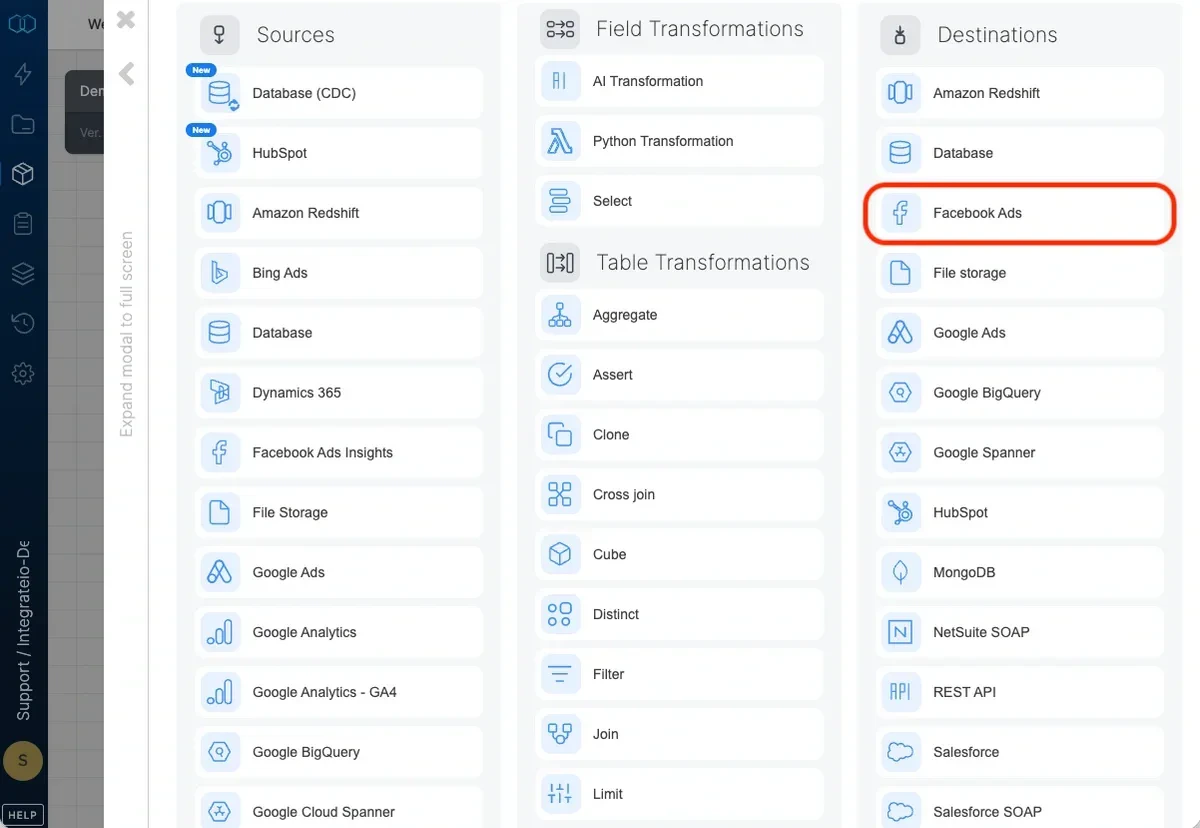 ## Connection
Select an existing Facebook connection or create a new one (for more information, see [Allowing Integrate.io ETL access to my data on Facebook](/docs/etl/allowing-integrateio-etl-access-to-facebook-ads-insights-data/).)
### Required Permission & Terms of Service
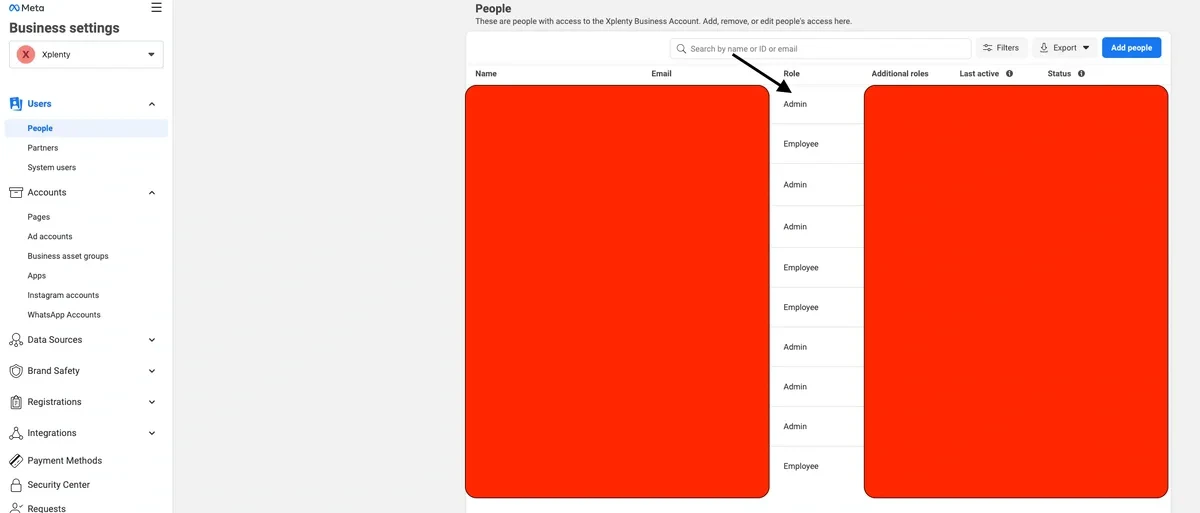
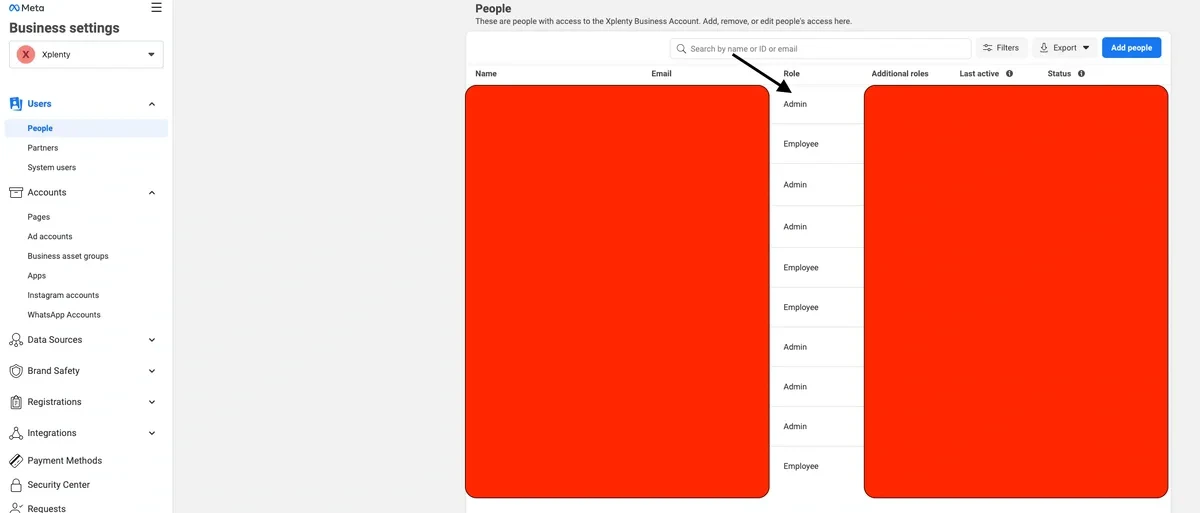
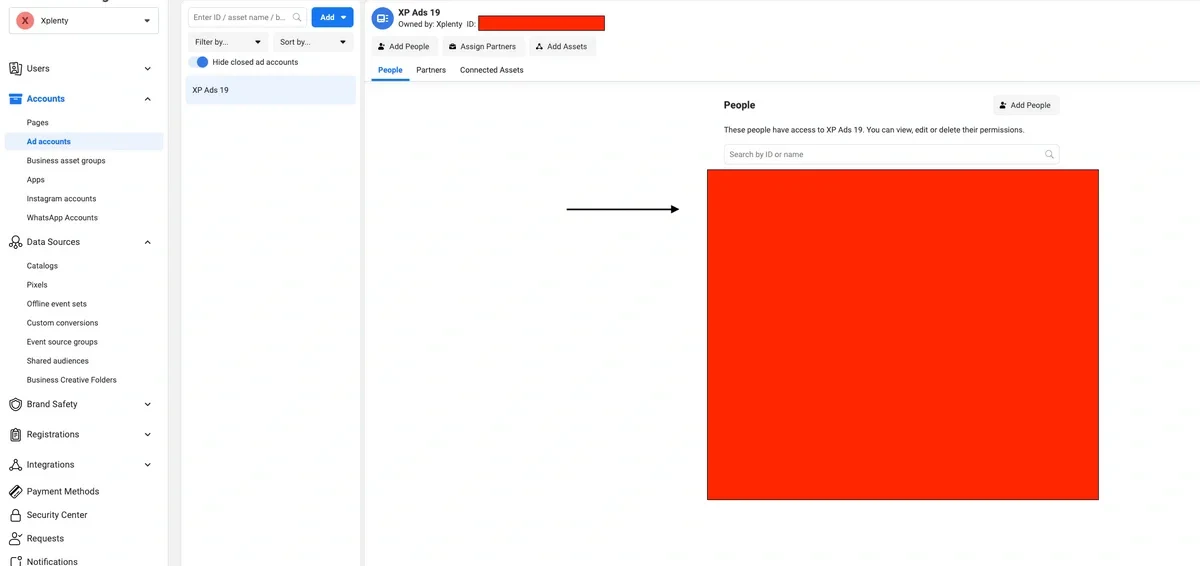
* **People's Access ([link](https://business.facebook.com/settings/people))** - Click Users and select people, make sure you have admin access to your business manager ([Details](https://www.facebook.com/business/help/442345745885606?id=180505742745347) about employee and admin access)
## Connection
Select an existing Facebook connection or create a new one (for more information, see [Allowing Integrate.io ETL access to my data on Facebook](/docs/etl/allowing-integrateio-etl-access-to-facebook-ads-insights-data/).)
### Required Permission & Terms of Service
* **People's Access ([link](https://business.facebook.com/settings/people))** - Click Users and select people, make sure you have admin access to your business manager ([Details](https://www.facebook.com/business/help/442345745885606?id=180505742745347) about employee and admin access)
 * **Conversions**
* Make sure you have access to development pixel ([link](https://business.facebook.com/settings/pixels))
* **Conversions**
* Make sure you have access to development pixel ([link](https://business.facebook.com/settings/pixels))
 * **Customers**
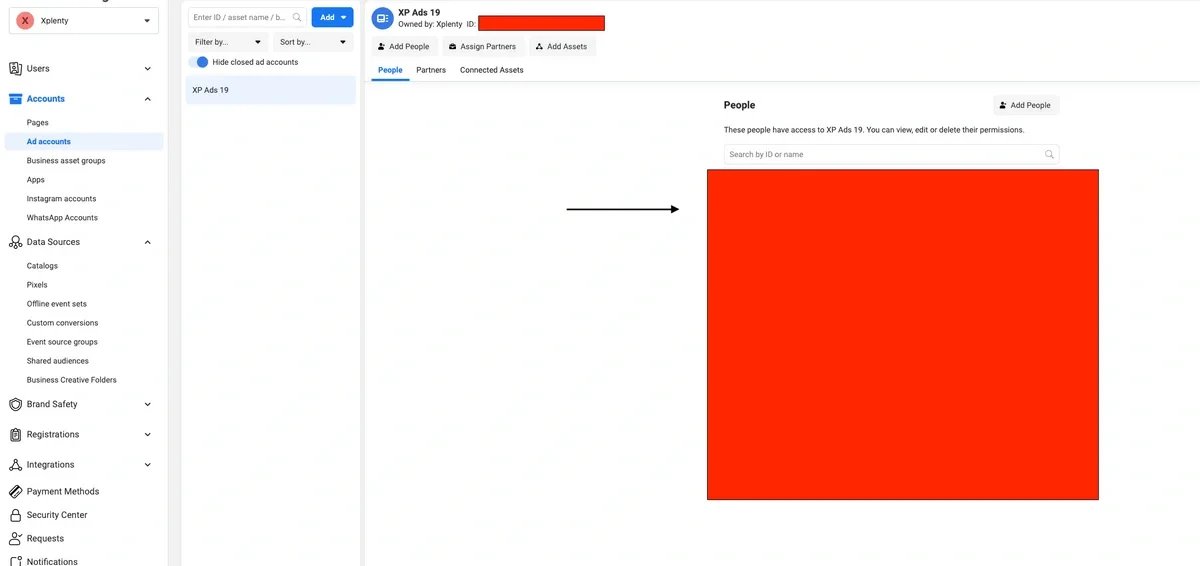
* Make sure you have access to ads account ([link](https://business.facebook.com/settings/ad-accounts))
* **Customers**
* Make sure you have access to ads account ([link](https://business.facebook.com/settings/ad-accounts))
 * if your Ads Account is directly associated with your personal Facebook account, follow this [link](https://www.facebook.com/ads/manage/customaudiences/tos.php) and accept the Terms of Service. Even if your Ads Account is in a Business Manager account you also need to accept the Terms of Service within your business manager account.
## Destination Properties
* **Target object** - select the name of the target object (Conversions or Customers) in your Facebook ads.
### Operation type
* **Insert -** inserts new data into the selected object according to pixel or custom audience id
* **Replace** - updates existing data in the selected object according to custom audience id (only Customers object)
* **Delete** - deletes data in the destination object according to custom audience id (only Customers object)
### Advanced options
* **Batch size** - number of records that are inserted to Facebook ads in each batch (Conversions maximum batch size: 1000; Customers maximum batch size: 10000).
* **Maximum errors** - maximum number of records Facebook can reject within a batch before the task fails. The task fails when the number of rejected records in any single batch exceeds this threshold. Set this to `0` to fail on the first rejection. Set it higher to tolerate a known volume of bad data, such as malformed email or phone values for Customers. Set it to a negative value (for example, `-1`) to disable the check entirely so Facebook rejections never fail the task. The actual number of errors across the job may be greater than this value because batches run in parallel.
When the threshold is exceeded, the task log includes the rejection samples Facebook returned, grouped by reason. The log fingerprints each sample value: it keeps only the first eight characters and replaces the rest with `***`. This prevents personally identifiable data (email, phone, hashed user identifiers) from being written in full. For example:
```text theme={null}
Facebook Ads rejected 47 record(s) in this batch, which exceeds the configured maxFailedRecords threshold of 10. Sample failures reported by Facebook: [Invalid hash — 42 sample(s); e.g. a1b2c3d4***; e.g. e5f6g7h8***; e.g. i9j0k1l2***; ... and 39 more] [Invalid value — 5 sample(s); e.g. not-an-***; e.g. user@exa***]
```
Use the reason text (for example, `Invalid hash`, `Invalid value`) to identify which transformation step produced bad data. `Invalid hash` typically means you sent a Customers field unhashed, or hashed with the wrong algorithm. Facebook requires SHA-256 hashed values for personally identifiable fields like email and phone. Use the eight-character fingerprint to correlate a rejection back to a row in your source data.
### Pixel ID and Customer Audience ID
* **Pixel ID** (Conversion Object) - account id recognition for Facebook Ads
* * Access your Meta Business Settings ([link](https://business.facebook.com/settings/))
* On Data Sources section click Pixels and find the pixel ID underneath the title
* if your Ads Account is directly associated with your personal Facebook account, follow this [link](https://www.facebook.com/ads/manage/customaudiences/tos.php) and accept the Terms of Service. Even if your Ads Account is in a Business Manager account you also need to accept the Terms of Service within your business manager account.
## Destination Properties
* **Target object** - select the name of the target object (Conversions or Customers) in your Facebook ads.
### Operation type
* **Insert -** inserts new data into the selected object according to pixel or custom audience id
* **Replace** - updates existing data in the selected object according to custom audience id (only Customers object)
* **Delete** - deletes data in the destination object according to custom audience id (only Customers object)
### Advanced options
* **Batch size** - number of records that are inserted to Facebook ads in each batch (Conversions maximum batch size: 1000; Customers maximum batch size: 10000).
* **Maximum errors** - maximum number of records Facebook can reject within a batch before the task fails. The task fails when the number of rejected records in any single batch exceeds this threshold. Set this to `0` to fail on the first rejection. Set it higher to tolerate a known volume of bad data, such as malformed email or phone values for Customers. Set it to a negative value (for example, `-1`) to disable the check entirely so Facebook rejections never fail the task. The actual number of errors across the job may be greater than this value because batches run in parallel.
When the threshold is exceeded, the task log includes the rejection samples Facebook returned, grouped by reason. The log fingerprints each sample value: it keeps only the first eight characters and replaces the rest with `***`. This prevents personally identifiable data (email, phone, hashed user identifiers) from being written in full. For example:
```text theme={null}
Facebook Ads rejected 47 record(s) in this batch, which exceeds the configured maxFailedRecords threshold of 10. Sample failures reported by Facebook: [Invalid hash — 42 sample(s); e.g. a1b2c3d4***; e.g. e5f6g7h8***; e.g. i9j0k1l2***; ... and 39 more] [Invalid value — 5 sample(s); e.g. not-an-***; e.g. user@exa***]
```
Use the reason text (for example, `Invalid hash`, `Invalid value`) to identify which transformation step produced bad data. `Invalid hash` typically means you sent a Customers field unhashed, or hashed with the wrong algorithm. Facebook requires SHA-256 hashed values for personally identifiable fields like email and phone. Use the eight-character fingerprint to correlate a rejection back to a row in your source data.
### Pixel ID and Customer Audience ID
* **Pixel ID** (Conversion Object) - account id recognition for Facebook Ads
* * Access your Meta Business Settings ([link](https://business.facebook.com/settings/))
* On Data Sources section click Pixels and find the pixel ID underneath the title
 * **Custom Audience ID** (Customer Object) - audience id recognition for Facebook Ads
* Access your Meta Business audiences ([link](https://business.facebook.com/adsmanager/audiences))
* If you already had an existing Custom Audience, please skip this step. On **Create Audience** dropdown button, select **Custom Audience**
* **Custom Audience ID** (Customer Object) - audience id recognition for Facebook Ads
* Access your Meta Business audiences ([link](https://business.facebook.com/adsmanager/audiences))
* If you already had an existing Custom Audience, please skip this step. On **Create Audience** dropdown button, select **Custom Audience**
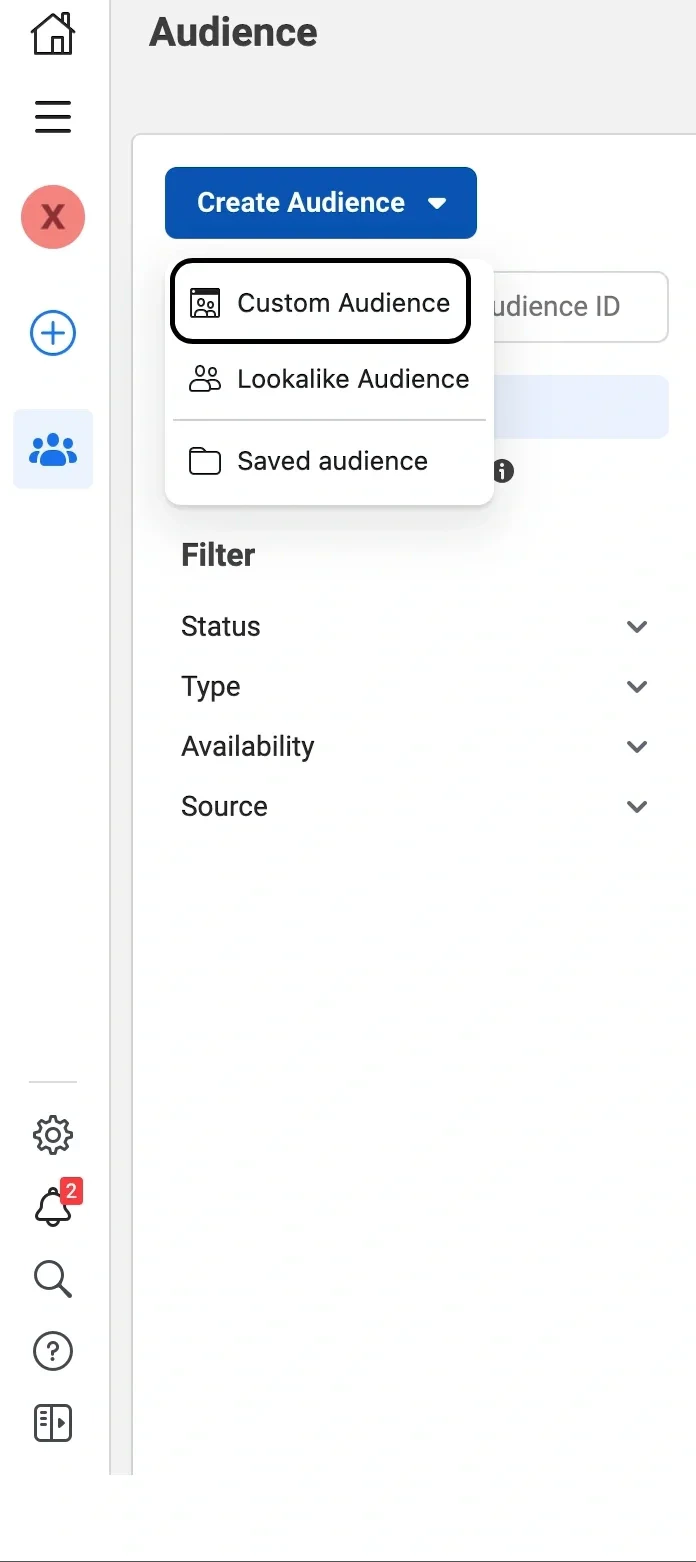 And then select **Customer list** (currently supported for sources in customer audience), download file template and set desire customer list file format on **.csv** or **.txt** format
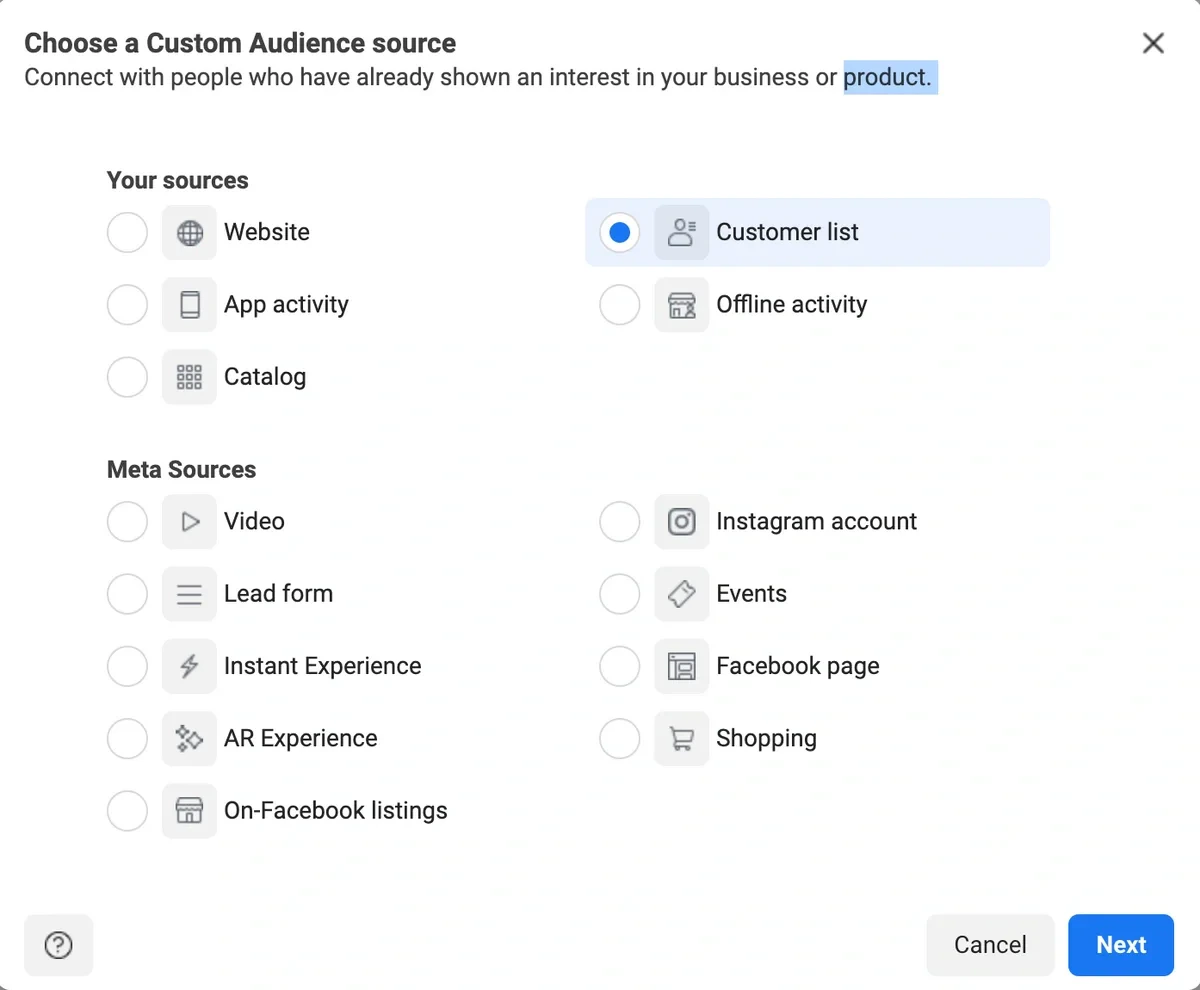
 * On the Columns dropdown, make sure the **Audience ID** checkbox is checked
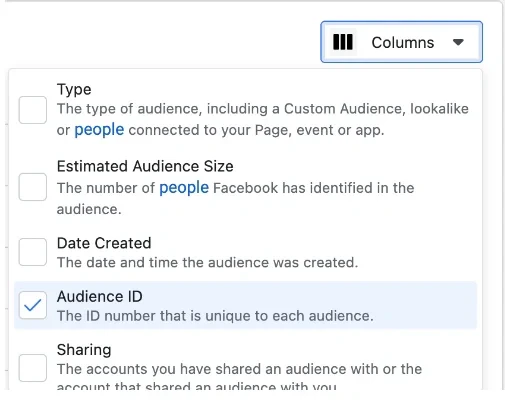 * You will find the list of **Audience ID**s on the most right column
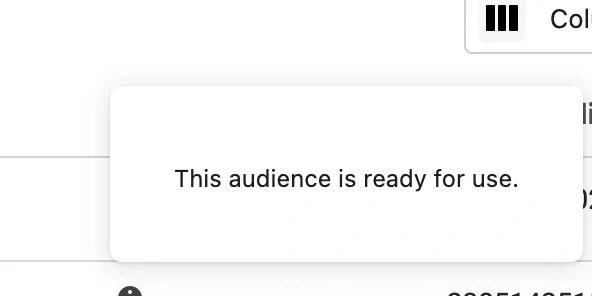
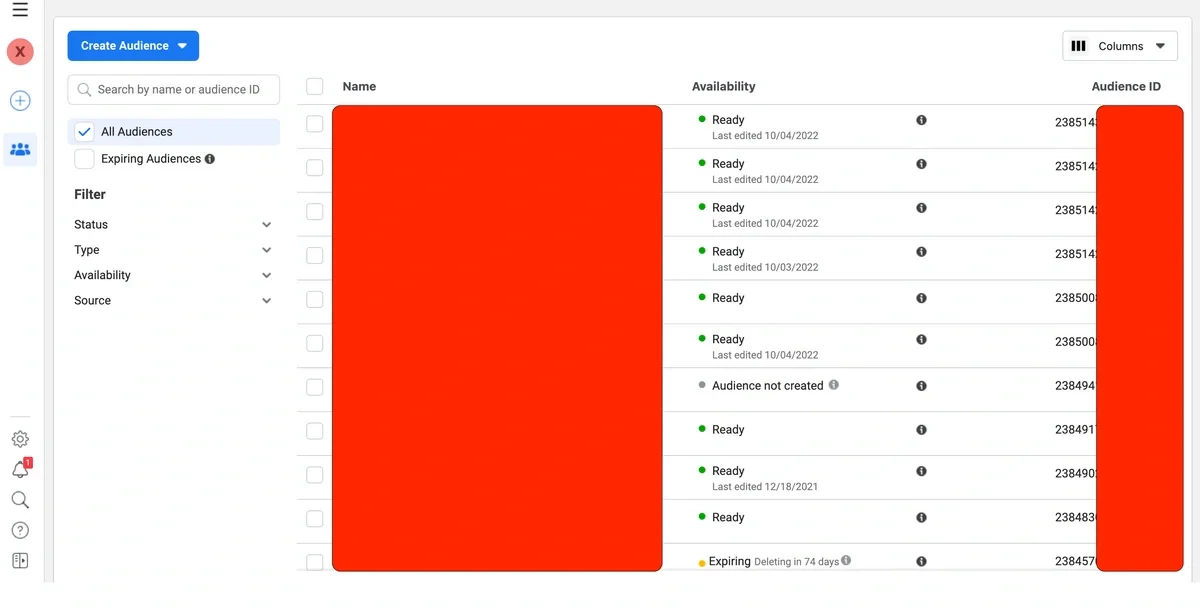 * Finally, please confirm when your cursor hover around **i** symbol the audience is ready for use. Make sure that the selected Audience is a Custom Audience type and using "Customer list" as its source.
 ## Schema Mapping
Select the required and optional fields to use in the destination according to the object. (For more details on fields for each object: [conversions](https://developers.facebook.com/docs/marketing-api/conversions-api/parameters/server-event) & [customers](https://developers.facebook.com/docs/marketing-api/audiences/guides/custom-audiences/))
## Schema Mapping
Select the required and optional fields to use in the destination according to the object. (For more details on fields for each object: [conversions](https://developers.facebook.com/docs/marketing-api/conversions-api/parameters/server-event) & [customers](https://developers.facebook.com/docs/marketing-api/audiences/guides/custom-audiences/))