> ## Documentation Index
> Fetch the complete documentation index at: https://www.integrate.io/docs/llms.txt
> Use this file to discover all available pages before exploring further.
# ETL: FTPS Source
> How to connect to an FTPS server and configure the FTPS source component to read files in your Integrate.io ETL pipeline.
The FTPS source reads files from any File Transfer Protocol Secure (FTPS) server and feeds them into your pipeline. It supports CSV, TSV, JSON, Excel, Parquet, Raw, and compressed formats.
Once your connection is set up, see [File Storage Options](/docs/etl/file-storage-options) for the full set of read options (file formats, schema, and more) shared across every file storage provider.
## Connection Setup
To allow Integrate.io ETL direct access to your FTPS server, add the Integrate.io [IP addresses](/docs/etl/integrateio-etls-ip-list) to your server's firewall allowlist.
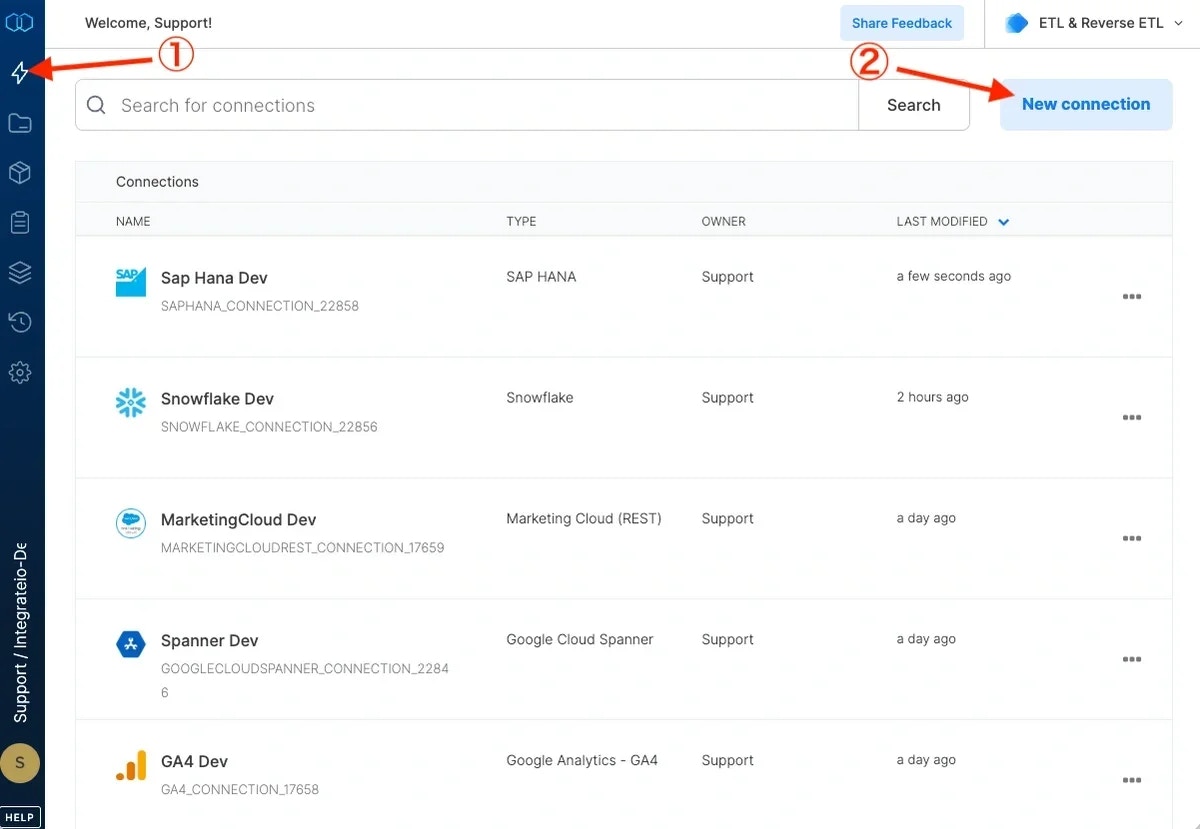
Click the **Connections** icon (lightning bolt) in the top-left menu.
Click **New connection** and select **File Transfer Protocol Secure (FTPS)**.
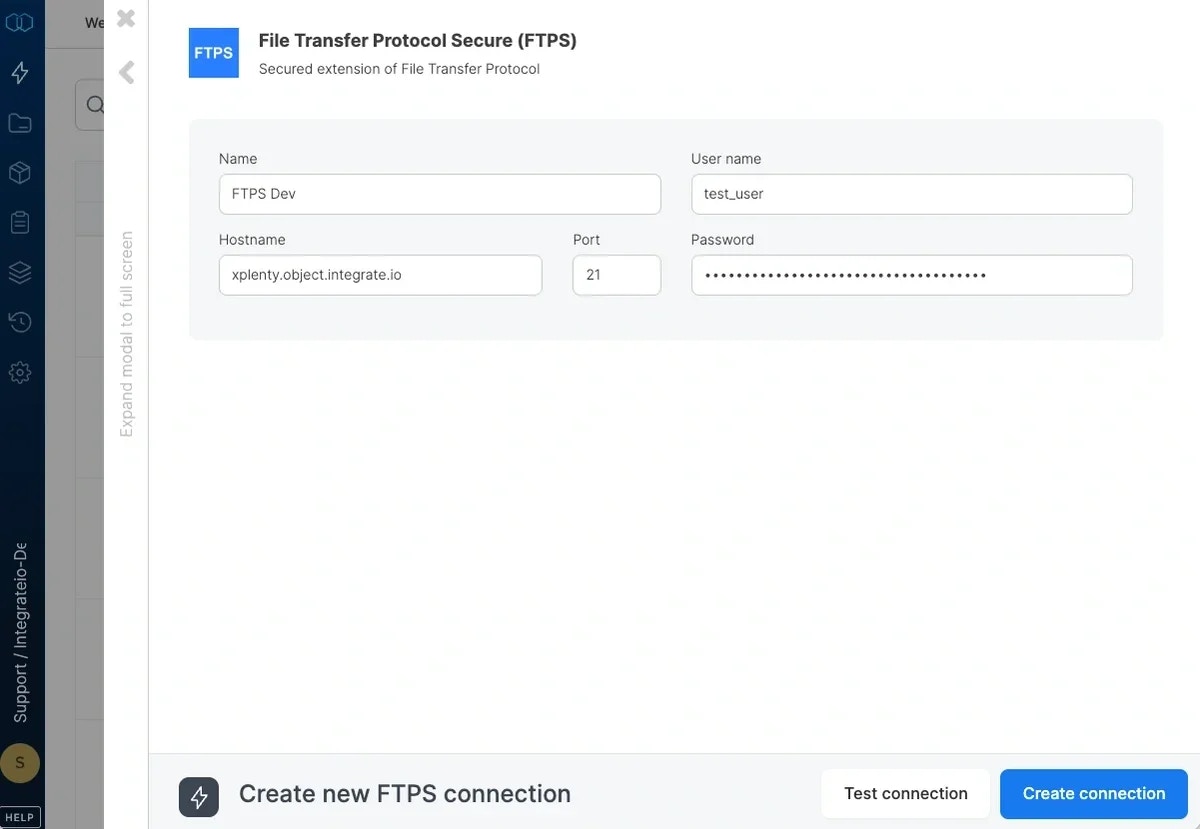
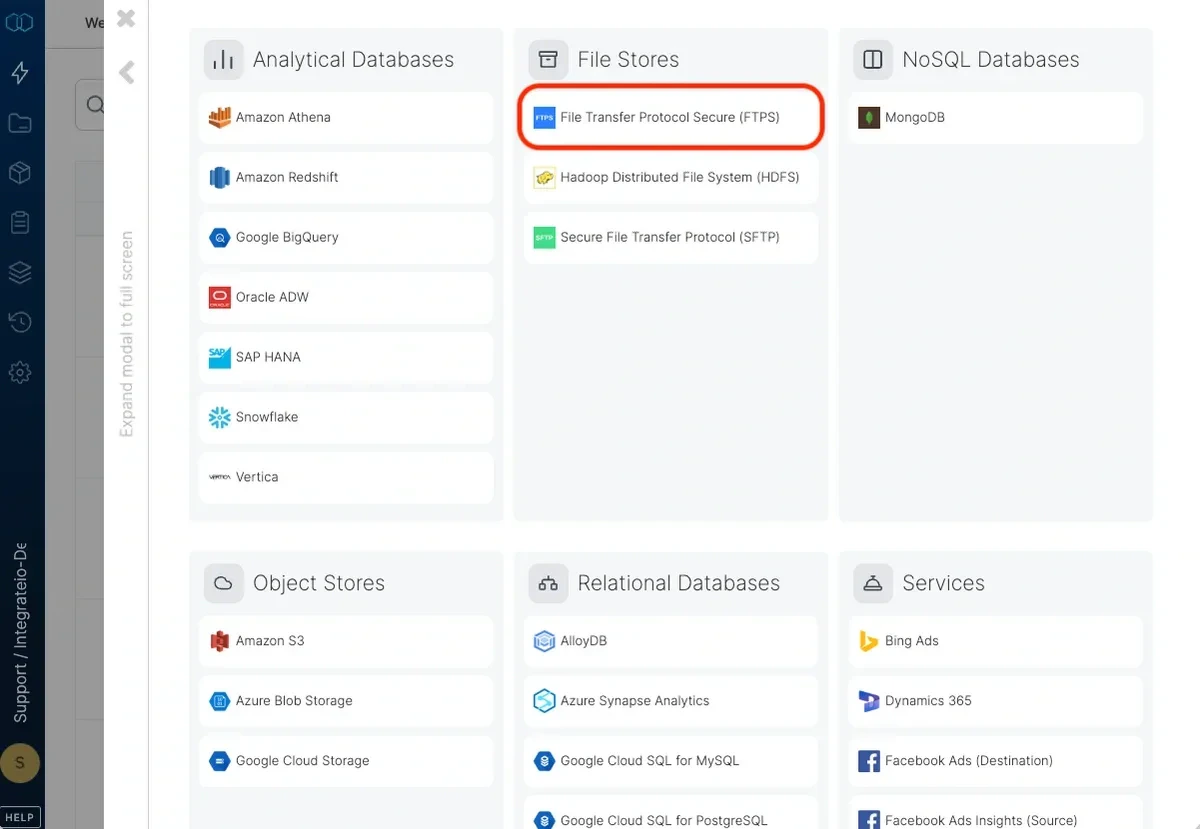 Name the connection and fill in the connection details:
| Field | Description |
| :------------ | :----------------------------------------------------------------- |
| **Hostname** | The hostname of the FTPS server. |
| **User Name** | The username to connect with. Cannot contain the `$` character. |
| **Password** | The password for authentication. Cannot contain the `@` character. |
| **Port** | TCP port of the FTPS server. Default is 21. |
Click **Test connection** to verify the credentials.
Click **Create FTPS connection**.
Name the connection and fill in the connection details:
| Field | Description |
| :------------ | :----------------------------------------------------------------- |
| **Hostname** | The hostname of the FTPS server. |
| **User Name** | The username to connect with. Cannot contain the `$` character. |
| **Password** | The password for authentication. Cannot contain the `@` character. |
| **Port** | TCP port of the FTPS server. Default is 21. |
Click **Test connection** to verify the credentials.
Click **Create FTPS connection**.
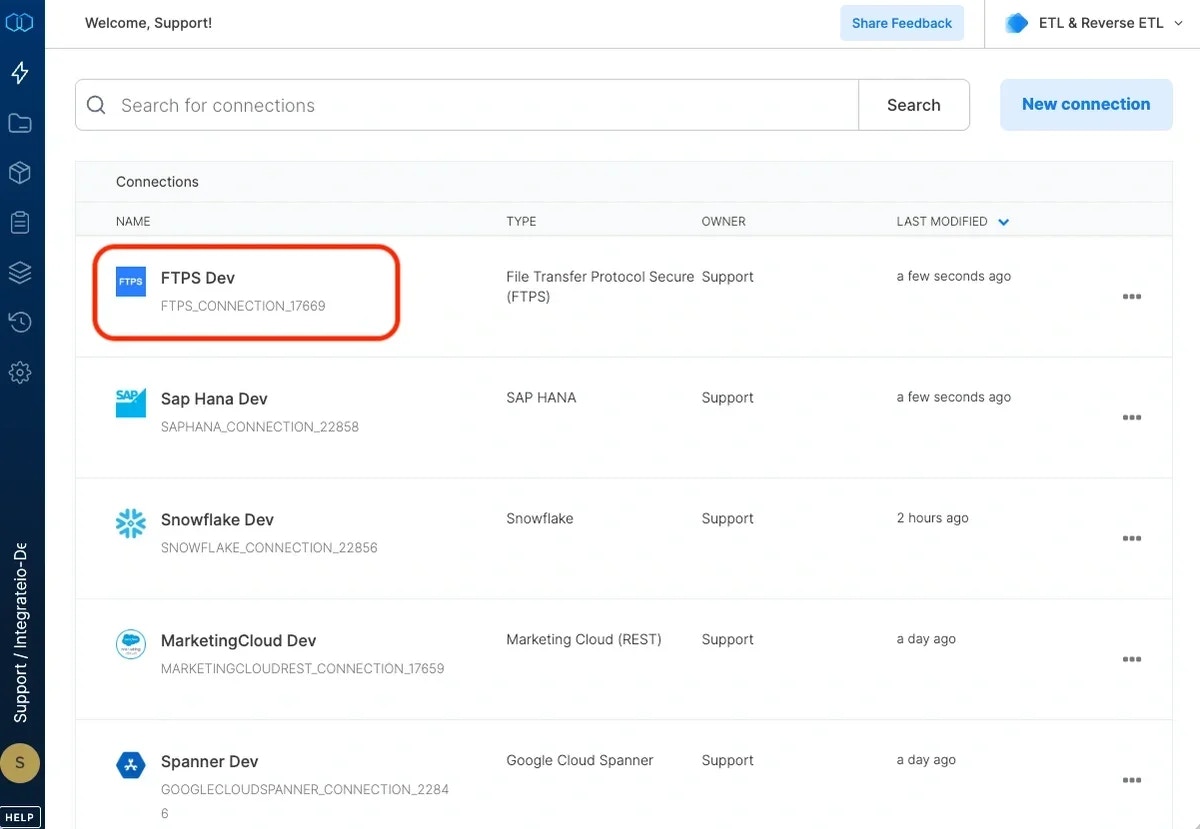
 The connection appears in the connections list.
 ***
## Source Configuration
### Connection
Select your FTPS connection from the dropdown, or create a new one using the steps above.
### Source Path
The path to the input file, folder, or pattern on the FTPS server. Paths must begin with `/`. Integrate.io prepends the slash automatically if omitted.
| Example | Description |
| :---------------------------- | :---------------------------------- |
| `/data/sales/2015/01/log.csv` | A single file |
| `/data/sales/2015/01/` | All files in a folder |
| `/data/sales/2015/{01,02}/` | A pattern matching multiple folders |
You can use wildcard characters for [pattern globbing](/docs/etl/using-pattern-matching-in-source-component-paths). File and directory names beginning with an underscore (`_`) or a dot (`.`) are ignored.
FTPS has no bucket or container field. The path is relative to the FTPS server root.
### Source Action
All four source actions are available for FTPS. When using **Move processed files**, the **Append string to filename** option is supported.
***
## FAQ
**How do I allow Integrate.io to connect to my FTPS server?**
Add the Integrate.io [IP addresses](/docs/etl/integrateio-etls-ip-list) to your server's firewall allowlist to permit inbound connections.
**My username or password contains a restricted character — what should I do?**
Usernames cannot contain `$` and passwords cannot contain `@`. Contact your server administrator to change the credentials, or use an alternative account.
**Does FTPS support incremental load?**
Yes. Select **Process only new files (Incremental load)** in the source action settings and configure a manifest path. See [reading file storage data incrementally](/docs/etl/how-do-i-read-data-from-file-storage-incrementally).
***
## Related
***
## Source Configuration
### Connection
Select your FTPS connection from the dropdown, or create a new one using the steps above.
### Source Path
The path to the input file, folder, or pattern on the FTPS server. Paths must begin with `/`. Integrate.io prepends the slash automatically if omitted.
| Example | Description |
| :---------------------------- | :---------------------------------- |
| `/data/sales/2015/01/log.csv` | A single file |
| `/data/sales/2015/01/` | All files in a folder |
| `/data/sales/2015/{01,02}/` | A pattern matching multiple folders |
You can use wildcard characters for [pattern globbing](/docs/etl/using-pattern-matching-in-source-component-paths). File and directory names beginning with an underscore (`_`) or a dot (`.`) are ignored.
FTPS has no bucket or container field. The path is relative to the FTPS server root.
### Source Action
All four source actions are available for FTPS. When using **Move processed files**, the **Append string to filename** option is supported.
***
## FAQ
**How do I allow Integrate.io to connect to my FTPS server?**
Add the Integrate.io [IP addresses](/docs/etl/integrateio-etls-ip-list) to your server's firewall allowlist to permit inbound connections.
**My username or password contains a restricted character — what should I do?**
Usernames cannot contain `$` and passwords cannot contain `@`. Contact your server administrator to change the credentials, or use an alternative account.
**Does FTPS support incremental load?**
Yes. Select **Process only new files (Incremental load)** in the source action settings and configure a manifest path. See [reading file storage data incrementally](/docs/etl/how-do-i-read-data-from-file-storage-incrementally).
***
## Related