> ## Documentation Index
> Fetch the complete documentation index at: https://www.integrate.io/docs/llms.txt
> Use this file to discover all available pages before exploring further.
# ETL: Google Analytics 4 (GA4) Source
> Configure the Google Analytics 4 source component to read analytics report data from your GA4 property in Integrate.io ETL data pipelines.
## Connection Setup
## Step 1: Create a Service Account within your GCP project
### Create a Service Account
Access your [Google Cloud Console](https://console.cloud.google.com/#/project).
On the sidebar, choose [IAM & Admin > Service Accounts.](https://console.cloud.google.com/iam-admin/serviceaccounts)
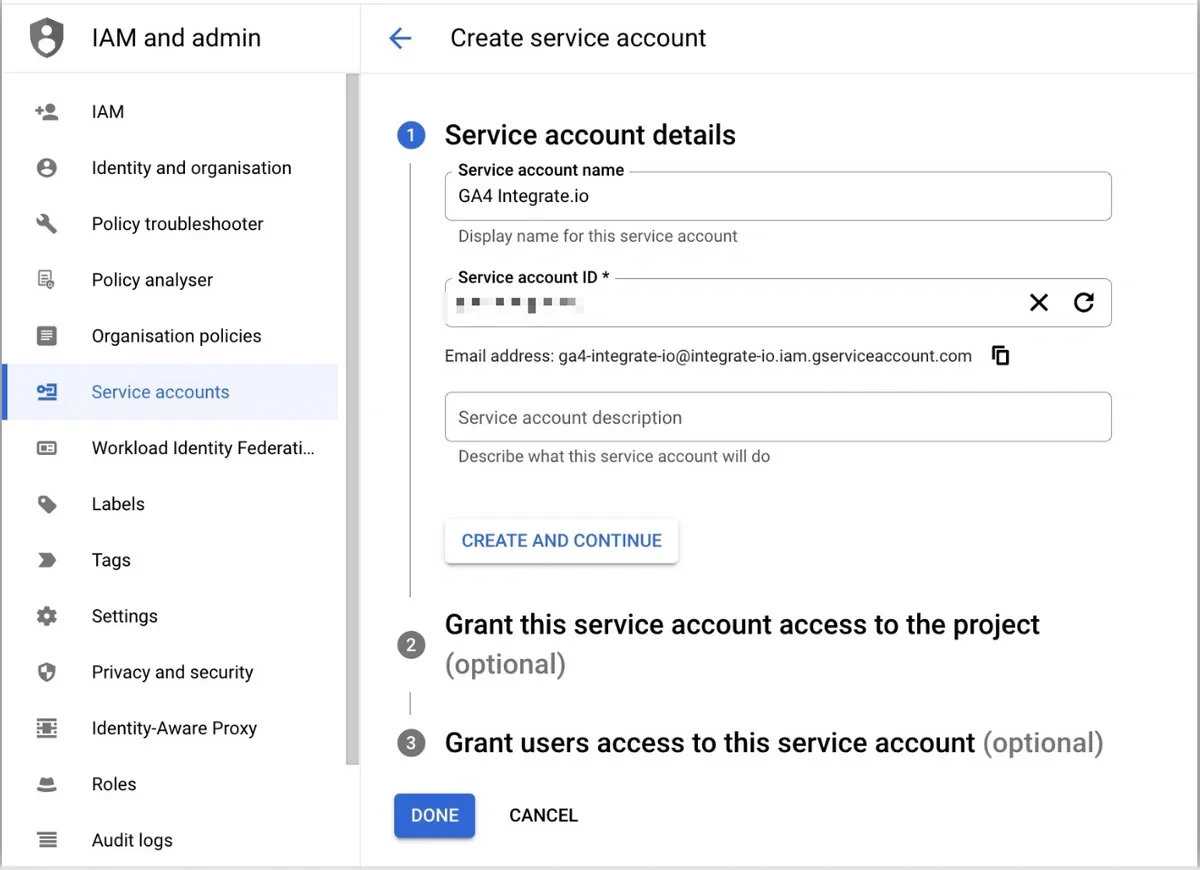
Click [+ CREATE SERVICE ACCOUNT.](https://console.cloud.google.com/iam-admin/serviceaccounts/create)
Fill up the Service account details and click "**Done**".
 ### Generate a private key for your service account
Navigate to [IAM & Admin > Service Accounts.](https://console.cloud.google.com/iam-admin/serviceaccounts)
Click the Service Account you created from the previous step.
Click the **"KEYS"** tab.
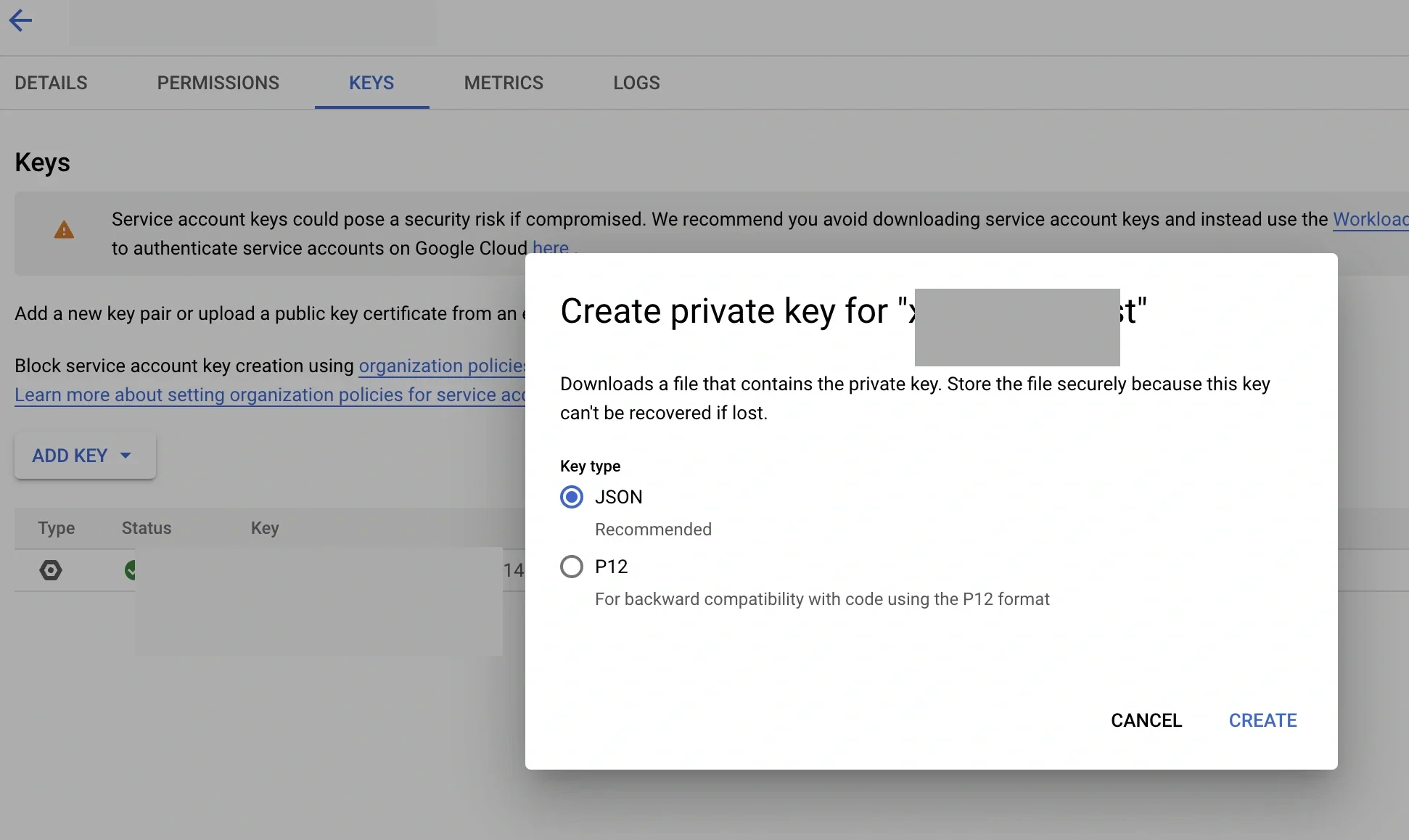
Click "**ADD KEY"** > "**Create new key**" > **"JSON"** and click "**CREATE**".
A private key (JSON) file will be automatically downloaded to your machine.
### Generate a private key for your service account
Navigate to [IAM & Admin > Service Accounts.](https://console.cloud.google.com/iam-admin/serviceaccounts)
Click the Service Account you created from the previous step.
Click the **"KEYS"** tab.
Click "**ADD KEY"** > "**Create new key**" > **"JSON"** and click "**CREATE**".
A private key (JSON) file will be automatically downloaded to your machine.
 ## Step 2: Enable the APIs
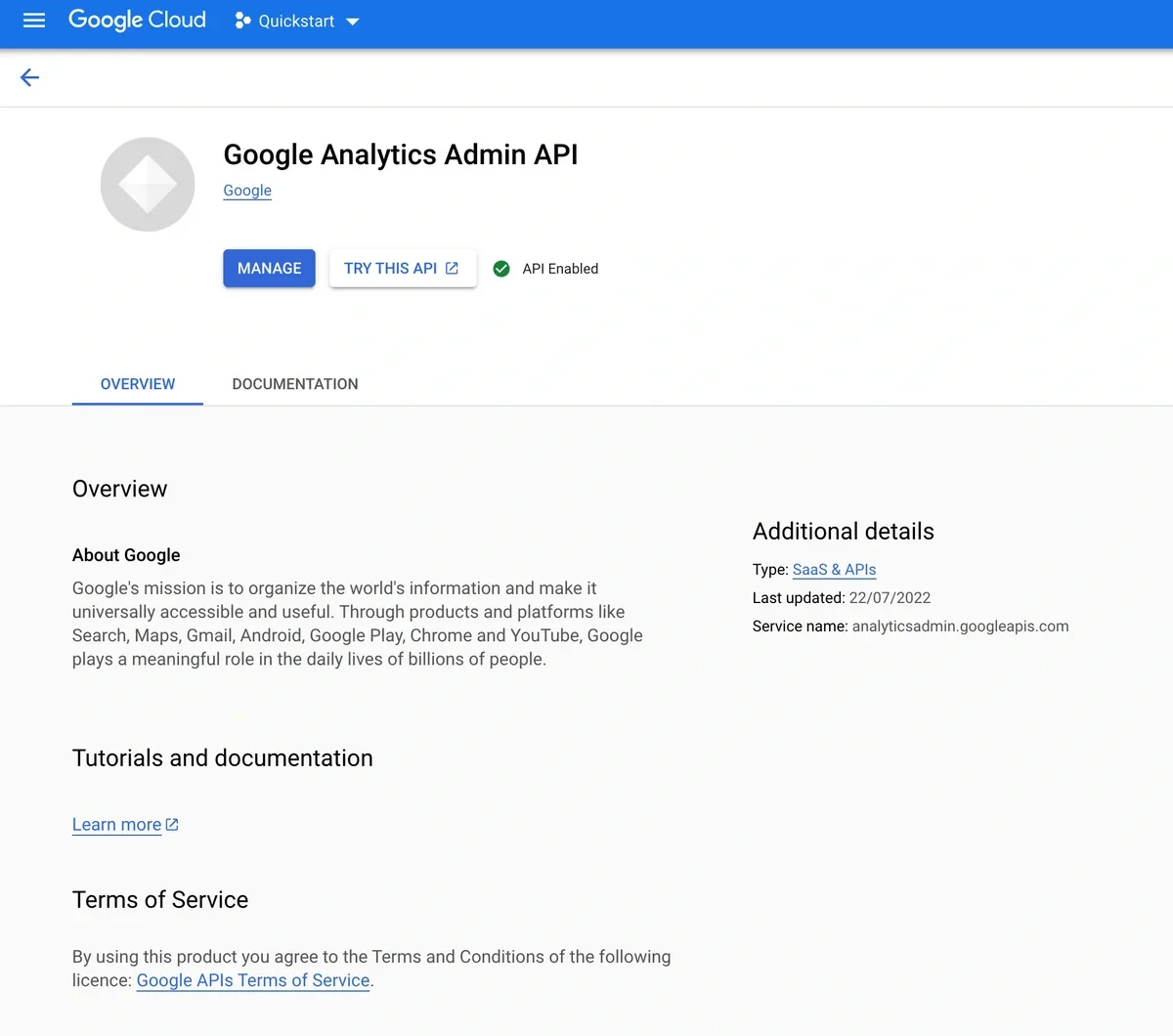
Enable [Google Analytics Admin API](https://console.cloud.google.com/marketplace/product/google/analyticsadmin.googleapis.com)
## Step 2: Enable the APIs
Enable [Google Analytics Admin API](https://console.cloud.google.com/marketplace/product/google/analyticsadmin.googleapis.com)
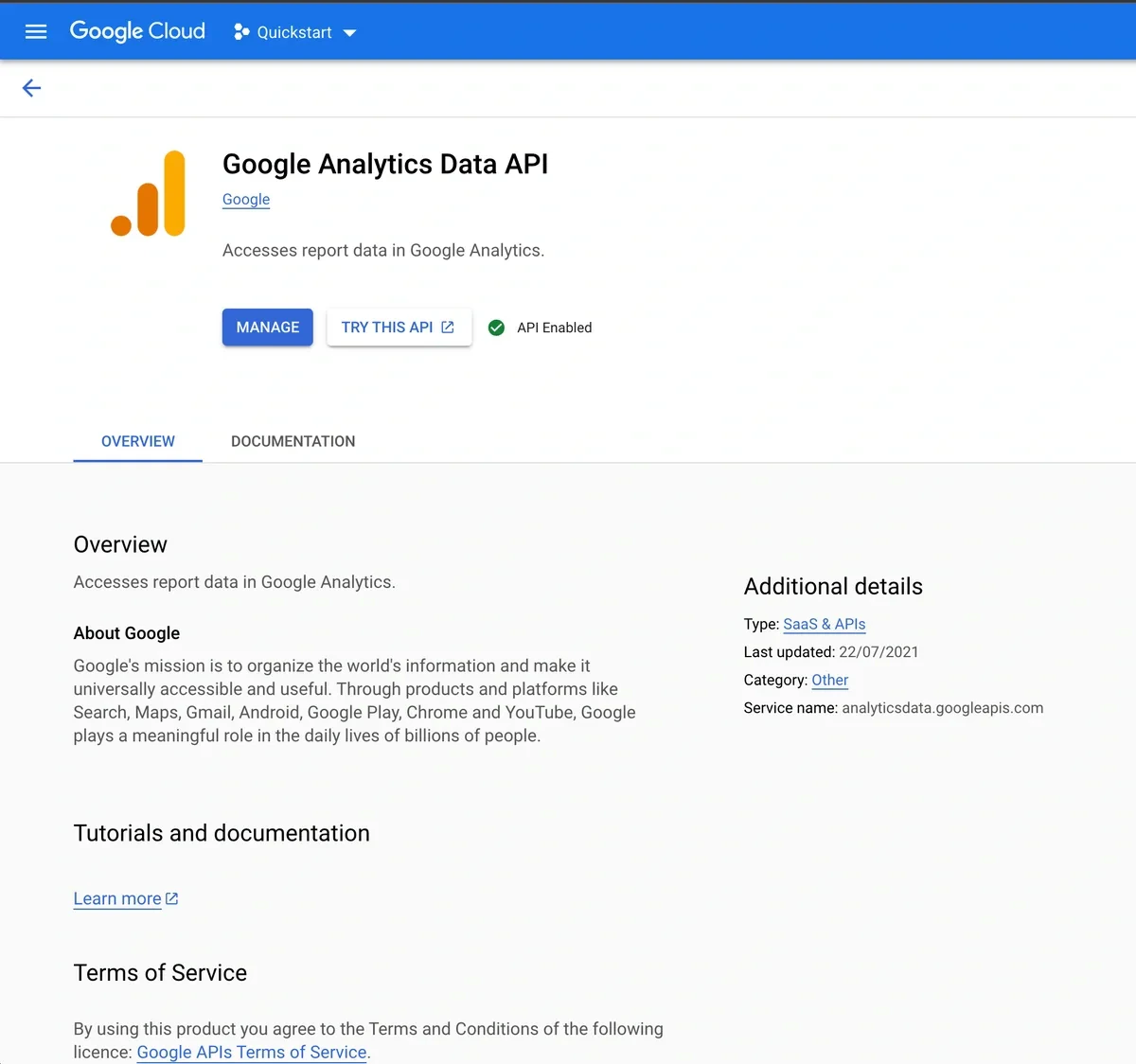
 Enable [Google Analytics Data API](https://console.cloud.google.com/marketplace/product/google/analyticsdata.googleapis.com)
 ## Step 3: Grant Google Analytics 4 Property Access to Service Account
Navigate to [Google Analytics](https://analytics.google.com/) and click the "**Admin**" cog in the left sidebar.
Ensure that you are in the correct Account and Property, and then click "**Property Access Management**".
Click the blue **+** button to add access permissions to new users, and select "Add users".
Paste the Service Account email address you created earlier. Deselect "**Notify new users by email**" and select "**Viewer**" and click "**Create**".
## Step 4: Create GA4 Connection on Integrate.io ETL
Navigate to the **Connections** tab and click **Google Analytics - GA4.**
## Step 3: Grant Google Analytics 4 Property Access to Service Account
Navigate to [Google Analytics](https://analytics.google.com/) and click the "**Admin**" cog in the left sidebar.
Ensure that you are in the correct Account and Property, and then click "**Property Access Management**".
Click the blue **+** button to add access permissions to new users, and select "Add users".
Paste the Service Account email address you created earlier. Deselect "**Notify new users by email**" and select "**Viewer**" and click "**Create**".
## Step 4: Create GA4 Connection on Integrate.io ETL
Navigate to the **Connections** tab and click **Google Analytics - GA4.**
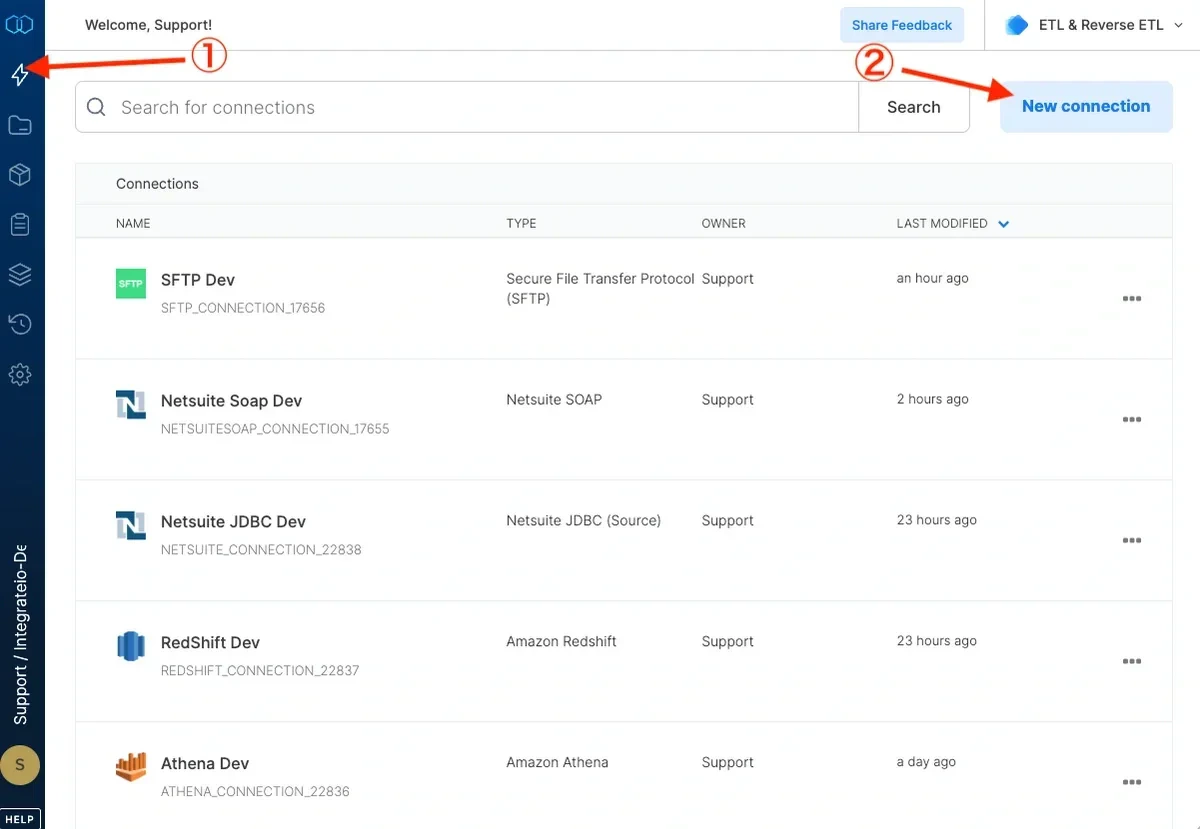
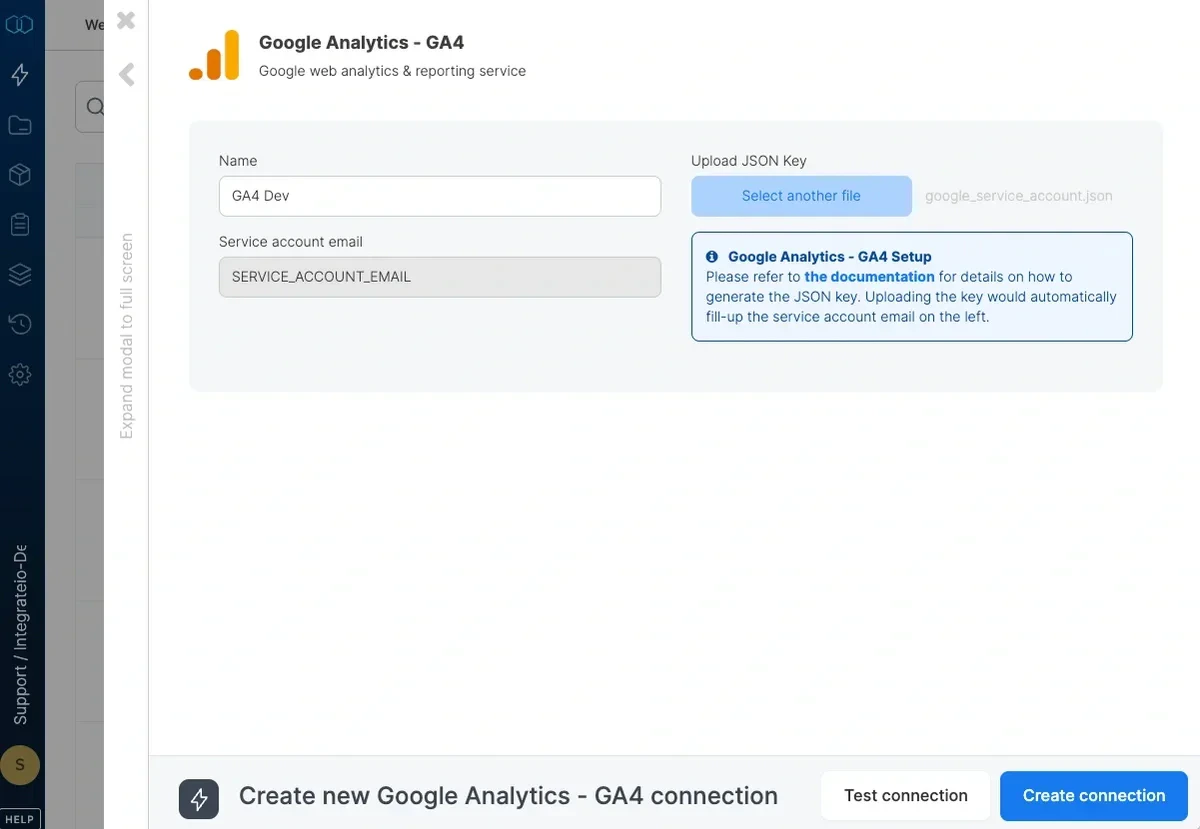
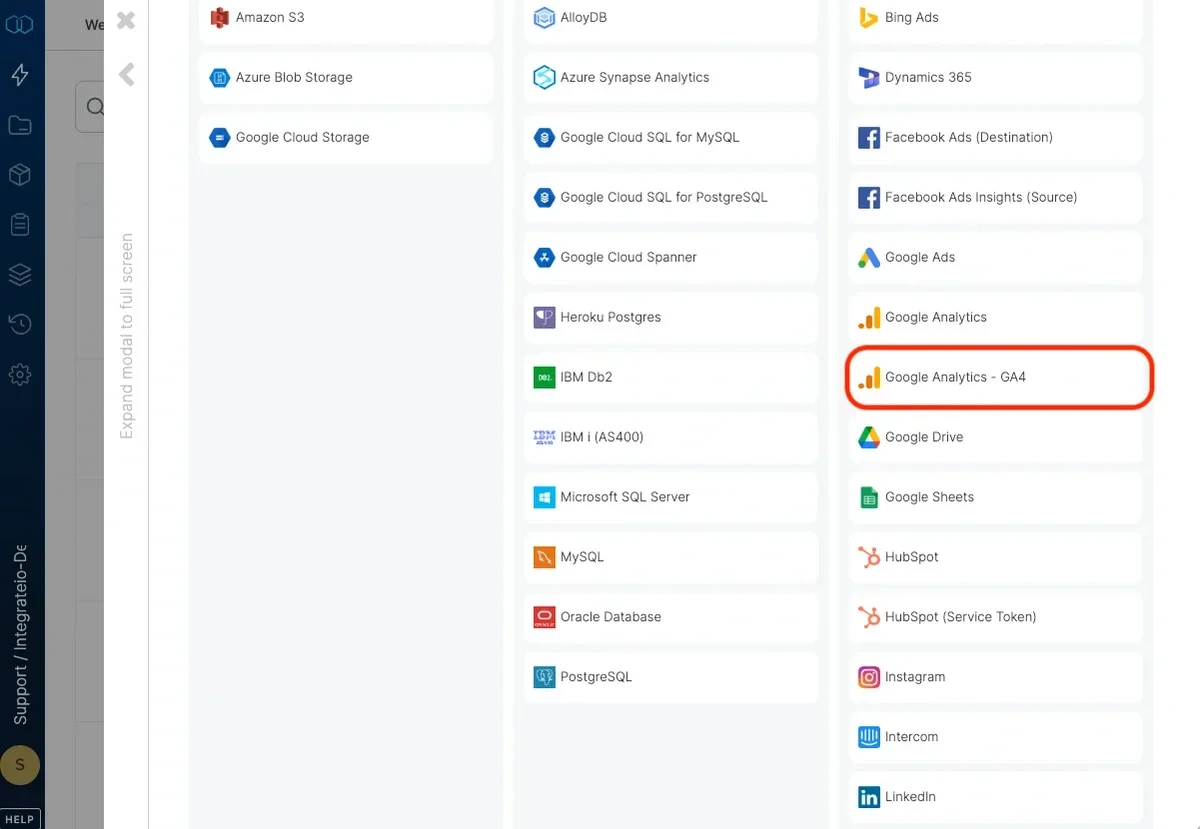 Fill up the Connection Name.
Upload the JSON key you generated from Step 1.
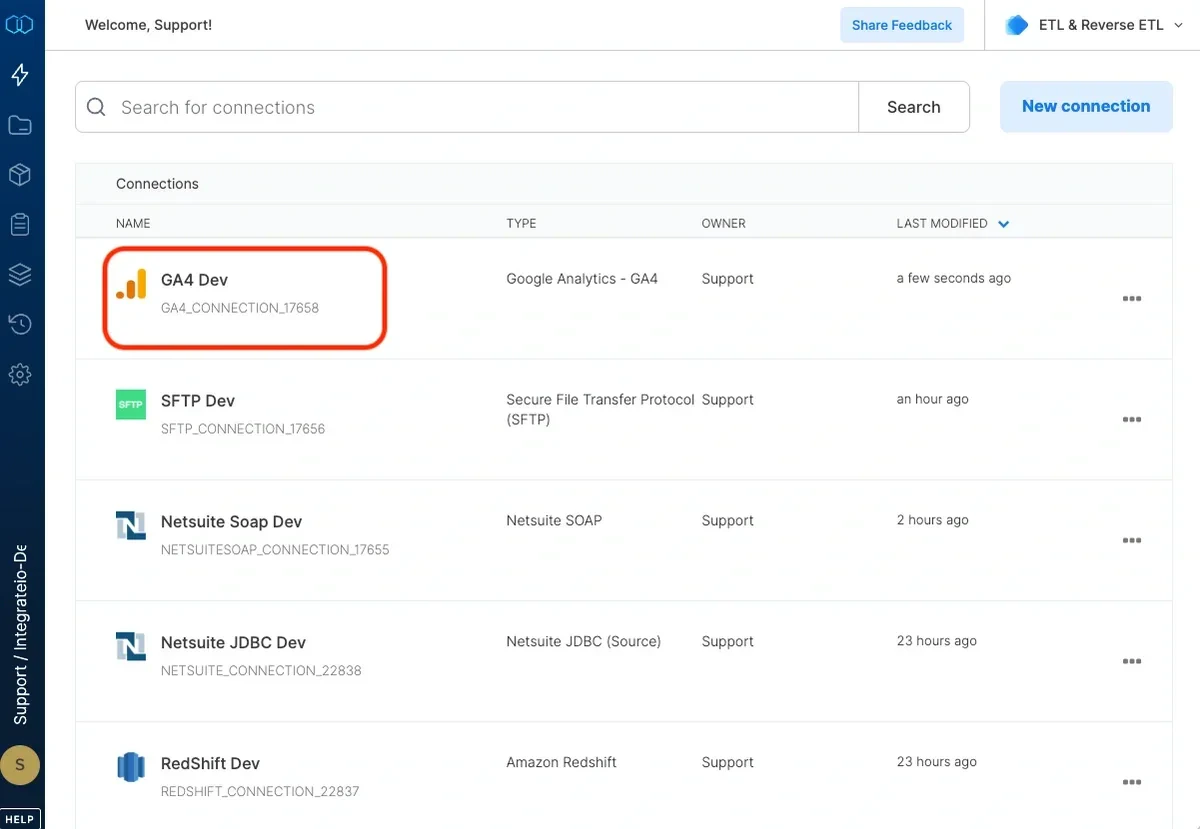
Click **Test Connection** and **Create Connection**.
Fill up the Connection Name.
Upload the JSON key you generated from Step 1.
Click **Test Connection** and **Create Connection**.
 ***
***
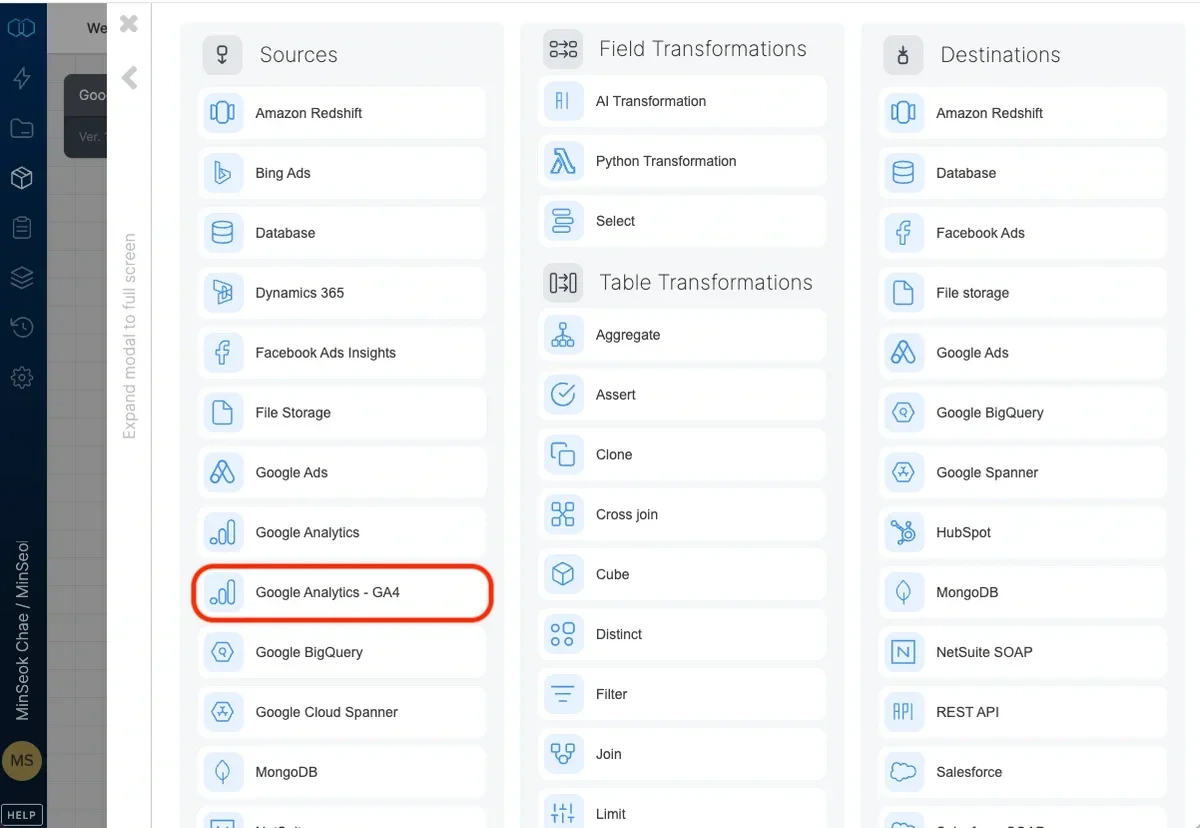 ## Connection
Select an existing Google Analytics 4 (GA4) connection or create a new one.
## Source Properties
## Connection
Select an existing Google Analytics 4 (GA4) connection or create a new one.
## Source Properties
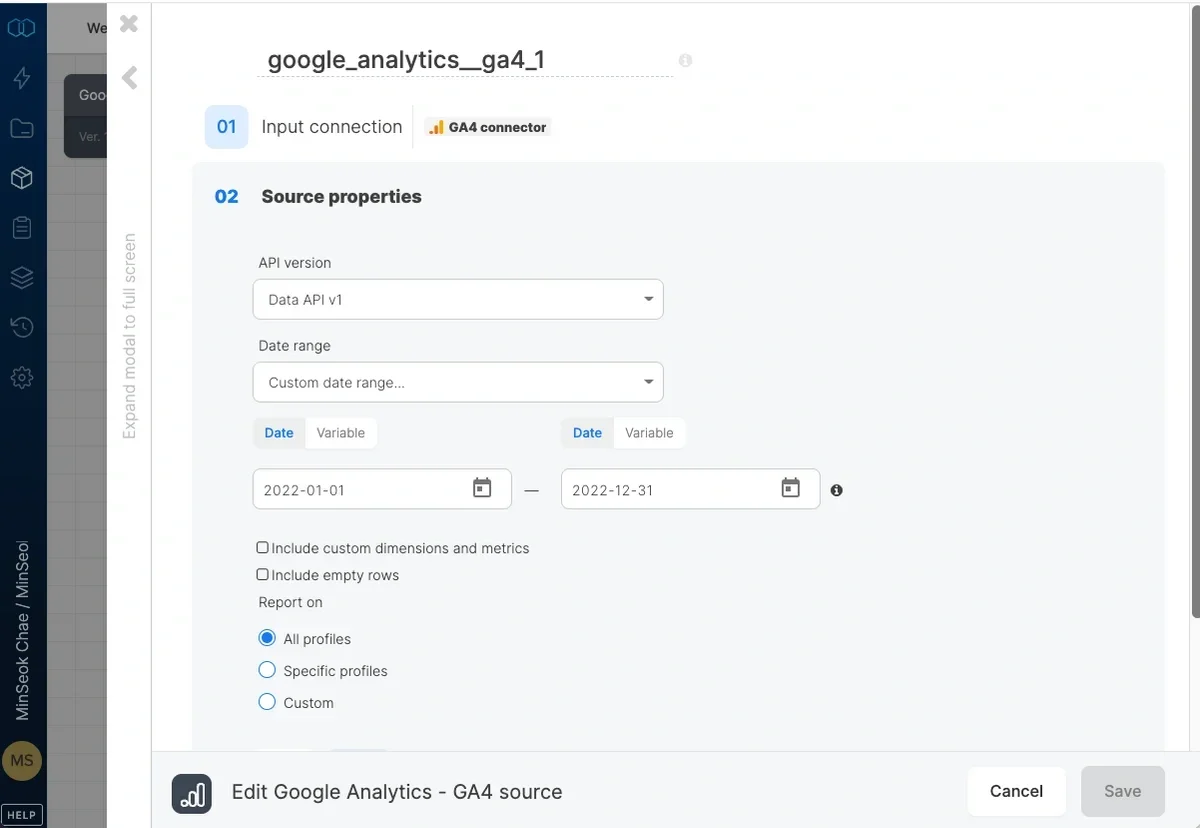 * **Api Version -** Select api version Google Analytics 4 API. See list of available APIs from Google [here](https://developers.google.com/analytics/devguides/reporting/data/v1/rest)
* **Date range** - Select a date range from the dropdown list of ranges. If you select `custom date range...`, you will be prompted to enter From date and To date. Click either inputs and select the dates from the calendar. You can also use variables as values for the custom date range in the format `yyyy-MM-dd`.
* **Include custom dimensions and metrics -** Fetch list of custom dimensions and metrics from selected accounts and show it on tables of dimensions and metrics in schema section
* **Property IDs** - Leave empty to read data for all accessible Google Analytics 4 properties or type in the IDs of your Google Analytics properties (or tables) in the form of properties/xxx. You can enter multiple ids separated by comma or use a variable too. Source Schema
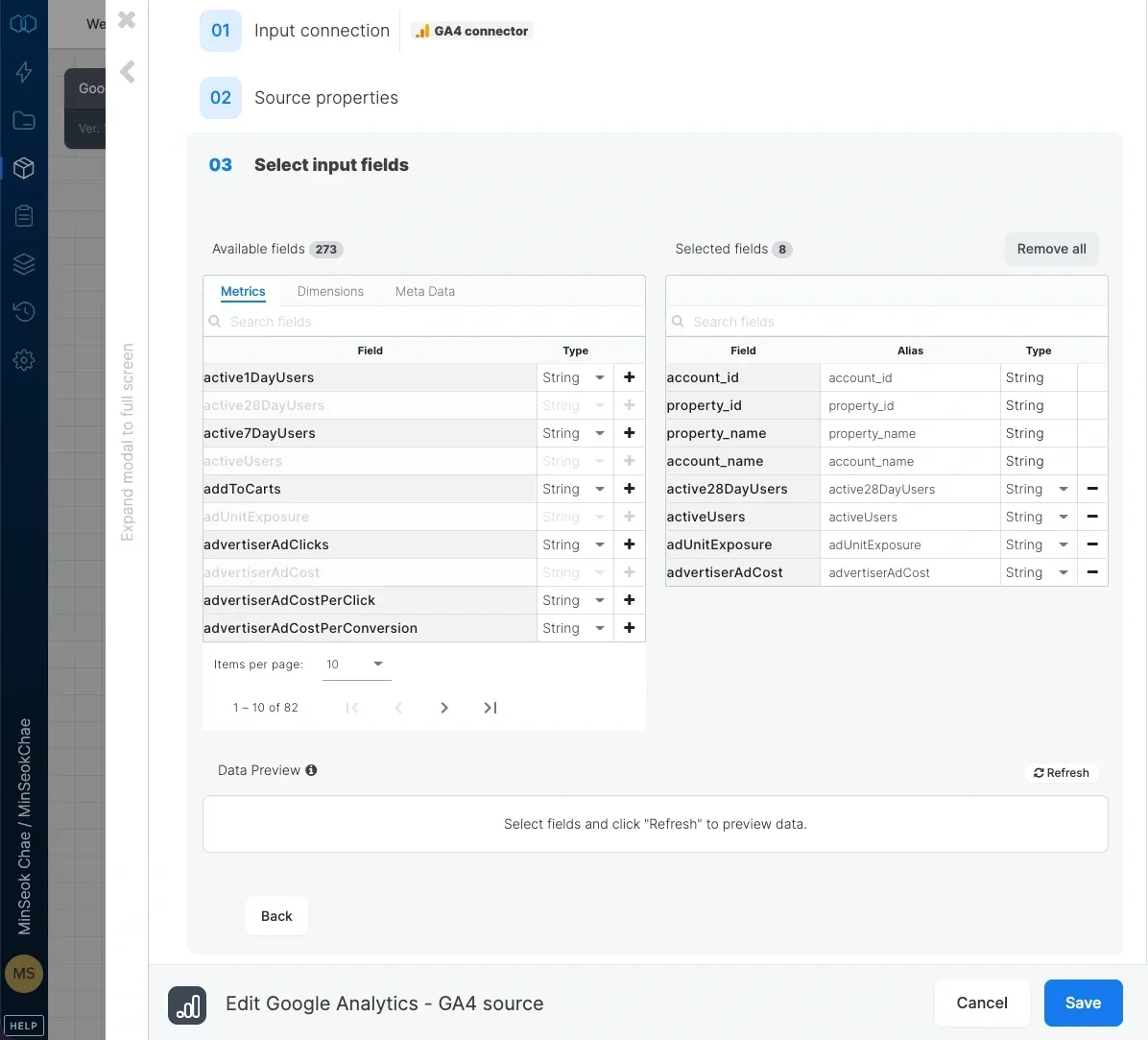
Select the metrics and dimensions to use in the source. The source also includes pre-defined fields for the Google Analytics account name, property name, property id and account id. Data can be also previewed by clicking "Refresh" button.
* **Api Version -** Select api version Google Analytics 4 API. See list of available APIs from Google [here](https://developers.google.com/analytics/devguides/reporting/data/v1/rest)
* **Date range** - Select a date range from the dropdown list of ranges. If you select `custom date range...`, you will be prompted to enter From date and To date. Click either inputs and select the dates from the calendar. You can also use variables as values for the custom date range in the format `yyyy-MM-dd`.
* **Include custom dimensions and metrics -** Fetch list of custom dimensions and metrics from selected accounts and show it on tables of dimensions and metrics in schema section
* **Property IDs** - Leave empty to read data for all accessible Google Analytics 4 properties or type in the IDs of your Google Analytics properties (or tables) in the form of properties/xxx. You can enter multiple ids separated by comma or use a variable too. Source Schema
Select the metrics and dimensions to use in the source. The source also includes pre-defined fields for the Google Analytics account name, property name, property id and account id. Data can be also previewed by clicking "Refresh" button.
 ## Migrating from Universal Analytics to Google Analytics 4 (GA4)
For metrics and dimensions mapping, please visit GA4 migration guide [here](https://developers.google.com/analytics/devguides/migration/api/reporting-ua-to-ga4-dims-mets)
## Migrating from Universal Analytics to Google Analytics 4 (GA4)
For metrics and dimensions mapping, please visit GA4 migration guide [here](https://developers.google.com/analytics/devguides/migration/api/reporting-ua-to-ga4-dims-mets)