> ## Documentation Index
> Fetch the complete documentation index at: https://www.integrate.io/docs/llms.txt
> Use this file to discover all available pages before exploring further.
# ETL: Google BigQuery Source
> Configure the Google BigQuery source component to read data from BigQuery tables or run queries in your Integrate.io ETL data pipeline.
## Connection Setup
Integrate.io ETL uses highly secured certificate-based authentication for connecting to your Google [BigQuery Dataset](https://www.integrate.io/blog/how-to-offload-data-processing-from-google-bigquery/). You need to provide your own service-account's JSON-key and grant Integrate.io ETL access only to projects and associated datasets that you specifically select. This article discusses providing Integrate.io ETL access on your Google BigQuery dataset and then details creating the BigQuery connection in Integrate.io ETL.
### Project Access
Access your [Google Cloud Console](https://console.cloud.google.com/#/project).
Click the project name for which you want to grant Integrate.io ETL access.
On the sidebar, choose **IAM & Admin -> Service Accounts**
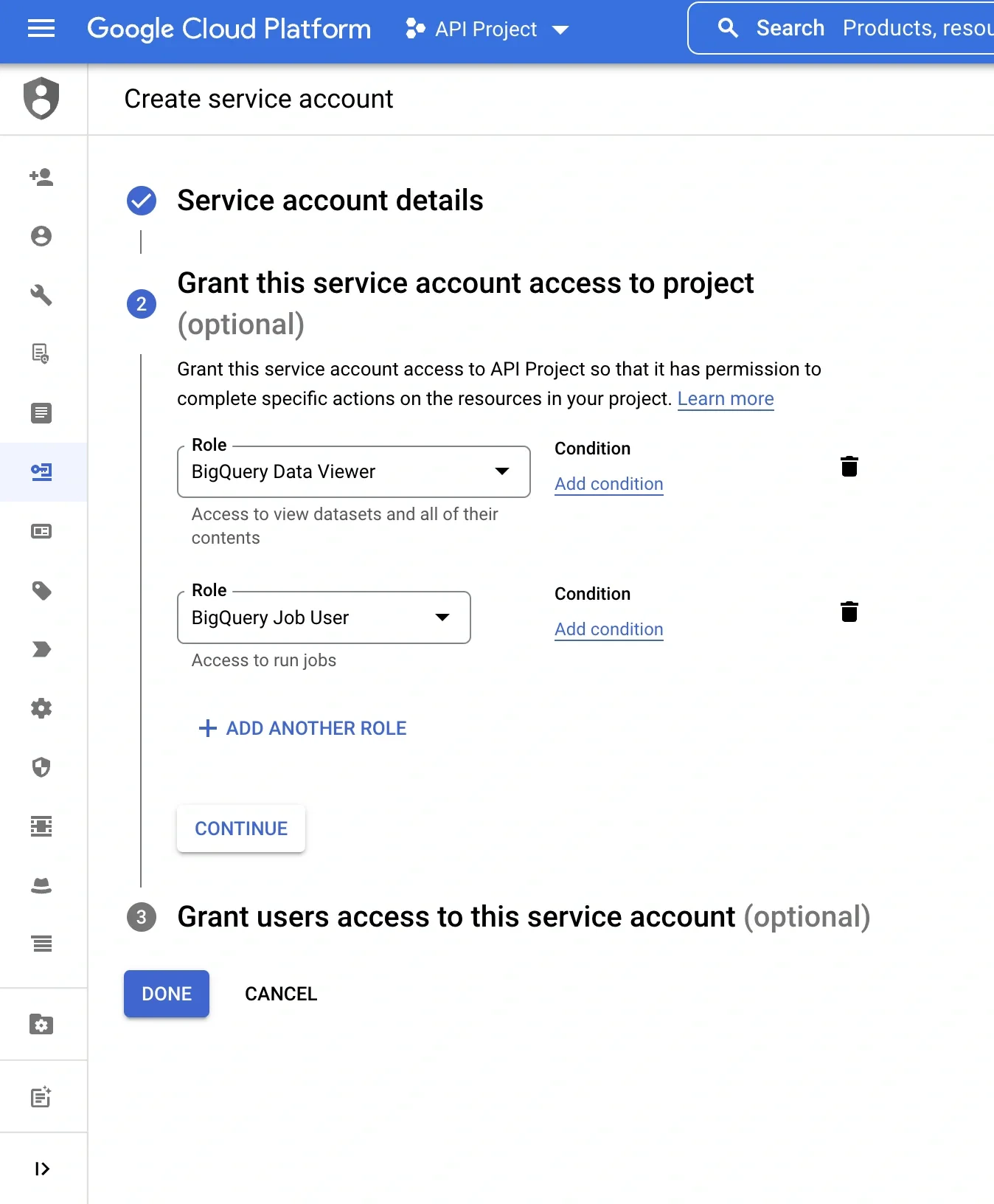
Click **"+ CREATE SERVICE ACCOUNT"**
Fill-out service account details and then grant following roles:
* **BigQuery Data Viewer**
* **BigQuery Job User**
 ### Dataset Access
Access your [BigQuery console](https://console.cloud.google.com/bigquery).
In the BigQuery sidebar, under **Resources**, select your project, then select your dataset, click **SHARE DATASET** and select **Permissions**
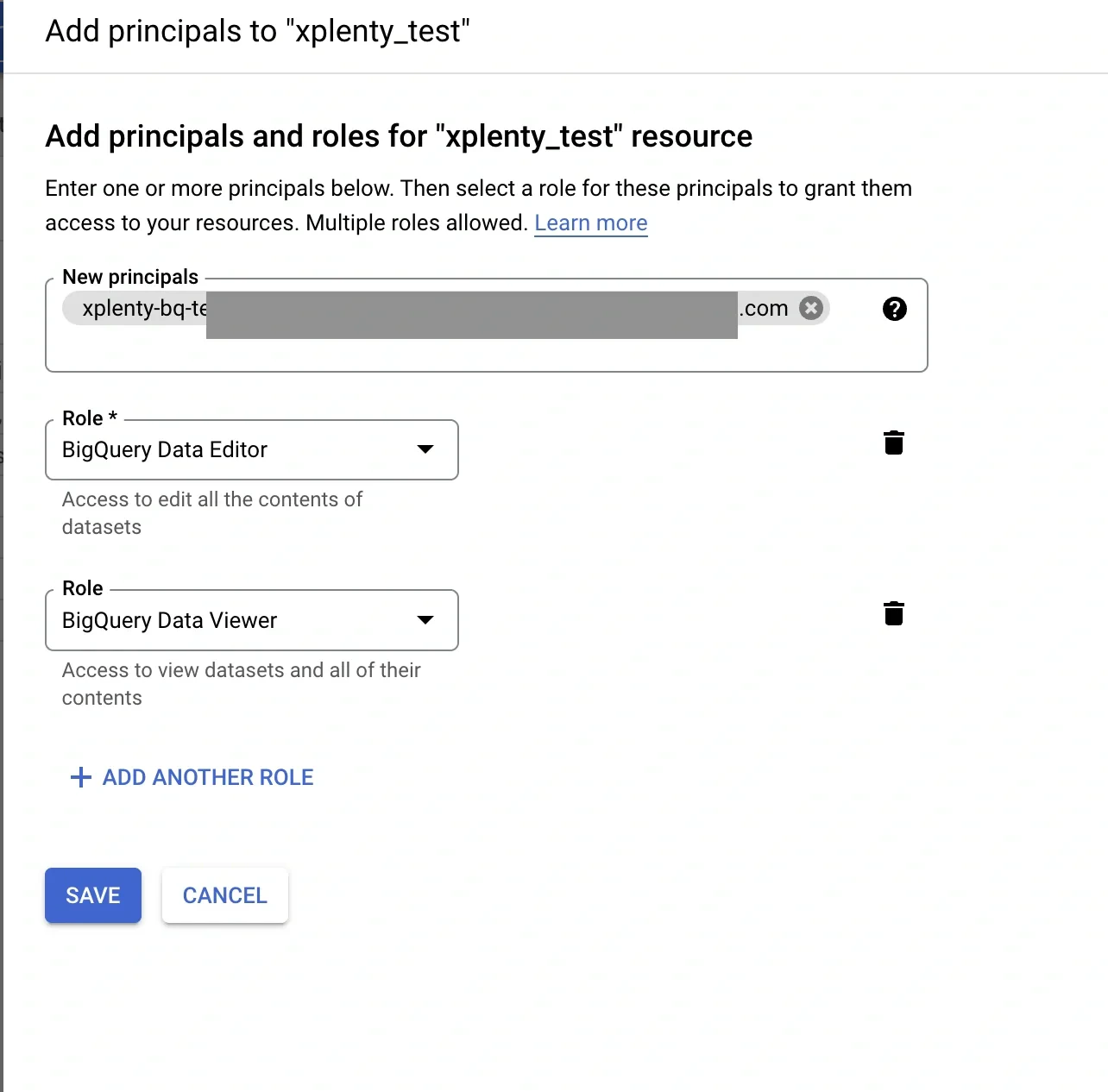
Click **"+ ADD PRINCIPAL"** and then assign following roles:
* **BigQuery Data Editor**
* **BigQuery Data Viewer**
### Dataset Access
Access your [BigQuery console](https://console.cloud.google.com/bigquery).
In the BigQuery sidebar, under **Resources**, select your project, then select your dataset, click **SHARE DATASET** and select **Permissions**
Click **"+ ADD PRINCIPAL"** and then assign following roles:
* **BigQuery Data Editor**
* **BigQuery Data Viewer**
 ### Create a service-account JSON-key
Access your [Google Cloud Console](https://console.cloud.google.com/#/project).
Click the project name for which you want to grant Integrate.io ETL access.
On the sidebar, choose **IAM & Admin -> Service Accounts**
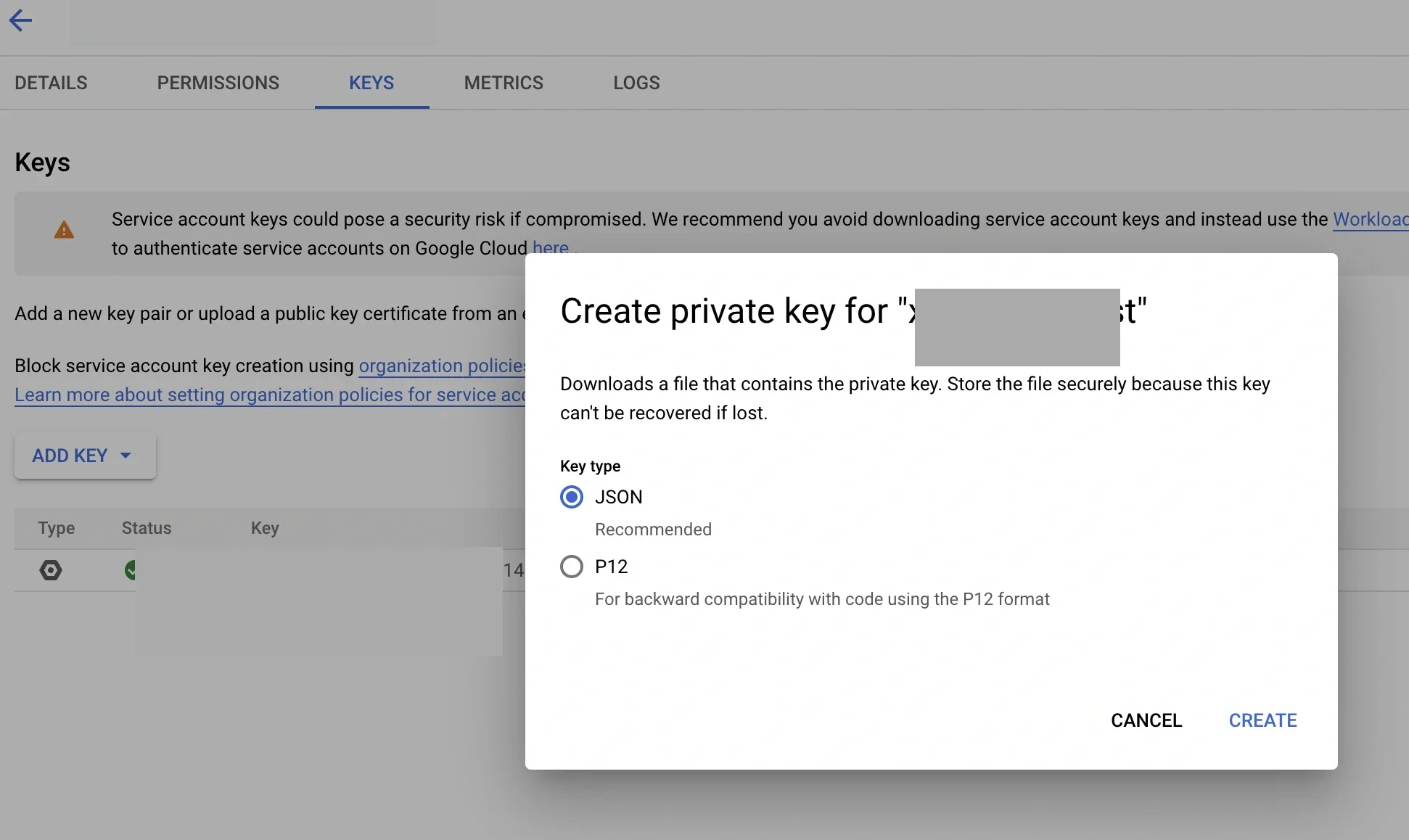
Select & click the service account that has been created in previous step, click "**KEYS**" tab on the top and then click "**ADD KEY**" -> "**Create new key**" -> choose "**JSON**" -> click "**CREATE**"
A JSON-key file will be automatically downloaded to your machine.
### Create a service-account JSON-key
Access your [Google Cloud Console](https://console.cloud.google.com/#/project).
Click the project name for which you want to grant Integrate.io ETL access.
On the sidebar, choose **IAM & Admin -> Service Accounts**
Select & click the service account that has been created in previous step, click "**KEYS**" tab on the top and then click "**ADD KEY**" -> "**Create new key**" -> choose "**JSON**" -> click "**CREATE**"
A JSON-key file will be automatically downloaded to your machine.
 ### Create Google BigQuery connection in Integrate.io ETL
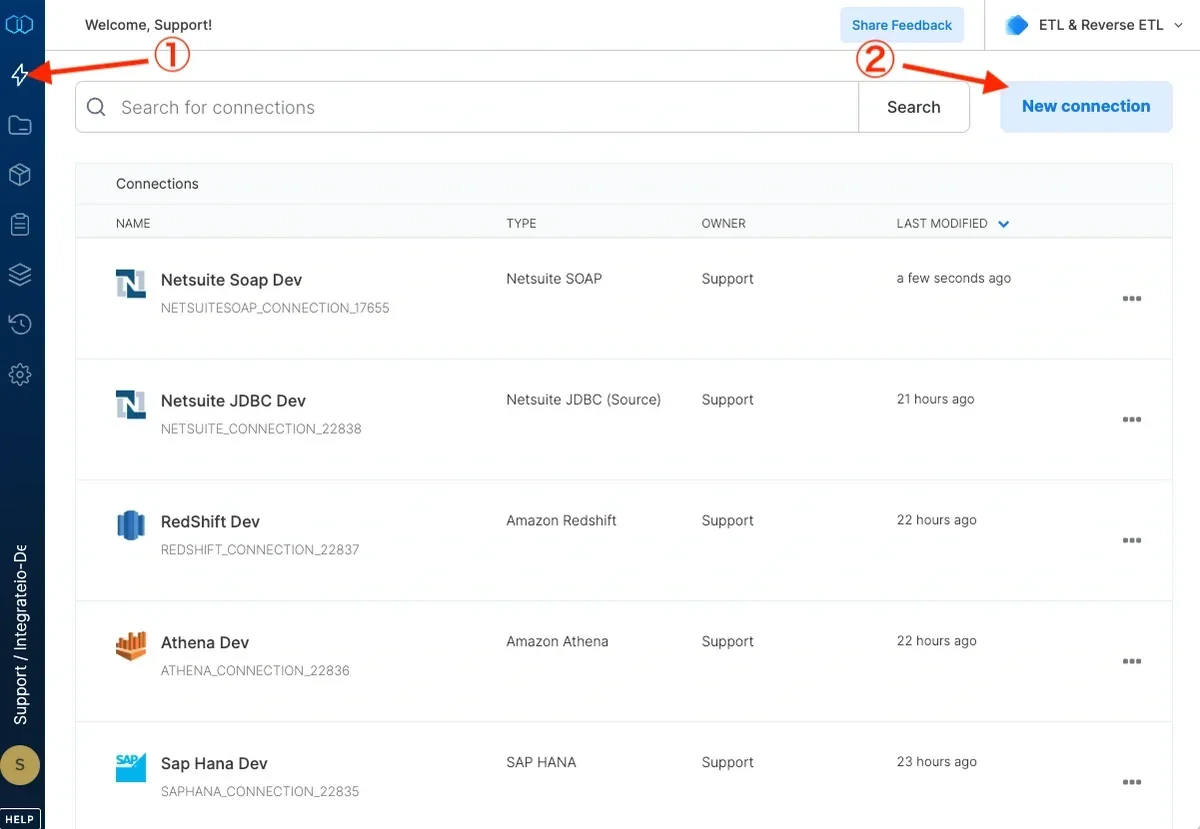
Click the **Connections** icon (lightning bolt) on the top left menu.
To create a connection, click **New connection**.
### Create Google BigQuery connection in Integrate.io ETL
Click the **Connections** icon (lightning bolt) on the top left menu.
To create a connection, click **New connection**.
 Select **Google BigQuery**.
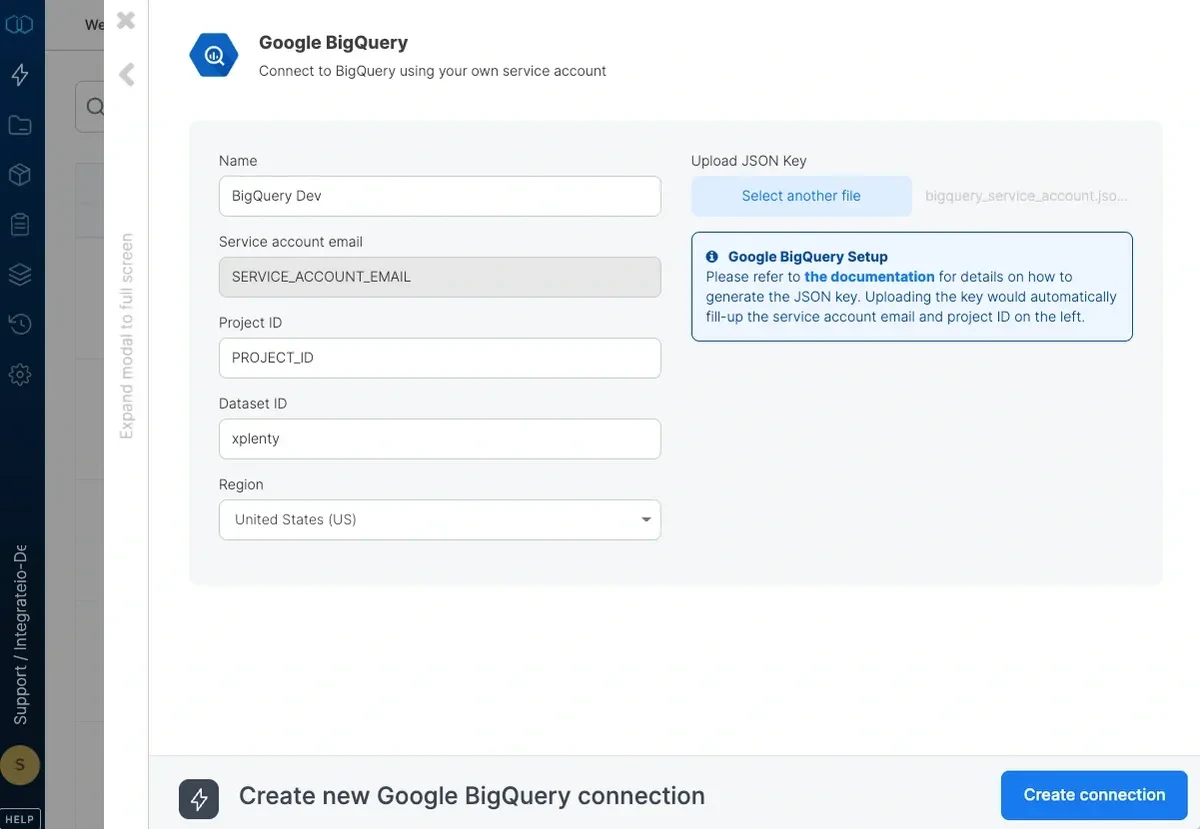
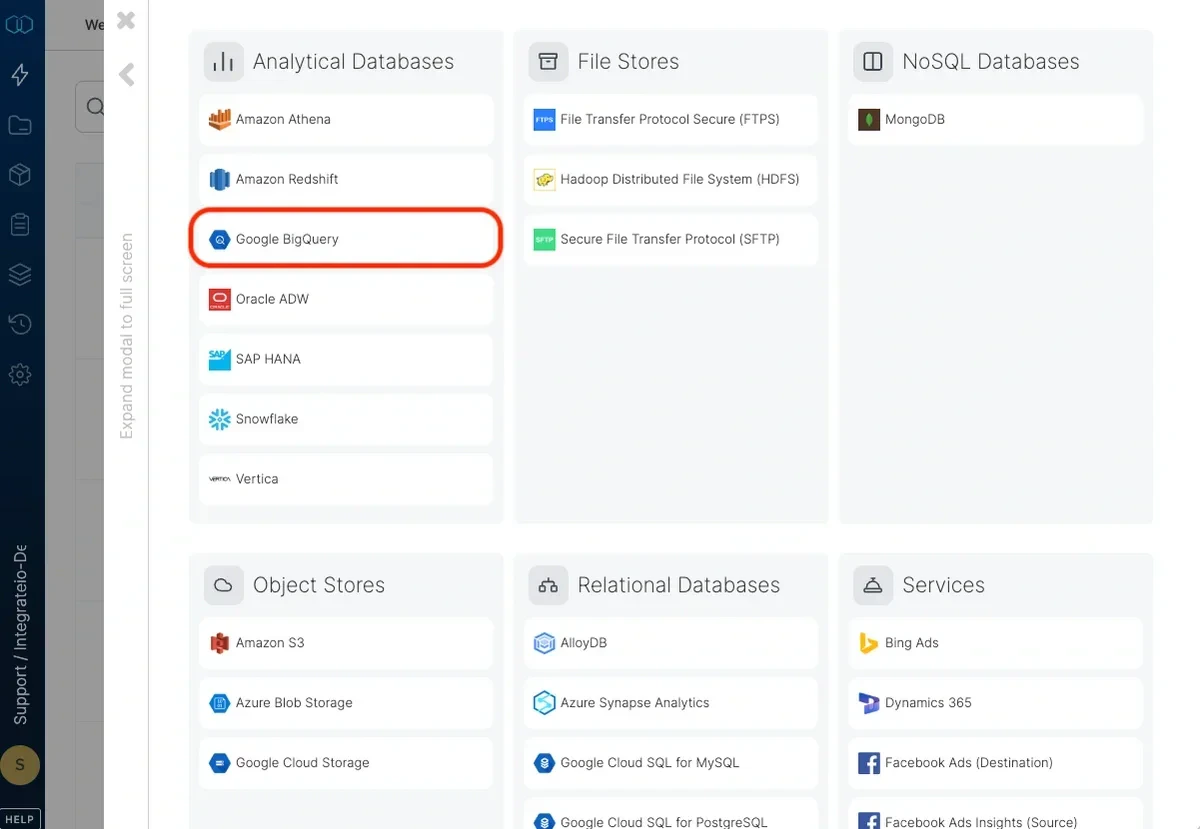 Name the connection.
Fill in Dataset ID and select the region where your BigQuery is hosted.
Upload a JSON-key file that you have created on previous step. Service account email and Project ID will be filled in automatically.
Click **Test Connection** to make sure the connection details are correct.
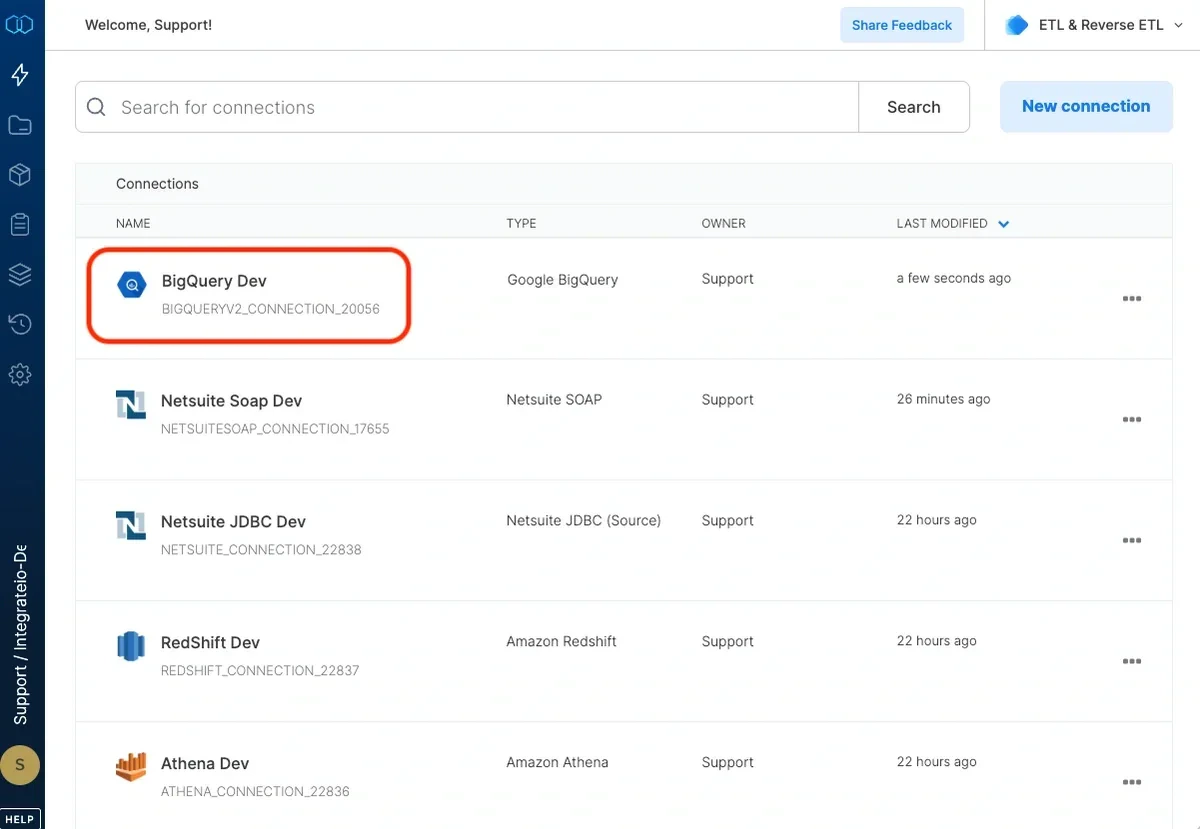
Click **Create connection** to create the connection.
Name the connection.
Fill in Dataset ID and select the region where your BigQuery is hosted.
Upload a JSON-key file that you have created on previous step. Service account email and Project ID will be filled in automatically.
Click **Test Connection** to make sure the connection details are correct.
Click **Create connection** to create the connection.
 ### Migrate from previous version of Google BigQuery connector
Customers who have created previous version of BigQuery connector and want to migrate to the latest version of BigQuery connector, please follow these steps:
Select package containing BigQuery connector from your dashboard.
On the package designer page, select BigQuery source and/or destination components that you want to modify.
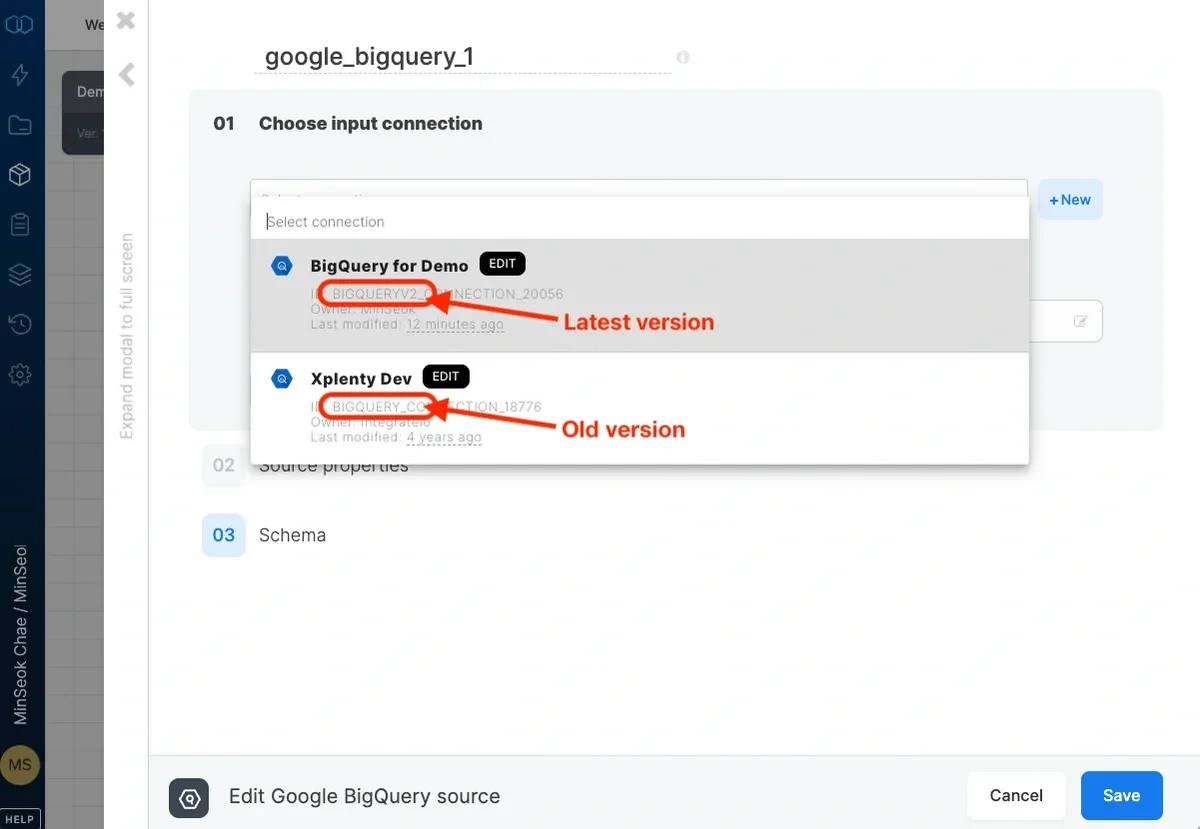
Replace previous version of BigQuery with connection that has prefix ID **BIGQUERYV2\_CONNECTION\_**
### Migrate from previous version of Google BigQuery connector
Customers who have created previous version of BigQuery connector and want to migrate to the latest version of BigQuery connector, please follow these steps:
Select package containing BigQuery connector from your dashboard.
On the package designer page, select BigQuery source and/or destination components that you want to modify.
Replace previous version of BigQuery with connection that has prefix ID **BIGQUERYV2\_CONNECTION\_**
 Remove Integrate.io ETL's service account email (**[service-account-integrateio-for-xplenty@developer.gserviceaccount.com](mailto:service-account-integrateio-for-xplenty@developer.gserviceaccount.com)**) from your both project's and dataset's permission.
1. To remove from your project's permissions, access your [Google Cloud Console](https://console.cloud.google.com/#/project) and go to **IAM & Admin -> Service Accounts,** select checkbox on Integrate.io ETL's service account email and click **DELETE**
2. To remove from your dataset's permissions, access your [BigQuery console](https://console.cloud.google.com/bigquery). In the BigQuery sidebar, under **Resources**, select your project, then select your dataset, click **SHARE DATASET** and select **Permissions.** Remove Integrate.io ETL's service account email from each assigned role by clicking delete icon.
***
Remove Integrate.io ETL's service account email (**[service-account-integrateio-for-xplenty@developer.gserviceaccount.com](mailto:service-account-integrateio-for-xplenty@developer.gserviceaccount.com)**) from your both project's and dataset's permission.
1. To remove from your project's permissions, access your [Google Cloud Console](https://console.cloud.google.com/#/project) and go to **IAM & Admin -> Service Accounts,** select checkbox on Integrate.io ETL's service account email and click **DELETE**
2. To remove from your dataset's permissions, access your [BigQuery console](https://console.cloud.google.com/bigquery). In the BigQuery sidebar, under **Resources**, select your project, then select your dataset, click **SHARE DATASET** and select **Permissions.** Remove Integrate.io ETL's service account email from each assigned role by clicking delete icon.
***
 ## Connection
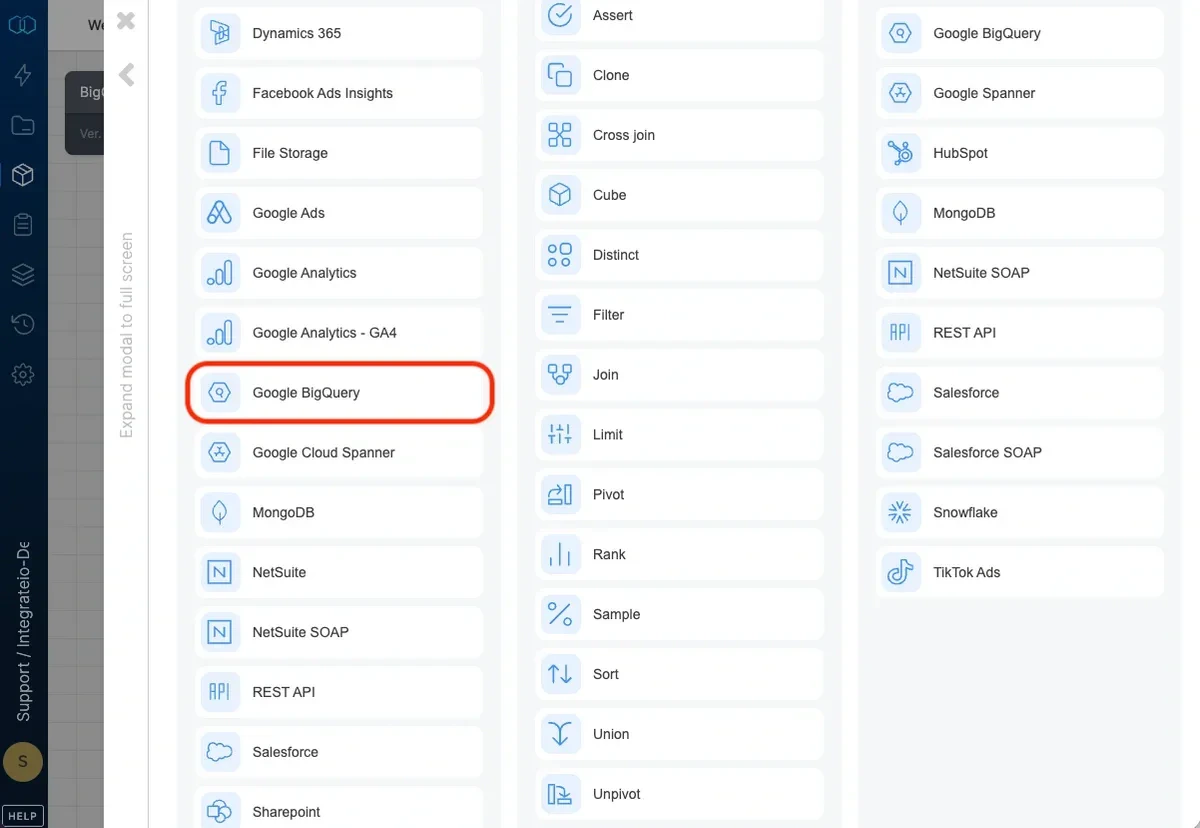
Select an existing [Google BigQuery connection](https://www.integrate.io/blog/how-to-offload-data-processing-from-google-bigquery/) or create a new one. For more information, see [Allowing Integrate.io ETL access to my Google BigQuery dataset](/docs/etl/allowing-integrateio-etl-access-to-my-google-bigquery-dataset/ "Link: /etl/allowing-integrateio-etl-access-to-my-google-bigquery-dataset/").
## Source Properties
## Connection
Select an existing [Google BigQuery connection](https://www.integrate.io/blog/how-to-offload-data-processing-from-google-bigquery/) or create a new one. For more information, see [Allowing Integrate.io ETL access to my Google BigQuery dataset](/docs/etl/allowing-integrateio-etl-access-to-my-google-bigquery-dataset/ "Link: /etl/allowing-integrateio-etl-access-to-my-google-bigquery-dataset/").
## Source Properties
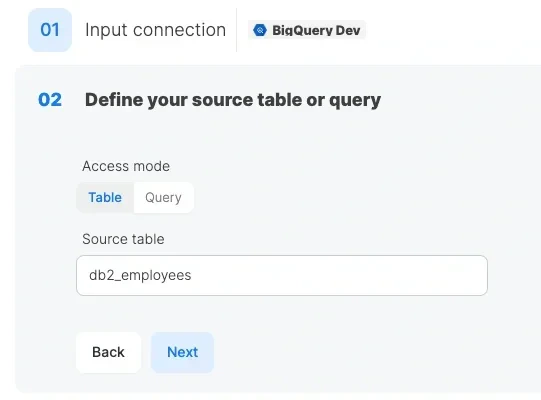 * **Access mode** - select table to extract an entire table or query to execute a query (access table views).
* **Source table** - the table name from which the data will be imported.
* **Query** - type in a SQL query. Make sure to name all columns uniquely.
## Source Schema
* **Access mode** - select table to extract an entire table or query to execute a query (access table views).
* **Source table** - the table name from which the data will be imported.
* **Query** - type in a SQL query. Make sure to name all columns uniquely.
## Source Schema
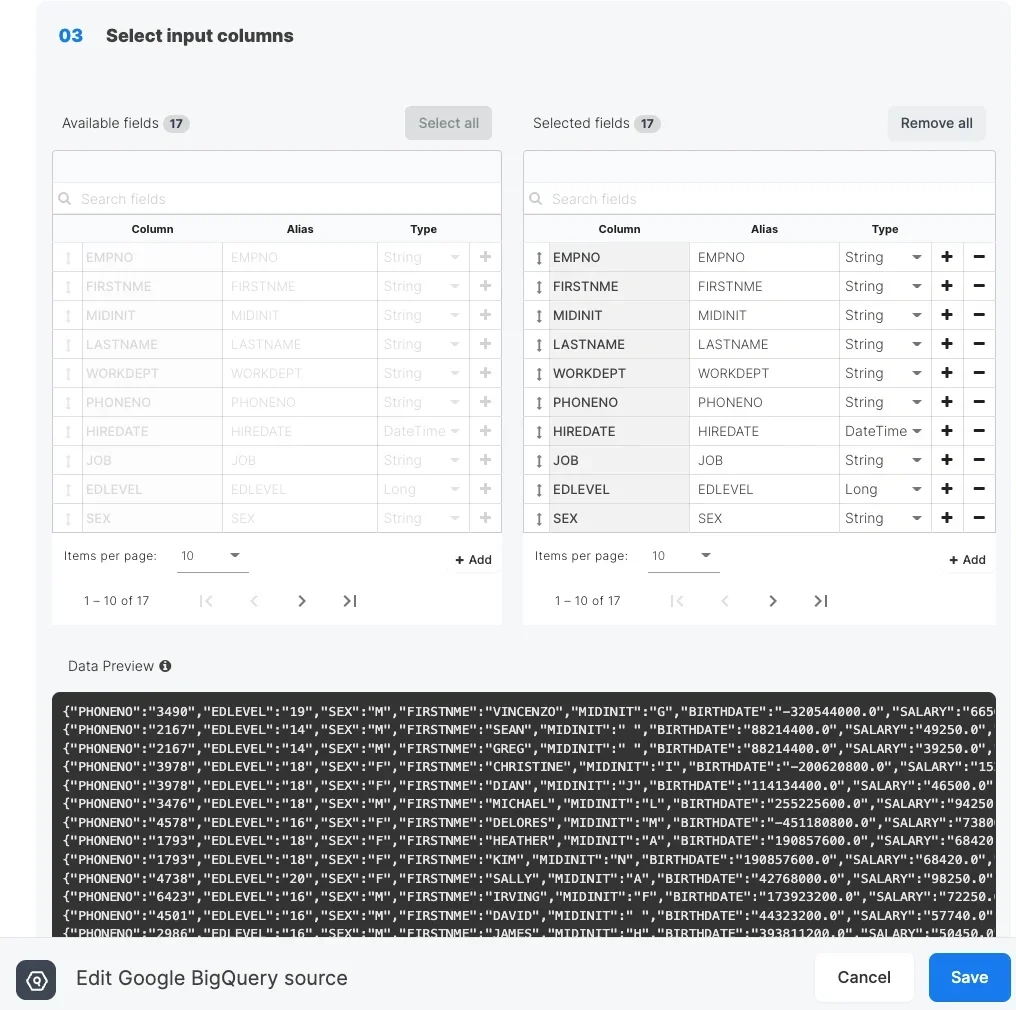 After defining the source table/query select the fields to use in the source.
With table access mode, the fields you select are used to build the query that will be executed to read the data.
With query access mode, select all the fields that are defined in the query and make sure to use the same column names
Define the data type for the field. Use the following table when matching BigQuery data types to Integrate.io ETL data types.
| Google BigQuery | Integrate.io ETL |
| :---------------- | :--------------- |
| String | String |
| Integer | Long |
| Float | Double |
| Timestamp | Datetime |
| Record | Map |
| Record (repeated) | Bag |
## Related
After defining the source table/query select the fields to use in the source.
With table access mode, the fields you select are used to build the query that will be executed to read the data.
With query access mode, select all the fields that are defined in the query and make sure to use the same column names
Define the data type for the field. Use the following table when matching BigQuery data types to Integrate.io ETL data types.
| Google BigQuery | Integrate.io ETL |
| :---------------- | :--------------- |
| String | String |
| Integer | Long |
| Float | Double |
| Timestamp | Datetime |
| Record | Map |
| Record (repeated) | Bag |
## Related