> ## Documentation Index
> Fetch the complete documentation index at: https://www.integrate.io/docs/llms.txt
> Use this file to discover all available pages before exploring further.
# ETL: Google Cloud Spanner Source
> Configure the Google Cloud Spanner source component to read data from Spanner tables or queries in your Integrate.io ETL data pipeline.
## Connection Setup
Content for this article is coming soon. To create a Google Cloud Spanner connection in Integrate.io ETL, use the **Connections** menu and follow the in-app connection wizard.
***
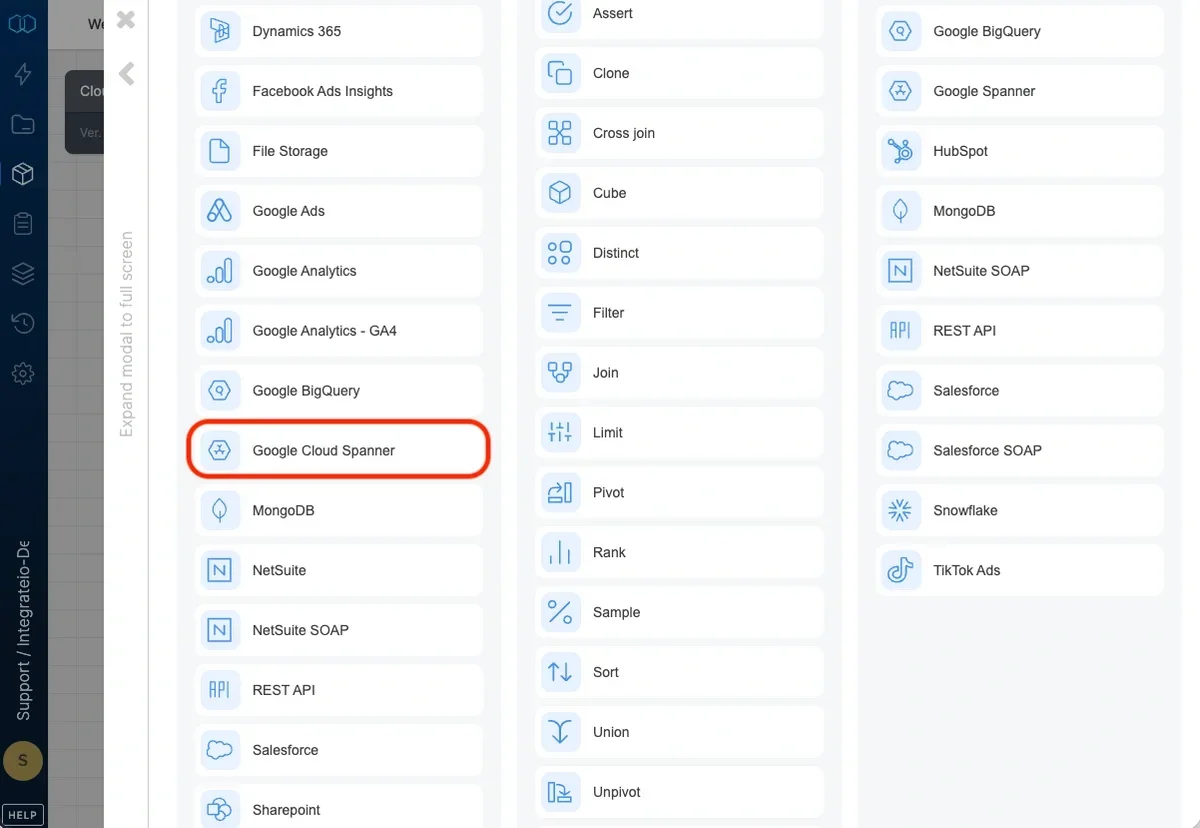 ## Connection
Select an existing Google Spanner connection or create a new one.
## Source Properties
## Connection
Select an existing Google Spanner connection or create a new one.
## Source Properties
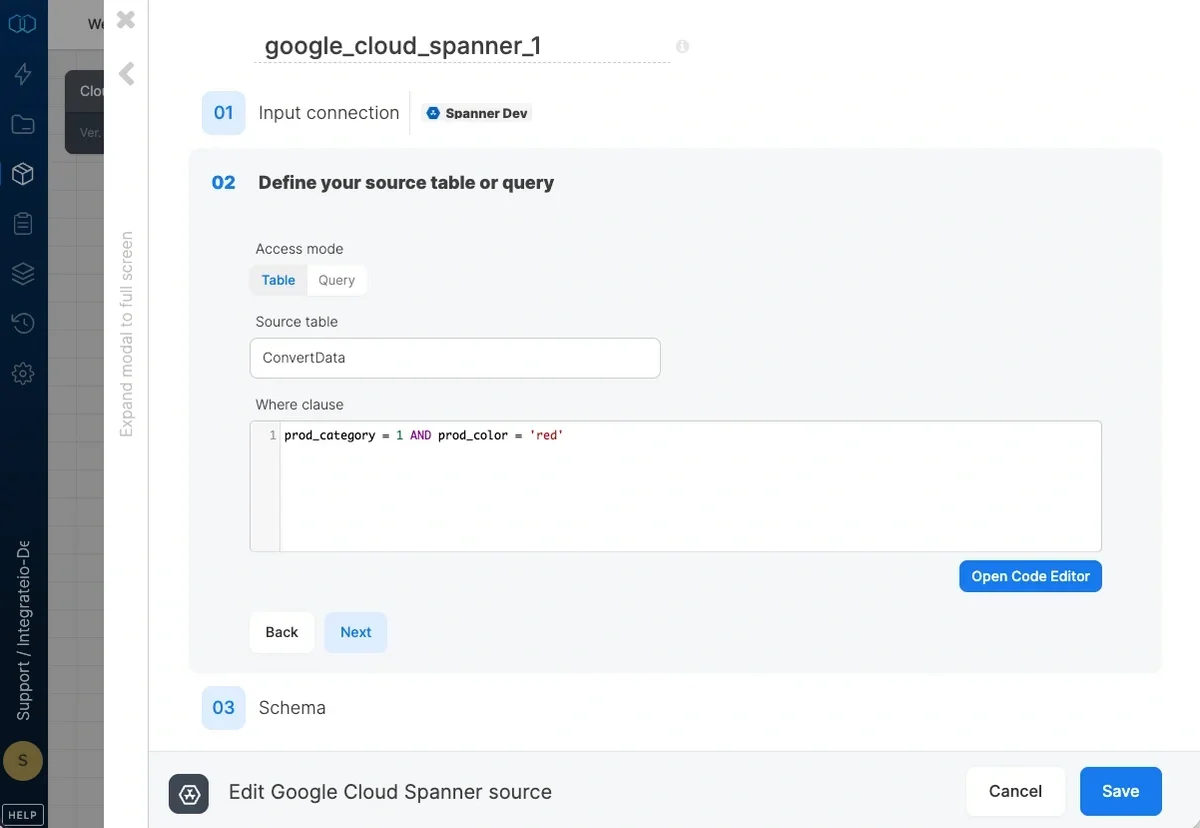 * **Access mode** - select table to extract an entire table or query to execute a query.
* **Source table** - the table name from which the data will be imported.
* **where clause** - optional. You can add predicates clauses to the WHERE clause as part of the SQL query that is built in order to get the data from the database. Make sure to skip the keyword WHERE.
| Good | `prod_category = 1 AND prod_color = 'red'` |
| :--- | :----------------------------------------------- |
| Bad | `WHERE prod_category = 1 AND prod_color = 'red'` |
* **Query** - type in a SQL query. Make sure to name all columns uniquely.
## Source Schema
After defining the source table/query select the fields to use in the source.
With table access mode, the fields you select are used to build the query that will be executed to read the data.
With query access mode, select all the fields that are defined in the query and make sure to use the same column names
Define the data type for the field. Use the following table when matching database data types to Integrate.io ETL data types.
| **Cloud Spanner** | **Integrate.io ETL** |
| :---------------- | :------------------- |
| BOOL | Boolean |
| INT64 | Long |
| FLOAT64 | Double |
| STRING(n) | String |
| BYTES(n) | Binary |
| DATE | Datetime |
| TIMESTAMP | Datetime |
* **Access mode** - select table to extract an entire table or query to execute a query.
* **Source table** - the table name from which the data will be imported.
* **where clause** - optional. You can add predicates clauses to the WHERE clause as part of the SQL query that is built in order to get the data from the database. Make sure to skip the keyword WHERE.
| Good | `prod_category = 1 AND prod_color = 'red'` |
| :--- | :----------------------------------------------- |
| Bad | `WHERE prod_category = 1 AND prod_color = 'red'` |
* **Query** - type in a SQL query. Make sure to name all columns uniquely.
## Source Schema
After defining the source table/query select the fields to use in the source.
With table access mode, the fields you select are used to build the query that will be executed to read the data.
With query access mode, select all the fields that are defined in the query and make sure to use the same column names
Define the data type for the field. Use the following table when matching database data types to Integrate.io ETL data types.
| **Cloud Spanner** | **Integrate.io ETL** |
| :---------------- | :------------------- |
| BOOL | Boolean |
| INT64 | Long |
| FLOAT64 | Double |
| STRING(n) | String |
| BYTES(n) | Binary |
| DATE | Datetime |
| TIMESTAMP | Datetime |