> ## Documentation Index
> Fetch the complete documentation index at: https://www.integrate.io/docs/llms.txt
> Use this file to discover all available pages before exploring further.
# ETL: Google Cloud Storage Source
> How to connect to Google Cloud Storage and configure the GCS source component to read files in your Integrate.io ETL pipeline.
The Google Cloud Storage source reads files from a GCS bucket and feeds them into your pipeline. It supports CSV, TSV, JSON, Excel, Parquet, Raw, and compressed formats.
Once your connection is set up, see [File Storage Options](/docs/etl/file-storage-options) for the full set of read options (file formats, schema, and more) shared across every file storage provider.
## Connection Setup
### Create a Service Account and JSON Key
Open the [Google Cloud Console](https://console.cloud.google.com/#/project) and select your project.
Go to **IAM & Admin > Service Accounts > Create Service Account**.
Enter a **Service account name** and click **Done**.
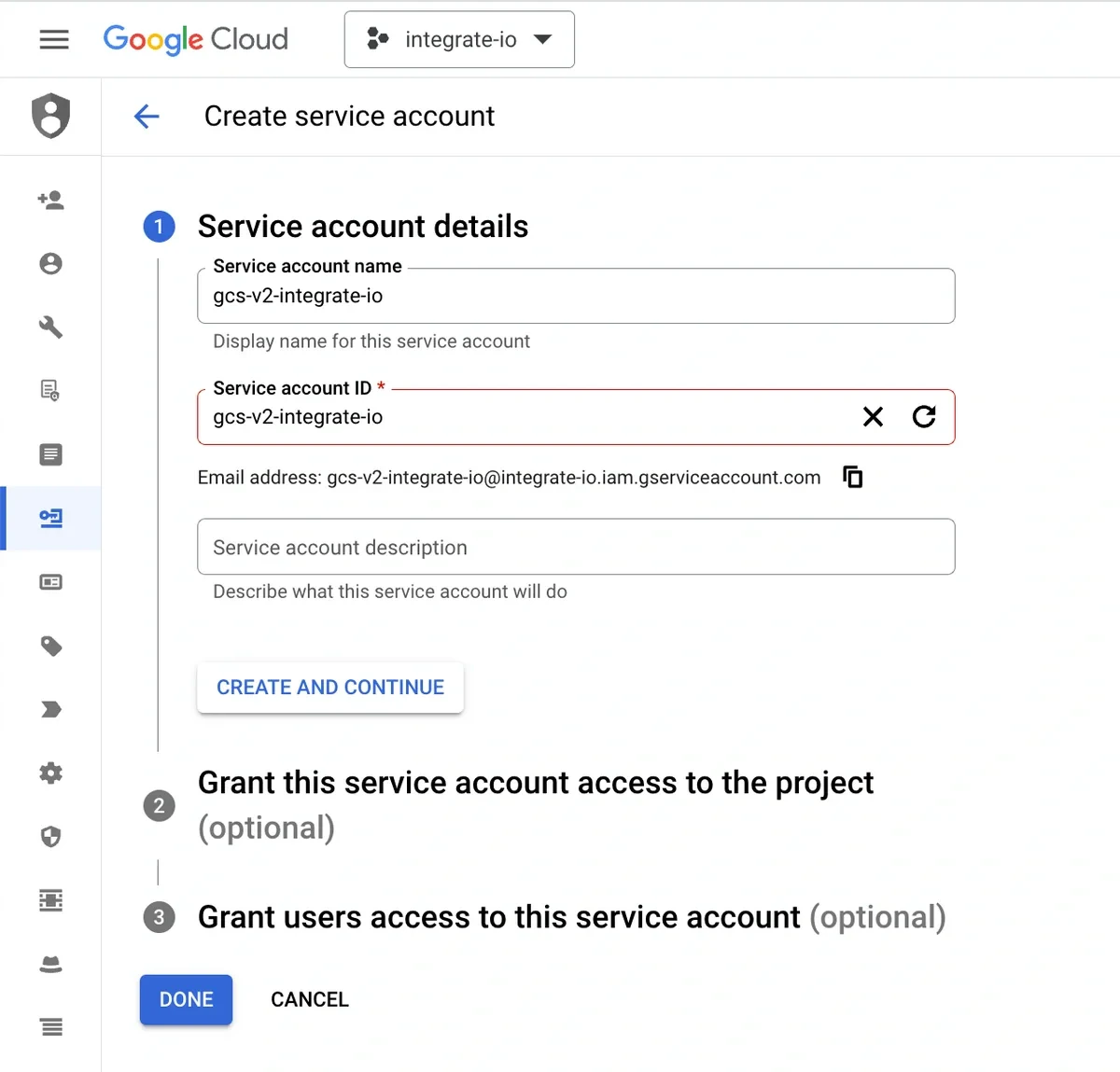 Click the newly created service account and go to the **Keys** tab.
Click **Add Key > Create New Key**, select **JSON**, and click **Create**. Save the downloaded key file.
### Grant Bucket Access to the Service Account
Open [Google Cloud Storage](https://console.cloud.google.com/storage) and click the bucket you want to connect.
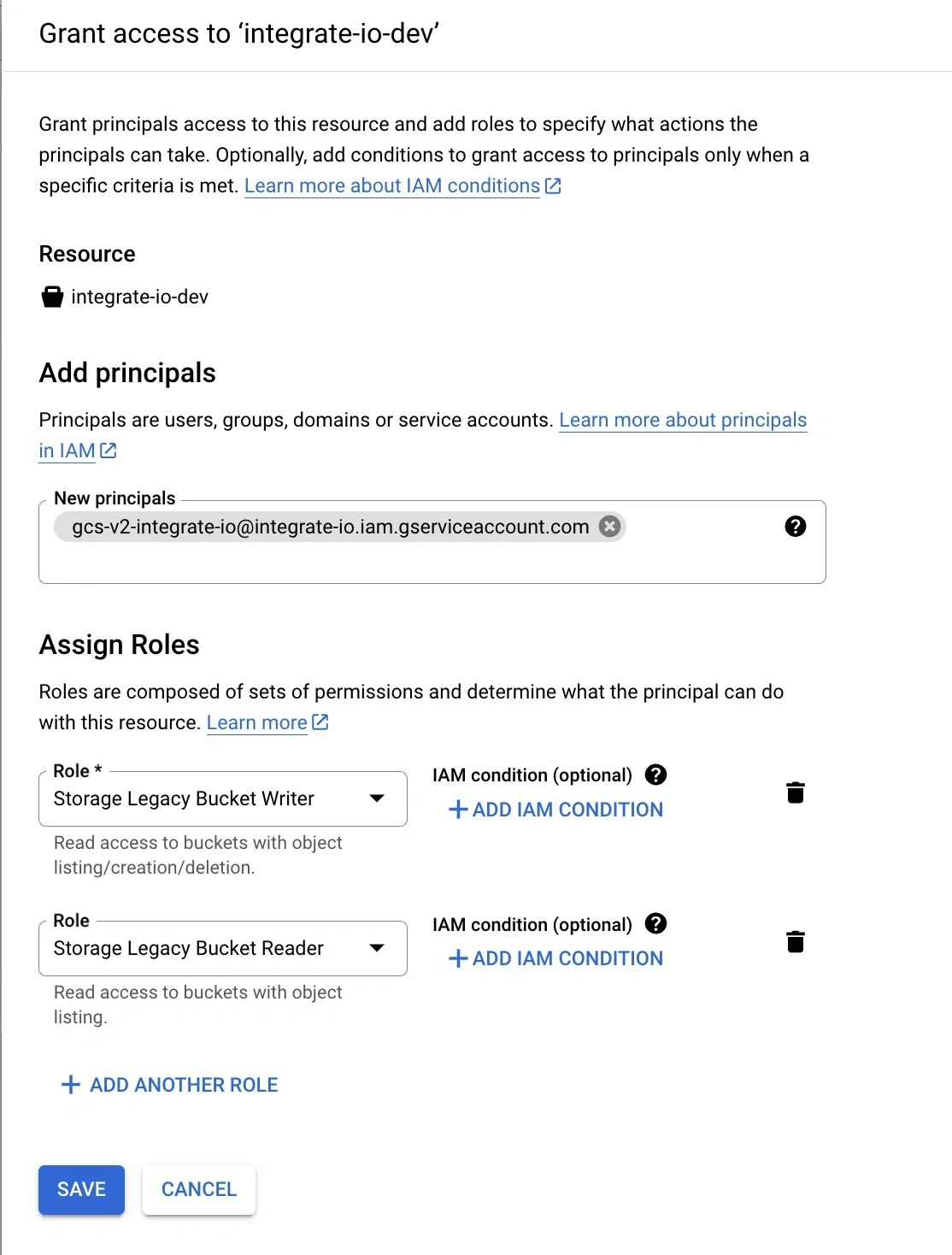
Under the **Permissions** tab, click **Grant Access**.
Enter the service account email in the **New Principals** field.
Assign the appropriate roles:
| Access level | Roles required |
| :------------------ | :--------------------------------------------------------- |
| Read-only (source) | Storage Legacy Bucket Reader, Storage Legacy Object Reader |
| Write (destination) | Storage Legacy Bucket Writer, Storage Legacy Object Reader |
Click **Save**.
Click the newly created service account and go to the **Keys** tab.
Click **Add Key > Create New Key**, select **JSON**, and click **Create**. Save the downloaded key file.
### Grant Bucket Access to the Service Account
Open [Google Cloud Storage](https://console.cloud.google.com/storage) and click the bucket you want to connect.
Under the **Permissions** tab, click **Grant Access**.
Enter the service account email in the **New Principals** field.
Assign the appropriate roles:
| Access level | Roles required |
| :------------------ | :--------------------------------------------------------- |
| Read-only (source) | Storage Legacy Bucket Reader, Storage Legacy Object Reader |
| Write (destination) | Storage Legacy Bucket Writer, Storage Legacy Object Reader |
Click **Save**.
 ### Create the Connection in Integrate.io ETL
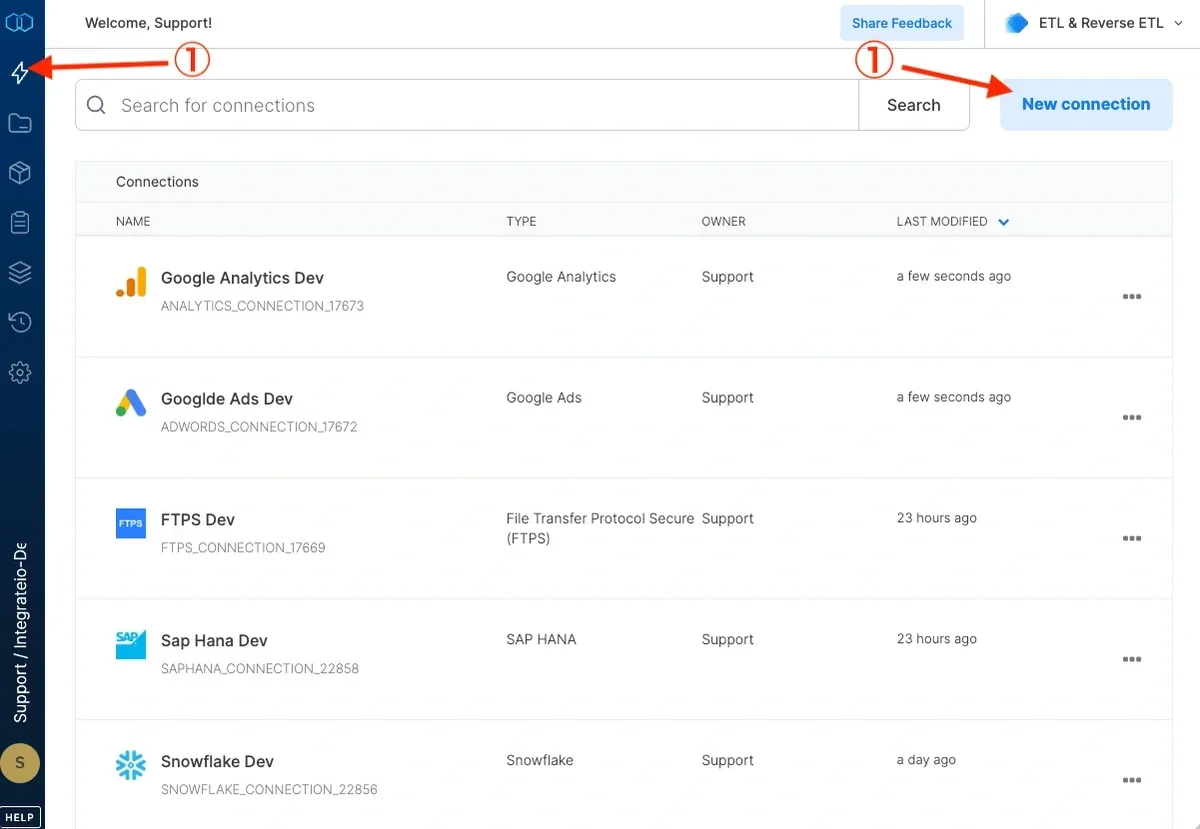
Click the **Connections** icon (lightning bolt) in the top-left menu.
Click **New connection**.
### Create the Connection in Integrate.io ETL
Click the **Connections** icon (lightning bolt) in the top-left menu.
Click **New connection**.
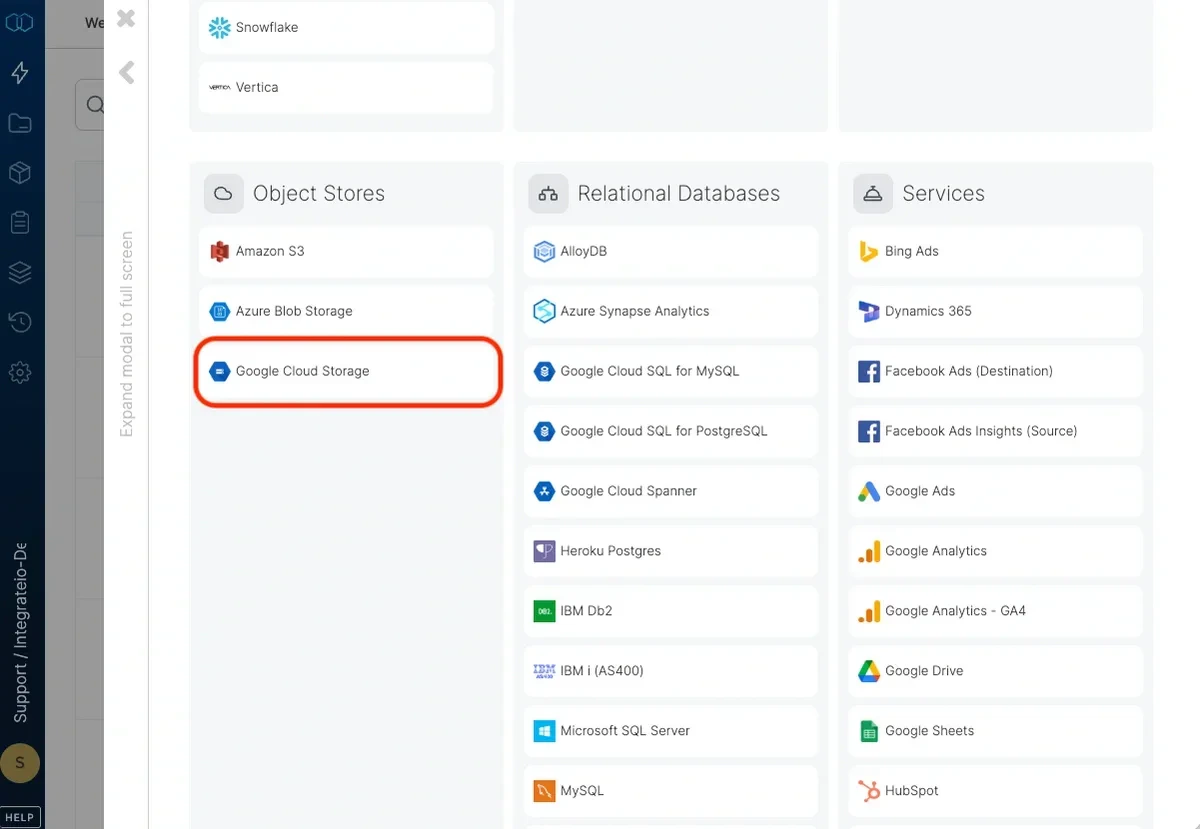
 Select **Google Cloud Storage**.
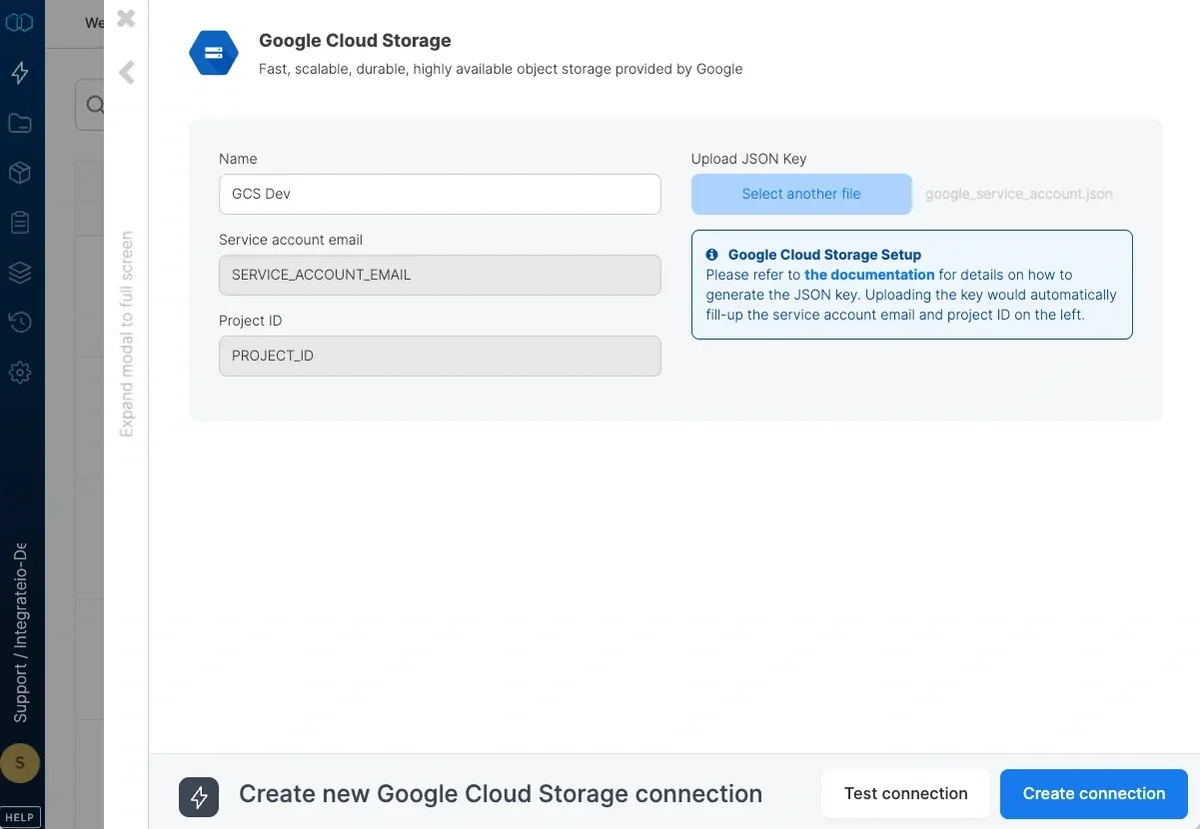
 Name the connection and upload the JSON key file.
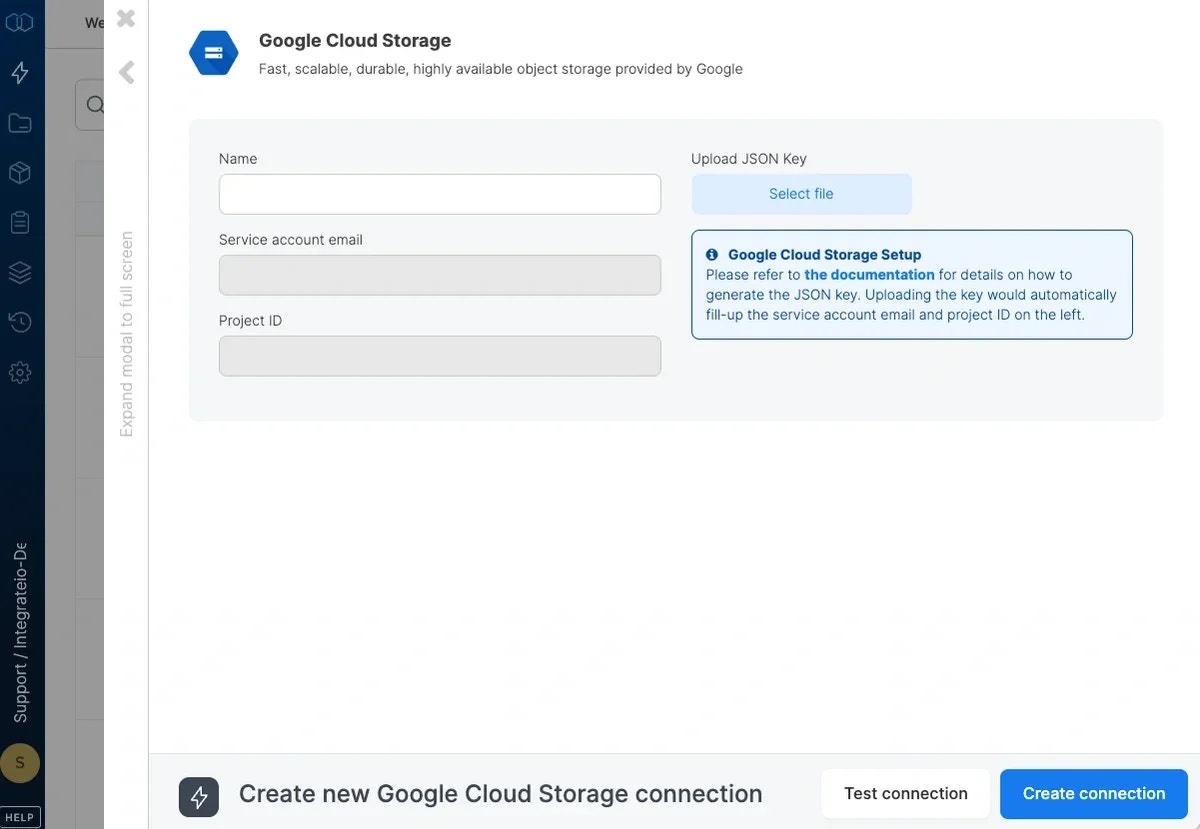 Click **Test Connection** to verify the credentials, then click **Create connection**.
 ***
## Source Configuration
### Connection
Select your Google Cloud Storage connection from the dropdown, or create a new one using the steps above.
### Bucket
Enter the name of the GCS bucket that contains your source files.
### Source Path
The path to the input file or pattern within the bucket.
| Example | Description |
| :---------------------- | :---------------------------------- |
| `sales/2015/01/log.csv` | A single file |
| `sales/2015/{01,02}/` | A pattern matching multiple folders |
GCS does not support folder paths (e.g. `sales/2015/01/`). Use a pattern or a single file path instead. You can use wildcard characters for [pattern globbing](/docs/etl/using-pattern-matching-in-source-component-paths).
File and directory names beginning with an underscore (`_`) or a dot (`.`) are ignored.
### Source Action
All four source actions are available for Google Cloud Storage. When using **Move processed files**, the **Append string to filename** option is supported.
***
## FAQ
**What permissions does the service account need for a source-only connection?**
Storage Legacy Bucket Reader and Storage Legacy Object Reader. If you also write to GCS (destination component), add Storage Legacy Bucket Writer.
**Why can't I use a folder path like `sales/2015/01/`?**
GCS does not support folder-based listing in the same way S3 does. Use a pattern such as `sales/2015/01/*` or a specific file path instead.
**Can I connect to a bucket in a different GCP project?**
Yes, as long as the service account has been granted the appropriate roles on that bucket.
***
## Related
***
## Source Configuration
### Connection
Select your Google Cloud Storage connection from the dropdown, or create a new one using the steps above.
### Bucket
Enter the name of the GCS bucket that contains your source files.
### Source Path
The path to the input file or pattern within the bucket.
| Example | Description |
| :---------------------- | :---------------------------------- |
| `sales/2015/01/log.csv` | A single file |
| `sales/2015/{01,02}/` | A pattern matching multiple folders |
GCS does not support folder paths (e.g. `sales/2015/01/`). Use a pattern or a single file path instead. You can use wildcard characters for [pattern globbing](/docs/etl/using-pattern-matching-in-source-component-paths).
File and directory names beginning with an underscore (`_`) or a dot (`.`) are ignored.
### Source Action
All four source actions are available for Google Cloud Storage. When using **Move processed files**, the **Append string to filename** option is supported.
***
## FAQ
**What permissions does the service account need for a source-only connection?**
Storage Legacy Bucket Reader and Storage Legacy Object Reader. If you also write to GCS (destination component), add Storage Legacy Bucket Writer.
**Why can't I use a folder path like `sales/2015/01/`?**
GCS does not support folder-based listing in the same way S3 does. Use a pattern such as `sales/2015/01/*` or a specific file path instead.
**Can I connect to a bucket in a different GCP project?**
Yes, as long as the service account has been granted the appropriate roles on that bucket.
***
## Related