> ## Documentation Index
> Fetch the complete documentation index at: https://www.integrate.io/docs/llms.txt
> Use this file to discover all available pages before exploring further.
# ETL: Google Sheets Destination
> Configure the Google Sheets destination component in Integrate.io ETL to write pipeline output to a spreadsheet with OAuth, target range, and append modes.
Use the Google Sheets destination component to write data from your Integrate.io ETL pipeline into a Google Sheets spreadsheet.
## Connection
Select an existing Google Sheets connection or create a new one. For setup instructions, see [Allowing Integrate.io ETL access to Google Sheets](/etl/allowing-integrateio-etl-access-to-my-data-on-google-sheets)
## Destination Properties
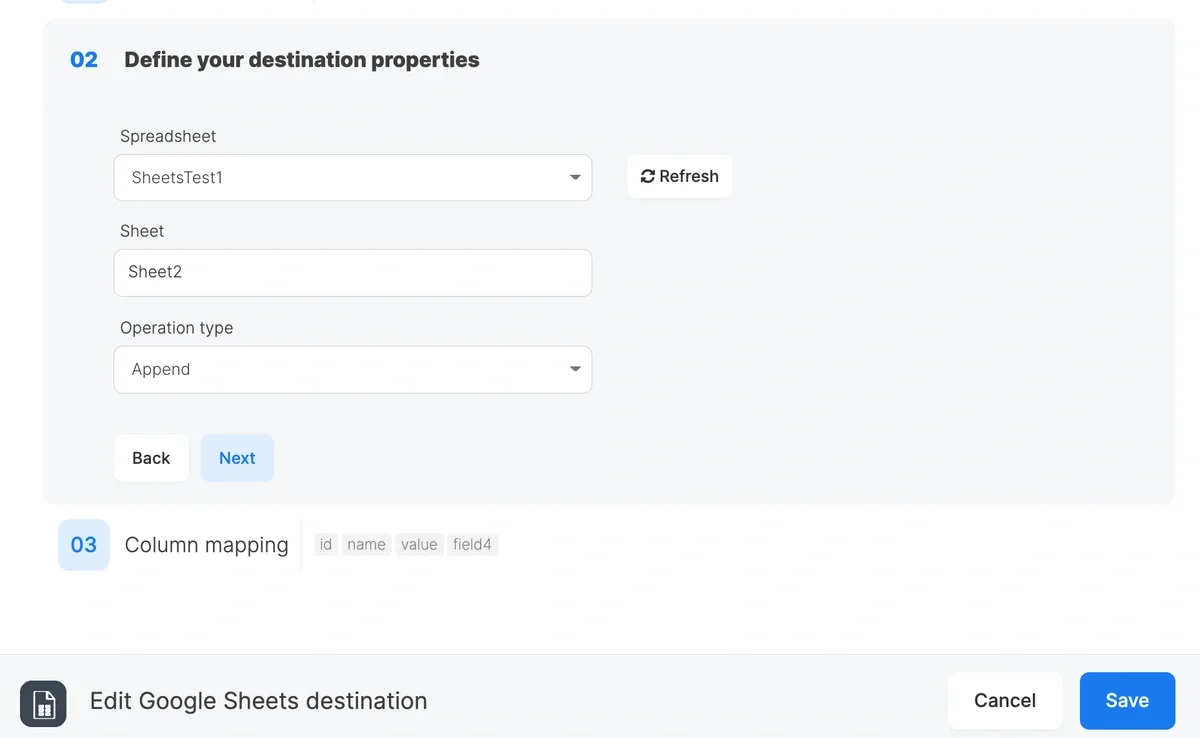
The destination component is configured in **Step 02** of the component editor.
 ### Spreadsheet
Select the spreadsheet to write to. The dropdown lists all spreadsheets that have been shared with the service account. Use the search field to filter by name.
*If your spreadsheet is not listed, make sure it has been shared with the service account's email address with Editor access. See Step 5 in the connection setup guide.*
Click the **Refresh** button to reload the spreadsheet list if you have recently shared a new spreadsheet.
### Sheet
Select the sheet (tab) within the spreadsheet to write to. You have two options:
* **Select existing sheet.** Choose a sheet from the dropdown. The dropdown is populated automatically after a spreadsheet is selected.
* **Create new sheet.** Type a new sheet name in the text field. If the typed name does not match any existing sheet, a 'Create' option will appear in the dropdown. Click it to confirm. The connector will create the sheet tab automatically when the job runs. If a sheet with the same name already exists, the connector will write to the existing sheet.
### Operation Type
Select how records are written to the sheet on each pipeline run:
* **Append.** New rows are added after the last row of existing data. Existing data is preserved. This is the default.
* **Overwrite.** All existing data in the sheet is cleared before writing. Only the new data from the current job run will remain.
### Range
Optional. The top-left cell to start writing, in A1 notation (for example, `B2`). Leave empty to write from the first cell (`A1`).
Behavior depends on the operation type:
* **Append.** The value defines the columns to append into. New rows are added in those columns after the existing data. The row number only matters when the target area is empty.
* **Overwrite.** The block is written starting from this cell. Cells above and to the left are left untouched.
## Column Mappings
The **Column Mappings** section (**Step 03**) allows you to map fields from the upstream pipeline to columns in the Google Sheets spreadsheet.
For each mapping, configure:
| Field | Description |
| ------------------ | ------------------------------------------------------------------- |
| Source Field | The field from the incoming pipeline data. |
| Destination Column | The column name that will appear as the header in the target sheet. |
## Headers
The header row is built from the **Destination Column** names defined in **Column Mappings**. Whether that header row is written depends on the operation type:
* **Overwrite.** A header row is written first, then the data rows follow beneath it. The header is placed in the starting cell (`A1`, or the top-left cell of the **Range** when one is set), so each overwrite run produces a clean sheet with a fresh header.
* **Append.** No header row is written, so make sure the sheet already has one (for example, from an earlier overwrite run or one you added by hand). New rows are added directly beneath the existing data.
**Recommended workflow:** run the pipeline once in **Overwrite** mode to create the sheet with its header row, then switch to **Append** to add new rows beneath that header on subsequent runs.
If no columns are mapped, no header row is written, even in **Overwrite** mode.
## Limits and Considerations
* **Google Sheets API quotas**: Google applies rate limits to the Sheets API. For large datasets, consider using a database or cloud storage destination instead. See [Google Sheets API usage limits](https://developers.google.com/sheets/api/limits) for details.
* **Cell limit**: Google Sheets has a maximum of 10 million cells per spreadsheet. Jobs that exceed this limit will fail.
## Related
### Spreadsheet
Select the spreadsheet to write to. The dropdown lists all spreadsheets that have been shared with the service account. Use the search field to filter by name.
*If your spreadsheet is not listed, make sure it has been shared with the service account's email address with Editor access. See Step 5 in the connection setup guide.*
Click the **Refresh** button to reload the spreadsheet list if you have recently shared a new spreadsheet.
### Sheet
Select the sheet (tab) within the spreadsheet to write to. You have two options:
* **Select existing sheet.** Choose a sheet from the dropdown. The dropdown is populated automatically after a spreadsheet is selected.
* **Create new sheet.** Type a new sheet name in the text field. If the typed name does not match any existing sheet, a 'Create' option will appear in the dropdown. Click it to confirm. The connector will create the sheet tab automatically when the job runs. If a sheet with the same name already exists, the connector will write to the existing sheet.
### Operation Type
Select how records are written to the sheet on each pipeline run:
* **Append.** New rows are added after the last row of existing data. Existing data is preserved. This is the default.
* **Overwrite.** All existing data in the sheet is cleared before writing. Only the new data from the current job run will remain.
### Range
Optional. The top-left cell to start writing, in A1 notation (for example, `B2`). Leave empty to write from the first cell (`A1`).
Behavior depends on the operation type:
* **Append.** The value defines the columns to append into. New rows are added in those columns after the existing data. The row number only matters when the target area is empty.
* **Overwrite.** The block is written starting from this cell. Cells above and to the left are left untouched.
## Column Mappings
The **Column Mappings** section (**Step 03**) allows you to map fields from the upstream pipeline to columns in the Google Sheets spreadsheet.
For each mapping, configure:
| Field | Description |
| ------------------ | ------------------------------------------------------------------- |
| Source Field | The field from the incoming pipeline data. |
| Destination Column | The column name that will appear as the header in the target sheet. |
## Headers
The header row is built from the **Destination Column** names defined in **Column Mappings**. Whether that header row is written depends on the operation type:
* **Overwrite.** A header row is written first, then the data rows follow beneath it. The header is placed in the starting cell (`A1`, or the top-left cell of the **Range** when one is set), so each overwrite run produces a clean sheet with a fresh header.
* **Append.** No header row is written, so make sure the sheet already has one (for example, from an earlier overwrite run or one you added by hand). New rows are added directly beneath the existing data.
**Recommended workflow:** run the pipeline once in **Overwrite** mode to create the sheet with its header row, then switch to **Append** to add new rows beneath that header on subsequent runs.
If no columns are mapped, no header row is written, even in **Overwrite** mode.
## Limits and Considerations
* **Google Sheets API quotas**: Google applies rate limits to the Sheets API. For large datasets, consider using a database or cloud storage destination instead. See [Google Sheets API usage limits](https://developers.google.com/sheets/api/limits) for details.
* **Cell limit**: Google Sheets has a maximum of 10 million cells per spreadsheet. Jobs that exceed this limit will fail.
## Related