> ## Documentation Index
> Fetch the complete documentation index at: https://www.integrate.io/docs/llms.txt
> Use this file to discover all available pages before exploring further.
# ETL: Google Sheets Source
> Configure the Google Sheets source component in Integrate.io ETL to read spreadsheet data with OAuth authentication, sheet selection, and cell range options.
Use the **Google Sheets source component** to read data from a Google Sheets spreadsheet and ingest it into your Integrate.io ETL pipeline.
## Connection
Select an existing Google Sheets connection or create a new one. For setup instructions, see [Allowing Integrate.io ETL access to my Google Sheets.](/etl/allowing-integrateio-etl-access-to-my-data-on-google-sheets)
## Source Properties
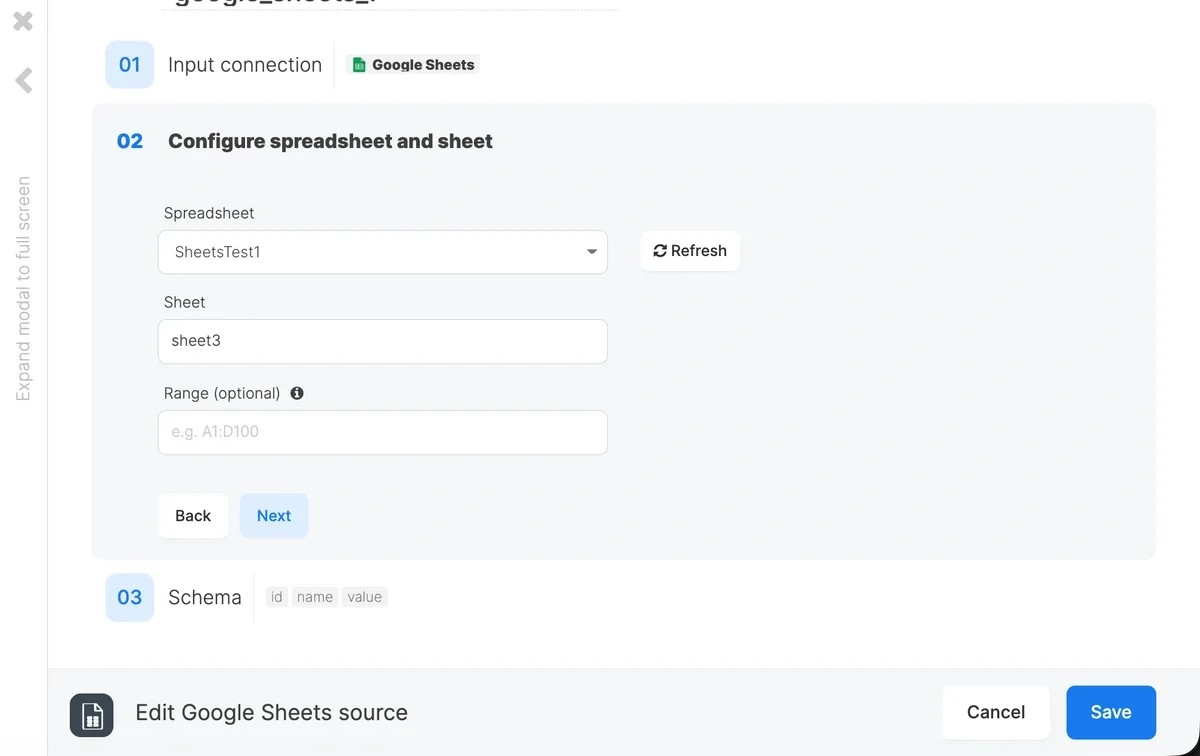
The source component is configured in **Step 02** of the component editor.
 ### Spreadsheet
Select the spreadsheet to read from. The dropdown lists all spreadsheets that have been shared with the service account. Use the search field to filter by name. If your spreadsheet is not listed, make sure it has been shared with the service account's email address. See **Step 5** in the connection setup guide.
Click the **Refresh** button to reload the spreadsheet list if you have recently shared a new spreadsheet.
### Sheet
Select the sheet (tab) within the spreadsheet to read from. The dropdown is populated automatically after a spreadsheet is selected.
## Schema
After configuring the source properties, the **Schema** section (**Step 03**) displays the fields available in the pipeline. These are derived from the header row (row 1) of the selected sheet.
* The first row of the sheet is treated as the header row and defines the column names.
* Data types are automatically inferred from sample data rows. Supported types include: `string`, `long`, `double`, `boolean`, and `datetime`.
* If a column contains mixed types or cannot be inferred, it defaults to `string`.
**The sheet must have a header row.** Sheets without headers will produce unnamed columns (e.g. `column_0`, `column_1`)
## Related
### Spreadsheet
Select the spreadsheet to read from. The dropdown lists all spreadsheets that have been shared with the service account. Use the search field to filter by name. If your spreadsheet is not listed, make sure it has been shared with the service account's email address. See **Step 5** in the connection setup guide.
Click the **Refresh** button to reload the spreadsheet list if you have recently shared a new spreadsheet.
### Sheet
Select the sheet (tab) within the spreadsheet to read from. The dropdown is populated automatically after a spreadsheet is selected.
## Schema
After configuring the source properties, the **Schema** section (**Step 03**) displays the fields available in the pipeline. These are derived from the header row (row 1) of the selected sheet.
* The first row of the sheet is treated as the header row and defines the column names.
* Data types are automatically inferred from sample data rows. Supported types include: `string`, `long`, `double`, `boolean`, and `datetime`.
* If a column contains mixed types or cannot be inferred, it defaults to `string`.
**The sheet must have a header row.** Sheets without headers will produce unnamed columns (e.g. `column_0`, `column_1`)
## Related