> ## Documentation Index
> Fetch the complete documentation index at: https://www.integrate.io/docs/llms.txt
> Use this file to discover all available pages before exploring further.
# ETL: HDFS Source
> How to connect to HDFS and configure the Hadoop Distributed File System source component to read files in your Integrate.io ETL pipeline.
The HDFS source reads files from a Hadoop Distributed File System cluster and feeds them into your pipeline. It supports CSV, TSV, JSON, Excel, Parquet, Raw, and compressed formats.
Once your connection is set up, see [File Storage Options](/docs/etl/file-storage-options) for the full set of read options (file formats, schema, and more) shared across every file storage provider.
## Connection Setup
Your HDFS cluster must be accessible from Integrate.io's platform. If the cluster is behind a firewall, contact [Integrate.io support](https://www.integrate.io/contact/) to arrange access.
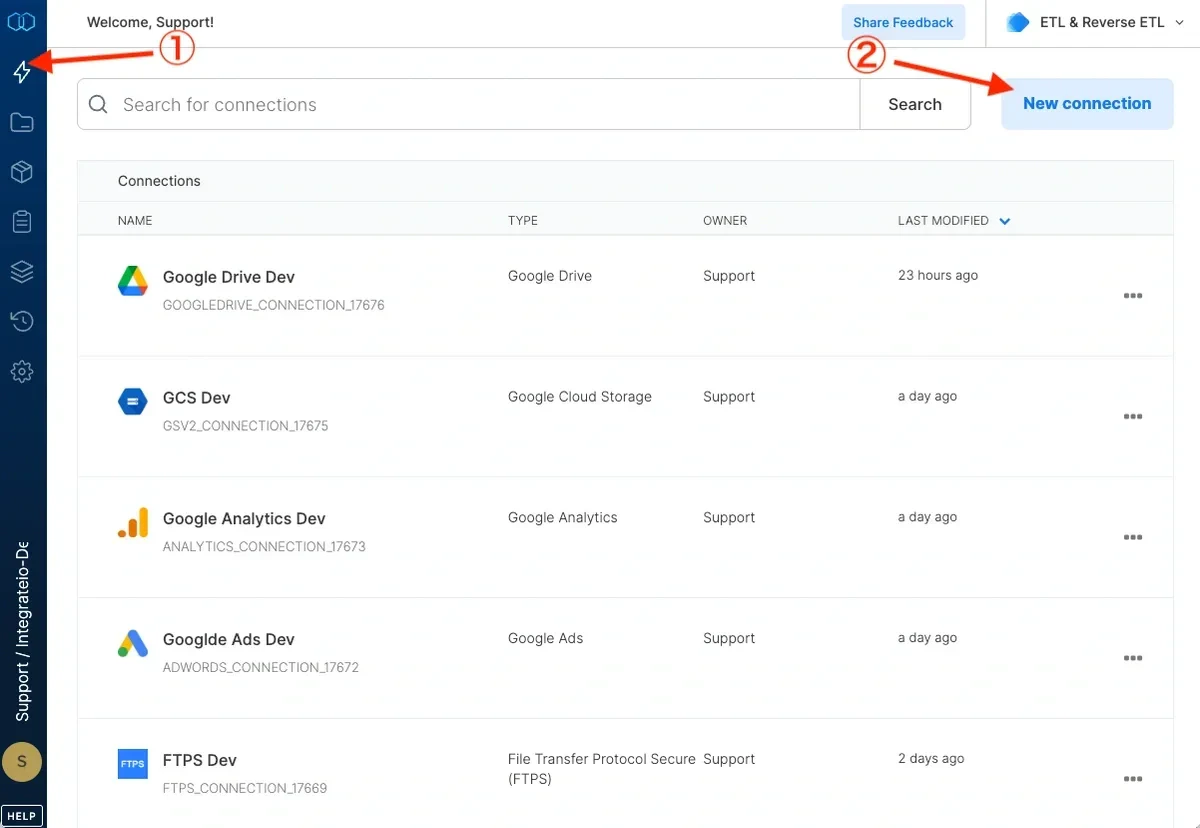
Click the **Connections** icon (lightning bolt) in the top-left menu.
Click **New connection**.
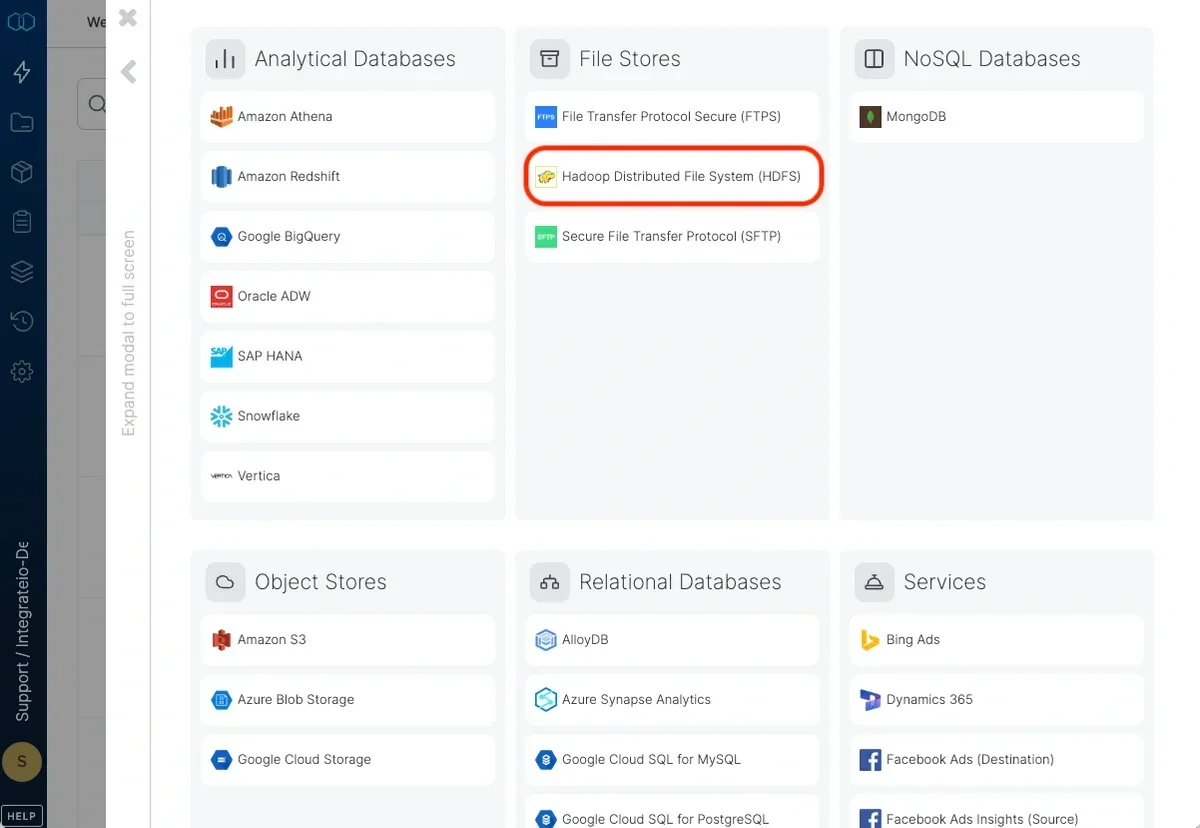
 Select **Hadoop Distributed File System (HDFS)**.
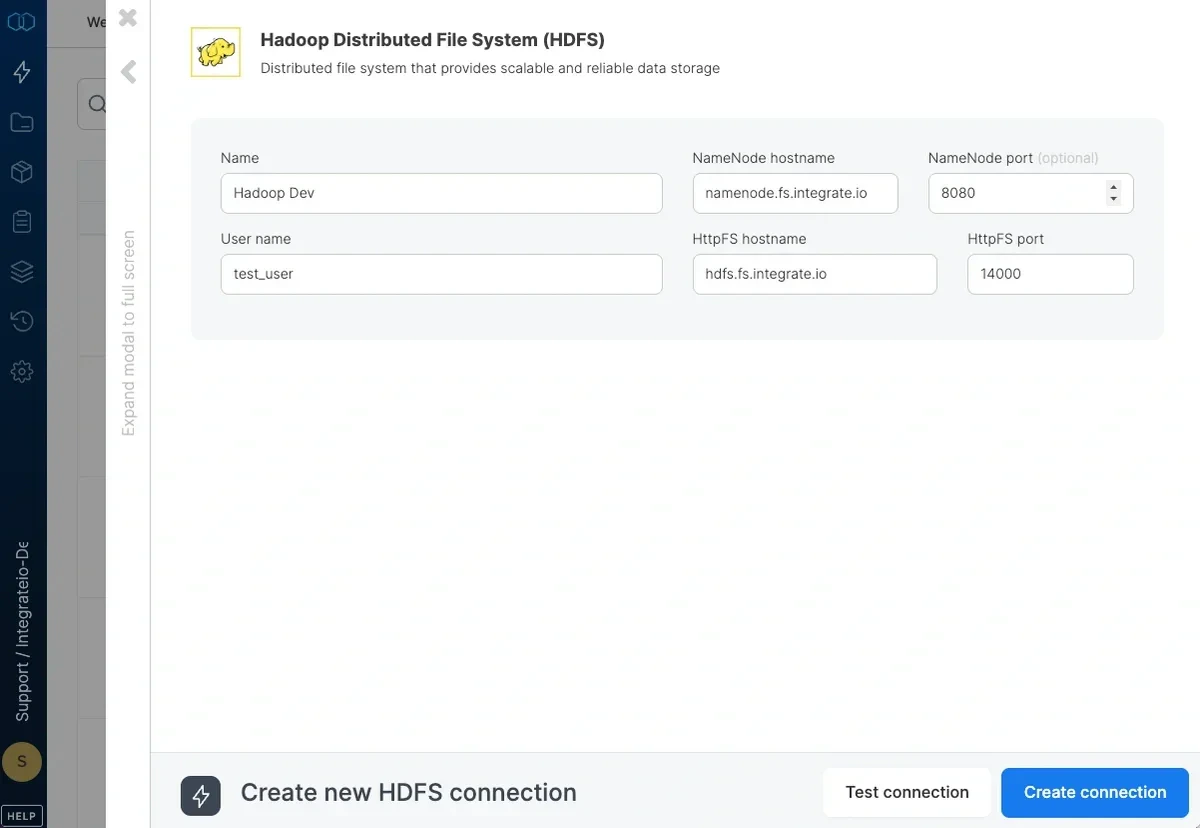
 Name the connection and fill in the connection details:
| Field | Description |
| :-------------------- | :----------------------------------------------------------------------------------------------- |
| **User Name** | The username to connect with. Kerberos authentication is not currently supported. |
| **NameNode Hostname** | The hostname of the NameNode, or the logical name in a high-availability configuration. |
| **NameNode Port** | The TCP port of the NameNode. Leave empty for high-availability configurations. |
| **HttpFS Hostname** | The hostname of the Hadoop HttpFS gateway node. Must be accessible from Integrate.io's platform. |
| **HttpFS Port** | The TCP port of the HttpFS gateway. Default is 14000. |
Click **Test connection** to verify the credentials.
Click **Create HDFS connection**.
Name the connection and fill in the connection details:
| Field | Description |
| :-------------------- | :----------------------------------------------------------------------------------------------- |
| **User Name** | The username to connect with. Kerberos authentication is not currently supported. |
| **NameNode Hostname** | The hostname of the NameNode, or the logical name in a high-availability configuration. |
| **NameNode Port** | The TCP port of the NameNode. Leave empty for high-availability configurations. |
| **HttpFS Hostname** | The hostname of the Hadoop HttpFS gateway node. Must be accessible from Integrate.io's platform. |
| **HttpFS Port** | The TCP port of the HttpFS gateway. Default is 14000. |
Click **Test connection** to verify the credentials.
Click **Create HDFS connection**.
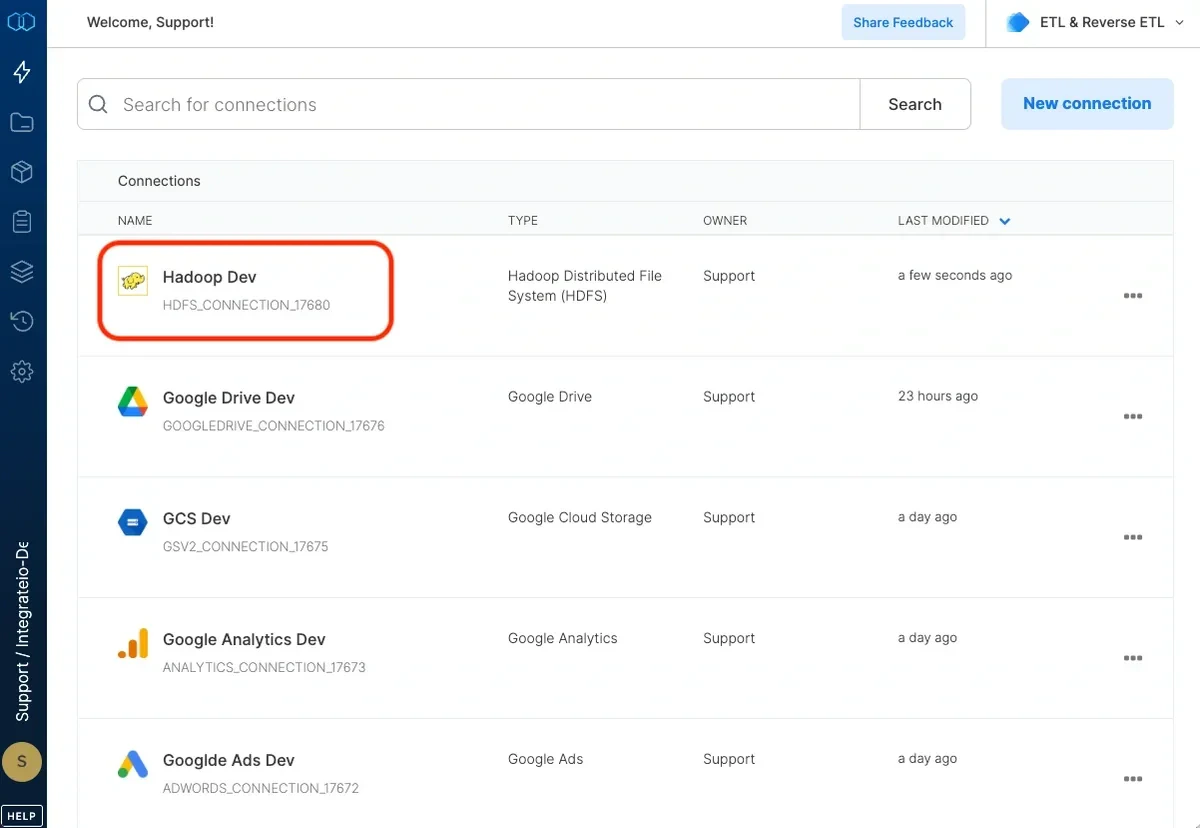
 The connection appears in the list of connections.
 ***
## Source Configuration
### Connection
Select your HDFS connection from the dropdown, or create a new one using the steps above.
### Source Path
The path to the input file, folder, or pattern on the HDFS cluster.
| Example | Description |
| :---------------------------- | :---------------------------------- |
| `/data/sales/2015/01/log.csv` | A single file |
| `/data/sales/2015/01/` | All files in a folder |
| `/data/sales/2015/{01,02}/` | A pattern matching multiple folders |
You can use wildcard characters for [pattern globbing](/docs/etl/using-pattern-matching-in-source-component-paths). File and directory names beginning with an underscore (`_`) or a dot (`.`) are ignored.
HDFS has no bucket or container field. The path is relative to the HDFS root.
### Source Action
HDFS reads all files directly from the source path. Incremental load (process only new files), Copy/merge, and Move processed files are not available for HDFS.
***
## FAQ
**Does HDFS support Kerberos authentication?**
No. Kerberos authentication is not currently supported. Use a standard username in the connection form.
**What is the HttpFS gateway and why is it required?**
Integrate.io accesses HDFS through the HttpFS REST gateway rather than the native HDFS protocol. The HttpFS hostname must be reachable from Integrate.io's platform. If your cluster is behind a firewall, contact [Integrate.io support](https://www.integrate.io/contact/).
**Can I use incremental load with HDFS?**
No. Only **Process all files directly from source** is available for HDFS.
***
## Related
***
## Source Configuration
### Connection
Select your HDFS connection from the dropdown, or create a new one using the steps above.
### Source Path
The path to the input file, folder, or pattern on the HDFS cluster.
| Example | Description |
| :---------------------------- | :---------------------------------- |
| `/data/sales/2015/01/log.csv` | A single file |
| `/data/sales/2015/01/` | All files in a folder |
| `/data/sales/2015/{01,02}/` | A pattern matching multiple folders |
You can use wildcard characters for [pattern globbing](/docs/etl/using-pattern-matching-in-source-component-paths). File and directory names beginning with an underscore (`_`) or a dot (`.`) are ignored.
HDFS has no bucket or container field. The path is relative to the HDFS root.
### Source Action
HDFS reads all files directly from the source path. Incremental load (process only new files), Copy/merge, and Move processed files are not available for HDFS.
***
## FAQ
**Does HDFS support Kerberos authentication?**
No. Kerberos authentication is not currently supported. Use a standard username in the connection form.
**What is the HttpFS gateway and why is it required?**
Integrate.io accesses HDFS through the HttpFS REST gateway rather than the native HDFS protocol. The HttpFS hostname must be reachable from Integrate.io's platform. If your cluster is behind a firewall, contact [Integrate.io support](https://www.integrate.io/contact/).
**Can I use incremental load with HDFS?**
No. Only **Process all files directly from source** is available for HDFS.
***
## Related