> ## Documentation Index
> Fetch the complete documentation index at: https://www.integrate.io/docs/llms.txt
> Use this file to discover all available pages before exploring further.
# ETL: MongoDB Source
> Configure the MongoDB source component to read data from MongoDB collections and run queries in your Integrate.io ETL data pipeline.
## Connection Setup
Integrate.io ETL can access [your MongoDB](https://www.integrate.io/blog/mongodb-etl/) on a variety of services and deployment models. This article discusses providing Integrate.io ETL access on your MongoDB and then details creating the MongoDB connection in Integrate.io ETL.
You must provide Integrate.io ETL access to MongoDB. If it is behind a firewall:
* Create a MongoDB user and grant it minimum permissions required for Integrate.io ETL to read or write data from the database.
* Allow access from [Integrate.io ETL's IP addresses](/docs/etl/integrateio-etls-ip-list/) to MongoDB's port (Refer to [this](/docs/etl/allowing-integrateio-etl-access-to-my-server-behind-a-firewall/) article if you'd prefer to create a reverse SSH tunnel.)
## To create a MongoDB connection in Integrate.io ETL
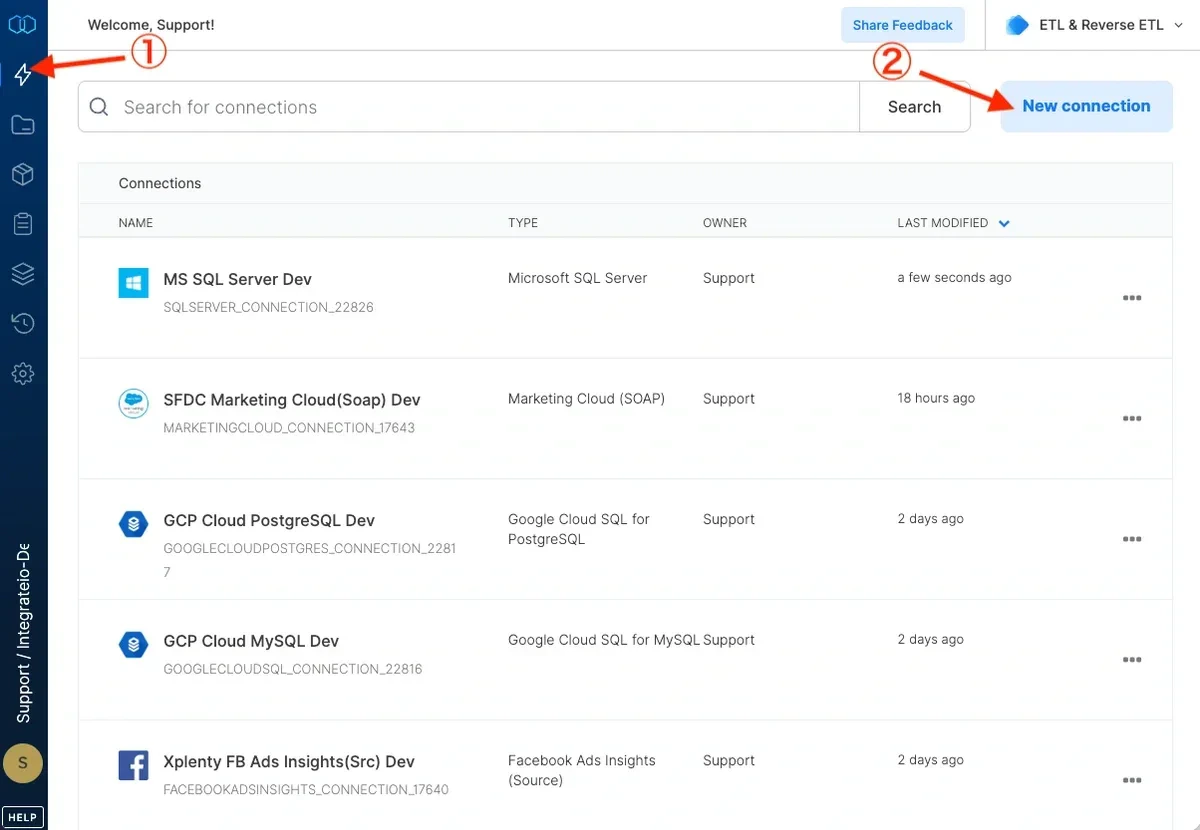
Click the Connections icon (lightning bolt) on the top left menu.
To create a connection, click **New connection**.
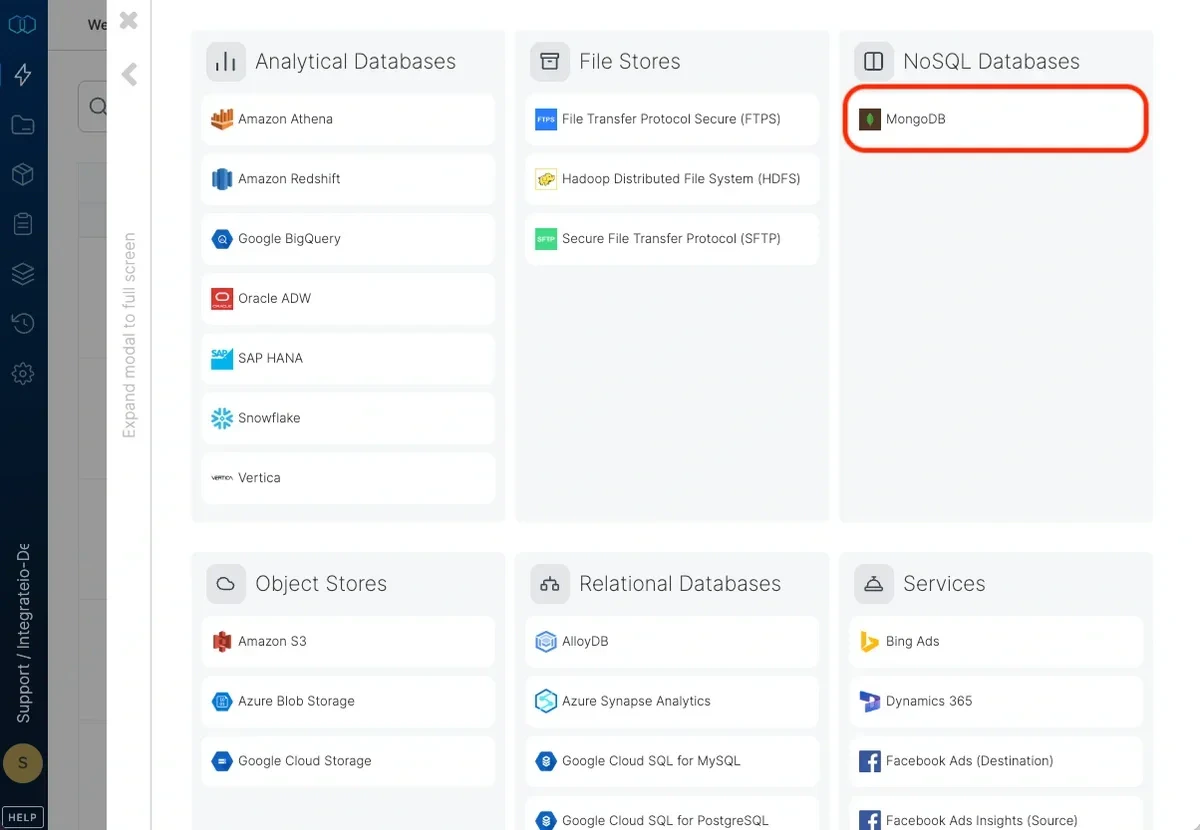
 Select MongoDB.
 In the new Mongo DB connection window, name the connection and enter the connection information.
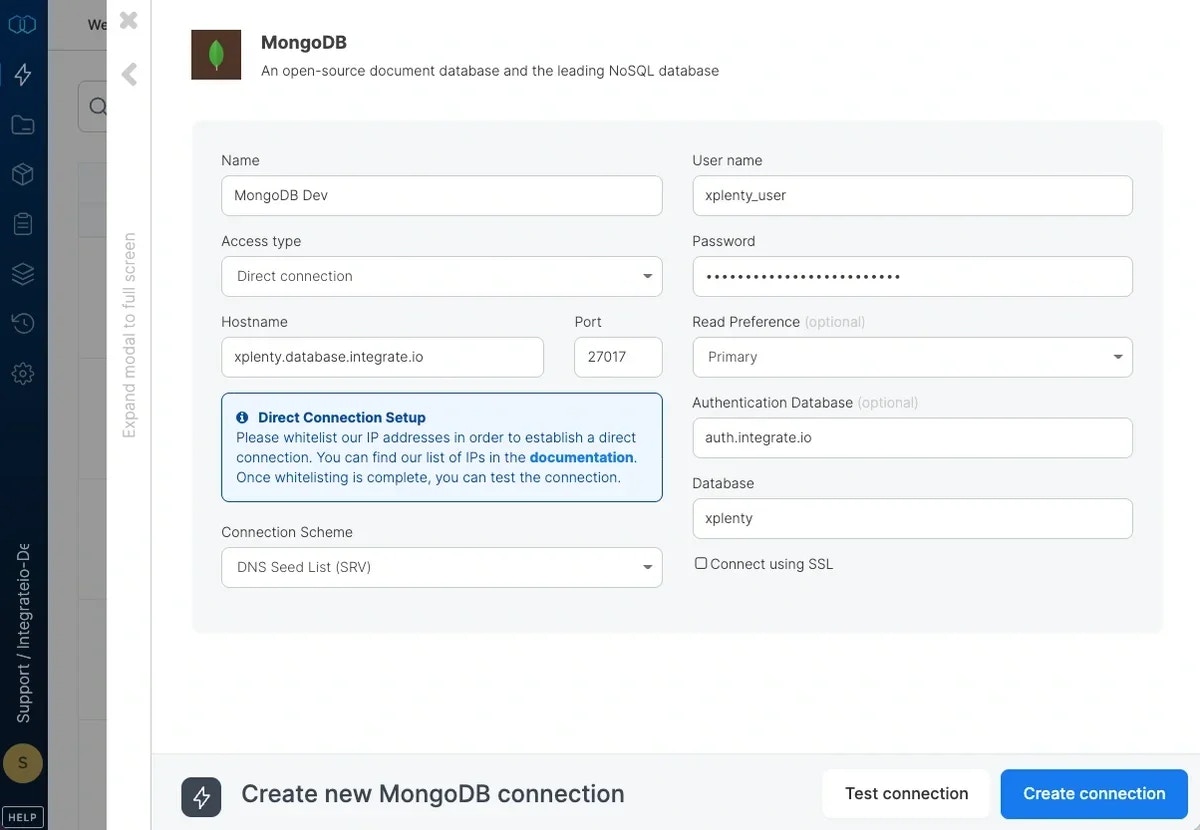 * **Name** - name for the new connection
* **User name** - database user name
* **Password** - database user's password
* **Hostname** - name of the host to connect to
* **Port** - TCP port to connect to. Allow Integrate.io ETL access to this port on the specified host for connectivity
* **Read Preference** - Determines how the connection should route read operations to members of a replica set.
* **Connection Scheme**
* DNS Seed List (SRV) - Connects via the mongodb+srv:// syntax (Read more [here](https://www.mongodb.com/docs/manual/reference/connection-string/#dns-seed-list-connection-format))
* Replica Set Members - Connects via the mongodb:// syntax. Specify the replica set members hostname manually.
* **Database** - name of database to use
* **Authentication Database** - name of the database to use for authentication. Leave empty to use default database.
* **Connect using SSL** - Determines whether to connect to the database using SSL. SSL allows encryption of client/server communications for increased security. *Always check SSL if connecting to Mongo Atlas.*
You can test the MongoDB connection by clicking **Test connection**. Note that although the test may fail, a job may be able to use the connection because the cluster on which you execute the job may have access to the database, whereas the Integrate.io ETL web application may not.
## To modify MongoDB connections in Integrate.io ETL
Click the Connections icon (lightning bolt) on the top left menu.
Click a connection to open and modify it. Make any necessary changes, then click Test connection, and Save changes. To exit the MongoDB connection window without changes, click Back to connections (grey tab on the left side) on the MongoDB connection window.
To delete a MongoDB connection, click the three vertical dots on the far right of the connection listing and select the Delete connection option.
* **Name** - name for the new connection
* **User name** - database user name
* **Password** - database user's password
* **Hostname** - name of the host to connect to
* **Port** - TCP port to connect to. Allow Integrate.io ETL access to this port on the specified host for connectivity
* **Read Preference** - Determines how the connection should route read operations to members of a replica set.
* **Connection Scheme**
* DNS Seed List (SRV) - Connects via the mongodb+srv:// syntax (Read more [here](https://www.mongodb.com/docs/manual/reference/connection-string/#dns-seed-list-connection-format))
* Replica Set Members - Connects via the mongodb:// syntax. Specify the replica set members hostname manually.
* **Database** - name of database to use
* **Authentication Database** - name of the database to use for authentication. Leave empty to use default database.
* **Connect using SSL** - Determines whether to connect to the database using SSL. SSL allows encryption of client/server communications for increased security. *Always check SSL if connecting to Mongo Atlas.*
You can test the MongoDB connection by clicking **Test connection**. Note that although the test may fail, a job may be able to use the connection because the cluster on which you execute the job may have access to the database, whereas the Integrate.io ETL web application may not.
## To modify MongoDB connections in Integrate.io ETL
Click the Connections icon (lightning bolt) on the top left menu.
Click a connection to open and modify it. Make any necessary changes, then click Test connection, and Save changes. To exit the MongoDB connection window without changes, click Back to connections (grey tab on the left side) on the MongoDB connection window.
To delete a MongoDB connection, click the three vertical dots on the far right of the connection listing and select the Delete connection option.
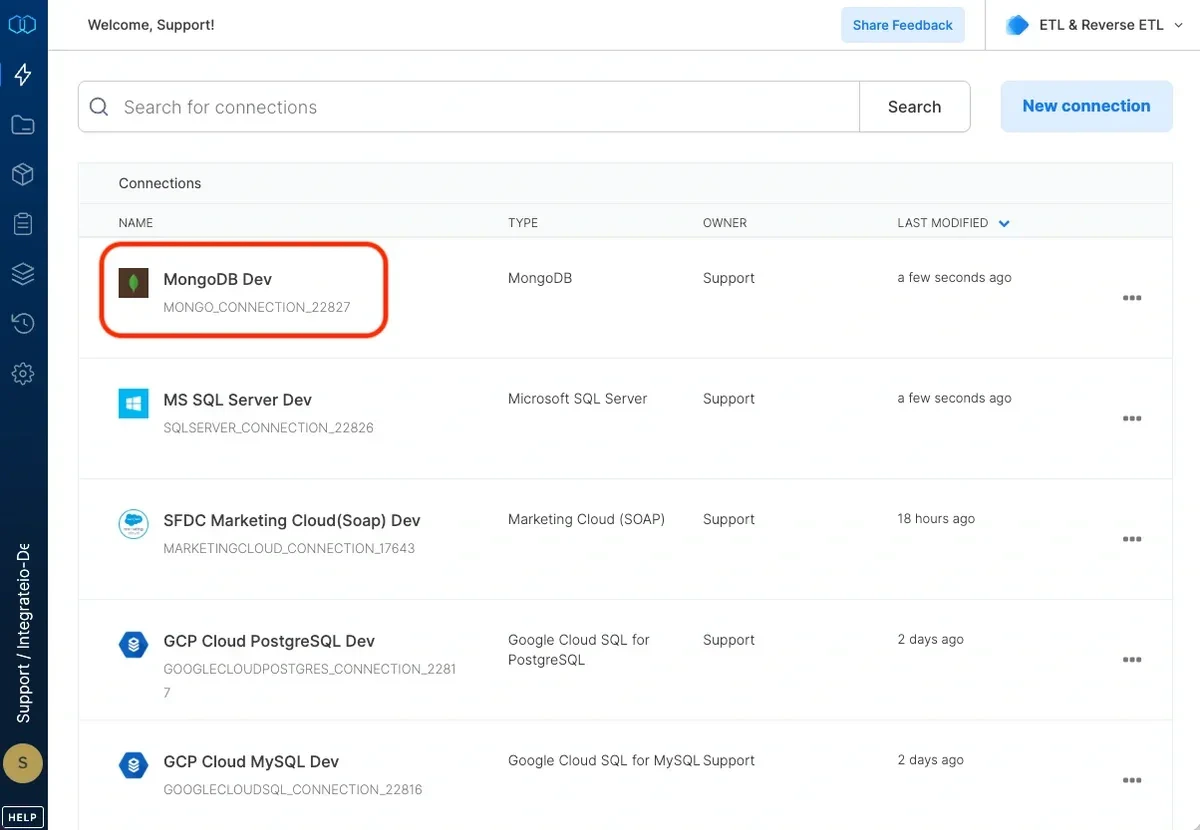 **Note:**
For information on connecting to MongoDB Atlas, see [here](https://www.mongodb.com/docs/atlas/connect-to-database-deployment/).
***
Use the MongoDB source component to read data stored in a MongoDB collection.
**Note:**
For information on connecting to MongoDB Atlas, see [here](https://www.mongodb.com/docs/atlas/connect-to-database-deployment/).
***
Use the MongoDB source component to read data stored in a MongoDB collection.
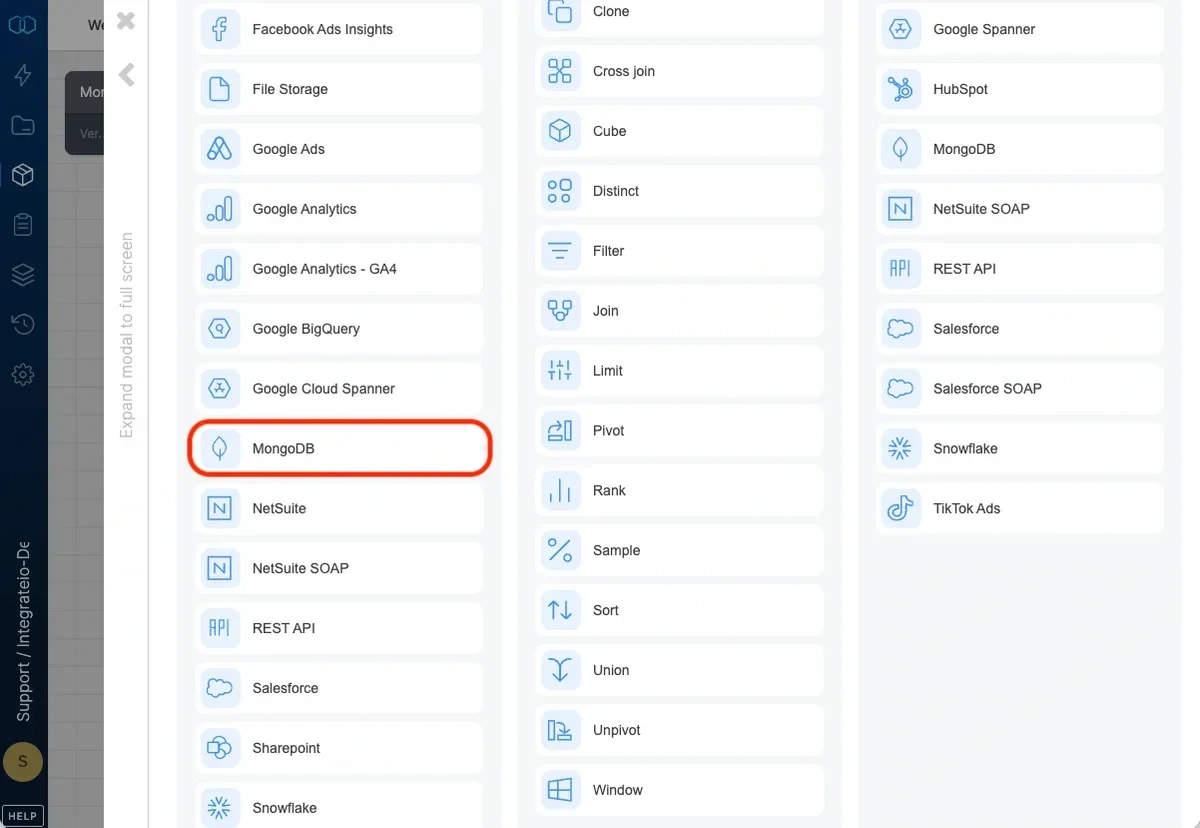 ## Connection
Select an existing MongoDB connection or create a new one (for more information, see [Allowing Integrate.io ETL access to MongoDB](/docs/etl/allowing-integrateio-etl-access-to-mongodb/ "Link: /etl/allowing-integrateio-etl-access-to-mongodb/").)
## Source Properties
## Connection
Select an existing MongoDB connection or create a new one (for more information, see [Allowing Integrate.io ETL access to MongoDB](/docs/etl/allowing-integrateio-etl-access-to-mongodb/ "Link: /etl/allowing-integrateio-etl-access-to-mongodb/").)
## Source Properties
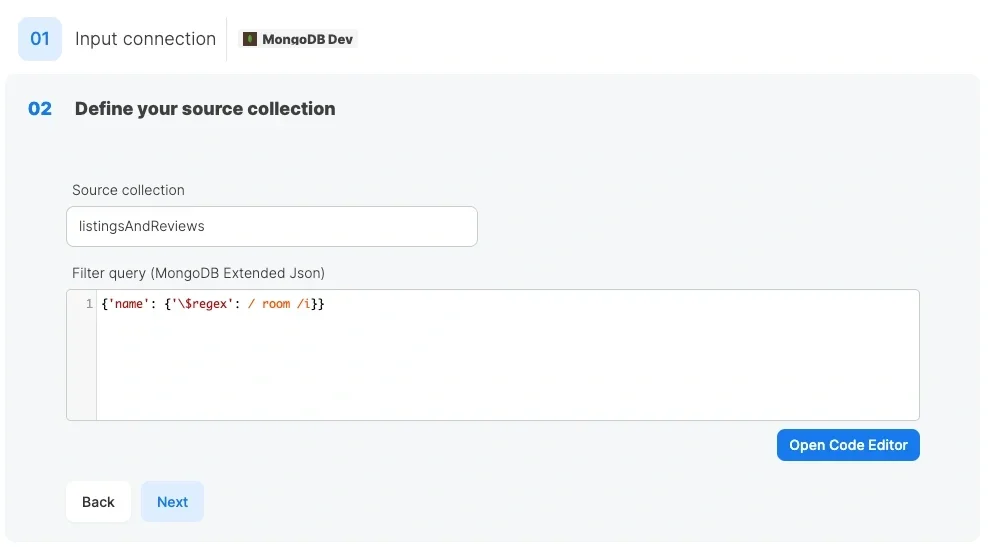 * **Source collection** - the collection name from which the data will be imported.
* **Filter query** - use [MongoDB extended JSON](https://www.mongodb.com/docs/manual/reference/mongodb-extended-json/ "Link: http://docs.mongodb.org/manual/reference/mongodb-extended-json/") to apply a filter on MongoDB's server side, or leave empty to query the entire collection. Note that \$ is a special character that denotes a variable, so it must be escaped by a single back-slash in your extended JSON filter. For example:
* `{"age":{"\$gt":24}}` - extract all documents where age is greater than 24.
* `{"\$or":[{"price":{"\$exists":false}},{"price":{"\$eq":0}}]}` - extract all documents where price is zero or does not exist.
* `{"timestamp":{"\$gt":{"\$date":"2014-01-01T00:00:00.000Z"}}}` - extract all documents where timestamp is greater than the date value 2014-01-01T00:00:00.000Z
## Source Schema
* **Source collection** - the collection name from which the data will be imported.
* **Filter query** - use [MongoDB extended JSON](https://www.mongodb.com/docs/manual/reference/mongodb-extended-json/ "Link: http://docs.mongodb.org/manual/reference/mongodb-extended-json/") to apply a filter on MongoDB's server side, or leave empty to query the entire collection. Note that \$ is a special character that denotes a variable, so it must be escaped by a single back-slash in your extended JSON filter. For example:
* `{"age":{"\$gt":24}}` - extract all documents where age is greater than 24.
* `{"\$or":[{"price":{"\$exists":false}},{"price":{"\$eq":0}}]}` - extract all documents where price is zero or does not exist.
* `{"timestamp":{"\$gt":{"\$date":"2014-01-01T00:00:00.000Z"}}}` - extract all documents where timestamp is greater than the date value 2014-01-01T00:00:00.000Z
## Source Schema
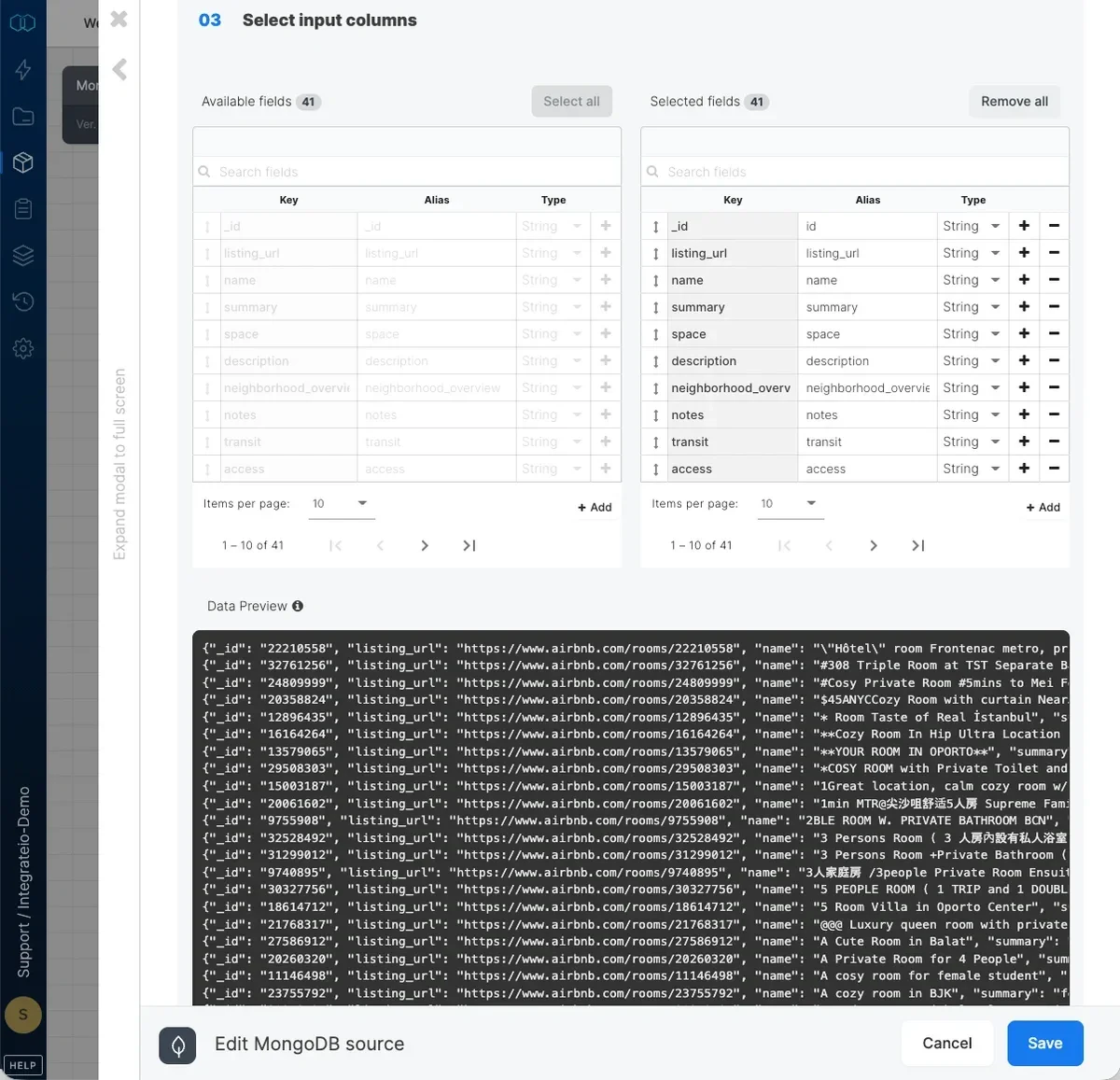 After defining the source collection, select the fields to use in the source.
The fields you select are the only ones pulled from the source collection.
Define the data type for the field. Use the following table when matching MongoDB data types to Integrate.io ETL data types.
| **MongoDB** | **Integrate.io ETL** |
| :------------- | :------------------- |
| String | String |
| 32 Bit Integer | Integer |
| 64 Bit Integer | Long |
| Double | Double |
| Date | DateTime |
| Object | Json |
| Array | Json Array |
| Boolean | Boolean |
| ObjectID | String |
## Reading data incrementally from MongoDB
In order to read data incrementally (changes and additions) from a collection, we need a timestamp column that specifies when the data was updated (or inserted in collections where data is only inserted). In our example, this column is called "updated\_at". When reading from the source collection, we’ll use a **filter query** to only read the rows that were updated since the last time the package executed. We can use the following **filter query,** in which $last\_updated\_at is a package variable (make sure to use a single back-slash to escape the $ as is mentioned above):
`{"updated_at": {"\$gt":{"\$date": $last_updated_at}}}`
After defining the source collection, select the fields to use in the source.
The fields you select are the only ones pulled from the source collection.
Define the data type for the field. Use the following table when matching MongoDB data types to Integrate.io ETL data types.
| **MongoDB** | **Integrate.io ETL** |
| :------------- | :------------------- |
| String | String |
| 32 Bit Integer | Integer |
| 64 Bit Integer | Long |
| Double | Double |
| Date | DateTime |
| Object | Json |
| Array | Json Array |
| Boolean | Boolean |
| ObjectID | String |
## Reading data incrementally from MongoDB
In order to read data incrementally (changes and additions) from a collection, we need a timestamp column that specifies when the data was updated (or inserted in collections where data is only inserted). In our example, this column is called "updated\_at". When reading from the source collection, we’ll use a **filter query** to only read the rows that were updated since the last time the package executed. We can use the following **filter query,** in which $last\_updated\_at is a package variable (make sure to use a single back-slash to escape the $ as is mentioned above):
`{"updated_at": {"\$gt":{"\$date": $last_updated_at}}}`
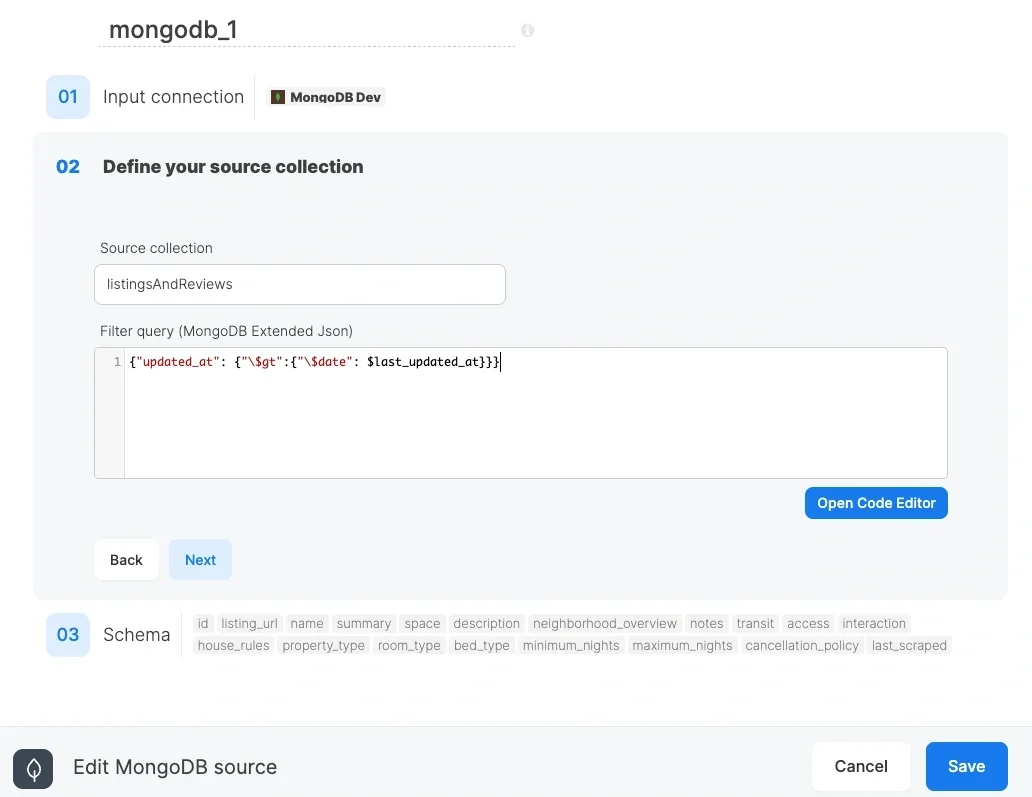 Note that the schema detection or data preview fails when using the variable in the **filter query,** as variables are not evaluated in design time.
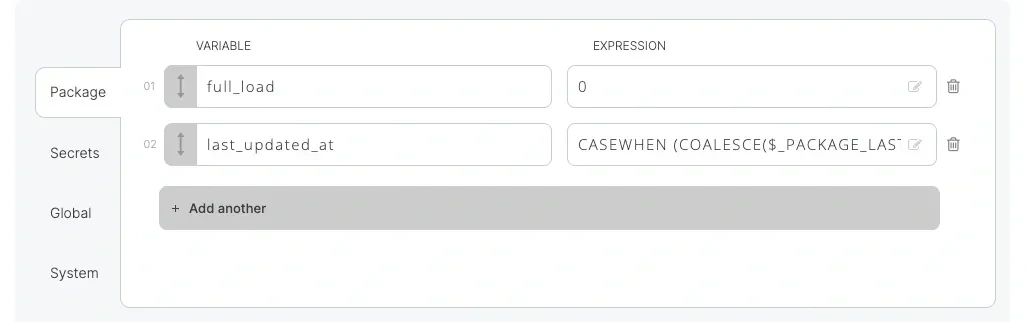
You can use the predefined variable \_PACKAGE\_LAST\_SUCCESSFUL\_JOB\_SUBMISSION\_TIMESTAMP which returns the submission timestamp for the last successful execution of the package as you can see in the example below as a value for the variable, or use the ExecuteSqlDatetime function to execute a query on the target database to get the max (last) value of updated\_at in the target. Wrap the variable with a CASE statement to handle empty values and to allow full load if required. Then convert the datetime timestamp to a Unix timestamp and multiply it times 1000 to result in a Unix timestamp in milliseconds like MongoDB uses.
| **Variable name** | **Expression** |
| :---------------- | :----------------------------------------------------------------------------------------------------------------------------------------------------------------------------------------------------------------------- |
| full\_load | `0` |
| last\_updated\_at | `CASE ` ` WHEN (COALESCE($_PACKAGE_LAST_SUCCESSFUL_JOB_SUBMISSION_TIMESTAMP,'')=='' OR $full_load==1) THEN 0 ` ` ELSE ToUnixTime(ToDate($_PACKAGE_LAST_SUCCESSFUL_JOB_SUBMISSION_TIMESTAMP)) * 1000` `END` |
Note that the schema detection or data preview fails when using the variable in the **filter query,** as variables are not evaluated in design time.
You can use the predefined variable \_PACKAGE\_LAST\_SUCCESSFUL\_JOB\_SUBMISSION\_TIMESTAMP which returns the submission timestamp for the last successful execution of the package as you can see in the example below as a value for the variable, or use the ExecuteSqlDatetime function to execute a query on the target database to get the max (last) value of updated\_at in the target. Wrap the variable with a CASE statement to handle empty values and to allow full load if required. Then convert the datetime timestamp to a Unix timestamp and multiply it times 1000 to result in a Unix timestamp in milliseconds like MongoDB uses.
| **Variable name** | **Expression** |
| :---------------- | :----------------------------------------------------------------------------------------------------------------------------------------------------------------------------------------------------------------------- |
| full\_load | `0` |
| last\_updated\_at | `CASE ` ` WHEN (COALESCE($_PACKAGE_LAST_SUCCESSFUL_JOB_SUBMISSION_TIMESTAMP,'')=='' OR $full_load==1) THEN 0 ` ` ELSE ToUnixTime(ToDate($_PACKAGE_LAST_SUCCESSFUL_JOB_SUBMISSION_TIMESTAMP)) * 1000` `END` |
 In order to store additions or changes in your database destination, make sure to mark the id column as key and change the operation type to "merge."
## Related
In order to store additions or changes in your database destination, make sure to mark the id column as key and change the operation type to "merge."
## Related