> ## Documentation Index
> Fetch the complete documentation index at: https://www.integrate.io/docs/llms.txt
> Use this file to discover all available pages before exploring further.
# ETL: Select Transformation
> Configure the Select transformation in Integrate.io ETL to choose, rename, reorder, and compute fields with expressions before passing data downstream.
Use the Select component to choose which fields from the input will be available in the next component and transform them using [expressions](/docs/etl/using-expressions-in-integrateio-etl).
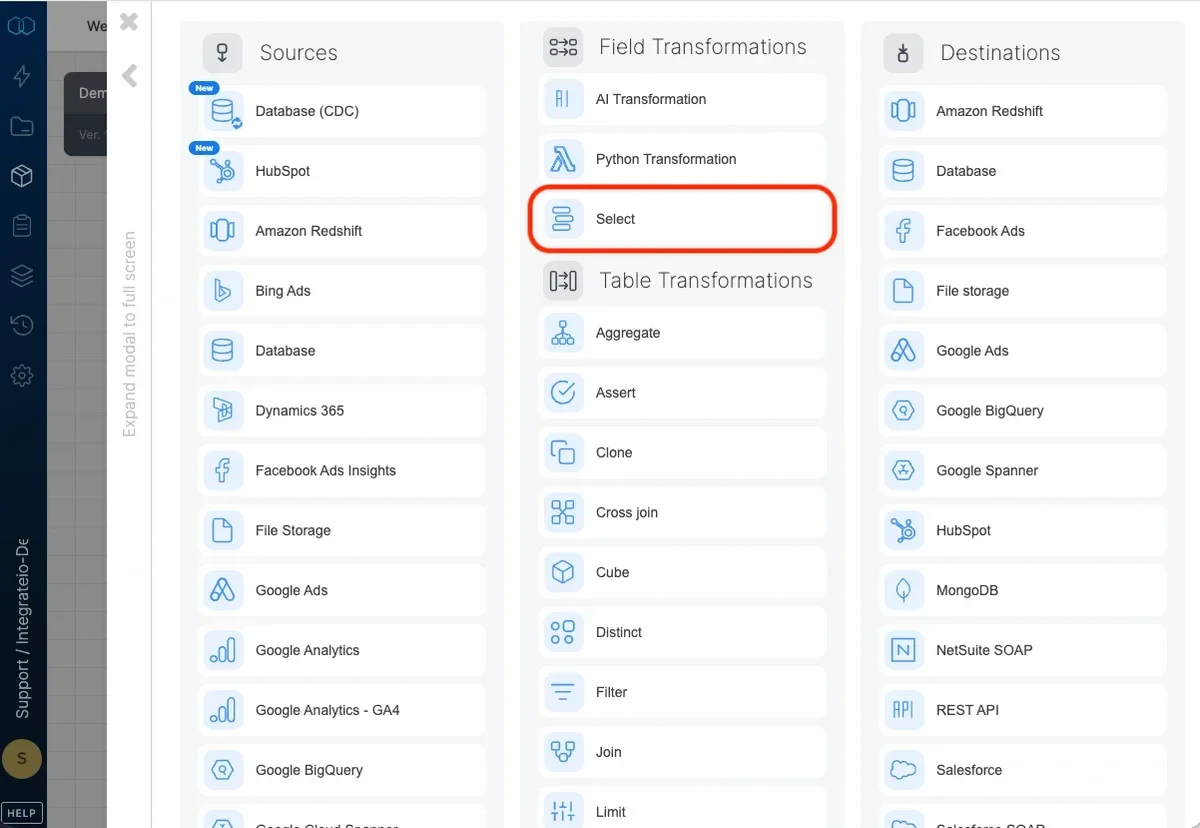 **To select which fields will be available in the dataflow:**
Add a Select component where required in your package.
Open the component and name it.
To automatically populate the fields section, click the Auto-fill fields
icon. Otherwise, use the field dropdown and select the field you require.
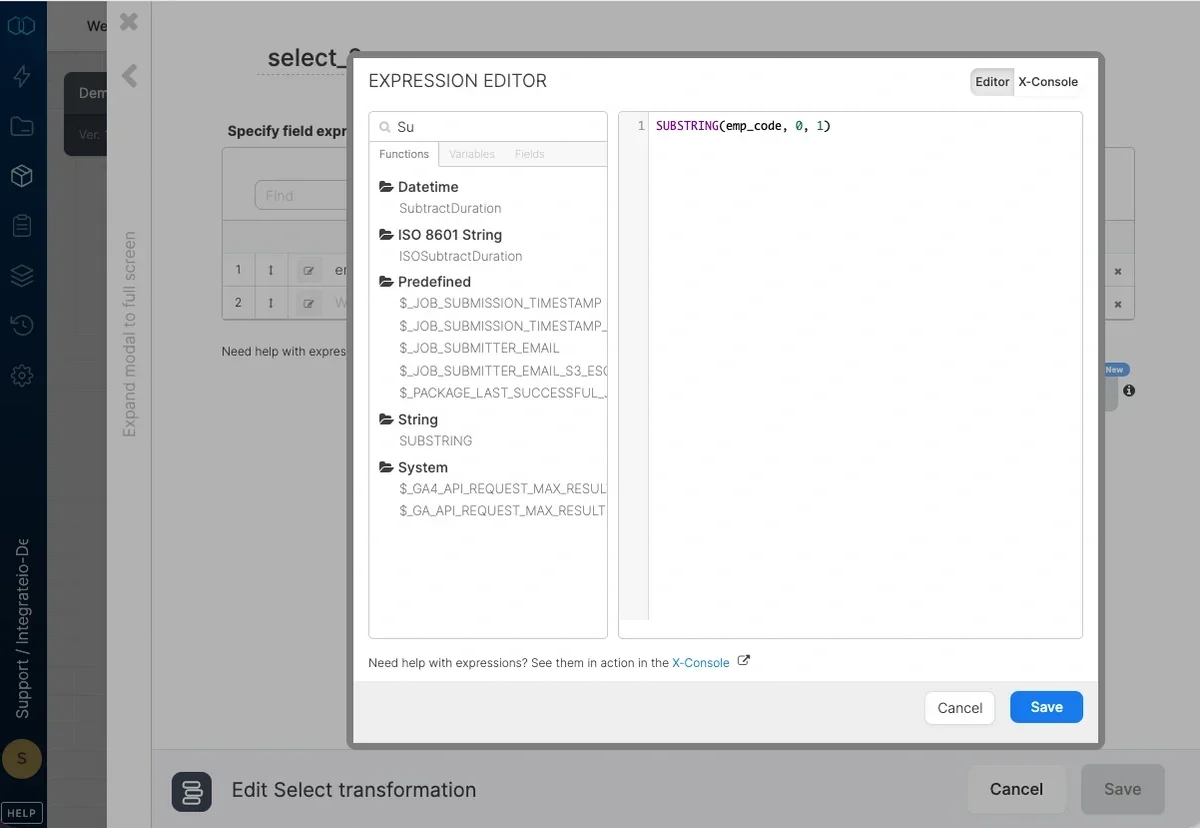
Use the expression editor to manipulate field data using Integrate.io ETL's
expression language (see [Using
Expressions](/docs/etl/using-expressions-in-integrateio-etl) and [Integrate.io
ETL functions](/docs/etl/integrateio-etl-functions)).
For each field row, assign an alias for your field in the right text box.
**To select which fields will be available in the dataflow:**
Add a Select component where required in your package.
Open the component and name it.
To automatically populate the fields section, click the Auto-fill fields
icon. Otherwise, use the field dropdown and select the field you require.
Use the expression editor to manipulate field data using Integrate.io ETL's
expression language (see [Using
Expressions](/docs/etl/using-expressions-in-integrateio-etl) and [Integrate.io
ETL functions](/docs/etl/integrateio-etl-functions)).
For each field row, assign an alias for your field in the right text box.
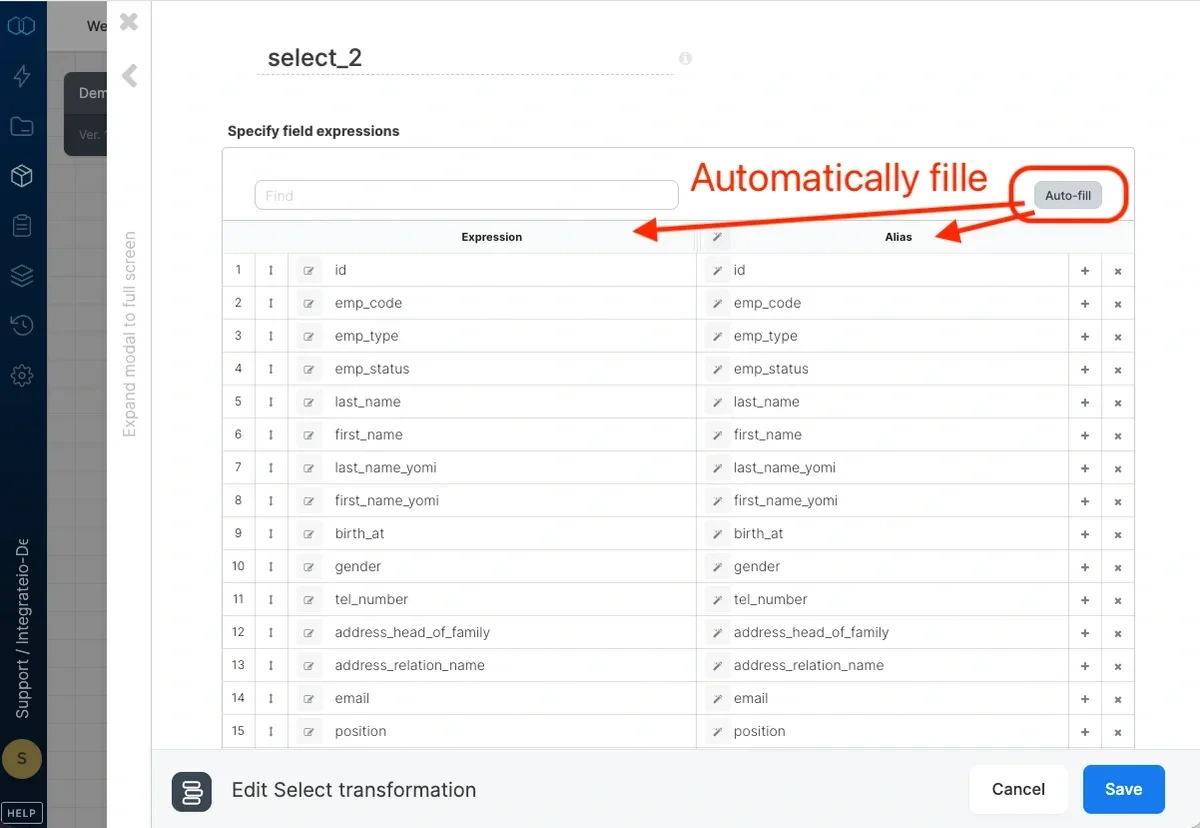 To change the order in which these fields will appear in remaining dataflow
components, click and drag the arrow located to the right of a field number
up or down to the new position. If required, add rows for additional fields.
To change the order in which these fields will appear in remaining dataflow
components, click and drag the arrow located to the right of a field number
up or down to the new position. If required, add rows for additional fields.
 ## Field data types
The Fields list includes a **Data type** column that shows the type of each output field.
* When a field passes through unchanged from a typed source (for example, a database source), the type appears as soon as you open the component.
* Field-redefining transforms upstream (Select, Aggregate, Join, and similar) do not carry types forward. In that case, run a [component preview](/docs/etl/component-previewer) to populate the column with the executed types from the preview response.
* If no types are available, the column header shows an info hint. Run a preview to resolve the types.
Types are normalized to the Integrate.io vocabulary: String, Integer, Long, Float, Double, Binary, Boolean, DateTime, Map, and Bag.
## Related
## Field data types
The Fields list includes a **Data type** column that shows the type of each output field.
* When a field passes through unchanged from a typed source (for example, a database source), the type appears as soon as you open the component.
* Field-redefining transforms upstream (Select, Aggregate, Join, and similar) do not carry types forward. In that case, run a [component preview](/docs/etl/component-previewer) to populate the column with the executed types from the preview response.
* If no types are available, the column header shows an info hint. Run a preview to resolve the types.
Types are normalized to the Integrate.io vocabulary: String, Integer, Long, Float, Double, Binary, Boolean, DateTime, Map, and Bag.
## Related