> ## Documentation Index
> Fetch the complete documentation index at: https://www.integrate.io/docs/llms.txt
> Use this file to discover all available pages before exploring further.

# ETL: HubspotのデータをAPIで取得する

> Integrate.io ETLのREST APIコンポーネントとHubspotのAPIキーを使ってHubspotからContactデータを取得し、データパイプラインに取り込む方法を解説します。

## Hubspot APIを使うには？

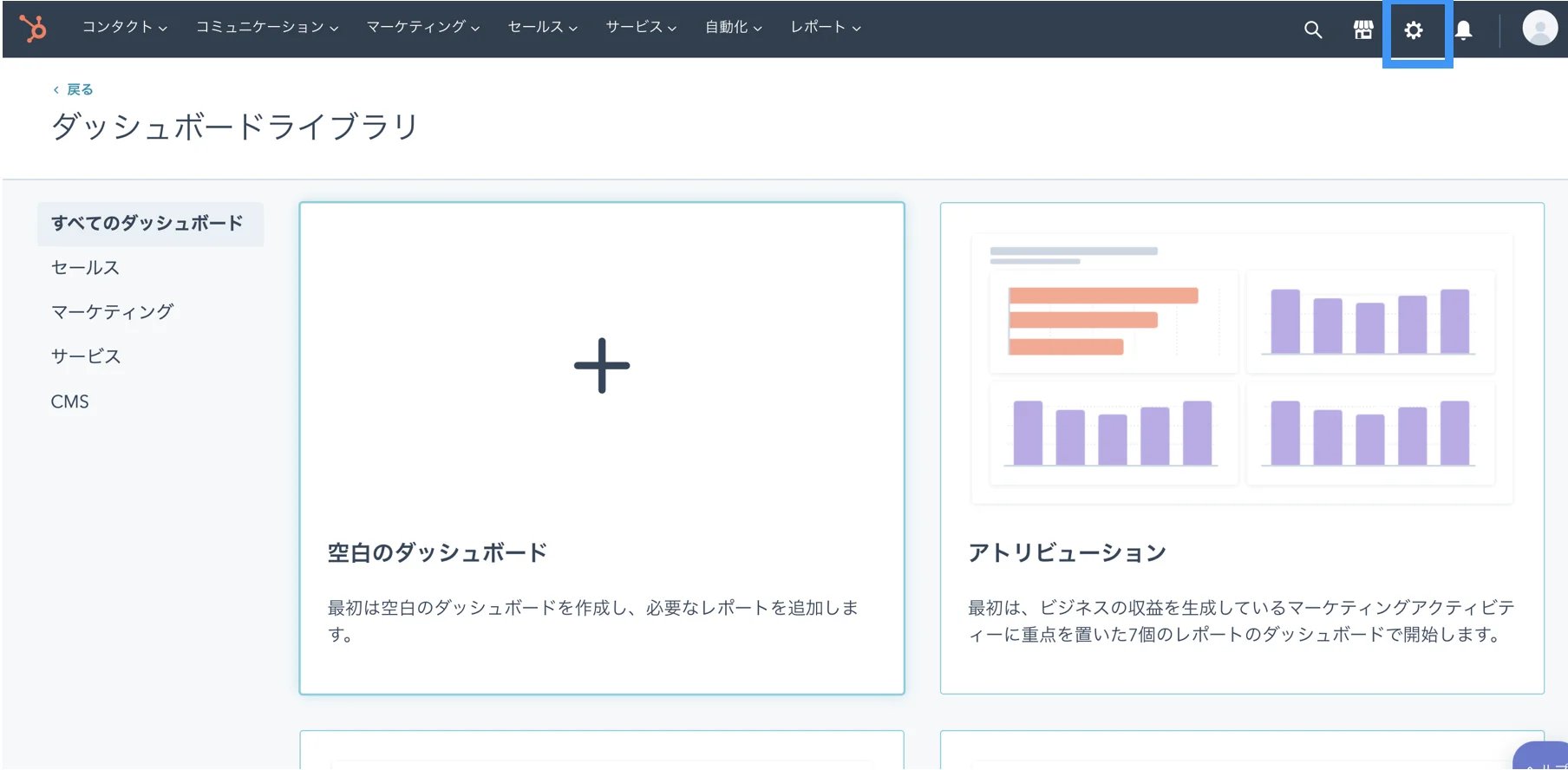
1. ダッシュボード画面右上に配置された「設定」ボタンをクリック

<Frame>
  <img src="https://mintcdn.com/integrateio/u3KZjgbItgbZsh3u/images/japanese-knowledge-base/restapi-part03-jp/image-1.webp?fit=max&auto=format&n=u3KZjgbItgbZsh3u&q=85&s=db3e3021c19803059ee82e1b8d518500" alt="restapi-part03-jp image 1" width="1808" height="888" data-path="images/japanese-knowledge-base/restapi-part03-jp/image-1.webp" />
</Frame>

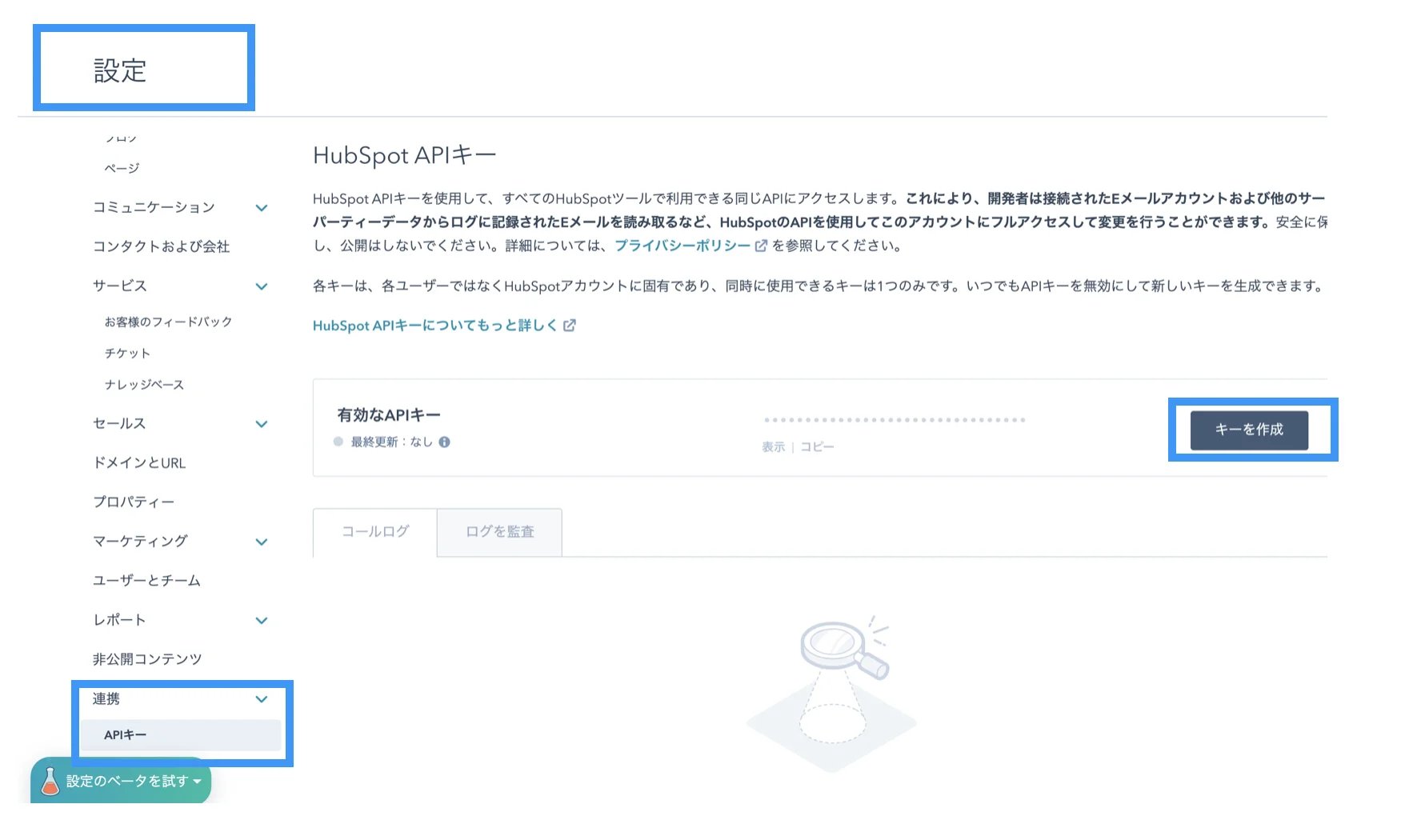
2. 連携の「APIキー」のメニューからAPIキーを生成します

<Frame>
  <img src="https://mintcdn.com/integrateio/u3KZjgbItgbZsh3u/images/japanese-knowledge-base/restapi-part03-jp/image-2.webp?fit=max&auto=format&n=u3KZjgbItgbZsh3u&q=85&s=9b89807de17d9adef0e019551469bbcb" alt="restapi-part03-jp image 2" width="1766" height="1050" data-path="images/japanese-knowledge-base/restapi-part03-jp/image-2.webp" />
</Frame>

## データの読み込み

### パッケージの作成

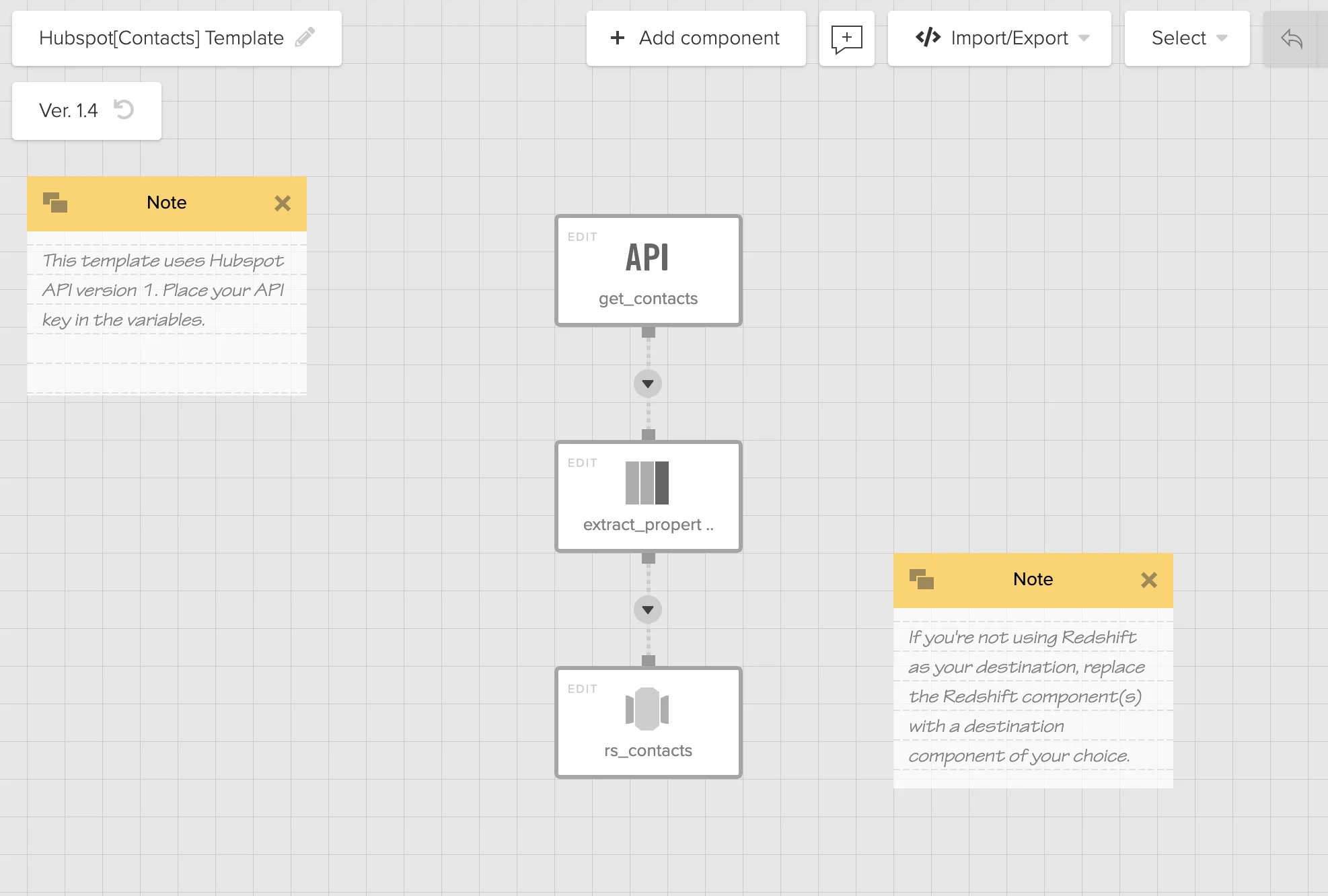
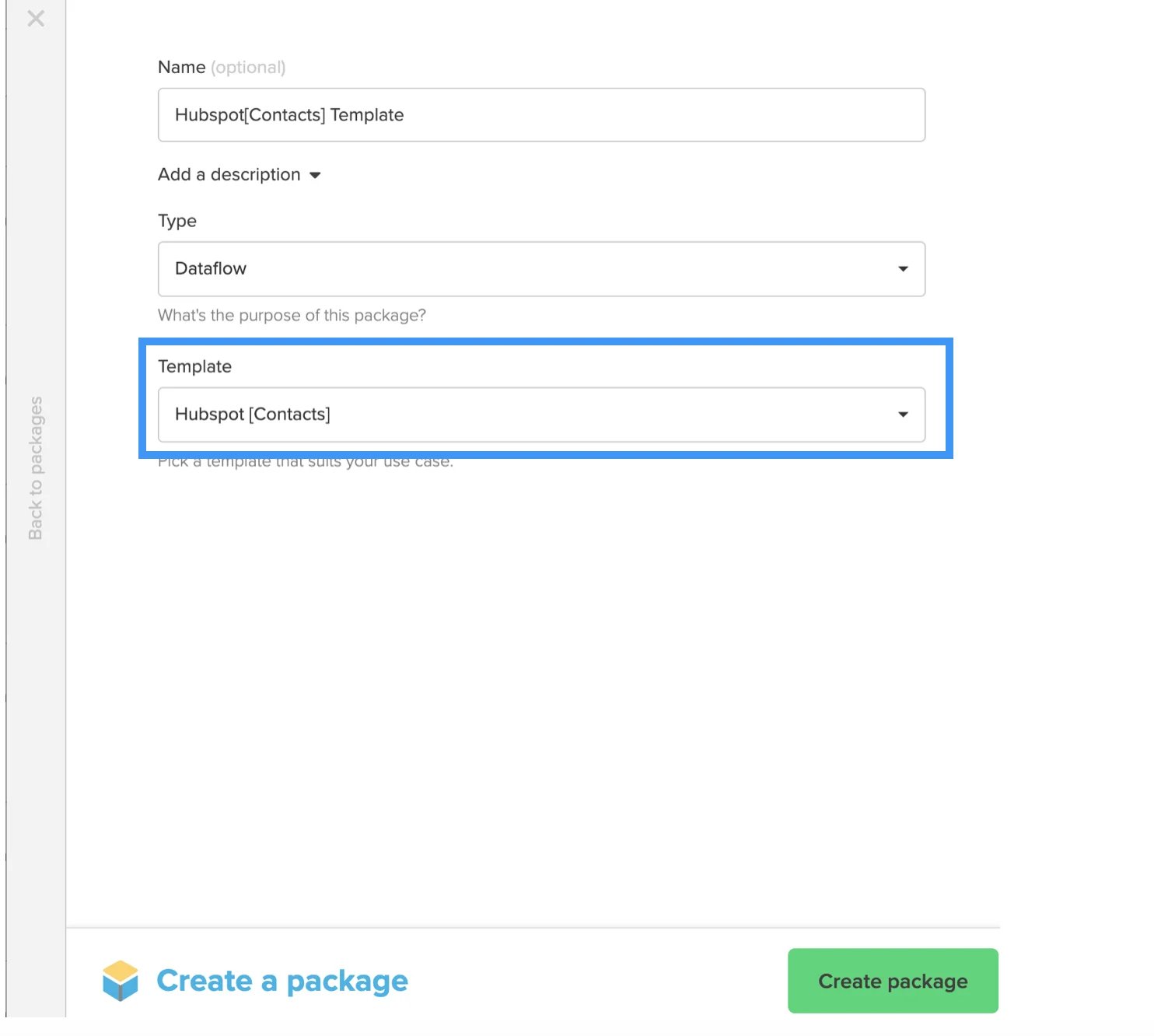
今回はテンプレートを利用してパッケージを作成します。
<Frame>
  <img src="https://mintcdn.com/integrateio/u3KZjgbItgbZsh3u/images/japanese-knowledge-base/restapi-part03-jp/image-3.webp?fit=max&auto=format&n=u3KZjgbItgbZsh3u&q=85&s=885892a0de1dd11c7f468e47f5a49c66" alt="restapi-part03-jp image 3" width="1484" height="1332" data-path="images/japanese-knowledge-base/restapi-part03-jp/image-3.webp" />
</Frame>

すでに構築済みのパッケージが作成されます。

<Frame>
  <img src="https://mintcdn.com/integrateio/u3KZjgbItgbZsh3u/images/japanese-knowledge-base/restapi-part03-jp/image-4.webp?fit=max&auto=format&n=u3KZjgbItgbZsh3u&q=85&s=b04c286e1d63c315695fe1839618612a" alt="restapi-part03-jp image 4" width="1974" height="1332" data-path="images/japanese-knowledge-base/restapi-part03-jp/image-4.webp" />
</Frame>

### 接続URLの変更

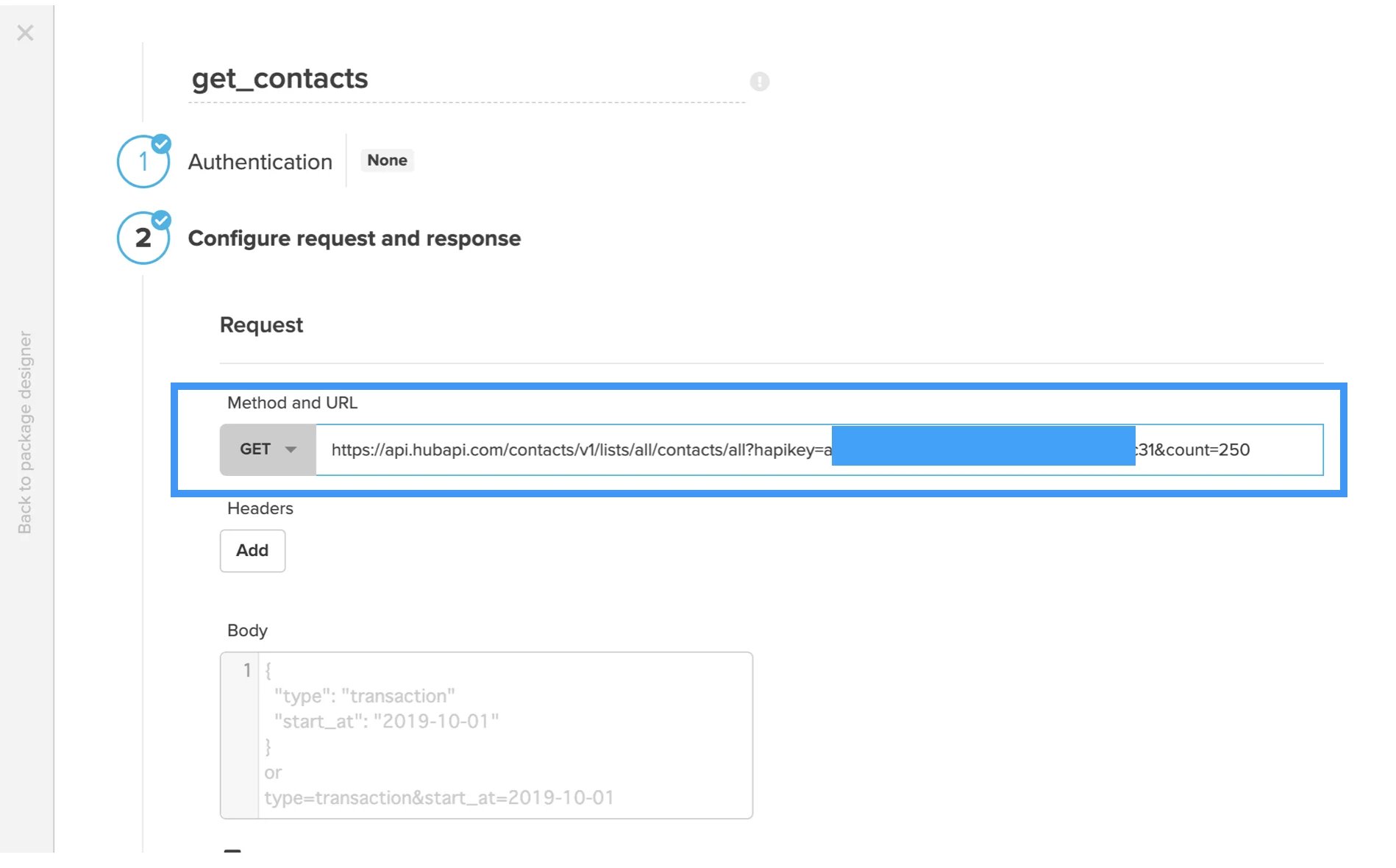
接続時のURLをテンプレートで設定された変数を使用したURLではなく、変数部分を明示的に固定値に変更するだけで、コンタクト情報を取得することが可能です。

元URL: `$url?hapikey=$api_key&count=250`
変更後: `https://api.hubapi.com/contacts/v1/lists/all/contacts/all?hapikey=<APIキー>&count=250`

<Frame>
  <img src="https://mintcdn.com/integrateio/u3KZjgbItgbZsh3u/images/japanese-knowledge-base/restapi-part03-jp/image-5.webp?fit=max&auto=format&n=u3KZjgbItgbZsh3u&q=85&s=e87641f9952e61dfea4d5e672fbab0f1" alt="restapi-part03-jp image 5" width="1898" height="1180" data-path="images/japanese-knowledge-base/restapi-part03-jp/image-5.webp" />
</Frame>

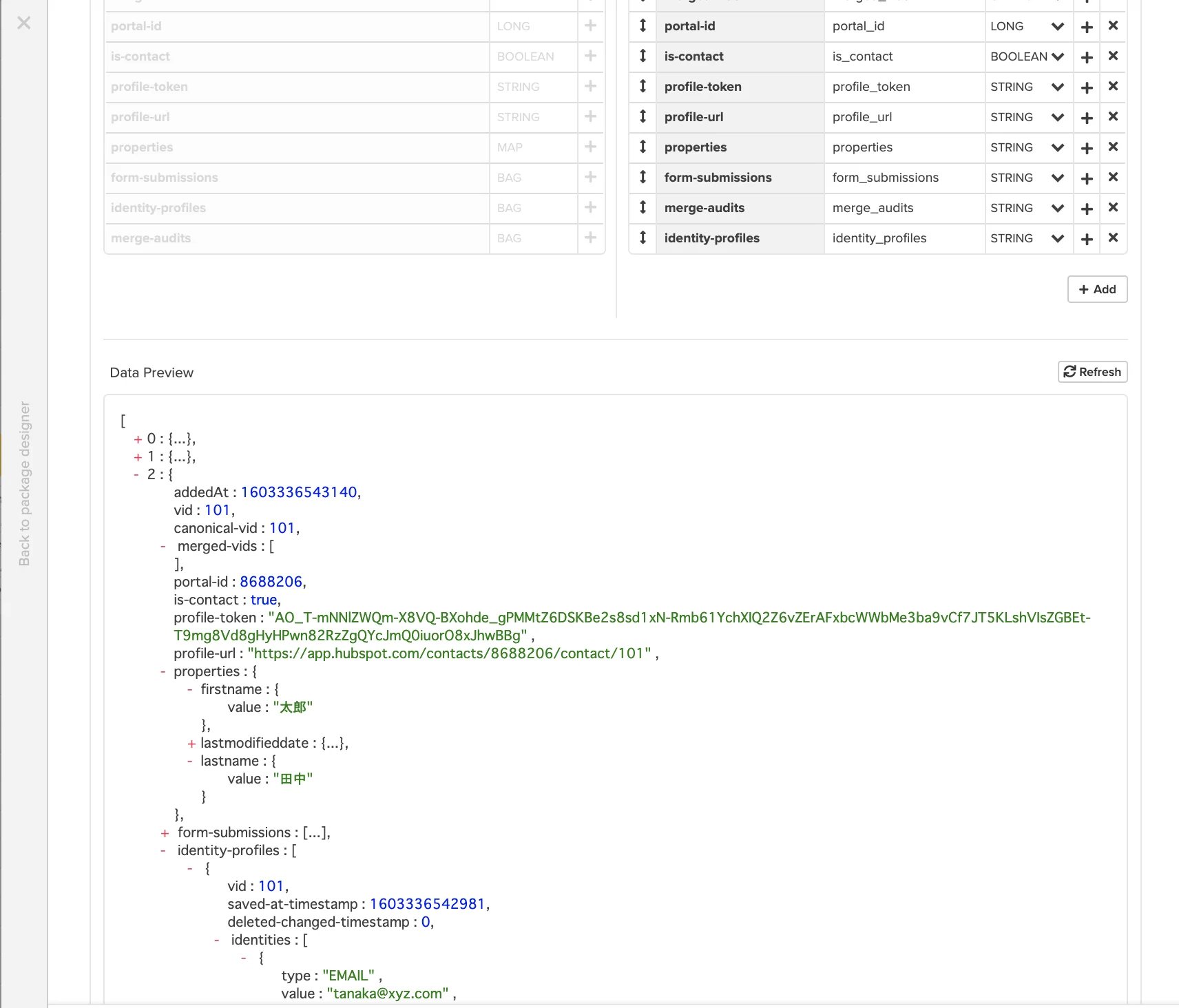
プレビューすると以下のようにデータがJSON形式で取得できることが確認できます。
<Frame>
  <img src="https://mintcdn.com/integrateio/u3KZjgbItgbZsh3u/images/japanese-knowledge-base/restapi-part03-jp/image-6.webp?fit=max&auto=format&n=u3KZjgbItgbZsh3u&q=85&s=5f9365262769d5bcdc1a8e049583613d" alt="restapi-part03-jp image 6" width="1712" height="1464" data-path="images/japanese-knowledge-base/restapi-part03-jp/image-6.webp" />
</Frame>

## 変換

### メールアドレスを1つの列として独立して取得する方法

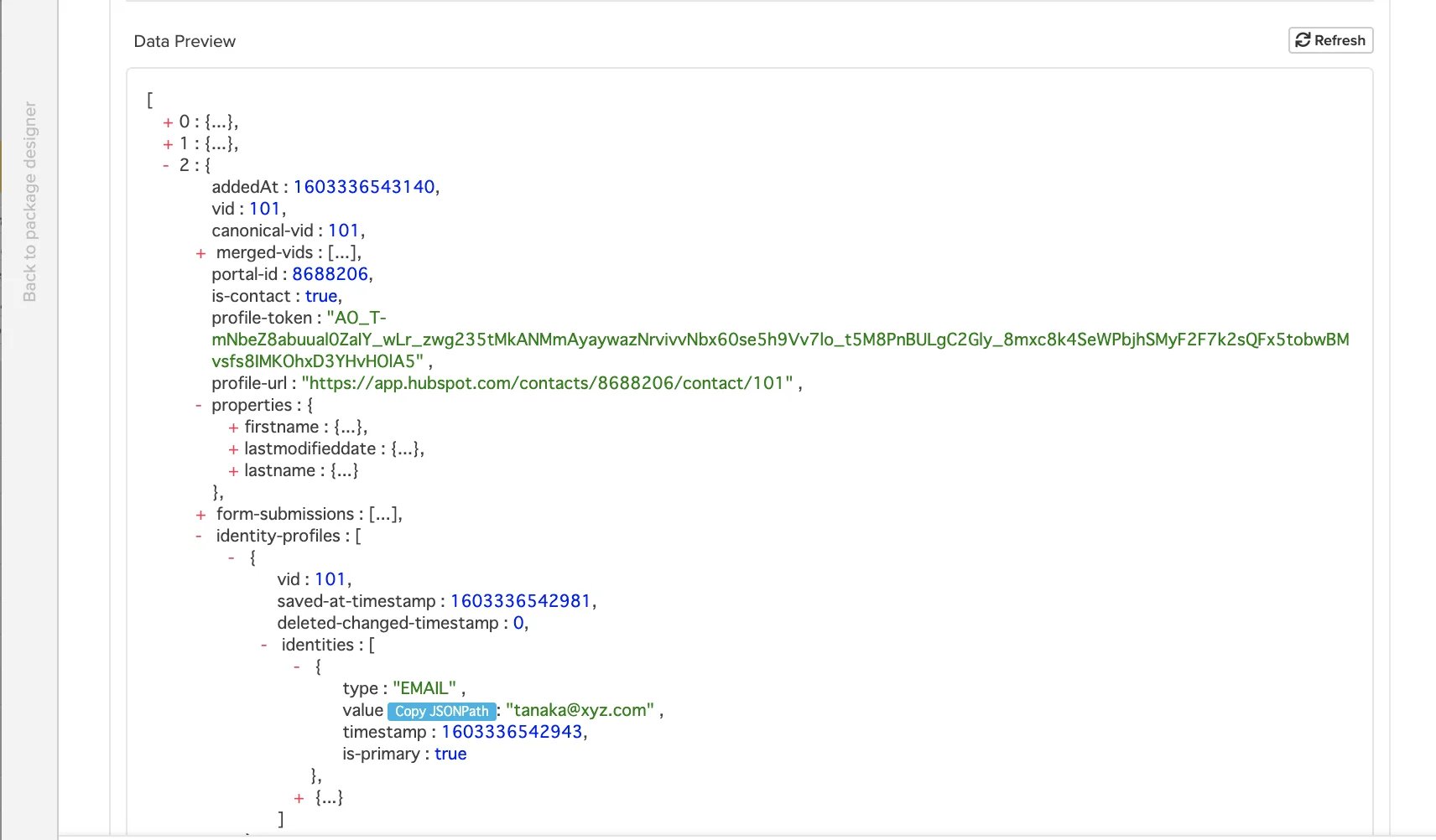
1. データプレビューにもどって、メールアドレスが格納されているJSONパスを取得します。
   JSONパス: `$.[2].identity-profiles.[0].identities.[0].value`
<Frame>
  <img src="https://mintcdn.com/integrateio/u3KZjgbItgbZsh3u/images/japanese-knowledge-base/restapi-part03-jp/image-7.webp?fit=max&auto=format&n=u3KZjgbItgbZsh3u&q=85&s=f04277302c7d8e21be67cb74f76ea4e9" alt="restapi-part03-jp image 7" width="1712" height="1002" data-path="images/japanese-knowledge-base/restapi-part03-jp/image-7.webp" />
</Frame>

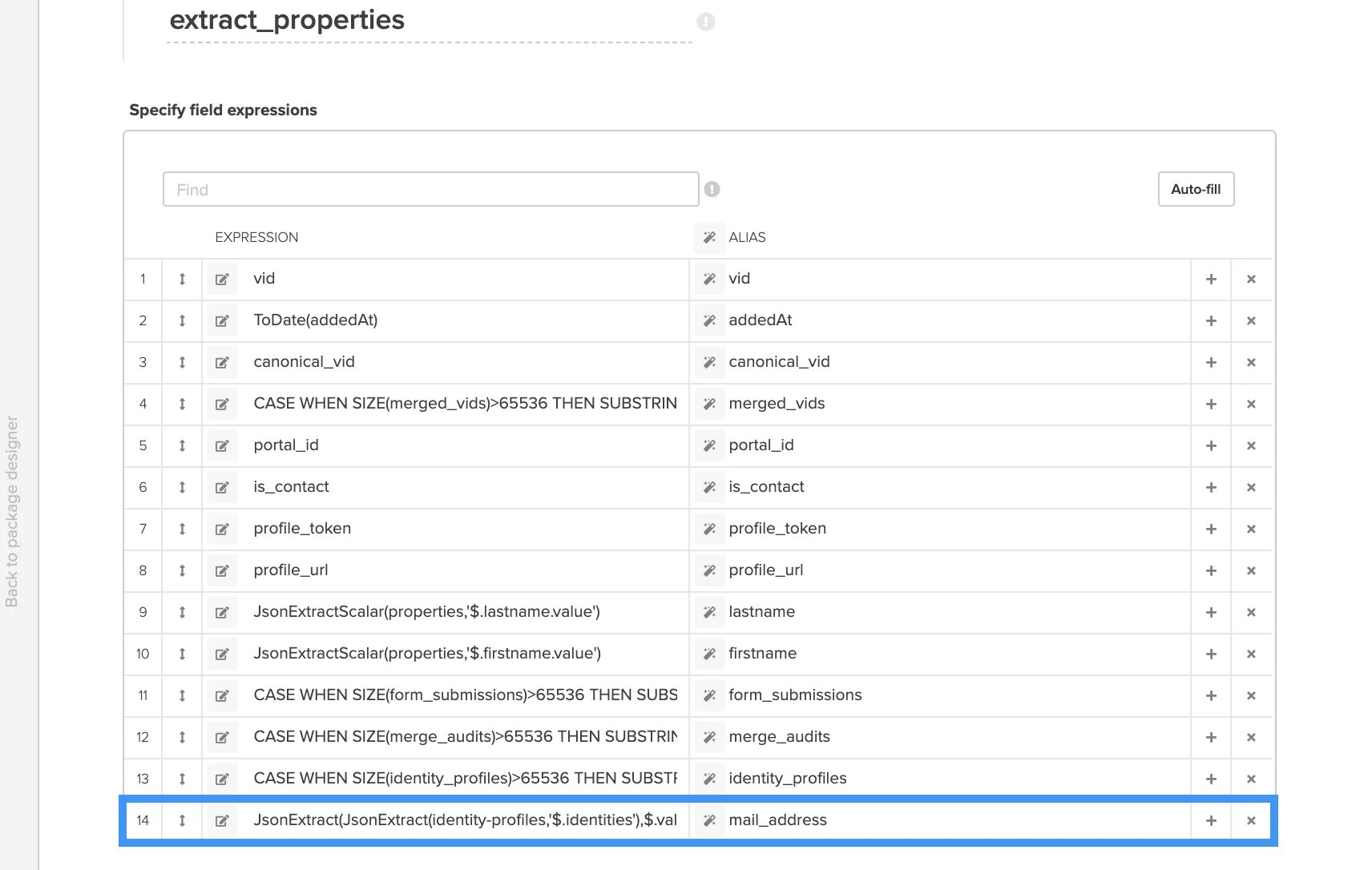
2. 上記のJSONパスを元に変換式を定義します。
   `JsonExtractScalar(identity_profiles,'$.[0].identities.[0].value')`
   注)「identity-profiles」がXplentyにより「identity\_profiles」と自動的にカラム名が変更されている点に注意していください。

* JsonExtractScalar: 関数。
  **使い方**: `JsonExtractScalar（引数1,引数２)`
  * `引数１`: String型のJSON文字列が格納されたフィールドや変数
  * `引数２`: JSONパスをシングルクォートで囲み指定する
  * `返り値`: String型
* `identity_profiles`: フィールド名。JSON文字列が格納されている（String型）

<Frame>
  <img src="https://mintcdn.com/integrateio/u3KZjgbItgbZsh3u/images/japanese-knowledge-base/restapi-part03-jp/image-8.webp?fit=max&auto=format&n=u3KZjgbItgbZsh3u&q=85&s=a8a084f8f604802d00919f99505b6116" alt="restapi-part03-jp image 8" width="1712" height="1086" data-path="images/japanese-knowledge-base/restapi-part03-jp/image-8.webp" />
</Frame>

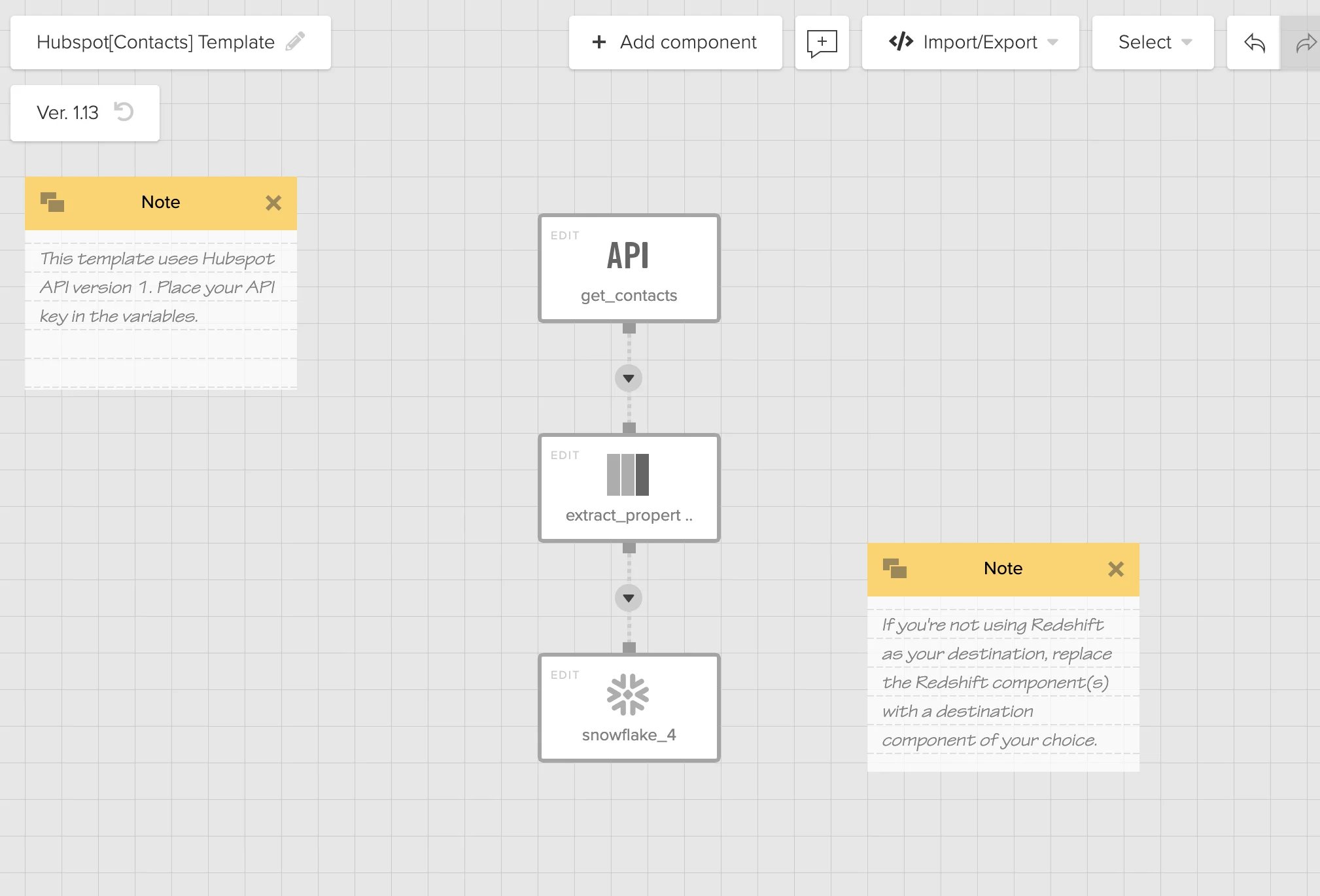
3. データ送信先は、デフォルトのRedshiftを削除し、Snowflakeに送信するように変更します。
<Frame>
  <img src="https://mintcdn.com/integrateio/u3KZjgbItgbZsh3u/images/japanese-knowledge-base/restapi-part03-jp/image-9.webp?fit=max&auto=format&n=u3KZjgbItgbZsh3u&q=85&s=0ed670379e6598bcf741aec6656455e2" alt="restapi-part03-jp image 9" width="2018" height="1370" data-path="images/japanese-knowledge-base/restapi-part03-jp/image-9.webp" />
</Frame>

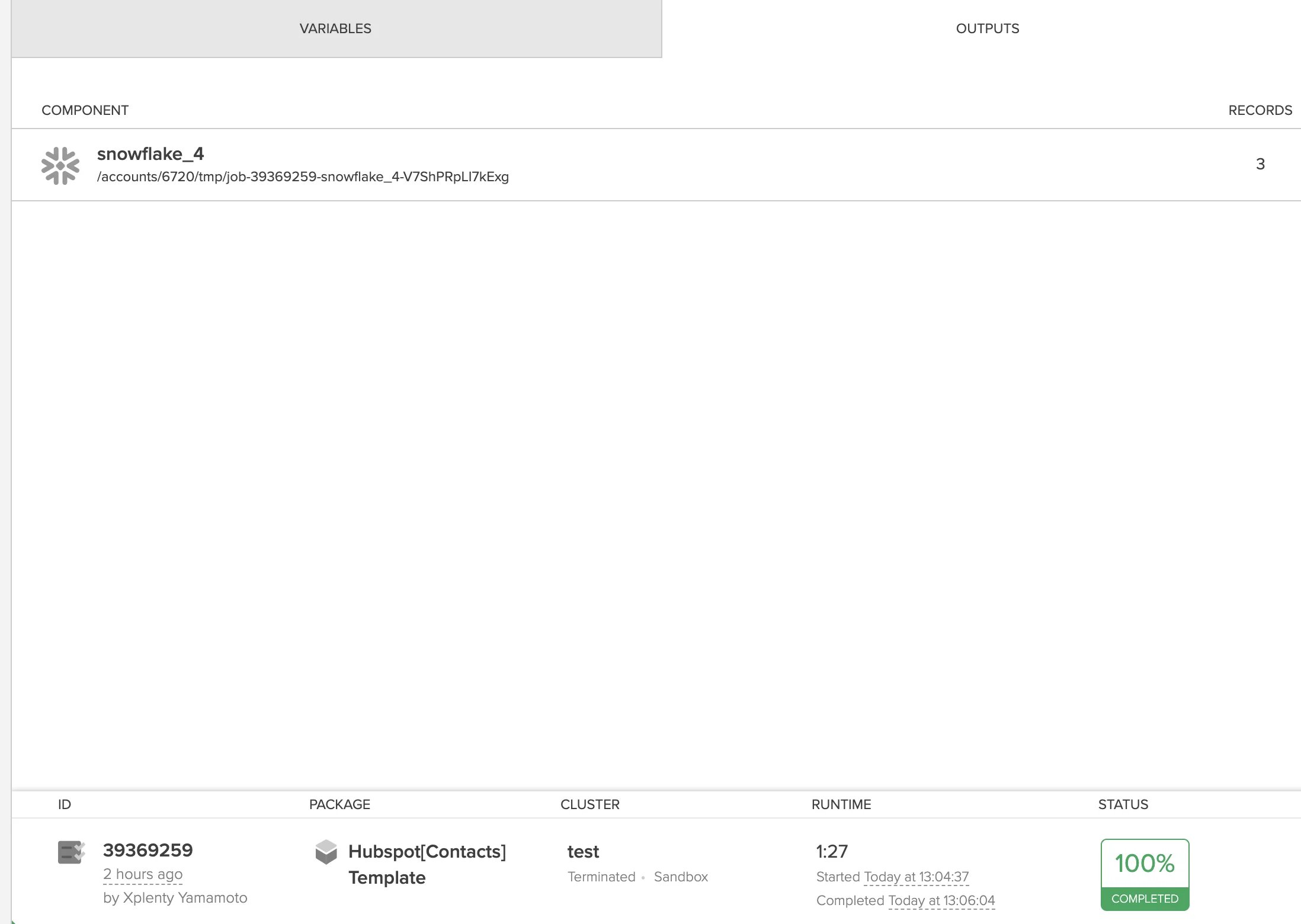
## Xplentyでジョブ実行結果を確認する

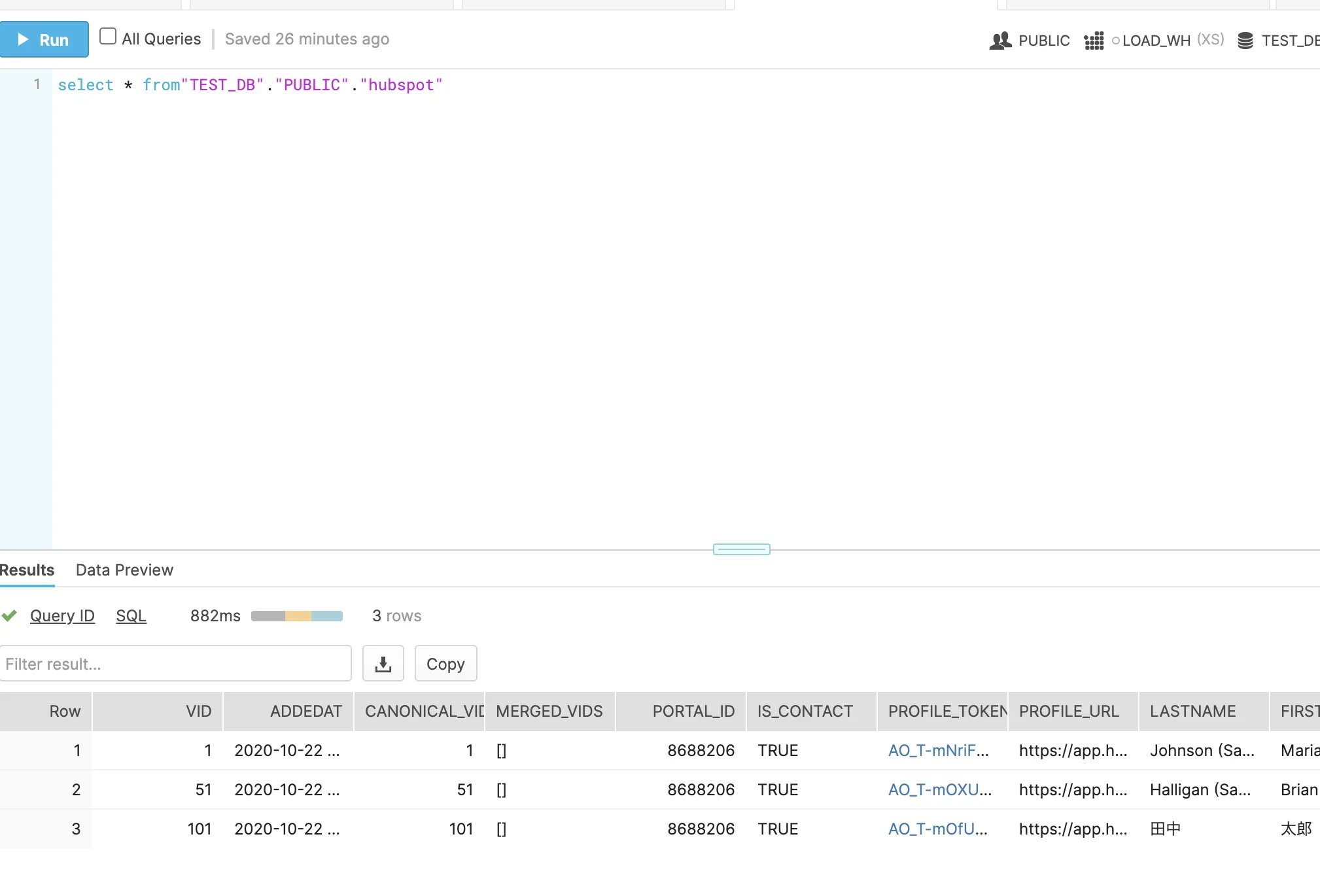
Hubspotより3件のレコードが更新されていることを確認できました。
<Frame>
  <img src="https://mintcdn.com/integrateio/u3KZjgbItgbZsh3u/images/japanese-knowledge-base/restapi-part03-jp/image-10.webp?fit=max&auto=format&n=u3KZjgbItgbZsh3u&q=85&s=8bcb1fb280f5ea988d49a07e10b52267" alt="restapi-part03-jp image 10" width="2196" height="1560" data-path="images/japanese-knowledge-base/restapi-part03-jp/image-10.webp" />
</Frame>

<Frame>
  <img src="https://mintcdn.com/integrateio/u3KZjgbItgbZsh3u/images/japanese-knowledge-base/restapi-part03-jp/image-11.webp?fit=max&auto=format&n=u3KZjgbItgbZsh3u&q=85&s=ebd5214830c6496cdc5cb229fe7c025a" alt="restapi-part03-jp image 11" width="2018" height="1370" data-path="images/japanese-knowledge-base/restapi-part03-jp/image-11.webp" />
</Frame>