

SFTP access means connecting to a remote server over SSH to securely transfer files. By default, SFTP uses port 22. You authenticate with either a username and password or an SSH key pair, where the public key lives on the server and the private key stays on your machine.
Key Takeaways
- SFTP encrypts both commands and data in transit using SSH; standard FTP does not.
- Port 22 is the universal default for SFTP connections.
- You can connect via command line, a GUI client (FileZilla, WinSCP, Cyberduck), or an automated data pipeline.
- SSH key pair authentication is more secure than password-only access.
- Common connection errors (refused connections, permission denied, host key mismatches) each have specific, fixable causes.
- For data teams, Integrate.io connects to any SFTP server as a source or destination in an automated data pipeline, eliminating manual file management.
SFTP vs. FTP vs. FTPS: What's the Difference?
You may hear SFTP and FTP used interchangeably. They share the same purpose (transferring files between computers on a network) but differ significantly in how they handle security.
| FTP | FTPS | SFTP | |
|---|---|---|---|
| Encryption | None | SSL/TLS | SSH |
| Default Port | 21 | 990 | 22 |
| Authentication | Username/Password | Certificate + Password | Password or SSH Key |
| Firewall-Friendly | No | No | Yes |
| Compliance-Ready | No | Partial | Yes |
File Transfer Protocol (FTP) transfers files in batches between computers but sends data in plain text, with no encryption protecting credentials or content.
FTPS adds SSL/TLS encryption on top of FTP. It improves security over standard FTP but requires multiple ports, which complicates firewall configuration.
SFTP (SSH File Transfer Protocol) runs entirely over SSH on a single port (22), encrypting both authentication and data. It is the standard choice for organizations subject to data security compliance requirements (HIPAA, GDPR, SOC 2).
How Does SFTP Work?
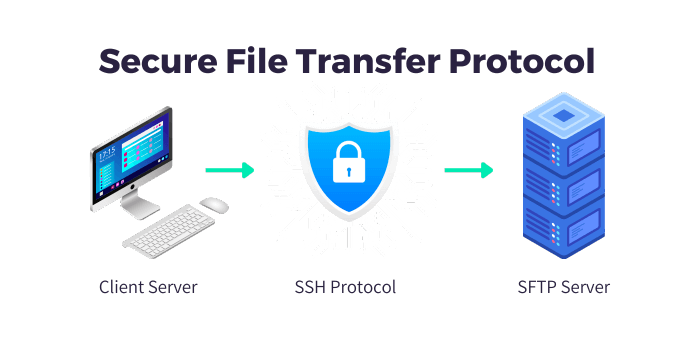
SFTP transfers run through three stages: connection request, security negotiation, and authentication.
1. Connection Request (Port 22)
The client contacts the server on port 22. A listener on the server monitors for incoming requests. If the port is open and the server is running, the handshake begins.
2. Security Negotiation
Both parties agree on an encryption algorithm for the session. Once the encryption method is set, they negotiate the data transfer protocol. Neither side sends credentials until this negotiation completes.
3. Authentication: Password vs. SSH Key
The client sends login credentials. Two methods are supported:
- Password authentication: The client provides a username and password. Simpler to set up, but more vulnerable to brute-force attacks.
- SSH key pair authentication: A public key is stored on the server; the private key stays on the client. During authentication, the client proves it holds the matching private key. If the keys match, access is granted. This method is covered in detail in the SSH public/private key authentication documentation from IBM.
Integrate.io supports both authentication methods when connecting to an SFTP server, using industry-standard methods to ensure data privacy. See how secure is SFTP for a deeper look at the encryption layer.
How to Access an SFTP Server: 3 Methods
Before connecting, you need the server's hostname (or IP address), your username, your password or private key, and the port number (22 unless your admin configured otherwise).
Method 1: Command Line (Linux, macOS, Windows Terminal)
The sftp command is built into Linux, macOS, and Windows 10+ (via OpenSSH). It is the fastest way to connect without installing additional software.
Basic connection:
sftp username@hostname
Non-default port:
sftp -P 2222 username@hostname
Once connected, you see the sftp> prompt. Common commands from there:
| Command | What It Does |
|---|---|
ls |
List files in the remote directory |
pwd |
Show current remote directory |
get filename |
Download a file to your local machine |
put filename |
Upload a file to the remote server |
exit |
Close the connection |
This method is the most portable and requires no additional software beyond OpenSSH, which ships with most modern operating systems.
Method 2: GUI Client (FileZilla, WinSCP, Cyberduck)
If you prefer a visual interface, three free clients cover the most common platforms:
| Client | Platform | Notes |
|---|---|---|
| FileZilla | Windows, macOS, Linux | Most widely used; supports SFTP, FTP, FTPS |
| WinSCP | Windows | Strong scripting support for automation |
| Cyberduck | macOS, Windows | Clean interface; supports cloud storage too |
For all three, the connection form requires the same four fields:
- Host: The server's hostname or IP address
- Username: Your account name on the server
- Password or Key: Password or path to your private key file
- Port: 22 (or your admin-specified port)
Method 3: Automated Pipeline with Integrate.io (for Data Teams)
For data teams ingesting files on a schedule, manually logging into an SFTP server is not a sustainable workflow. Integrate.io connects to any SFTP server as a source or destination in an automated data pipeline, handling both password and SSH key authentication without manual intervention.
With the SFTP connector, your team can:
- Ingest CSV, Excel, or flat files from an SFTP server on a recurring schedule
- Push processed data back to an SFTP server as a destination
- Chain SFTP ingestion into broader ETL workflows using Integrate.io's ETL and data pipeline platform
- Handle automated data ingestion without writing or maintaining custom scripts
For teams already using Salesforce alongside SFTP workflows, the SFTP to Salesforce integration guide covers the specific pipeline configuration.
Connecting to an SFTP Server: Step-by-Step Setup
Before accessing an SFTP server, the server side needs to be configured correctly. Here is the full setup sequence.
Step 1: Determine the Authentication Method
Decide whether users will authenticate with a password, an SSH key pair, or both. For higher security, configure a passphrase on the private key as an additional layer. Review the SFTP connection requirements to understand what each method demands from both sides.
Step 2: Configure the Server
The server stores files and uses the SSH protocol for transmission. Set up the directory where files will be stored, then create the necessary user groups and login accounts. Restrict directory permissions so each user can only access their designated folders.
Step 3: Configure the Firewall
Open port 22 (or your chosen non-standard port) to allow inbound SSH/SFTP connections. A single-port SSH tunnel is all that is required, which is one reason SFTP is more firewall-friendly than FTPS.
Step 4: Configure the Client
The client-side administrator installs an SFTP client and configures:
- Hostname of the SFTP server
- Security protocol in use (SSH)
- Username for the connection
- Password or private key file path
- Port number (default: 22)
Common SFTP Connection Errors and How to Fix Them
Most SFTP connection failures fall into a small set of categories. Here is what each error means and how to resolve it.
"Connection refused" The server is not running on the expected port, or a firewall is blocking port 22. Verify the SFTP service is active on the server and that the firewall allows inbound connections on the configured port.
"Permission denied (publickey)" Your public key is not in the authorized_keys file on the server, or the file permissions on ~/.ssh/authorized_keys are too permissive. The file should be set to 600. Add your public key to the server's authorized_keys file and confirm the permissions.
"Host key verification failed" The server's host key does not match the entry in your local known_hosts file. This can happen after a server rebuild or IP change. Remove the old entry from known_hosts with ssh-keygen -R hostname and reconnect to accept the new key.
"No such file or directory" The remote path you specified does not exist or is misspelled. Use pwd and ls after connecting to confirm the correct directory structure before running get or put commands.
Timeout errors The connection attempt times out before reaching the server. Common causes include VPN interference, overly strict firewall rules, or the server being unreachable on the network. Verify network connectivity and confirm the server's IP or hostname resolves correctly.
Moving Beyond SFTP: Automated Data Pipelines
SFTP is the right tool for secure batch file transfers between systems. When your data needs shift toward scheduled ingestion, multi-source consolidation, or feeding a data warehouse, manual SFTP access becomes a bottleneck.
Integrate.io's SFTP connector connects directly to your SFTP server and feeds files into a fully automated data pipeline. Files are ingested, transformed, and loaded to your destination on a schedule you define, with no manual login required. The platform supports hundreds of pre-built connections, including SFTP to Salesforce integration and connections to major data warehouses.
For teams evaluating their options, the ETL and data pipeline platform overview covers how Integrate.io handles the full pipeline from SFTP source to analytics-ready destination.
Frequently Asked Questions
What port does SFTP use?
SFTP uses port 22 by default, the same port used by SSH. Administrators can configure SFTP to run on a non-standard port, but port 22 is the universal default. If you are connecting to a non-standard port, use the -P flag in the command line: sftp -P 2222 username@hostname.
What is the difference between SSH and SFTP?
SSH (Secure Shell) is a cryptographic network protocol for secure remote access to systems. SFTP (SSH File Transfer Protocol) is a file transfer protocol that runs over an SSH connection. SFTP uses SSH for its encryption and authentication layer; you cannot use SFTP without SSH.
Can I access an SFTP server from a browser?
Standard web browsers do not support SFTP natively. You need a dedicated SFTP client (FileZilla, WinSCP, Cyberduck) or a command-line tool. Some web-based SFTP clients exist as third-party tools, but they require you to provide your credentials to a third-party service, which introduces security risks.
How do I access an SFTP server on Windows?
On Windows 10 and later, OpenSSH is included. Open PowerShell or Command Prompt and run sftp username@hostname. Alternatively, install FileZilla or WinSCP for a GUI interface. Both are free and support SSH key authentication.
How do I access an SFTP server on Linux?
The sftp command is available on all major Linux distributions via the OpenSSH package. Run sftp username@hostname from the terminal. For key-based authentication, use sftp -i /path/to/privatekey username@hostname.
What authentication methods does SFTP support?
SFTP supports two primary authentication methods: username/password and SSH key pair. SSH key pair authentication is more secure because it eliminates the risk of password brute-force attacks. Some servers require both a key and a passphrase for maximum security.
Is SFTP the same as FTP over SSH?
No. SFTP is a distinct protocol developed as part of the SSH protocol suite. It is not FTP tunneled through SSH; it is a separate file transfer protocol that happens to use SSH for encryption. The two share no code or protocol structure with standard FTP.
How do I test an SFTP connection?
The simplest test is to run sftp username@hostname from the command line. If the connection succeeds, you will see the sftp> prompt. You can also use ssh -p 22 username@hostname to test the underlying SSH connectivity before attempting SFTP. If SSH connects but SFTP does not, the issue is server-side SFTP configuration.
What is the sftp command syntax?
The basic syntax is sftp username@hostname. For a non-default port: sftp -P portnumber username@hostname. For key-based authentication: sftp -i /path/to/key username@hostname. Once connected, use ls, get, put, and exit to manage files.
How does Integrate.io connect to SFTP servers?
Integrate.io's SFTP connector connects to any SFTP server as a source or destination in a data pipeline. It supports both password and SSH key authentication, handles automated data ingestion on a defined schedule, and eliminates the need for manual file management.
Schedule a demo to see it configured end to end.
Integrate.io connects to any SFTP server as a source or destination in your data pipeline, no manual file management required. Schedule a demo to see how Integrate.io handles SFTP ingestion, transformation, and loading in a single automated workflow.