

Creating Integrate.io ELT Connection
1
On Connection options of Source or Destination creation, select Connect via secure tunnel. Select Create a new tunnel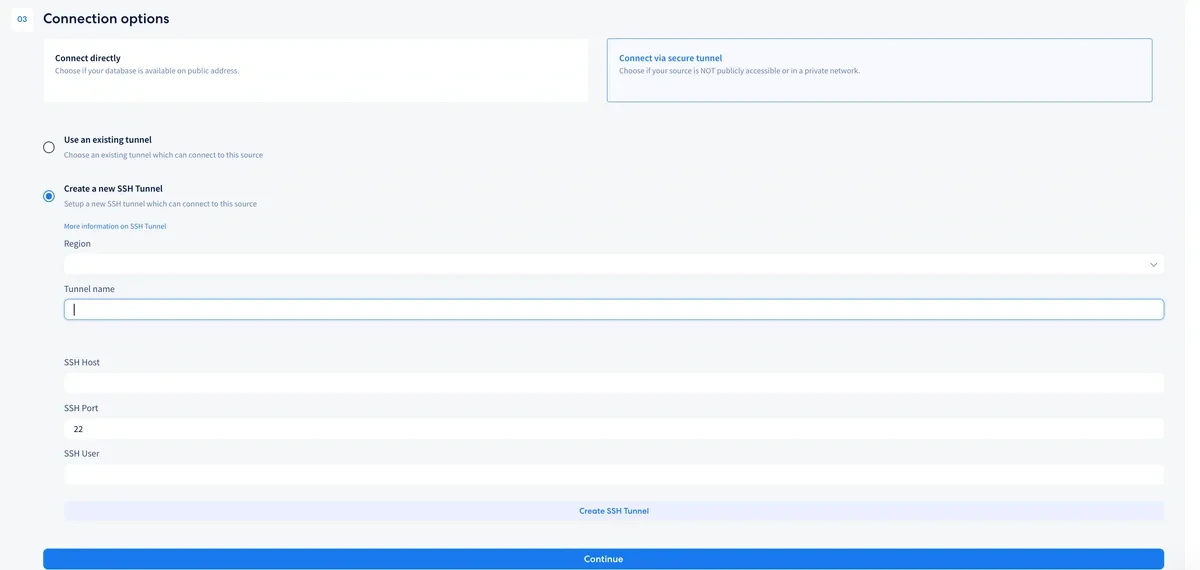
2
Supply the region, tunnel name and the SSH tunnel details. Click Create SSH Tunnel to create the tunnel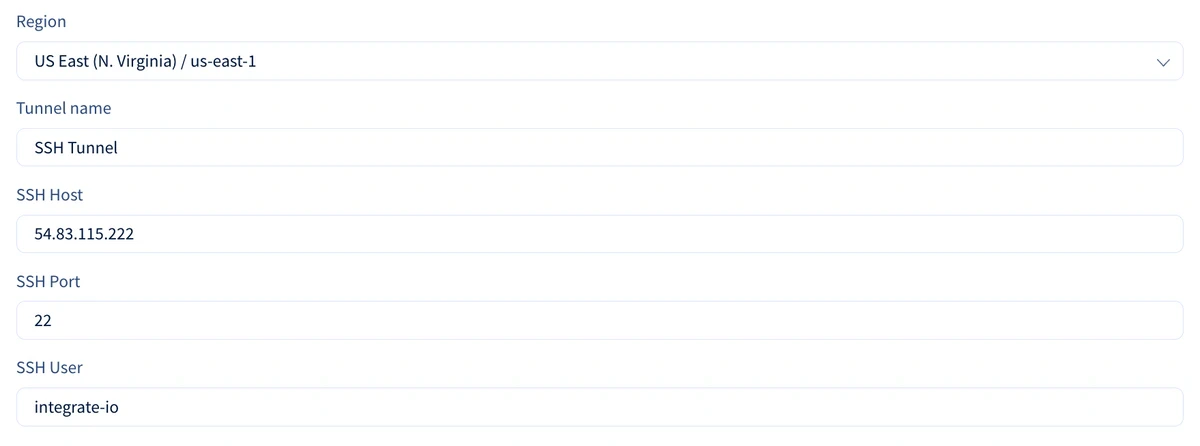
3
Copy the SSH Public Key by clicking the Copy button and prepare your tunnel host for access.
4
Once your tunnel host is prepared, click Test Tunnel Connection to test the connection. If connection is successful, you should see the Active check.
For Linux - Preparing the tunnel host
You will need to prepare your host (either bastion host or tunnel server) by creating an integrate.io ELT user. Here’s how:1
Create group integrate.io ELT
sudo groupadd integrate-io2
Create user integrate.io ELT and its home directory
sudo useradd -m -g integrate-io integrate-io3
Switch to the integrate.io ELT user
sudo su - integrate-io4
Create the .ssh directory and change permission
mkdir ~/.ssh && chmod 700 ~/.ssh5
Create the authorization\_keys file and change permission
touch ~/.ssh/authorized_keys && chmod 600 ~/.ssh/authorized_keys6
Add the previously copied public key to the authorized\_keys
echo '<SSH public key>' >> ~/.ssh/authorized_keys7
Allow access to your server’s host and port from Integrate.io ELT’s IP addresses
sudo ufw allow from <Integrate.io ELT's IP addresses> to any port 22 proto tcpFor Windows - Preparing the tunnel host
We will use theAdministrator user for this guide. If you are using a different user, please make sure that it belongs to the Adminstrator group.
Run the following commands in Powershell as Administrator.
1
Check if SSH features are enabled

2
Enable SSH features if they are not installed
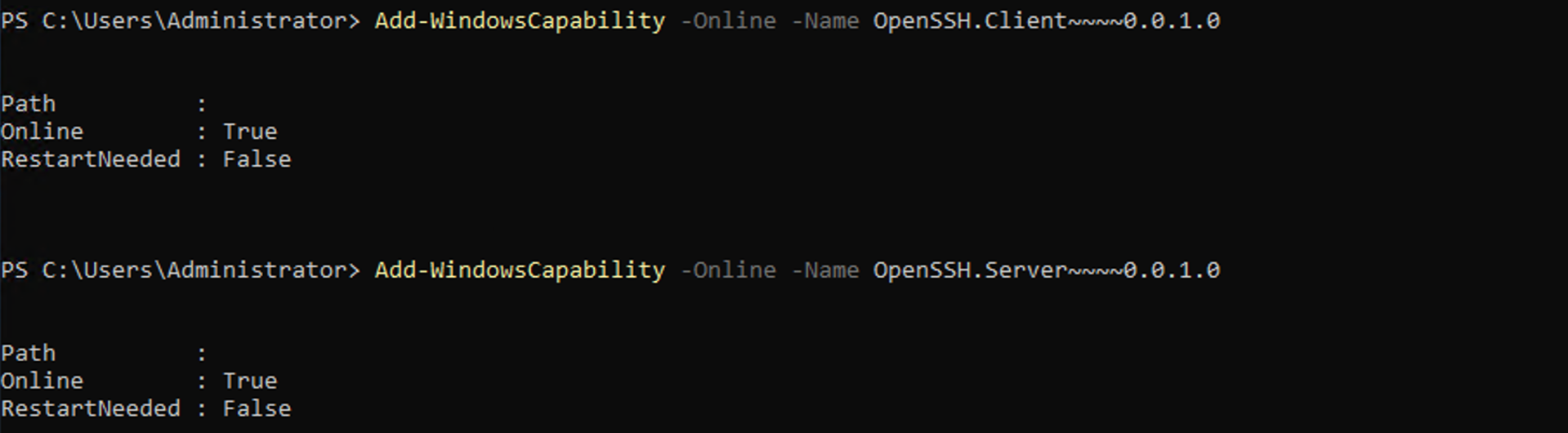
3
Enable public key authentication in SSH server configuration file
PubkeyAuthentication4
Start the SSH server service
5
Create a firewall rule for the SSH port
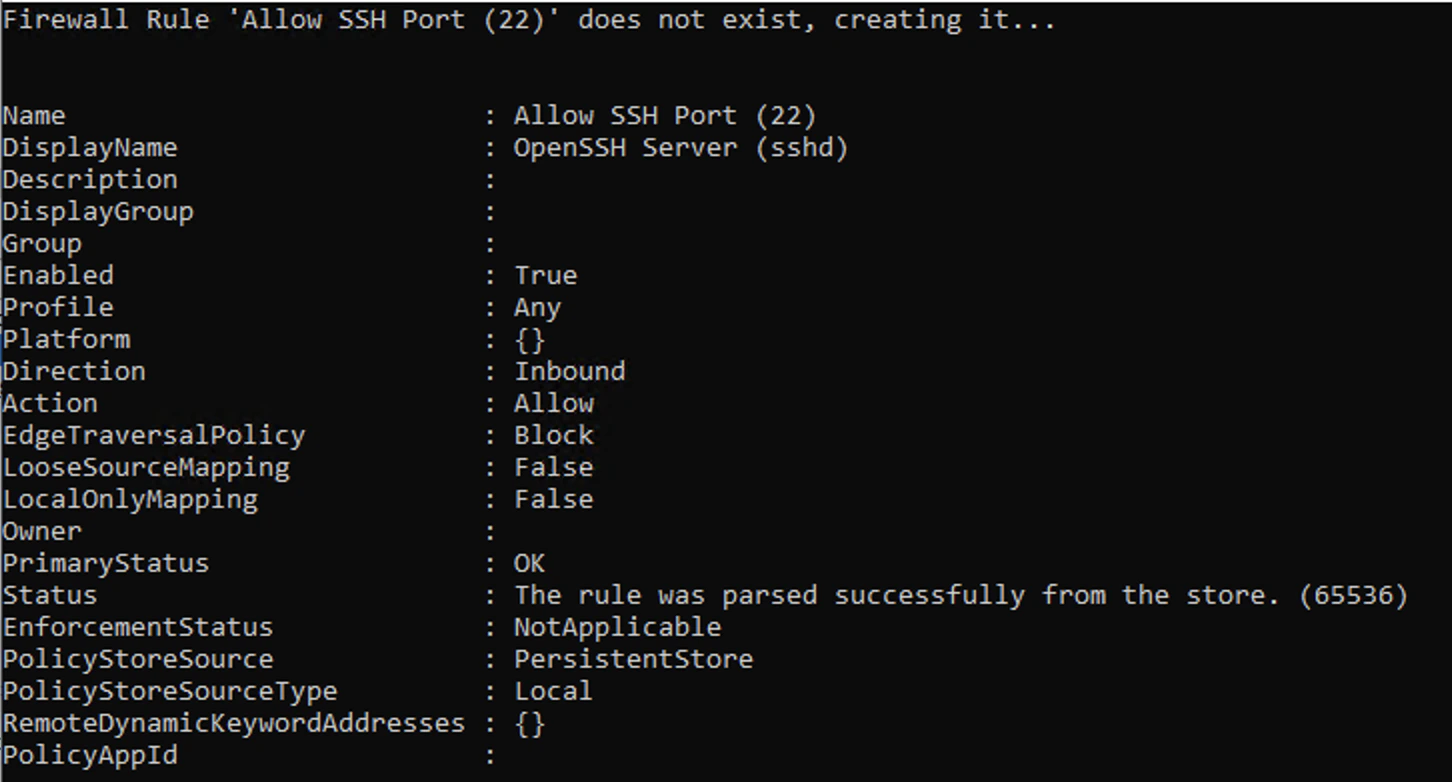
6
Add the public key from Integrate.io. Replace
ssh-rsa ... with the public key content7
Allow access to your server’s host and port from Integrate.io ELT’s IP addresses.
Notes:
- If the database is hosted inside the Windows machine and accessible locally, use the local IP of the Windows machine as the database host in Integrate.io. You can get it by running
ipconfig. - The SSH tunnel username is
Administratorfor this guide.