Collections
Setting up Google Analytics for ELT & CDC
Requirements
- You need permissions to create private keys for service accounts.
Google Analytics Source Create Form
Follow these steps to Enable Google Analytics API.1
Go to Google Cloud Platform dashboard and navigate to
APIs & Services tab in the hamburger menu.2
Click the 
Enable APIs and Services button.3
Look for 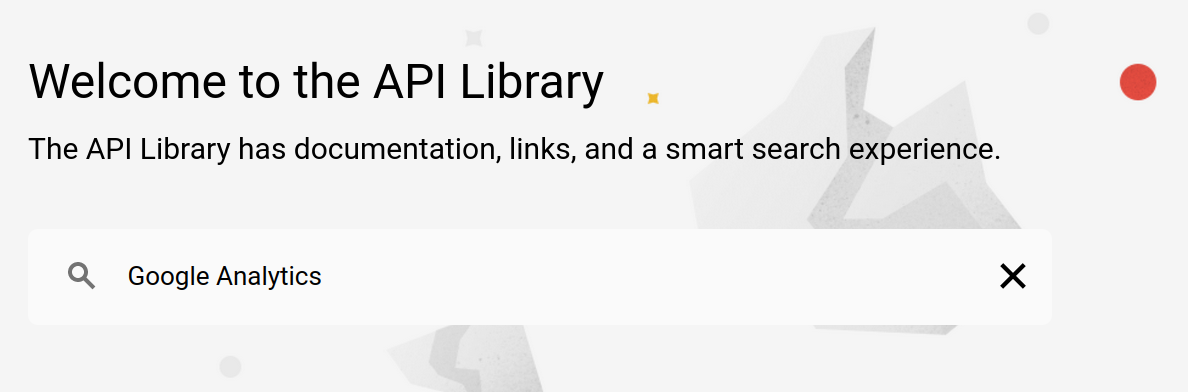
Google Analytics.4
Select 
Google Analytics API among the search results.5
Click the 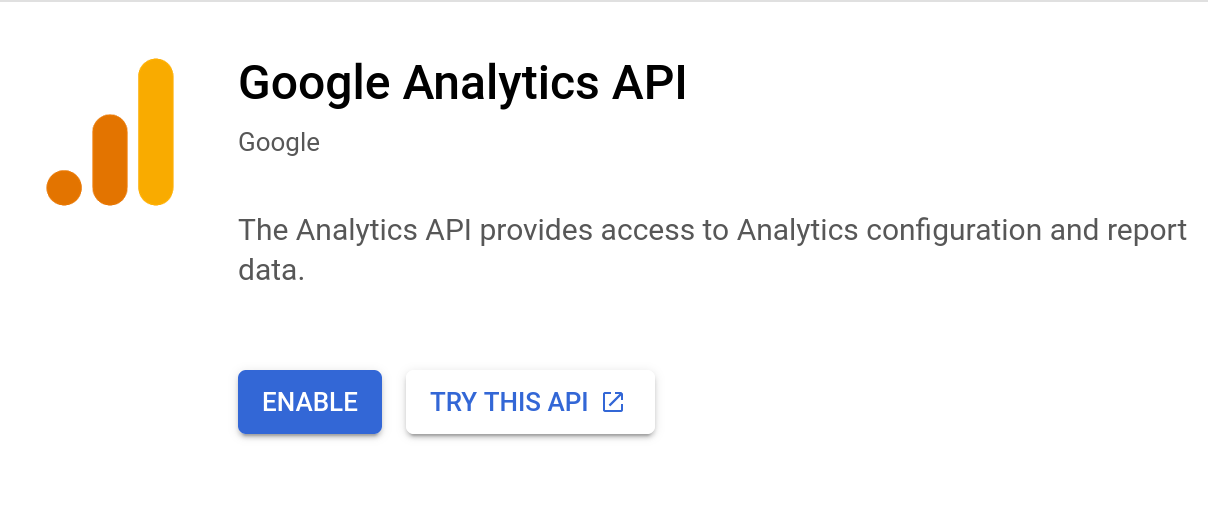
Enable button.6
After enabling the API, you are being redirected to the Google Analytics dashboard. Click the 
Create credentialsbutton for creating credentials.7
Select 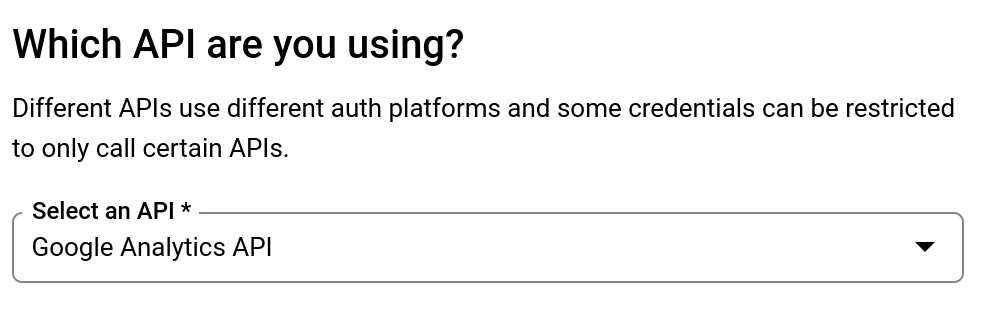
Google Analytics API in the first step.8
Select the 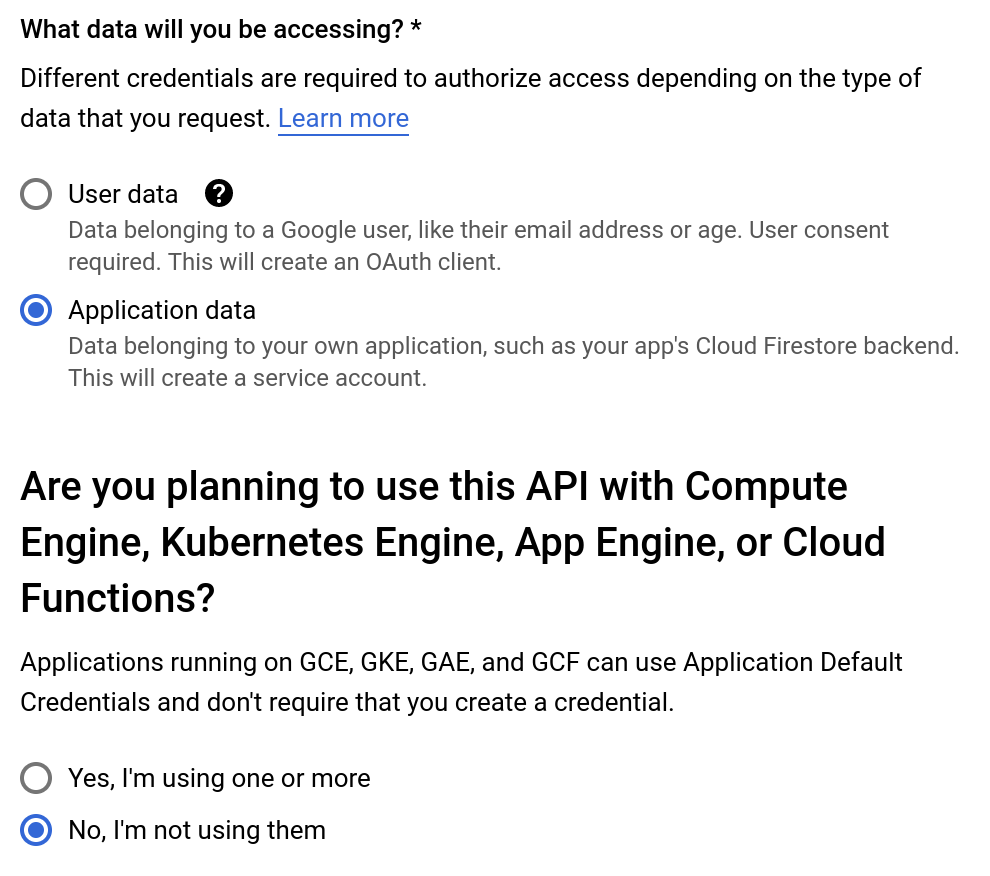
Application data and No, I'm not using them options, then click Next.9
Choose a name for your service account, then click 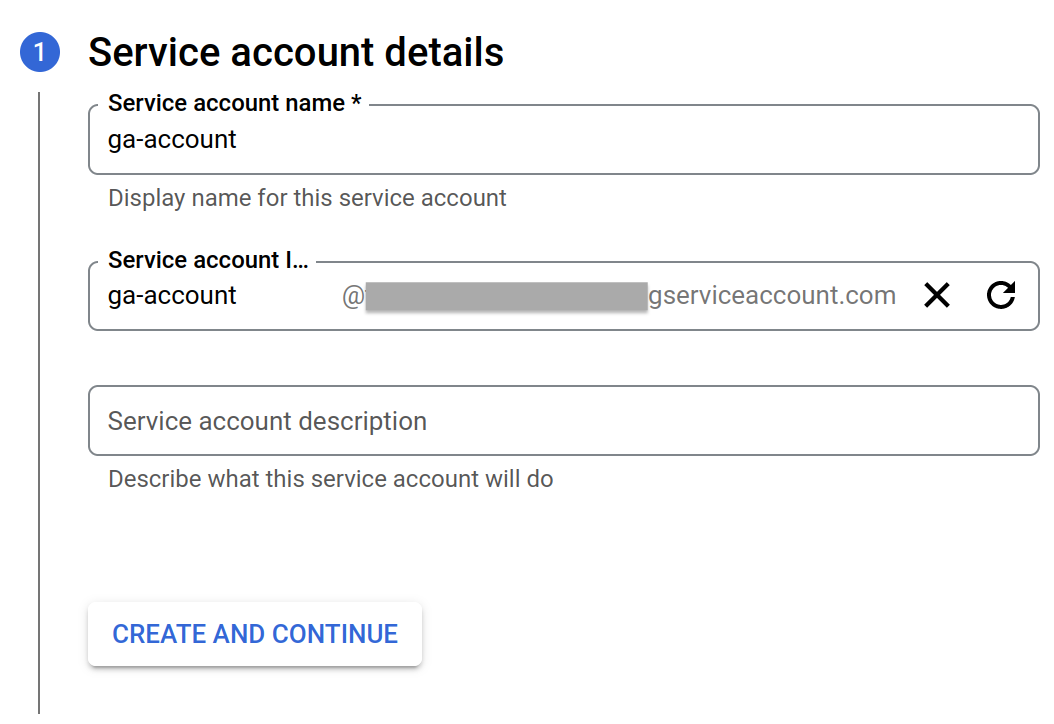
Create and continue.10
Set the 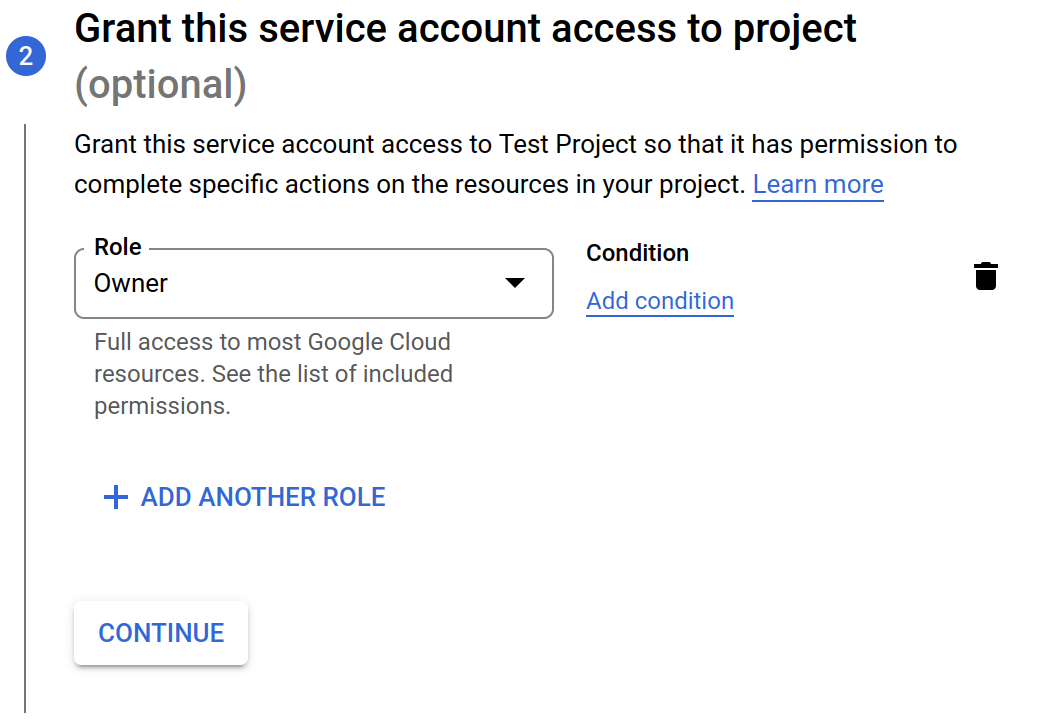
Owner role for your service account, then click Continue.11
Click
Done without making any other changes. You are redirected to Credentials page.12
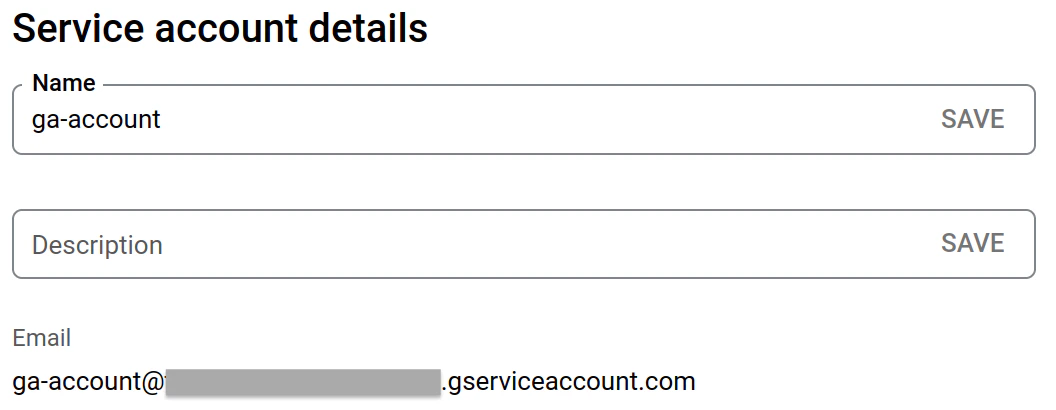
Click your newly created service account in the 
Service Accounts section.13
Click the 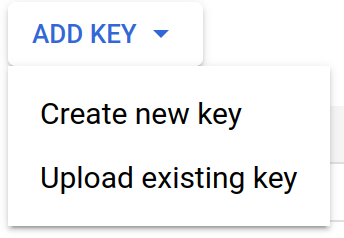
Keys section in the top bar, then click Create new key.14
Make sure that 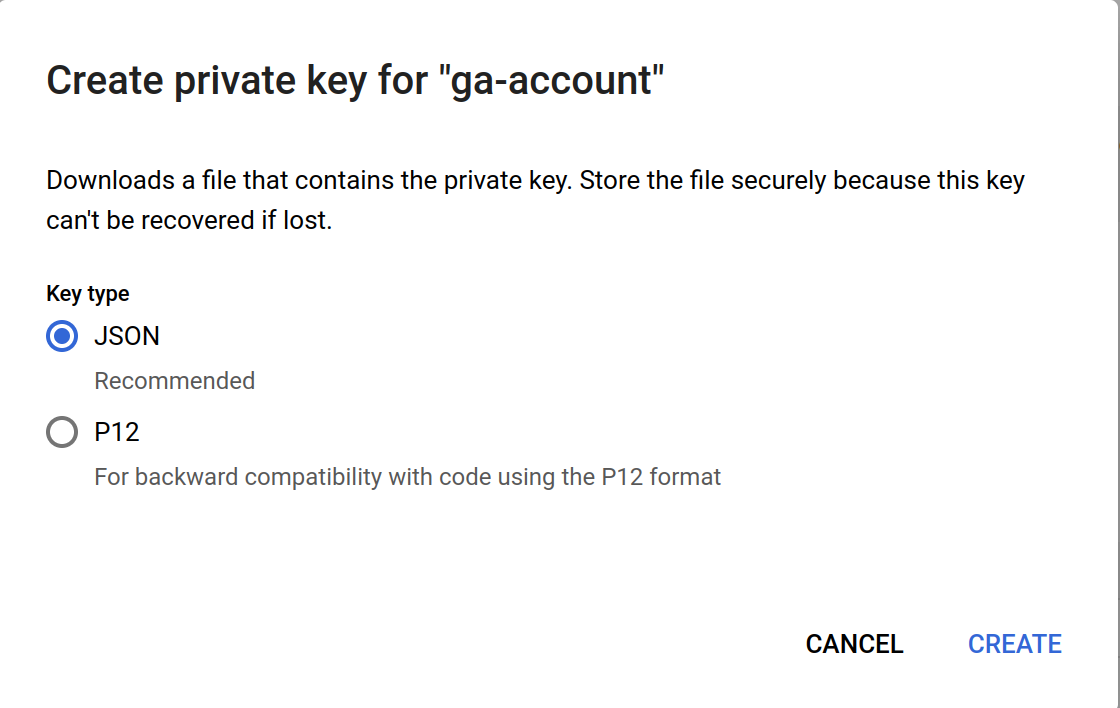
JSON key type is selected (by default), then click Create. You will be prompted to save the JSON file with credentials, save it in a secure place on your computer.15
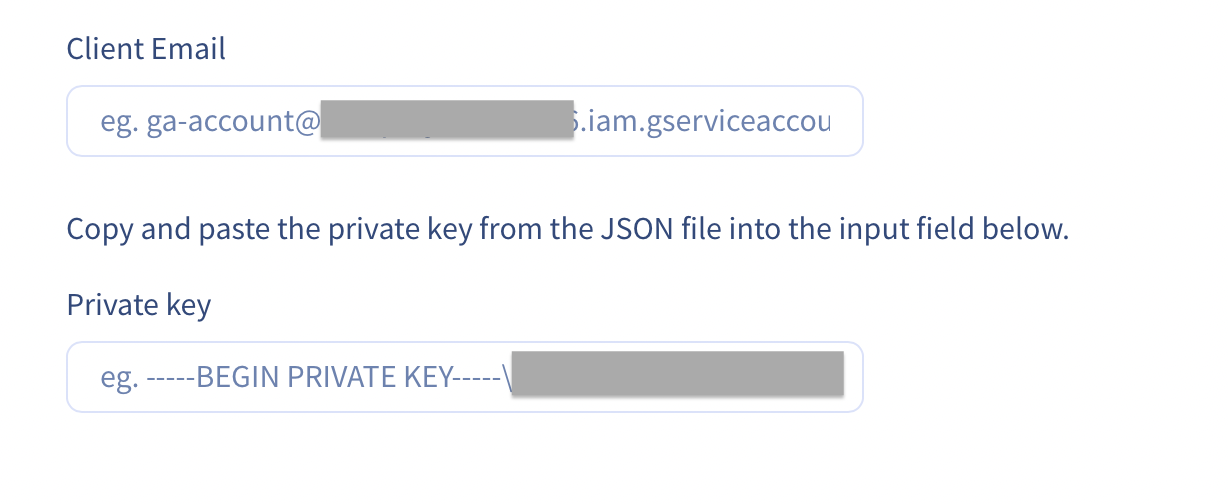
Copy and paste the client email (can be found in Service account details section after clicking on the service account in Service accounts sectio