Documentation Index

Fetch the complete documentation index at: https://www.integrate.io/docs/llms.txt

Use this file to discover all available pages before exploring further.

DescriptionKlaviyo, an ecommerce marketing automation platform for email marketing and sms syncs your tech stack with your website store to scale your business.
Supported ReplicationInitial Sync Continuous Sync
Authentication TypeAPI token

Collections

Collection NameFull/Initial SyncIncremental/Continuous SyncSupports UpdateSupports DeleteNotes
metrics https://developers.klaviyo.com/en/reference/get-metrics
events https://developers.klaviyo.com/en/reference/metric-timeline
profiles https://developers.klaviyo.com/en/reference/get-global-exclusions
lists https://developers.klaviyo.com/en/reference/get-lists⚠️ (API doesn’t send the updated records correctly when updating through Edit List Name)
list_tags https://developers.klaviyo.com/en/reference/get-list-infoDependent on lists
list_members https://developers.klaviyo.com/en/reference/get-membersDependent on lists
email_campaigns https://developers.klaviyo.com/en/reference/get-campaigns⚠️ (API doesn’t send the updated records correctly)
email_campaign_messages https://developers.klaviyo.com/en/reference/get-campaignsDependent on email_campaigns
email_campaign_tags https://developers.klaviyo.com/en/reference/get_campaign_tagsDependent on email_campaigns
sms_campaigns https://developers.klaviyo.com/en/reference/get-campaigns⚠️ (API doesn’t send the updated records correctly)
sms_campaign_messages https://developers.klaviyo.com/en/reference/get-campaignsDependent on sms_campaigns
sms_campaign_tags https://developers.klaviyo.com/en/reference/get_campaign_tagsDependent on sms_campaigns
templates https://developers.klaviyo.com/en/reference/get-templates

Setting up Klaviyo for ELT & CDC

ELT & CDC uses the Metric API provided by Klaviyo to sync the data. Klaviyo API reference

Requirements

  • You need permissions to create Private API Keys.

Create API Token

Follow these steps to create a private API key.
2
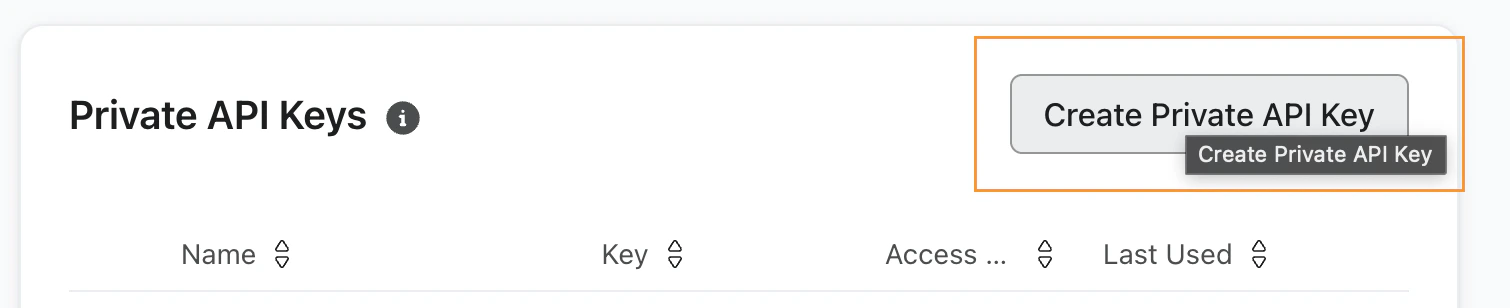
Click the Create Private API Key button
Klaviyo Create Private API Key button on API keys page
3
Set a name for the API Key and select the”Read-Only Key” option. Click the “Create” button.
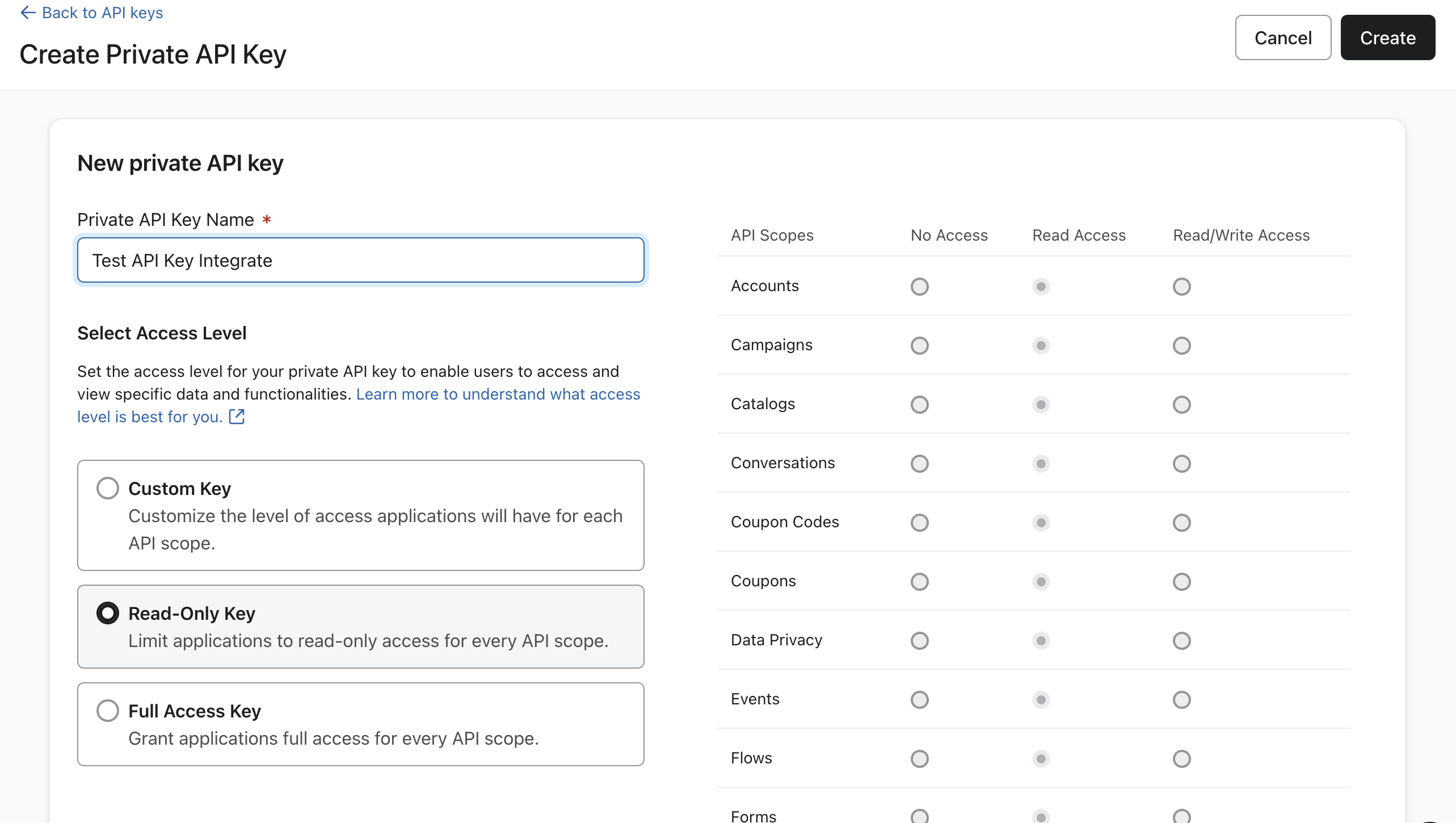
Klaviyo API key name and Read-Only Key scope selection
4
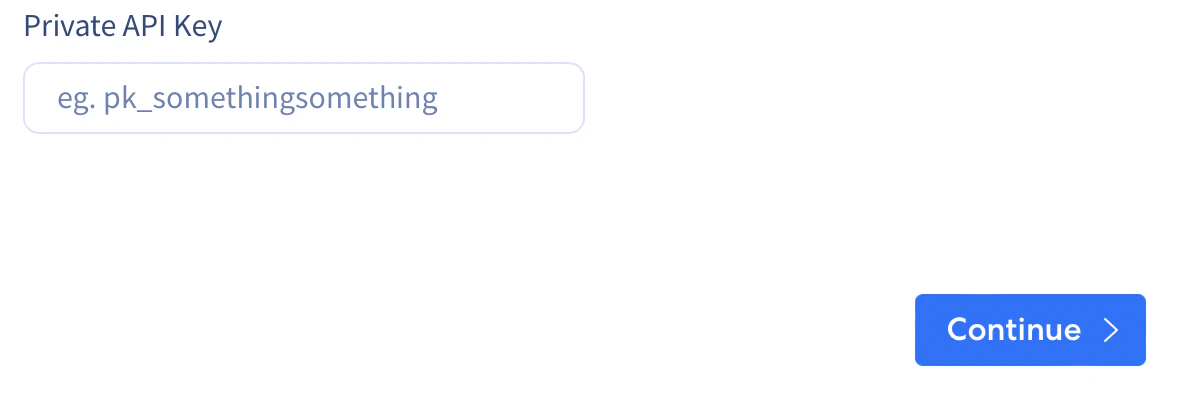
On the Private API Key Confirmation page, copy the API key and paste it into the input field below.
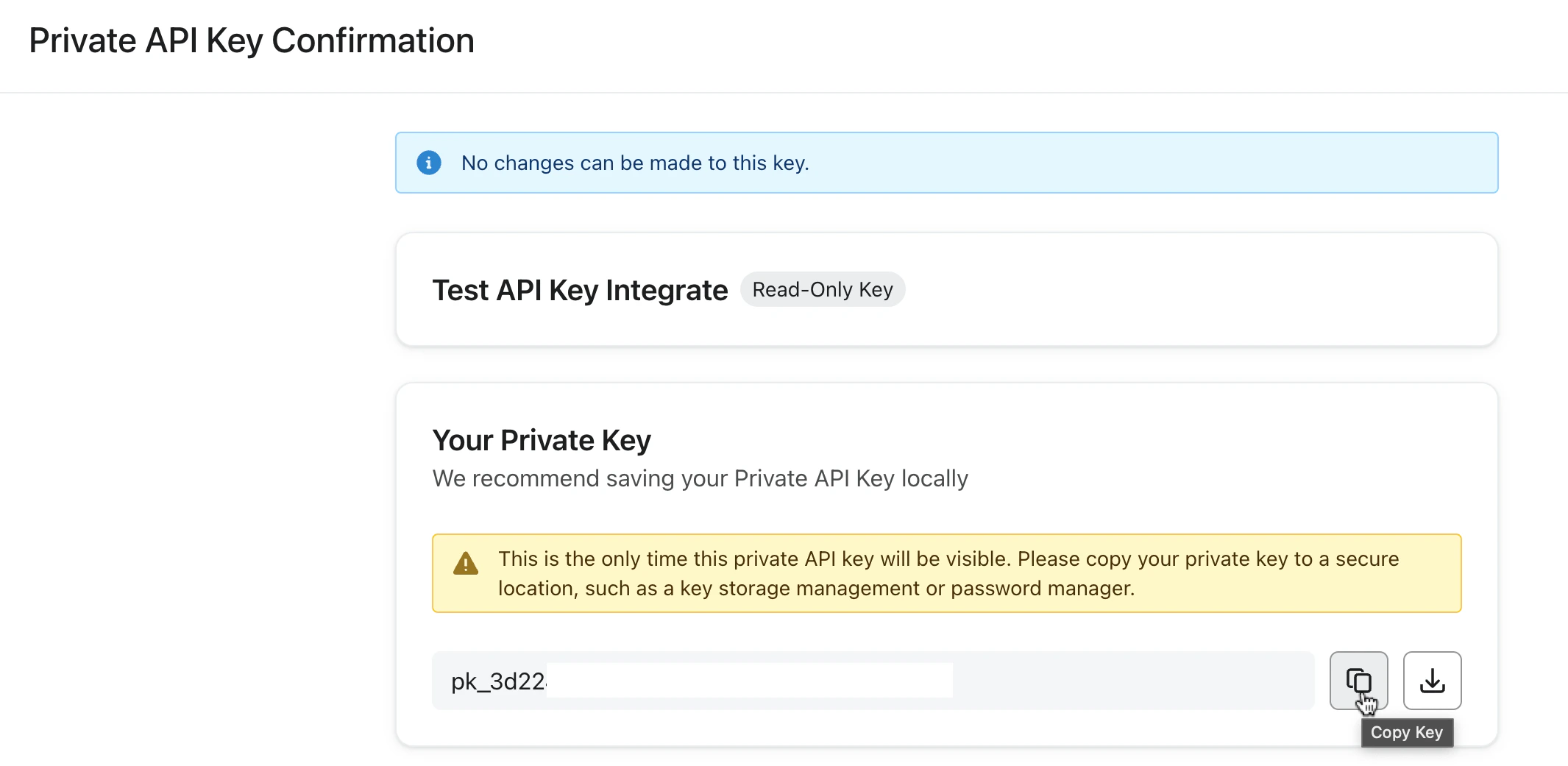
Klaviyo Private API Key confirmation page with key to copy

Integrate.io dashboard field for pasting the Klaviyo API key
Last modified on May 12, 2026