

Connection Setup: NetSuite
To create a NetSuite JDBC(Source) connection in Integrate.io ETL
1
Click the Connections icon (lightning bolt) on the top left menu.
2
To create a connection, click New connection.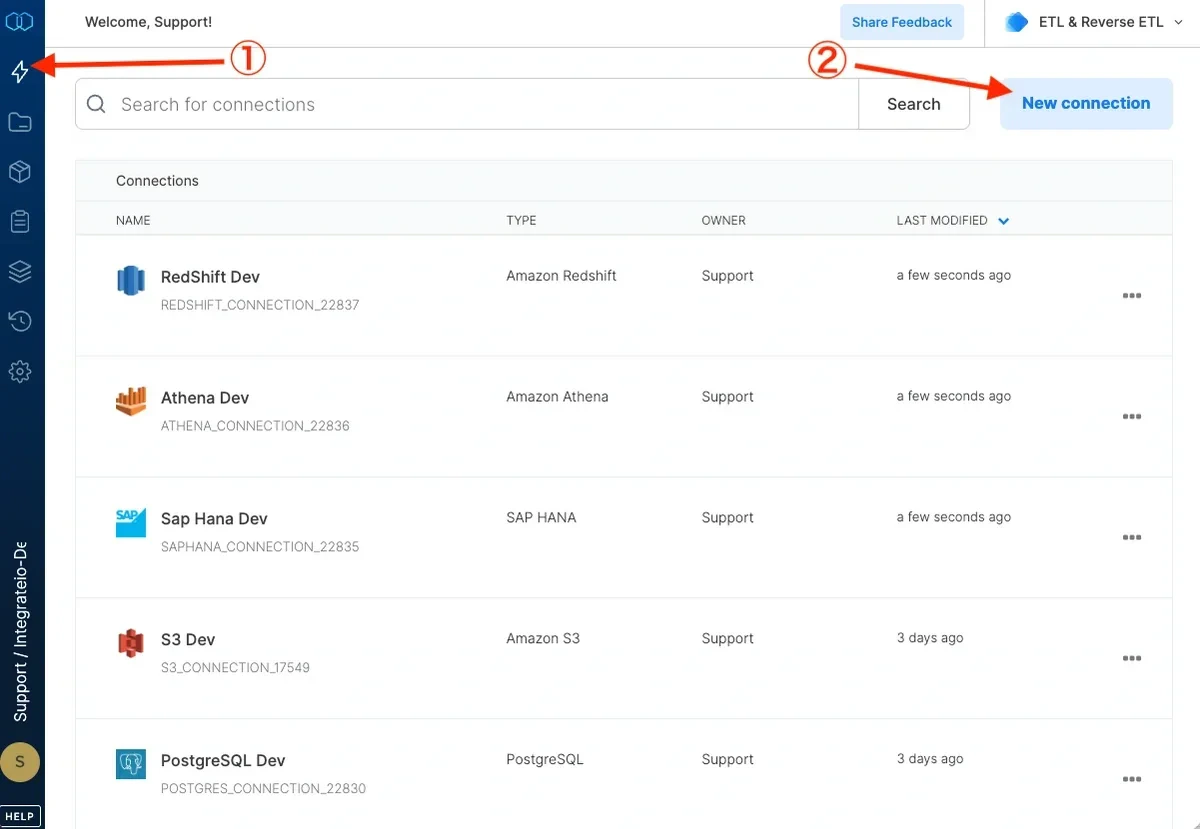
3
Select NetSuite JDBC(Source).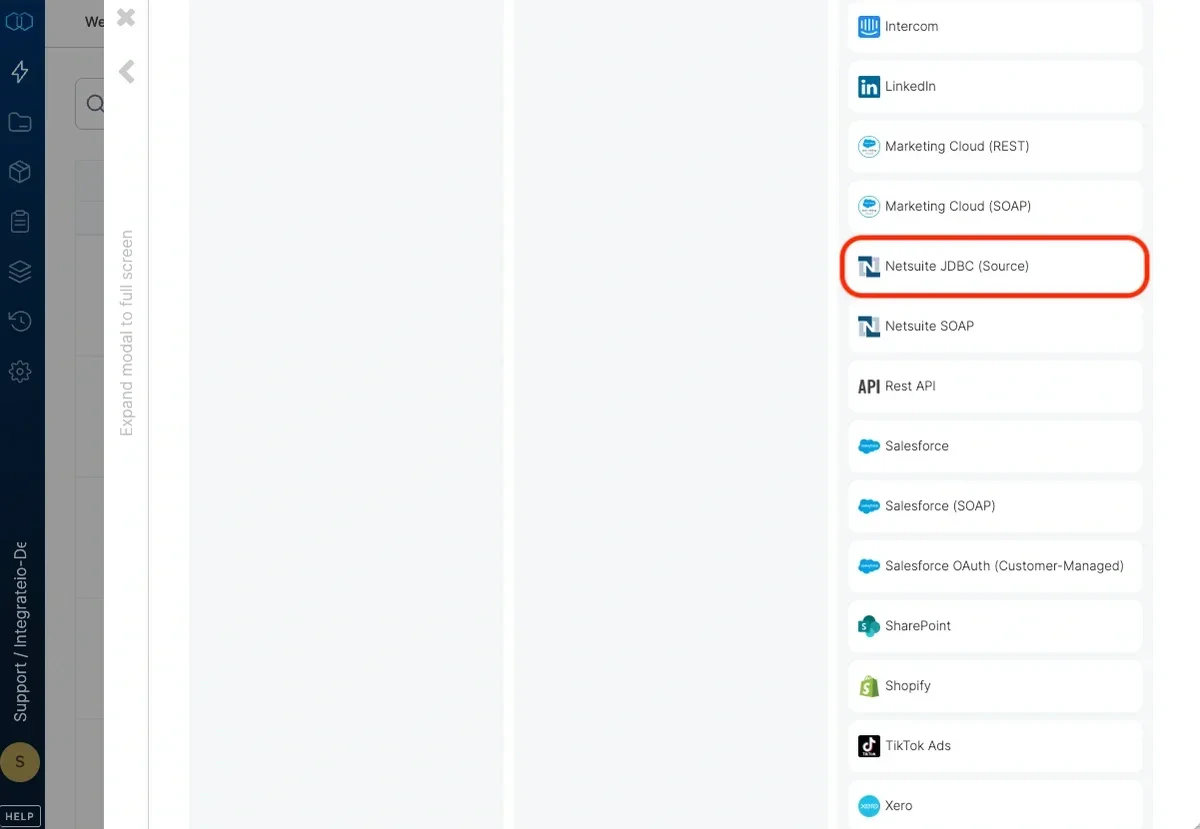
4
In the new NetSuite JDBC(Source) connection window, name the connection and enter the connection information.
- Name - name for the new connection
- Hostname - copy from SuiteAnalytics Connect configuration (see image below)
- Port - copy from SuiteAnalytics Connect configuration (see image below)
- User name - your NetSuite user name.
- Password - your NetSuite password.
- Service data source - copy from SuiteAnalytics Connect configuration (see image below).
- Account ID - copy from SuiteAnalytics Connect configuration (see image below).
- Role ID - copy from SuiteAnalytics Connect configuration (see image below).
5
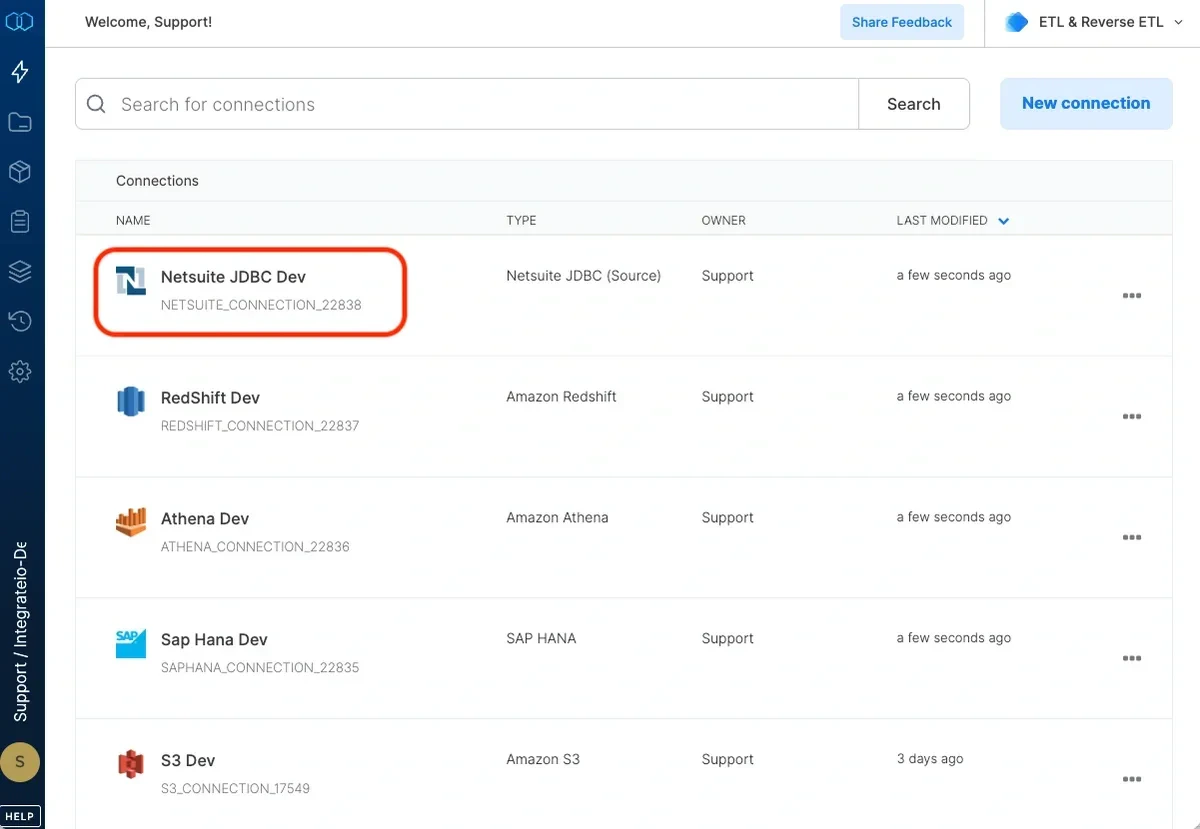
Then, test the NetSuite connection by clicking Test connection. Once the connection tests successful, click Create connection.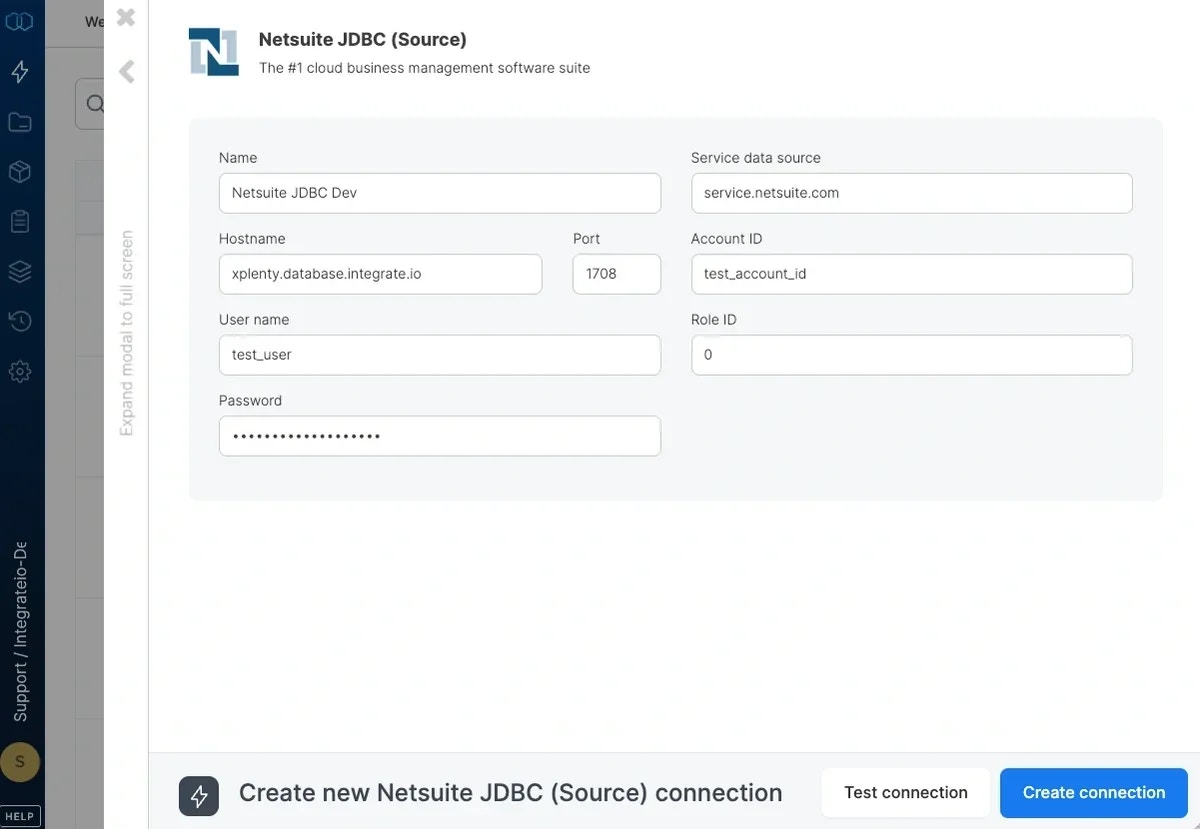
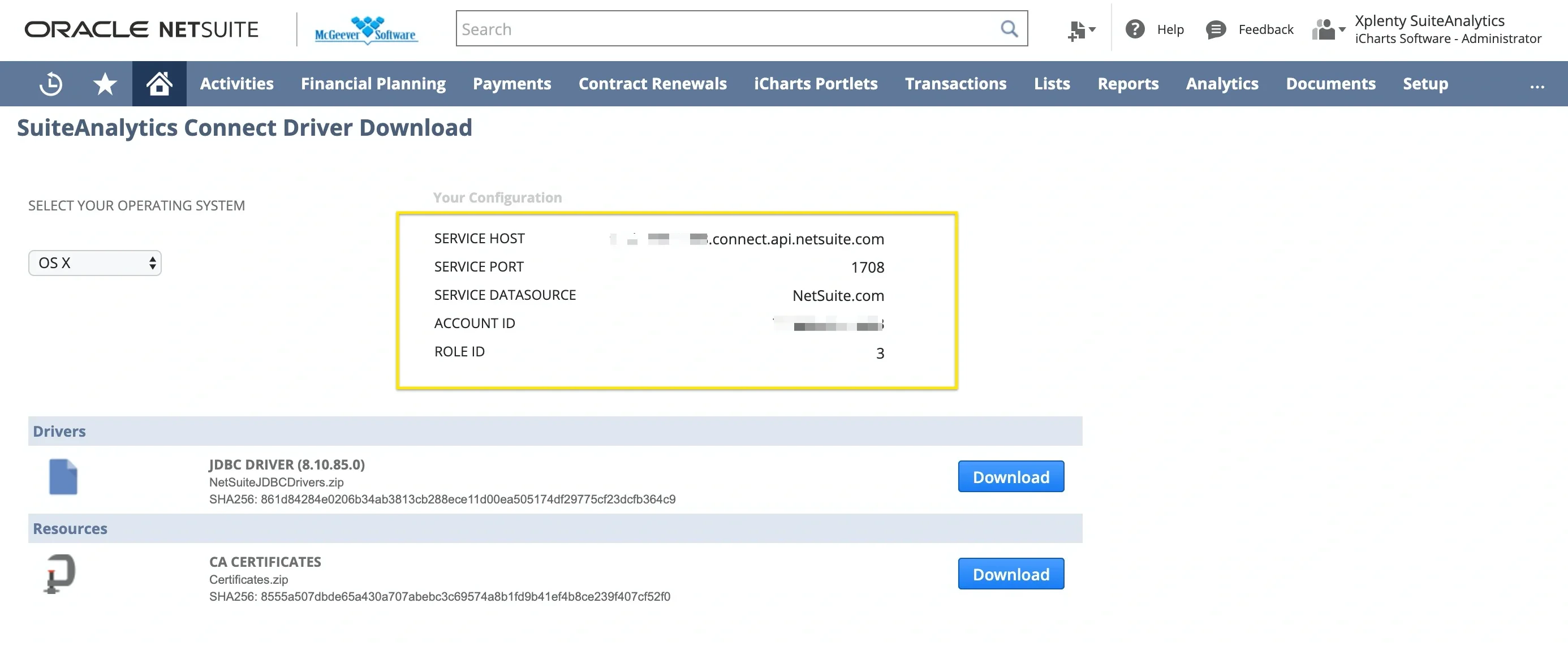
To setup Netsuite2.com as data source
1
Create a new role. Go to Setup > Users/Roles > Manage Roles > New.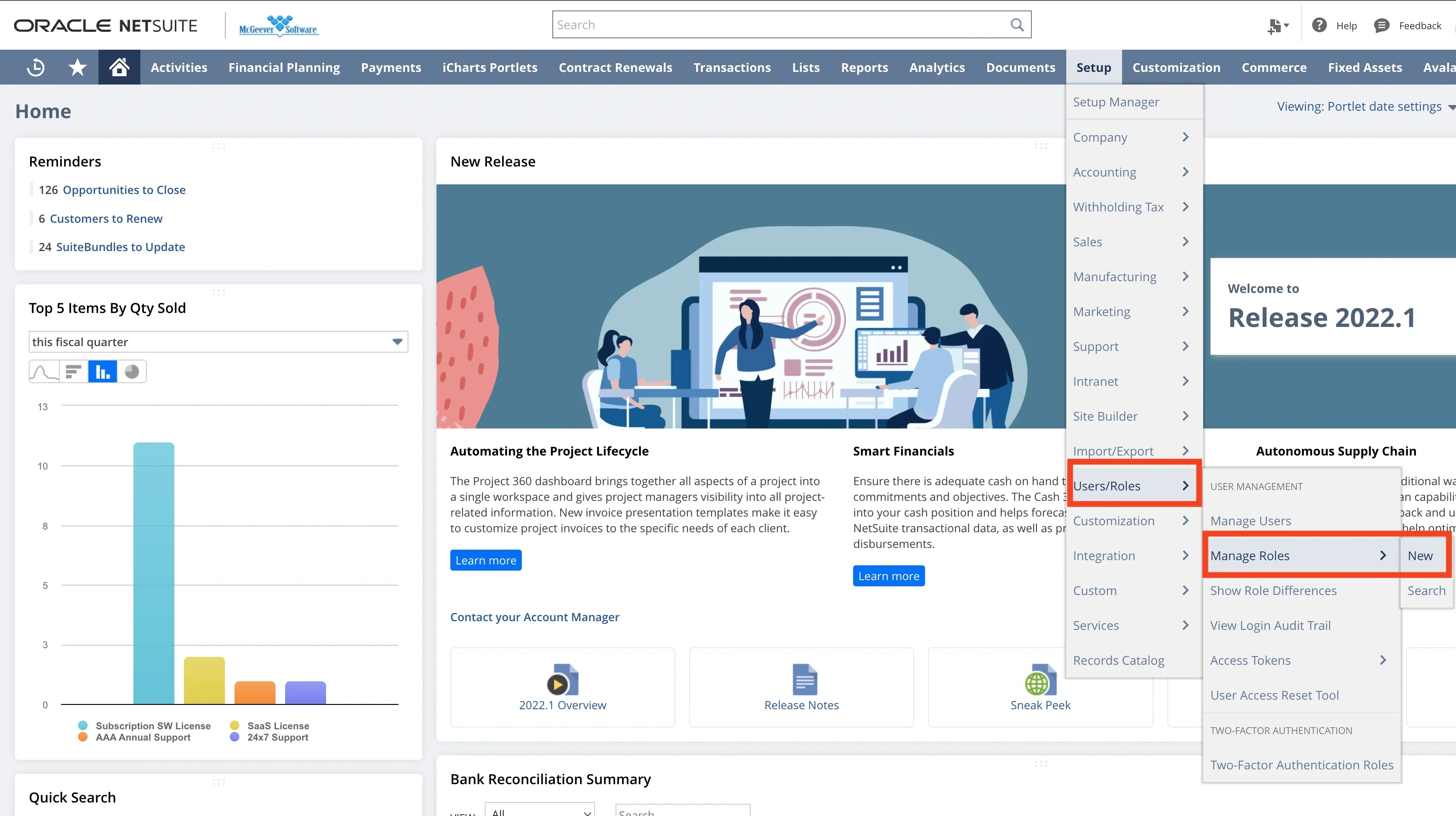
2
Enter a name for this role. Select Permissions tab and then click Setup tab and assign following permissions: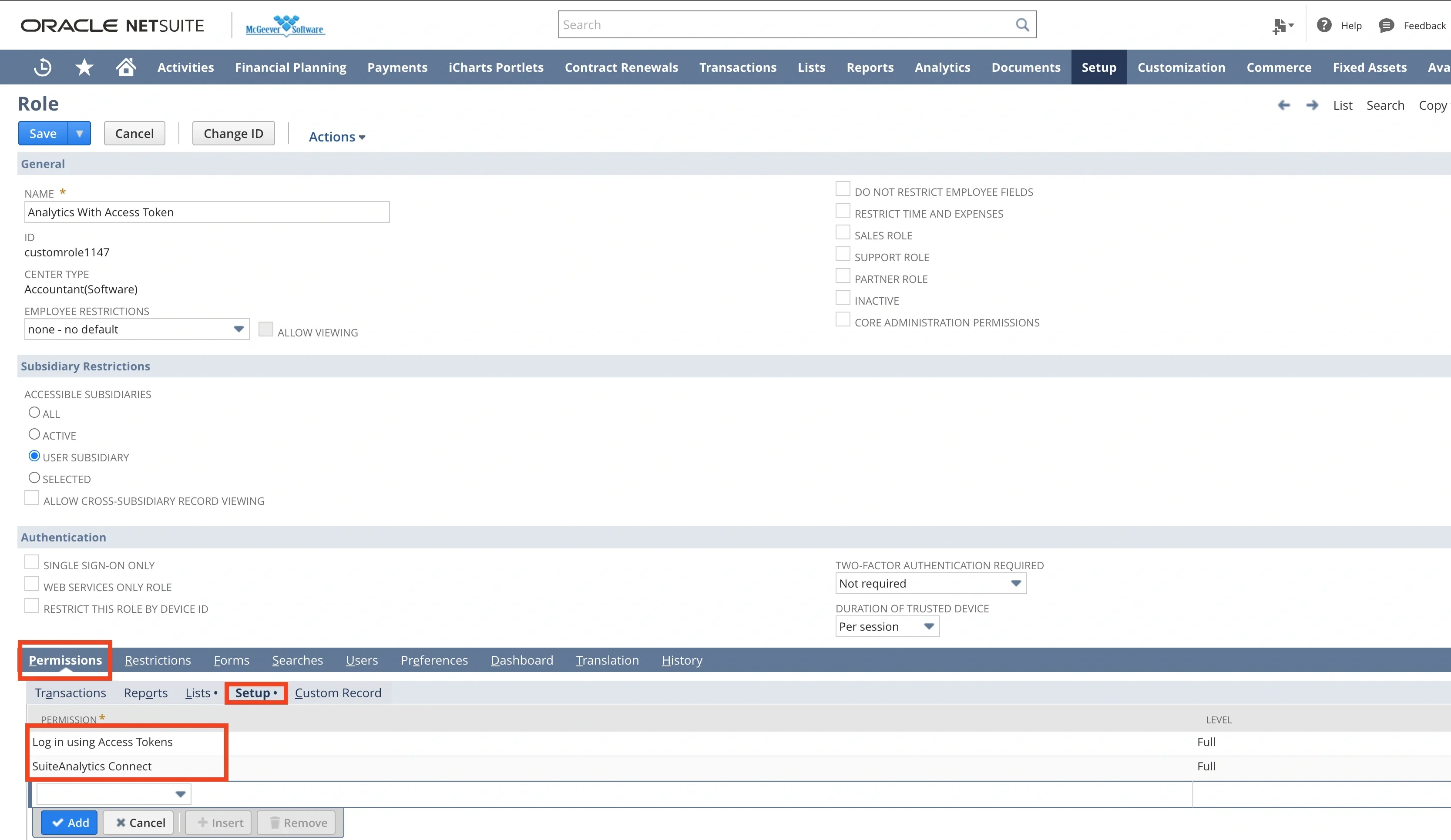
- Log in using Access Tokens
- SuiteAnalytics Connect
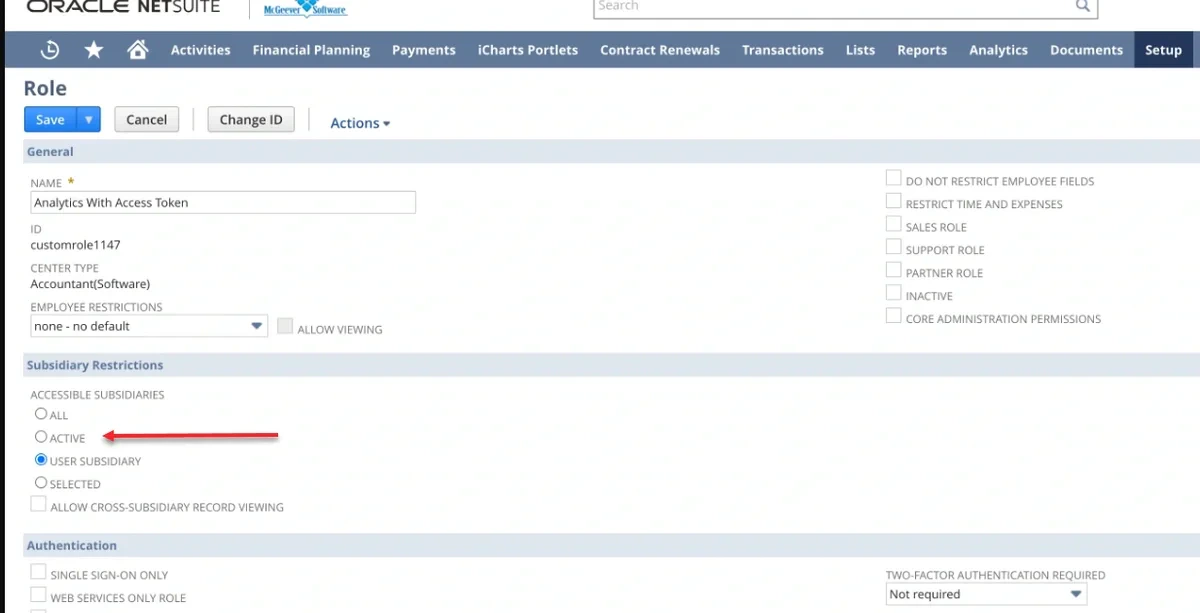
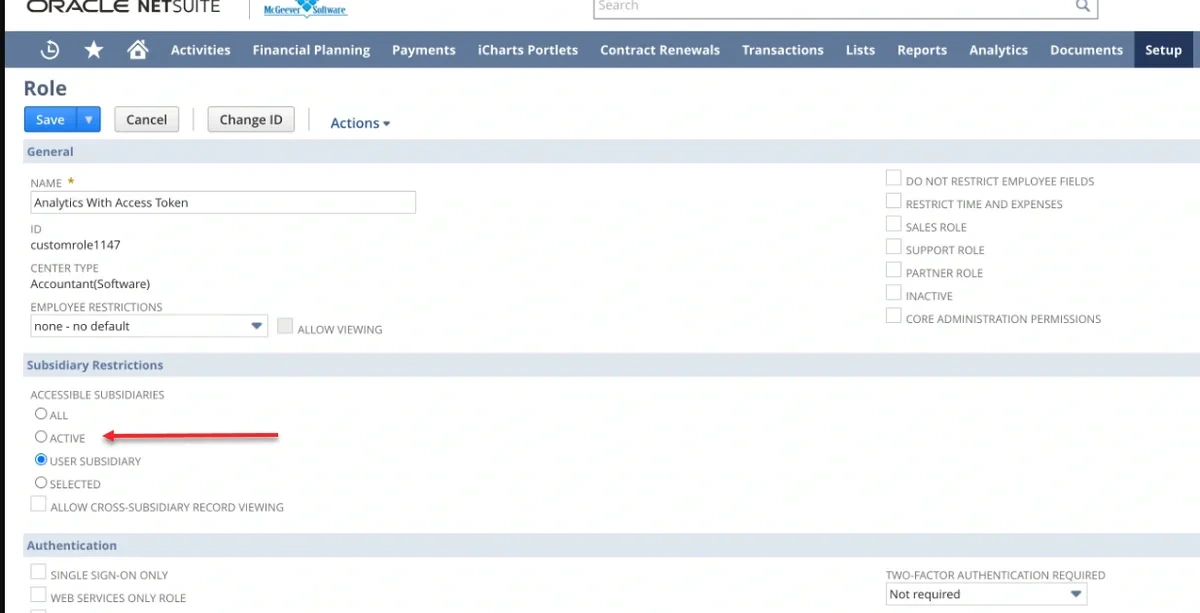
Note:The ‘Subsidiary Restriction’ section may limit access to certain records you wish to retrieve. Depending on the type of subsidiary structure your organization operates under, you should carefully select these options to ensure you obtain the desired data.
3
Grant an access to the selected tables. On the same role creation page, go to Lists tab and select tables.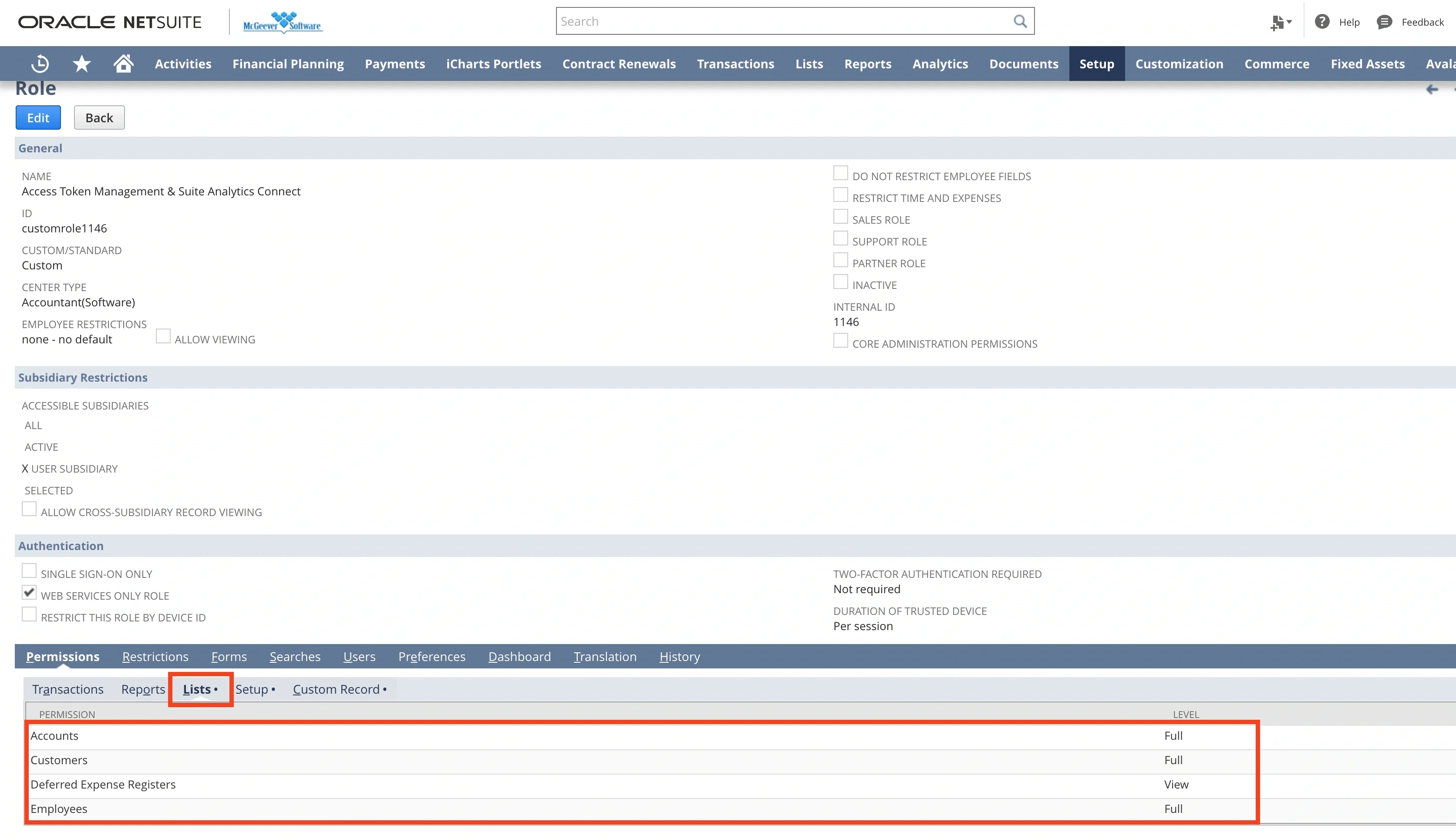
Note:The screenshot below is demonstrating how to enable access to the Account table. Before proceeding, we recommend coordinating with your business team to determine the complete list of NetSuite tables required for your integration. Once the list is finalized, please contact your NetSuite Account Manager for assistance in configuring the appropriate permissions to ensure all relevant tables are both visible and accessible for integration purposes.
4
Assign the Roles to the selected User. Select Access tab and then add following roles under Roles tab: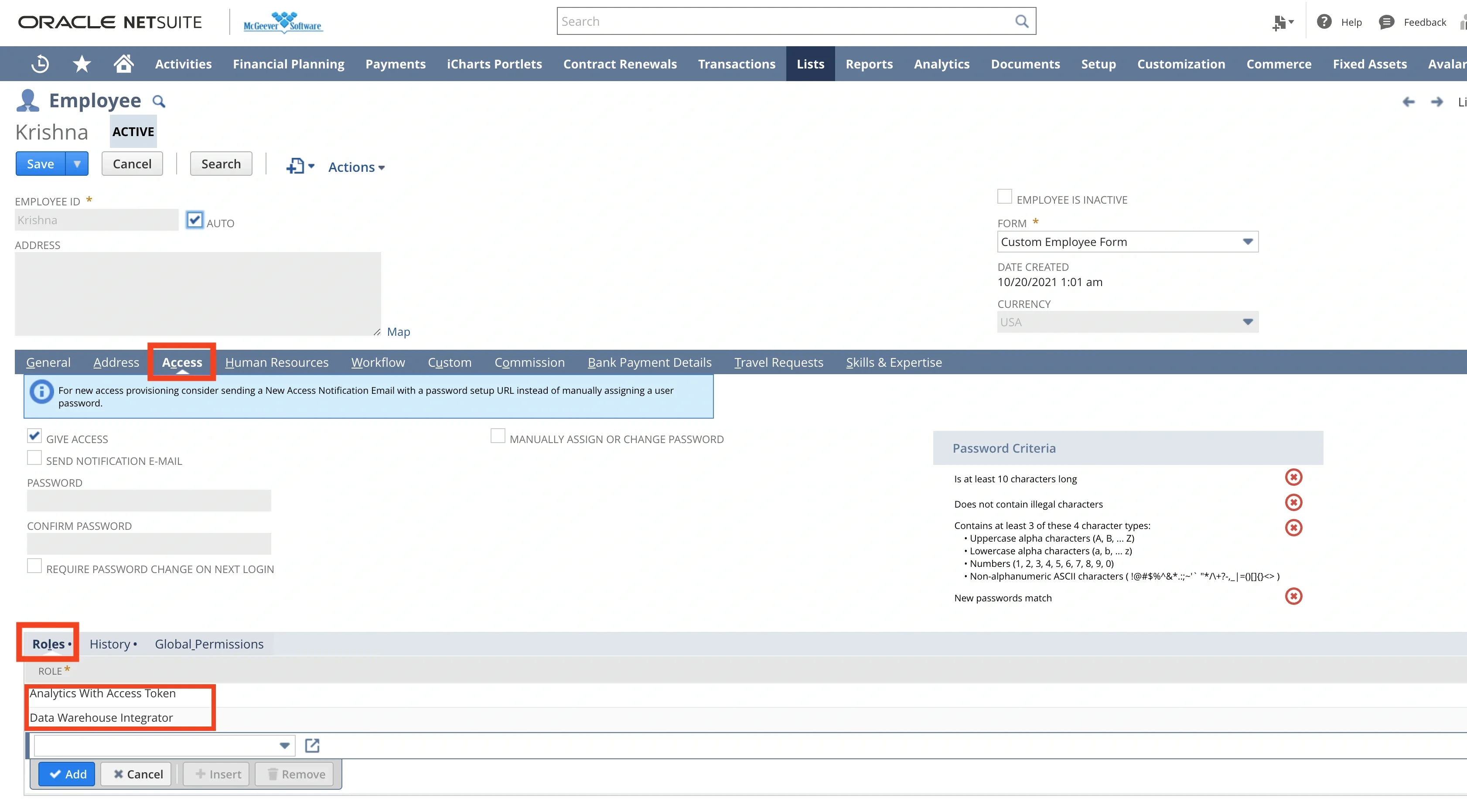
- The role that has just been created from previous step
- Data Warehouse Integrator role
5
Configure DB connection in Integrate.io ETL. Enter connection information (see steps “To create a Netsuite connection in Integrate.io ETL” from above) along with Netsuite2.com as Service data source and Role ID from the role that we just created from step 2.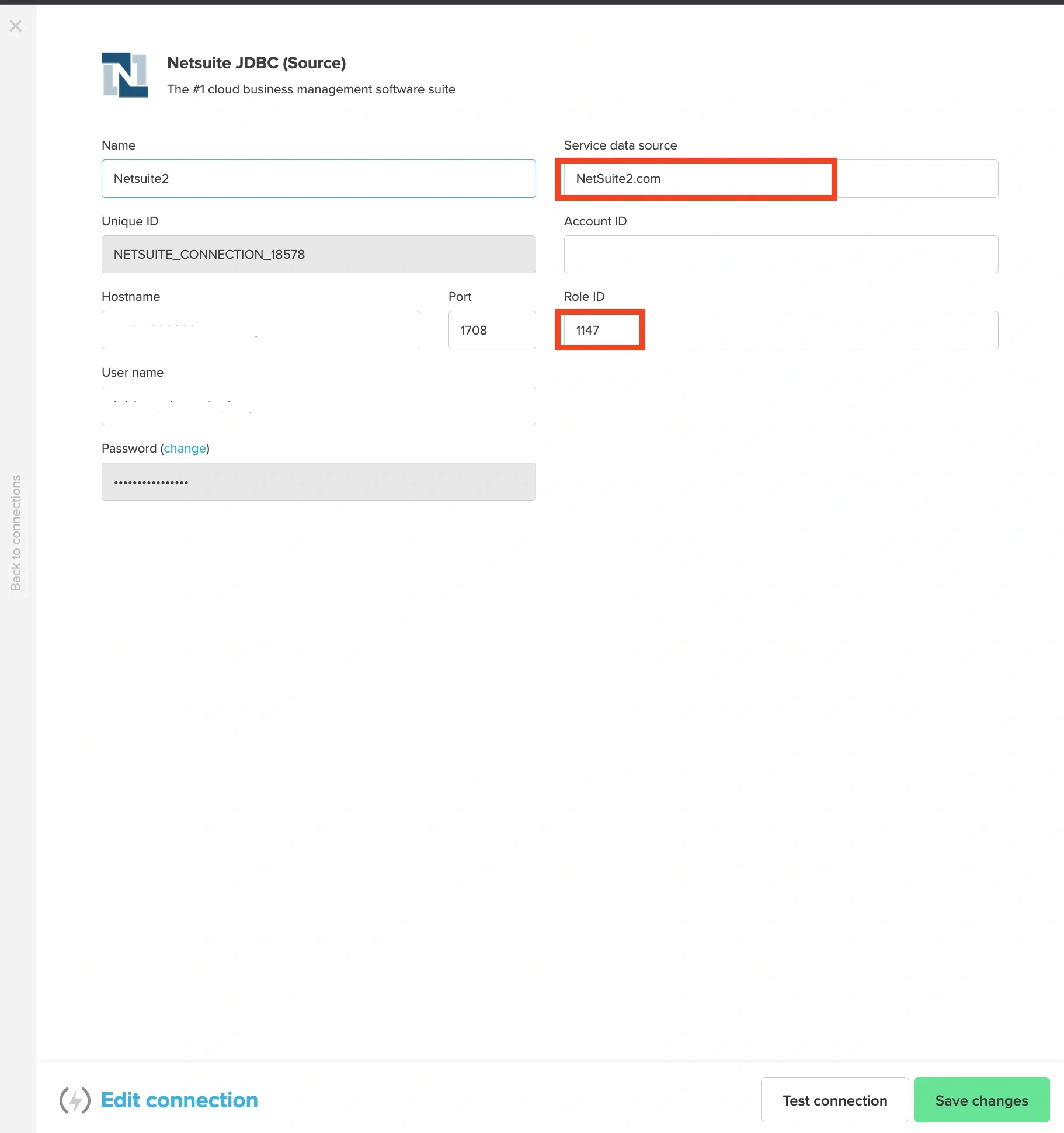
Connection Setup: NetSuite (SOAP)
Setting up on NetSuite dashboard
To enable SOAP Web Services and Token Based Authentication, you need to log in to your Netsuite dashboard with admin roles and please follow these steps:1
Go to Setup > Company > Enable Features > SuiteTalk (Web Services) and enable both “SOAP Web Services” and “Token-based Authentication”.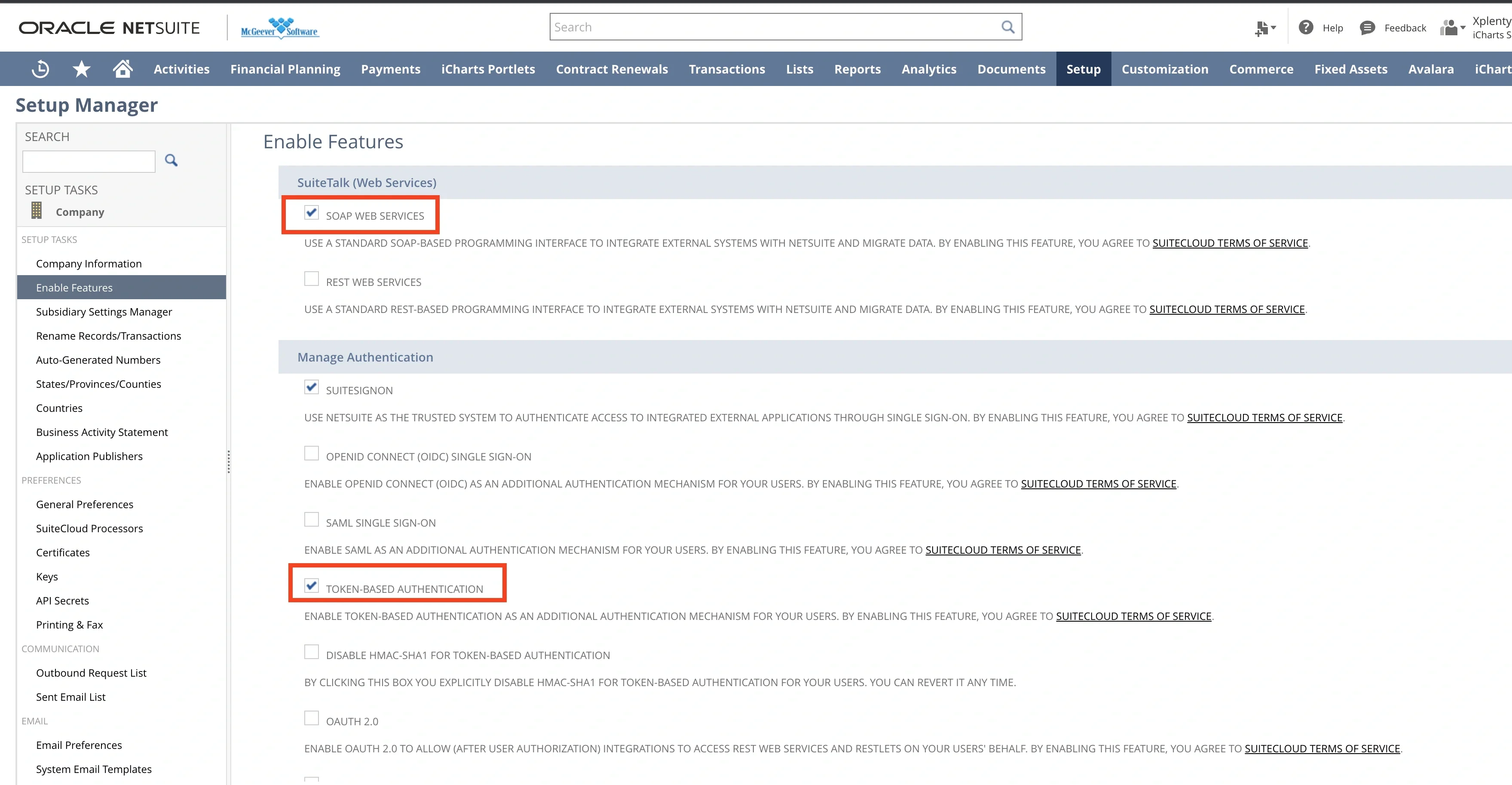
2
Create a new Integration. Navigate to Setup > Integrations > Manage Integrations > New. Please note that “Token-based Authentication” must be checked.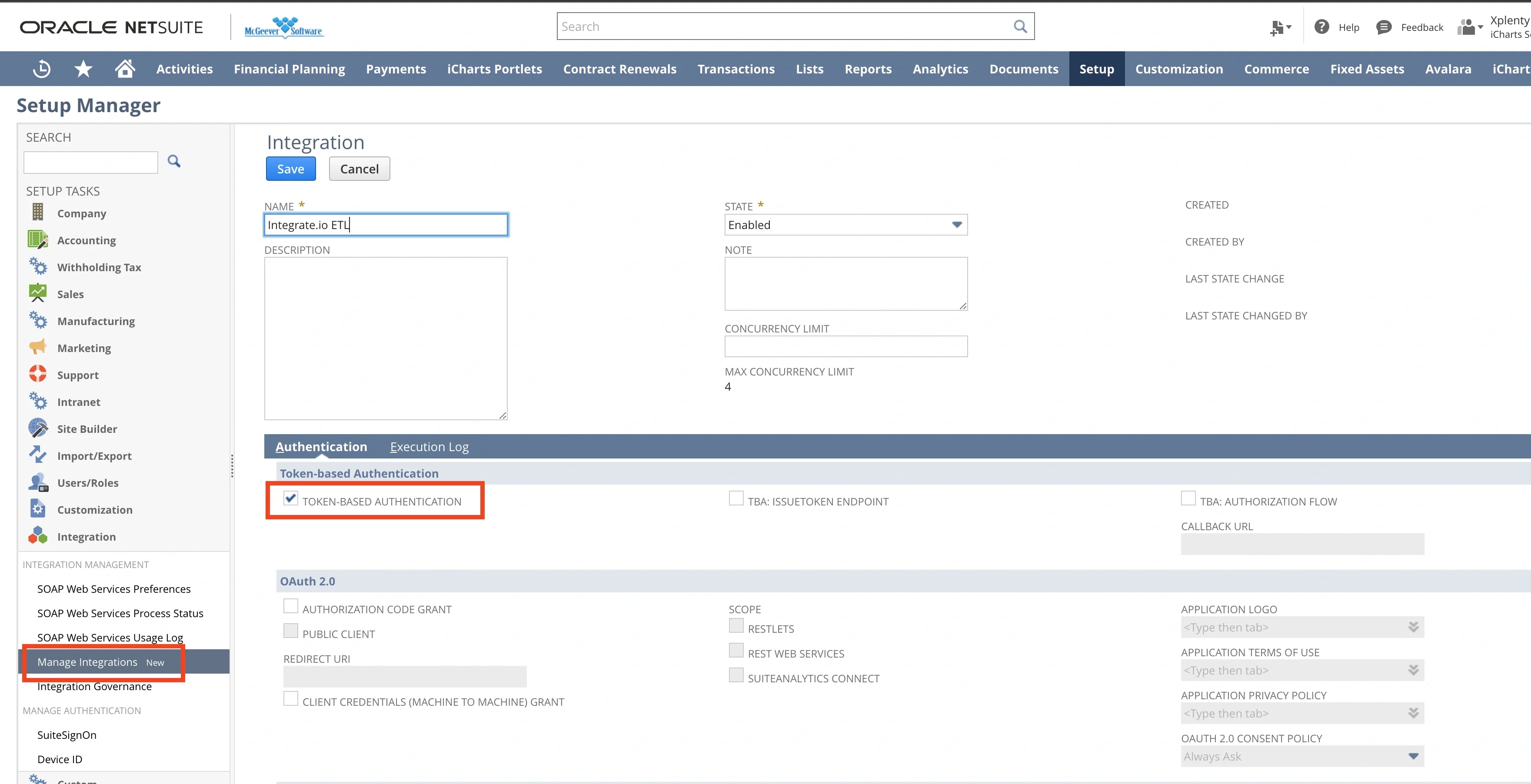
3
After finished creation integration, save the Consumer Key and Consumer Secret as it will be only shown once and used for connection configuration on Integrate.io ETL.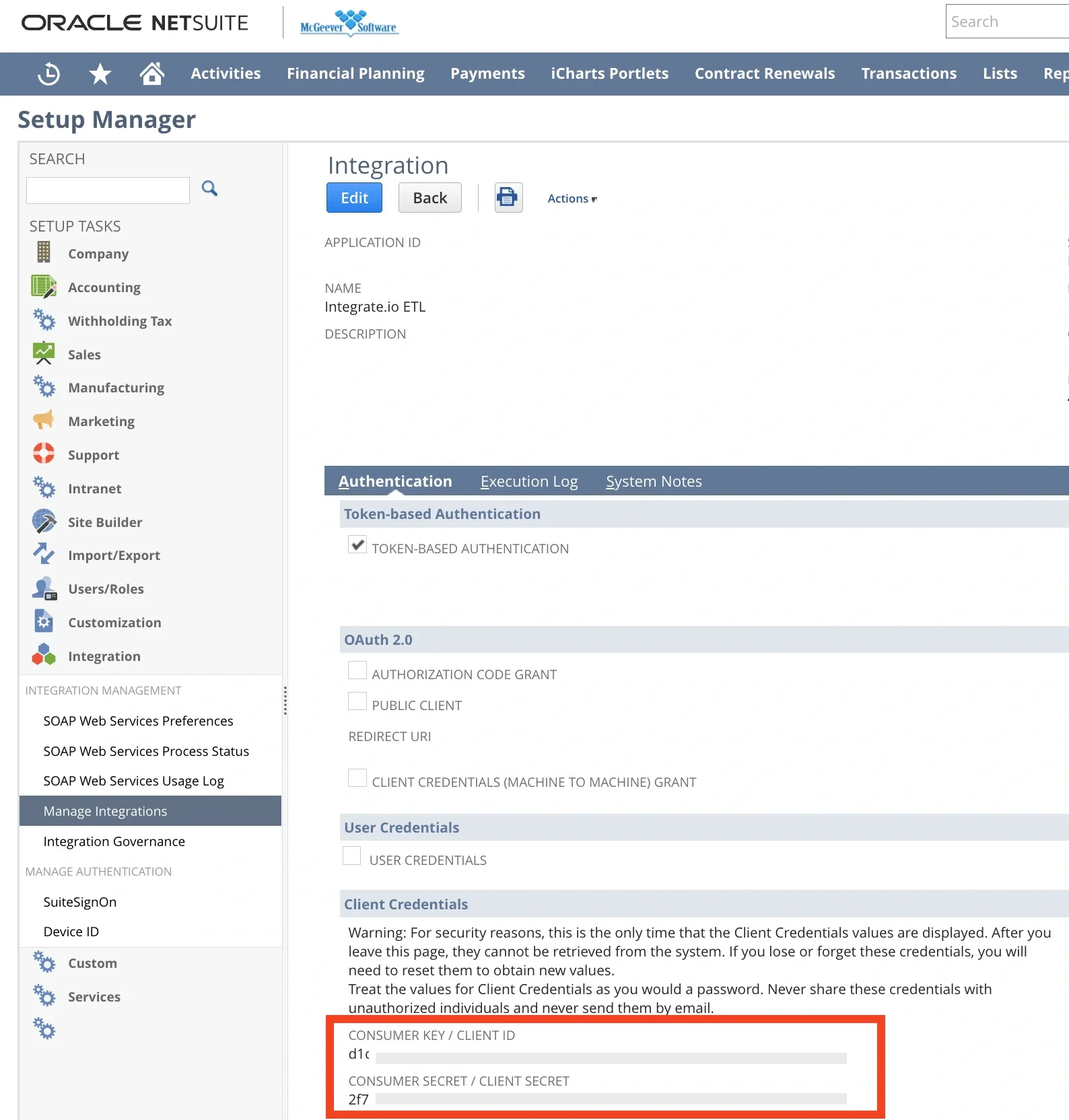
4
Create a new role. Go to Setup > User Management > Manage Roles > New. Check “Web Services Only Roles” and add following permissions on Permissions > Setup tab: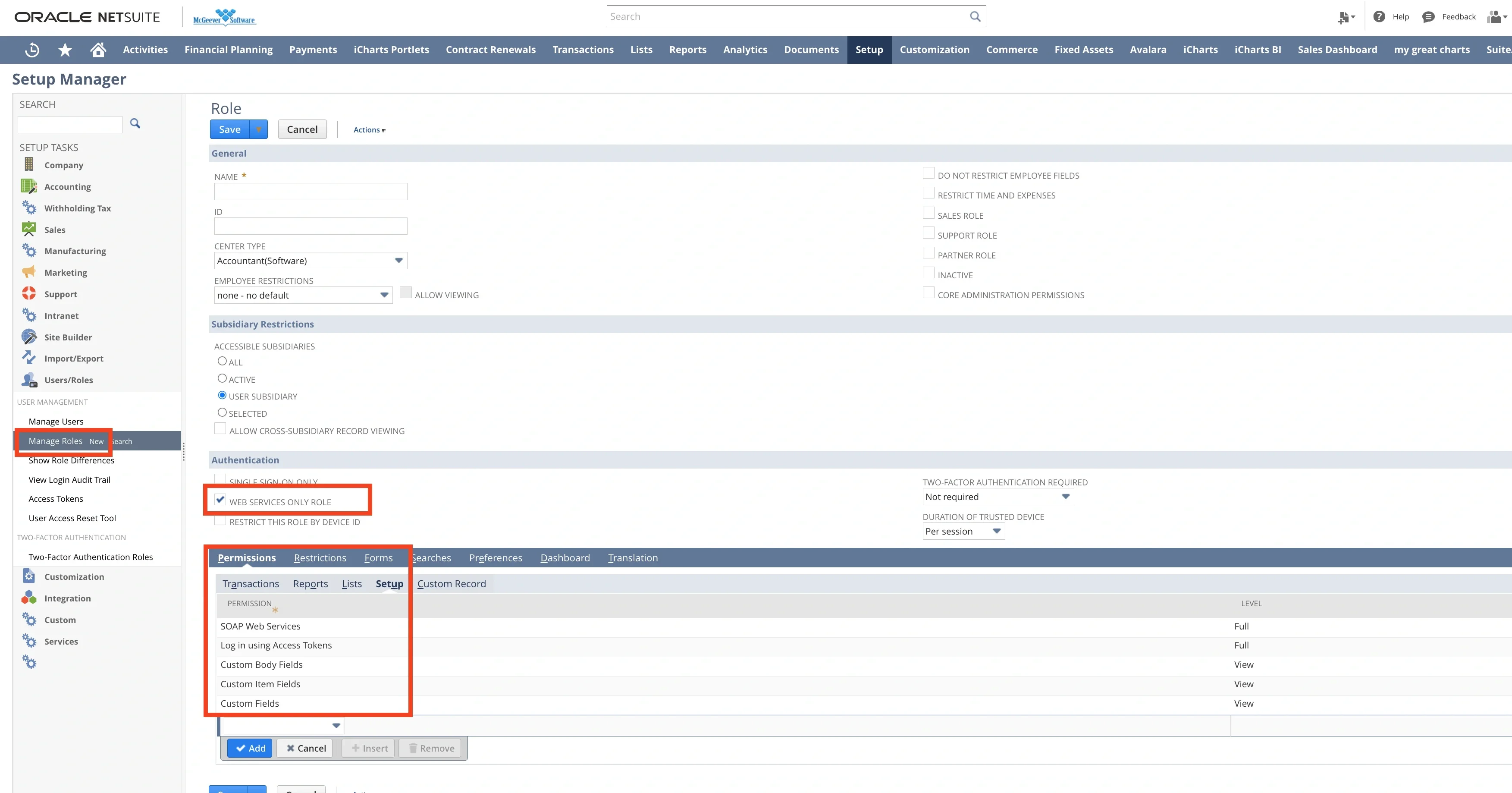
- SOAP Web Services
- Log in using Access Tokens
- Custom Body Fields
- Custom Item Fields
- Custom Fields
Note:The ‘Subsidiary Restriction’ section may limit access to certain records you wish to retrieve. Depending on the type of subsidiary structure your organization operates under, you should carefully select these options to ensure you obtain the desired data.
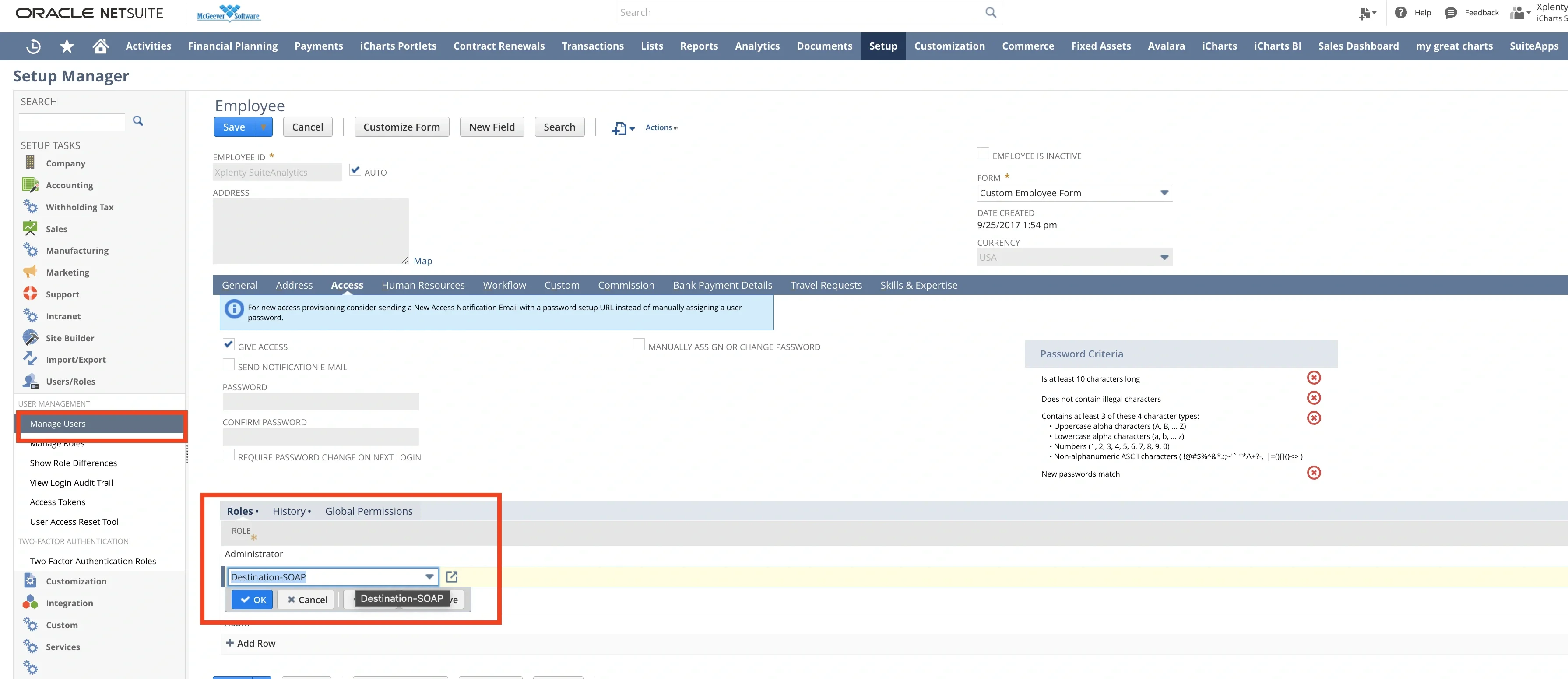
- Assign the role from previous step to existing or a new user. Navigate to Setup > User Management > Manage Users.
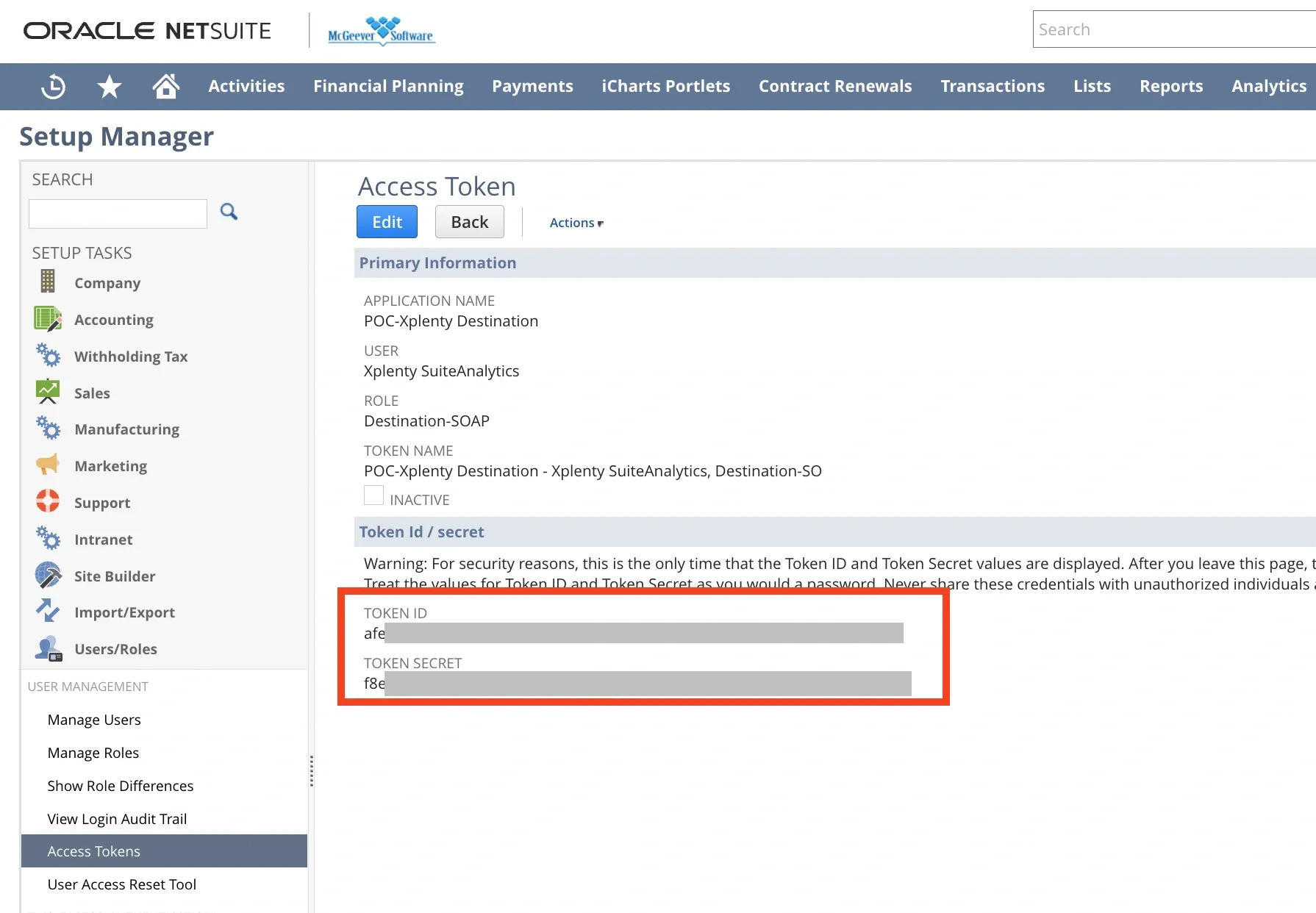
- Create a new access token. Go to Setup > User Management > Access Tokens. Select the name of Integration, User and Role from previous steps. After saving it, Token ID and Token Secret will be shown and keep those values securely.
To create a NetSuite SOAP connection in Integrate.io ETL
1
Click the Connections icon (lightning bolt) on the top left menu.
2
To create a connection, click New connection.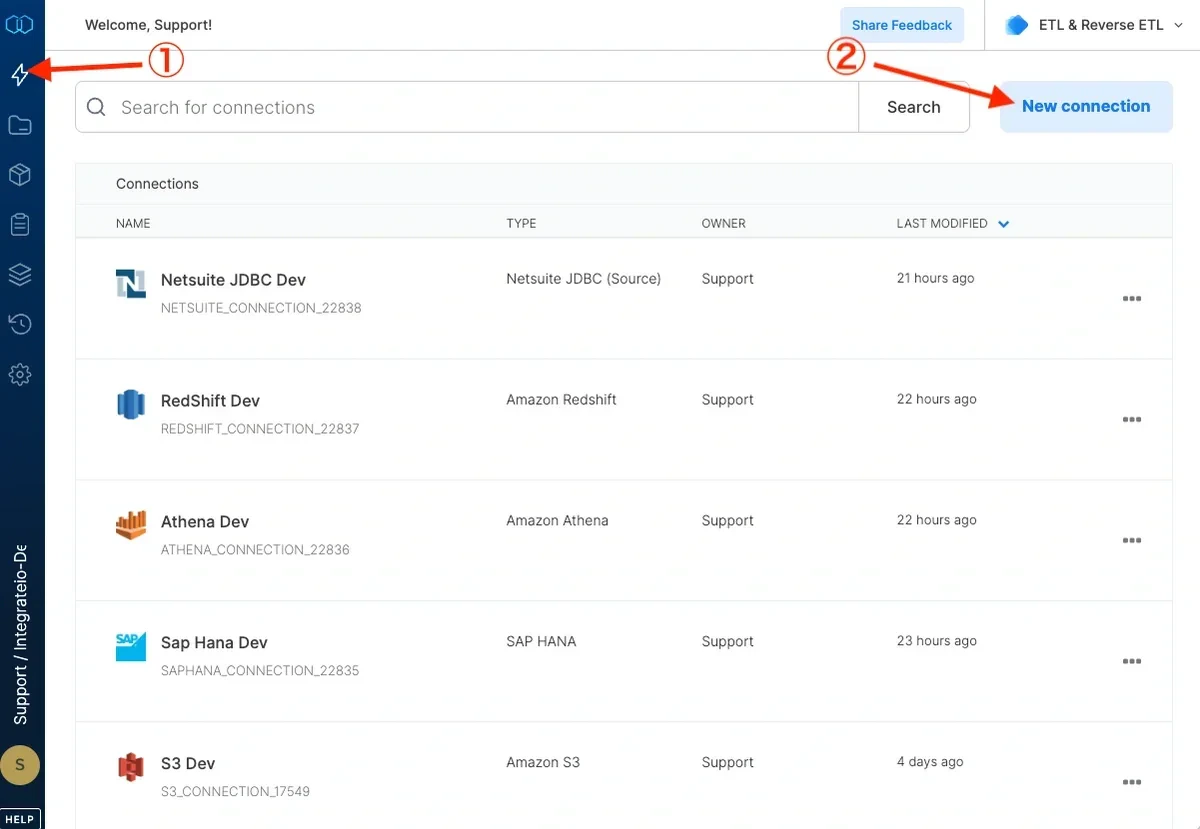
3
Select NetSuite SOAP.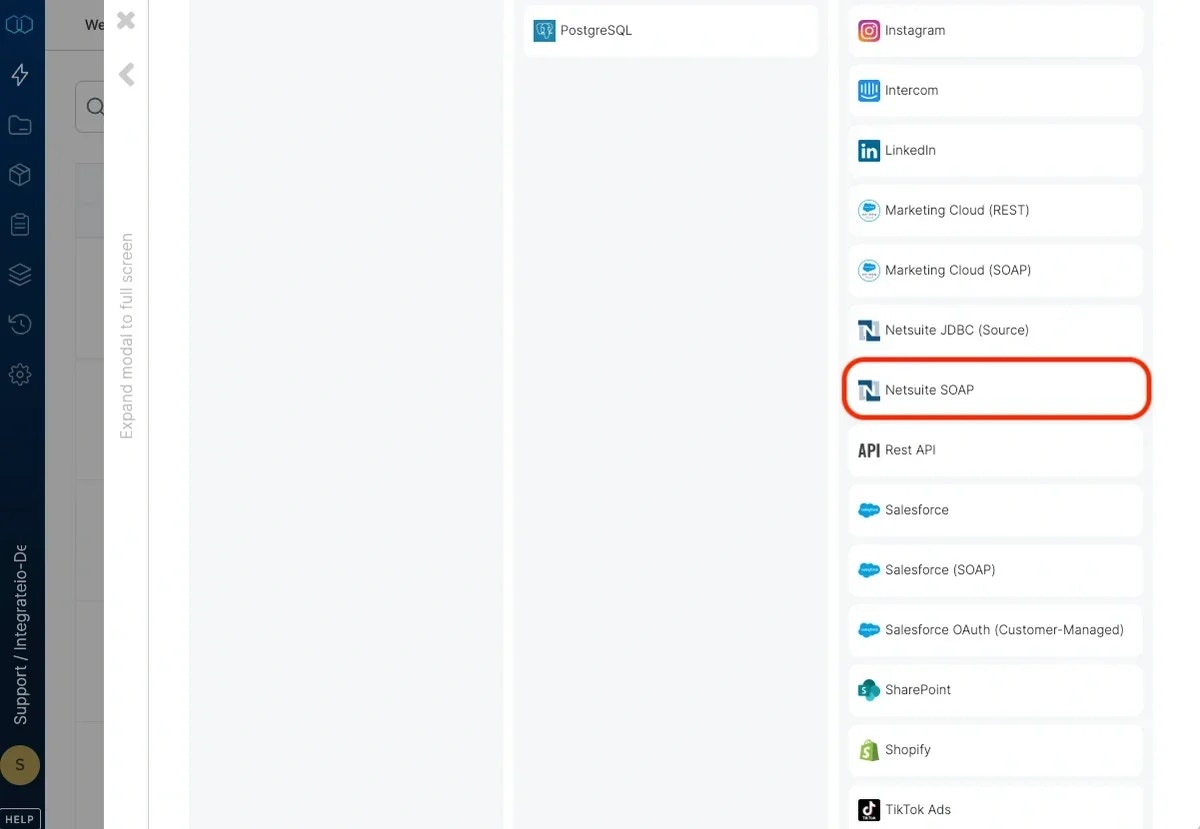
4
In the new NetSuite connection window, name the connection and enter the connection information.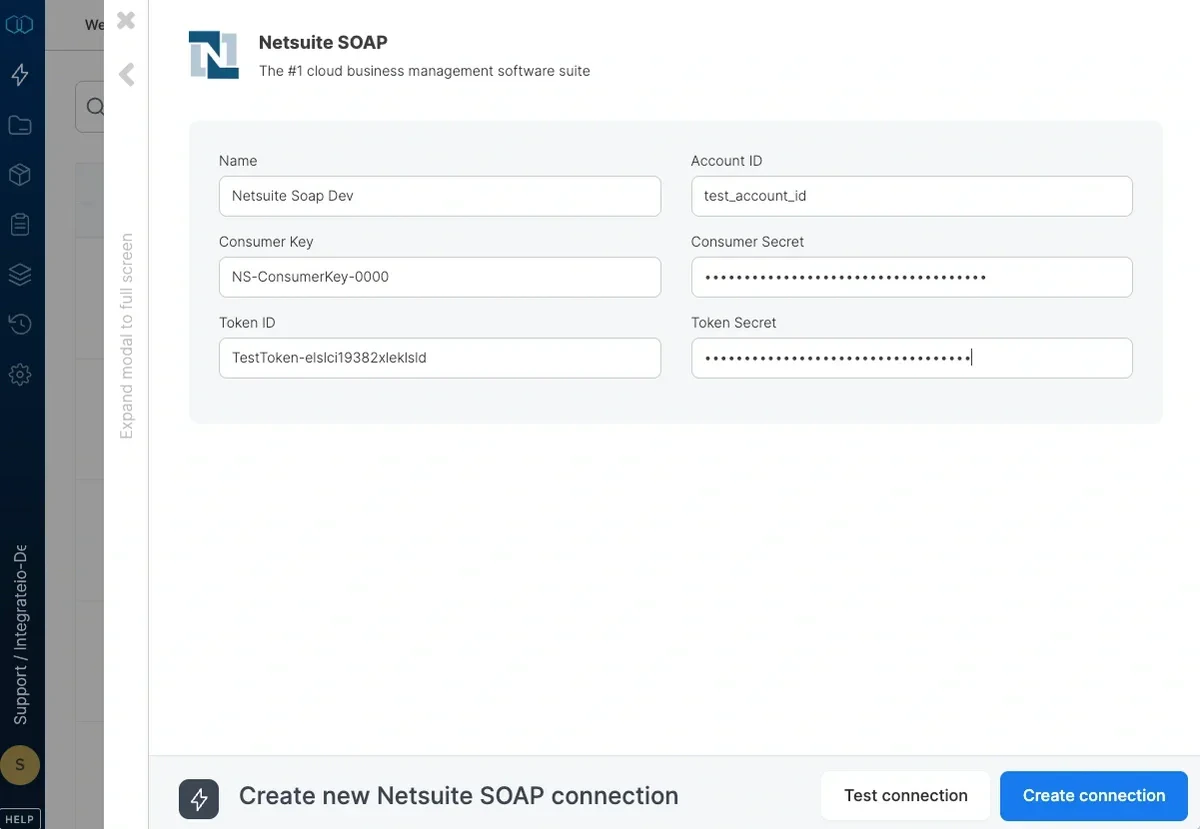
- Name - name for the new connection
- Account ID - need to include the suffix
_SB<number>for Sandbox account. - Consumer Key - copy from previous step or SuiteAnalytics Connect configuration.
- Consumer Secret - copy from previous step or SuiteAnalytics Connect configuration.
- Token ID - copy from previous step or SuiteAnalytics Connect configuration.
- Token Secret Account ID - copy from previous step or SuiteAnalytics Connect configuration.
5
Then, test the NetSuite connection by clicking Test connection. Once the connection tests successful, click Create connection.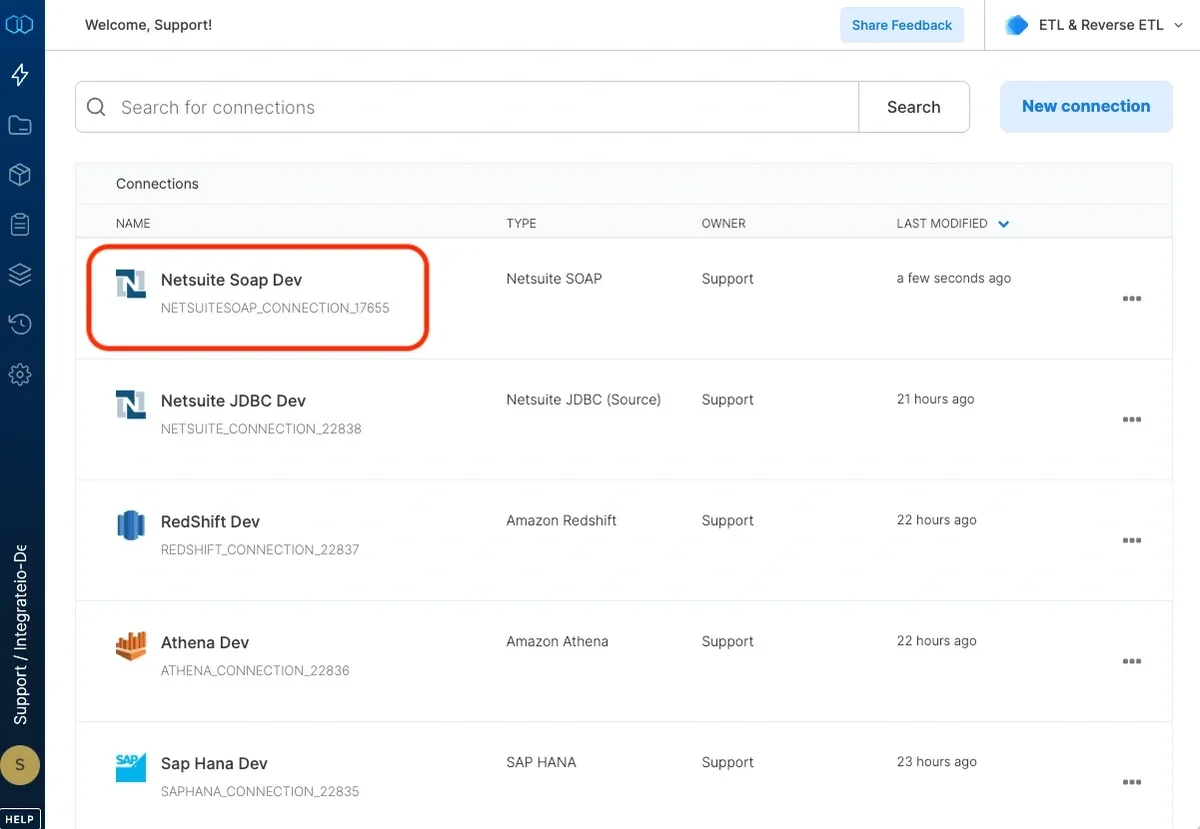
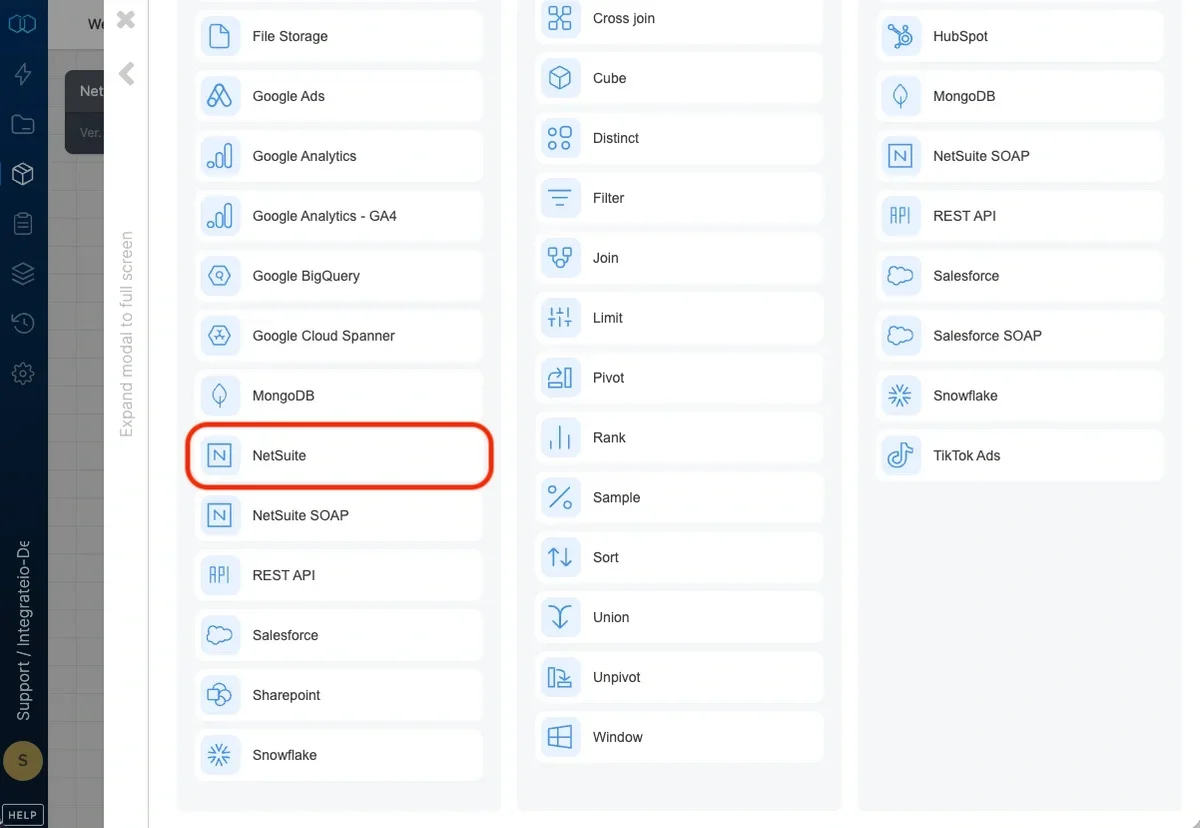
Connection
Select an existing NetSuite connection or create a new one (for more information, see Allowing Integrate.io ETL access to NetSuite.)Source Properties
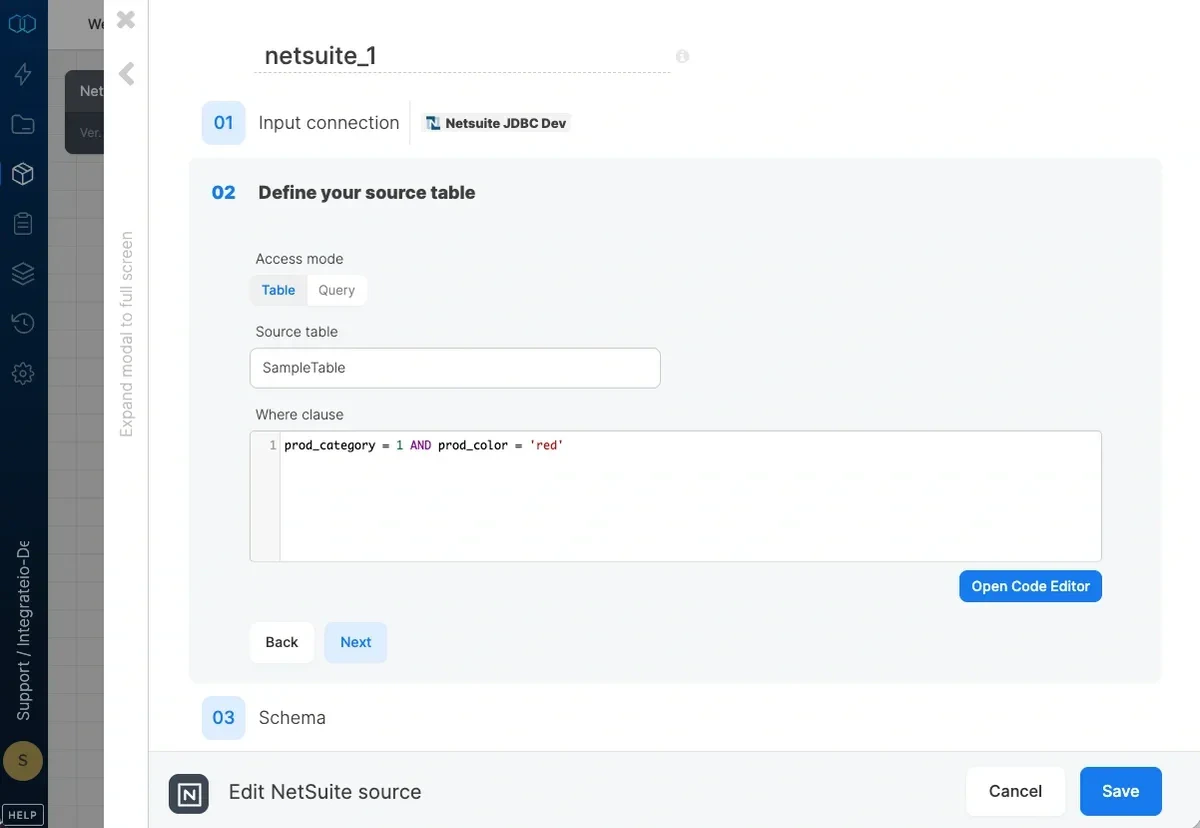
- Source table - the table name from which the data will be imported. Use the Suitetalk Connect schema browser to look up standard records and columns.
- where clause - optional. You can add predicates clauses to the WHERE clause as part of the SQL query that is built in order to get the data from the database. Make sure to skip the keyword WHERE.