

Overview
Snapshot Change Data Capture (CDC) is a feature that allows you to track and process only the data that has changed between pipeline runs. Instead of processing your entire dataset every time, CDC identifies:- Upserted records: New rows that were inserted OR existing rows that were updated
- Deleted records: Rows that existed in the previous run but no longer exist in the source table
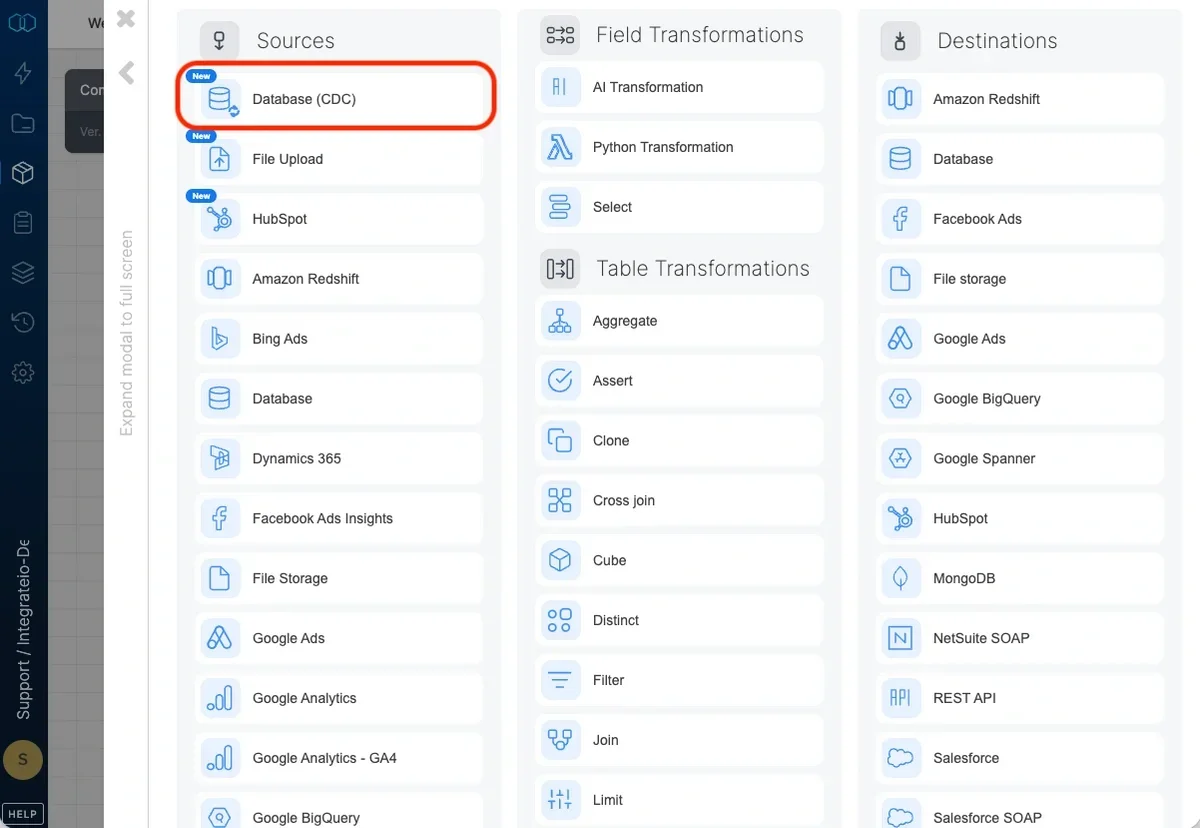
How It Works
Snapshot CDC works by maintaining a snapshot of your data from the previous pipeline run. On each subsequent run, the system compares the current data against this snapshot to identify changes. The snapshot can be stored in one of two ways, depending on the Snapshot Storage method you select:- Database: The snapshot is stored as a table in the same database as your source data. This option is only available for SQL Server connections.
- File Based: The snapshot is stored as a Parquet file on cloud storage managed by Integrate.io. This option is available for all database connection types (MySQL, PostgreSQL, SQL Server, Snowflake, and others).
Pipeline Output
When you configure a CDC source component, it produces two separate outputs: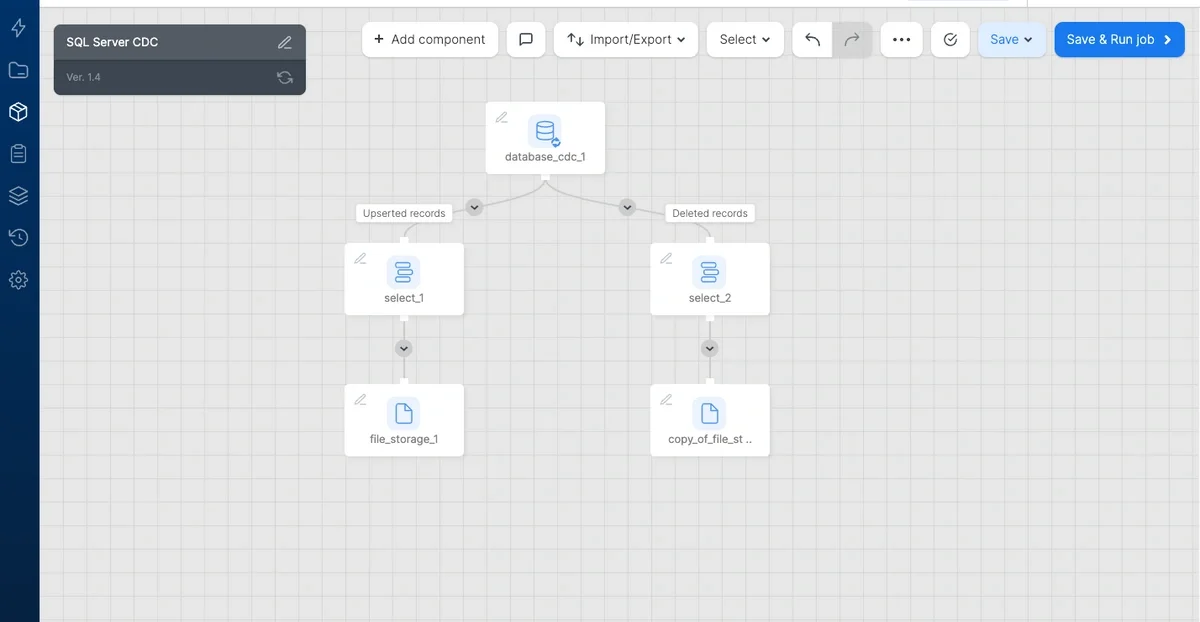
- Upserted records - Contains all new and modified rows
- Deleted records - Contains rows that were removed from the source table
Snapshot Storage
Snapshot CDC supports two storage methods for maintaining the snapshot between runs. The storage method is selected in the Snapshot Storage toggle in the component configuration.Database Storage (SQL Server only)
The snapshot is stored as a table directly in your source database. This option is only available for SQL Server connections and requires write access to the source database.- A snapshot table is automatically created in the same schema as the source table
- Change detection queries (upsert and delete) are executed entirely within the database using SQL
- Requires
CREATE TABLEandINSERT/DELETEpermissions on the source database
File Based Storage
The snapshot is stored as a Parquet file on cloud storage managed by Integrate.io. This option is useful when you do not have write access to the source database, or when you prefer not to create additional tables in your source system.- No write access to the source database is required — only read access is needed
- The snapshot is stored as a Parquet file on Integrate.io’s managed S3 storage
- Change detection is performed by loading the current data and the previous snapshot, then comparing them in the pipeline
- On the first run, when no previous snapshot exists, all current records are treated as upserted (new)
- The snapshot file is automatically overwritten after each successful pipeline run
- You are using a non-SQL Server database (MySQL, PostgreSQL, Snowflake, etc.) — File Based is the only snapshot storage option for these connection types
- Your database user has read-only access to the source database
- You do not want to create snapshot tables in the source database
- Corporate policy prohibits writing additional tables to the production database
Availability by Connection Type
| Connection Type | Database Storage | File Based Storage |
|---|---|---|
| SQL Server | Yes | Yes |
| MySQL | No | Yes |
| PostgreSQL | No | Yes |
| Snowflake | No | Yes |
| Other databases | No | Yes |
Change Detection Methods
Snapshot CDC offers two methods for detecting changes. Both methods work with either snapshot storage option (Database or File Based). Note that Database storage is only available for SQL Server connections; for all other database types, File Based storage is used.1. Primary Key Method
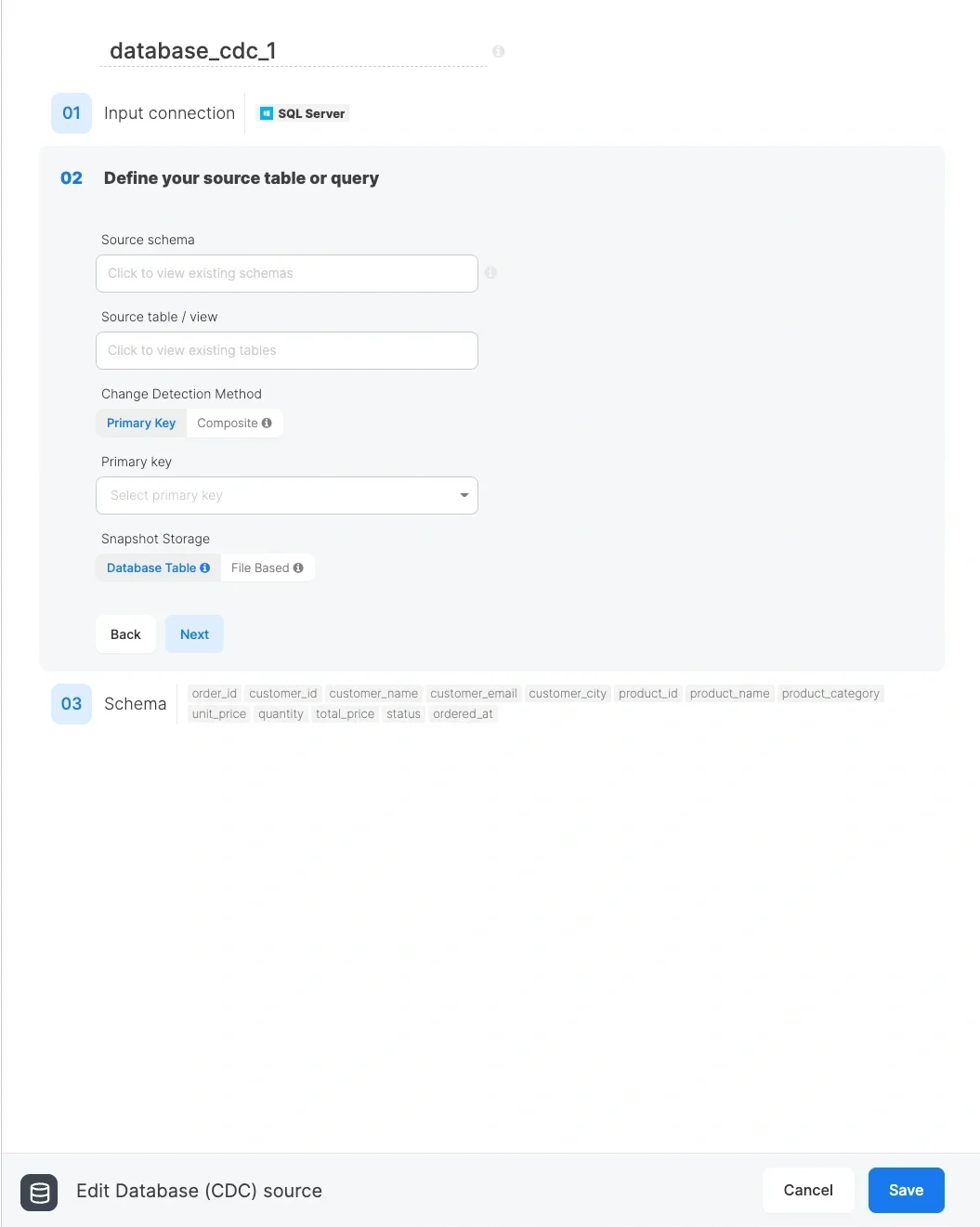
The system compares rows between the current table and the snapshot using the specified primary key
A row is considered upserted if:
- It exists in the current table but not in the snapshot (new record)
- It exists in both tables but any column value has changed (updated record)
- Tables with a reliable unique identifier (e.g.,
id,customer_id,order_number) - Standard database tables with primary key constraints
With File Based storage: When using File Based snapshot storage with Primary Key method, the system generates an MD5 hash of all non-primary-key columns to efficiently detect which rows have changed. Rows are matched by primary key, and the hash is used to determine whether a row has been updated.
2. Composite Hash Method
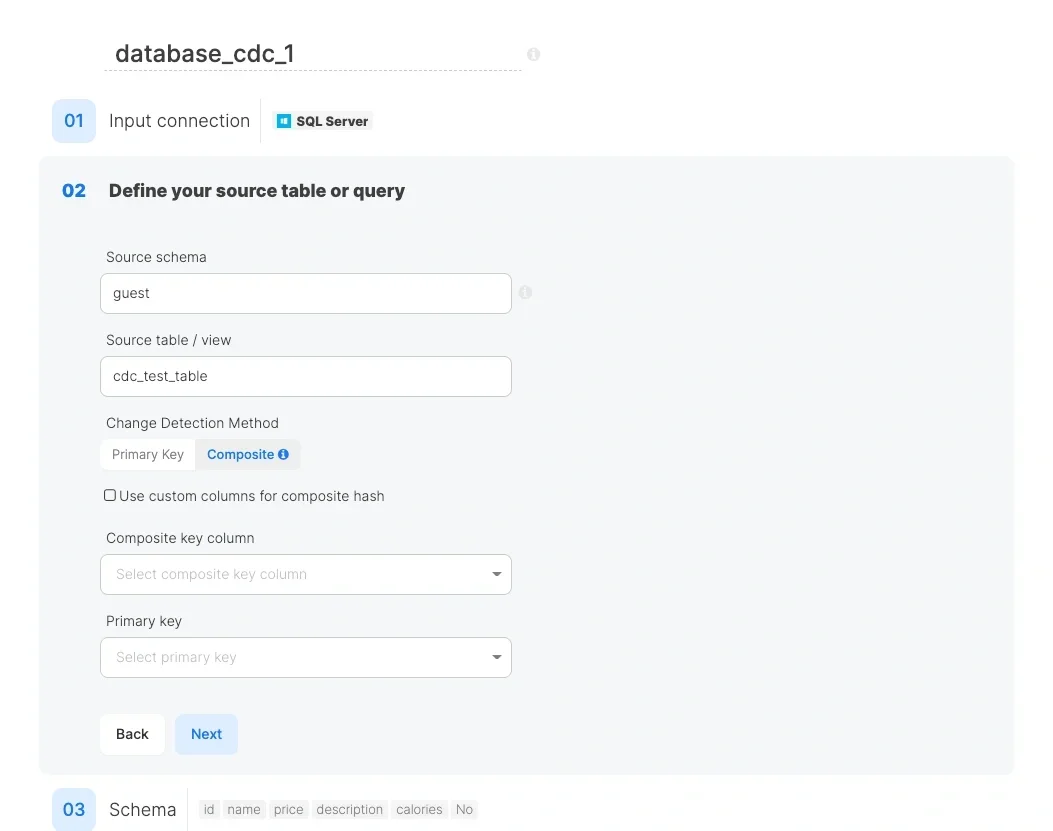
Best for:
- Tables without a primary key
- Tables where you want to detect changes based on specific columns only
- Scenarios where the primary key might change between runs
Use custom columns for composite hash (optional):
- If unchecked: All columns are used to generate the hash
- If checked: You can select specific columns for hash generation
Composite key column (Database storage / SQL Server only): Select a column that will help identify whether a changed hash represents an update or a deletion. If not set, rows with changed hashes will appear in both upserted and deleted outputs. This option is not available with File Based snapshot storage.
Configuration Steps
Select CDC mode: In the component configuration, CDC mode is automatically enabled for the Database CDC Source component type
Choose your data source:
- Table mode (default): Select the schema and table you want to track changes for. Optionally add a Where clause to filter rows.
- Query mode (File Based only): Switch the Source Mode to Query and write a custom SQL query. This allows JOINs across multiple tables, complex filtering, and column aliases. After writing the query, click Refresh Fields to load the available columns.
Select a Change Detection Method:
- Primary Key: For tables with unique identifiers
- Composite: For tables without primary keys or when you need hash-based detection
Select Snapshot Storage:
- Database: Stores the snapshot as a table in your source database. Requires write access. Only available for SQL Server connections.
- File Based: Stores the snapshot as a Parquet file on Integrate.io managed storage. No write access to the source database is needed. Available for all database connection types.
Snapshot Storage Details
Database Snapshot Table (SQL Server only)
When using Database snapshot storage (available only for SQL Server connections), the system automatically creates and maintains a snapshot table in your database:| Method | Snapshot Table Name |
|---|---|
| Primary Key | {table_name}_integrate_io_snapshot |
| Composite Hash | {table_name}_integrate_io_snapshot_composite |
- The snapshot table is created automatically on the first run
- The snapshot is updated after each successful pipeline run
- Do not modify or delete the snapshot table manually, as this will affect change detection accuracy
- The snapshot table uses the same schema as your source table
File Based Snapshot
When using File Based snapshot storage, the snapshot is stored as a Parquet file on cloud storage managed by Integrate.io. The file is stored at a path unique to your account, package, and source table, so each CDC component maintains its own independent snapshot.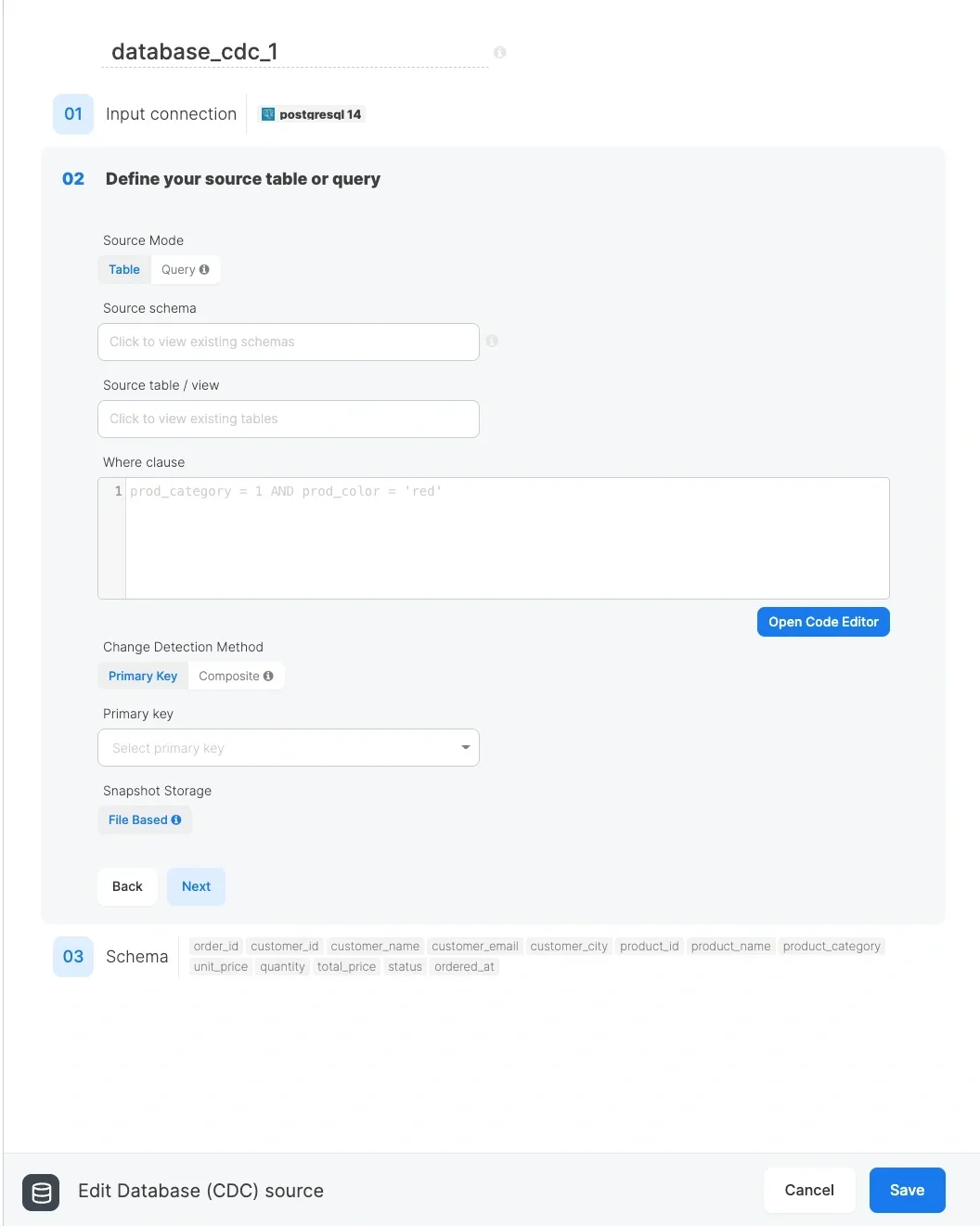
File Based Snapshot — Query Mode
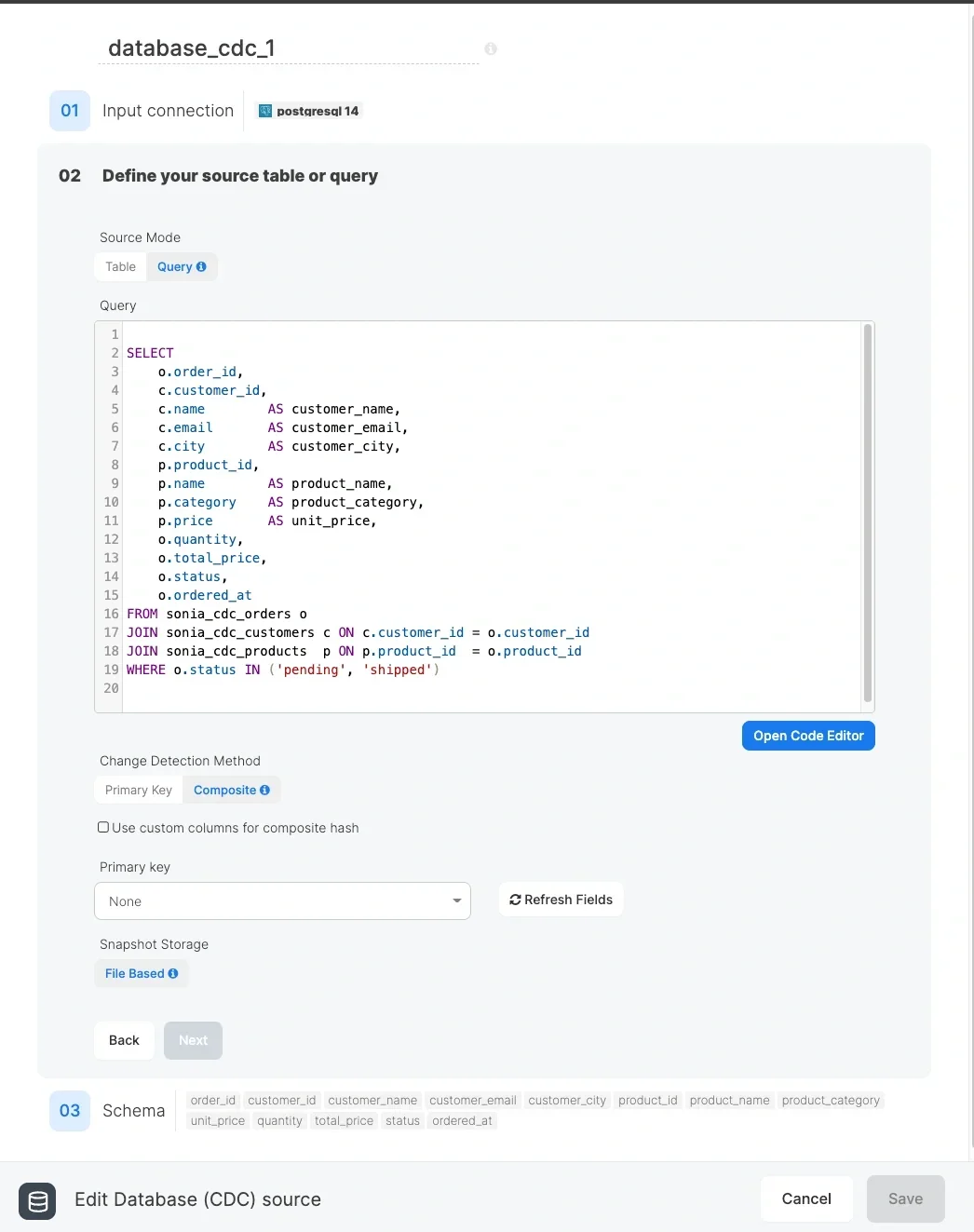
- You need to JOIN multiple tables and track changes across the combined result
- You need complex WHERE clauses, aggregations, or transformations applied before change detection
- You want to select only a subset of columns from one or more tables
- You need to rename columns using aliases (e.g.,
c.name AS customer_name)
Important notes:
- No tables are created in your source database
- The snapshot file is created automatically on the first run
- The snapshot file is overwritten after each successful pipeline run with the latest data
- Snapshot files are managed automatically and do not require manual maintenance
- If you change the source table, schema, or column selection, the existing snapshot will be used for comparison against the new data — this may cause all rows to appear as upserted (and previous rows as deleted) on the first run after the change
Example Use Cases
Use Case 1: Order Processing (SQL Server)
Track new and updated orders to sync with a data warehouse:- Connection: SQL Server
- Source table:
orders - Method: Primary Key
- Primary key:
order_id - Snapshot Storage: Database
- Upserted records: Send to data warehouse for processing
- Deleted records: Mark as cancelled in the warehouse
Use Case 2: Product Catalog Sync (SQL Server)
Sync product changes to an e-commerce platform:- Connection: SQL Server
- Source table:
products - Method: Composite Hash (no reliable primary key)
- Custom columns:
sku,name,price,description - Snapshot Storage: Database
- Upserted records: Update product listings
- Deleted records: Remove from catalog
Use Case 3: Customer Data Updates (MySQL)
Track customer information changes for GDPR compliance:- Connection: MySQL
- Source table:
customers - Method: Primary Key
- Primary key:
customer_id - Snapshot Storage: File Based
- Upserted records: Log changes for audit trail
- Deleted records: Process data deletion requests
Use Case 4: Read-Only SQL Server CDC
Track changes on a SQL Server database where you only have read access:- Connection: SQL Server
- Source table:
transactions - Method: Primary Key
- Primary key:
transaction_id - Snapshot Storage: File Based
- Upserted records: Load into analytics warehouse
- Deleted records: Flag as reversed in the warehouse
Use Case 5: Multi-Table CDC with Query Mode
Track changes across a JOIN of orders, customers, and products:- Connection: MySQL (or any supported database)
- Source Mode: Query
- Query:
- Method: Primary Key
- Primary key:
order_id - Snapshot Storage: File Based
- Upserted records: Send enriched order data to the warehouse
- Deleted records: Archive cancelled or completed orders
Use Case 6: PostgreSQL CDC
Sync data from a PostgreSQL database (File Based storage is required since Database storage is not available for PostgreSQL):- Connection: PostgreSQL
- Source table:
inventory - Method: Composite Hash
- Custom columns:
sku,quantity,warehouse_id - Snapshot Storage: File Based
- Upserted records: Update inventory management system
- Deleted records: Remove discontinued items
Best Practices
- Choose the right detection method:
- Use Primary Key when you have a reliable unique identifier
- Use Composite Hash when no primary key exists or when tracking changes to specific columns
- Use Primary Key when you have a reliable unique identifier
- Consider column selection for Composite Hash:
- Include only columns that matter for change detection
- Exclude frequently changing but unimportant columns (e.g.,
last_modified_timestampif you only care about data changes)
- Exclude frequently changing but unimportant columns (e.g.,
- Include only columns that matter for change detection
- Choose the right snapshot storage:
- Use Database storage when you are using a SQL Server connection, have write access, and want the most efficient change detection (queries run entirely in the database)
- Use File Based storage when you are using any non-SQL Server database, when you have read-only access, or when you do not want to create additional tables in the source database
- Use Database storage when you are using a SQL Server connection, have write access, and want the most efficient change detection (queries run entirely in the database)
- Monitor snapshot size:
- For Database storage: The snapshot table grows with your source table. Consider periodic maintenance if storage becomes a concern.
- For File Based storage: The Parquet snapshot file is managed automatically by Integrate.io.
- For Database storage: The snapshot table grows with your source table. Consider periodic maintenance if storage becomes a concern.
- Handle deleted records appropriately:
- Decide whether to hard-delete or soft-delete in your destination
- Consider archiving deleted records for audit purposes
- Decide whether to hard-delete or soft-delete in your destination
- Test with small datasets first:
- Verify that change detection works as expected before running on production data
- Query Mode best practices:
- Ensure your query result has a column that uniquely identifies each row — use it as the Primary Key for accurate change detection
- Do not end your query with a semicolon — the system appends processing logic and a trailing semicolon may cause errors
- Use column aliases to avoid ambiguous names when joining multiple tables (e.g.,
c.name AS customer_name) - Avoid non-deterministic functions (e.g.,
NOW(),RAND()) in your query — they produce different values on each run, causing all rows to appear as changed
- Ensure your query result has a column that uniquely identifies each row — use it as the Primary Key for accurate change detection
- Avoid changing the Where clause or query between runs:
- Changing the Where clause or rewriting the query alters which rows are included in the comparison. This may cause all rows to appear as upserted and previous rows as deleted on the first run after the change.
Troubleshooting
Why are all records showing as upserted on the first run?
Why are all records showing as upserted on the first run?
This is expected behavior. On the first run, there’s no snapshot to compare against, so all current records are treated as new (upserted). This applies to both Database and File Based snapshot storage.
Why are some updated records appearing in both upserted and deleted outputs?
Why are some updated records appearing in both upserted and deleted outputs?
In Composite Hash mode without a primary key specified, when a row’s hash changes, the system cannot determine if it’s an update or a delete/insert combination. Specifying a primary key or composite key column helps resolve this.
The snapshot table wasn't created. What happened?
The snapshot table wasn't created. What happened?
This applies to Database snapshot storage (SQL Server only). Ensure your database user has
CREATE TABLE permissions on the target schema. Check the job logs for any error messages. If you do not have write access to the database, or you are using a non-SQL Server connection, use File Based snapshot storage instead.Can I use CDC with multiple tables?
Can I use CDC with multiple tables?
Yes, add a separate CDC source component for each table you want to track.
Why don't I see the Database snapshot storage option?
Why don't I see the Database snapshot storage option?
Database snapshot storage is only available for SQL Server connections. If you are using MySQL, PostgreSQL, Snowflake, or another database type, only File Based snapshot storage is available.
Can I switch between Database and File Based snapshot storage?
Can I switch between Database and File Based snapshot storage?
Yes, but switching storage methods will effectively reset the snapshot. On the first run after switching, all current records will appear as upserted because the new storage location has no previous snapshot to compare against.
I changed my Where clause (or query) and now all records show as changed. Why?
I changed my Where clause (or query) and now all records show as changed. Why?
Changing the Where clause or the source query alters which rows are included in the comparison. Rows that were previously included in the snapshot but are now excluded will appear as deleted, and rows newly included will appear as upserted. The first run after the change will reflect the difference between the old and new result set.
How do I load the fields for my query in Query Mode?
How do I load the fields for my query in Query Mode?
After writing your SQL query, click the Refresh Fields button next to the Primary Key dropdown. This executes the query against the database and populates the available columns. You can then select the appropriate primary key.
Can I use Query Mode with Database snapshot storage?
Can I use Query Mode with Database snapshot storage?
No. Query Mode is only available with File Based snapshot storage. If you need Database snapshot storage (SQL Server), use Table mode with a Where clause for filtering.
My query returns duplicate primary key values. What happens?
My query returns duplicate primary key values. What happens?
If your query produces rows with duplicate primary key values, change detection will not work correctly. Ensure that the column selected as the primary key is unique across all rows returned by your query. When joining tables, use the primary key from the “main” table (e.g.,
order_id from an orders table in an orders-customers-products JOIN).Does File Based CDC require me to configure an S3 connection?
Does File Based CDC require me to configure an S3 connection?
No. File Based snapshot storage uses Integrate.io’s managed cloud storage. No additional connection configuration is required on your part.
Limitations
- Database storage: Only available for SQL Server connections. Snapshot table must remain in the same database schema as the source table. Requires write access to the database.
- File Based storage: Available for all database connection types. No write access to the source database is required, but the pipeline performs the comparison (rather than the database), which may use more cluster resources for very large tables.
- Large initial snapshots may take time to process on the first run
- Query Mode: Only available with File Based snapshot storage. The query result must contain a column suitable for use as a primary key. Non-deterministic functions in the query will cause false positives in change detection.
- Changing the Where clause, source query, or schema columns between runs may cause unexpected results on the first run after the change