

Connection Setup: NetSuite
To create a NetSuite JDBC(Source) connection in Integrate.io ETL
1
Click the Connections icon (lightning bolt) on the top left menu.
2
To create a connection, click New connection.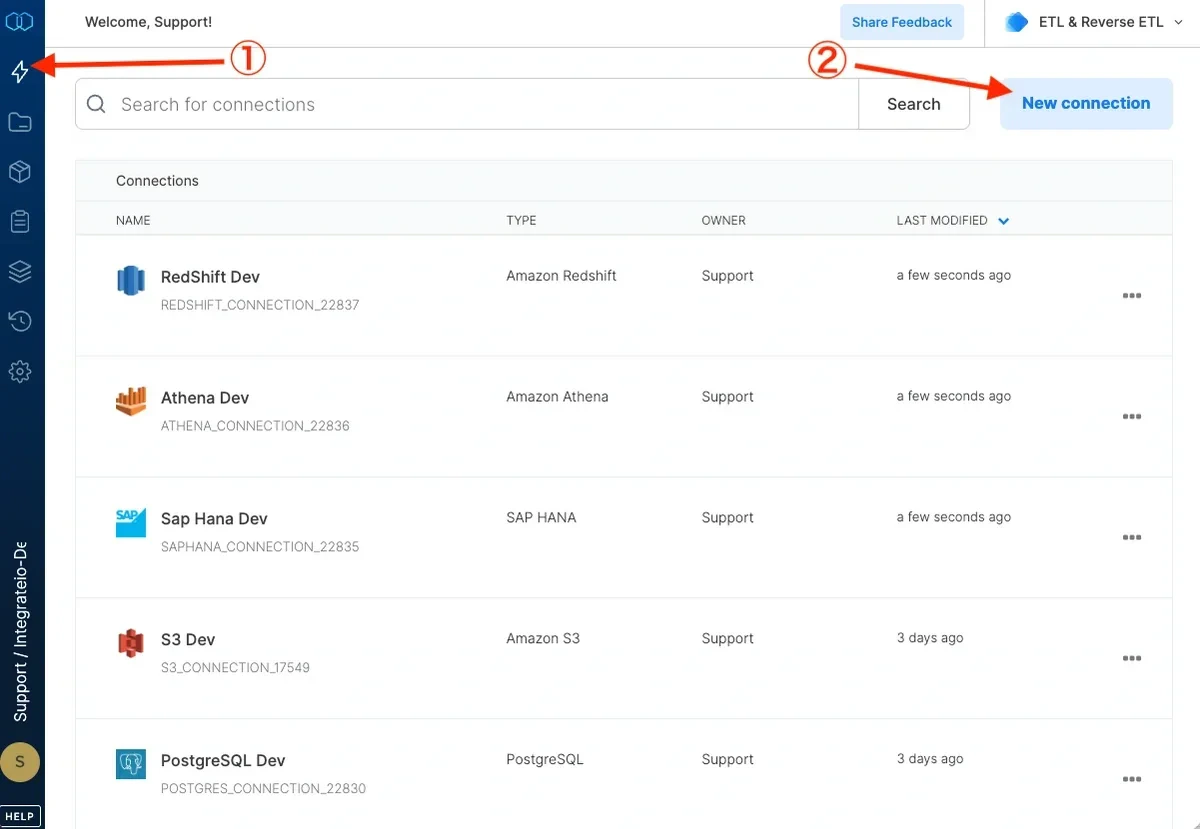
3
Select NetSuite JDBC(Source).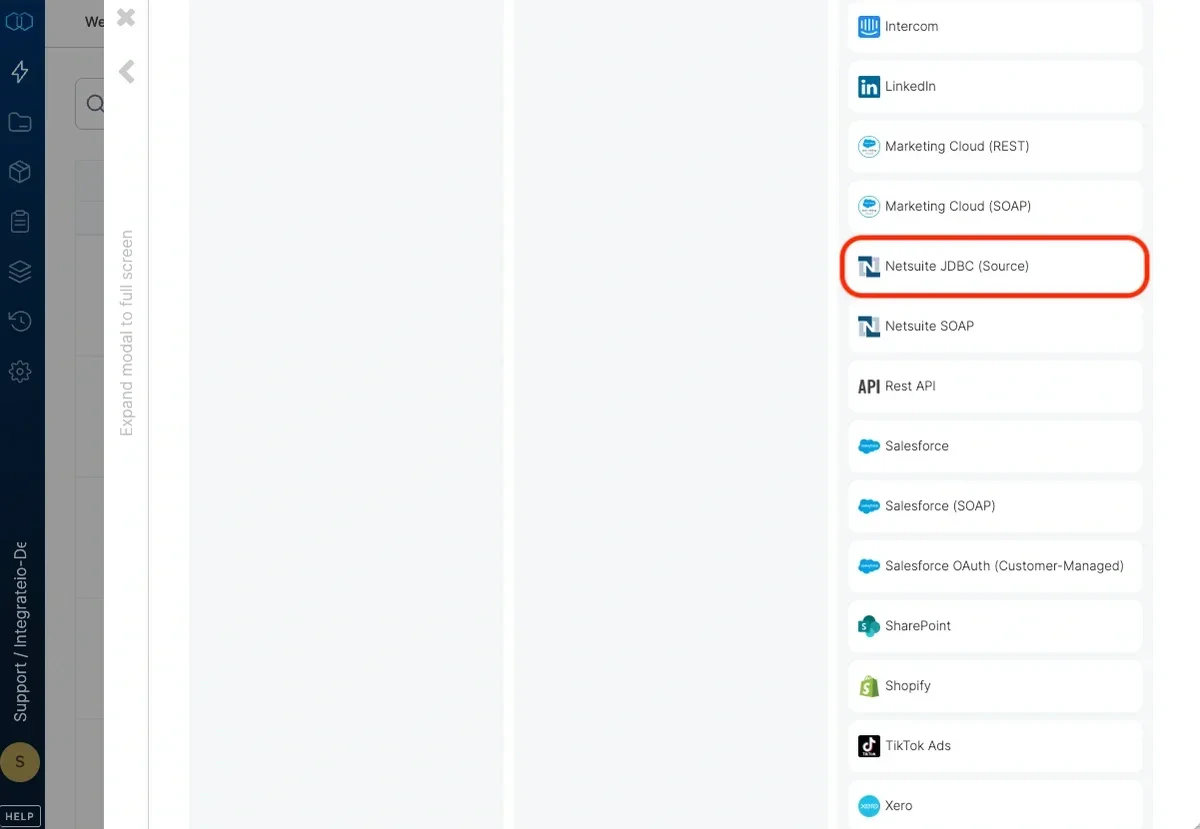
4
In the new NetSuite JDBC(Source) connection window, name the connection and enter the connection information.
- Name - name for the new connection
- Hostname - copy from SuiteAnalytics Connect configuration (see image below)
- Port - copy from SuiteAnalytics Connect configuration (see image below)
- User name - your NetSuite user name.
- Password - your NetSuite password.
- Service data source - copy from SuiteAnalytics Connect configuration (see image below).
- Account ID - copy from SuiteAnalytics Connect configuration (see image below).
- Role ID - copy from SuiteAnalytics Connect configuration (see image below).
5
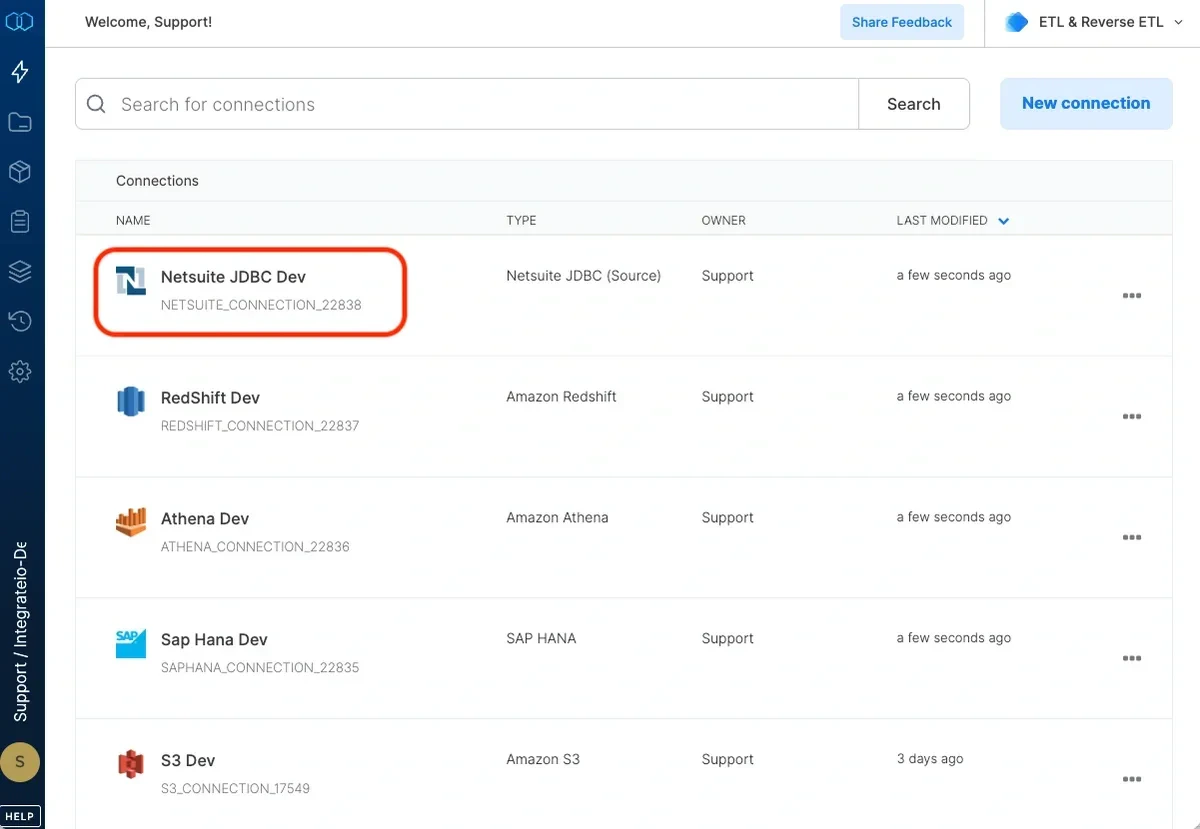
Then, test the NetSuite connection by clicking Test connection. Once the connection tests successful, click Create connection.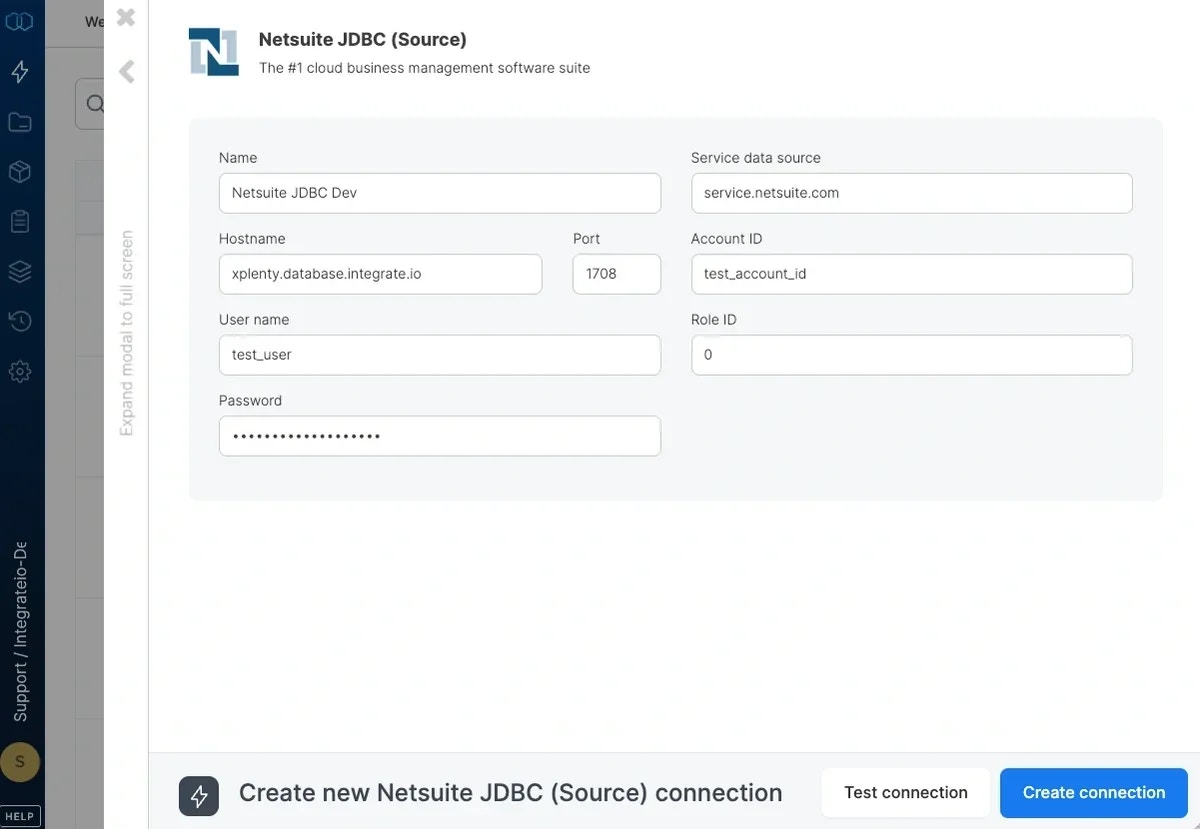
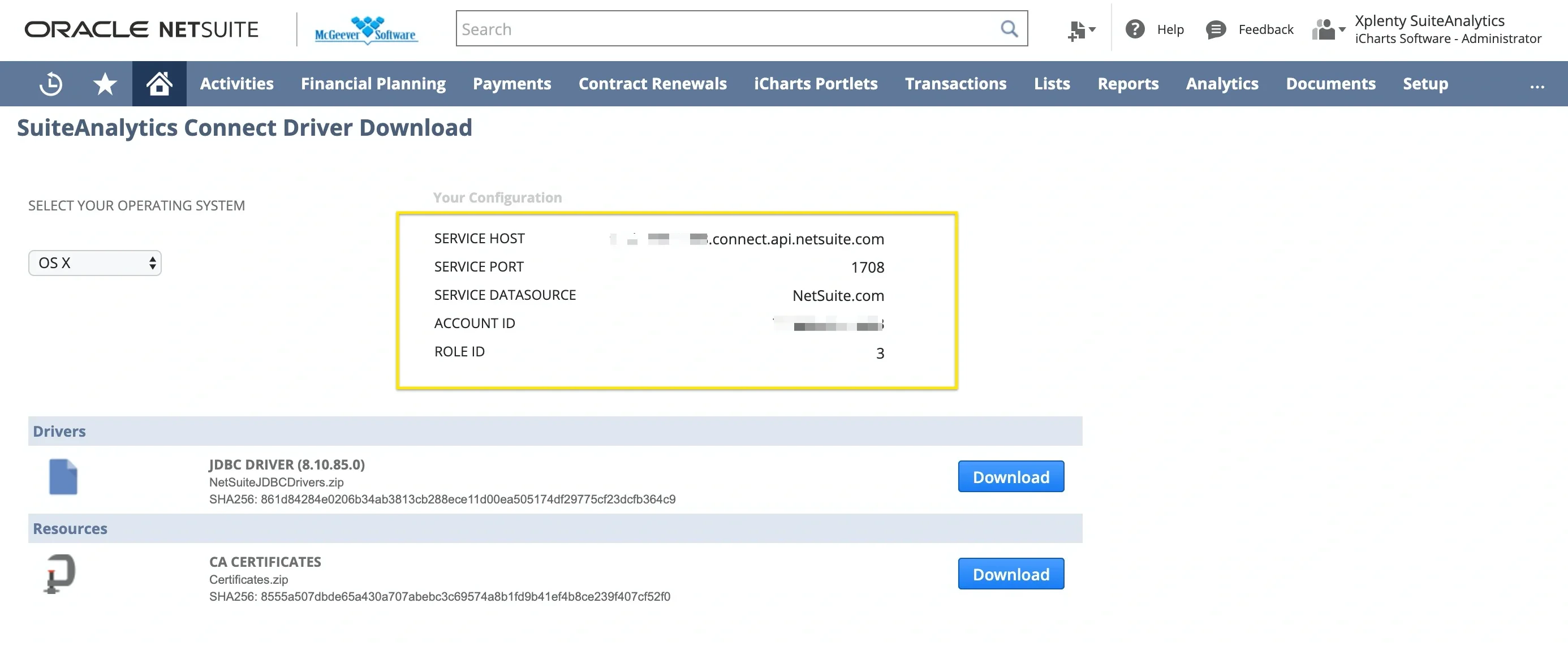
To setup Netsuite2.com as data source
1
Create a new role. Go to Setup > Users/Roles > Manage Roles > New.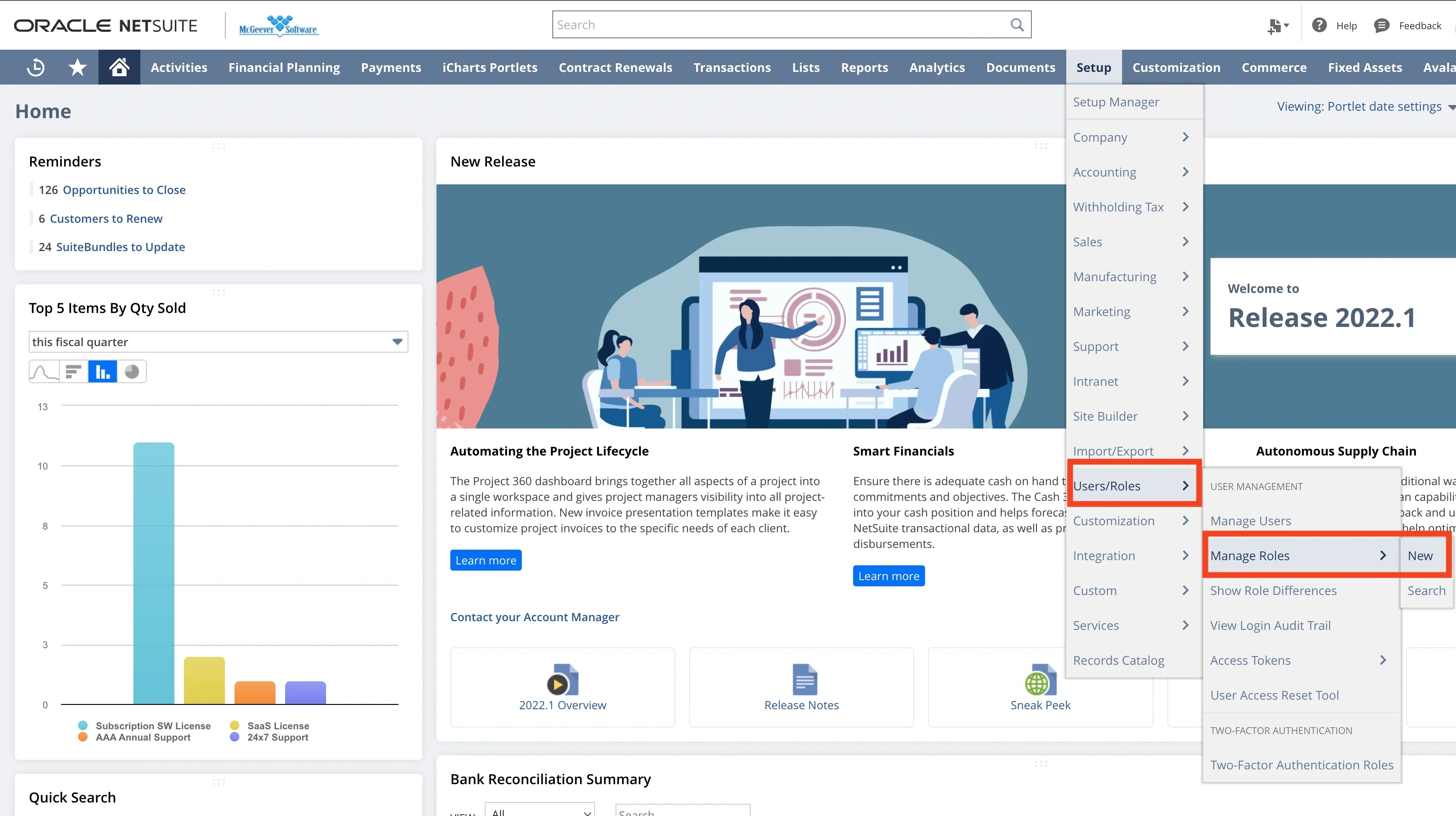
2
Enter a name for this role. Select Permissions tab and then click Setup tab and assign following permissions: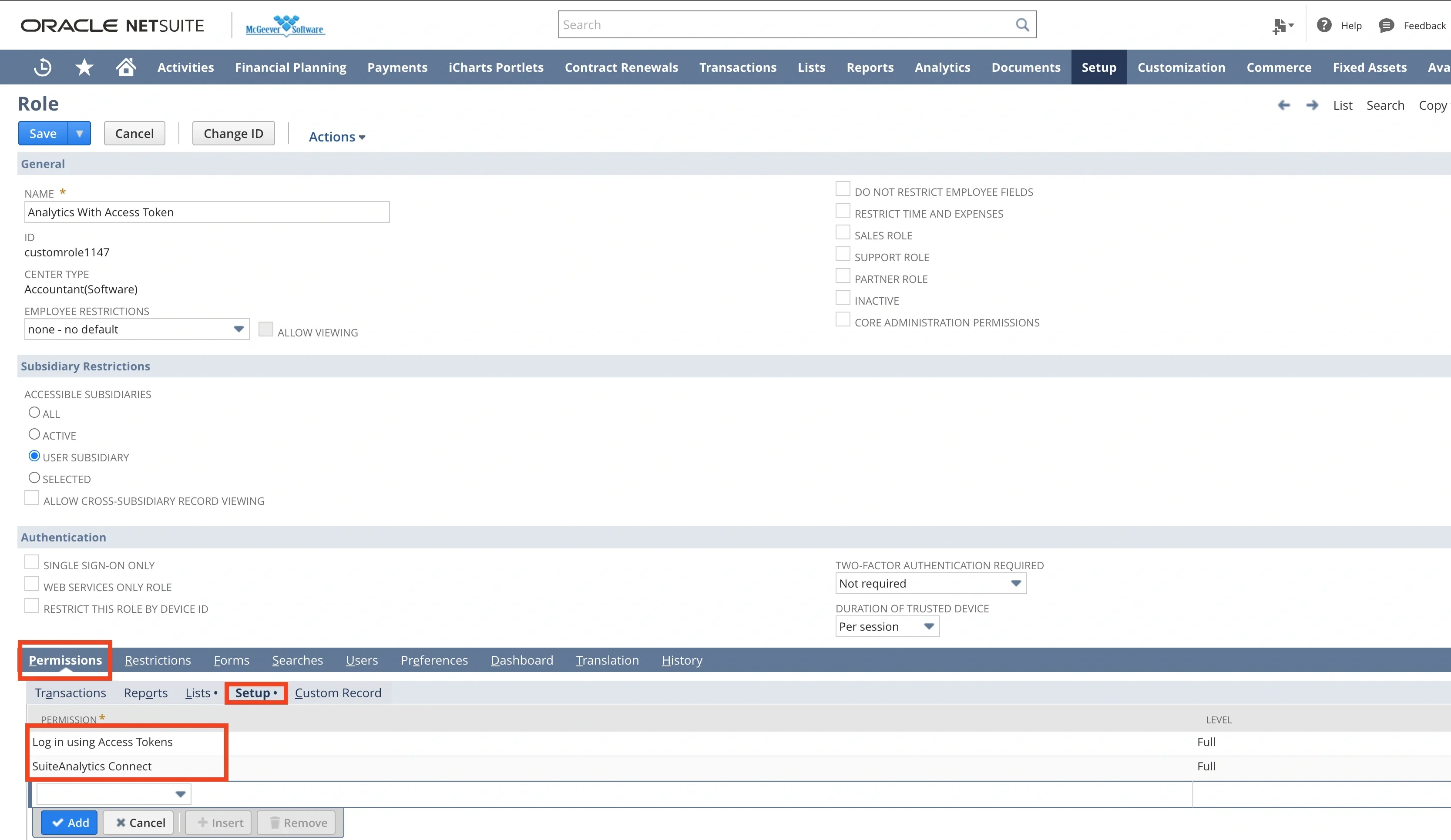
- Log in using Access Tokens
- SuiteAnalytics Connect
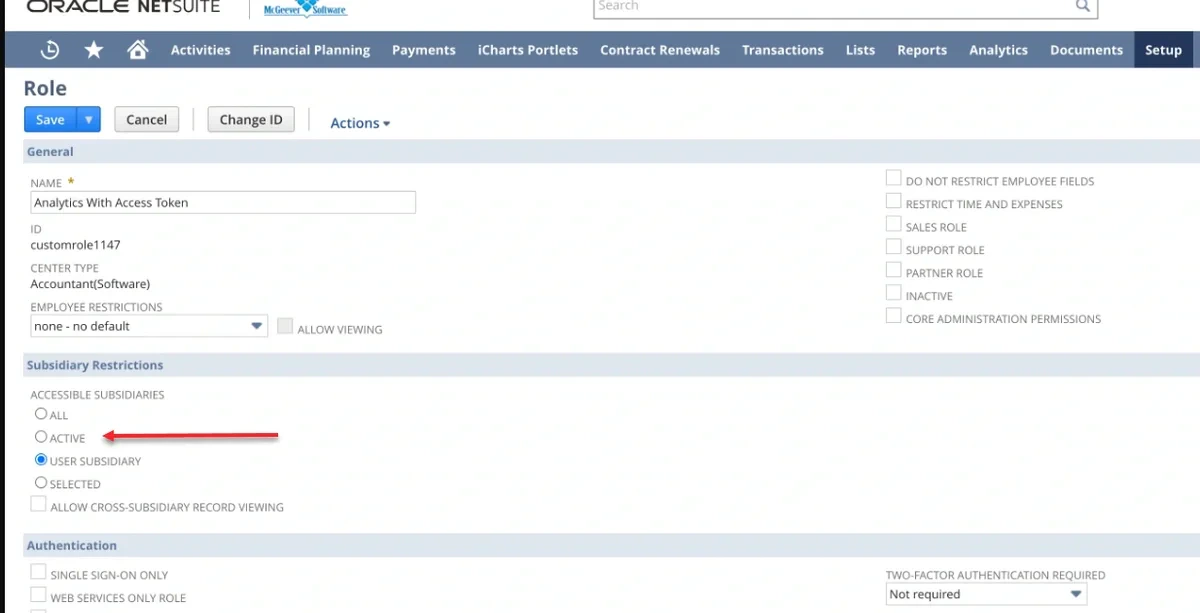
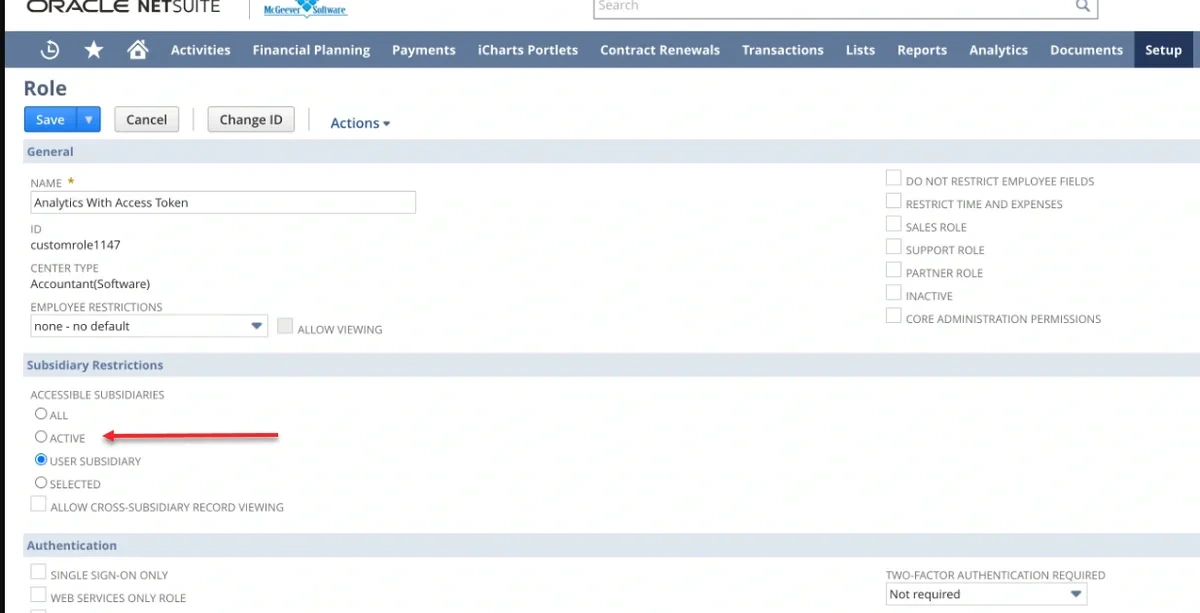
Note:The ‘Subsidiary Restriction’ section may limit access to certain records you wish to retrieve. Depending on the type of subsidiary structure your organization operates under, you should carefully select these options to ensure you obtain the desired data.
3
Grant an access to the selected tables. On the same role creation page, go to Lists tab and select tables.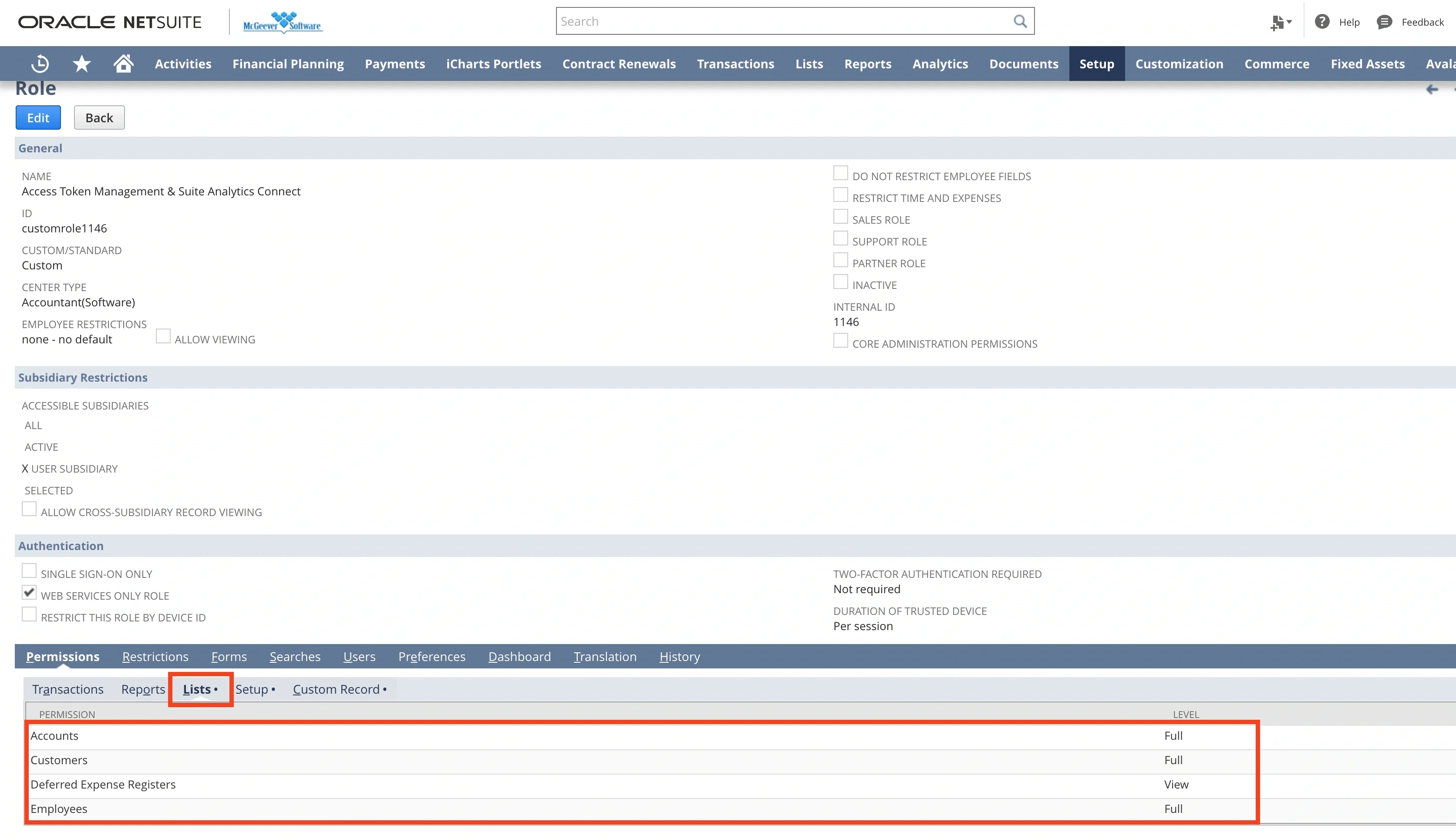
Note:The screenshot below is demonstrating how to enable access to the Account table. Before proceeding, we recommend coordinating with your business team to determine the complete list of NetSuite tables required for your integration. Once the list is finalized, please contact your NetSuite Account Manager for assistance in configuring the appropriate permissions to ensure all relevant tables are both visible and accessible for integration purposes.
4
Assign the Roles to the selected User. Select Access tab and then add following roles under Roles tab: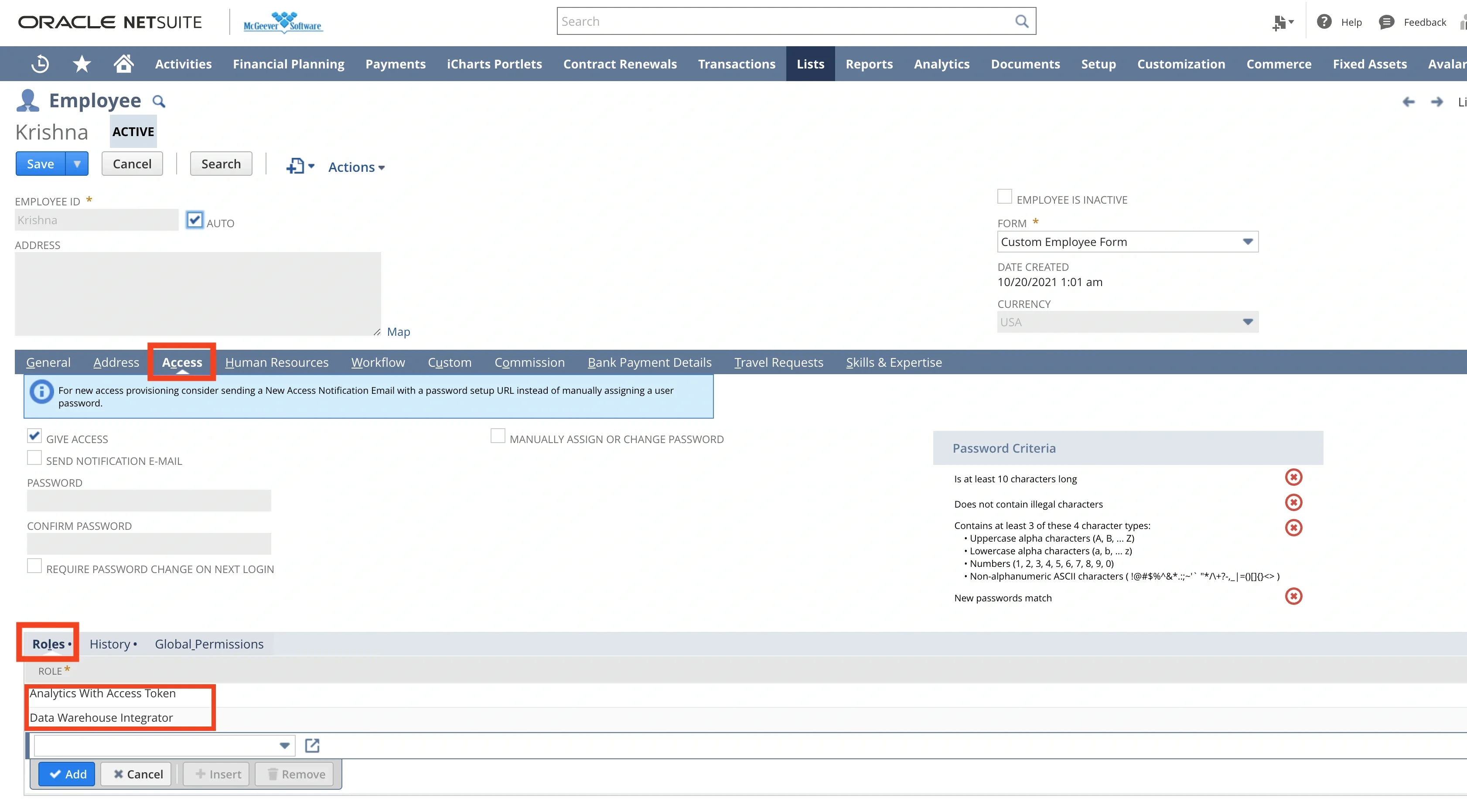
- The role that has just been created from previous step
- Data Warehouse Integrator role
5
Configure DB connection in Integrate.io ETL. Enter connection information (see steps “To create a Netsuite connection in Integrate.io ETL” from above) along with Netsuite2.com as Service data source and Role ID from the role that we just created from step 2.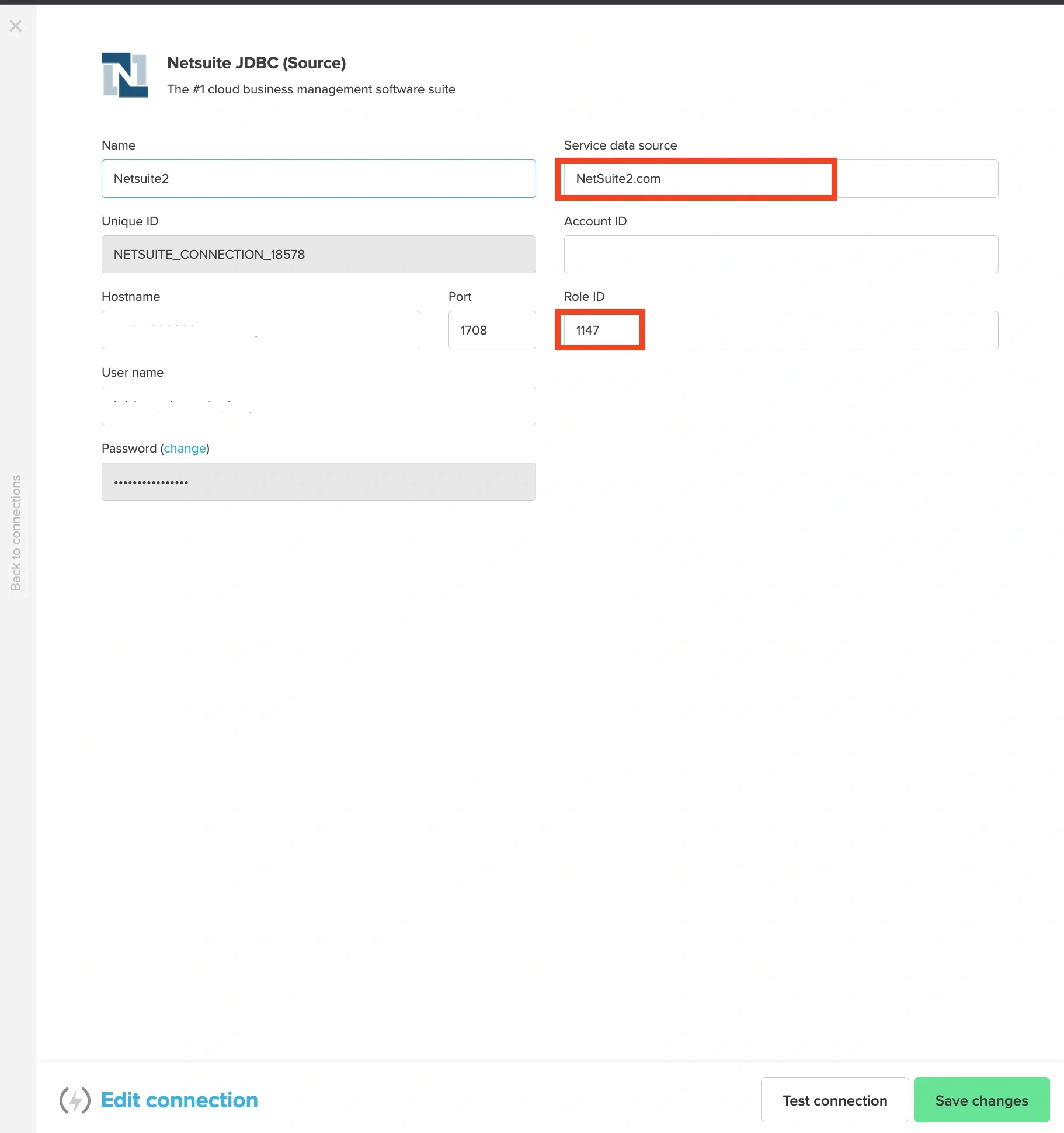
Connection Setup: NetSuite (SOAP)
Setting up on NetSuite dashboard
To enable SOAP Web Services and Token Based Authentication, you need to log in to your Netsuite dashboard with admin roles and please follow these steps:1
Go to Setup > Company > Enable Features > SuiteTalk (Web Services) and enable both “SOAP Web Services” and “Token-based Authentication”.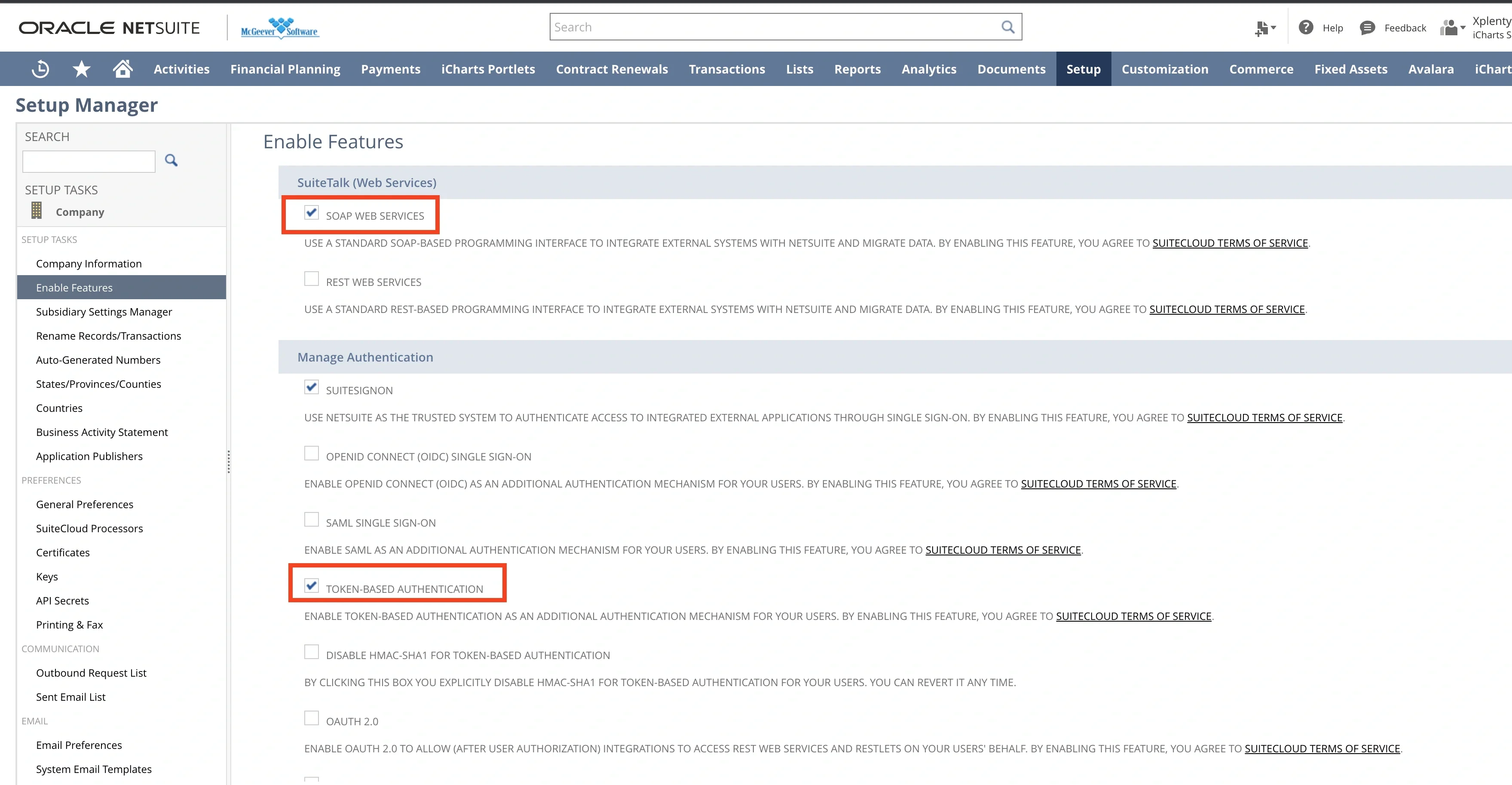
2
Create a new Integration. Navigate to Setup > Integrations > Manage Integrations > New. Please note that “Token-based Authentication” must be checked.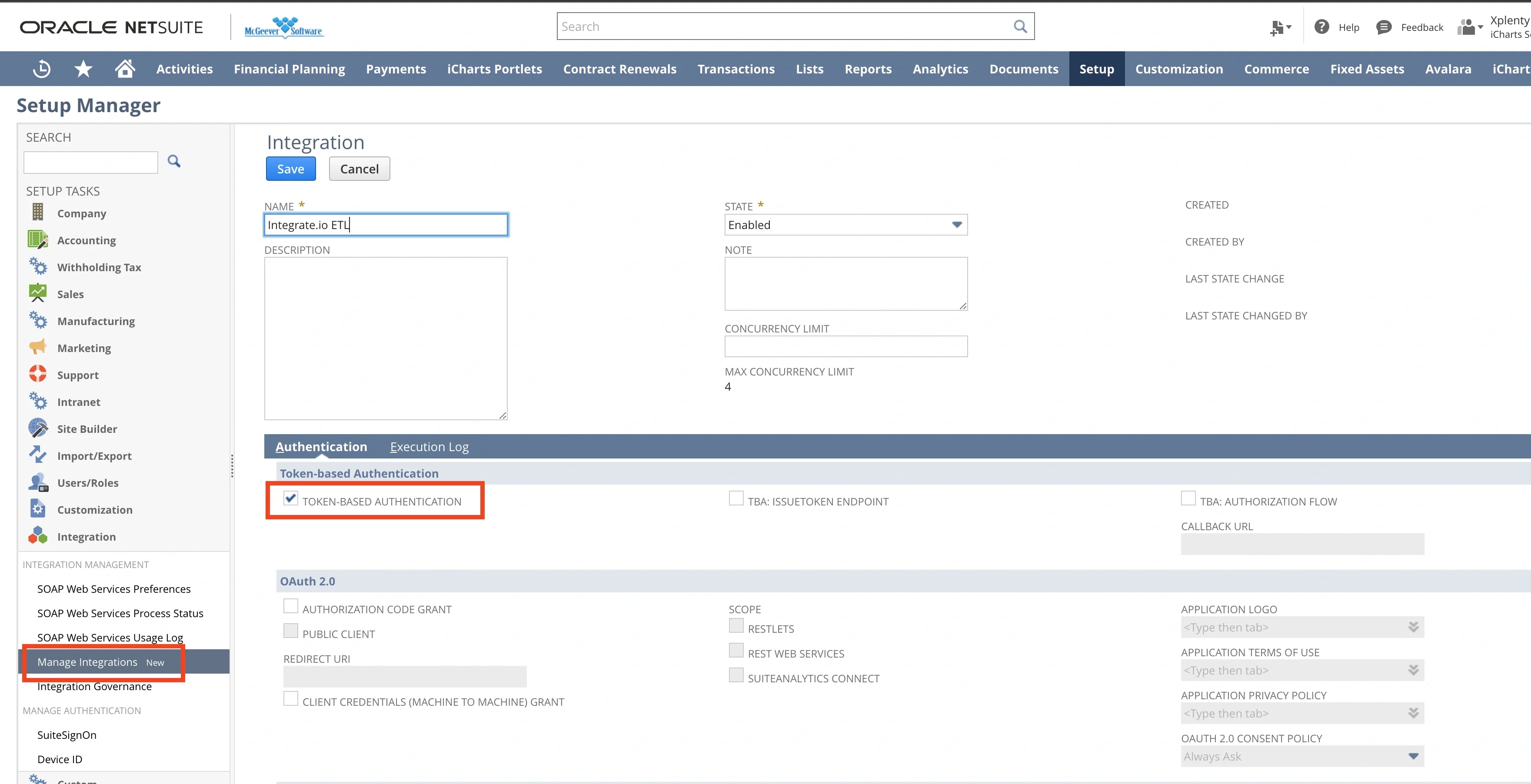
3
After finished creation integration, save the Consumer Key and Consumer Secret as it will be only shown once and used for connection configuration on Integrate.io ETL.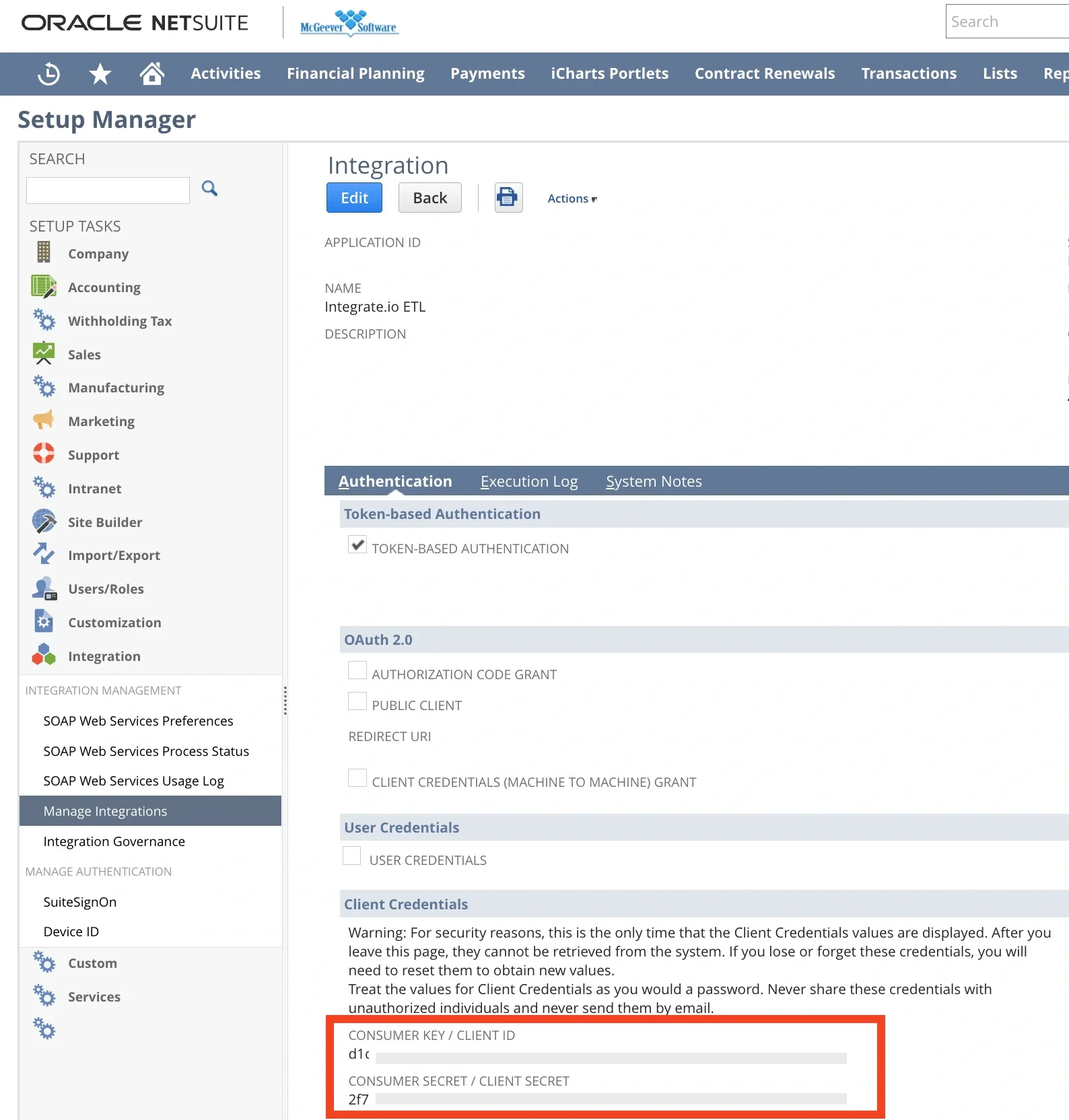
4
Create a new role. Go to Setup > User Management > Manage Roles > New. Check “Web Services Only Roles” and add following permissions on Permissions > Setup tab: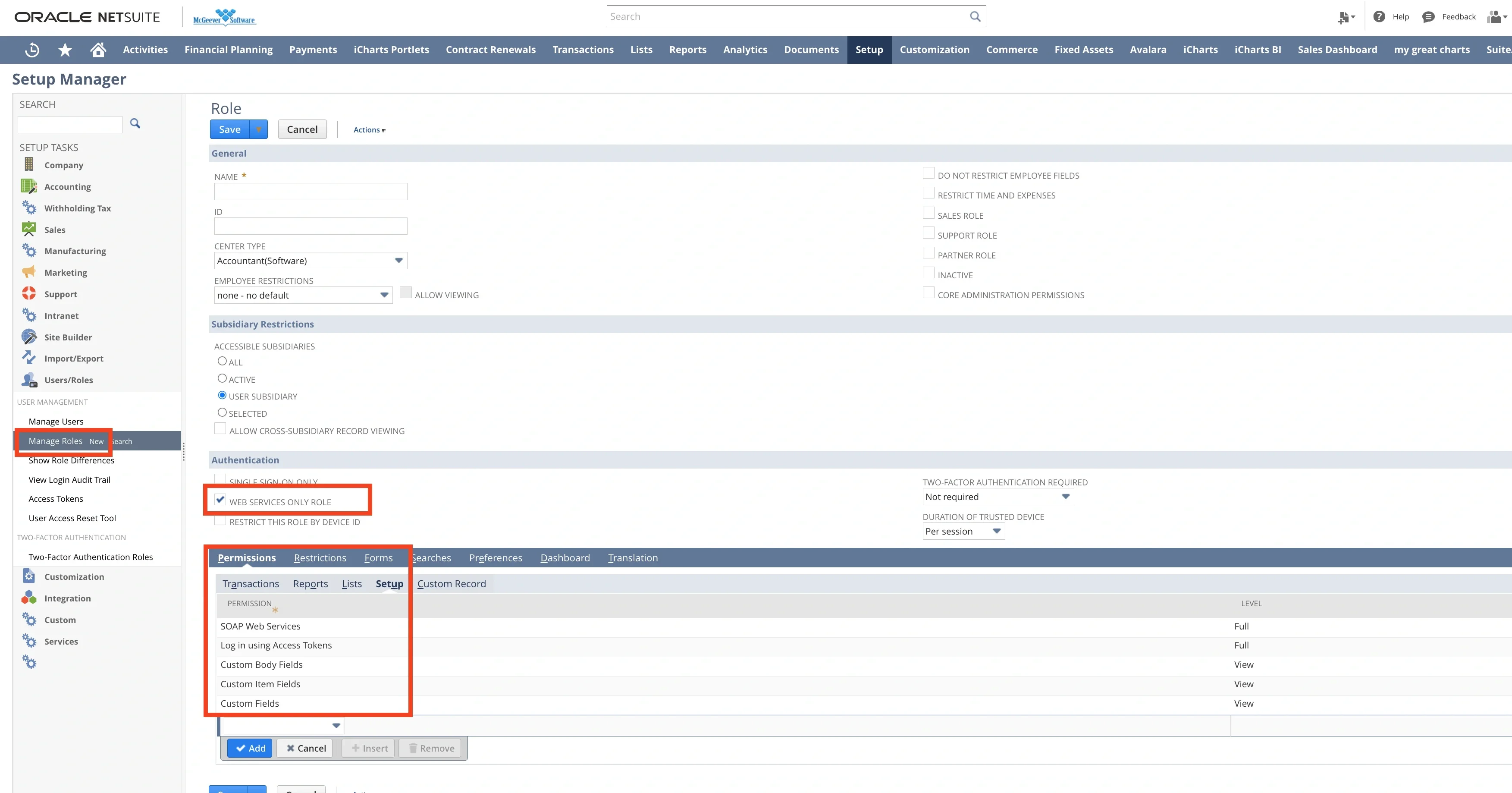
- SOAP Web Services
- Log in using Access Tokens
- Custom Body Fields
- Custom Item Fields
- Custom Fields
Note:The ‘Subsidiary Restriction’ section may limit access to certain records you wish to retrieve. Depending on the type of subsidiary structure your organization operates under, you should carefully select these options to ensure you obtain the desired data.
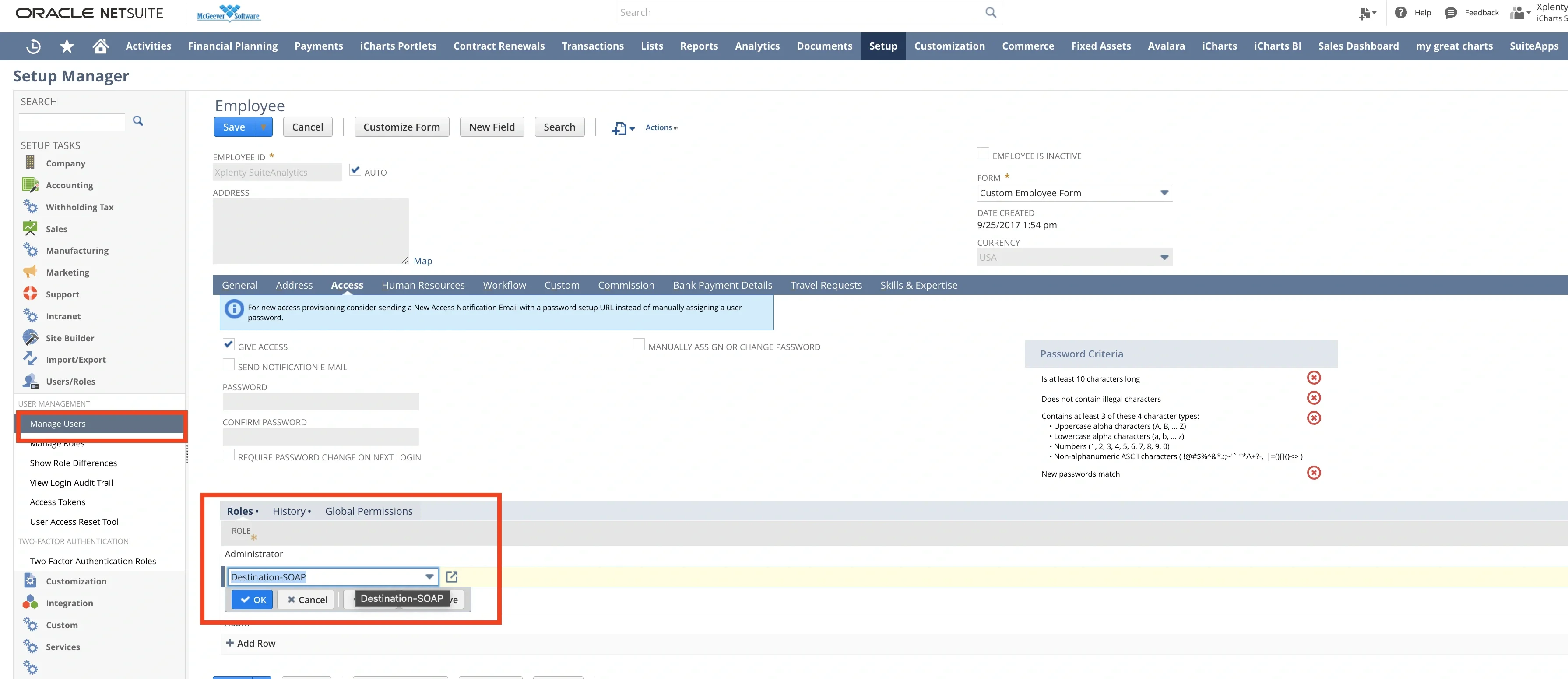
- Assign the role from previous step to existing or a new user. Navigate to Setup > User Management > Manage Users.
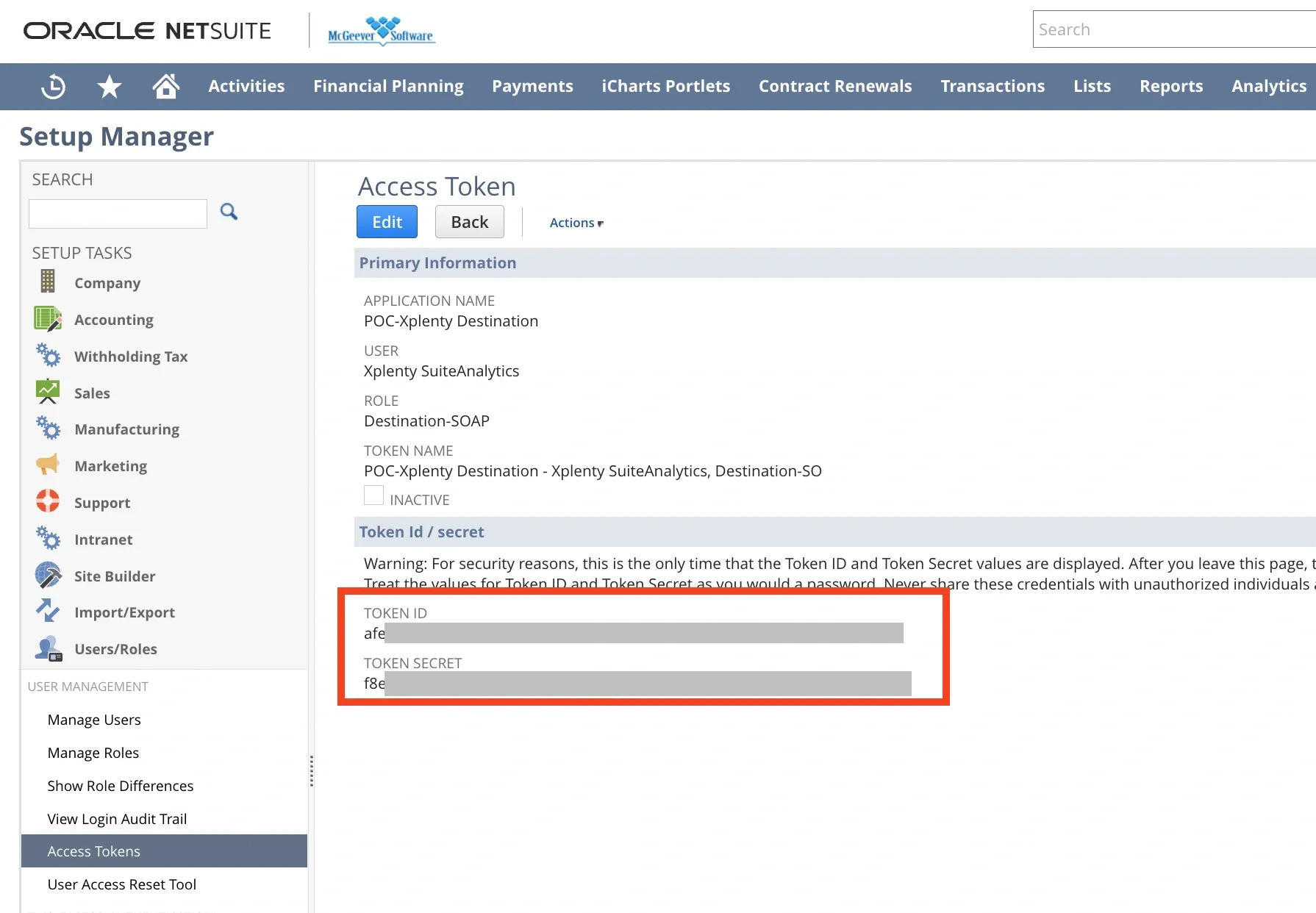
- Create a new access token. Go to Setup > User Management > Access Tokens. Select the name of Integration, User and Role from previous steps. After saving it, Token ID and Token Secret will be shown and keep those values securely.
To create a NetSuite SOAP connection in Integrate.io ETL
1
Click the Connections icon (lightning bolt) on the top left menu.
2
To create a connection, click New connection.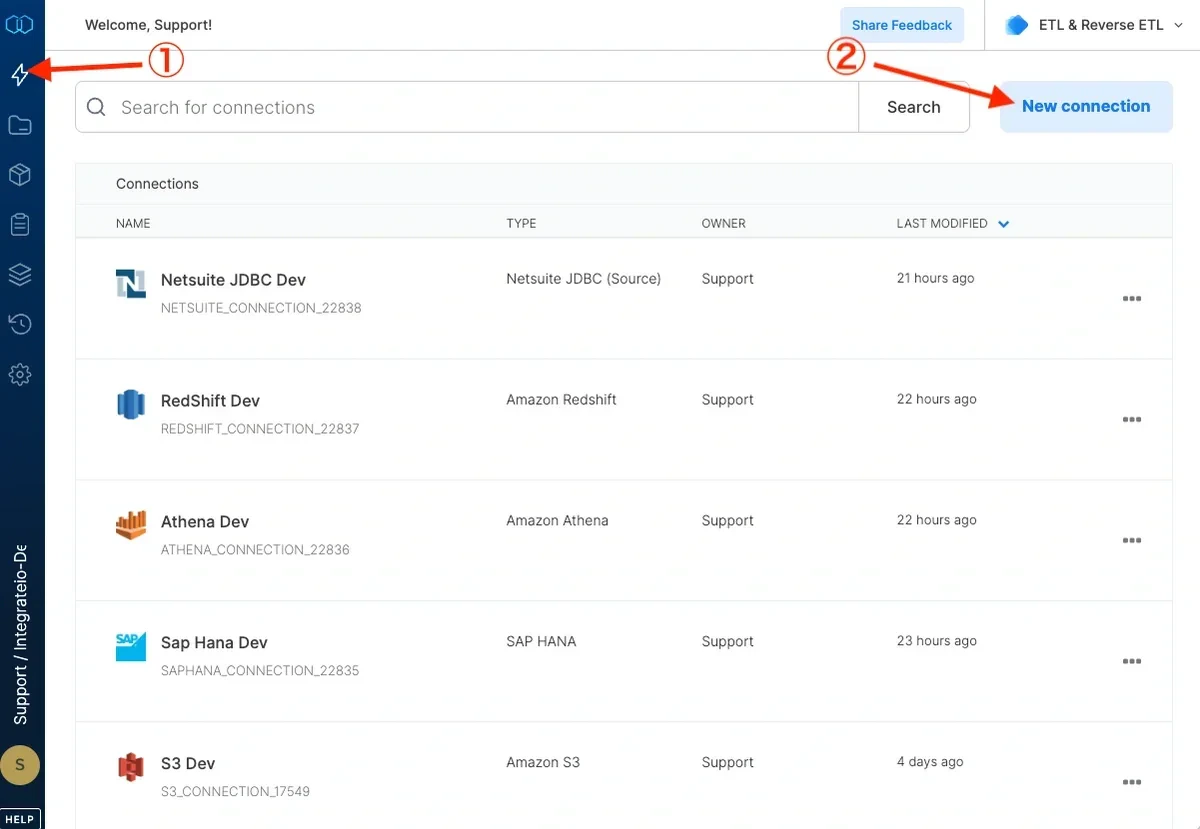
3
Select NetSuite SOAP.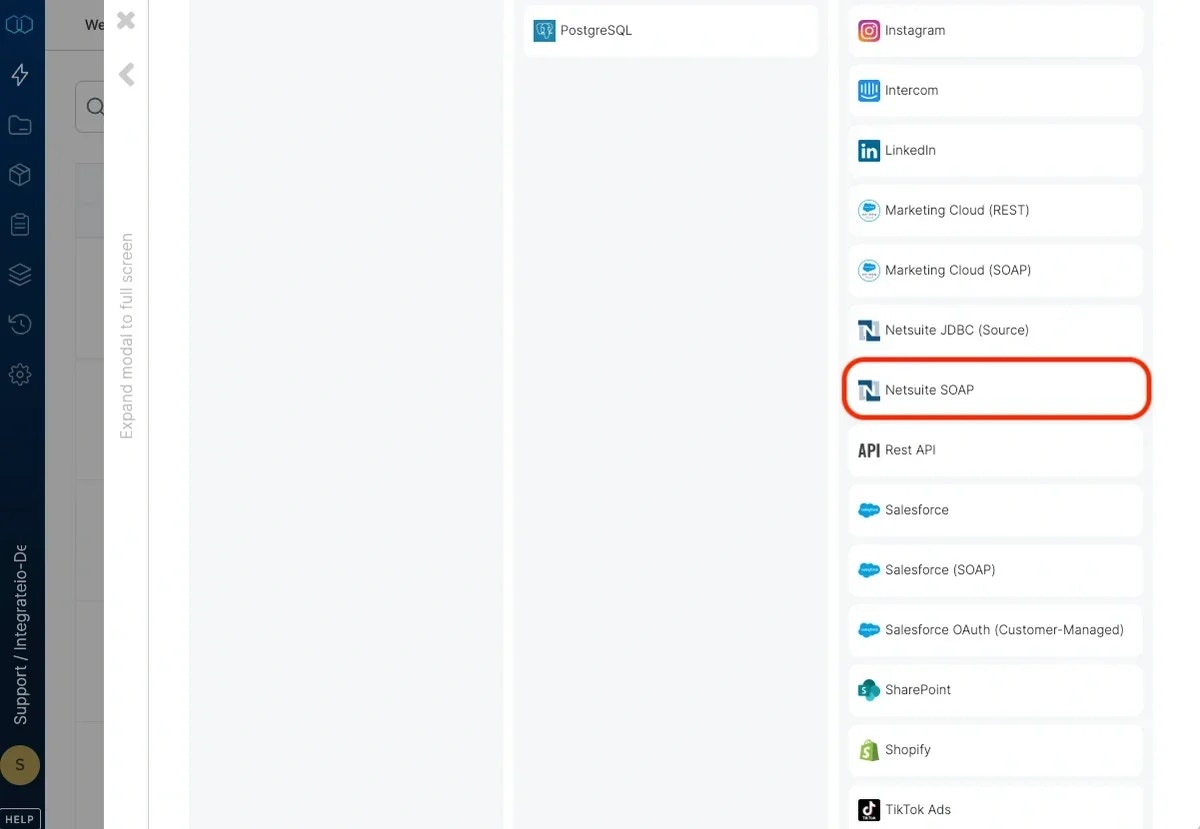
4
In the new NetSuite connection window, name the connection and enter the connection information.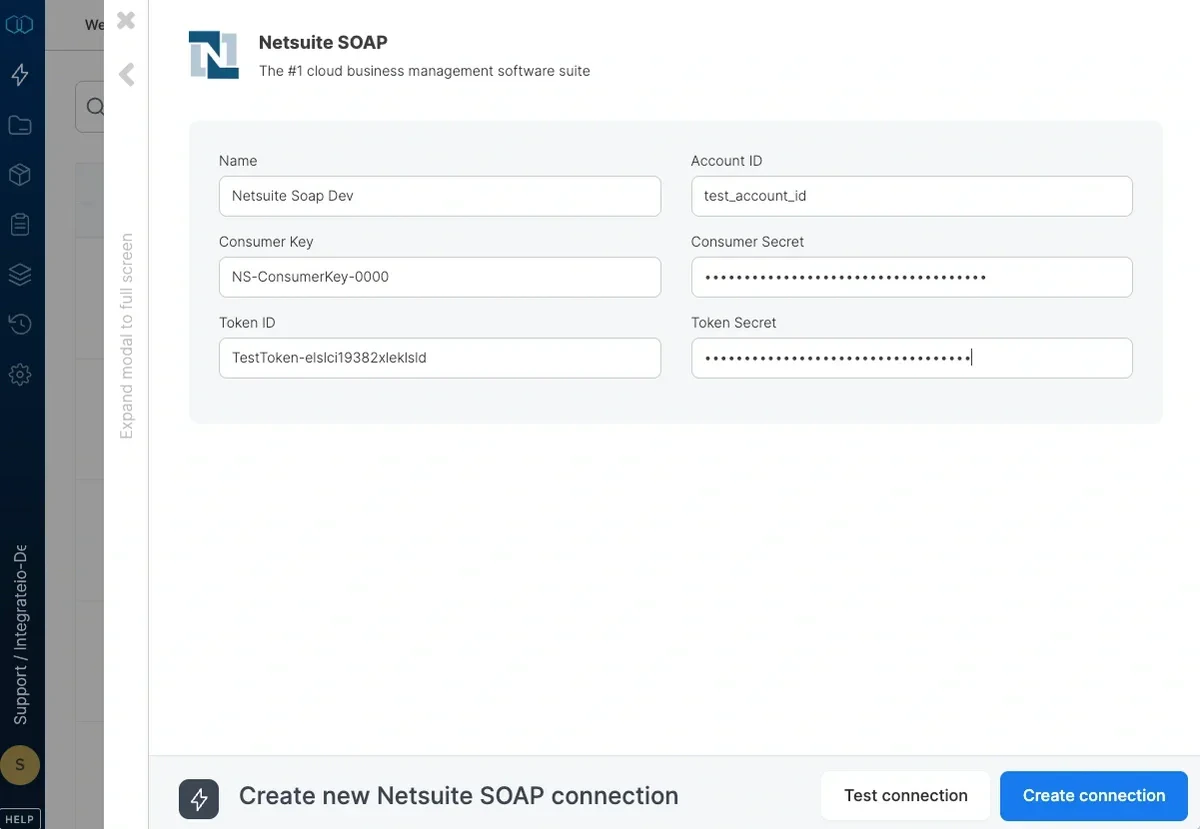
- Name - name for the new connection
- Account ID - need to include the suffix
_SB<number>for Sandbox account. - Consumer Key - copy from previous step or SuiteAnalytics Connect configuration.
- Consumer Secret - copy from previous step or SuiteAnalytics Connect configuration.
- Token ID - copy from previous step or SuiteAnalytics Connect configuration.
- Token Secret Account ID - copy from previous step or SuiteAnalytics Connect configuration.
5
Then, test the NetSuite connection by clicking Test connection. Once the connection tests successful, click Create connection.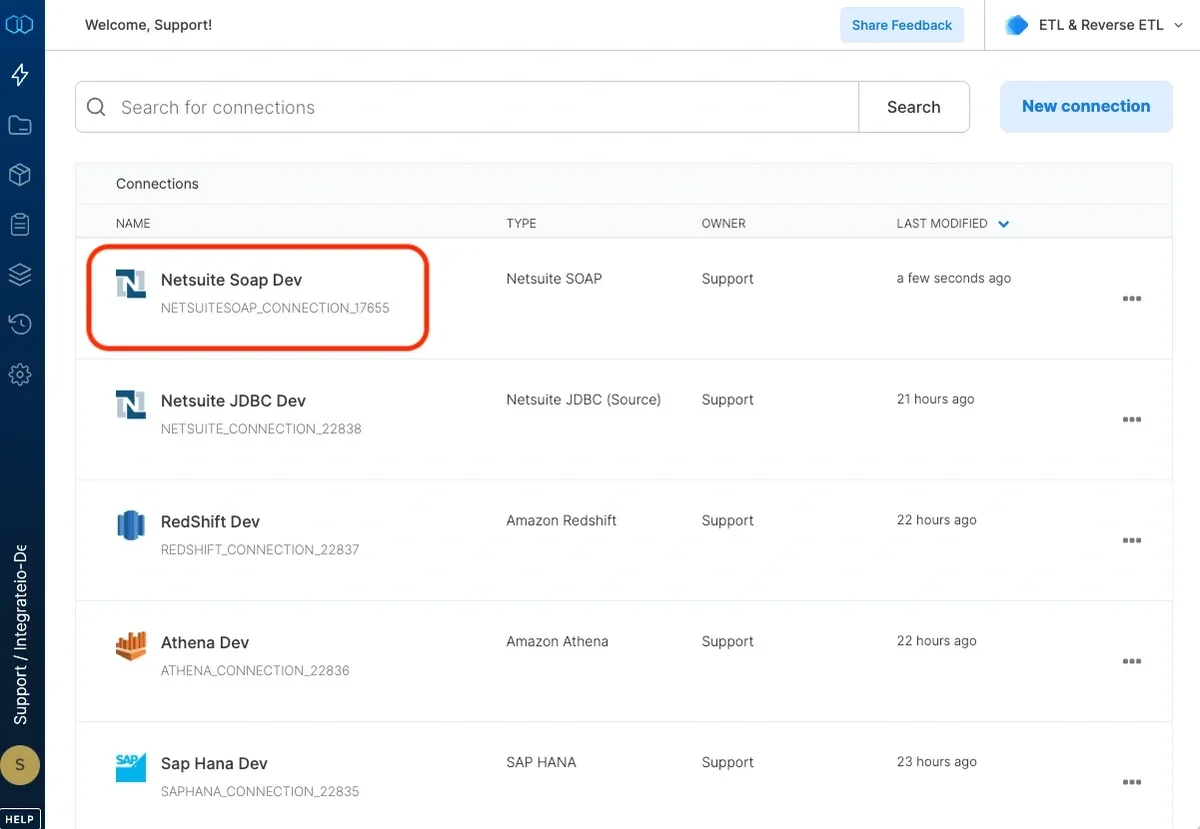
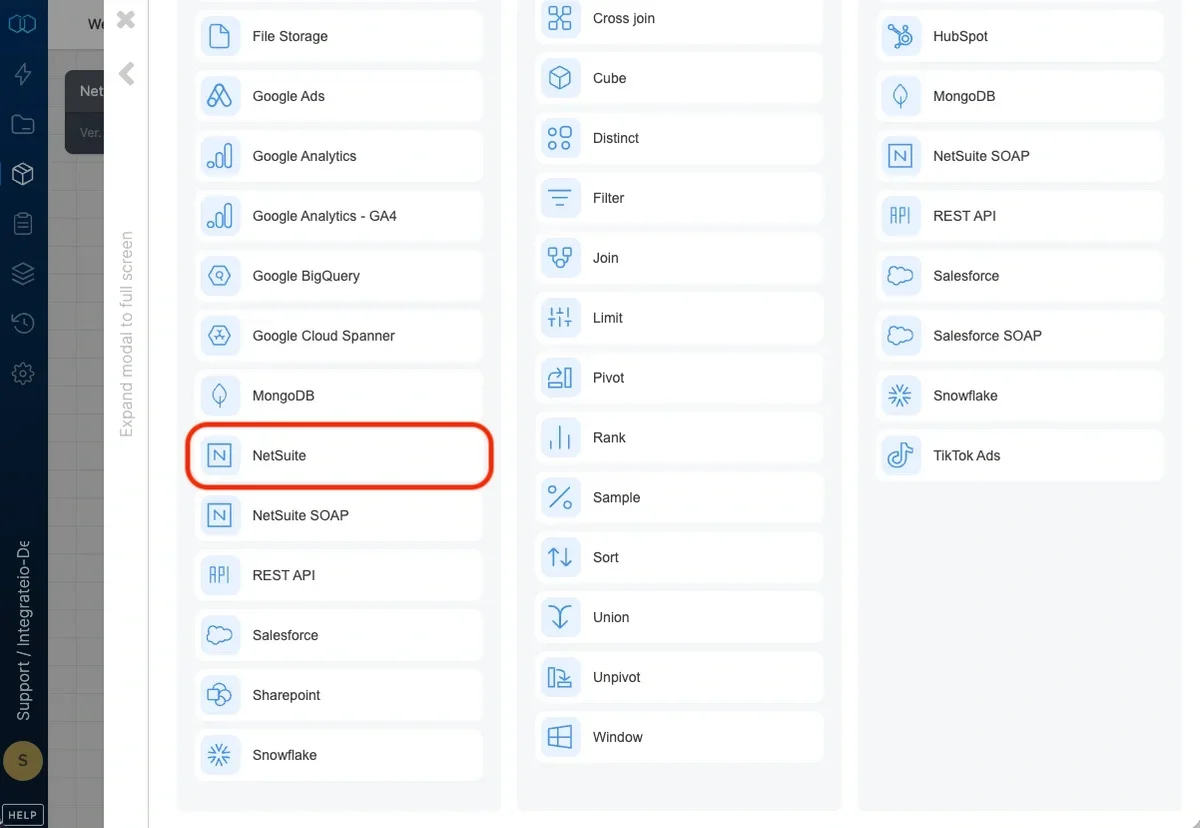
Connection
Select an existing NetSuite connection or create a new one (see Connection Setup: NetSuite above).Source Properties
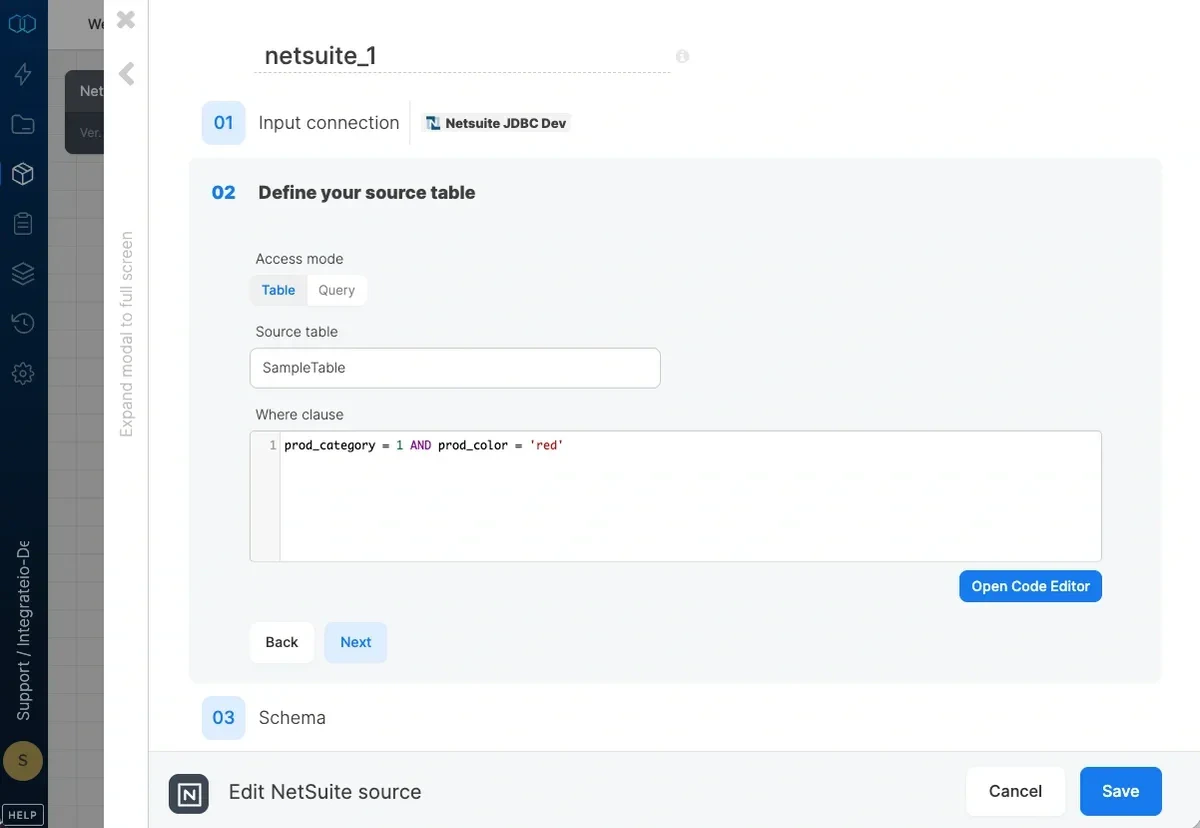
- Source table - the table name from which the data will be imported. Use the Suitetalk Connect schema browser to look up standard records and columns.
- where clause - optional. You can add predicates clauses to the WHERE clause as part of the SQL query that is built in order to get the data from the database. Make sure to skip the keyword WHERE.
Source Schema
After defining the source table/query select the fields to use in the source. The fields you select are used to build the query that will be executed to read the data. Define the data type for the field. Use the following table when matching NetSuite data types to Integrate.io ETL data types.NetSuite REST Source
The NetSuite REST source component reads data over NetSuite’s REST services. It works with either a NetSuite SOAP connection (OAuth 1.0a Token-Based Authentication) or a NetSuite OAuth connection (OAuth 2.0), and offers three access modes.Object mode
Select the Record type. Integrate.io ETL reads the record type in pages, using a default page size of 1000.Query (SuiteQL) mode
Enter a SuiteQL query. You can set Page Size between 5 and 1000 to control how many records are fetched per API call.RESTlet mode
A RESTlet is a script your developers write and deploy inside NetSuite, exposed at a URL. Use this mode when the data you need is not available as a standard record type, which is common for custom business objects.Before you start
Your RESTlet must already be deployed in NetSuite, and on the script deployment record:- Status must be Released. A deployment left in Testing can only be called by the script owner, so Integrate.io ETL cannot reach it.
- Audience must include the role attached to the access token your Integrate.io ETL connection uses. This is the most common cause of an authentication failure that otherwise looks like a bad credential.
- The role needs the Log in using Access Tokens permission.
Configuration
With Script & deployment ID, Integrate.io ETL builds the URL from the account on your connection, so you do not assemble the host yourself. This is the recommended option because the host is where most mistakes happen, particularly for sandbox accounts.
Both IDs appear on the script deployment record in NetSuite. Its URL field reads
?script=<Script ID>&deploy=<Deployment ID>.
What the RESTlet must return
The response must be JSON, and either:- an array of objects, which produces one row per element, or
- a single object, which produces one row.
[["Alice", 30]] cannot be mapped to fields and produces no rows.
A nested object is kept whole and stored as JSON text. For example, this response:
department value of {"id":"5","name":"Sales","region":"west"}, with every field preserved. Use JsonExtractScalar downstream if you need to pull individual values out, for example JsonExtractScalar(department, '$.name').
URL restrictions
RESTlet URLs are checked before the call is made:- The URL must use https.
- The host must be your own account’s RESTlet host (
<account>.restlets.api.netsuite.com) or a legacy data center host (rest.<dc>.netsuite.com). - A URL containing embedded credentials, such as
https://host@other.example.com/, is rejected. - Redirects are not followed. If a RESTlet responds with a redirect, the call fails rather than following it.
Note:On the per-account host, a URL belonging to a different NetSuite account is rejected. The legacy
rest.<dc>.netsuite.com form is accepted for backward compatibility with older integrations, and that form is not account-scoped. Prefer Script & deployment ID, or a per-account URL, so the request is pinned to your own account.