

Connection Setup
To allow Integrate.io ETL direct access to your FTPS server, add the Integrate.io IP addresses to your server’s firewall allowlist.1
Click the Connections icon (lightning bolt) in the top-left menu.
2
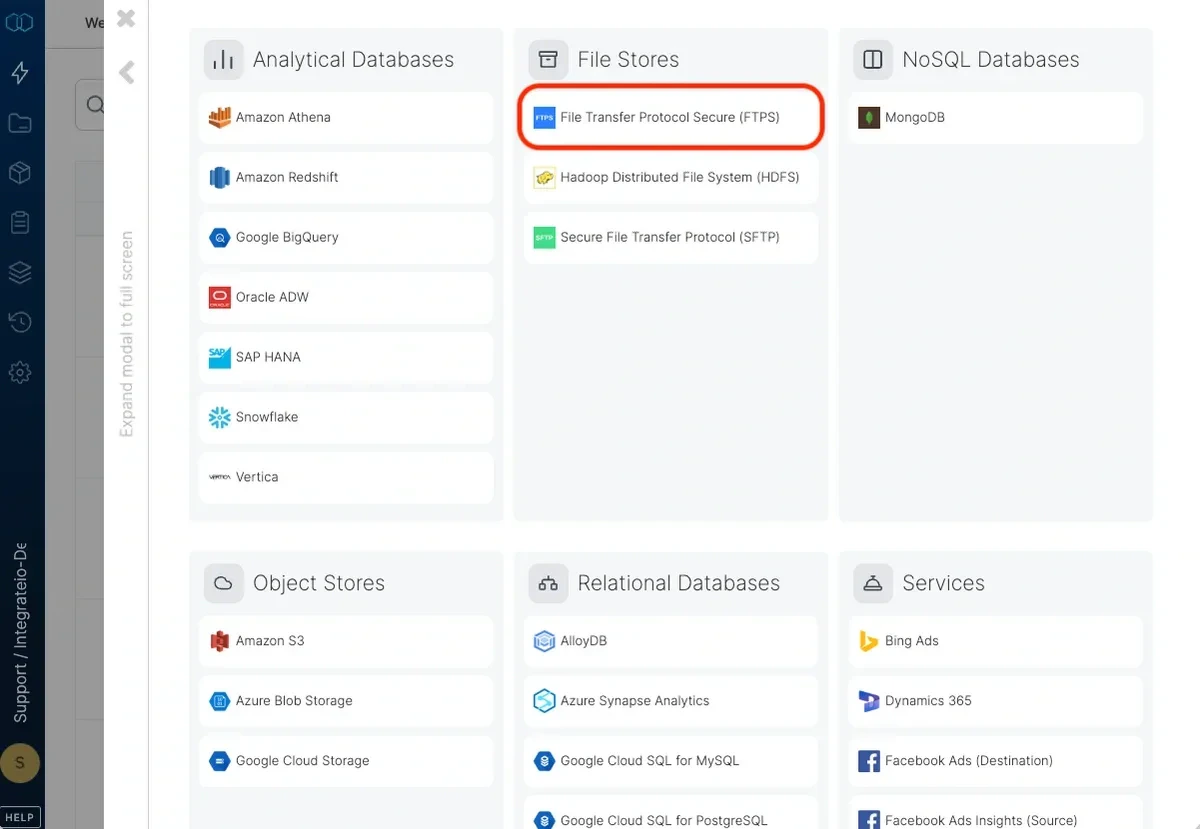
Click New connection and select File Transfer Protocol Secure (FTPS).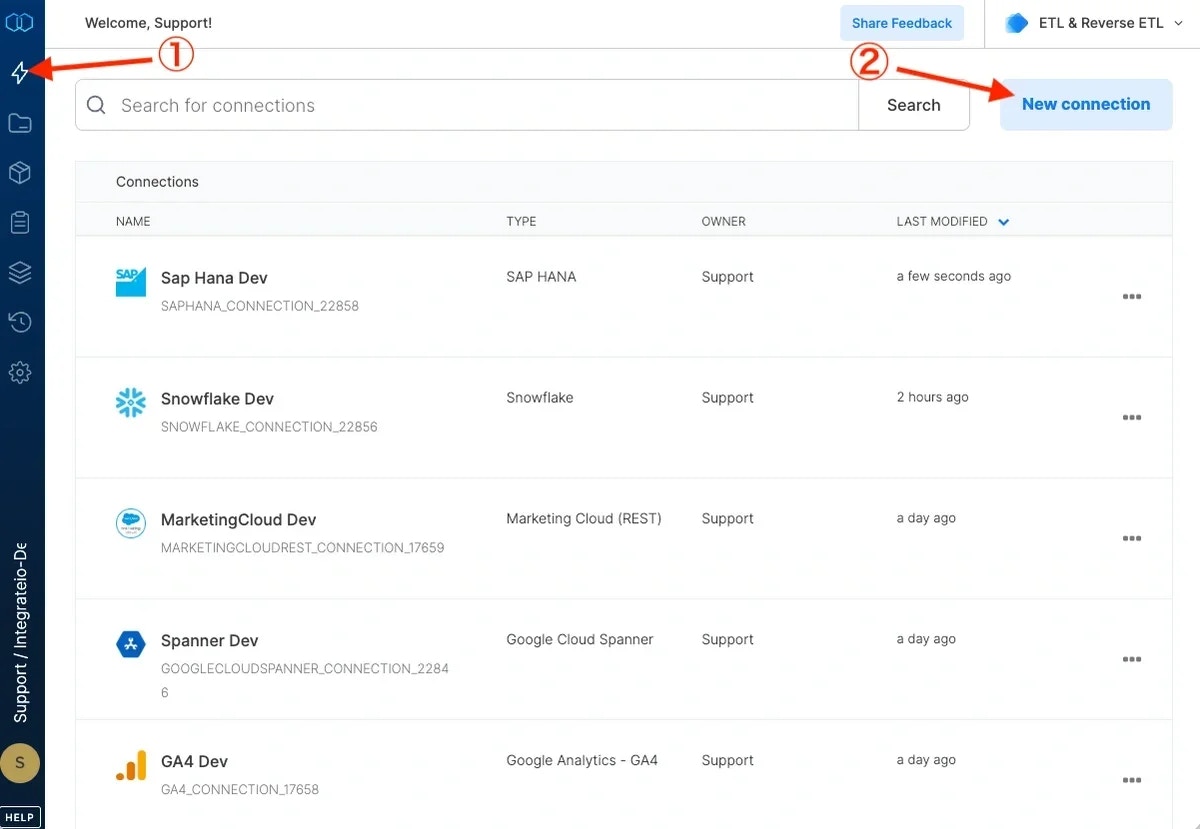
3
Name the connection and fill in the connection details:
4
Click Test connection to verify the credentials.
5
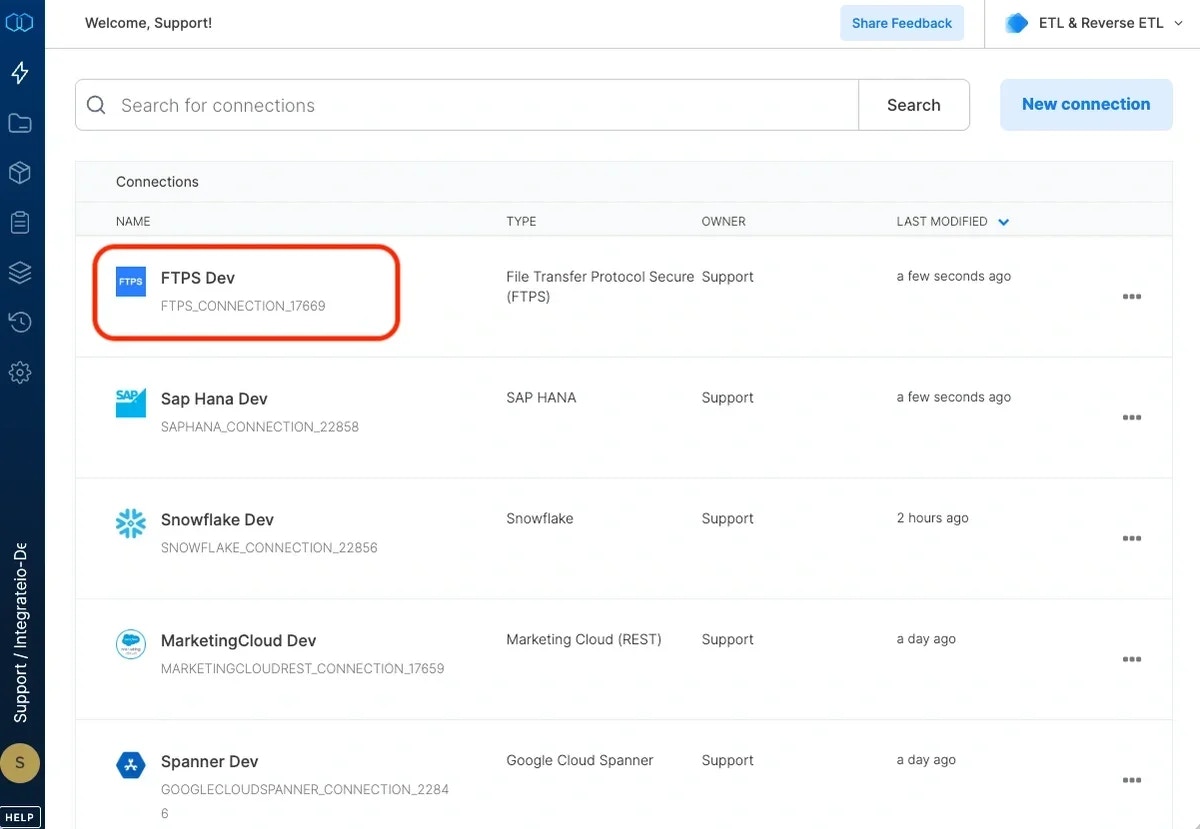
Click Create FTPS connection.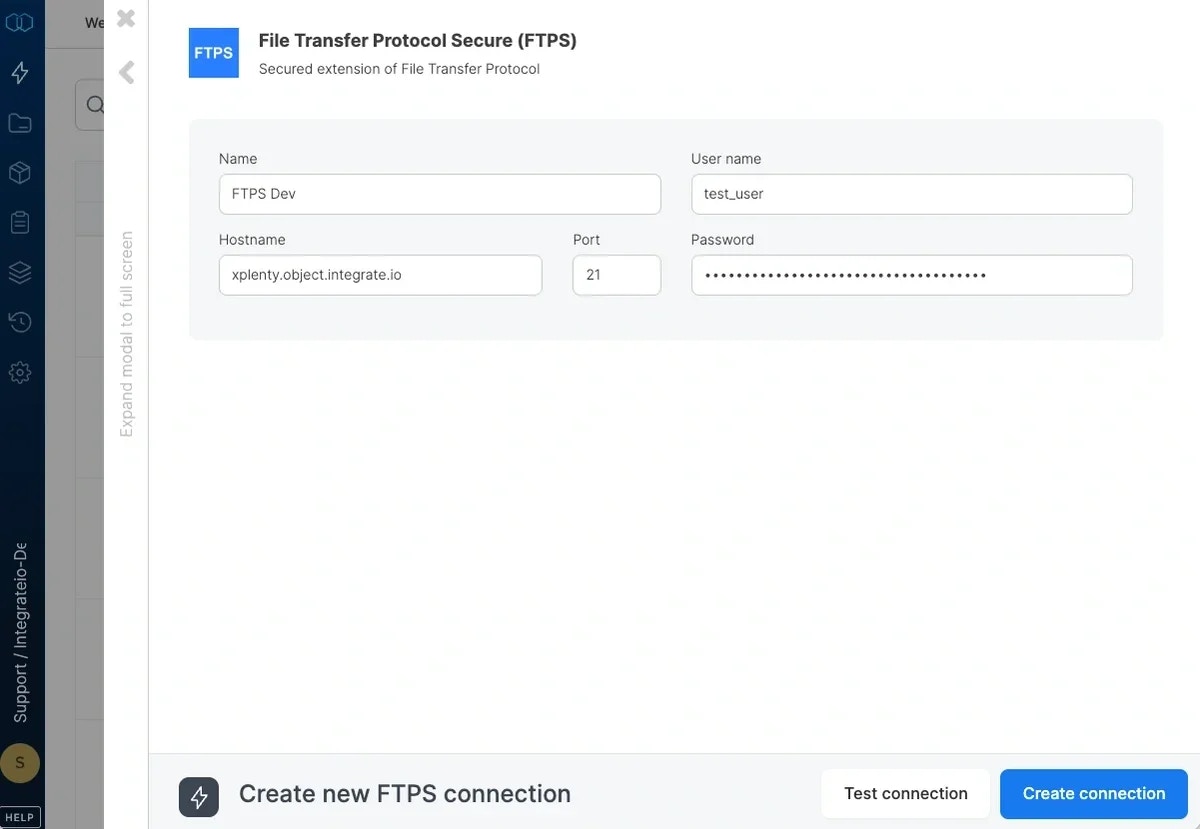
Source Configuration
Connection
Select your FTPS connection from the dropdown, or create a new one using the steps above.Source Path
The path to the input file, folder, or pattern on the FTPS server. Paths must begin with/. Integrate.io prepends the slash automatically if omitted.
You can use wildcard characters for pattern globbing. File and directory names beginning with an underscore (
_) or a dot (.) are ignored.
FTPS has no bucket or container field. The path is relative to the FTPS server root.
Source File Format
Record delimiter: what breaks the data into records:- New line (
\n,\n\r,\r): each line in the file is one record. - End of file: each file is treated as a single record.
Avro file format is not supported.
.zip, a Case-insensitive path checkbox appears. Enable it to match the zip file path without regard to letter case.
To read ASC X12 EDI files such as 834 benefit enrollment files, use the dedicated EDI (X12) source instead.
Delimited Values Parameters
Applies when record delimiter is New line and record type is Delimited values.1
Field delimiter: select from the dropdown (comma, tab) or type a single character or escape sequence:
2
String qualifier: if fields are enclosed in quotes, select
' or ". To allow line breaks inside quoted fields, select " (newline inside) or ' (newline inside). Use the newline-inside option with caution, as unbalanced quotes can affect job performance.3
Escape character: available when a string qualifier is set. Specifies the character used to escape qualifier characters within field data.
4
First row contains column names: check to skip the header row in each file.
5
Detect header by name: locates the header row dynamically by matching your schema column names. Use this when the header is not always on row 1 (for example, files with a leading title or blank rows before the header). The full schema header must still appear in column order in each file.
Excel Parameters
Applies when record type is Excel.Password-Protected Workbooks
If a workbook is encrypted with a password (set via Protect Workbook in Excel), check This file is password protected and enter the password in the File Password field. Integrate.io decrypts the workbook during schema preview and job runs. Passwords containing special characters such as$ are supported.
The checkbox appears when the source path ends in .xlsx or .xlsm. Legacy .xls files are not supported for password decryption. Unchecking the box clears any saved password.
Password-protected workbooks do not use streaming mode. When a password is set, enabling Ingest large Excel file reads the workbook in standard mode.When streaming a single sheet, date cells come through as Excel serial numbers (e.g.
45306). Declare those columns as int or decimal in your schema, or transform them downstream.JSON Parameters
Applies when record type is JSON object. Base record JSONPath Expression: defines the base record and extracts nested objects or arrays.
Read more about processing JSON data.
Source Action
All four source actions are available for FTPS. When using Move processed files, the Append string to filename option is supported.
Incremental Load (Process Only New Files)
Move Processed Files
PGP Decryption
To decrypt source files encrypted with OpenPGP, select an active entry from the PGP Key dropdown. The entry must hold a private key. Integrate.io decrypts each matching file before parsing it.Paths that contain a space, semicolon, or parenthesis are not supported when a PGP key is set.
Source Schema
After defining the source location and format, select the fields to include.
For each field, define:
- Alias: how to refer to the field in downstream components. Illegal characters are flagged before you close the dialog.
- Data type: the type to cast the field to.
- Key (JSON only): the key name in the source JSON.
file_path field from the Meta Data section to capture the source file path as a field in your data.
FAQ
How do I allow Integrate.io to connect to my FTPS server? Add the Integrate.io IP addresses to your server’s firewall allowlist to permit inbound connections. My username or password contains a restricted character — what should I do? Usernames cannot contain$ and passwords cannot contain @. Contact your server administrator to change the credentials, or use an alternative account.
Does FTPS support incremental load?
Yes. Select Process only new files (Incremental load) in the source action settings and configure a manifest path. See reading file storage data incrementally.