

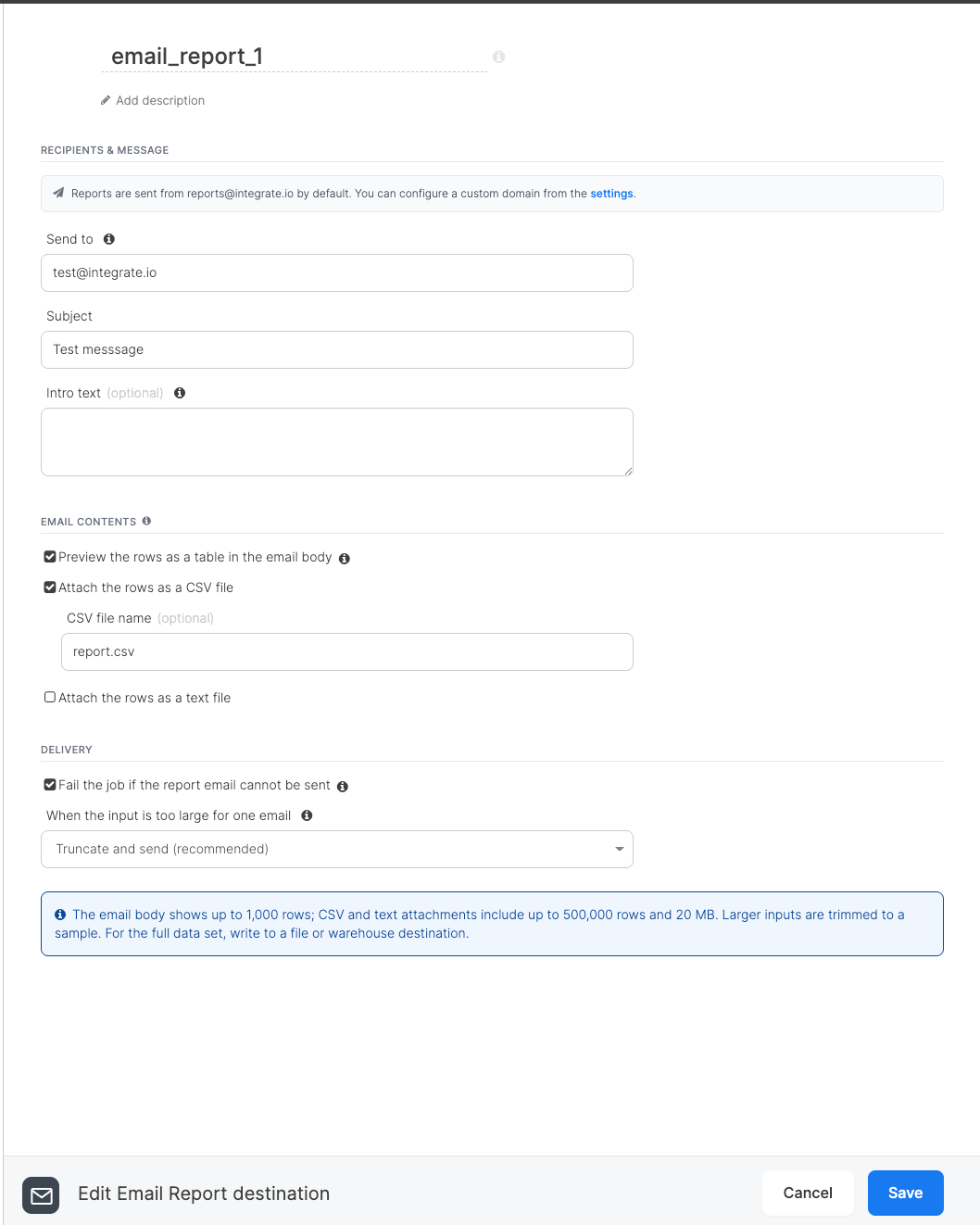
Recipients & message
Integrate.io resolves
$variable references such as $client or $_RUN_ID when the job runs, so you can include package variables and system variables in the subject and intro text. For example, use a subject like Exceptions for $client on $_TODAY_TIMESTAMP to send a separate report per client. For the available variables, see Using and setting variables in your packages and System and pre-defined variables.
Reports are sent from reports@integrate.io by default. To send from your own domain, see Sender address.
Email contents
Select at least one output, otherwise the email would carry no data.The CSV and text attachments are mutually exclusive: you can select one or the other (or neither). The body table is independent and can be combined with either attachment.
Delivery
Limits
The Email Report is a digest, not a bulk export, so the output is bounded:
Larger inputs are trimmed to a sample. For the full data set, write to a file or warehouse destination.
Sender address
By default, reports are sent fromreports@integrate.io. To send from your own domain, configure the account-level Email Sender settings (Settings > Account Settings > Email Sender).
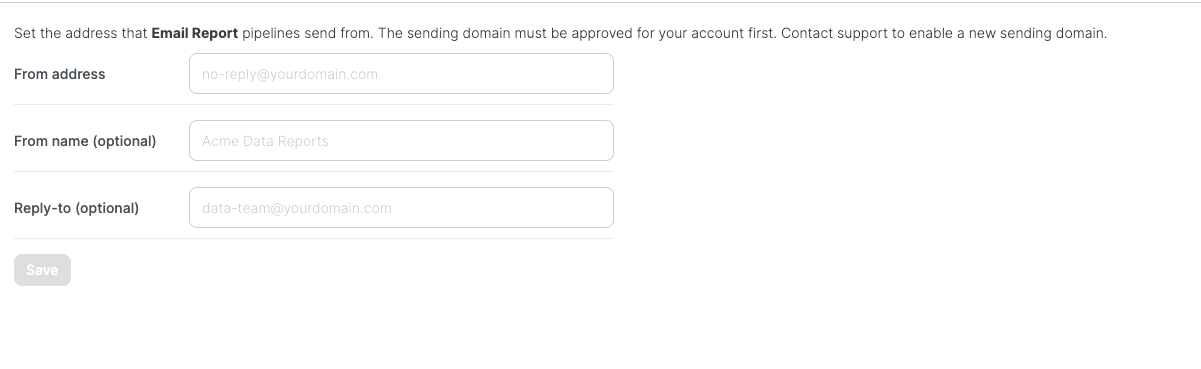
The sending domain must be approved for your account before it can be used. Contact support to enable a new sending domain.
Best practices
- Keep reports small and summarized. Use an upstream aggregate, limit, or filter so the email carries a digest rather than a full data set.
- For the complete output, write to a file storage or warehouse destination and use the email only for notification.
- Leave Fail the job if the report email cannot be sent enabled when delivery is critical, so a missed email is visible as a job failure.
- Authenticate a custom sending domain to improve deliverability and show your own brand to recipients.
FAQ
Q: Where are Email Report emails sent from? Fromreports@integrate.io by default. You can configure a custom sending domain in the Email Sender account settings.
Q: What happens if my data is larger than the limits?
By default the report is trimmed to a sample and the email notes how many rows there were. Choose Fail the job under “When the input is too large for one email” if a partial report is not acceptable. For the full data set, use a file or warehouse destination.
Q: Can I attach both a CSV and a text file?
No. The CSV and text attachments are mutually exclusive. You can include one of them (or neither), and the in-body table is independent.
Q: Why did my job fail with an email error?
“Fail the job if the report email cannot be sent” is enabled by default, so a delivery failure fails the job. Check that any custom sending domain is approved for your account.