WHAT IS THE DYNAMIC CONNECTION FEATURE? Dynamic connection is a new feature which allows you to replace database connections in source, destination components and execute SQL task component on workflow at package runtime. This is a convenient and scalable approach to running jobs across multiple database connections while using a single package! To use this feature, reach out to Integrate.io Support and request it to be enabled on your account! Overview
  1. Set variable for connection on package
  2. Set variable for connection on workflow
  3. Find connection IDs
  4. Update variable value
Set variable for connection on package
1
Open any existing package or create a new one.
2
Add a database source or destination component
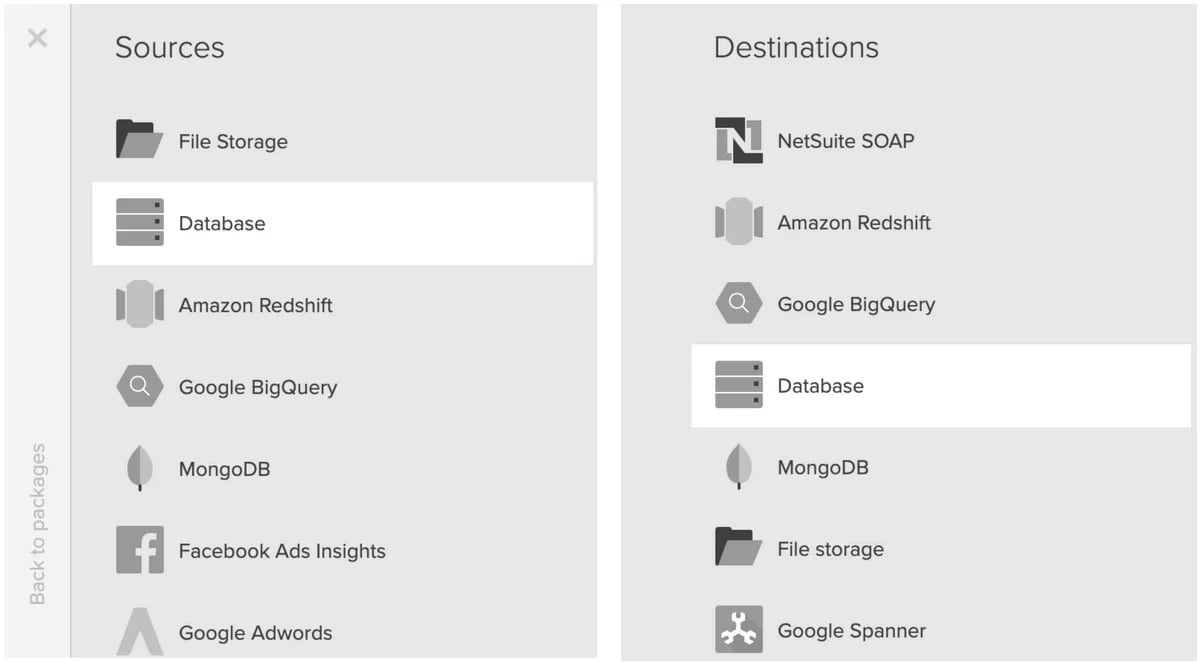
Adding a database source component to a package
3
Open the component and specify any available connection
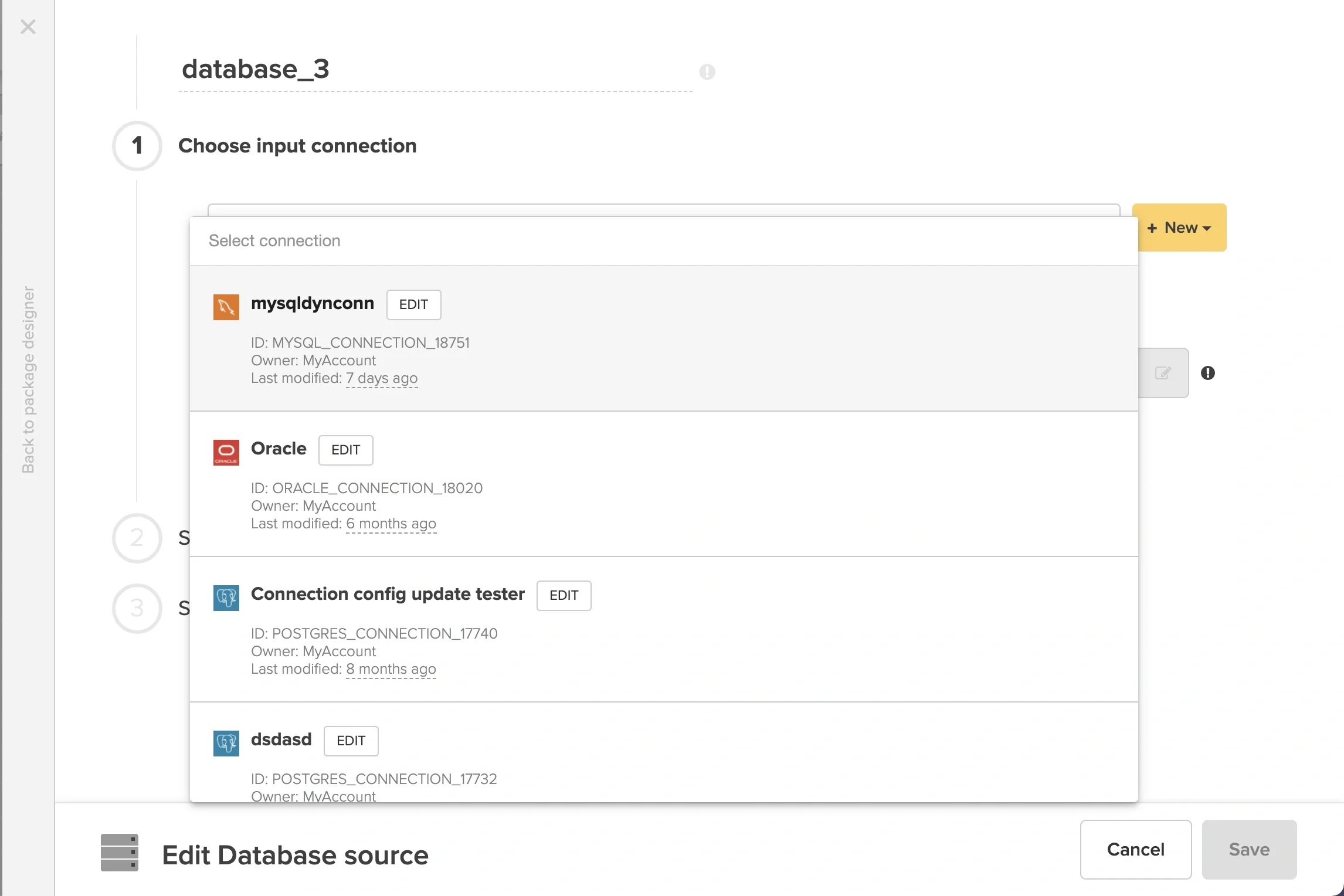
Connection dropdown in the database source component
4
Check the checkbox for “Set variable for connection”
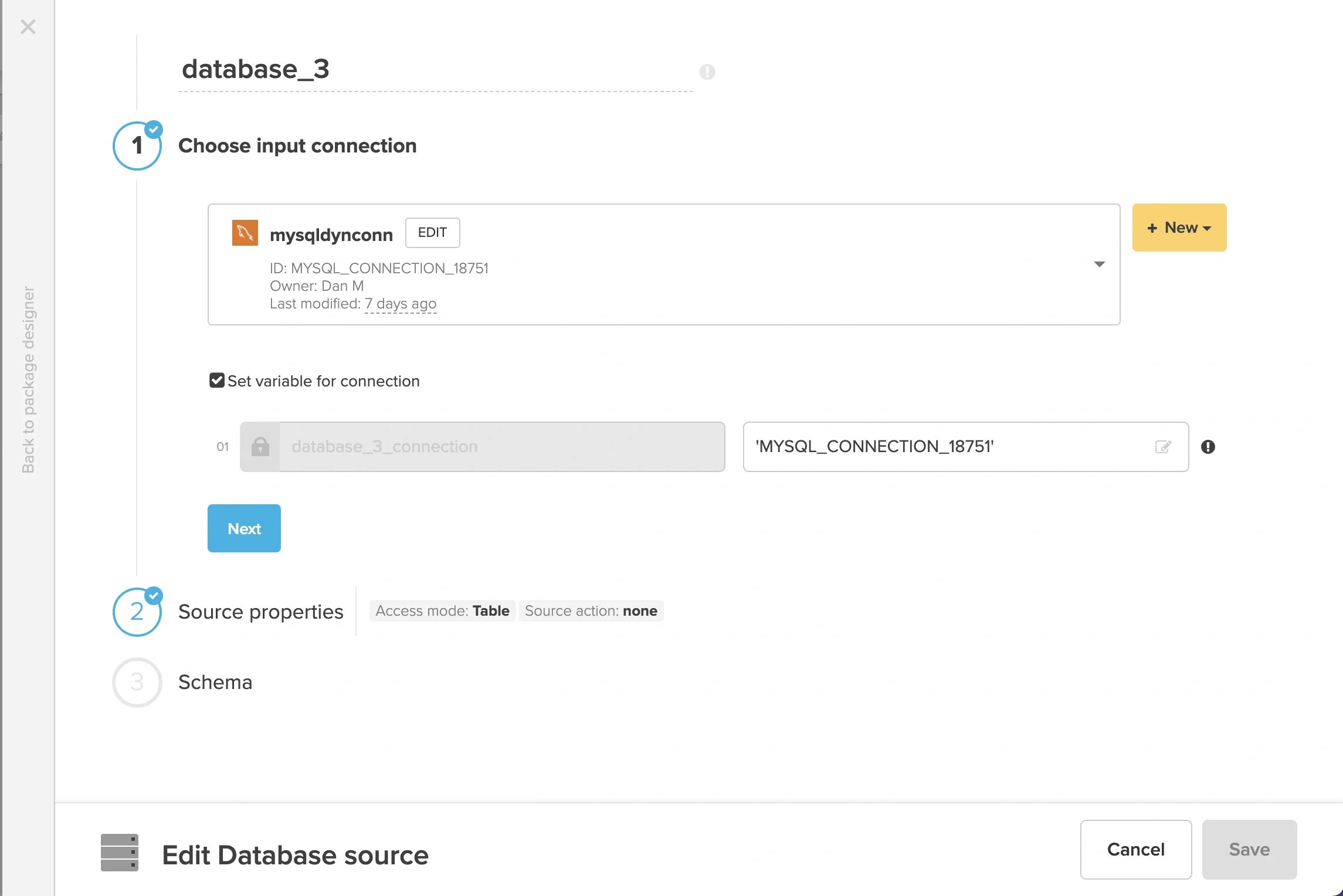
  • It is not possible to change the variable name.
  • The value of the variable defaults to the connection ID from the connection dropdown.
Set variable for connection checkbox enabled on a source component
5
Configure “Source properties” and “Schema” sections, then “Save” the component.
6
Configure the rest of the package as needed, then “Save” the package.
Set variable for connection on workflow
1
Open any existing package or create a new one.
2
Add a SQL task component
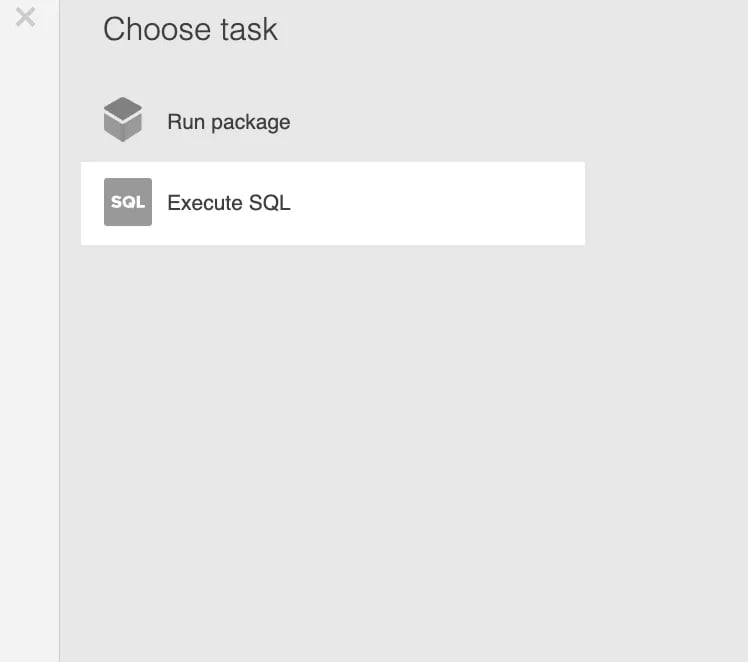
Adding a SQL task component to a workflow
3
Open the component and specify any available connection
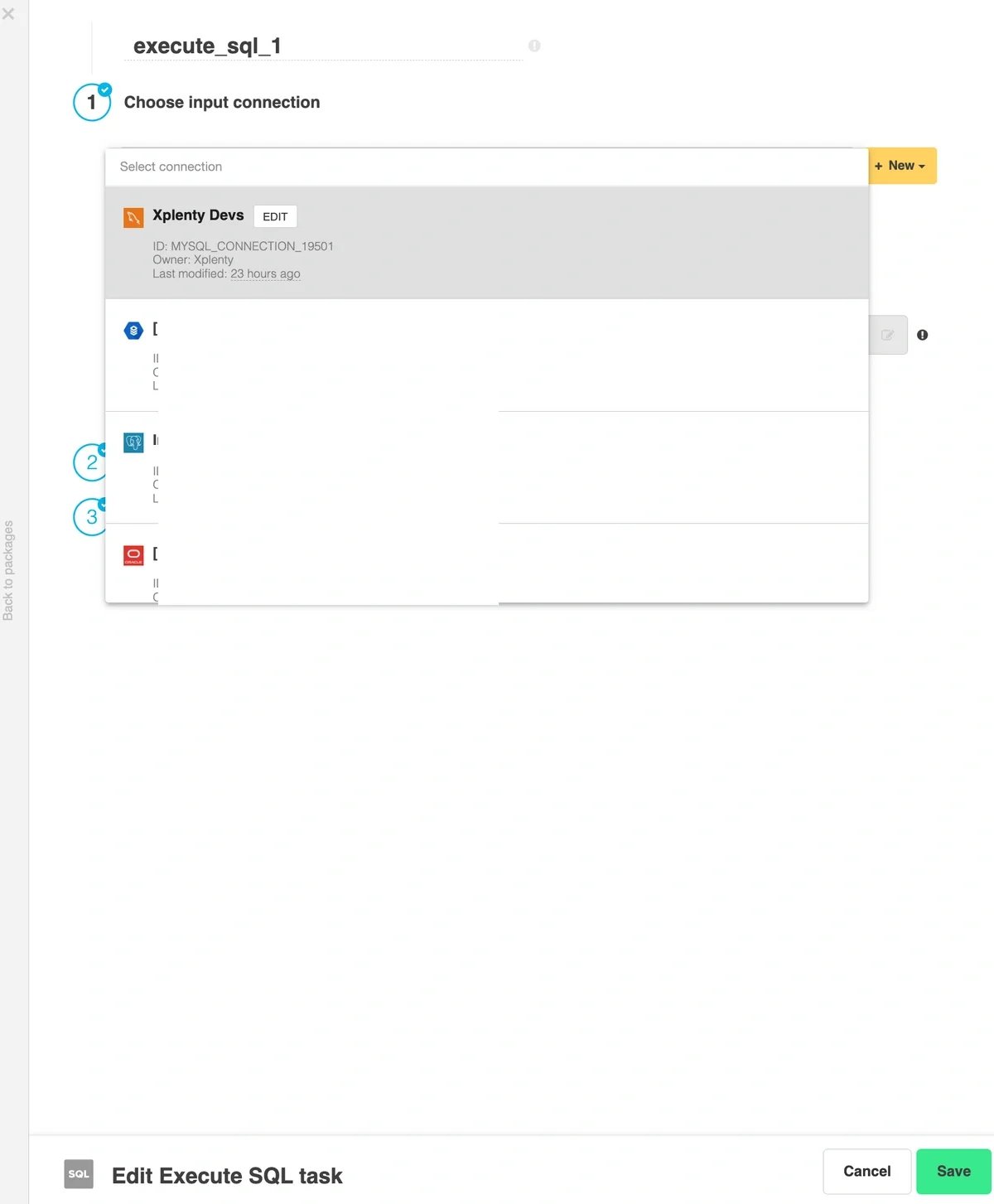
Connection dropdown in the SQL task component
4
Check the checkbox for “Set variable for connection”
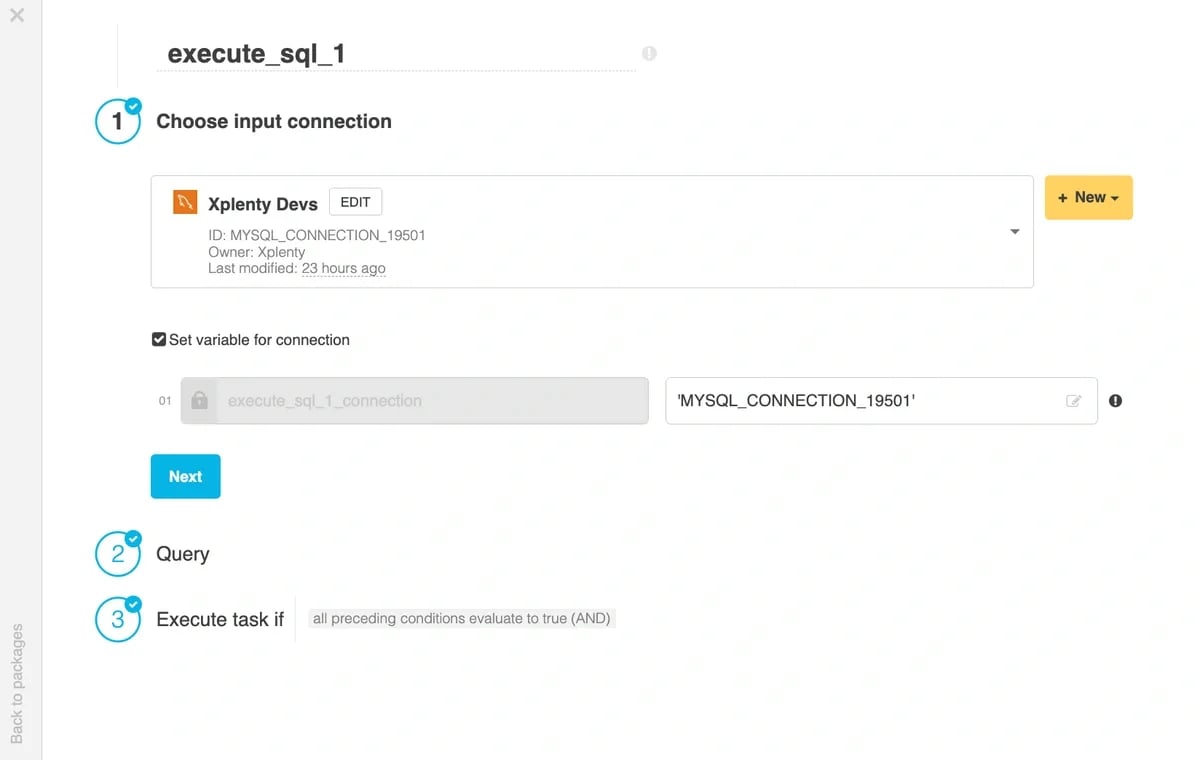
  • It is not possible to change the variable name.
  • The value of the variable defaults to the connection ID from the connection dropdown.
Set variable for connection checkbox enabled on a SQL task
5
Configure “Query” and “Execute task if” sections, then “Save” the component.
6
Configure the rest of the workflow as needed, then “Save” the workflow.
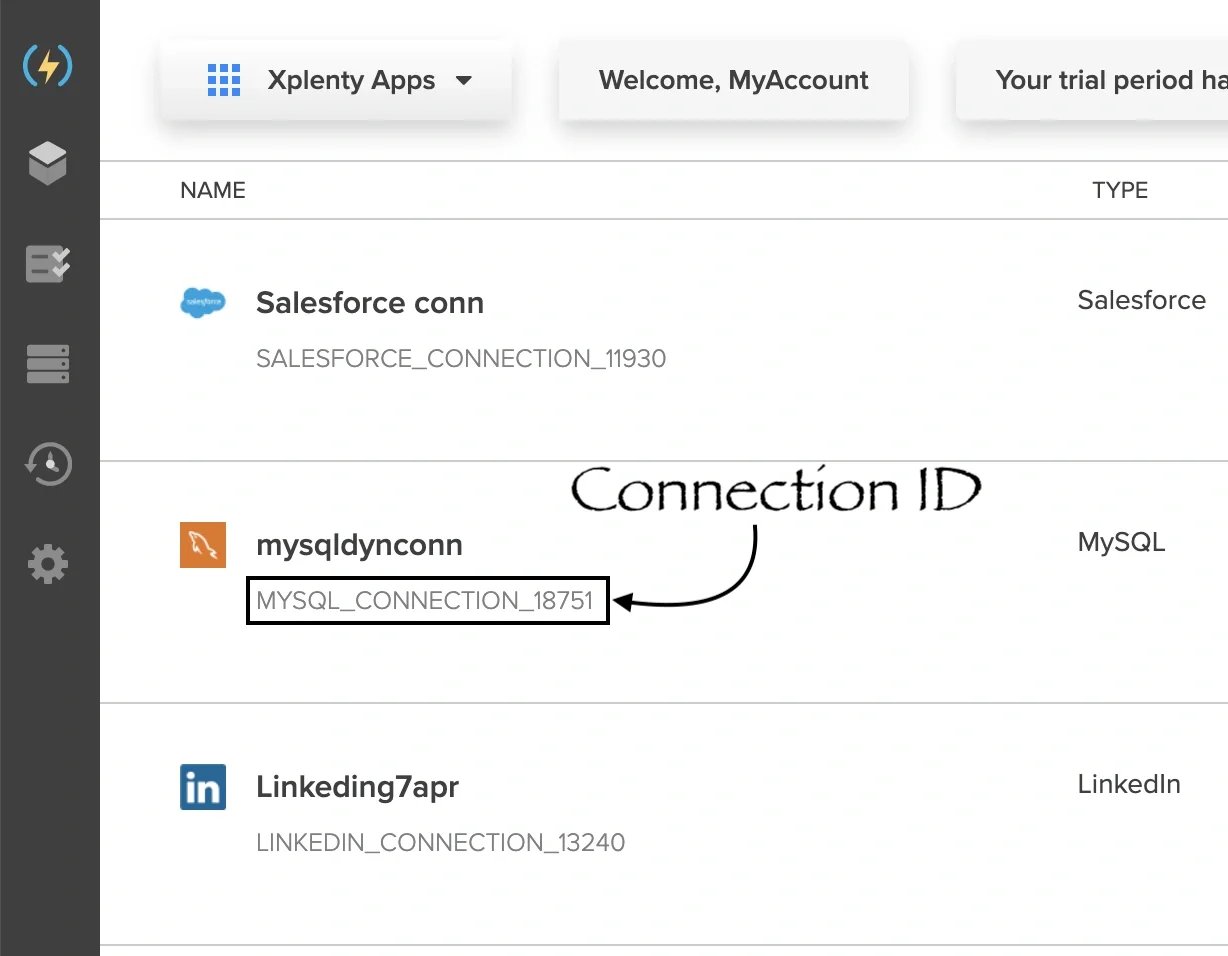
Find connection IDs You are ready to override the dynamic connection variable with a valid database connection ID, but first you need to find suitable connection IDs on the Connections page. Make sure that you only use IDs of database connections, and that the type of database is the same as the type defined in the source / destination component. I.e. for a MySQL database, only specify the ID of another MySQL database connection.
Connections page showing connection IDs for each entry
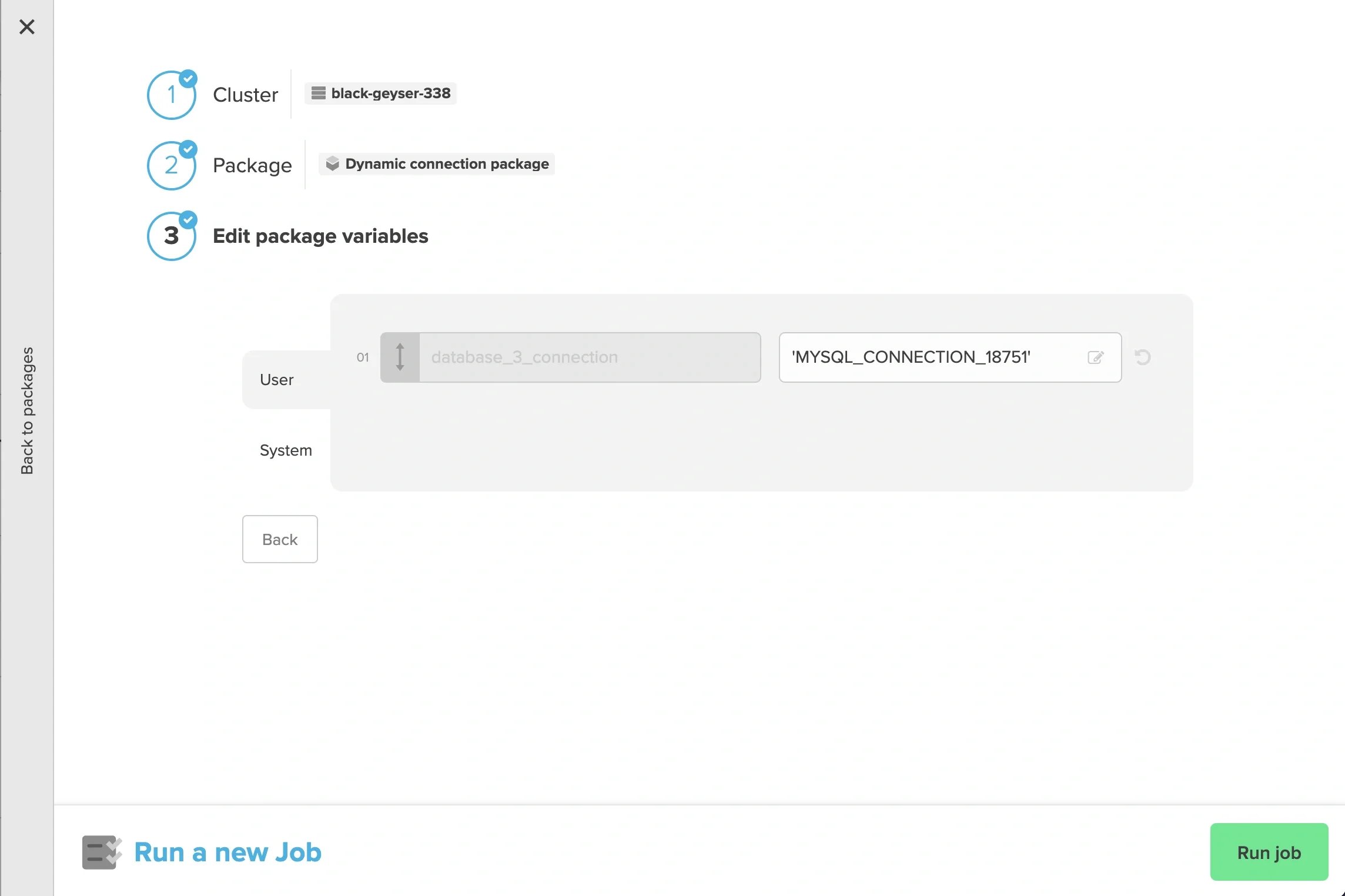
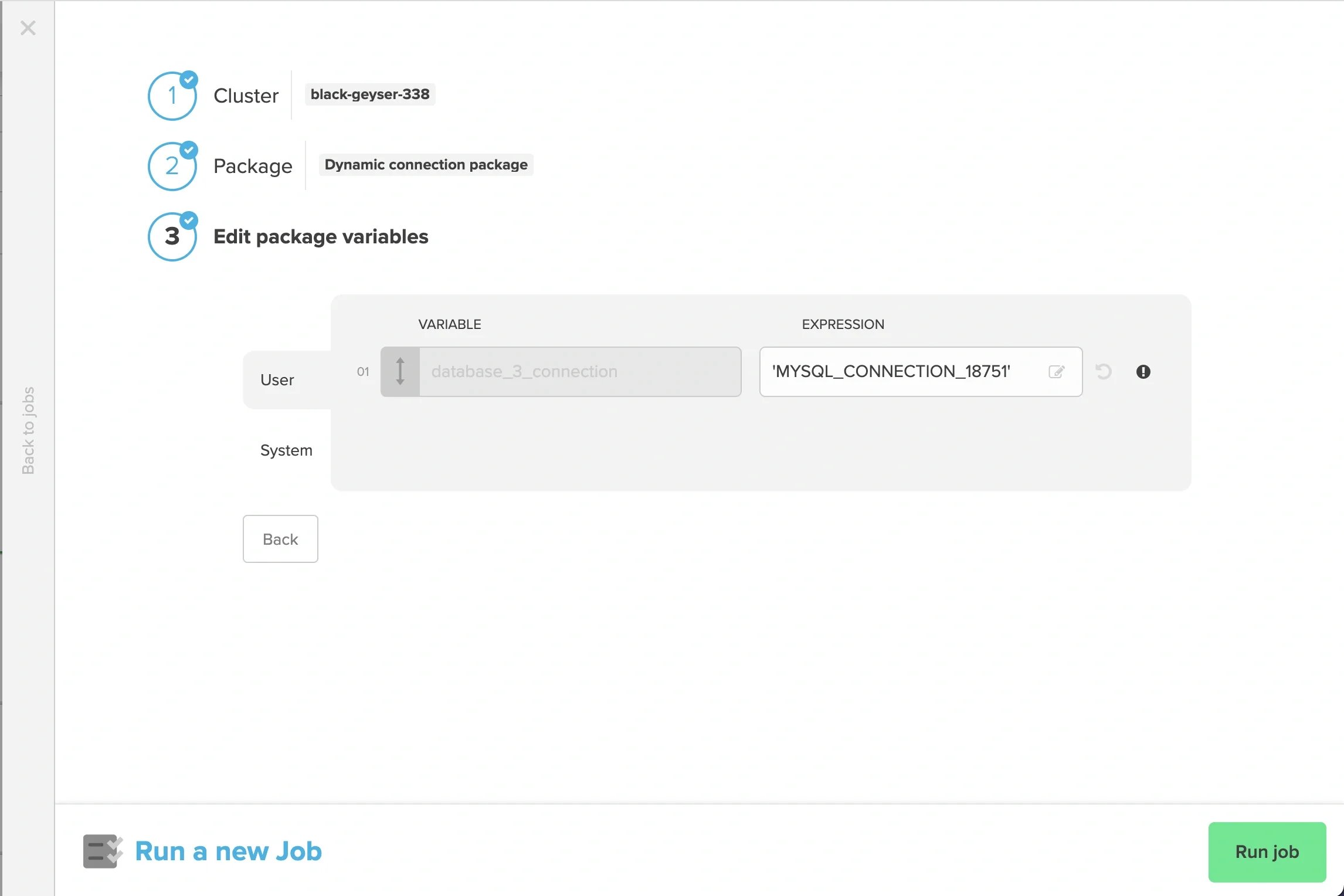
Update connection variable value Replace the dynamic connection variable value with the ID(s) you identified from the connections page.
1
When running a job, “Run job” in the package designer
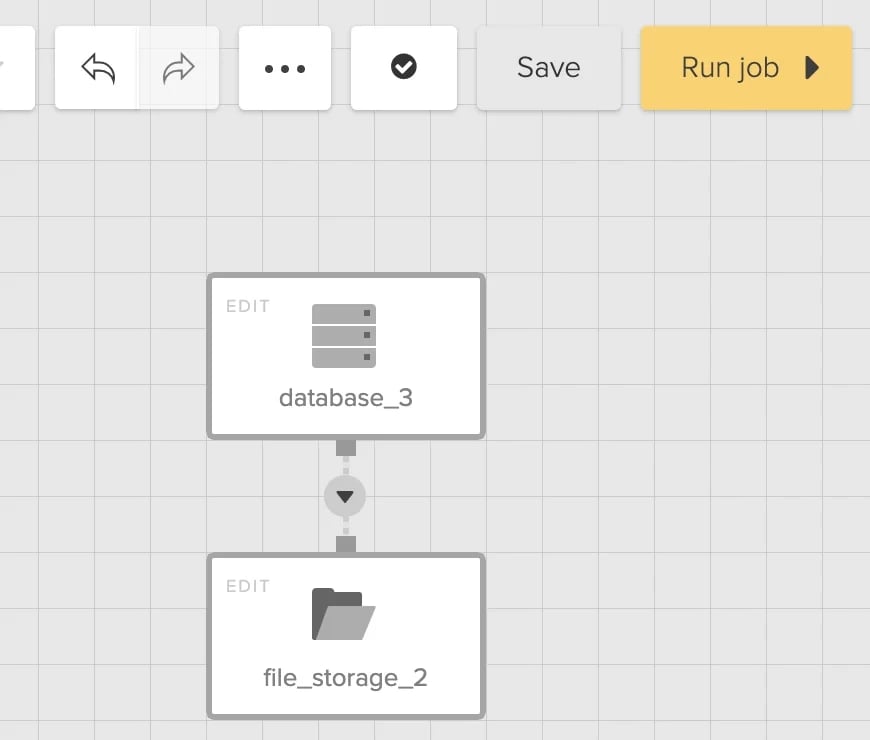
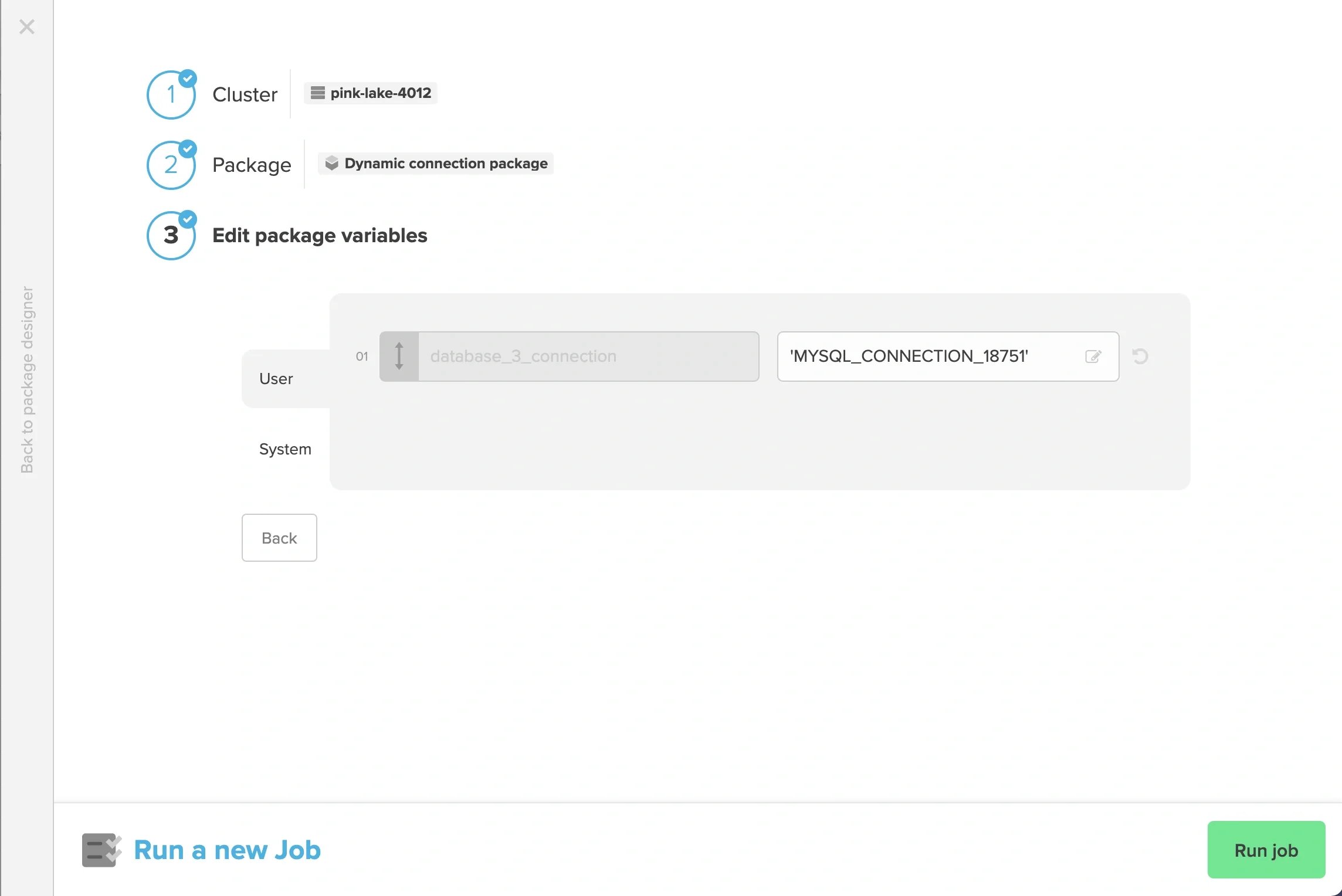
Run job button in the package designer
Run job dialog with connection variable override field
2
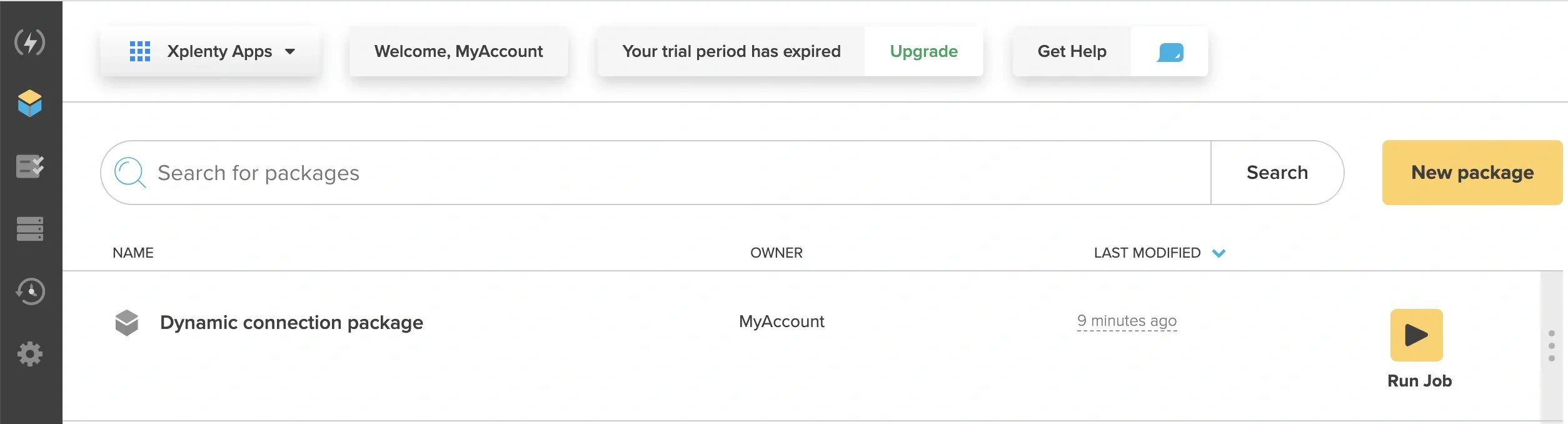
“Run job” on the Packages page
Run job option on the Packages page
Variable override in the run job dialog from the Packages page
3
“Run job” on the Jobs page
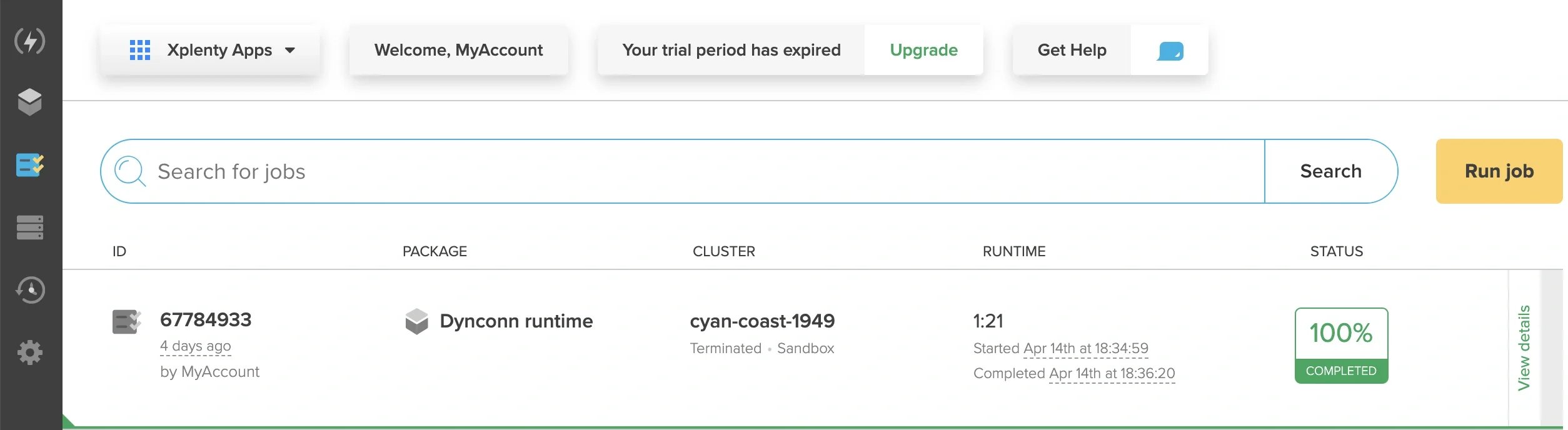
Run job option on the Jobs page
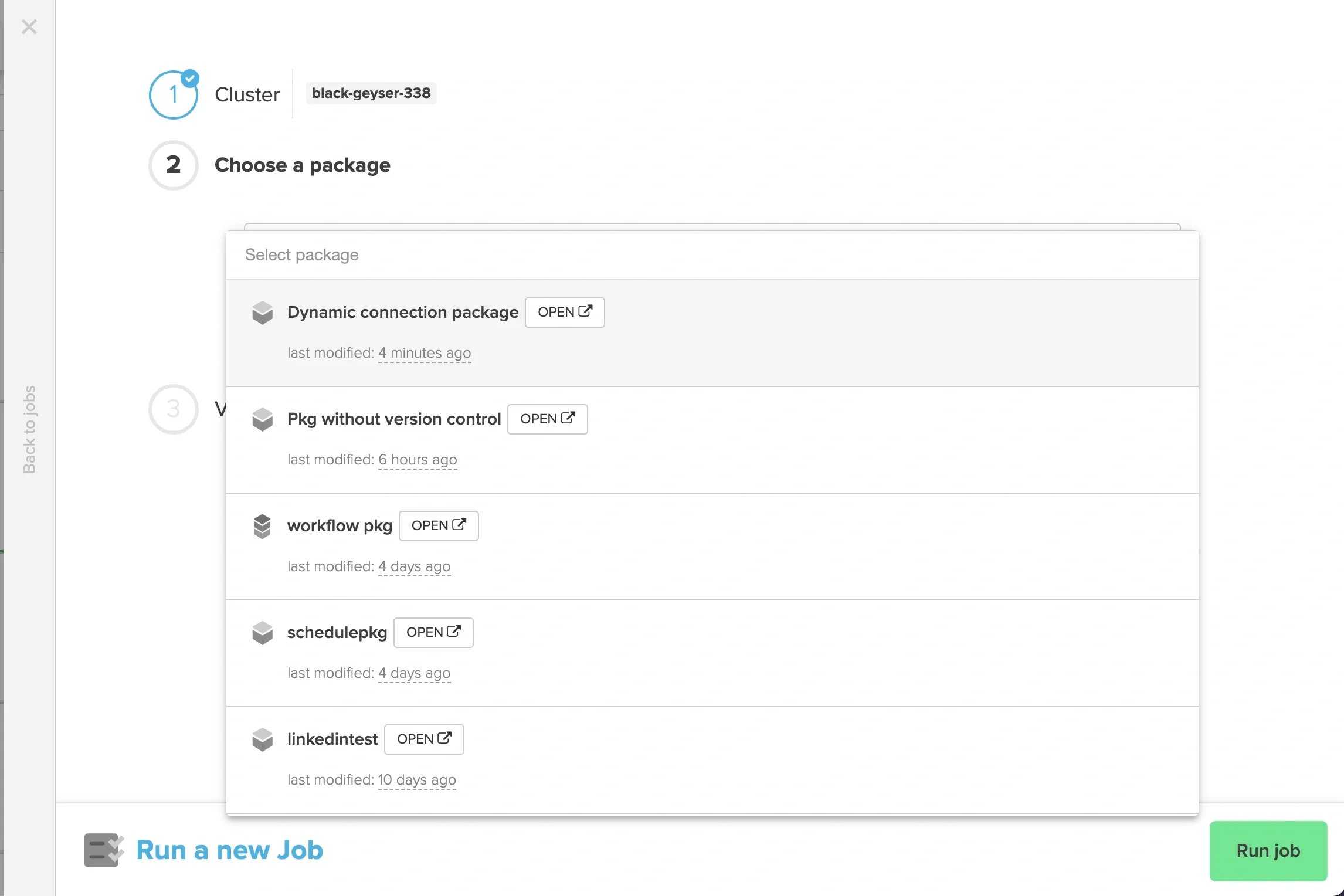
Package selection in the run job dialog from the Jobs page
Variable override in the run job dialog from the Jobs page
4
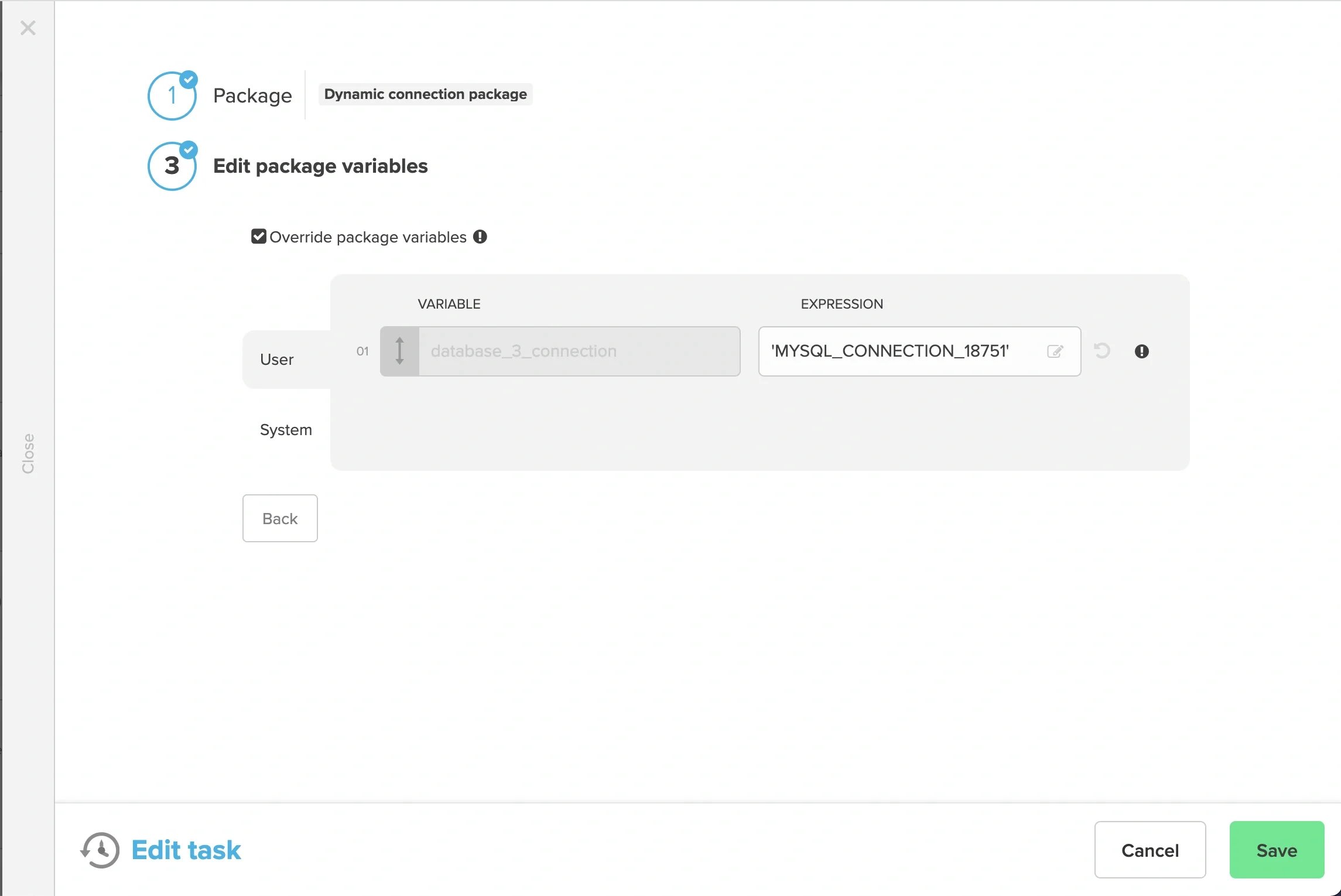
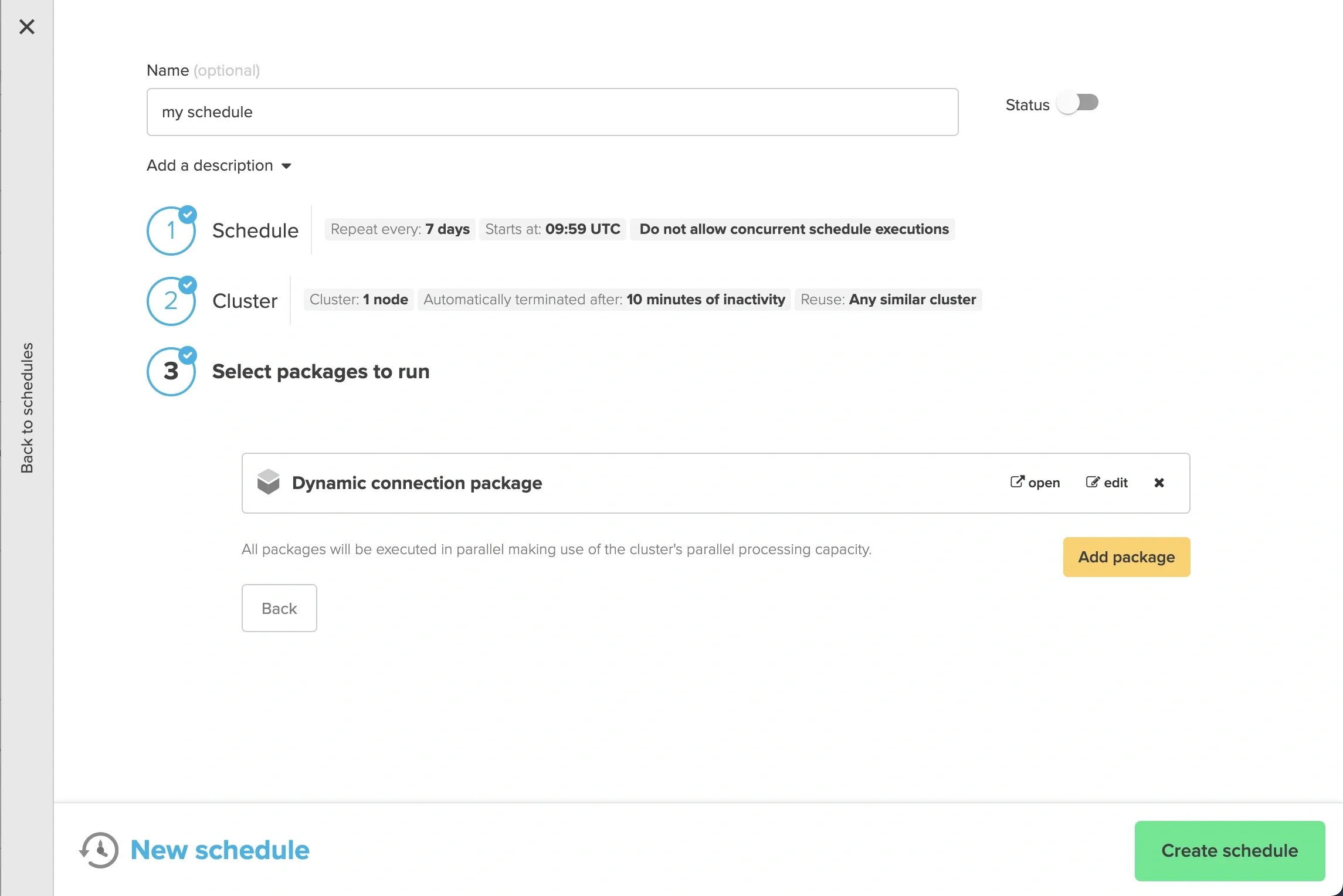
When creating a schedule, “Add package” in the “New schedule” window
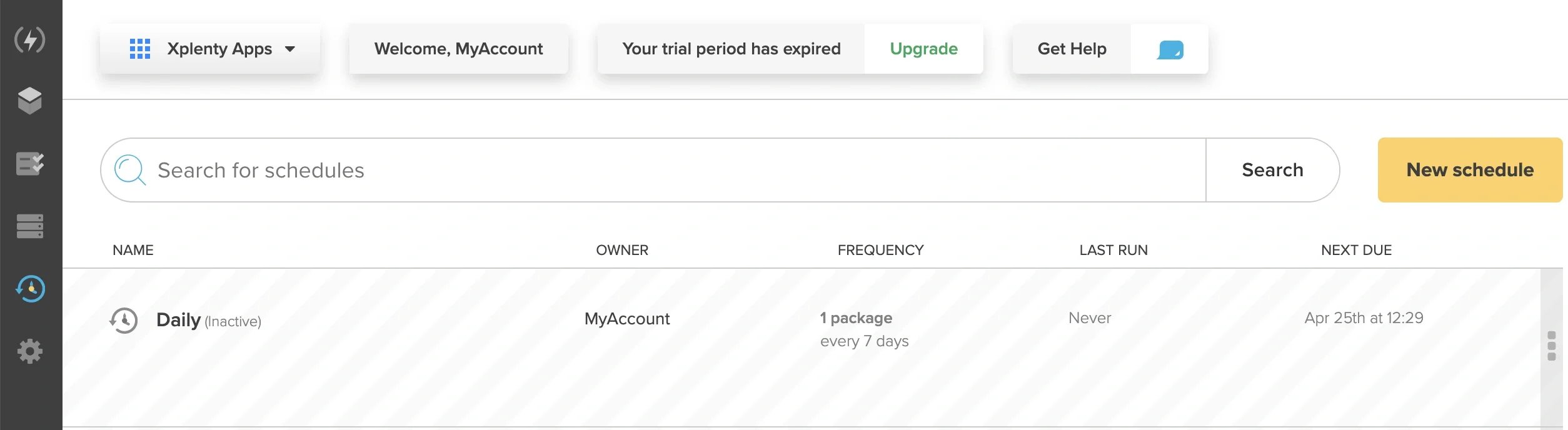
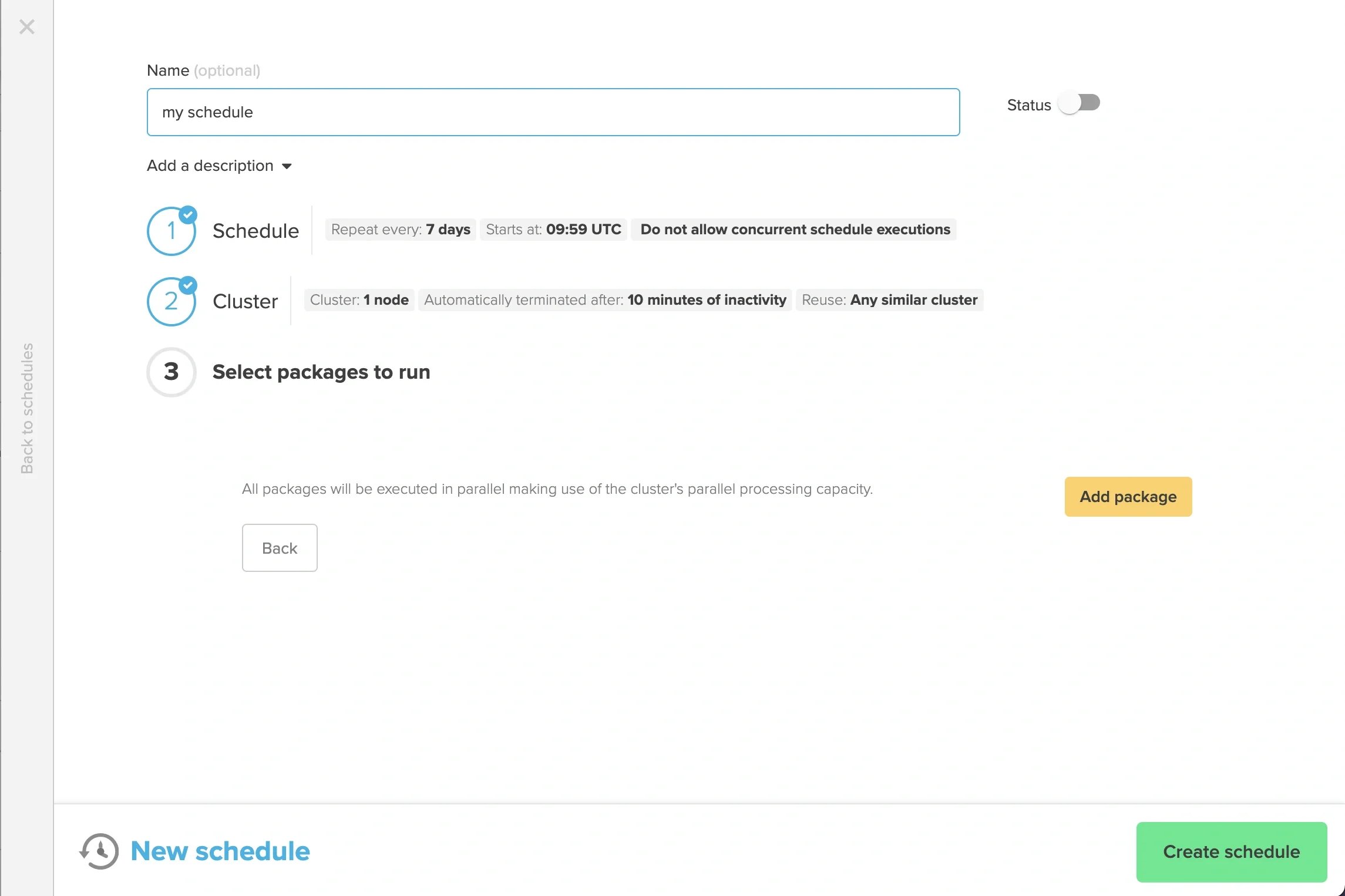
New schedule window with Add package button
Package selection dropdown in the schedule dialog
Connection variable settings within the schedule package form
Saving variable overrides in the schedule configuration
Completed schedule with dynamic connection variable applied
5
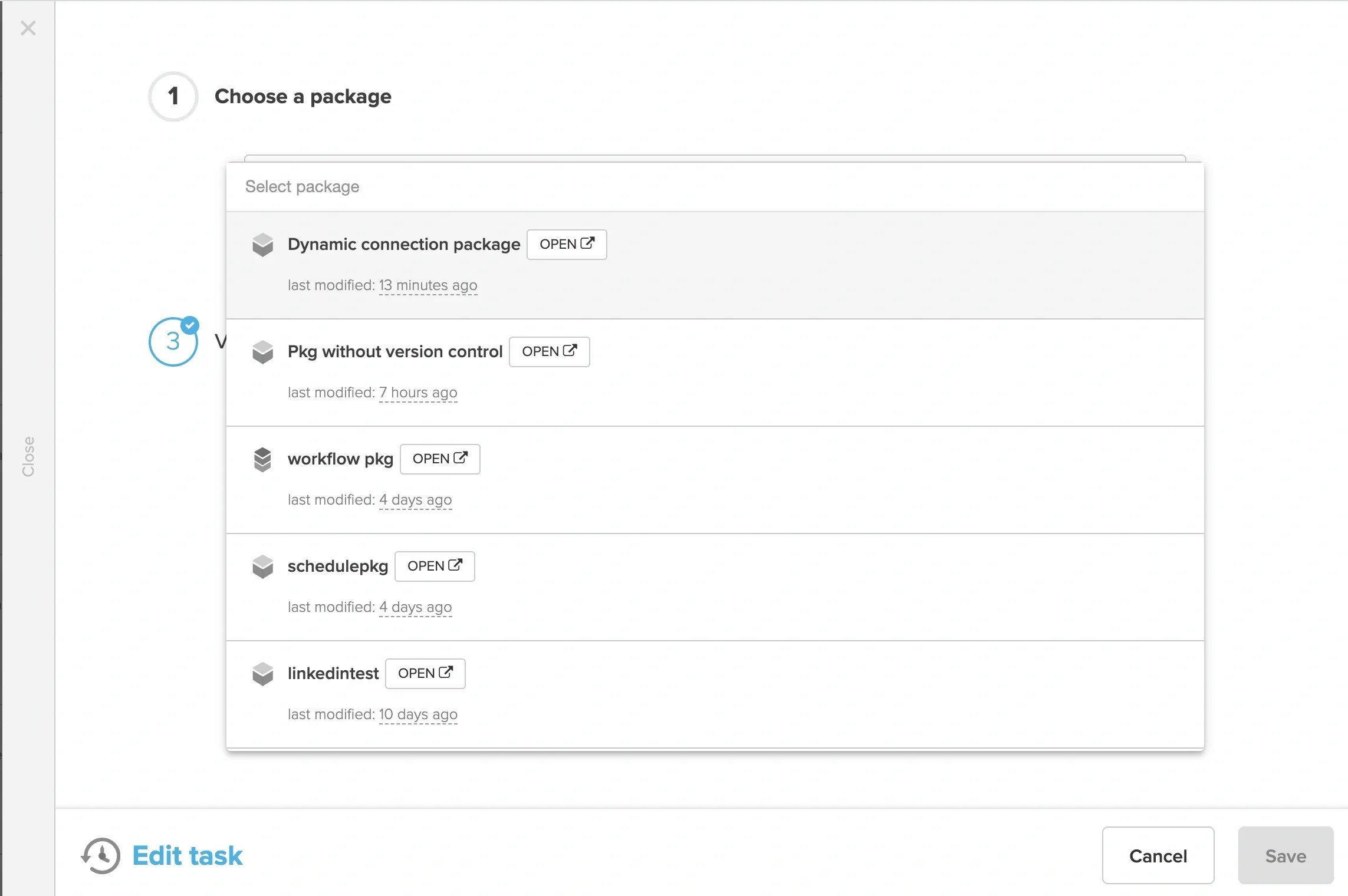
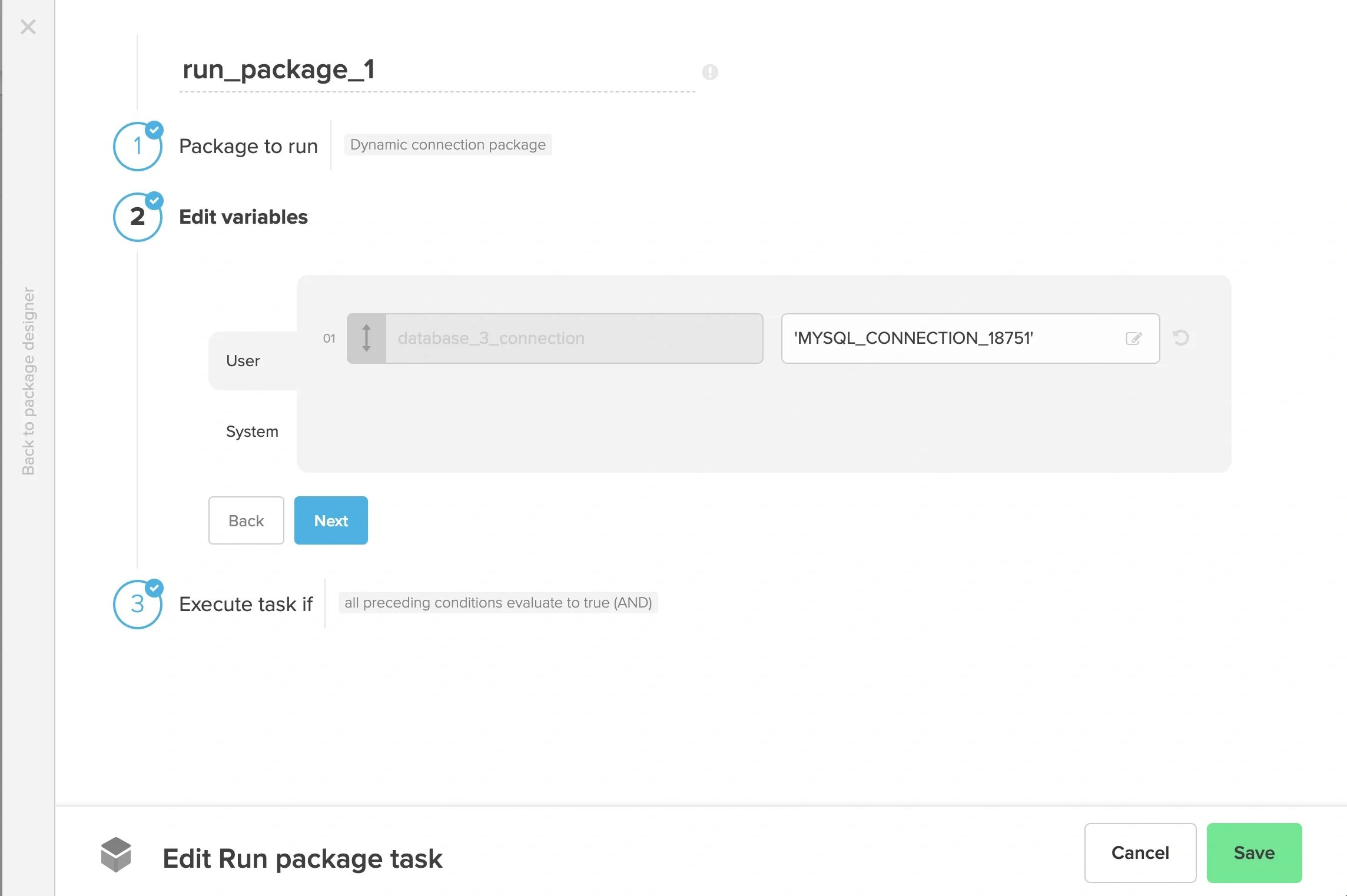
When creating a Workflow package, “Run package” task window
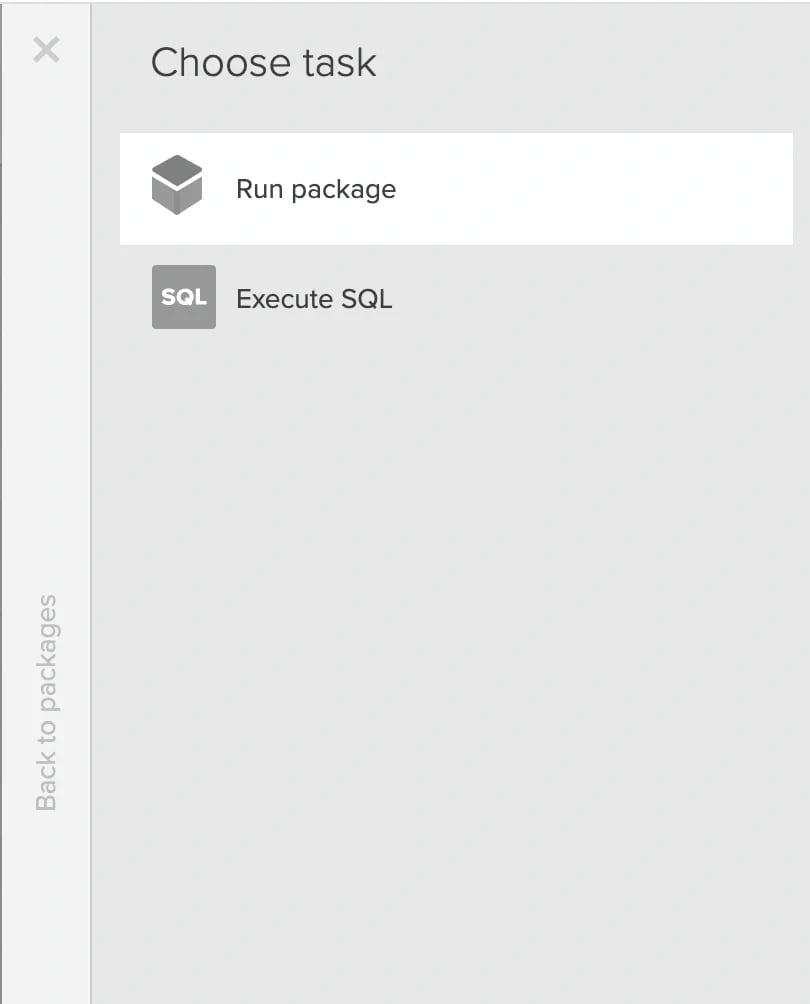
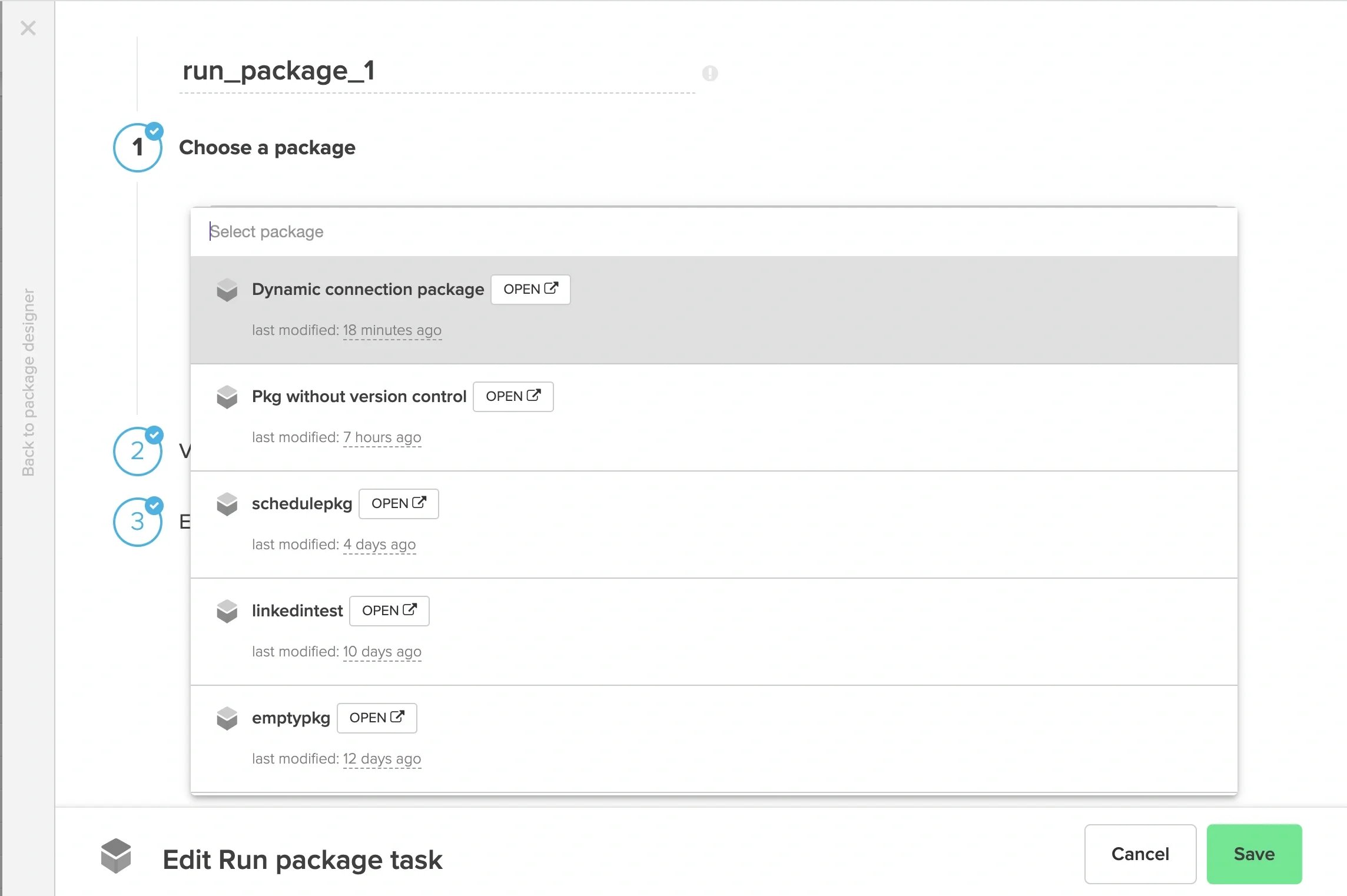
Run package task in a workflow with dynamic connection
Package selection in the workflow run package task
Variable override in the workflow run package task
Limitations
  • Dynamic connection is available only on database source, database destination components and execute SQL task component on workflow.
  • The connection in the variable must be the same type as the original input connection
    For example, when selecting a MySQL connection from the dropdown in the source component, the dynamic connection variable specified at runtime must also be a MySQL connection
  • The schema of the dynamic connection must be the same as the original input connection’s (selected in the source / destination component)
Last modified on April 20, 2026