

0 8 * * * everyday at 8am UTC 0 8 * * MON every Monday at 8am UTC 0 8 1 * * every 1st of the month at 8am UTC
Use the scheduler to execute packages periodically starting at a specified date and time. The packages will be executed as scheduled, using an existing cluster that fits the scheduled cluster size or if one doesn’t exist, a cluster will be provisioned automatically with the number of specified nodes. By default, the cluster is taken down as soon as package execution is completed. Your schedule list can be viewed in the schedules list. Any schedule can be disabled or enabled from within the list.
How to create a new schedule
1
Click Schedules on the side menu.
2
Click New schedule to open the new schedule dialog.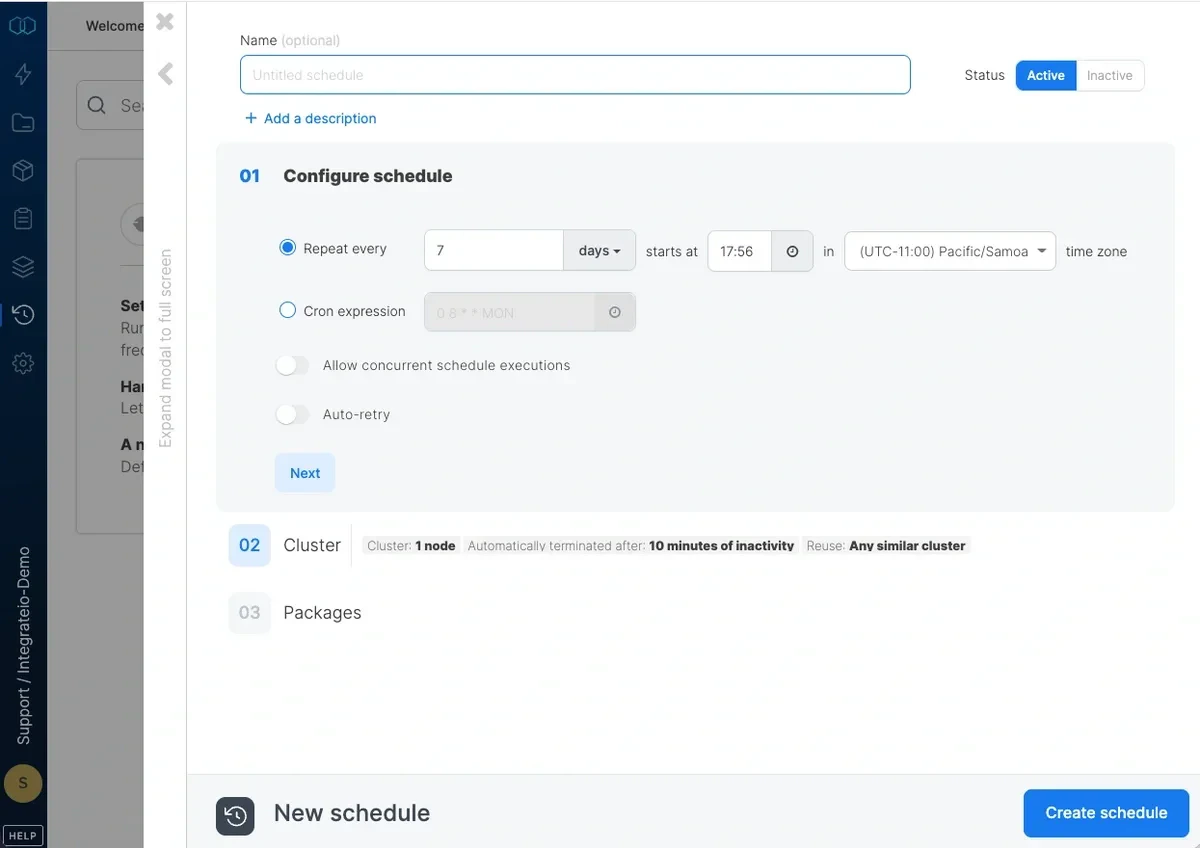
Configure Schedule
1
Enter a Name for the schedule and optionally a Description.
2
Configure schedule details:
- Repeat every - Used for fixed amount of intervals between schedules (minutes / hours / days / weeks / months).
-
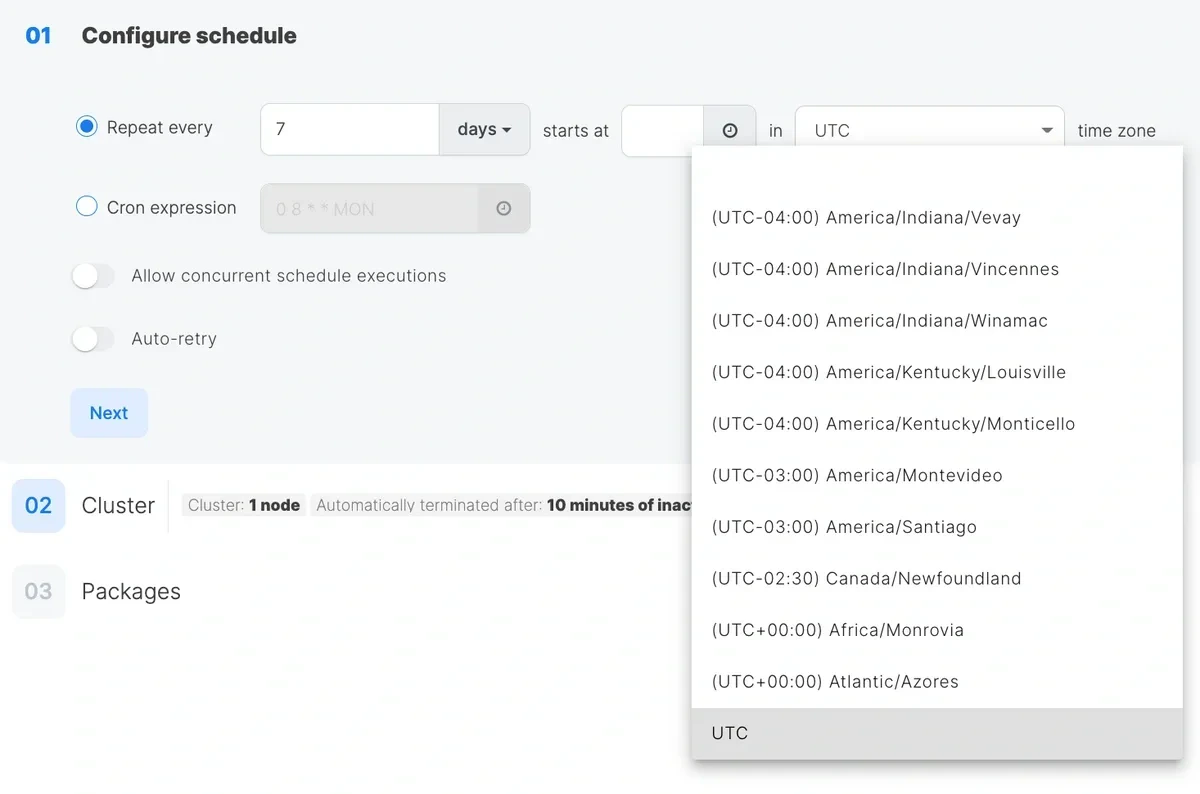
Timezone - Schedules execute in the selected timezone (default: UTC). The timezone can only be set during initial creation and cannot be changed afterward.
-
Cron expression - Used for setting up irregular intervals between schedules (i.e: every weekday at 8 AM).
You can click the time icon for presets. If any of the presets doesn’t suit your use case, you can generate your own cron expression here.
If the schedule repeats every hour, subsequent executions will start at the specified minute after the hour. Note that the time is in UTC.
Note:Only standard expressions are supported. Special characters like # and ? are not supported.
- Auto-retry - Used to automatically retry failed job(s) within a schedule. Only the failed job(s) are retried, never the entire schedule. Retries stop when all attempts are used, the job succeeds, you manually stop it, or when the next scheduled run is within 5 minutes.
-
Note: Retries are triggered as soon as the job fails.
How to enable:
-
In the Configure Schedule step, turn on Auto-retry and set the number of attempts.
Example: The total job runs for a failed job would be 4 for 3 attempts:

1– initial/default job run by the scheduler3– retry attempts
- Fill in the remaining fields as usual and click Save.
-
In the Configure Schedule step, turn on Auto-retry and set the number of attempts.
FAQs
Does this re-run the entire schedule?
Does this re-run the entire schedule?
- No, only the failed job(s)
Will disabled schedules retry?
Will disabled schedules retry?
- Yes, if Auto‑retry is on. Turn Auto‑retry off to prevent retries.
- Scenario for this: A schedule can be run one-off even if it’s disabled
How do I avoid clashes with the next scheduled run?
How do I avoid clashes with the next scheduled run?
- Built-in skip if next run is within 5 minutes and schedule is enabled.
Where do I see retry attempts?
Where do I see retry attempts?
- On the Jobs page for that schedule

Any limits?
Any limits?
- Retry Attempts capped at 5.
3
By default, schedules will not execute a job if previous jobs executed by the same schedules are running. Check Allow concurrent schedule executions if you want the schedule to execute jobs regardless of previous jobs status.
Note:When a scheduled run is skipped, the skip reason appears in the schedule’s last run status, prefixed with
Skipped:. A run is skipped when a previous run is still active and overlapping runs are not allowed. A run is also skipped when it could not start after all retry attempts, for example when no cluster was available. You can subscribe to the Schedule Skipped service hook event to be notified when this happens.Configure Schedule Cluster
The schedule can create a new cluster to run jobs or use existing clusters.1
Move the Cluster Size slider to the number of cluster nodes to use for package execution.
2
By default, the cluster will terminate after 1 minute of inactivity. If the package execution and schedule recurrence is lower than 1 hour, we recommend to turn automatic cluster termination off so the cluster can be reused.
3
Set Re-use strategy:
- Any cluster created by this schedule - use a cluster created by this schedule if one is available. Otherwise, create a cluster.
- Any similar cluster (default) - use any existing cluster so long as it’s at least as big as you set in the schedule’s cluster size. Otherwise, create a cluster.
- Any similar cluster with the same node count - use any existing cluster with the same node count as you set in the schedule’s cluster size. Otherwise, create a cluster.
-
Cluster with the least number of jobs running - use a cluster with the least number of jobs running and node size at least as big as the schedule’s cluster size.
Note:when scheduling a few schedules at the same time, please set them a few minutes apart so that the job count per cluster will be more accurate to avoid race condition
- Never - create a new cluster every time the schedule is running.
Select packages to run
1
Click add package to add at least one package to execute.
2
Choose a package from the list and click set variables.
3
Set the value for any user variables or system variables and click Save. The variable values for a package in the schedule override the package defaults.For example:
Note:Variable values are expressions that are useful to calculate relative datetime values which can be very useful in your scheduled jobs.
ToDate(ToString(SubtractDuration(CurrentTime(),'P1D'),'yyyy-MM-dd')) - returns a datetime value of Yesterday midnightToString(SubtractDuration(CurrentTime(),'P1D'),'yyyy/MM/dd') - returns a string in the form of yyyy/mm/dd to use in a path for yesterday’s data.AddDuration(ToDate('2000-01-01'),REPLACE(' PnM','n',(chararray)MonthsBetween(CurrentTime(),ToDate('2000-01-01')))) - returns a datetime value of the first day of the month4
Optionally add additional packages.
5
Change Status to on to enable the schedule.
6
Click Create schedule.
View and maintain schedules
In the schedules list, you can see all of your schedules with execution information. You can enable, disable, edit, duplicate, and delete each of your schedules. You can also run a schedule one-off from the schedules list.Auto-Retry on Failure
Schedules support automatic retry for failed jobs. When enabled, only the failed job is retried, not the entire schedule.- Attempts: Configure between 0 and 5 retry attempts. The total number of job runs for a failure equals 1 (initial run) plus the retry attempt count.
- Trigger timing: Retries fire as soon as the job fails.
- Stop conditions: Retries stop when all attempts are exhausted, the job succeeds, you manually stop the job, or the next scheduled run is within 5 minutes.