

Connection Setup
To create a Bing Ads connection in Integrate.io ETL
1
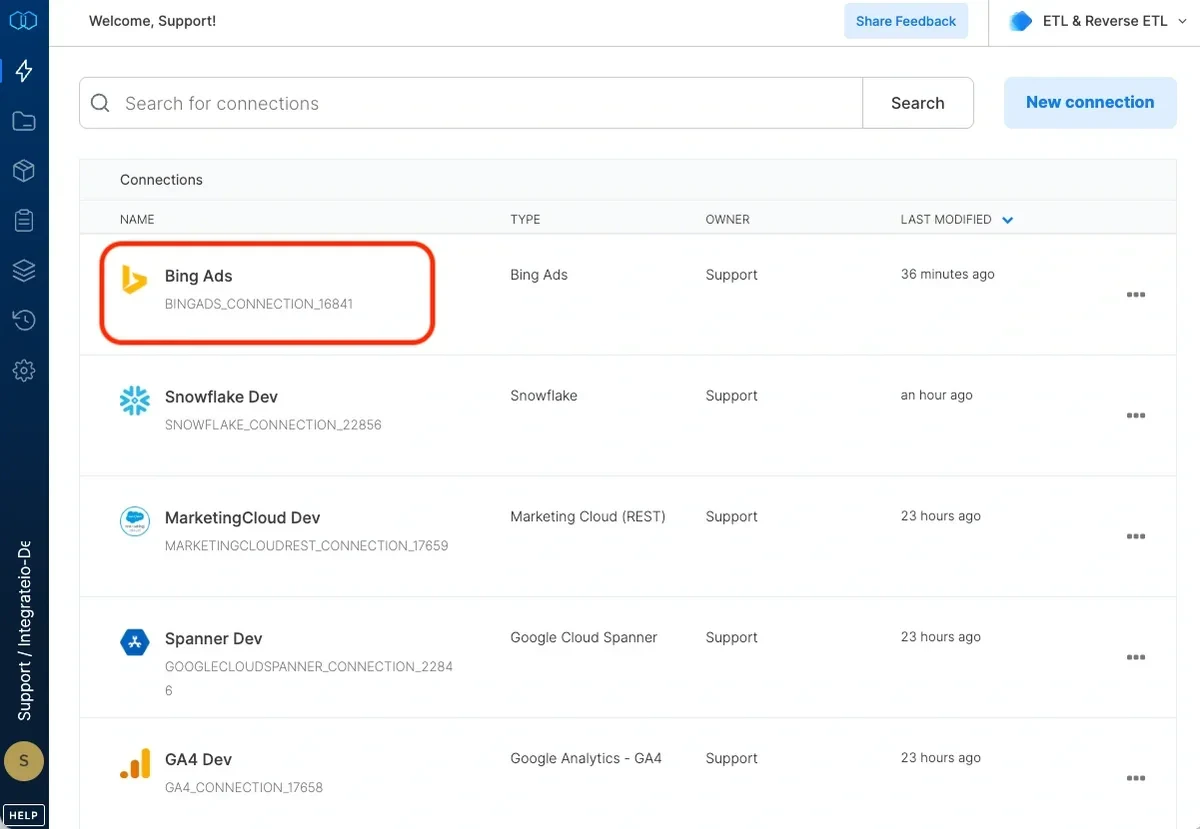
Click the Connections icon (lightning bolt) on the top left menu.
2
To create a connection, click New connection.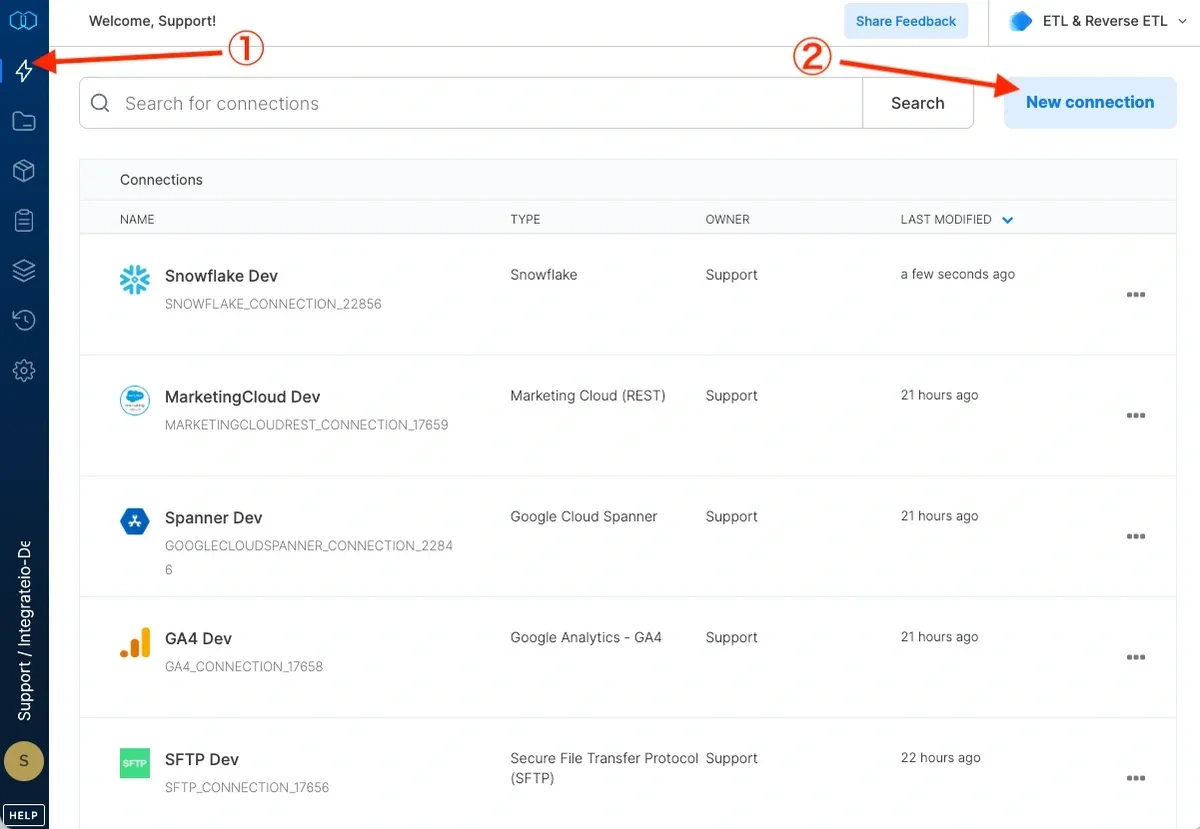
3
Select Bing Ads.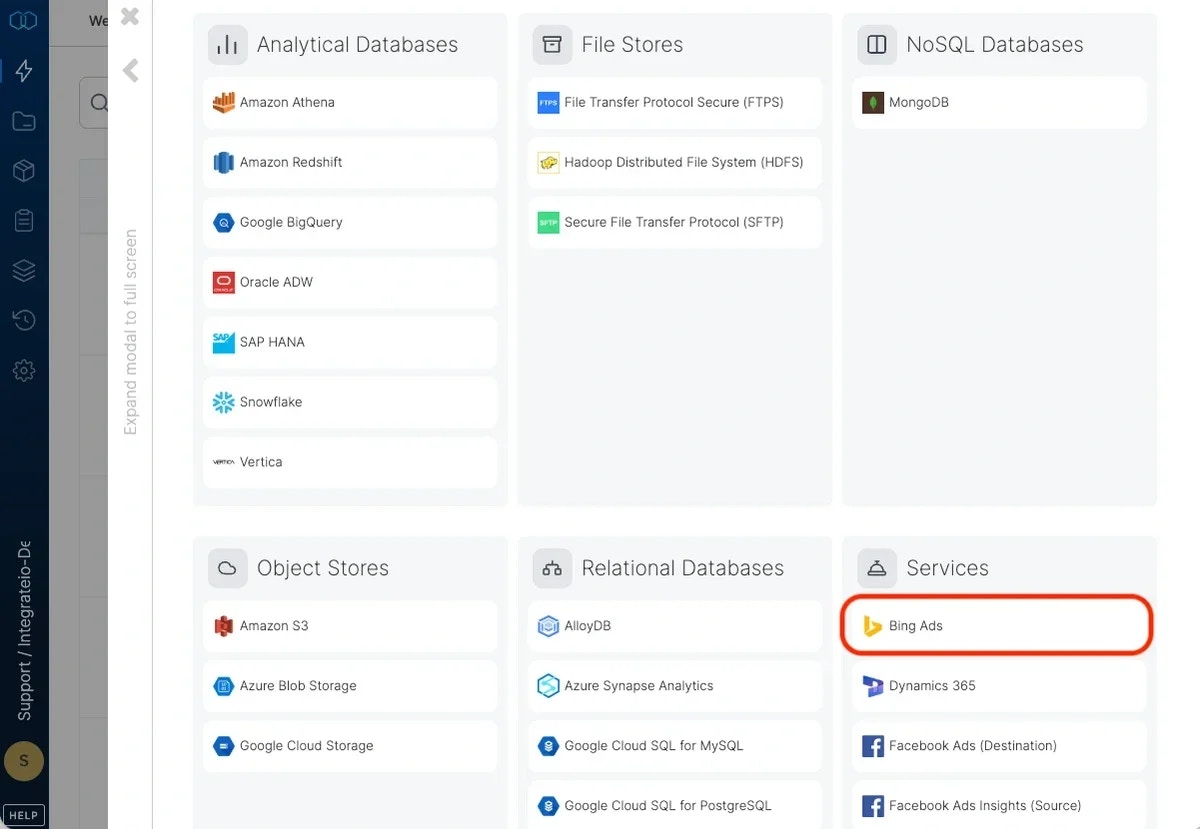
4
In the Bing network account window, sign in with your Bing account or click Sign in with a different Microsoft account.
5
In the next Microsoft account page click Yes to let Integrate.io ETL access your information.
6
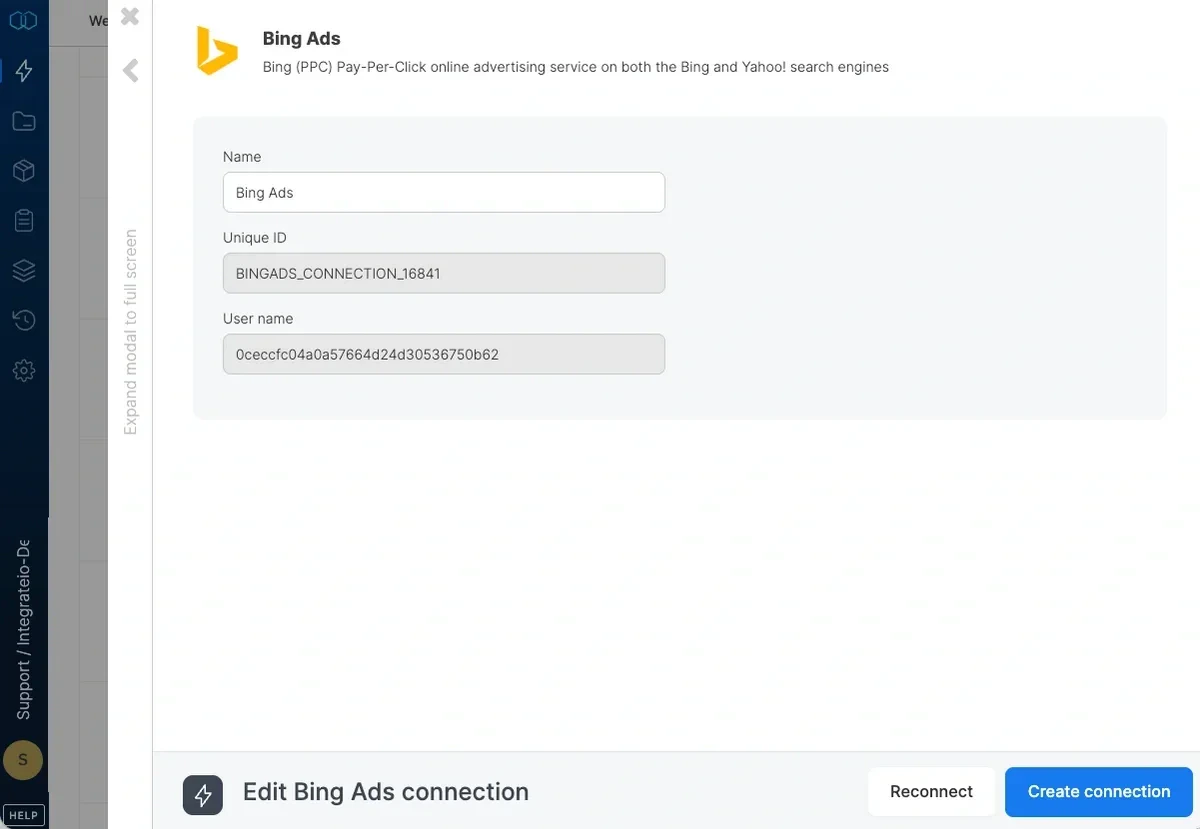
In the new Bing Ads connection window, name the connection and click Create bing ads connection.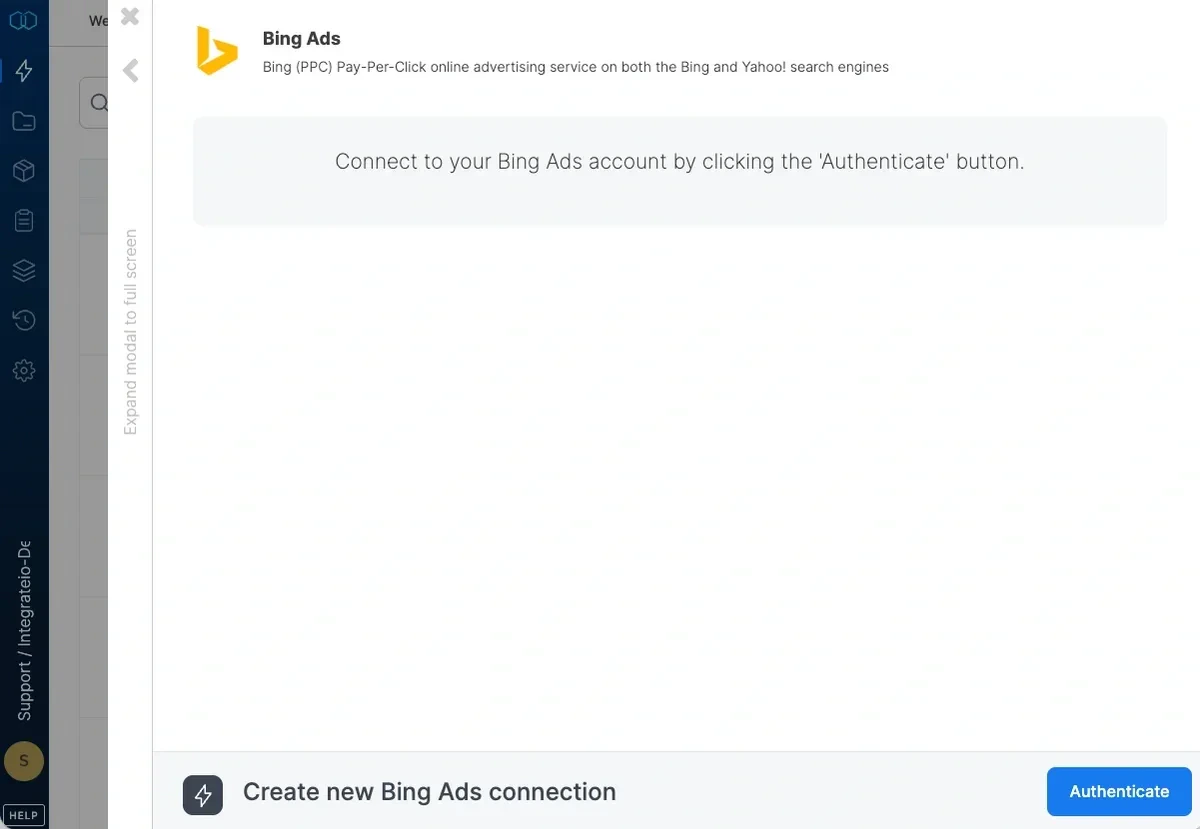
To modify Bing Ads connections in Integrate.io ETL
1
Click the Connections icon (lightning bolt) on the top left menu.
2
Click a connection to open and modify it. Make any necessary changes, then click Reconnect, and Save changes. To exit the Bing Ads connection window without changes, click Back to connections (grey tab on the left side) on the Bing Ads connection window.
3
To delete a Bing Ads connection, click the three vertical dots on the far right of the connection listing and select the Delete connection option.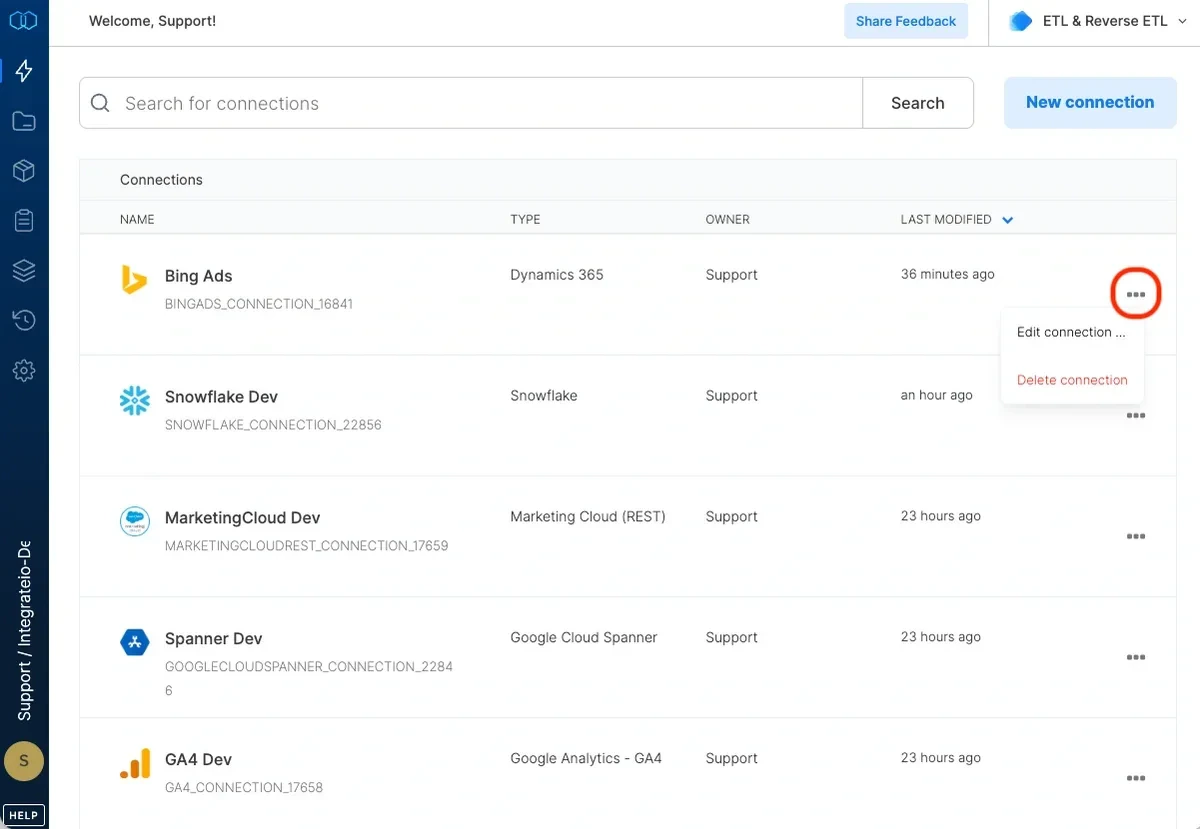
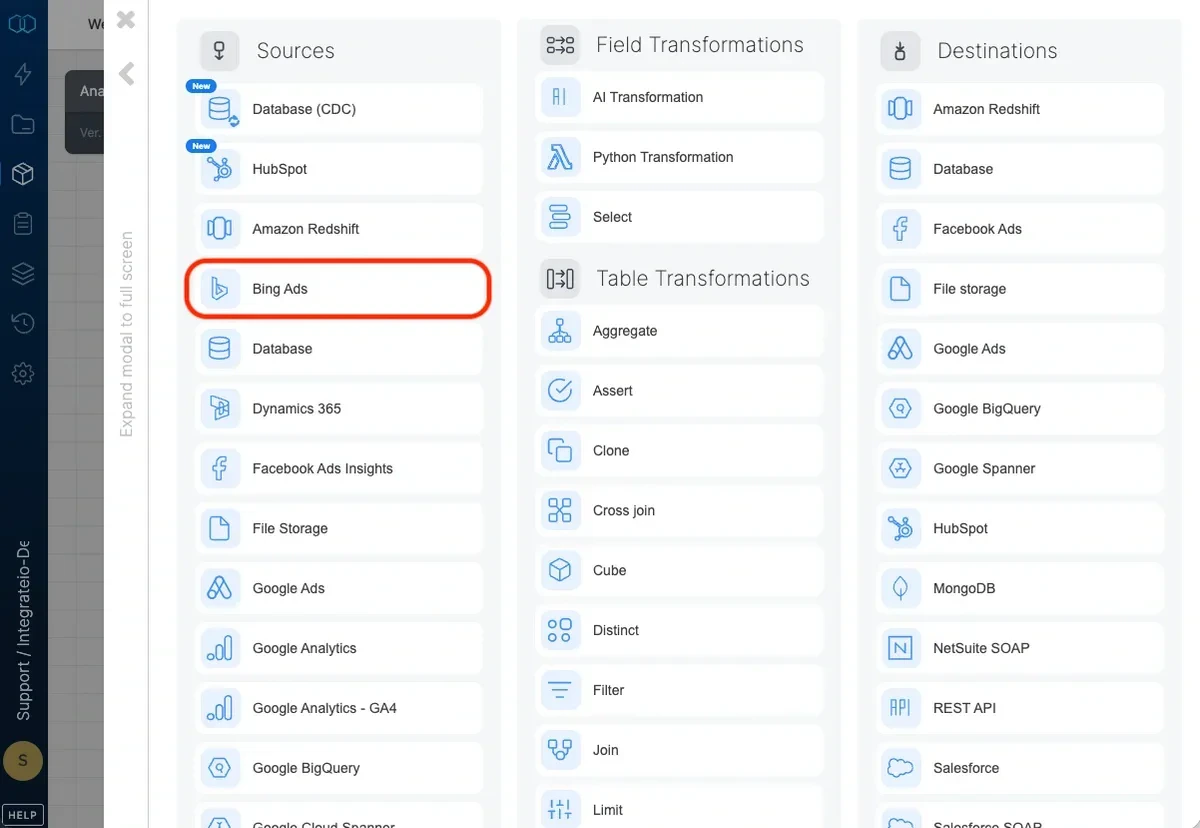
Connection
Select an existing Bing Ads connection or create a new one.Source Properties
- API Version - Integrate.io ETL will use the selected Adwords API version when running the job. Microsoft releases a new API version every few months and sunsets older versions of the API. You should check and update the API versions periodically.
- Report type - Select a report type from the dropdown list of reports.
- Unit of time - Select date/time granularity for the report. Date and time fields will be added to the source schema depending on the selection.
- Date range - Select a date range from the dropdown list of ranges. If you select
custom date range..., you will be prompted to enter From date and To date. Click either inputs and select the dates from the calendar. You can also use variables as values for the custom date range in the formatyyyyMMdd. - Accounts and campaigns - Select accounts or specific campaigns to report on.
Source Schema
After defining the Bing report, select the fields to use in the source.Note:Some fields are not compatible with other fields in the same report.