

Overview
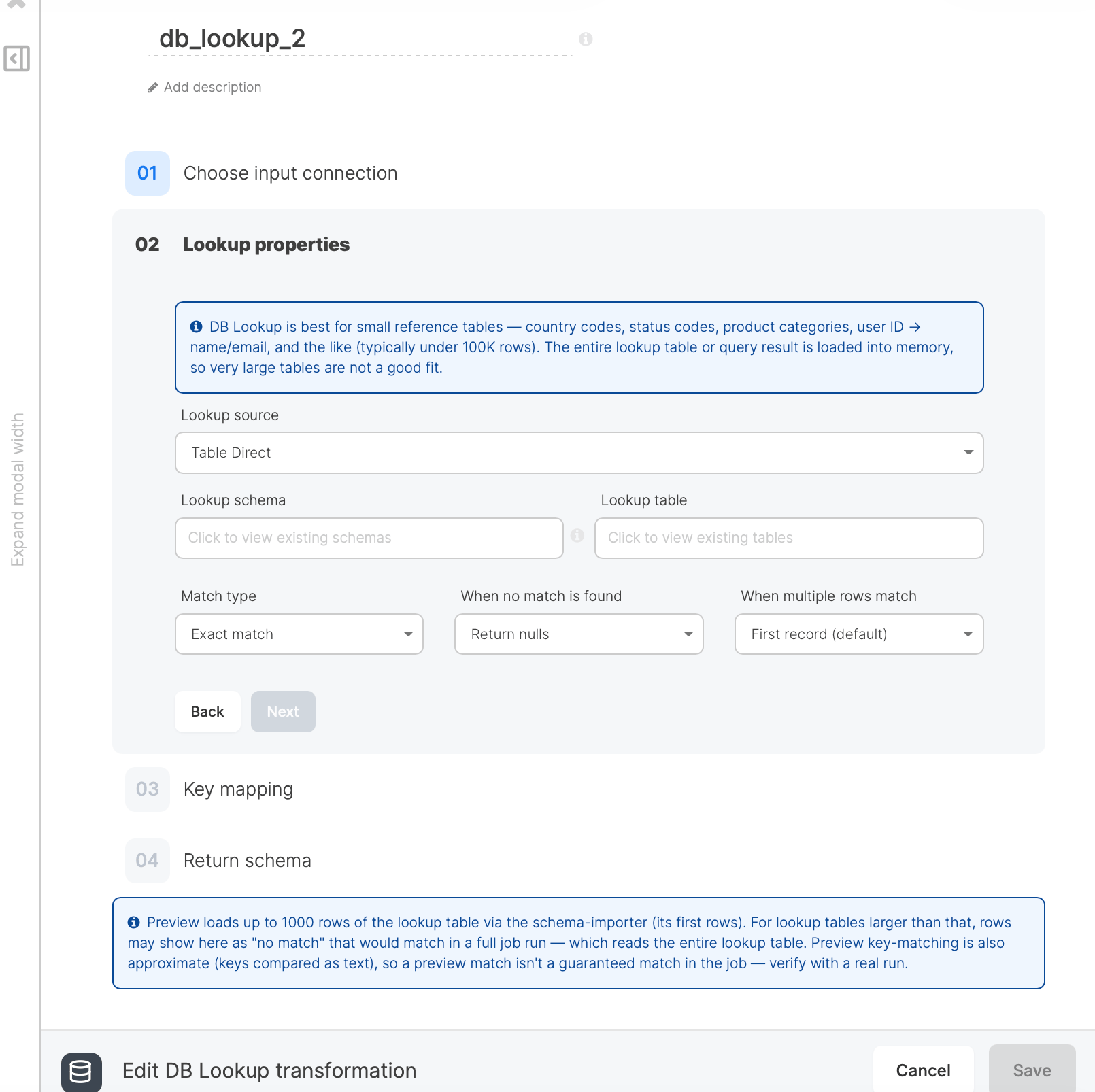
The DB Lookup component has one input and one output. It is configured through four steps:
DB Lookup supports the same database connection types as the Database source (MySQL, PostgreSQL, Oracle, SQL Server, Snowflake, Redshift, BigQuery, Vertica, SAP HANA, and others).
Step 1: Choose input connection
Select the database connection that holds your lookup data. This is the connection DB Lookup reads the reference table or query from. The connection must already exist in your account.Step 2: Lookup properties
Configure how the lookup source is read and how matches are handled.Fuzzy match
Fuzzy match compares text keys by similarity instead of equality. For each input row, DB Lookup scores every key in the lookup table against the input value and returns the row with the highest score, provided that score meets the configured threshold. Use it for inconsistent text such as customer names, company names, or free-text codes where exact matches miss legitimate hits (Jonathon to Jonathan, Acme Inc to Acme Incorporated).
Fuzzy match has two extra settings:
Behavior to keep in mind:
- Fuzzy supports exactly one key mapping. Add a single row in Step 3; composite fuzzy keys are not supported.
- Comparisons are case-insensitive.
- When two or more lookup rows tie for the top score, the When multiple rows match setting decides the result (first record, last record, fail pipeline, or return null).
- Scores below the threshold count as no match, so the When no match is found setting applies.
- The entire lookup table is scanned for every input row, so keep the lookup table small (well under 100K rows) when using fuzzy.
Step 3: Key mapping
Map one or more input fields to the lookup columns they should match against. A row in the output is matched when all of its key mappings are satisfied (logical AND). The step opens with one blank mapping row. For each mapping, pick an Upstream field (from the incoming records) and the Lookup column to compare it to. Add more rows with + Add key mapping for composite keys.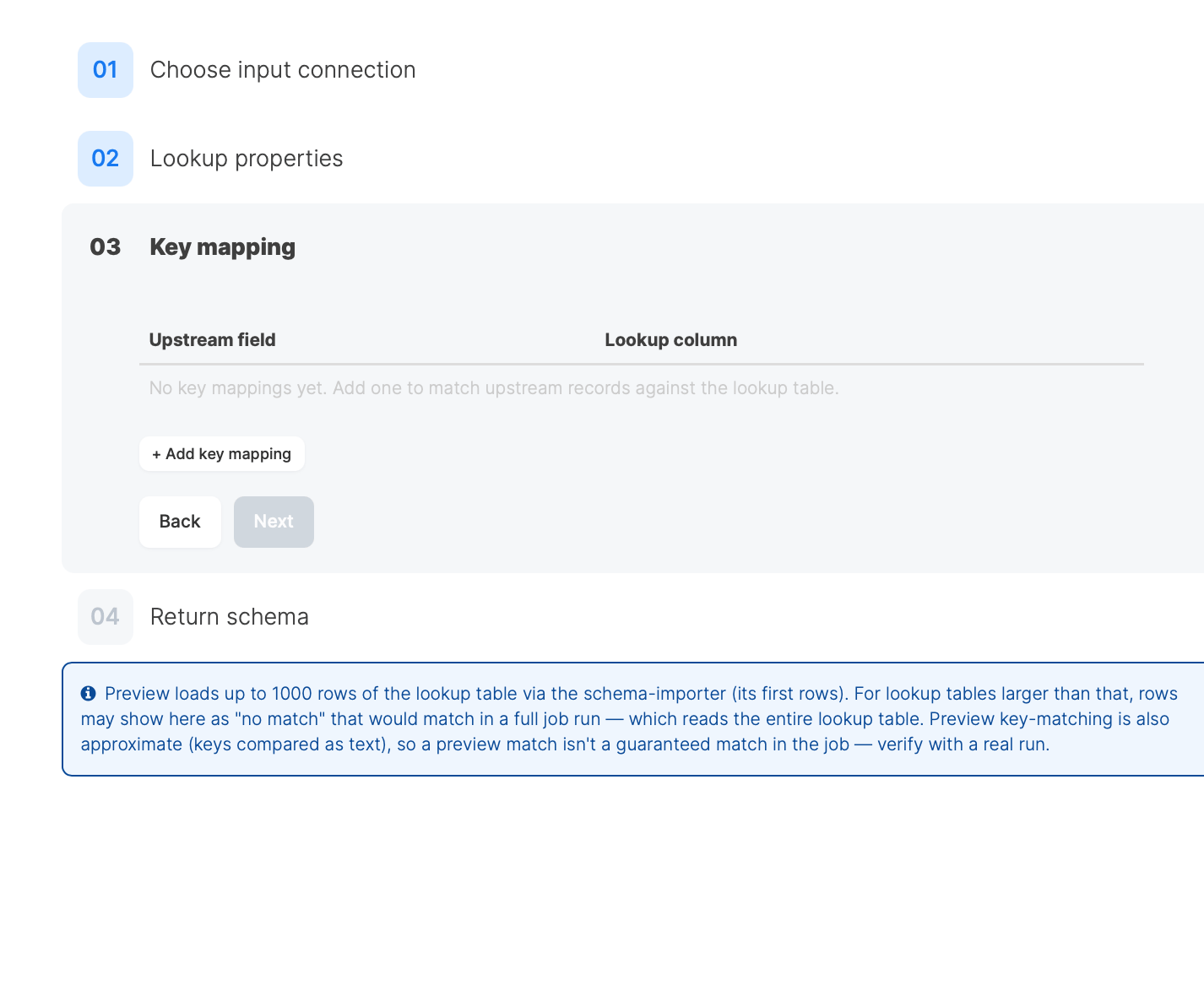
Step 4: Return schema
Choose which columns appear in the component’s output. The output is the combination of upstream pass-through columns and lookup return columns.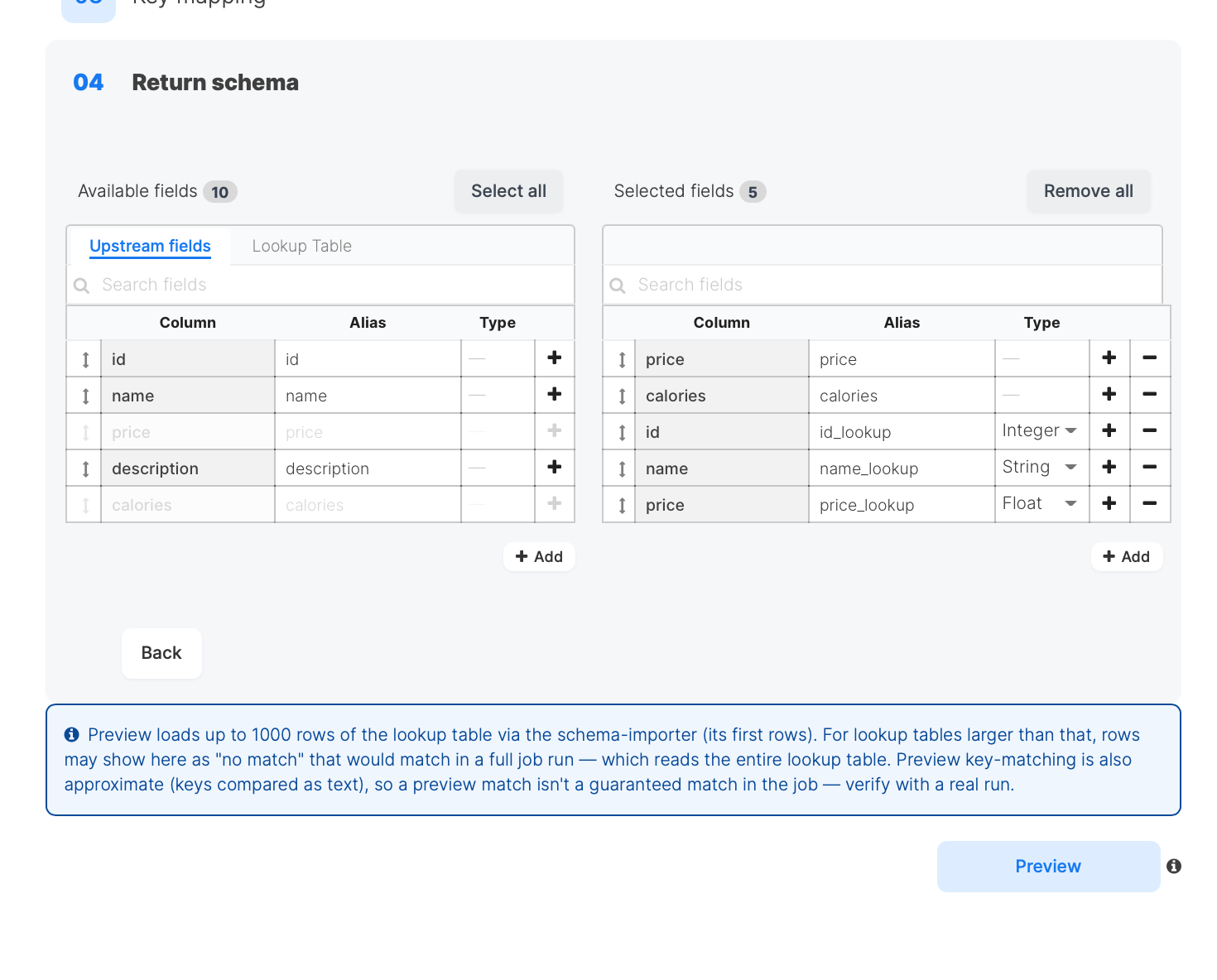
- Upstream fields are the columns coming from the input. Their type is determined by the upstream component; when it cannot be determined, the type shows a dash and is read-only (Pig preserves the real type at run time).
- Lookup Table are the columns from the lookup table or query, with the type reported by the source.
Example
A pipeline reads orders that carry aproduct_id. A DB Lookup against a products reference table maps the input product_id to the lookup id column and returns name and price.
Input record:
products:
name or price already existed upstream, the lookup aliases would be auto-suffixed to name_lookup and price_lookup to keep every output column unique.
Best practices
- Keep the lookup table small. The whole table or query result is loaded into memory, so DB Lookup suits reference data, not large fact tables.
- Restrict the columns. Use Custom SQL Query mode (or trim the Return schema) so only the columns you need are loaded.
- Choose unique keys. Mapping to a non-unique lookup column triggers the multiple-match behavior; pick keys that are unique in the lookup source where possible.
- Decide no-match handling deliberately. Use Return nulls for optional enrichment, Use default values for guaranteed output, and Fail pipeline when an unmatched row is a data error.
Preview behavior
Preview loads up to 1000 rows of the lookup table through the schema importer (its first rows). For lookup tables larger than that, rows may show in preview as “no match” that would match in a full job run, which reads the entire lookup table. Preview key-matching is also approximate (keys are compared as text), so a preview match is not a guaranteed match in the job. Verify with a real run.FAQ
Q: How is DB Lookup different from the Join transformation? Join combines two pipeline inputs and runs on the cluster. DB Lookup reads a reference table or query from a database connection and loads it into memory to enrich a single input. Use DB Lookup for small reference data and Join for combining two large pipeline data sets. Q: What happens when a key matches more than one lookup row? The “When multiple rows match” setting decides: keep the first matching record (default), keep the last, return null for the lookup columns, or fail the pipeline. Q: Why did my lookup column get renamed with a_lookup suffix?
Its default alias collided with an upstream column of the same name. To keep every output column unique, the lookup alias is automatically suffixed (for example id_lookup). You can edit the alias to any unique name.
Q: Why is the type for an upstream field shown as a dash and not editable?
The upstream component did not report a type for that column. The value is display-only; the real type is preserved at run time, so the output is unaffected.
Q: How large can the lookup table be?
The entire lookup table or query result is loaded into memory, so keep it small (typically under 100K rows). For larger data, use the Join transformation.
Q: When should I use Fuzzy match instead of Exact or Case insensitive?
Use Fuzzy when keys are dirty or inconsistent text (typos, abbreviations, name variants) and you accept approximate matches. Use Exact or Case insensitive when keys are clean identifiers (IDs, codes, normalized strings) where any difference should count as no match. Start with the Levenshtein algorithm and a threshold of 85, then adjust based on results.