

- Directly by whitelisting Integrate.io ETL’s IP
- Through an SSH tunnel
- Through a Reverse SSH tunnel
Direct Connection
Provide Integrate.io ETL access to your server from Integrate.io ETL’s network:- Allow access to your server’s host and port from Integrate.io ETL’s IP addresses.
- Create a user and grant it minimum permissions required for Integrate.io ETL to read or write data from the server.
- See these articles for details of setting up secure access for Amazon Relational Database Service (RDS) and for Amazon Redshift.
SSH Tunnel
SSH Tunnel lets you connect Integrate.io ETL to your database or file server through a bastion host or a tunnel server. This connection type is used if you are unable to add an inbound firewall rule to your data warehouse, or your data warehouse IP address is on an internal network (no outside network access).Creating Integrate.io ETL Connection
SSH Tunnel connection is supported on database connections and SFTP.1
On the dashboard Connections, click New Connection and choose a connection to use.
2
Choose SSH tunnel connection as Access type and supply your connection and tunnel host details. Then Click Create Connection to generate a unique SSH public key for your connection.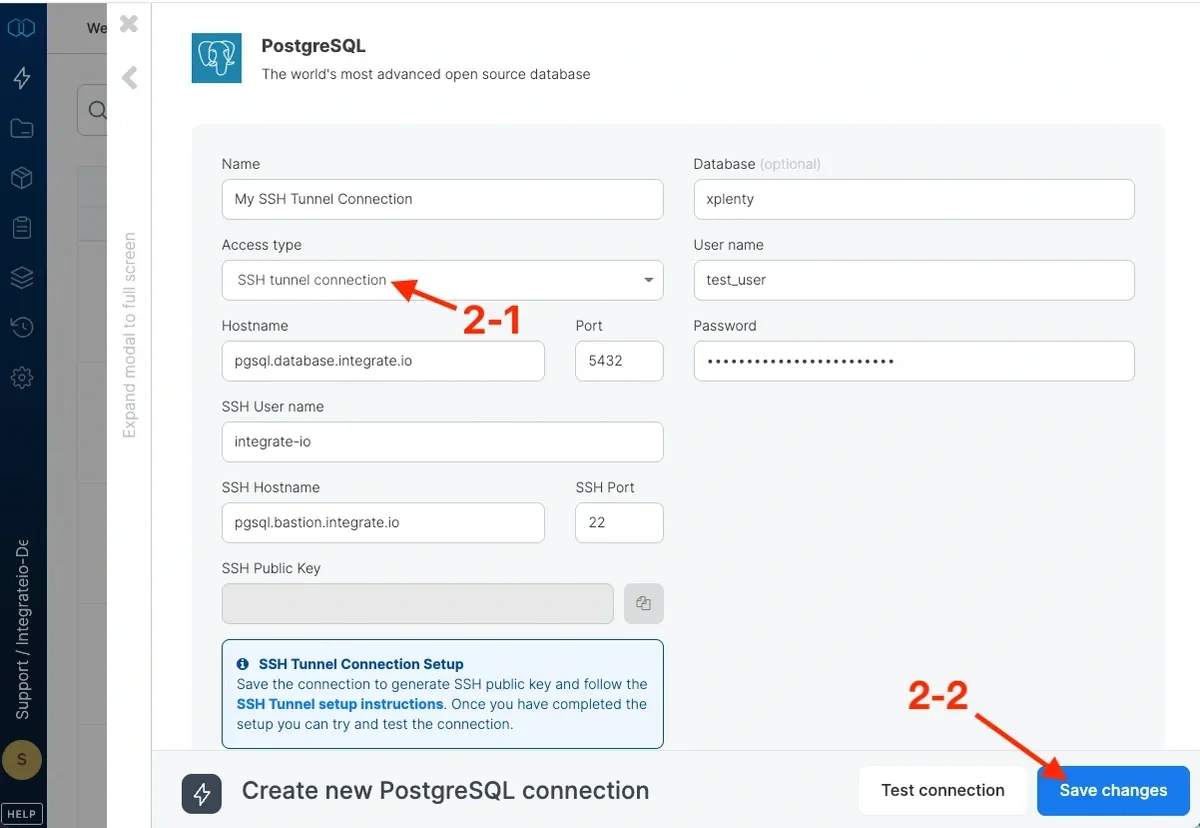
3
Copy the SSH Public key by clicking the copy button and prepare your tunnel host for access. Once your tunnel host is prepared, click Test connection and Create connection once the connection is successful.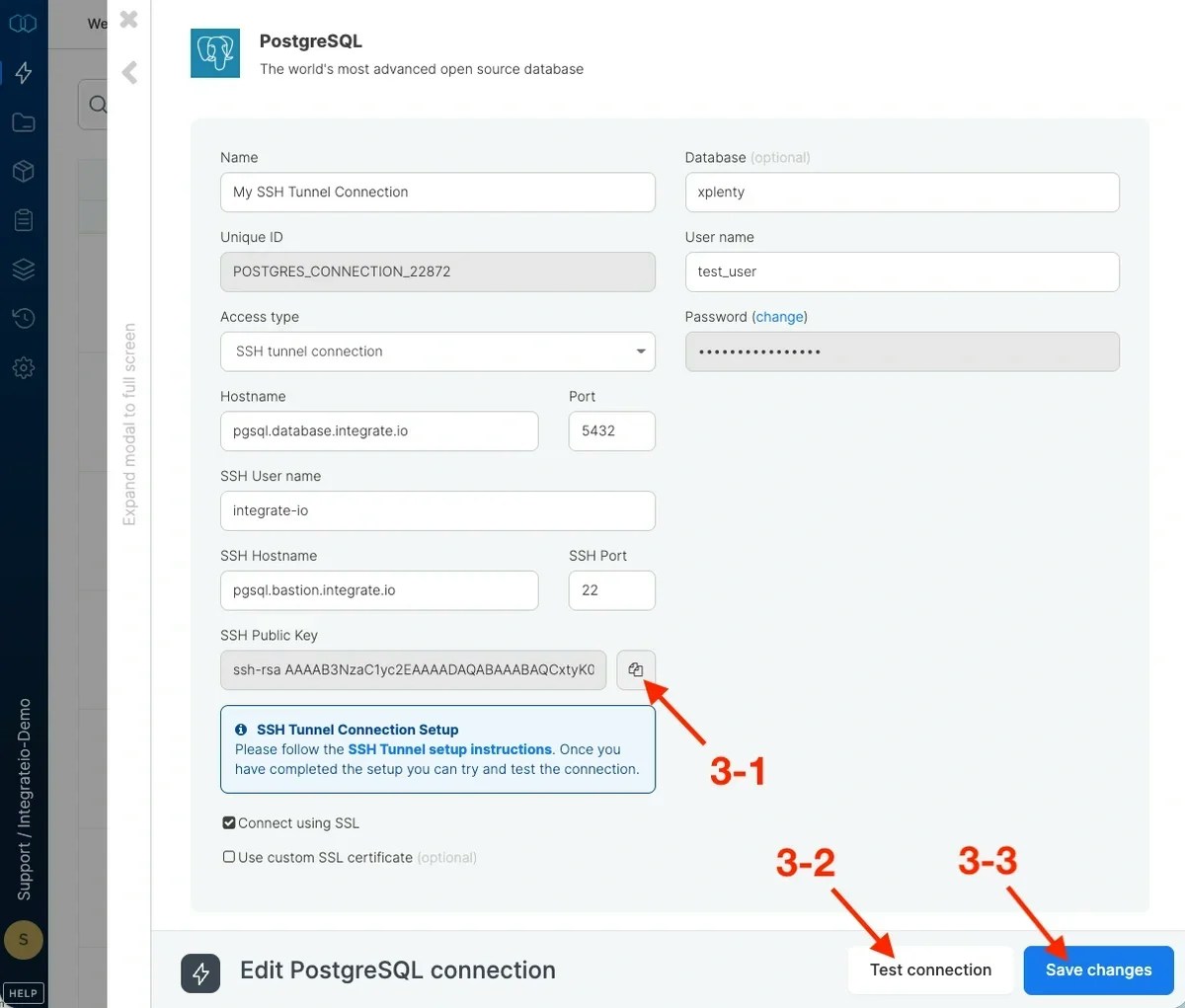
Preparing the Tunnel Host
You will need to prepare your host (either bastion host or tunnel server) by creating an integrate.io ETL user and adding the connection’s public key to the integrate-io ~/.ssh/authorized_keys file. Here’s how:1
Create group integrate-io:
2
Create user integrate-io and its home directory:
3
Switch to the integrate-io user:
4
Create the .ssh directory and change permission:
5
Create the authorized_keys file and change permission:Using your favorite text editor, add your connection’s public key to the authorized_keys.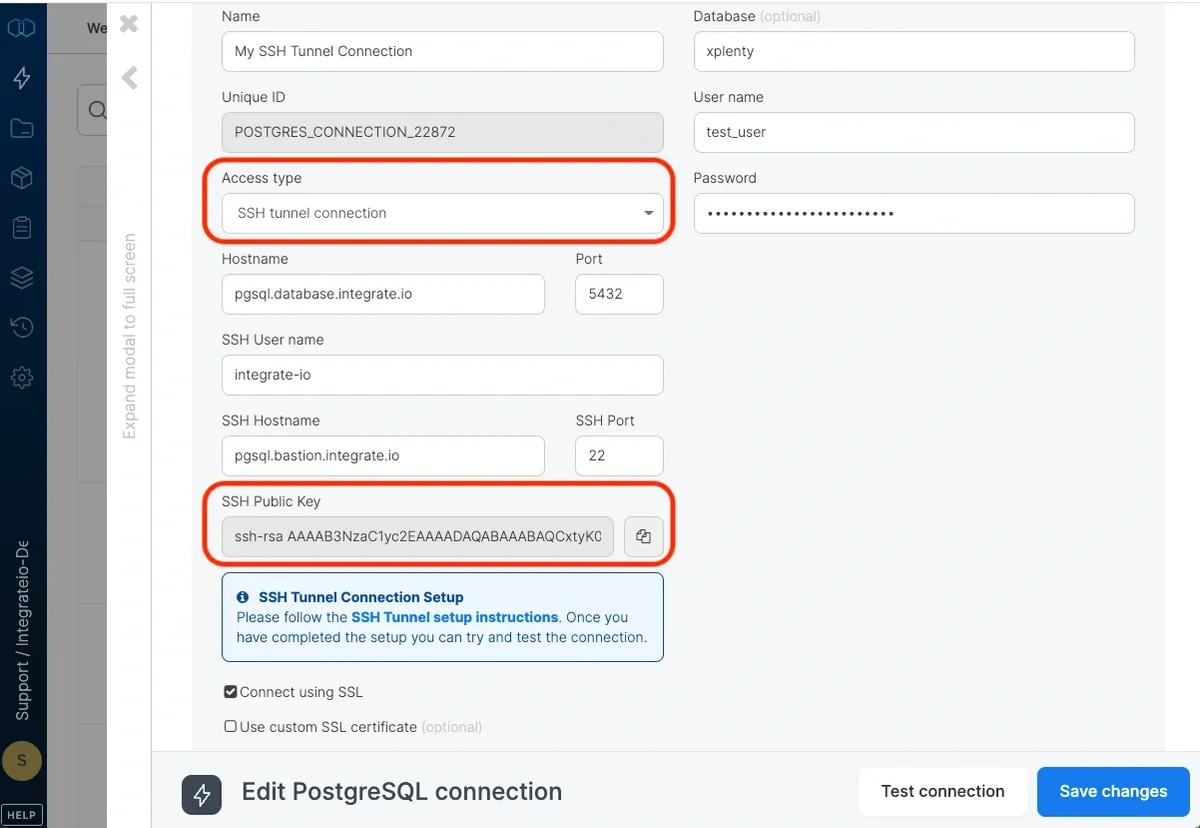
6
Allow access to your server’s host and port from Integrate.io ETL’s IP addresses.
Reverse SSH Tunnel
You can also connect to Integrate.io ETL through reverse SSH Tunnel if you are unable to provide direct port access to your instance. We recommend that you use autossh which starts an instance of SSH client and monitors it, restarting it as necessary should it die or stop passing traffic. In order to allow Integrate.io ETL to connect to your server through an SSH tunnel, you have to complete the following steps:Tunnel Host Requirements
The reverse SSH tunnel host runs only a lightweight SSH client (autossh) that forwards a single port to your database. It performs no data processing, so a minimal VM is sufficient.
Recommended minimum specification:
- CPU: 1 vCPU
- RAM: 1 GB
- Disk: ~10 GB (OS plus
autosshand tunnel logs) - OS: any current Linux distribution with systemd and OpenSSH, for example Ubuntu 20.04/22.04/24.04, Debian 11/12, Amazon Linux 2/2023, or RHEL/CentOS 8/9. Windows Server is also supported (see Reverse SSH Tunnel from Windows (PowerShell)).
- Connectivity: outbound SSH access to the Integrate.io jump host.
t3.micro / t4g.micro, Azure B1s, or GCP e2-micro.
Sizing note: the only real constraint is network throughput for the database traffic being forwarded, not CPU or RAM. For high-volume ETL workloads, 2 vCPU / 2 GB with adequate network bandwidth is comfortable, but the host never needs to be sized like a data-processing node.
Prerequisite
Add a public key in your user settings. The public key will be propagated to all Integrate.io ETL servers in up to 30 minutes.Creating Integrate.io ETL Connection
1
On the dashboard Connections, click New Connection and choose a connection to use.
2
Choose Reverse SSH tunnel connection as Access type and supply your connection’s username and port.
3
Click Create connection.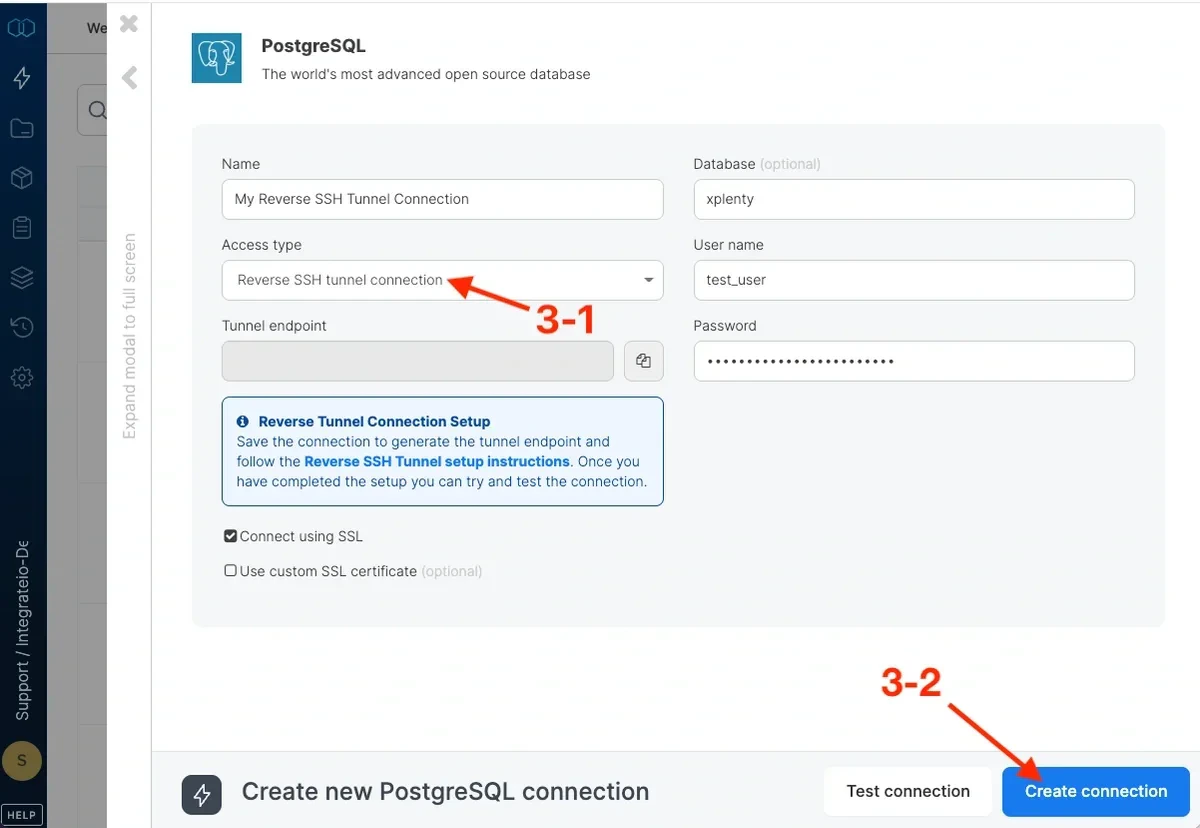
4
It will fail because we haven’t created the tunnel yet, but the light blue box will appear and you will be able to retrieve Integrate.io ETL’s tunnel server (Integrate.io ETL server endpoint that includes everything before the colon) and connection port (the number after the colon).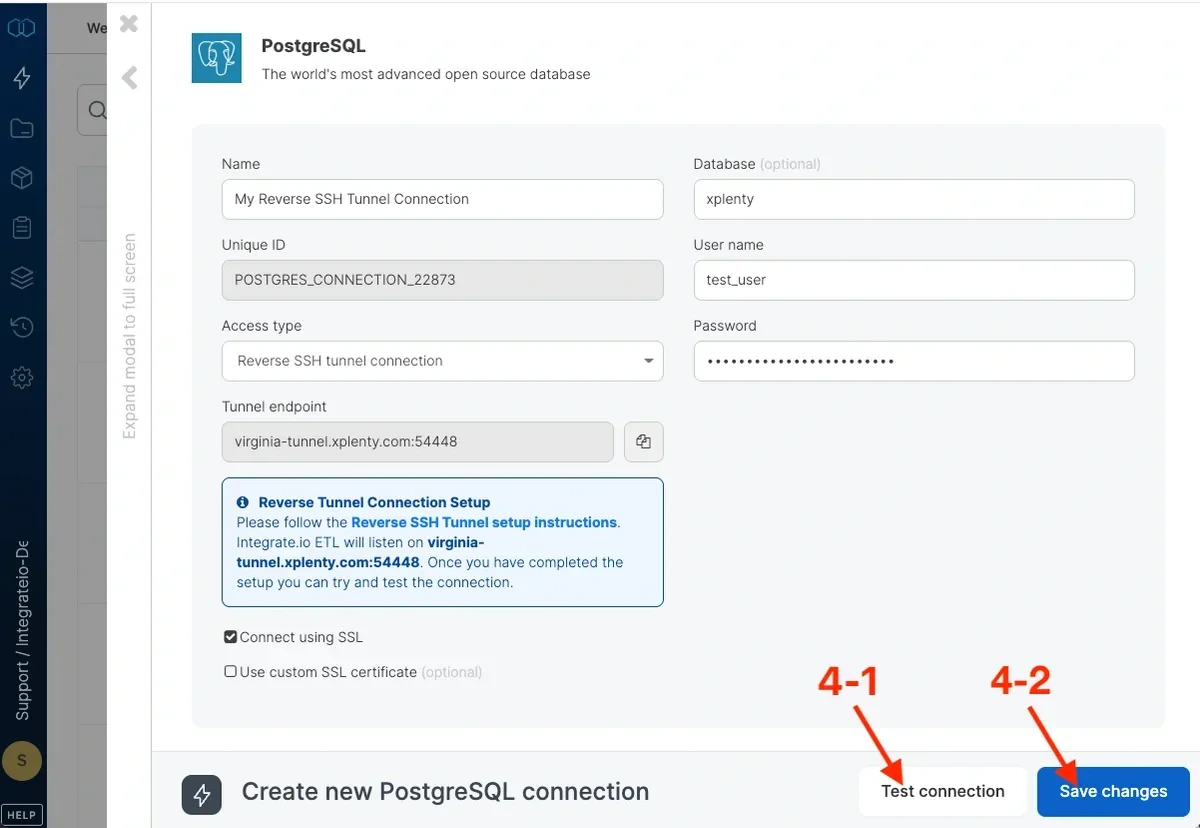
Establishing Reverse SSH Connection
1
2
Create directories to keep logs and pid files for the connection. For example:
3
Add Integrate.io ETL’s server public key to a known_hosts file. For example:
4
You can test the tunnel using SSH. Use the following syntax and insert your information at the placeholders:
5
Run autossh. Use the following syntax and insert your information at the placeholders:For example, if you open the tunnel to a database that listens to port 5432 on host mydbserver, and the connection’s assigned host and port at Integrate.io ETL are tunnel.integrate.io and 12345. Note that the SSH port in Integrate.io ETL’s servers is 50683:
6
Add crontab record to run autossh automatically to reconnect after reboots. For example: