

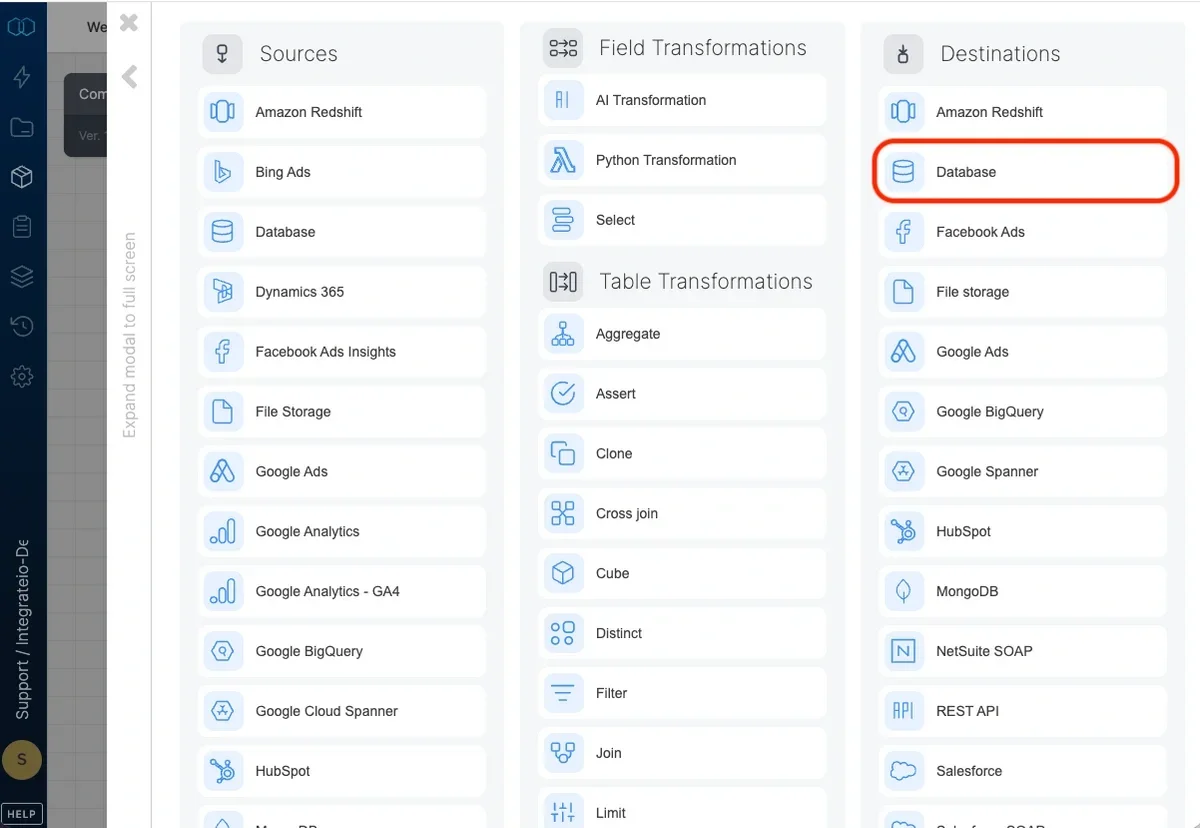
Connection
Select an existing database connection or create a new one (for more information, see Allow Integrate.io ETL access to my database server).Destination Properties
- Target schema - the target table’s schema. If empty, the default schema is used.
- Target table - the name of the target table in your database. By default, if the table doesn’t exist, it will be created automatically.
- Automatically create table if it doesn’t exist - if unchecked and the table doesn’t exist, the job fails.
- Automatically add missing columns - when checked, the job will check if each of the specified columns exist in the table and if one does not exist, it will add it. Keep in mind that if there are a very large number of fields, this could impact job run time. Key columns can’t be automatically added to a table.
Operation type
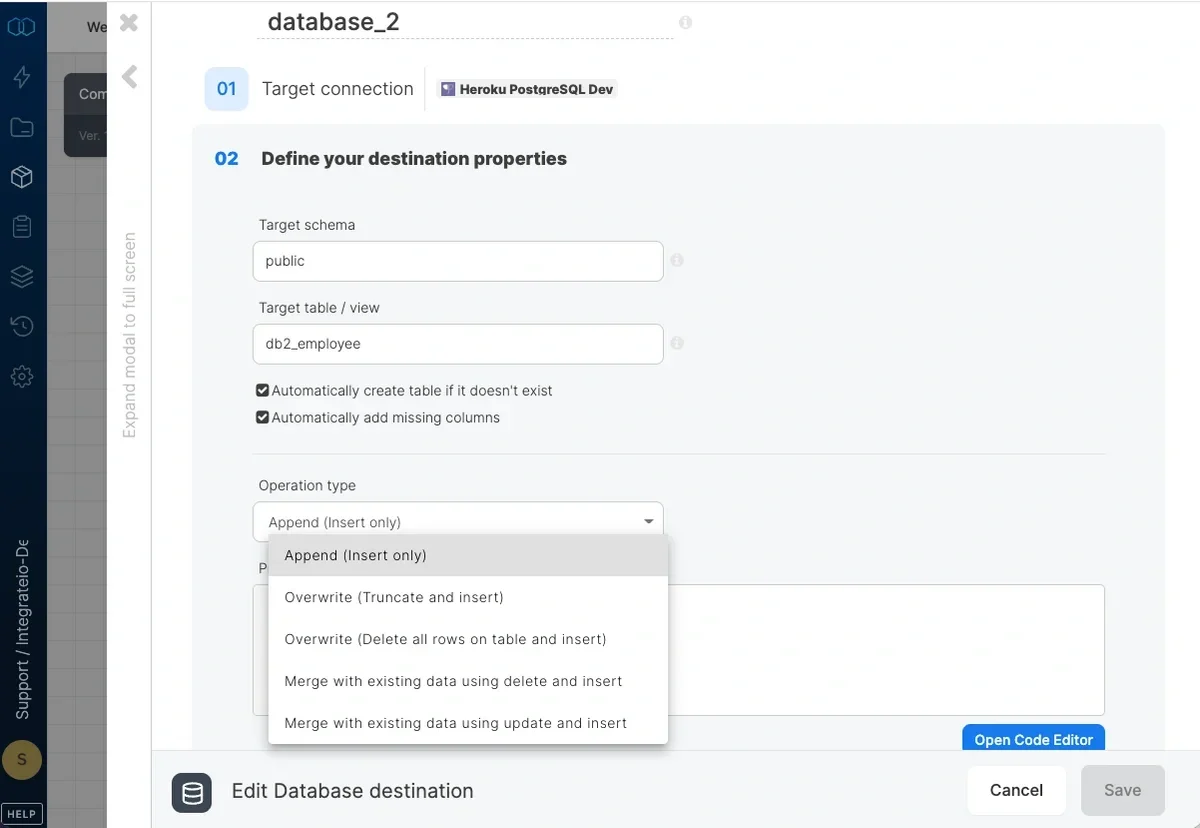
- Append (Insert only) - default behavior. Data will only be appended to the target table
- Overwrite (Truncate and insert) - truncate the target table before data is inserted into the target table. There may be limitations on whether truncate can be used on the target table, depending on the destination database platform.
- Overwrite (Delete all rows on table and insert) - deletes all of the target table before the data flow executes. If a truncate statement can’t be executed on the target table due to permissions or other constraints, you can use this instead. This operation does not clear the schema.
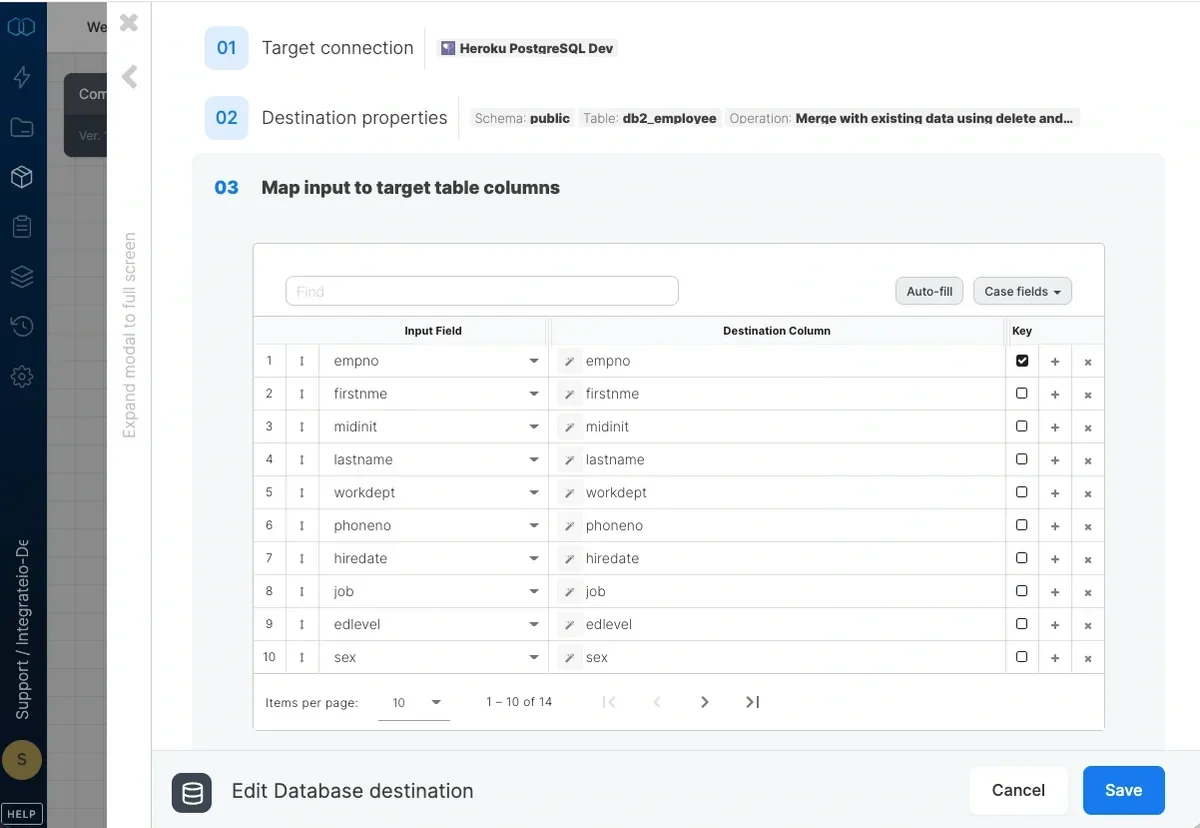
- Merge with existing data using delete and insert - incoming data is merged with existing data in the table by deleting target table data that exists in both the data sets and then inserting all the incoming data into the target table. Requires setting the merge keys correctly in field mapping. Merge is done in the following manner:
1
First transaction - A staging table is created with a primary key according to your key mapping in the database’s default schema.
2
Second transaction - The dataflow’s output is bulk copied into the staging table.
3
Third transaction - Rows with keys that exist in the staging table are deleted from the target table. All rows in the staging table are inserted into the target table. The staging table is deleted.
- Merge with existing data using update and insert - incoming data is merged with existing data in the table by updating existing data and inserting new data. Requires setting the merge keys correctly in field mapping. Merge is done in the following manner:
1
First transaction - A staging table is created with a primary key according to your key mapping in the database’s default schema.
2
Second transaction - The dataflow’s output is bulk copied into the staging table.
3
Third transaction - Database specific command is issued to update existing records and insert. The staging table is deleted.
Note:
- The incoming data must have unique values in the key fields you selected. A possible workaround for this issue can be to use a Limit component and add the key field/s as a partition and limit it to 1 to remove duplicates.
- When executing Merge operation in DB2 database, admin-level permission is required. Please use one of the following authorities:
- SYSADM
- SYSCTRL
- SYSMAINT
- DBADM
- SQLADM
- CONTROL
- EXECUTE
- DATAACCESS
- SYSADM
- When inserting data to Oracle DB destination with “add missing column” checked. We might need a specific permission to
dba_tab_columnsby executing either
GRANT SELECT_CATALOG_ROLE TO your_usernameorGRANT SELECT ANY DICTIONARY TO your_username. (Reference: Oracle 11g Role and User management, Oracle 11g GRANT command documentation)
Pre and Post action SQL
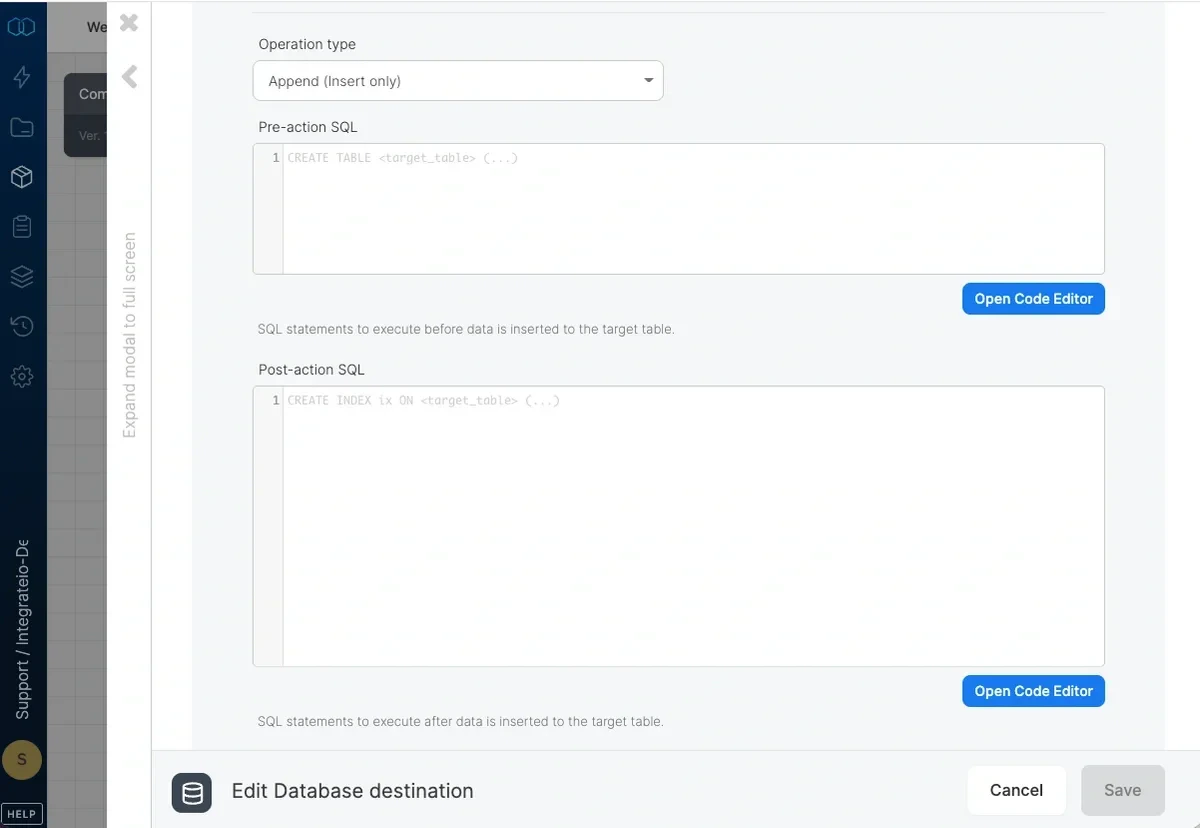
- Pre-action SQL - SQL code to execute before inserting the data into the target table. If a merge operation is selected, the sql code is executed before the staging table is created.
-
Post-action SQL - SQL code to execute after inserting the data into the target table. If a merge operation is selected, the sql code is executed after the staging table is merged into the target table.
Note:Post-action SQL will only executed after successfully writing data to the table. If the jobs fails - the action will not proceed.
Advanced options
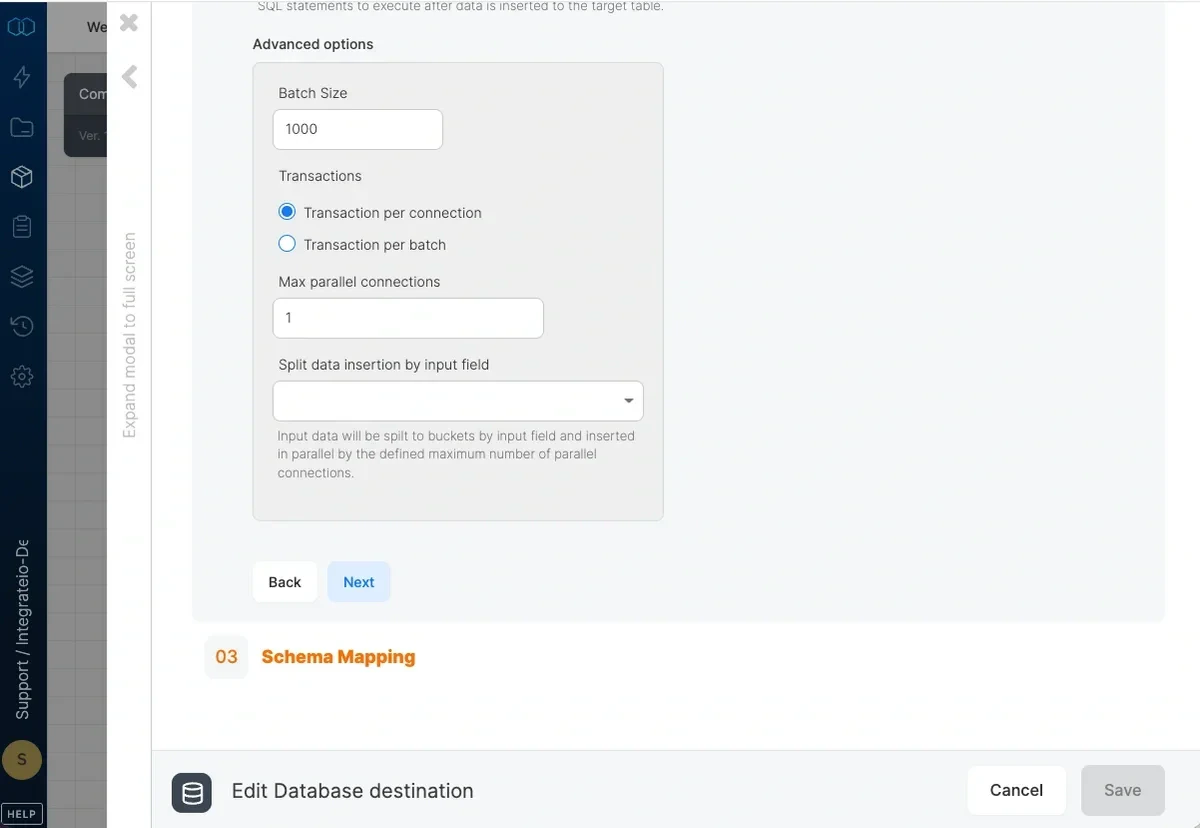
- Batch size - number of records that are inserted to the database in each batch (default 1000).
- Transactions - by default, each connection to the database will use a single transaction. If “Transaction per batch” is selected, each batch will be committed on its own which may lead to partial data in the target table in case the job fails.
- Max parallel connections - maximum number of concurrent connections to open when writing to the database (1 by default).
- Split data insertion by input field - when using more than one connection, this field will be used to split the data to the different connections. Pick a field with low density (a unique key is best) to make sure that data split isn’t skewed.
- Insert values to identity column (SQL Server) - Only available if SQL server connection is selected on the component. SQL Server does not allow inserting explicit values to identity column. Enabling this will set IDENTITY_INSERT to ON before the query to insert values to identity column.
Schema Mapping
Related
Database Source
Scheduling Package Execution
Firewall Setup
Note:Use the ToDate function to cast a datetime string expression to datetime data type. Note that a datetime with timezone offset value will be adjusted to UTC when inserted into a database