1
Open the instance in the RDS Dashboard in the Connectivity & Security section of the DB Instance pane.
2
Verify that Publicly Accessible is set to the default value Yes.
3
Click the Security Group listed.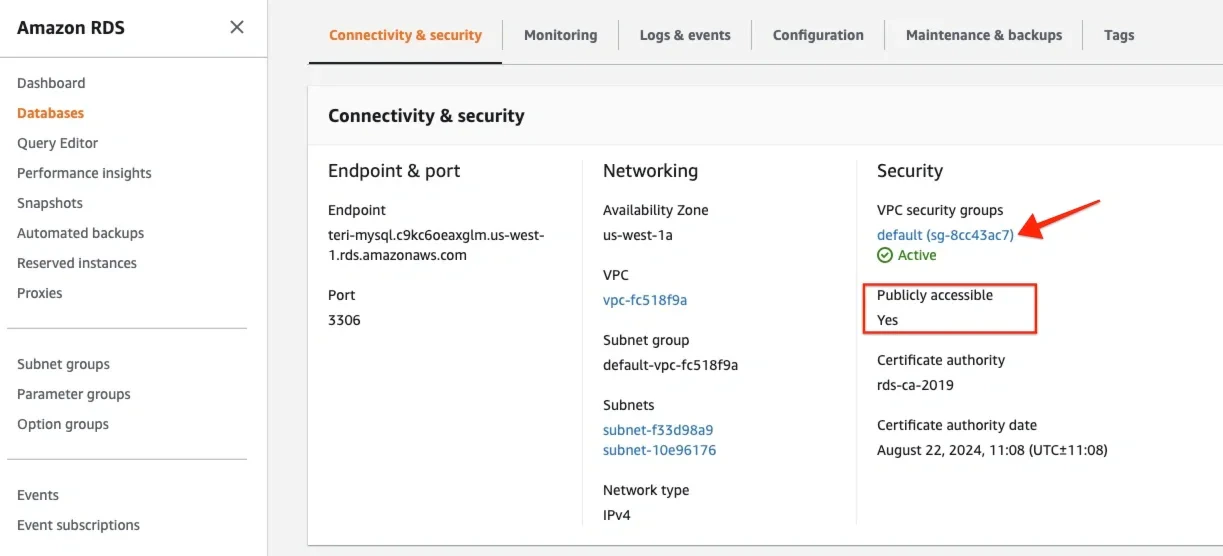
4
In the Security Group screen, select the Inbound tab. Then click Edit inbound rules.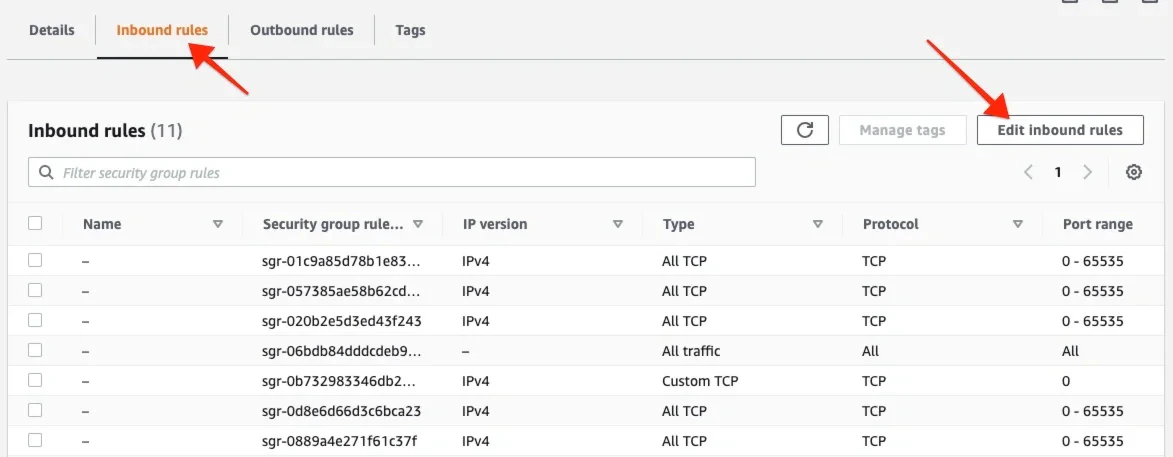
5
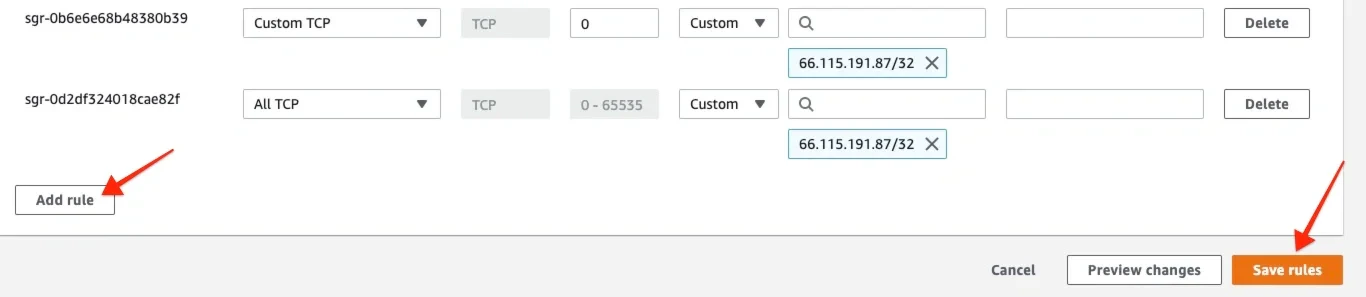
Click Add rule to add the IP addresses listed here. Create a rule for each of the IP addresses:In the “Type” dropbox, choose Custom TCP rule.
In the port range, add the port that your database listens to.
In the source dropbox select Custom IP and enter one of the IP addresses.The default ports for supported databases are:MySQL - 3306
SQL Server - 1433
PostgreSQL - 5432.
In the port range, add the port that your database listens to.
In the source dropbox select Custom IP and enter one of the IP addresses.The default ports for supported databases are:MySQL - 3306
SQL Server - 1433
PostgreSQL - 5432.
6
Click Save rules.